
Associate an OVHcloud Connect to Your vRack
Find out how to associate your OVHcloud Connect service with a vRack for private connectivity
Objective
The vRack is OVHcloud's private networking service. To let your OVHcloud resources (servers, VMs, etc.) communicate through your OVHcloud Connect link, associate the OVHcloud Connect service with a vRack.
What the association does
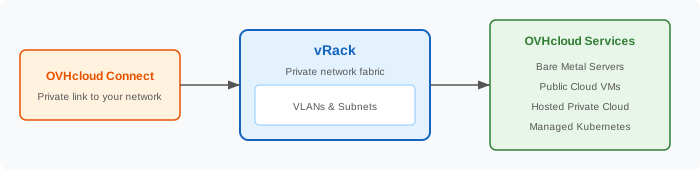
When you associate OVHcloud Connect with a vRack:
- Traffic from your external network (on-premises, cloud, WAN) can reach OVHcloud services attached to the same vRack.
- OVHcloud services in the vRack can send traffic back through OVHcloud Connect to your network.
- All communication stays private — it never touches the public internet.
Prerequisites
- An OVHcloud Connect service that is active (physical link up or provider connection active).
- A vRack service provisioned on your OVHcloud account. If you don't have one, you can create it from the Control Panel (it's free).
- At least one OVHcloud service (server, VM, etc.) attached to the vRack.
Log in to your and go to Network > OVHcloud Connect.
Steps to associate
Via the OVHcloud Control Panel
- Navigate to
Network>vRack. - Select your vRack.
- Click
Add a service. - From the list of eligible services, find your OVHcloud Connect service and select it.
- Click
Addto confirm.
The association is typically effective within a few minutes.
Via the API
See the OVHcloud API Console for the complete list of vRack-related endpoints.
Via Terraform
Check the OVH Terraform provider documentation for the exact resource name and attributes.
Verify the association
After associating:
- In the vRack section of the Control Panel, confirm that OVHcloud Connect appears in the list of associated services.
- Check that the VLAN configuration is consistent: the VLAN ID used in your OVHcloud Connect PoP configuration should match the VLAN used by your OVHcloud resources in the vRack.
- Test connectivity: ping an OVHcloud resource from your external network to confirm end-to-end private communication.
Removing the association
If you need to dissociate OVHcloud Connect from a vRack:
- Go to
Network>vRackin the Control Panel. - Select your vRack.
- Find the OVHcloud Connect service and click
Remove. - Confirm the removal.
Warning: Removing the association will immediately interrupt private traffic between your external network and OVHcloud resources in that vRack.
What's next?
- Monitor your OVHcloud Connect
- Set up your vRack network to set up subnets properly
Go further
For training or technical assistance implementing our solutions, contact your sales representative or visit our Professional Services page to request a quote and have your project analyzed by our experts.
Join our community of users.