---
title: "'Associate an OVHcloud Connect to Your vRack'"
description: "'Find out how to associate your OVHcloud Connect service with a vRack for private connectivity'"
url: https://docs.ovhcloud.com/es/guides/network/ovhcloud-connect/associate-vrack
lang: es
lastUpdated: 2026-06-16
---
# Associate an OVHcloud Connect to Your vRack
## Objective
The **vRack** is OVHcloud's private networking service. To let your OVHcloud resources (servers, VMs, etc.) communicate through your OVHcloud Connect link, associate the OVHcloud Connect service with a vRack.
## What the association does
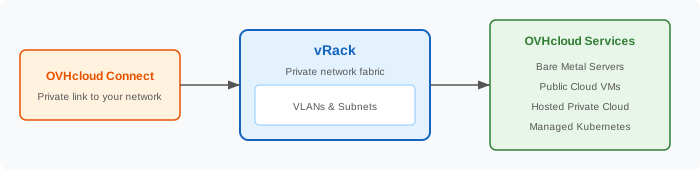
When you associate OVHcloud Connect with a vRack:
- Traffic from your external network (on-premises, cloud, WAN) can reach OVHcloud services attached to the same vRack.
- OVHcloud services in the vRack can send traffic back through OVHcloud Connect to your network.
- All communication stays **private** — it never touches the public internet.
## Prerequisites
- An **OVHcloud Connect** service that is active (physical link up or provider connection active).
- A **vRack** service provisioned on your OVHcloud account. If you don't have one, you can create it from the Control Panel (it's free).
- At least one OVHcloud service (server, VM, etc.) attached to the vRack.
Log in to your OVHcloud Control Panel
and go to `Network
` > `OVHcloud Connect
`.
## Steps to associate
### Via the OVHcloud Control Panel
1. Navigate to Network > vRack.
2. Select your vRack.
3. Click Add a service.
4. From the list of eligible services, find your **OVHcloud Connect** service and select it.
5. Click Add to confirm.
The association is typically effective within a few minutes.
### Via the API
🇪🇺EU▾
[GET/vrack/{serviceName}/ovhCloudConnect](https://eu.api.ovh.com/console/?section=/vrack&branch=v1#get-/vrack/-serviceName-/ovhCloudConnect)
```python
import ovh
client = ovh.Client(endpoint='ovh-eu')
vrack_service_name = "pn-12345"
occ_service_id = "your-occ-service-uuid"
# Associate OVHcloud Connect with a vRack
client.post(f"/vrack/{vrack_service_name}/ovhCloudConnect",
ovhCloudConnect=occ_service_id)
```
> See the [OVHcloud API Console](https://eu.api.ovh.com/console/?section=%2FovhCloudConnect\&branch=v1) for the complete list of vRack-related endpoints.
### Via Terraform
```hcl
resource "ovh_vrack_ovhcloudconnect" "association" {
service_name = "pn-abc123" # Your vRack service name
ovh_cloud_connect = "ovhcc-xyz789" # Your OVHcloud Connect service ID
}
```
> Check the [OVH Terraform provider documentation](https://registry.terraform.io/providers/ovh/ovh/latest/docs) for the exact resource name and attributes.
## Verify the association
After associating:
1. In the **vRack** section of the Control Panel, confirm that OVHcloud Connect appears in the list of associated services.
2. Check that the **VLAN configuration** is consistent: the VLAN ID used in your OVHcloud Connect PoP configuration should match the VLAN used by your OVHcloud resources in the vRack.
3. **Test connectivity**: ping an OVHcloud resource from your external network to confirm end-to-end private communication.
## Removing the association
If you need to dissociate OVHcloud Connect from a vRack:
1. Go to Network > vRack in the Control Panel.
2. Select your vRack.
3. Find the OVHcloud Connect service and click Remove.
4. Confirm the removal.
> **Warning:** Removing the association will immediately interrupt private traffic between your external network and OVHcloud resources in that vRack.
## What's next?
- [Monitor your OVHcloud Connect](/es/guides/network/ovhcloud-connect/monitor.md)
- [Set up your vRack network](/es/guides/network/ovhcloud-connect/vrack-network-setup.md) to set up subnets properly
## Go further
For training or technical assistance implementing our solutions, contact your sales representative or visit our [Professional Services](https://www.ovhcloud.com/es-es/professional-services/) page to request a quote and have your project analyzed by our experts.
Join our [community of users](https://community.ovhcloud.com/).