Build a workflow with the workflow builder
Find out how to chain Data Processing Engine actions as a graph, with dependencies, groups, retries, timeouts and failure routes
Objective
The workflow builder lays out a workflow as a graph of actions. Instead of putting actions in successive stages, you say what each action waits for: an action starts once the actions it depends on have succeeded, or failed. This guide explains how to:
- add actions and set what each one waits for;
- group actions;
- run independent actions in parallel;
- set retries and a timeout on an action;
- decide what happens when an action fails;
- follow a run;
- create the same workflow with the API.
Requirements
- Access to the Data Processing Engine of a Data Platform project.
- The actions you want to chain, already created in the Data Processing Engine.
Creating a workflow
In the Data Processing Engine, go to Workflows and click New workflow. The workflow opens in the builder.
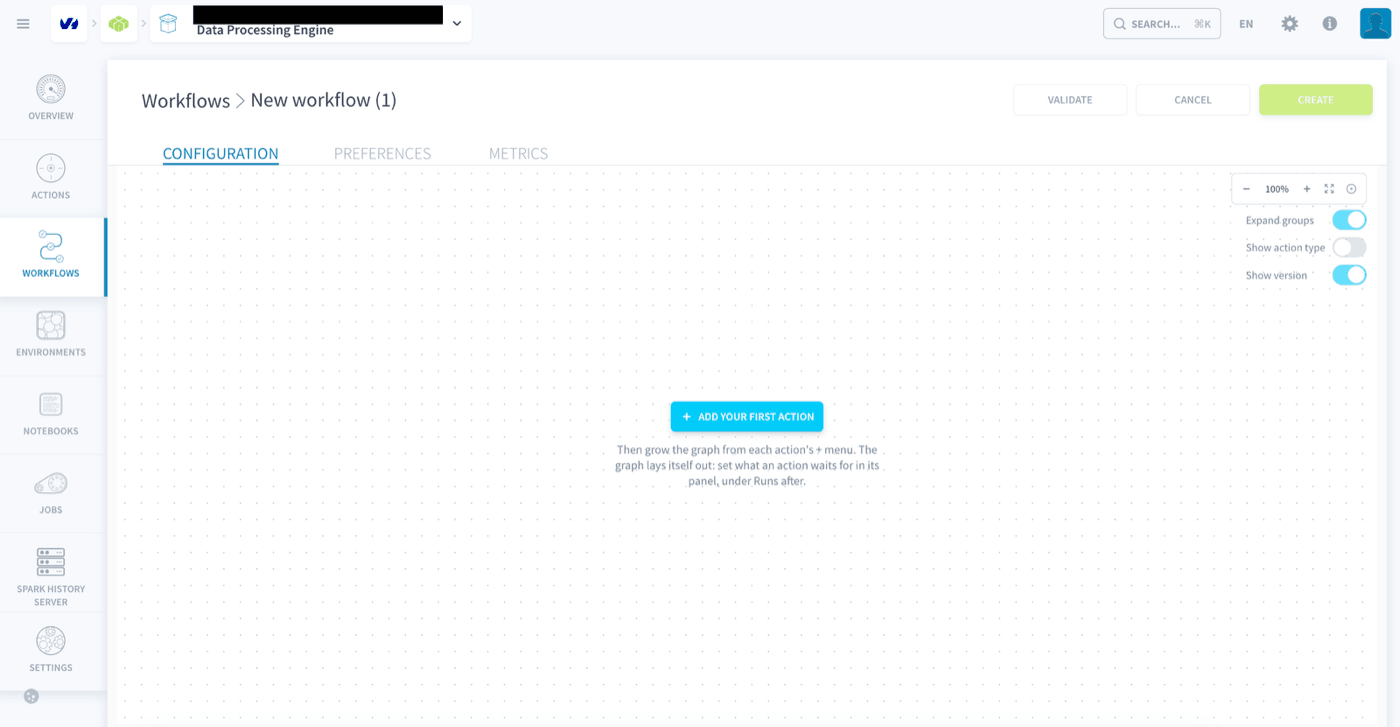
- Click Add your first action, then pick the action in the Action tab of the panel.
- Grow the graph from the + menu of an action:
- Add action after: a new action that runs when this one succeeds;
- Add parallel action: a new action with the same dependencies and group as the selected one;
- Run on failure: a new action that runs only if this one fails.
- Select an action to configure it in the panel, which has 3 tabs: Action, Dependencies and Options. See the sections below.
- Name the workflow in its Preferences tab, then click Create.
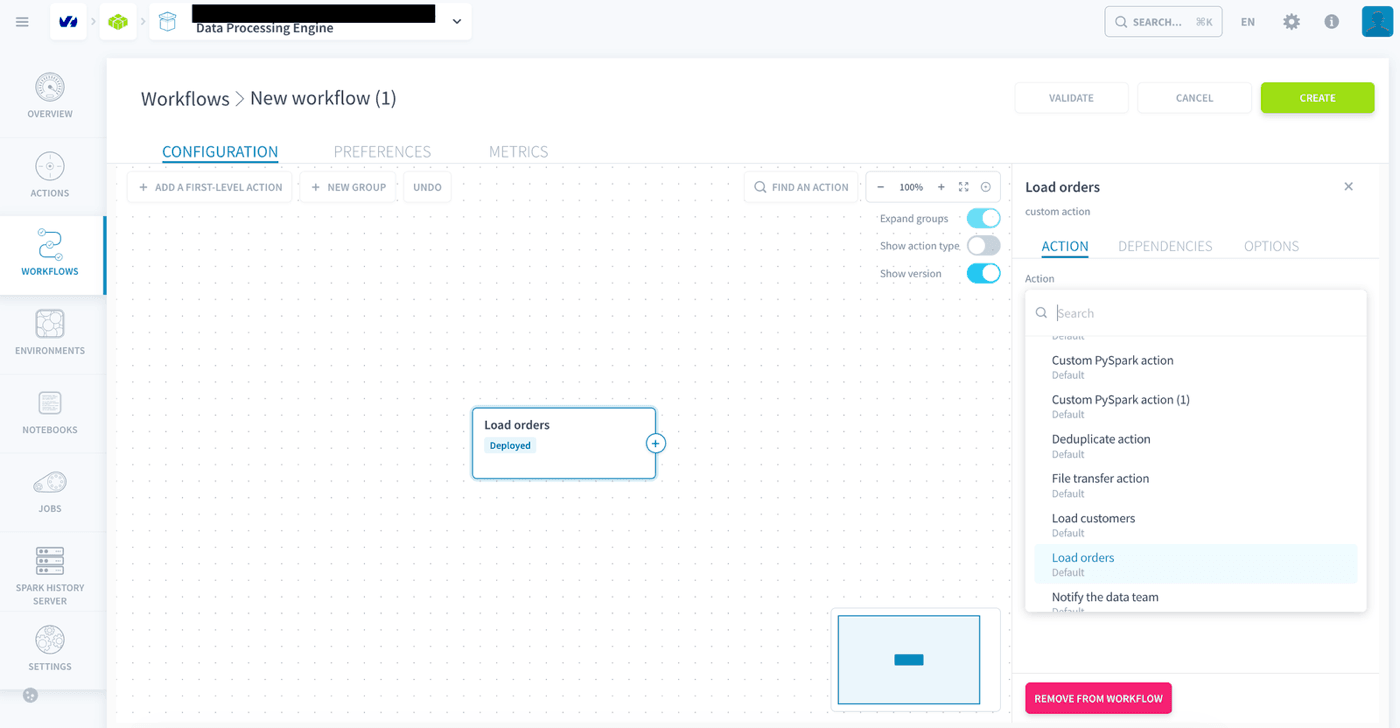
The graph lays itself out from the dependencies: you do not place the actions yourself. Above the graph, Add a first-level action adds an action that starts with the run, New group creates a group, Undo reverts the last change and Find an action searches by name, ID, group or repository. The minimap shows the whole graph.
Workflows created with stages keep opening in the stage editor, described in Orchestrate ETL pipelines with Data Platform workflows.
Setting what an action waits for
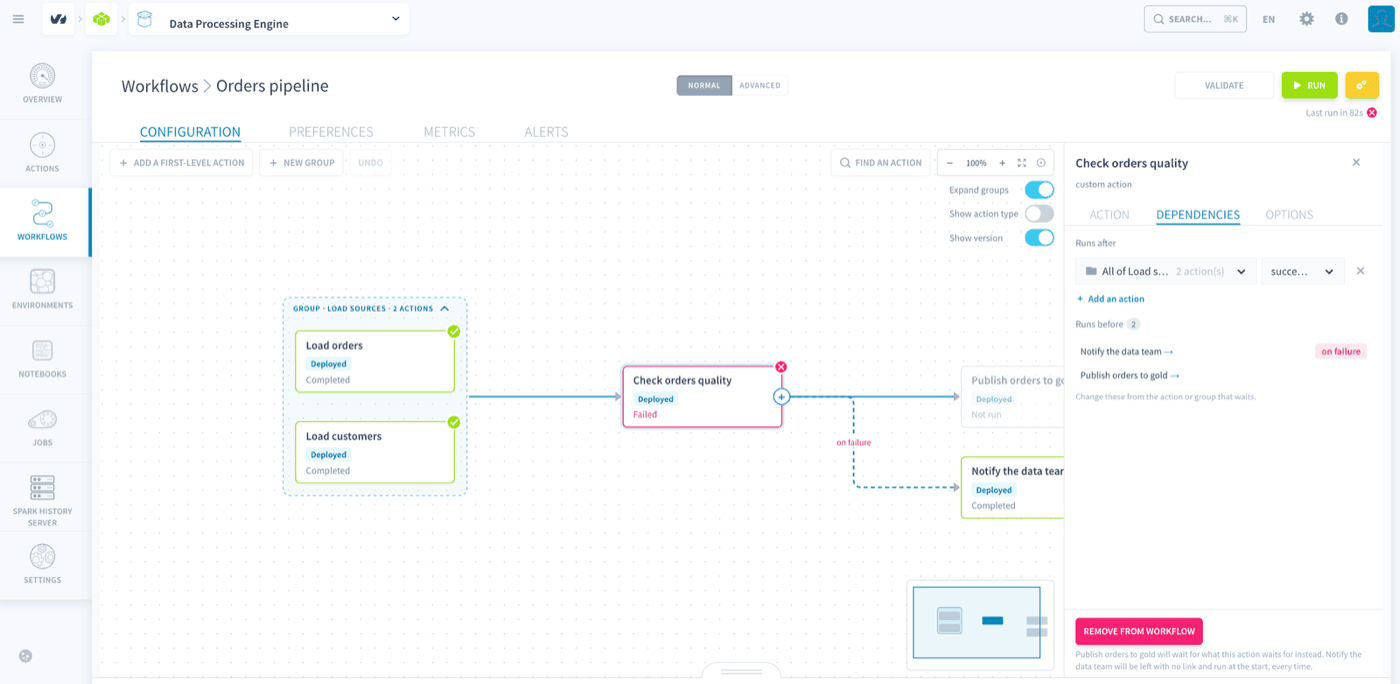
In the Dependencies tab of an action, Runs after lists what the action waits for. Each row is an action or a group of the workflow, with one of two conditions:
- succeeds: the action waits for that action, or that group, to succeed;
- fails: the action waits for that action to fail. This is a failure route; see "When an action fails".
The action starts when all its rows are true. An action with no row starts when the run starts.
Click Add an action to add a row: From this workflow waits for an action or a group already on the graph, New action adds a new action placed before this one. Runs before lists, read-only, the actions and groups that wait for this one.
For example, with B and C both waiting for A to succeed, and D waiting for B and C, D starts only once B and C have both succeeded.
Grouping actions
A group gathers actions that share the same dependencies, and lets other actions wait for all of them at once.
- Click New group, give it a name and tick the actions to put in it, then click Create group. The Runs after rows that the ticked actions all share move to the group.
- To set what the whole group waits for, use the Runs after rows in the panel of the group: they apply to every action in the group.
- To make an action wait for the whole group, add a Runs after row on the group, for example All of Load sources succeeds. The action starts once every action of the group has succeeded.
A group name starts with a letter and holds at most 40 characters: letters, digits, spaces, - and _. Ungroup keeps the actions and copies the group's Runs after rows onto each of them.
Running actions in parallel
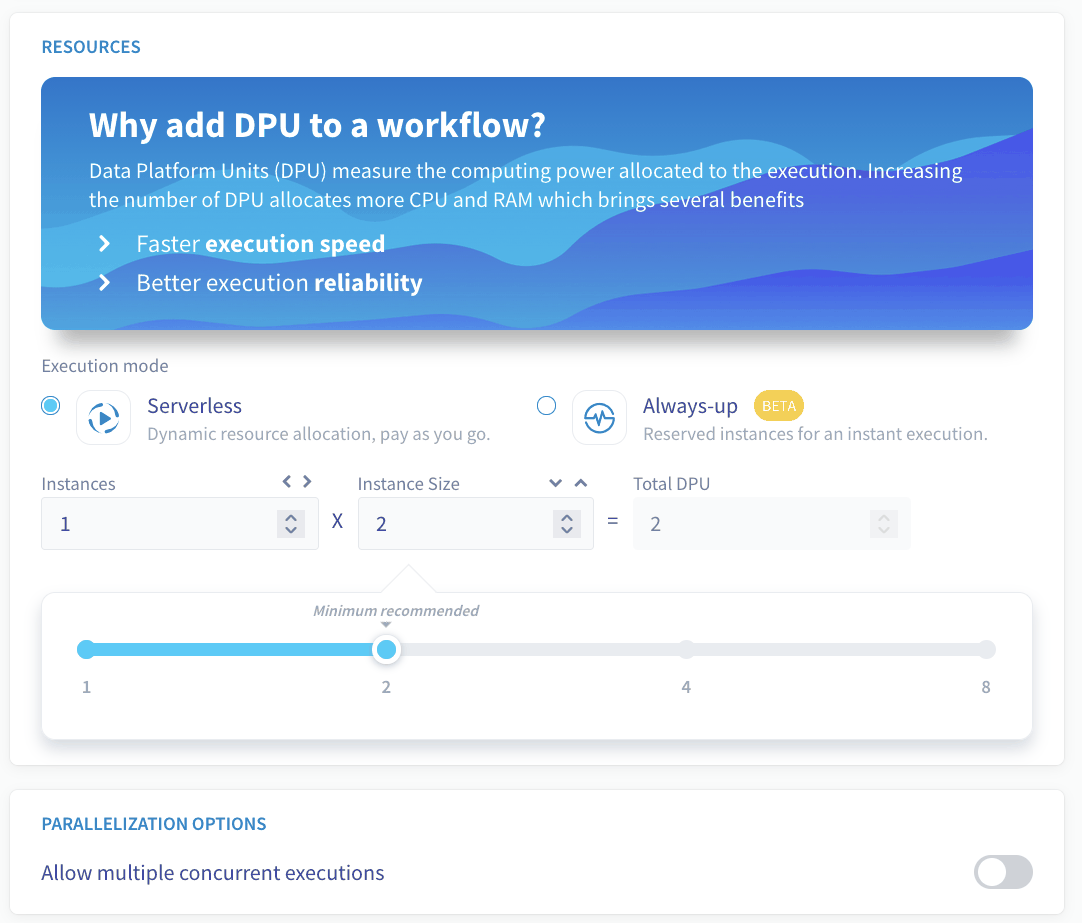
In a Python workflow, actions that do not wait for each other can run at the same time, but only when the workflow has several instances. A workflow runs on one instance by default: its actions then run one after another, in an order that respects the dependencies, even if they do not depend on each other.
To run independent actions of a Python workflow in parallel, raise the number of instances of the workflow in its Preferences tab; see the "Scale your jobs horizontally" section of the "Scale Data Processing Engine resources" guide. In the Resources section, the total is Instances × Instance Size in DPU. The same fields appear when you click Run. Each instance takes its DPU from the quota of the project: if the quota is reached, the run does not start.
In a PySpark workflow, actions run one after another, even when they do not wait for each other and the workflow has several instances: the instances of a PySpark workflow are Spark executors, which spread the work of each action instead of running separate actions.
Retries and timeout
In the Options tab of an action, under Retries and timeout:
An action that still fails after its last attempt, or that times out, is handled as described in "When an action fails".
When an action fails
Under If it fails, in the Options tab, you decide what happens to the rest of the run when the action fails:
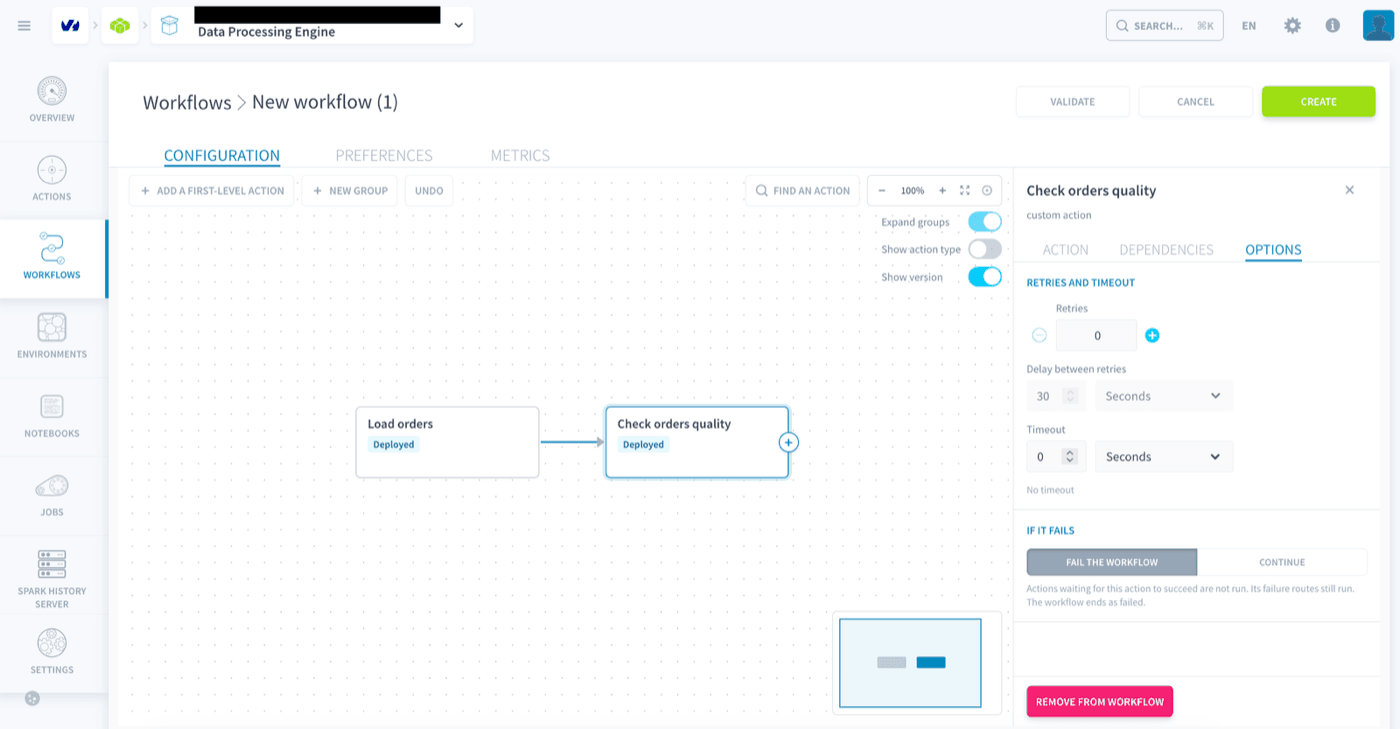
A failure route is an action that waits for this action to fail (a fails row, or Run on failure in the + menu). Use it to clean up, or to notify, when something goes wrong.
With either option, a workflow in which an action failed ends as failed. Continue only lets the rest of the graph run.
Version of an action
In the Action tab, Version picks which version of its repository the workflow runs:
- Deployed version: the deployed version of the repository;
- Latest version: the latest version, which changes with each new version of the repository.
The panel shows which version this choice runs, for example "Runs v1, the deployed version of the repository". Show version displays the choice on each action of the graph.
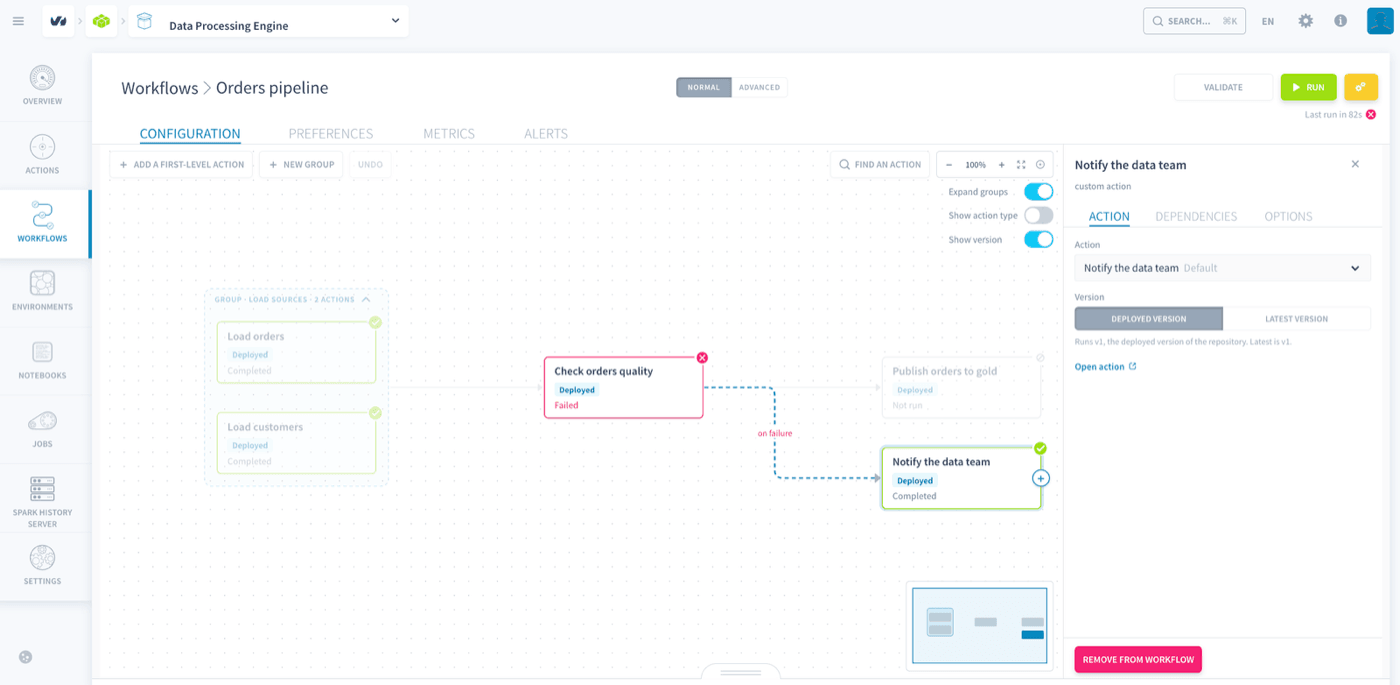
When an environment or the workflow's execution options force a version, the field shows it and cannot be changed here.
Checking the workflow
Validate checks the workflow before you save it, and lists each problem with the name of the action concerned. A workflow can be saved only when:
- it has at least 1 action;
- every action has been chosen;
- no action is in a group that does not exist;
- every group that something waits for has at least 1 action;
- no actions wait for each other in a loop.
Following a run
Start the workflow like any other workflow: on demand, with a trigger, or through the API. While it runs, the graph shows the state of each action:
After the run, the graph keeps the state of each action of the last run, and Last run shows its duration and result. A group shows how many of its actions are in each state. You cannot edit the graph while the workflow runs.
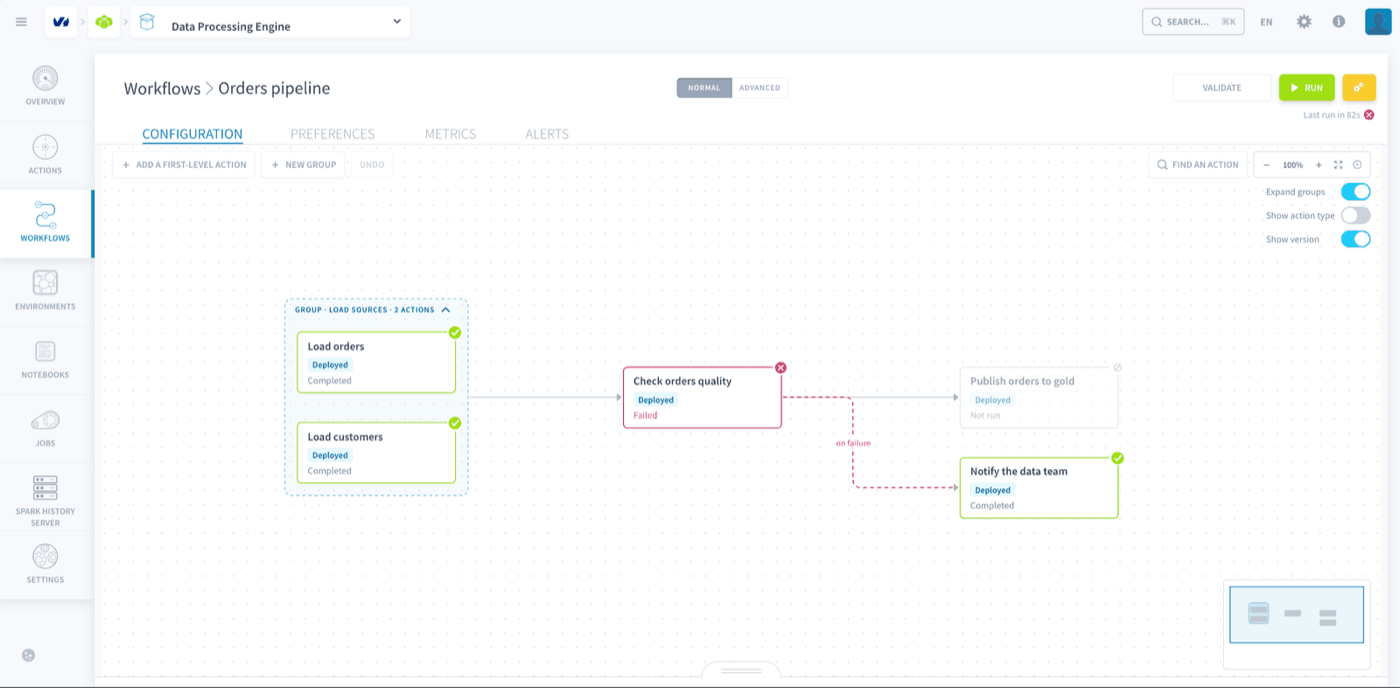
As with any workflow, the logs are in the Logs Explorer of the Control Center, and you can configure an alert on its failures.
Creating a workflow with the API
A builder workflow is a workflow with nodes and groups instead of stages. Send it to the Data Processing Engine API with POST /dpe/v3/workflows, and start it with POST /dpe/v3/workflows/{workflowId}/start.
Each node has an _id that you choose, 24 hexadecimal characters, so that other nodes can refer to it. Example: the load action runs first, the check action runs when the load succeeds, and the cleanup action runs if the load fails:
A group is {"_id": "<24 hexadecimal characters>", "name": "<group name>", "requires": [...]}. A node waits for a whole group with {"node": null, "group": "<group id>", "on": "success"}.
To run independent nodes of a Python workflow in parallel, set environment.fpu.instances to more than 1. environment is a field of the workflow itself, at the same level as nodes and groups.
The API ignores, without an error, the fields it does not know. Read the workflow back after creating it to check that it holds what you sent.
The state of each node during and after a run is in the execution.nodes field of the response to GET /dpe/v3/jobs/{executionId}, with its status, number of attempts and error message.
Go further
Orchestrate ETL pipelines with Data Platform workflows
Check data quality after each load, which uses the builder as a quality gate
For training or technical assistance implementing our solutions, contact your sales representative or visit our Professional Services page to request a quote and have your project analysed by our experts.
If you need support with your OVHcloud services, create a request in our Help Centre.
Join our community of users.