
Call AI models from SQL with Trino AI functions
The Trino AI functions consumer connects your project to a large language model so you can call AI functions directly from SQL
Objective
The Trino AI functions consumer connects your project to a large language model so you can call AI functions directly from SQL. You give it a provider, an API key and a model, and Data Platform creates a dedicated Trino catalog that exposes the Trino AI functions: classify support tickets, translate product descriptions, extract fields from free-text reviews or mask personal data, all inside a query.
Once the consumer exists, the functions are available wherever a query goes through Trino: the Lakehouse Manager Explorer, the Analytics Manager SQL editor, the SQL action and external tools connected with a Trino consumer.
OVHcloud AI Endpoints is the default provider. Any provider exposing an OpenAI-compatible API on a public HTTPS address works as well.
Everyone who can query the project can call the AI functions, on your key. Calling them needs no permission beyond the right to run queries, so every user of the Explorer, Analytics Manager, SQL actions or a Trino consumer can send data to the provider and consume tokens billed to the API key you configured. Controlling that spend, and which data is sent, is up to you.
The data you pass to a function leaves Data Platform. Each call sends the values it receives, for example the content of a column, to the provider's endpoint. Check that this is allowed for the data you process.
Requirements
- An API key for your provider. For OVHcloud AI Endpoints, follow Generating your first API access key.
- The permission to write consumers in the project (see Permissions).
Instructions
Create the Trino AI functions consumer
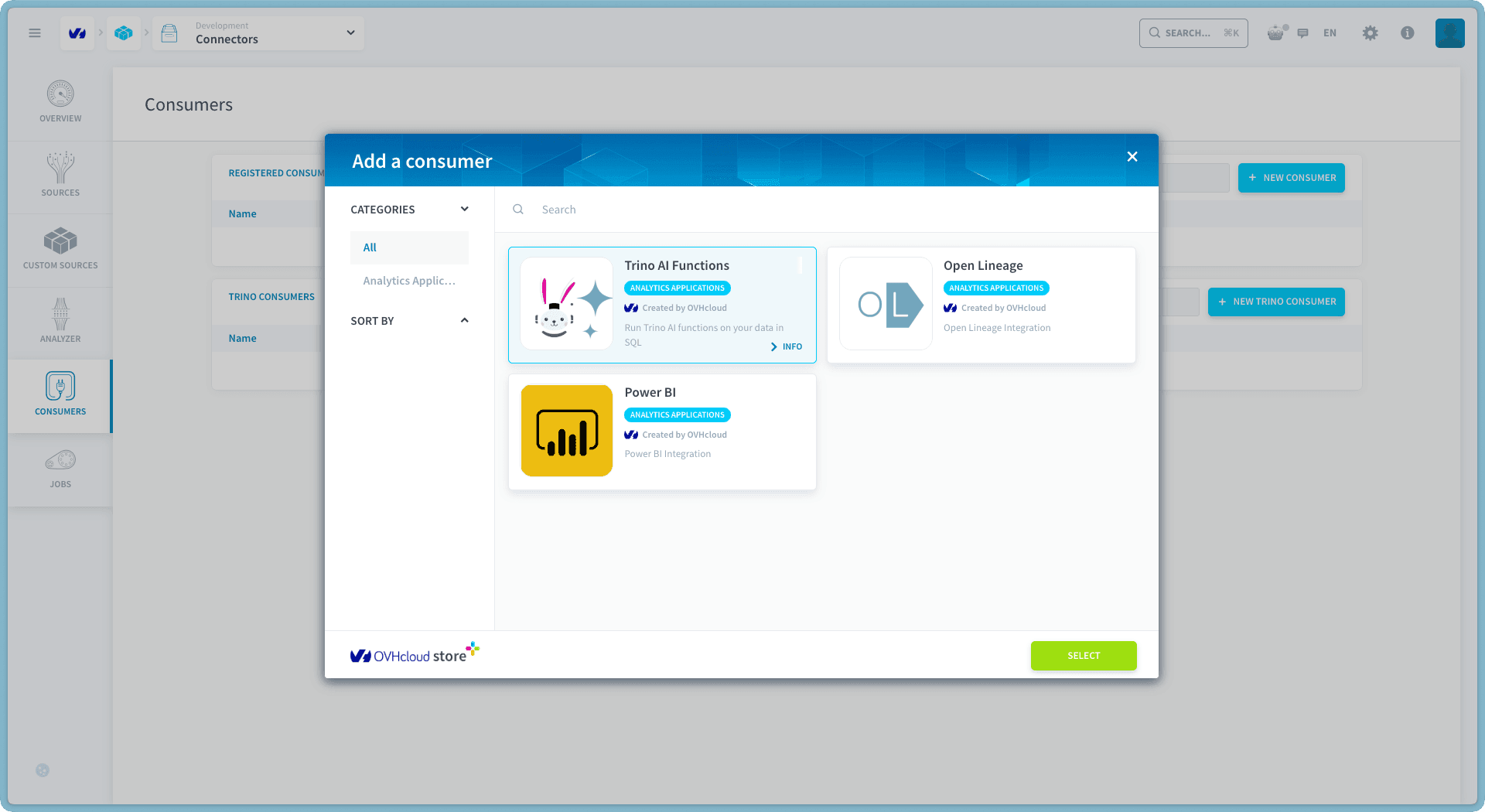
In the Connectors service, open the Consumers tab, click New consumer, select Trino AI Functions and click Select.
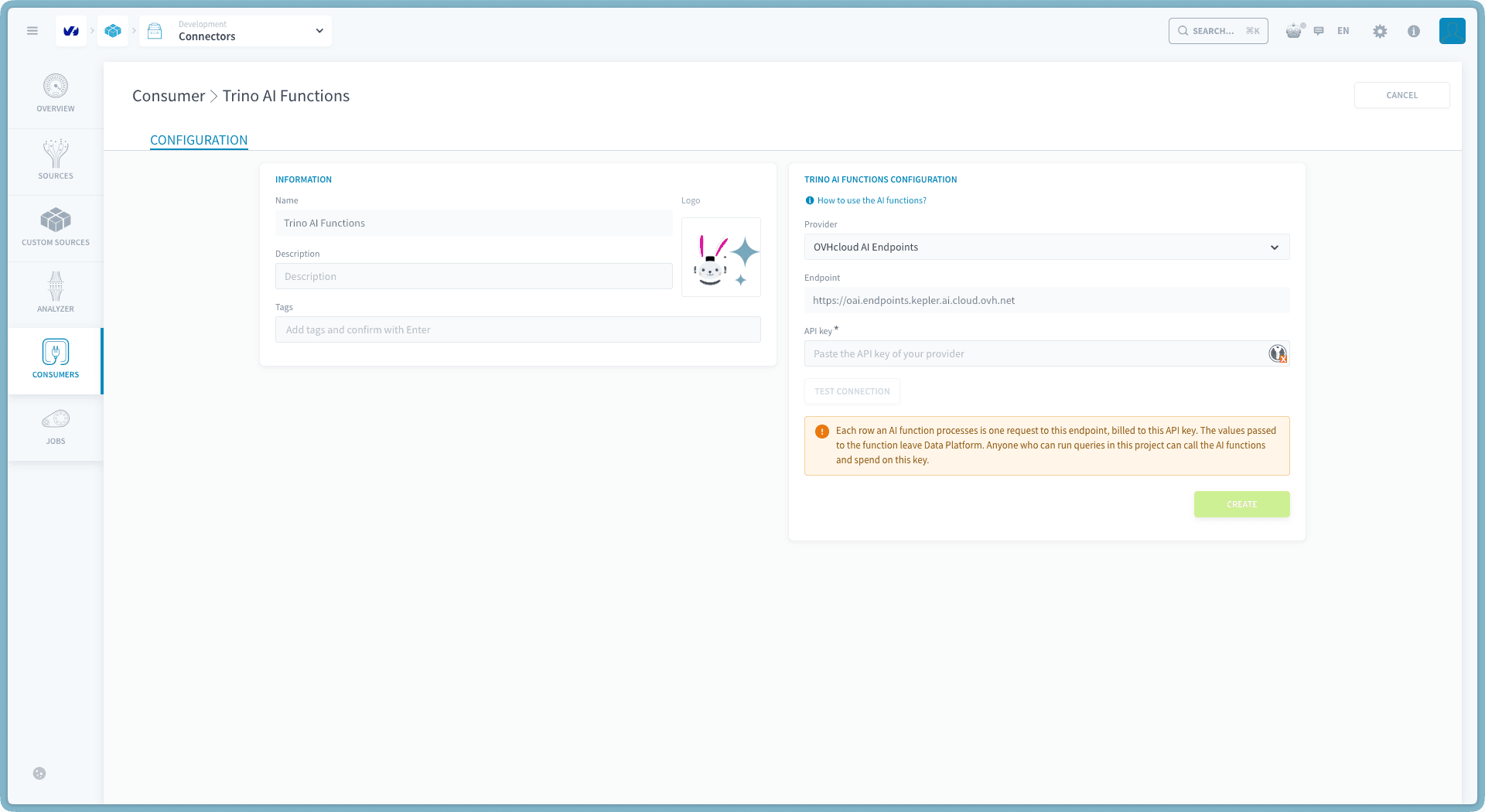
Give the consumer a Name, an optional Description and optional Tags, then fill in the Trino AI functions configuration section.
-
Pick the Provider:
-
Enter your API key.
-
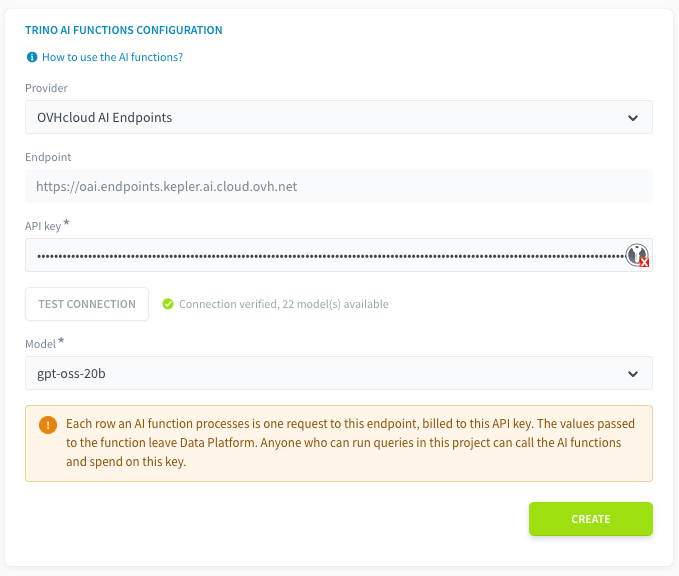
Click Test connection. Data Platform calls the provider with your key. When the test succeeds, a Model selector appears, listing every model the provider offers for this key.
-
Pick the Model the AI functions will use.
-
Click Create.
Data Platform creates the db_<project_id>_ai catalog.
A project can hold only one Trino AI functions consumer.
Call AI functions from SQL
Open the consumer and go to its Usage tab: it shows an example query for each AI function, with your project's catalog name filled in, ready to copy.
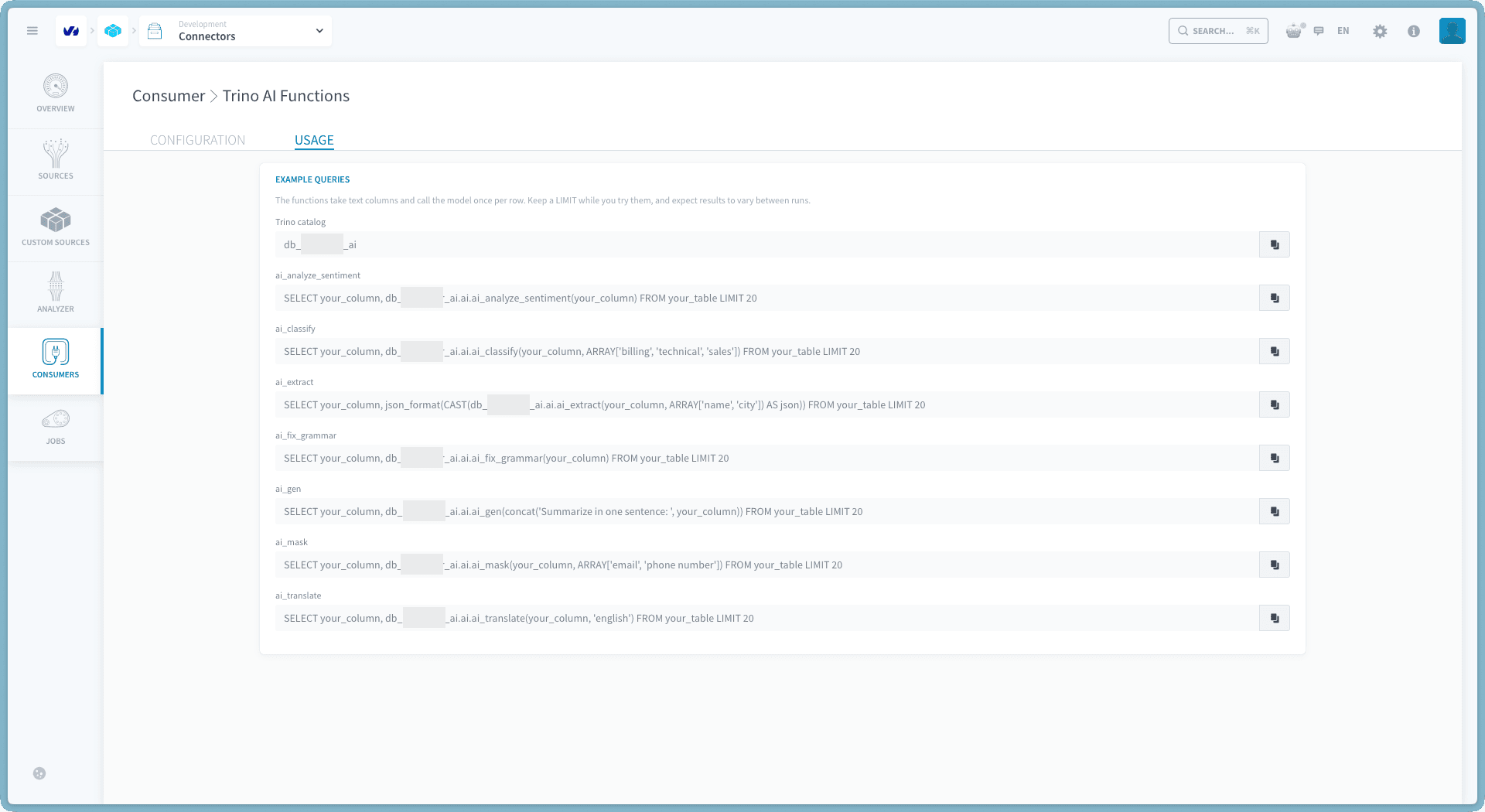
The functions live in the ai schema of the catalog, so you call them with their fully qualified name, db_<project_id>_ai.ai.<function>. Seven functions are available:
Classify support tickets into categories:
Translate product descriptions into English:
Extract structured fields from customer reviews:
Test on a few rows, then enrich the table with an action
An AI function sends one request to the provider for every row it processes, and each request waits for the model's answer. A plain query processes rows one after the other, which is slow on a whole table: in our tests, ai_analyze_sentiment on a 500-row table took 5 to 6 minutes as a query.
Work in 2 steps:
- Test with
LIMIT. Run the query on a handful of rows, as in the examples above, and check the output before you go further. - Enrich the table with the AI enrichment action. To process a whole table, run the function from a Custom action with the script in Enrich a whole table with the AI enrichment action. It splits the rows into chunks that run in parallel, up to 16 at a time, writes the results to a table and continues where it stopped when you run it again. Because the chunks run in parallel, a whole table is processed much faster than with a query.
Timings depend on the model, the time of day and the health of the provider's endpoint.
Enrich a whole table with the AI enrichment action
The AI enrichment action is a Custom action script that applies one AI function to the rows of a table and writes the results to a target table. Each run:
- picks up to
ROW_LIMITrows whose text column is not null and that are not yet in the target table, so running the action again continues where the last run stopped; - splits them into
CHUNKSchunks by a hash of their id, and runs oneINSERT ... SELECTper chunk, all chunks in parallel; - writes the id, the source text, the function name and its output to the target table, created in the source dataset on the first run with the columns
<id>,source_text,ai_operationandai_output.
To set it up:
-
Download the script: ai-enrichment-action.py.
-
In the Data Processing Engine, open the Actions tab, click New Action and choose the Custom type. Drag and drop the script onto the Drag and drop section and keep
customfuncas the function name. -
Fill in the config block at the top of the script:
-
Run the action. The first run creates the target table and enriches the first
ROW_LIMITrows. -
Check the output in the Explorer, then raise
ROW_LIMITand run the action again. Rows already in the target table are skipped.
To change a setting for one run without editing the script, trigger the action with a body that overrides the keys in lower case, for example {"row_limit": 500, "chunks": 8}. See Creating Event Handling Actions for how an action receives a body.
Good to know about the action:
- Every row is one billed call, as in a query. A failed chunk is retried once, and its rows are billed again. If the retry also fails, the run is marked failed, the rows the other chunks enriched are kept, and running the action again picks up the rest.
- More chunks run faster, up to your provider's rate limit. Each chunk holds a Trino query slot. With OVHcloud AI Endpoints, the ceiling is 400 requests per minute per model, whatever the number of chunks: if a run fails with
429errors, lowerCHUNKS. - Do not run two instances at once. Both would pick the same rows and bill them twice.
- A target table holds the results of one function. A run with another function on the same
TARGET_TABLEis refused: set another one, or leave it empty. ai_extractreturns a map. Store it as JSON text withjson_format(cast(ai_extract({c}, ARRAY['price']) AS json)).- Keep the script under 10 KB when you adapt it: the platform rejects larger uploads.
Change the model
Open the consumer, pick another model in the Model selector and save with the button below it. Data Platform recreates the catalog with the new model, under the same name.
The model is the only setting you can change. The provider, the endpoint and the API key are fixed once the consumer exists: to change one of them, delete the consumer and create a new one.
Delete the consumer
Deleting the consumer drops the db_<project_id>_ai catalog. Every query, SQL action and dashboard that calls an AI function fails until you create a new Trino AI functions consumer. The stored API key is deleted with it.
In the Connectors service, open the Consumers tab and delete the consumer from the list.
Permissions
Managing the consumer is governed by the Consumer permissions in the Identity Access Manager. Calling the functions is not: anyone who can run queries in the project can call them.
Good to know
- Your provider bills the calls. AI functions use your API key, so the tokens they consume are billed to your provider account, for example your OVHcloud AI Endpoints project (see AI Endpoints billing). According to the Trino documentation, cost depends on the function, the length of the input and the length of the output.
- Your provider limits the request rate. With OVHcloud AI Endpoints, an API key allows 400 requests per minute per Public Cloud project and per model, and calls beyond that fail with a
429error. See Model rate limit. - Arguments must be text. The functions take
varchararguments. Cast other types first, for exampleCAST(order_total AS varchar). See Trino data types and casts. - Results depend on the model. Quality, speed and cost vary with the provider and the model you pick. Check a sample of the output before you rely on it.
- The API key is write-only. Data Platform stores it encrypted and never returns it, in the interface or in the API.
Troubleshooting
Go further
For training or technical assistance implementing our solutions, contact your sales representative or visit our Professional Services page to request a quote and have your project analysed by our experts.
Ask questions, give your feedback and interact directly with the team building the Data Platform on the dedicated Discord channel.
If you need support with your OVHcloud services, create a request in our Help Centre.
Join our community of users.