
Terraform guide
Find out how to use the Terraform OpenStack and AWS providers on SNC Cloud Platform, from clouds.yaml authentication to S3-compatible storage
Objective
Practical guide to using the terraform-provider-openstack/openstack provider (and the aws provider reconfigured for S31-compatible Object Storage) on this platform. Target audience: DevOps/SRE already familiar with Terraform.
Overview
The platform exposes a standard OpenStack API (Keystone, Nova, Neutron, Cinder, Glance, Placement) reachable via the official terraform-provider-openstack/openstack Terraform provider, plus an S3-compatible Object Storage endpoint (Ceph RGW or equivalent) driven through the hashicorp/aws provider repointed at a custom endpoint. There is no dedicated S3-compatible Terraform provider: this is the standard pattern for this kind of platform.
Requirements
- Terraform
>= 1.5(>= 1.10for the remote backend with native S3 locking, see the "Recommended workflow" section). - A
clouds.yamlfile with an application credential (not a classic login/password pair). - For Object Storage: an S3-compatible access key / secret key pair, separate from
clouds.yaml.
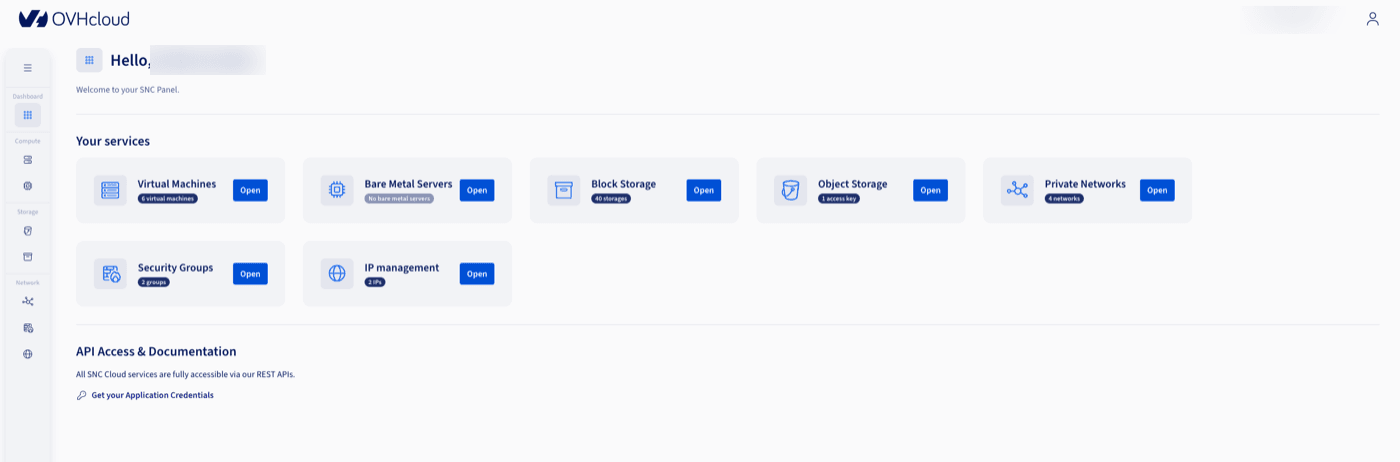
The application credential is retrieved from the manager, via the Get your Application Credentials link in the API Access & Documentation section of the dashboard:
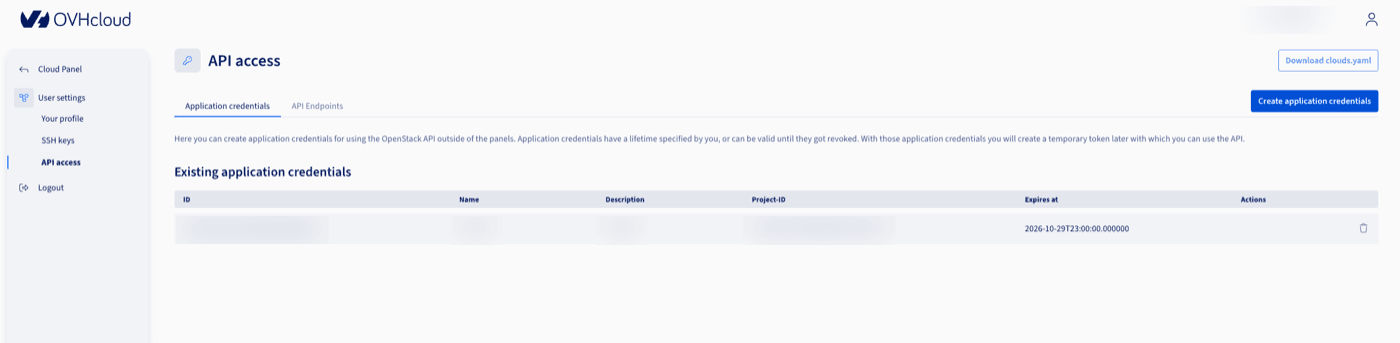
Then under API access > Application credentials, where you can download a ready-to-use clouds.yaml directly or create a new credential:
Instructions
Authentication & provider configuration
OpenStack
The provider reads clouds.yaml through the standard openstacksdk environment variables — no secret hardcoded in .tf files:
OS_CLIENT_CONFIG_FILE is needed whenever clouds.yaml does not live in the current directory, ~/.config/openstack/, or /etc/openstack/ — which is usually the case in a versioned repository, where the file is kept at a dedicated path so it can easily be excluded from version control.
S3-compatible Object Storage
The 3 skip_* flags are mandatory: the aws provider defaults to validating the region and account against real AWS IAM/STS, which do not exist here. Without them, terraform plan fails before it even touches the bucket.
s3_access_key, s3_secret_key and s3_endpoint_url are retrieved from the manager, on the Object Storage > Connect page:
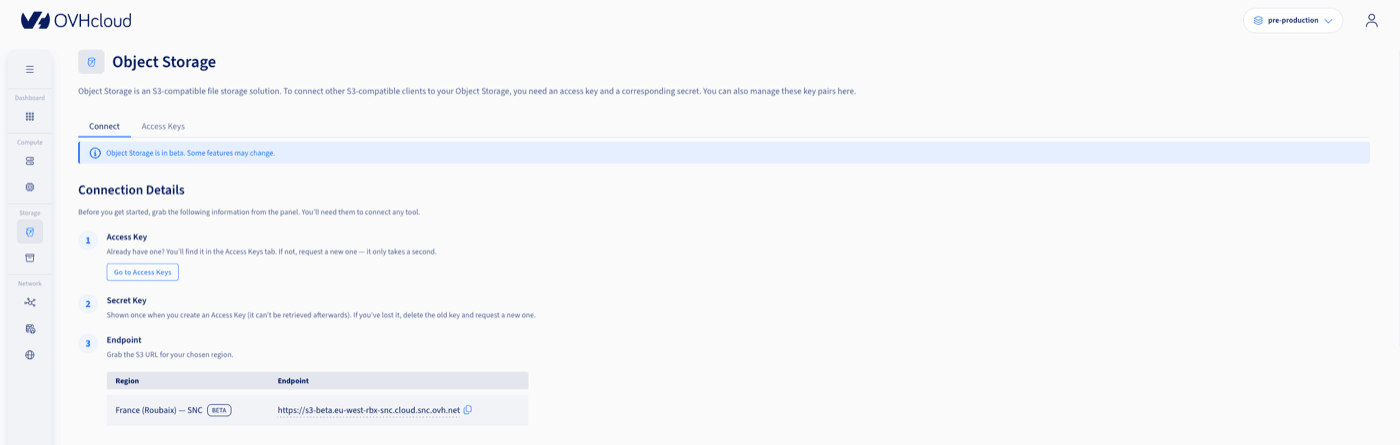
The secret key is only shown once, when the access key is created — if it is lost, delete the access key and create a new one.
Platform specifics to know before you start
These platform-specific points are not covered by the generic provider documentation.
1. No floating IP / Neutron router
The floating IP service will be available starting with the platform's major release #2. In the meantime, publicly exposed instances get their IP via a second network interface attached directly to the shared external network Ext-Net, which hands them a fixed public IP:
access_network = true explicitly tells the provider which interface should feed the computed access_ip_v4 attribute — without it, the choice between multiple interfaces is not guaranteed.
This Ext-Net interface, created implicitly here by the provider, has a behaviour worth knowing: the underlying Neutron port is automatically deleted if the instance is destroyed, releasing the public IP back into the pool (it is not guaranteed to be reassigned to the next instance). The Managing public IPs guide details how to create this port independently of the instance so the same public address can be kept across instances.
2. Every flavor has a 0 GB root disk
Direct consequence: booting an instance from image_id alone fails with Only volume-backed servers are allowed for flavors with zero disk. A block_device with destination_type = "volume" is always required, creating a boot Cinder volume from the image:
volume_size must be strictly larger than the image's virtual size (Glance's virtual_size), not its compressed on-disk size. An image that weighs a few hundred MB compressed can have a virtual size of 15-20 GB once decompressed — undersizing the volume produces Image virtual size is XGB and doesn't fit in a volume of size YGB.
3. Reusing existing resources via data sources
System images (Debian 13, AlmaLinux 10, etc.) and the external network already exist on the project — do not recreate them:
Resource patterns
Access-restricted security group
Recommended pattern to scope exposure to known IP ranges (internal network, VPN) rather than 0.0.0.0/0, without hand-duplicating one rule per port × CIDR:
setproduct() builds the port × CIDR Cartesian product; the for_each key ("${port}-${cidr}") keeps Terraform state stable even if list ordering changes — essential to avoid cascading destroy/create on a mere reordering.
Compute: SSH key generated by Terraform
No need to manage a separate keypair — the tls provider generates one, stored in state (treat it as a secret):
S3-compatible Object Storage
Once the aws provider is repointed (see above), standard resources work as expected:
Secrets and sensitive data
- Declare any variable holding a secret (application credential, S3 key, password) with
sensitive = true— Terraform hides its value inplan/applylogs, but it still ends up in plaintext in the state. An encrypted remote backend (or at minimum a local state excluded from version control) becomes mandatory as soon as the project goes beyond individual use. - A
terraform.tfvarsfile holding real values must be excluded from version control (.gitignore), same asclouds.yaml.
bcrypt() pitfall: Terraform's native bcrypt(string) function generates a random salt on every evaluation. Calling it directly inside a resource (e.g. a Caddyfile rendered via templatefile() and embedded in user_data) means the hash changes on every plan, forcing an instance replacement every single run — even with no real change. Precompute the hash once (outside Terraform, or via an implementation script) and pass it as a static value through a sensitive variable to avoid this.
Application bootstrap via user_data / cloud-init
Pattern to embed a complete application (code, configuration, systemd service) declaratively, without a separate SSH provisioner:
The cloud-init template uses write_files (with encoding: b64 for binary/encoded content) and runcmd to install and start services.
Ordering pitfall: if a custom configuration file overwrites a package's conffile before that package is installed (e.g. writing /etc/caddy/Caddyfile before apt-get install caddy), dpkg detects a conflict and shows an interactive prompt. Under cloud-init there is no TTY, so dpkg fails silently, which can prevent the package's postinst script from completing correctly (e.g. a system user is never created). Always install the package before overwriting its config files, copying the custom file in via a runcmd step after installation rather than through write_files directly at the final path.
Recommended workflow
terraform validatemakes no network calls: run it before everyplan.- Always review a
planbeforeapply, especially the count of destroyed resources — an innocuous-looking change inside atemplatefile()(e.g.user_datacontent) forces a full instance replacement. - Local state (
terraform.tfstate) is fine for individual/exploratory use. For team use, migrate to a remote backend on this same S3-compatible endpoint, as described in the Using OVHcloud Object Storage as Terraform Backend to store your Terraform state guide, with native locking enabled:
Known pitfalls (troubleshooting)
Go further
Official documentation: terraform-provider-openstack, AWS provider, TLS provider.
For training or technical assistance implementing our solutions, contact your sales representative or visit our Professional Services page to request a quote and have your project analysed by our experts.
Join our community of users.
1: S3 is a trademark of Amazon Technologies, Inc. OVHcloud's service is not sponsored by, endorsed by, or otherwise affiliated with Amazon Technologies, Inc.