
Public VCF as-a-Service - Logging in to your organization
How to log in to your organization and change your password
Objective
This guide provides step-by-step instructions on how to log in to Public VCF as-a-Service.
Requirements
- A web browser
- The delivery email
Instructions
First login
Open your web browser and go to the Public VCF as-a-Service login page. Enter your organization name (provided in the account creation email).
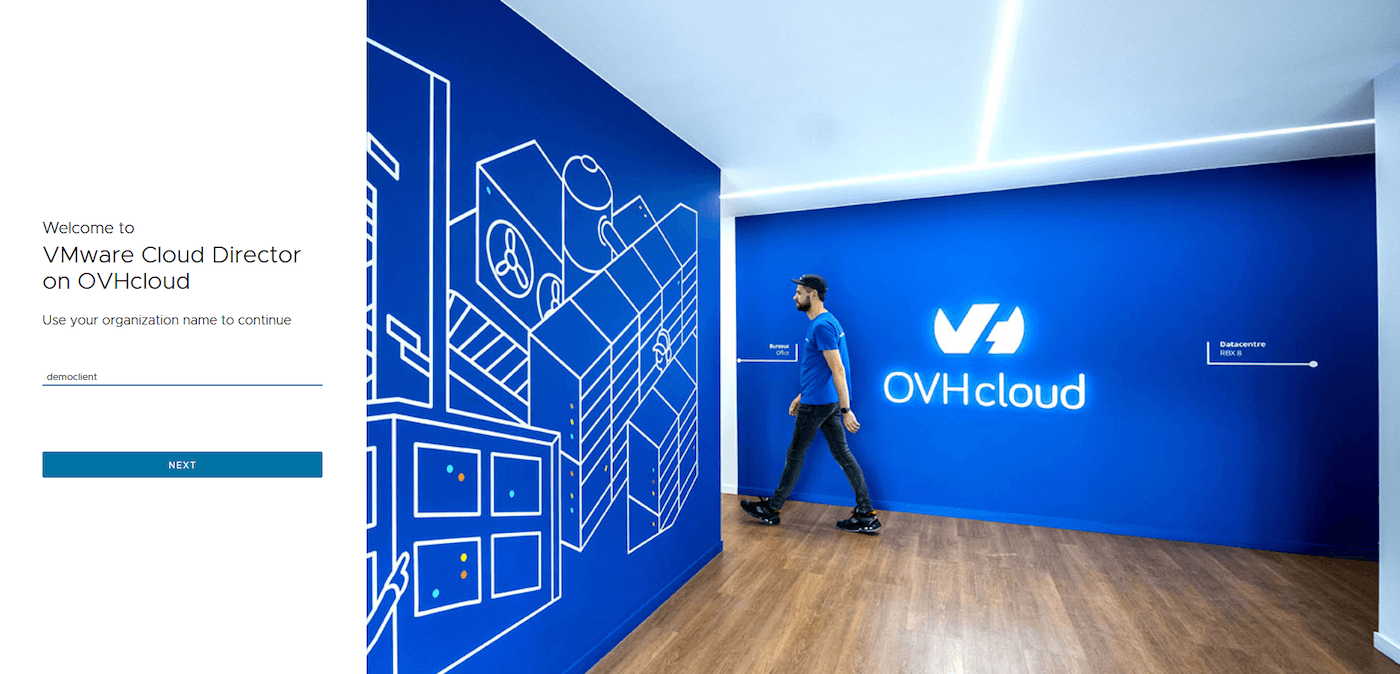
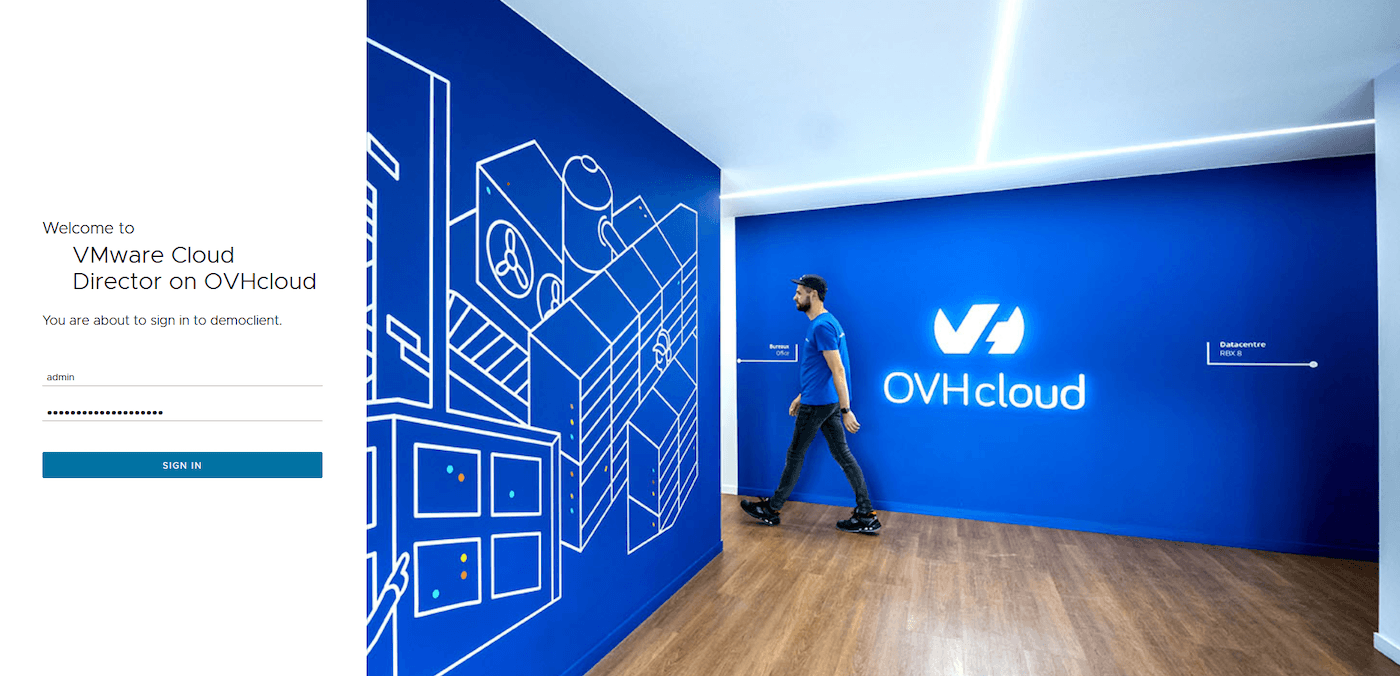
You will now be prompted to enter your username and password in the appropriate fields (this information is provided in the creation email).
Click the Log in button to access Public VCF as-a-Service.
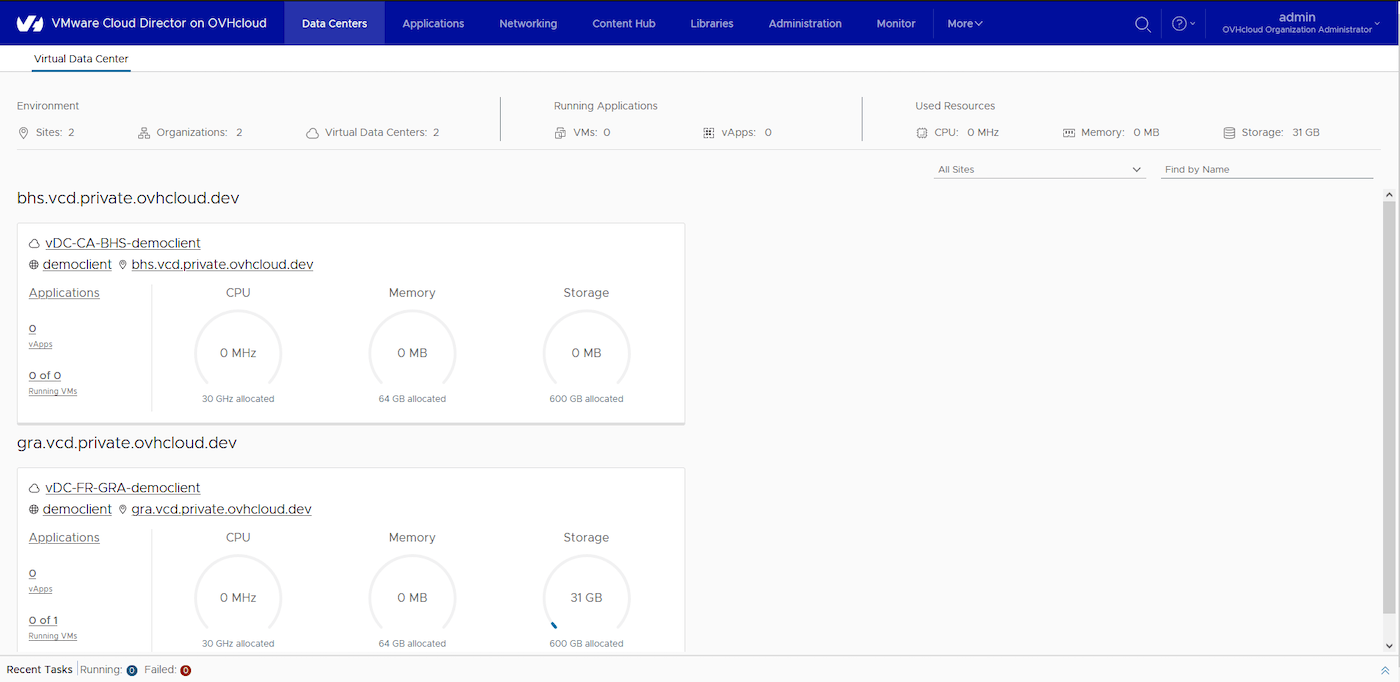
You will be redirected to your organization’s dashboard, which we will describe in this guide.
Change password
Once logged in, look for a link or button labeled OVHcloud Organization Administrator Admin or similar. This is located in the upper-right corner of the user interface.
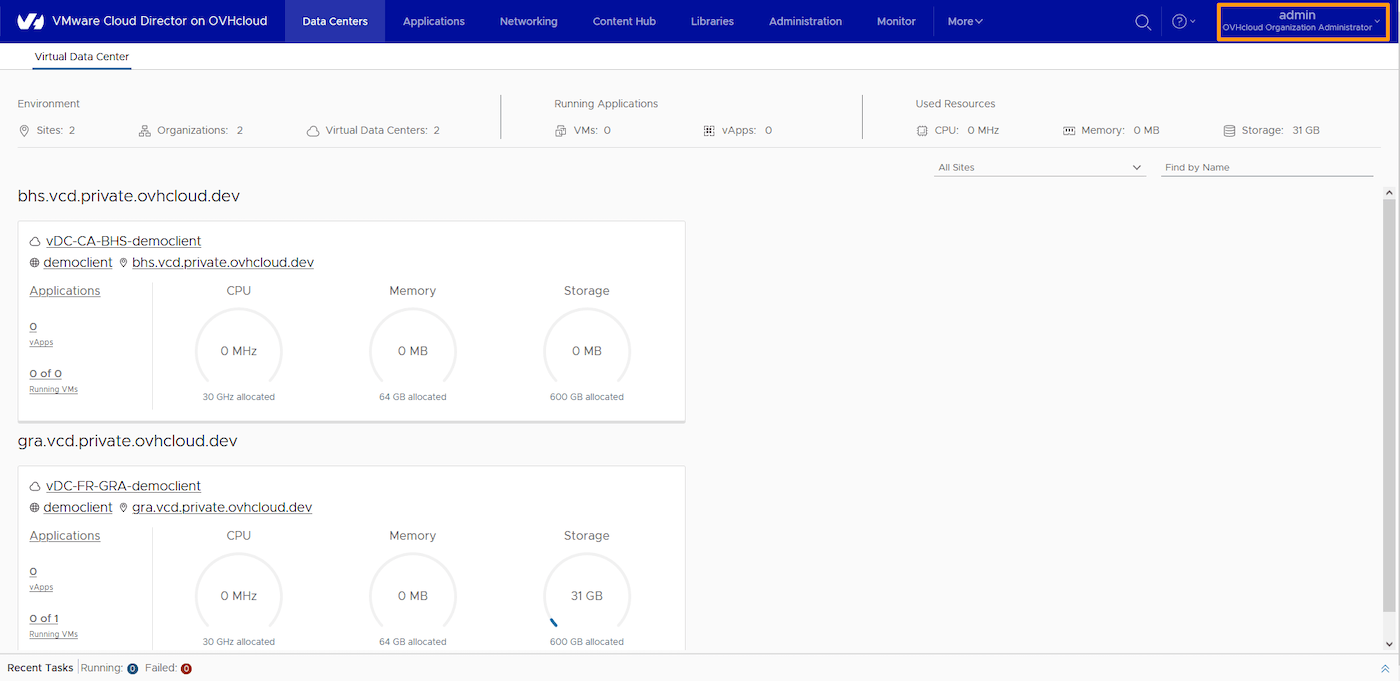
Select the Change Password option from the drop-down menu.
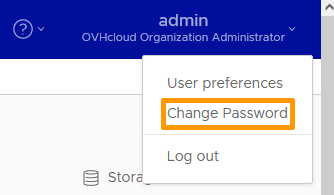
You will be prompted to enter your old password and your new password.
Fill in the fields and click SAVE.
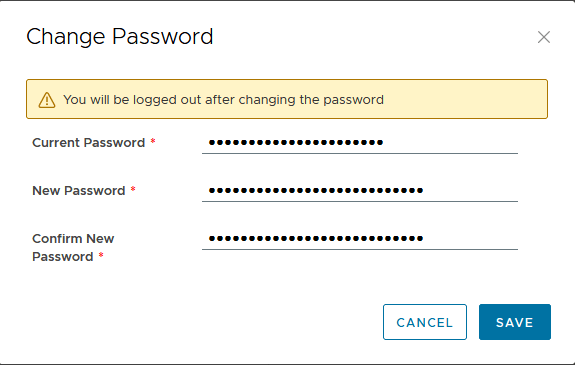
When you change your password, you should receive a confirmation email.
Go further
For training or technical assistance implementing our solutions, contact your sales representative or visit our Professional Services page to request a quote and have your project analysed by our experts.
Join our community of users.