
How to install an instance from the Horizon interface
Learn how to install an OPCP instance via Horizon by configuring networks, subnets, instances, and SSH keys.
Objective
Before deploying services on your OPCP arrays, you must have an installed and active instance.
This guide details the steps to install an OPCP instance from the Horizon interface.
Requirements
- Have an active OPCP service.
- Have a user account with sufficient permissions to access Horizon for the OPCP offer.
Instructions
1. Log in to Horizon
Log in to the Horizon interface of your OPCP environment.
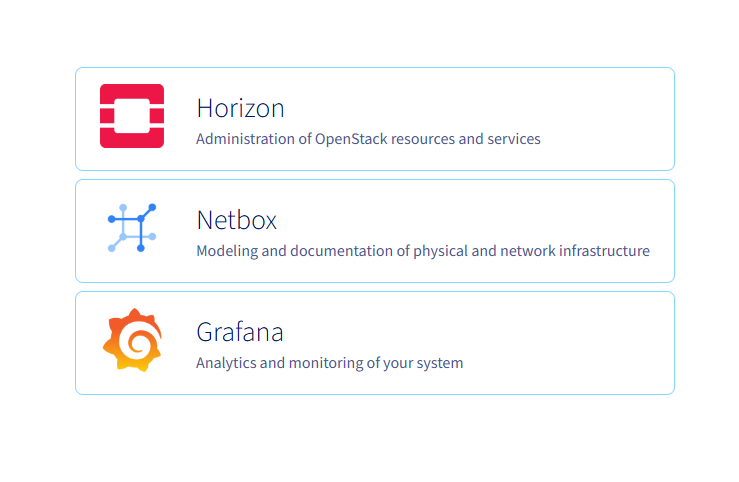
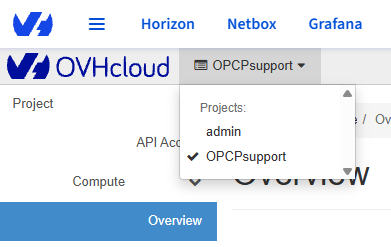
Once connected, select the project where you want to install your instance.
2. Creating a private network
Before deploying your instance, it is generally necessary to create a private network so that it can be accessed within your local infrastructure.
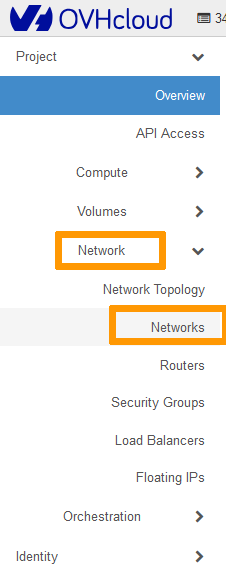
In the left-hand menu, click on Network, then on Networks.
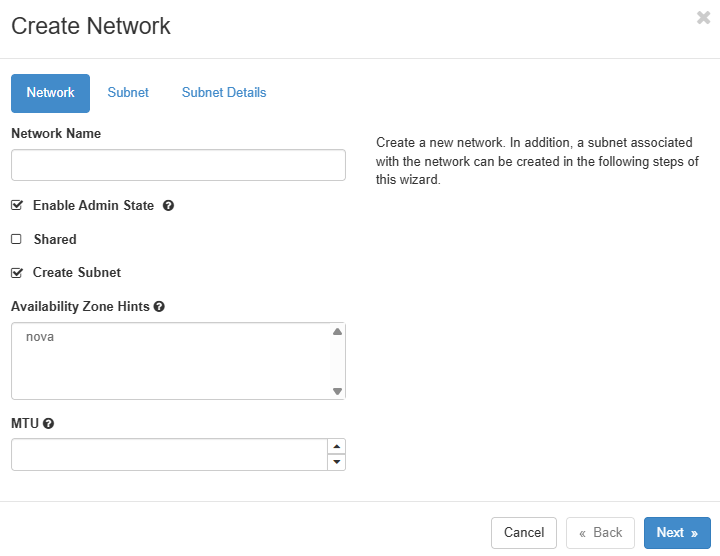
Click on Create Network.

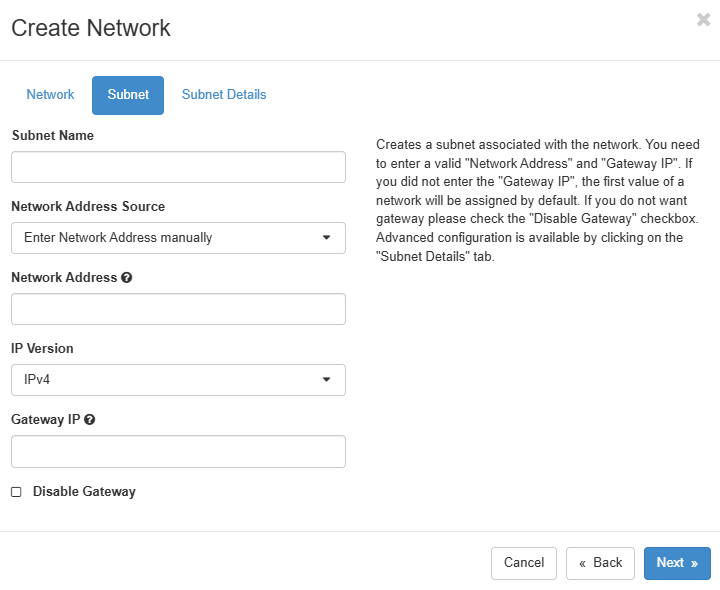
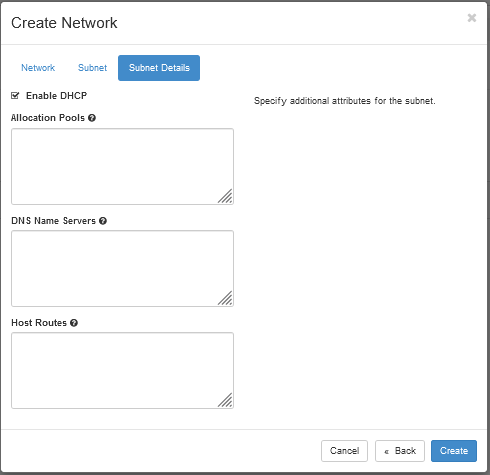
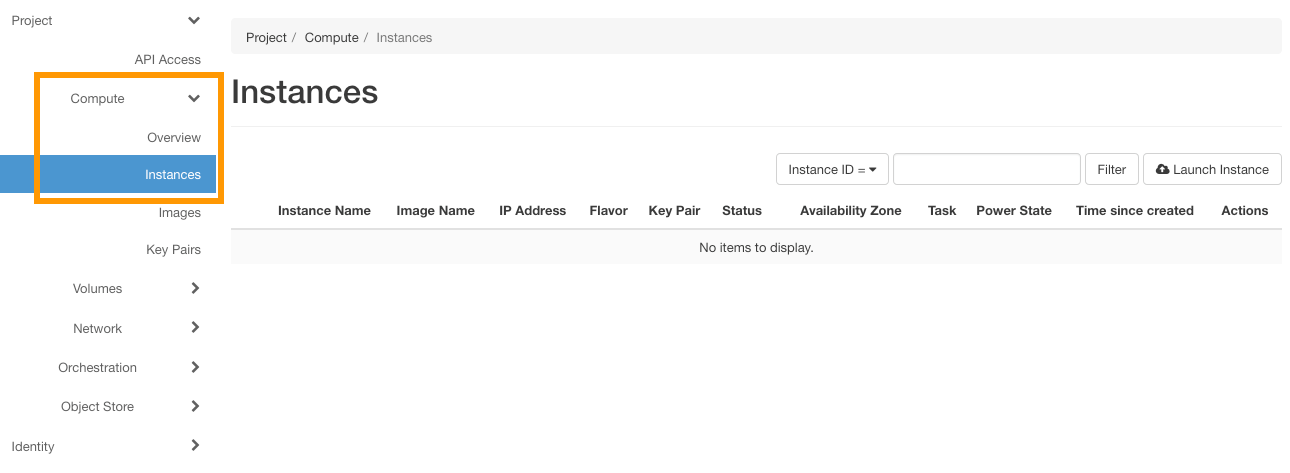
In the left-hand menu, click on Compute, then on Instances.
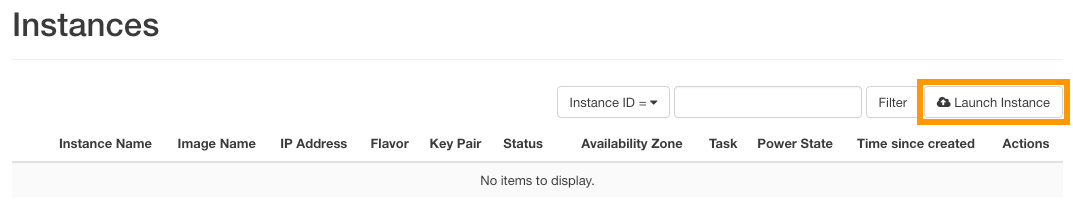
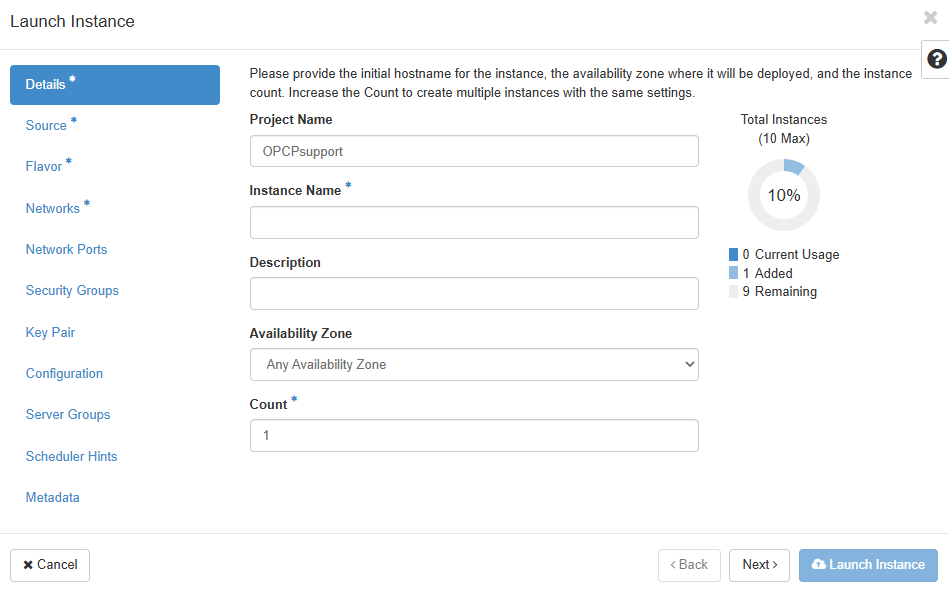
Click on Launch Instance to create a new instance.
Details
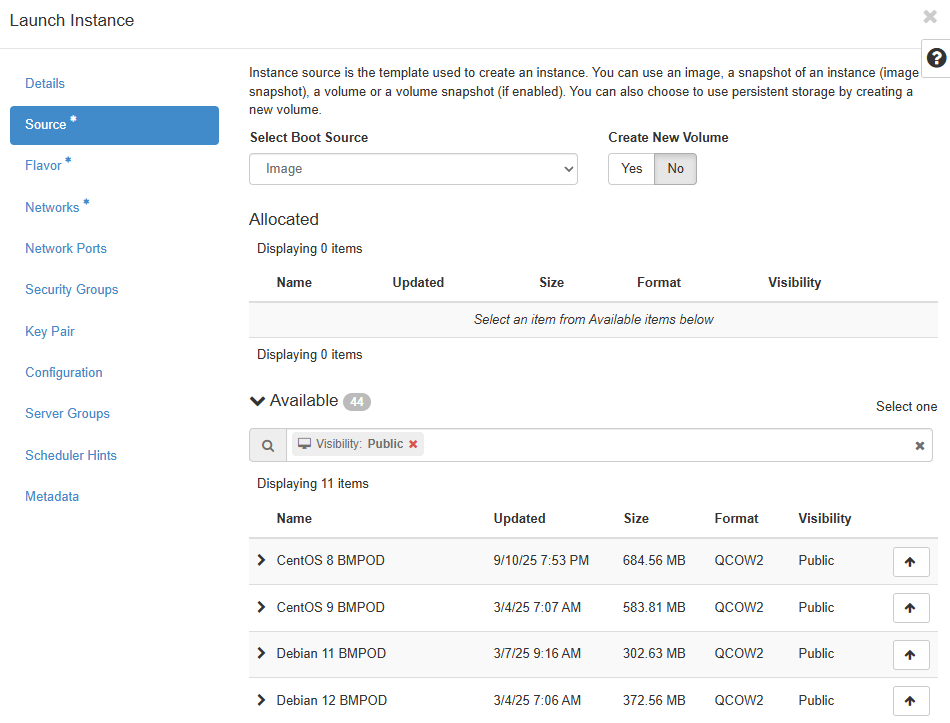
Source
Flavor
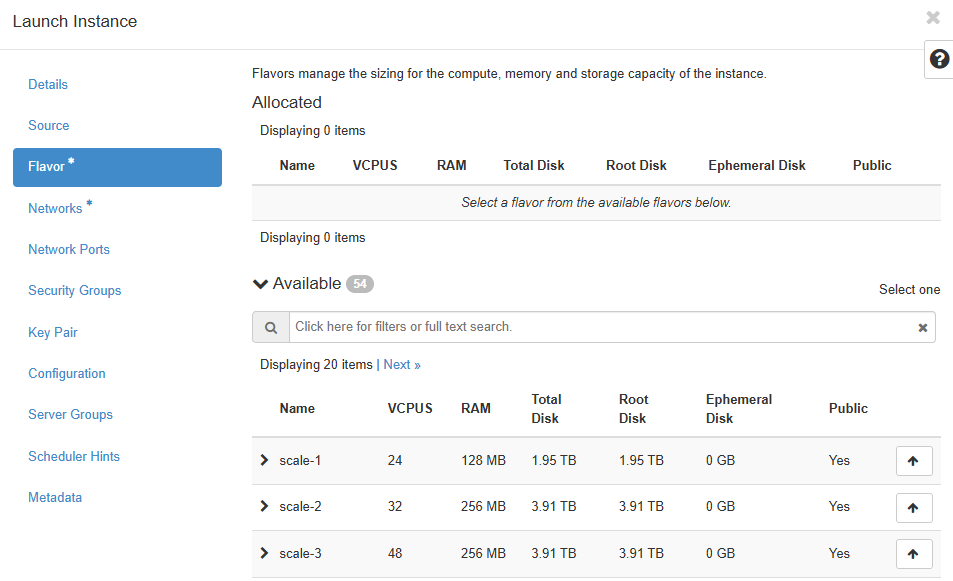
Select the appropriate hardware configuration (vCPU, memory, storage).
Networks
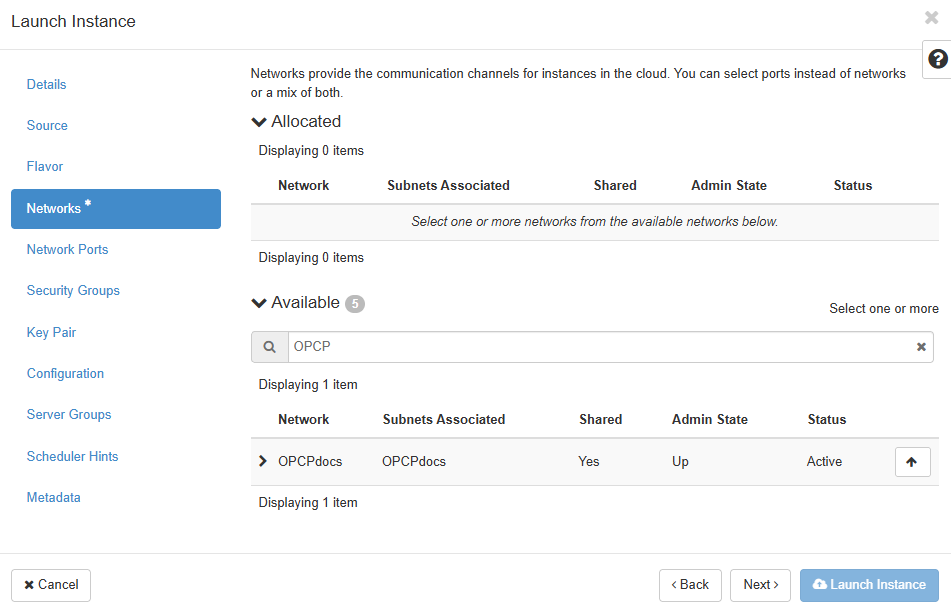
Select the private network previously created. You can also attach an existing network port from the Network Ports tab.
4. Managing SSH key pairs
Although selecting an SSH key in Horizon is not mandatory, it is essential for connecting to the instance once it has been created.
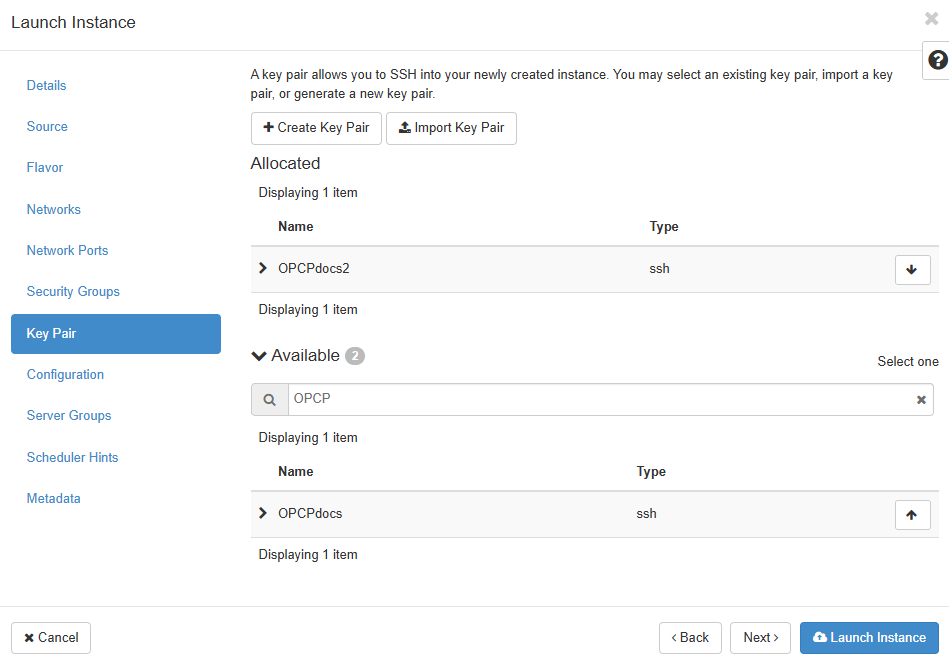
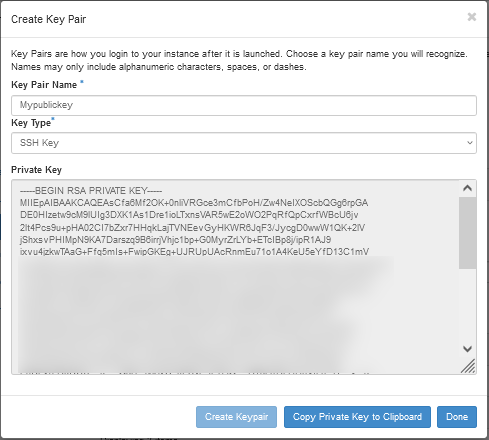
Click + Create Key Pair and fill in the following fields:
Next, click on Create Keypair.
Copy the private key with Copy Private Key to Clipboard, then click on Done.
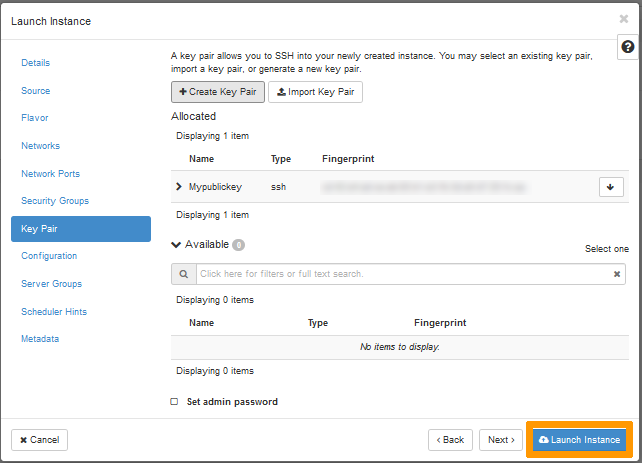
The key is now selected by default. Click on Launch Instance to start creating the instance.
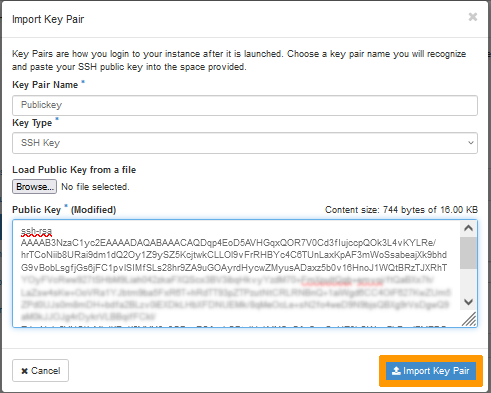
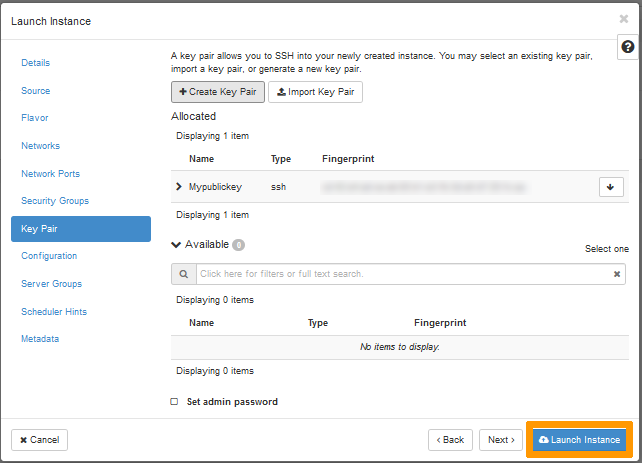
The other configuration tabs (Security Groups, Configuration, Metadata, etc.) are not required for a standard installation.
To learn more, refer to the official OpenStack documentation.
6. References
- OpenStack Official Documentation – Horizon
- OpenStack Networking Guide (Neutron)
- OpenStack Compute Guide (Nova)
- OpenStack Key Pairs
- Debian 12 Official Site
Go further
For training or technical assistance implementing our solutions, contact your sales representative or visit our Professional Services page to request a quote and have your project analysed by our experts.
Join our community of users.