
AI Endpoints - Using Batch mode
Learn how to run large volumes of inference requests asynchronously on OVHcloud AI Endpoints using the OpenAI-compatible Batch API
AI Endpoints is covered by the OVHcloud Public Cloud Special Conditions (see Appendix 10 – "Specific Conditions – AI Endpoints").
Introduction
AI Endpoints is a serverless platform provided by OVHcloud that offers easy access to a selection of world-renowned, pre-trained AI models.
The Batch API (/v1/batches) is an OpenAI-compatible route that lets you submit a large number of inference requests in a single asynchronous job, instead of sending them one by one through synchronous endpoints such as /v1/chat/completions or /v1/responses.
Batch mode is ideal when you do not need an immediate answer, but rather want to process a high volume of prompts (evaluations, offline labelling, content generation at scale, dataset preparation, etc.) in a cost-efficient and throughput-oriented way. Batch jobs have a default completion window of 48 hours. Any job not completed within this period will expire. You can choose between 24, 48 and 72 hours.
Objective
This guide explains the /v1/batches route on AI Endpoints, including:
- The typical end-to-end batch workflow
- Preparing an input JSONL file
- Usage examples in Python, JavaScript, and cURL
- Retrieving and parsing batch results
- Known limitations on the platform
This guide explains how to use the /v1/batches API to run inference requests asynchronously on OVHcloud AI Endpoints.
Requirements
- A Public Cloud project in your OVHcloud account
- An AI Endpoints API key (see AI Endpoints - Getting started)
The examples provided in this guide can be used with one of the following environments:
A Python environment with the openai client.
Authentication
Examples provided in this guide use the authenticated mode and expect the AI_ENDPOINT_API_KEY environment variable to be set. The anonymous mode is not available with the batch and files endpoints.
To specify your own API key, set it in the environment (export AI_ENDPOINT_API_KEY='your_api_key').
See the AI Endpoints - Getting started guide for authentication details.
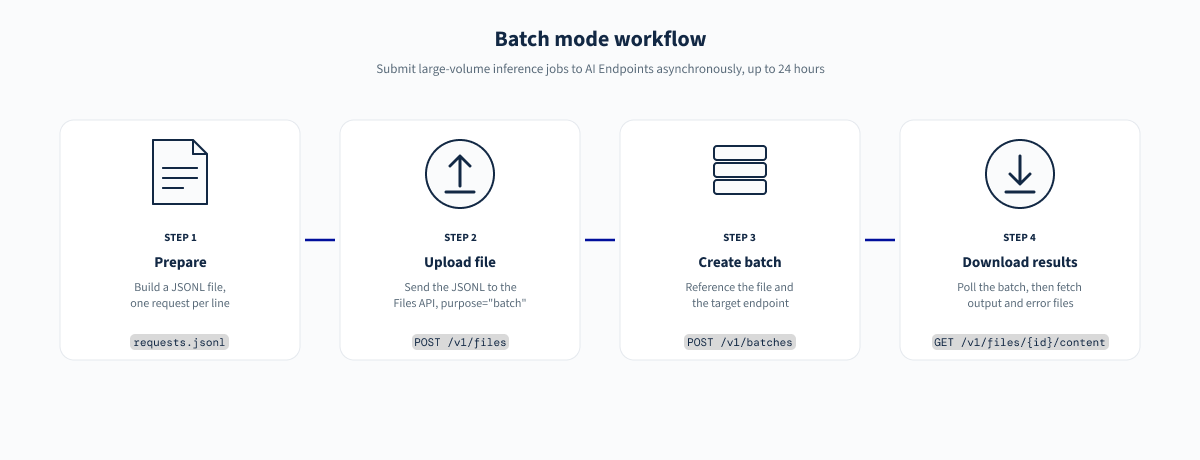
How batch mode works
A batch job is processed in four stages:
- Prepare a JSONL file where each line describes a single request (model, endpoint, body).
- Upload this file to AI Endpoints through the Files API (
/v1/files) withpurpose="batch". - Create a batch (
/v1/batches) referencing the uploaded file and the target endpoint. - Poll the batch status until it is
completed, then download the output file (and the error file, if any).
Each line of the input file is processed independently. Successful responses are written to the output file, failed ones to the error file. Both files are retrieved through the Files API.
Preparing the input file (JSONL)
The input file must be in JSON Lines format (.jsonl): one JSON object per line, with no trailing comma and no wrapping array.
Batch mode limitations:
- File size: Maximum 200 MB per input file
- Entries: Maximum 50,000 entries (requests) per batch
- Concurrency: Maximum 5 simultaneous batches in progress
If you need to process more than 50,000 requests or files larger than 200 MB, split your workload into multiple batches.
Each line represents one independent request and must contain the following fields:
Example requests.jsonl with two requests:
custom_id values must be unique within a batch. They are the only reliable way to map outputs back to your original inputs, since the order of the output file is not guaranteed.
Quickstart
The following examples walk through the full lifecycle of a batch: uploading the input file, creating the batch, checking its status, and downloading the results.
1. Upload the input file
Upload the .jsonl file to the Files API with purpose="batch". The response contains a file identifier (e.g. file-abc123) that you will reference when creating the batch.
2. Create the batch
Create a batch by referencing the uploaded file identifier, the target endpoint and the completion window.
The response contains the batch object with its identifier and an initial status (typically validating).
3. Check the batch status
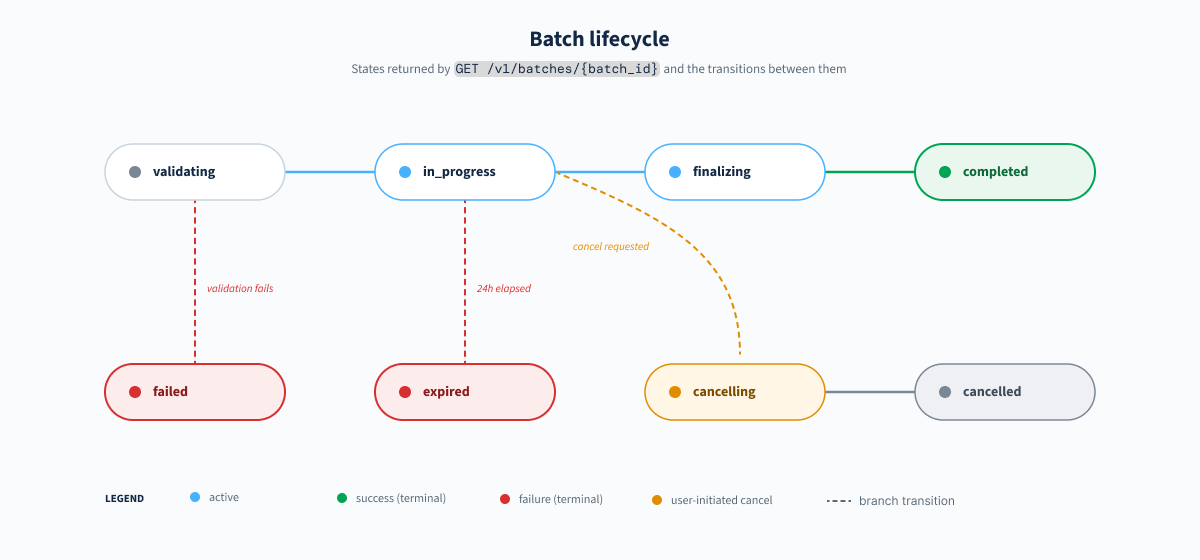
Batches are asynchronous. Poll the batch object until it reaches a terminal state (completed, failed, expired or cancelled).
A batch object progresses through the following states:
The request_counts field reports the total, completed, and failed counts for individual requests. It is the easiest way to monitor progress.
4. Download the results
Once the batch reaches the completed state, the batch object exposes two file identifiers:
output_file_id: JSONL file containing the successful responses.error_file_id: JSONL file containing the failed requests (present only when at least one request failed).
Retrieve their content through the Files API:
Output and error files are automatically deleted after 15 days.
Output file format
Each line of the output file is a JSON object matching one input line, with the following shape:
The body field mirrors exactly what the synchronous endpoint would have returned for the corresponding request, which means you can reuse the same parsing code you already use for /v1/chat/completions or /v1/responses.
Use the custom_id field to map each response back to your original input, as the order of the output file is not guaranteed.
Failed requests are written to the error file with a populated error object instead of response.body.
Listing and cancelling batches
List your batches
Cancel a batch
A batch can be cancelled while it is in the validating or in_progress state. Already-processed requests remain available in the output file.
When to use batch mode
Batch mode is a good fit when:
- You have a large volume of prompts to process (thousands to millions).
- You do not need a real-time answer: results within a few hours are acceptable.
- Your workload is embarrassingly parallel: each request is independent of the others.
Typical use cases include:
- Dataset annotation and labelling (classification, tagging, summarisation).
- Offline evaluation of a model or a prompt on a benchmark dataset.
- Bulk content generation (product descriptions, SEO content, translations).
- Retrospective enrichment of logs, tickets, or any historical corpus.
For interactive workloads (chat UIs, low-latency tools, real-time agents), prefer the synchronous /v1/chat/completions or /v1/responses routes.
Endpoint limitations
The /v1/batches endpoint is still under development and not all features may be available yet.
If you are interested in specific features that you would like us to prioritise, let us know on the OVHcloud Discord server.
Batch mode quotas
If your workload exceeds the file size or entry limits, split it into multiple batches. Batches beyond the concurrency limit must wait until a slot becomes available.
Platform limitations
- All requests inside a single batch must target the same endpoint (the one declared at batch creation time).
- A batch cannot reference models that are not available on the AI Endpoints catalog.
- Currently, we only accept batch requests for our LLMs and embeddings models.
- Input files must be valid JSONL with unique
custom_idvalues; malformed lines cause the batch to move to thefailedstate during validation. - The
completion_windowaccepts24h,48h, and72h. Batches that cannot be completed within this window transition toexpired. - Output and error files are subject to the Files API retention policy. Download them as soon as possible once the batch is
completed. - Model-specific limitations (context length, structured outputs, function calling, etc.) documented for the synchronous route also apply to the corresponding requests inside a batch.
Conclusion
The Batch API provides a cost-efficient, asynchronous way to run large volumes of inference requests on OVHcloud AI Endpoints. By reusing the same request body as the synchronous endpoints, it fits naturally into existing integrations built on top of v1/chat/completions or v1/responses.
To maximise success rate, verify supported features for your chosen model in the AI Endpoints catalog, keep custom_id values unique, and always correlate results through custom_id rather than relying on file ordering.
Go further
Explore the full AI Endpoints documentation for more guides and tutorials.
For training or technical assistance implementing our solutions, contact your sales representative or visit our Professional Services page to request a quote and have your project analysed by our experts.
Feedback
Please send us your questions, feedback, and suggestions to improve the service:
- On the OVHcloud Discord server.