
Configure incoming connections of a Public Cloud Databases for PostgreSQL service
Find out how to configure your PostgreSQL instance to accept incoming connections
Objective
Public Cloud Databases allow you to focus on building and deploying cloud applications while OVHcloud takes care of the database infrastructure and maintenance in operational conditions.
This guide explains how to configure your PostgreSQL instance to accept incoming connections.
Requirements
- A Public Cloud project in your OVHcloud account
- A PostgreSQL database running on your OVHcloud Public Cloud Databases (this guide can help you to meet this requirement)
OVHcloud Control Panel Access
- Direct link:
- Navigation path:
Public Cloud> Select your project >Databases
Instructions
Configure your PostgreSQL instance to accept incoming connections
Before making a connection, we need to verify that our PostgreSQL instance is correctly configured.
Click on Databases in the left-hand navigation bar and select your PostgreSQL instance.
Step 1: Verify your user roles and password
Select the Users tab. Verify that you have a user with sufficient rights and a configured password. If you don't remember the user's password, you can either create a new user or regenerate the password of an existing user. Be careful! By doing so you will need to update all the places where you already use this user/password pair.
This first user avnadmin comes with the following privileges:
We rely on official PostgreSQL roles and privileges. You can manage them yourself via CLI or code. So far, user grants and privileges management are not supported via the OVHcloud Control Panel or the OVHcloud API.
Please read the official PostgreSQL documentation to select the right roles for your use case.
To simply reset the avnadmin password, click on the ... on the right of user, then on Reset the password.

To create a new user, click on Add User, fill the form, then click on the Create User
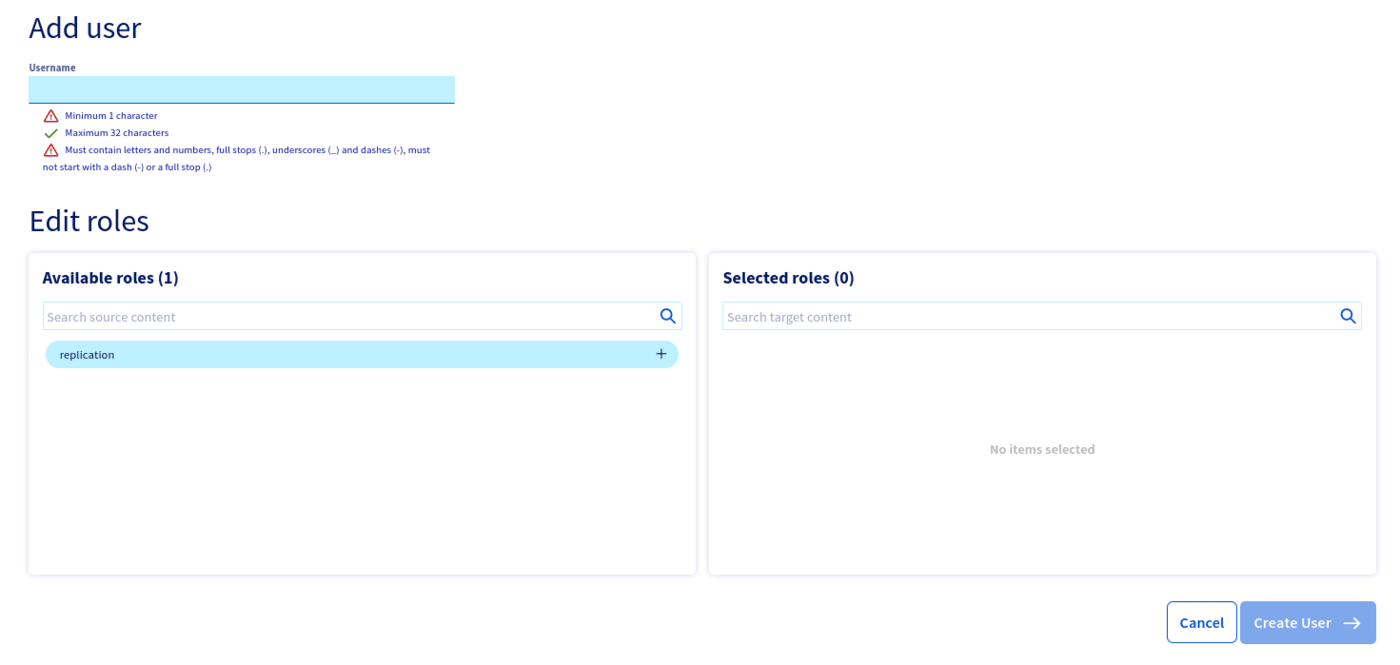
Once created or updated, the user has to be ready and have the status "Enabled" in the Control Panel.
Step 2: Authorise incoming connections from the PostgreSQL client
In this step, select the Authorised IP's tab (Access Control List).
By default, a Public Cloud Database does not accept any form of connection from the outside world.
This way we can help prevent intrusive connection attempts.
Click to authorise a new IP, and enter the IP of your pgAdmin environment. In our case we will enter 109.190.200.59.
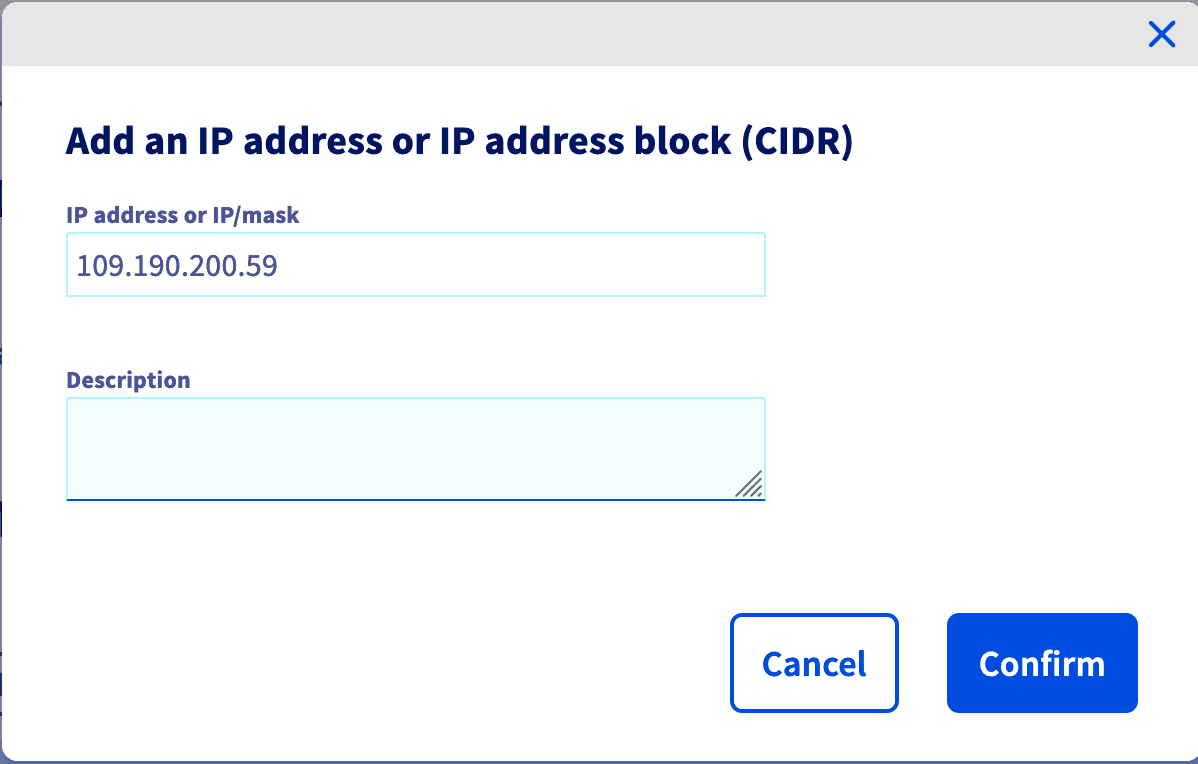
If you want to allow connections from the outside, you can enter the IP 0.0.0.0/0. Please use it carefully.
Collect required information
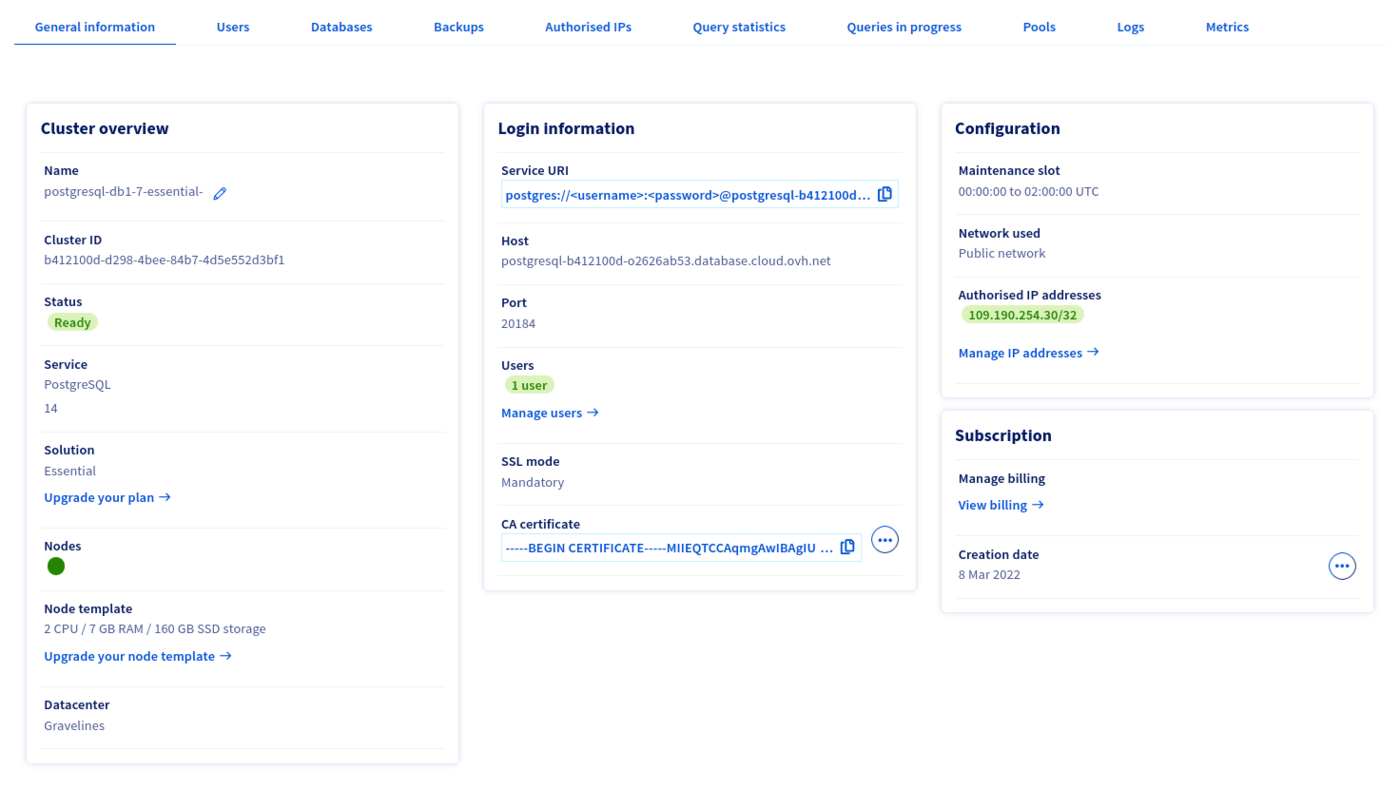
Select the General information tab to find the required login credentials in the Login informations section.
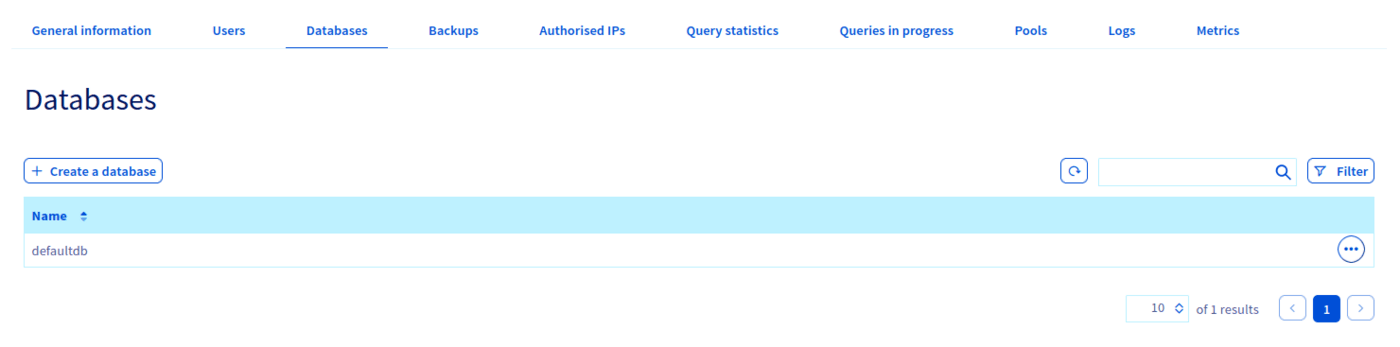
Select the Databases tab to get the database name.
Select the Users tab to get the username.

Go further
Visit the Github examples repository to find how to connect to your database with several languages.
Visit our dedicated Discord channel: https://discord.gg/ovhcloud. Ask questions, provide feedback and interact directly with the team that builds our databases services.
For training or technical assistance implementing our solutions, contact your sales representative or visit our Professional Services page to request a quote and have your project analysed by our experts.
Join our community of users.