Check data quality after each load
Add quality rules to a table, run the Data quality action and read the results, then use the action as a quality gate between two tables in a workflow
Objective
In this tutorial, we add quality rules to the chicago_calendar_full table, run the Data quality action on it and read its results in the Lakehouse Manager. Then, in Build a quality gate between two tables, we use the same action as a gate in a workflow: data is published to a final table only when its quality checks pass.
Everything is done in the Data Platform interface.
Requirements
- The
chicago_calendar_fulltable, created and loaded in the Getting Started tutorial (Connect sources and Organize data). Each row of this table is one day, with itsdate,month,temperature,week_day,week_day_labelandweekend.
Step 1: Add quality rules to the table
In the Lakehouse Manager, open the chicago_calendar_full table and go to its Quality tab.
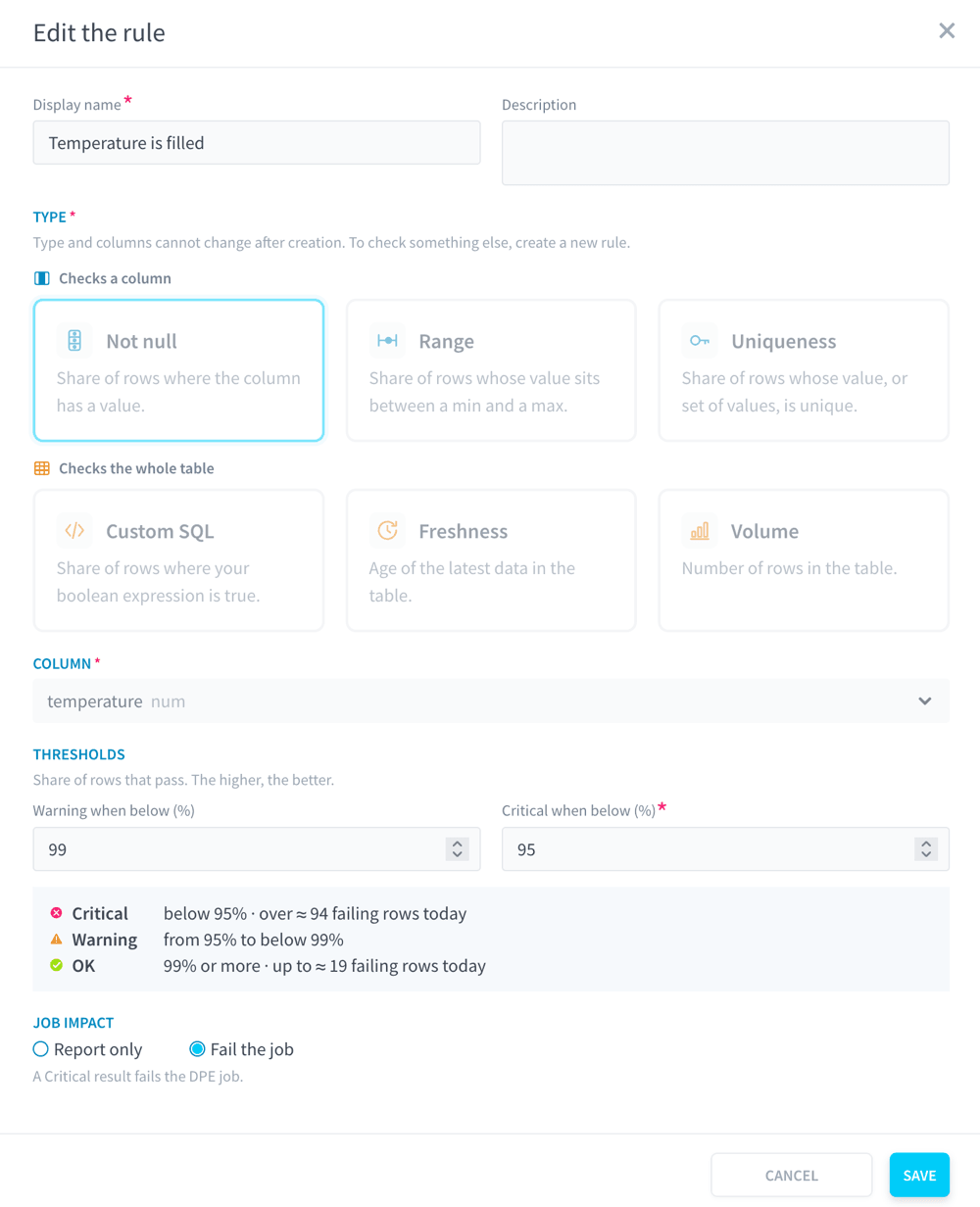
Click + Add rule and create the following four rules. Two of them have a warning level, two only a critical one:
What these rules mean:
- Temperature is filled is in warning when fewer than 99% of the days have a temperature, and critical below 95%.
- Temperature is plausible checks that temperatures, in Fahrenheit, stay between -40 and 120. It is in warning when fewer than 99% of the values are in that range, and critical below 90%.
- One row per day has no warning level: 0% means no duplicate, so a single duplicated date makes it critical.
- At least a year of data is evaluated by the Lakehouse Manager from the table's metadata, without any action. It is critical when the table holds fewer than 365 rows.
The two rules set to Fail the job are the ones that fail the Data quality job when they end critical. The two Report only rules are reported without stopping the job. See Job impact.
Step 2: Create the Data quality action
In the Quality tab, click Create a DPE action, or in the Data Processing Engine, go to Actions and create a Data quality action.
In Table to check, pick chicago_calendar_full, then keep the other default parameters:
- In When the job fails, Critical Results Allowed and Warning Results Allowed are empty: only rules set to Fail the job can fail it, and warnings never fail it.
- The action runs on Python 3.11, on 2 DPU.
Save the action.
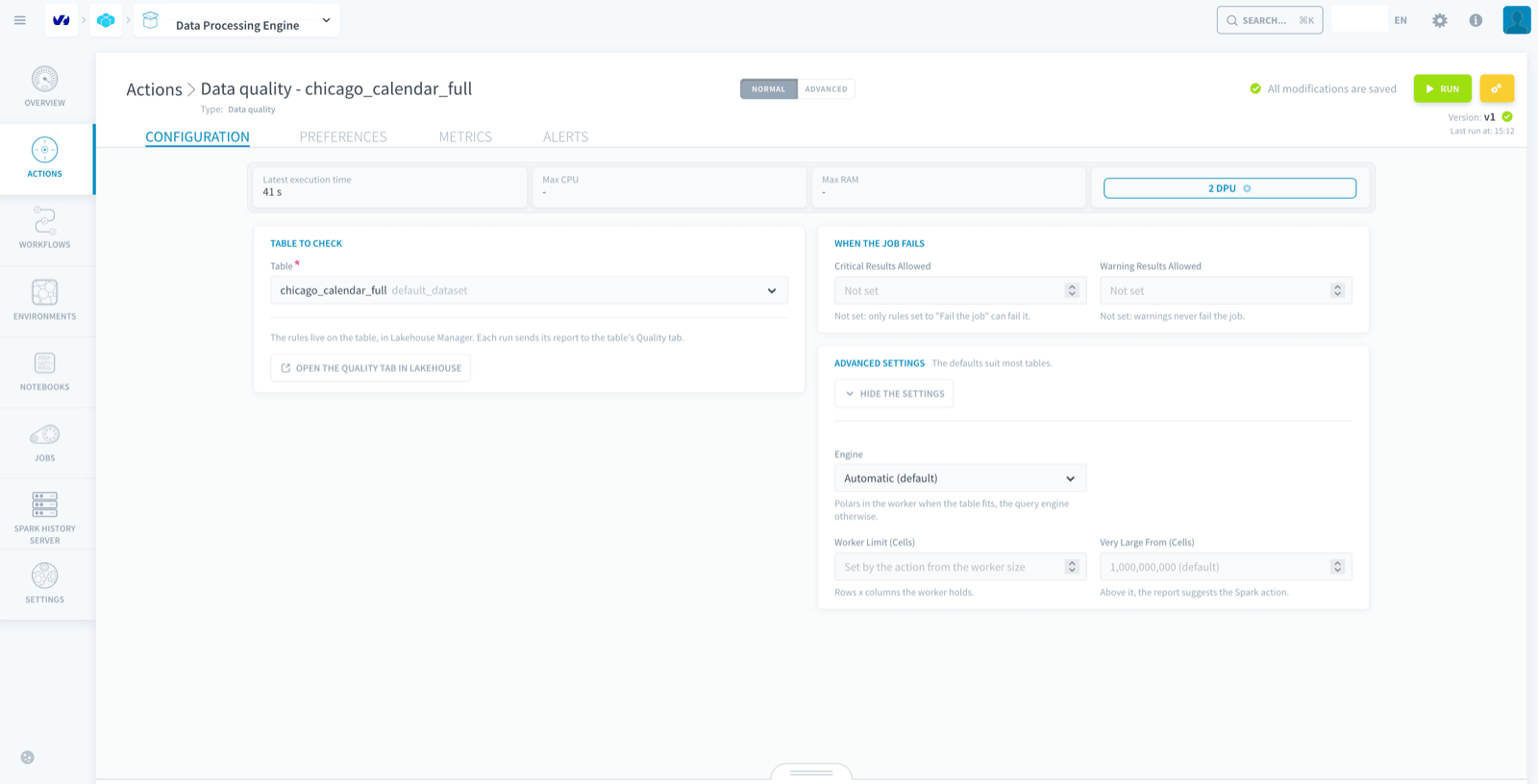
Once the action is saved, its Open the Quality tab in Lakehouse button takes you back to the rules of the table.
Step 3: Run the action
Click Run and wait for the job to end. The job evaluates the three column rules on the current snapshot of the table, sends the report to the Lakehouse Manager, then succeeds or fails depending on the rules set to Fail the job.
Step 4: Read the results
Click Open the Quality tab in Lakehouse on the action, or open the chicago_calendar_full table in the Lakehouse Manager and go to its Quality tab.
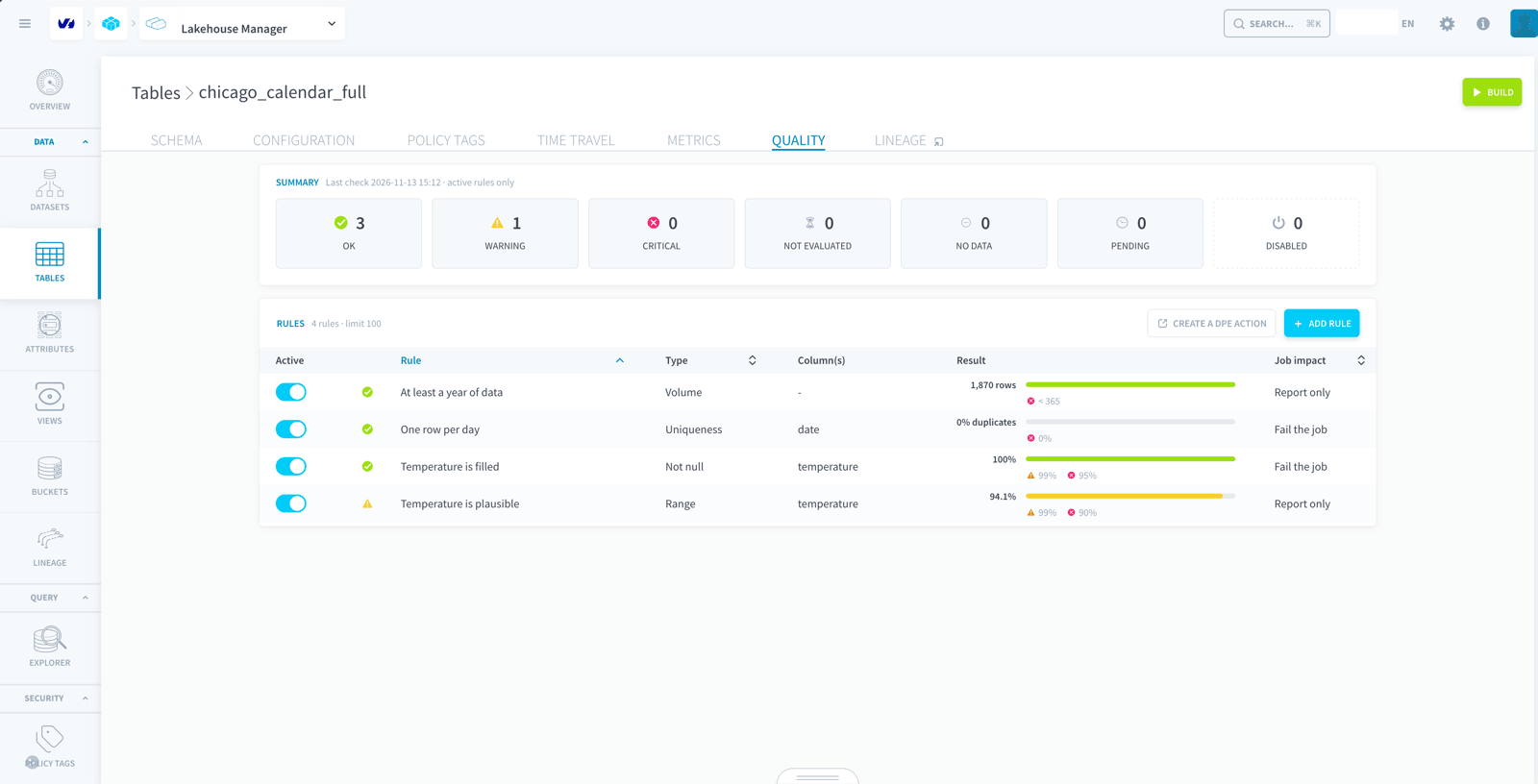
Each rule shows its outcome (ok, warning or critical) and its result: a pass rate for the Not null and Range rules, the share of duplicates for the Uniqueness rule, a row count for the Volume rule. The icons under the bar show its warning and critical levels. The status of the table is the worst outcome of its rules.
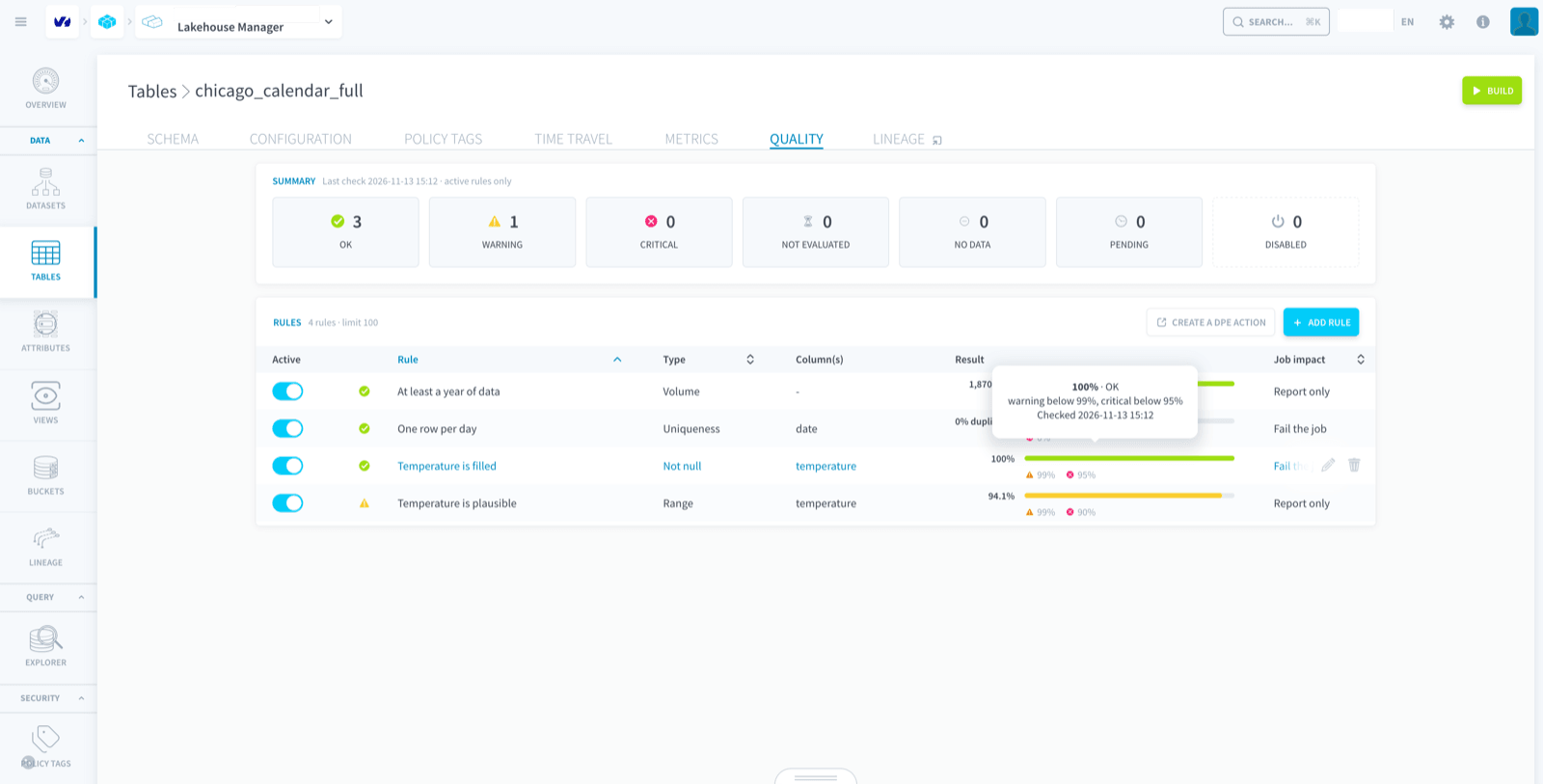
Hover over a result to see its outcome, its thresholds and when it was checked.
To see a rule fail, edit Temperature is plausible and set its maximum to 80, then run the action again: the rule ends in warning or critical, and its history shows both runs with the rule as it was at each run.
Build a quality gate between two tables
A common pattern is to load new data into a staging table, check it, and publish it to the final table only when the checks pass. This is often called Write, Audit, Publish: the consumers of the final table never see data that failed its checks.
We build it with two tables:
silver, the staging table, loaded from the source;gold, the final table, with the same columns, filled fromsilver.
Create the silver table and its load
- In the Lakehouse Manager, create the
silvertable from thechicago_calendar_fullsource, with a Load action, as in Organize data. - Build the table.
Add quality rules to the silver table
Open the Quality tab of silver and create the same four rules as in Step 1. The rules set to Fail the job decide whether the data is published.
Then create a Data quality action with silver as Table to check and the default parameters, as in Step 2.
Create the gold table and its load
- Create an empty
goldtable with the same columns assilver, and build it. - In the Data Processing Engine, create an Aggregate action that reads
silverand writesgold, mapping each column to the column of the same name.
Chain them in a workflow
In the Data Processing Engine, create a workflow with three actions, each one depending on the previous one:
- the Load action of
silver; - the Data quality action of
silver; - the Aggregate action from
silvertogold.
Each action starts once the previous one has succeeded. When a rule of silver set to Fail the job ends critical, the Data quality action fails, the Aggregate action does not run, and gold keeps its previous data. The report of the failed run is in the Quality tab of silver, so you can see which rule failed and why.
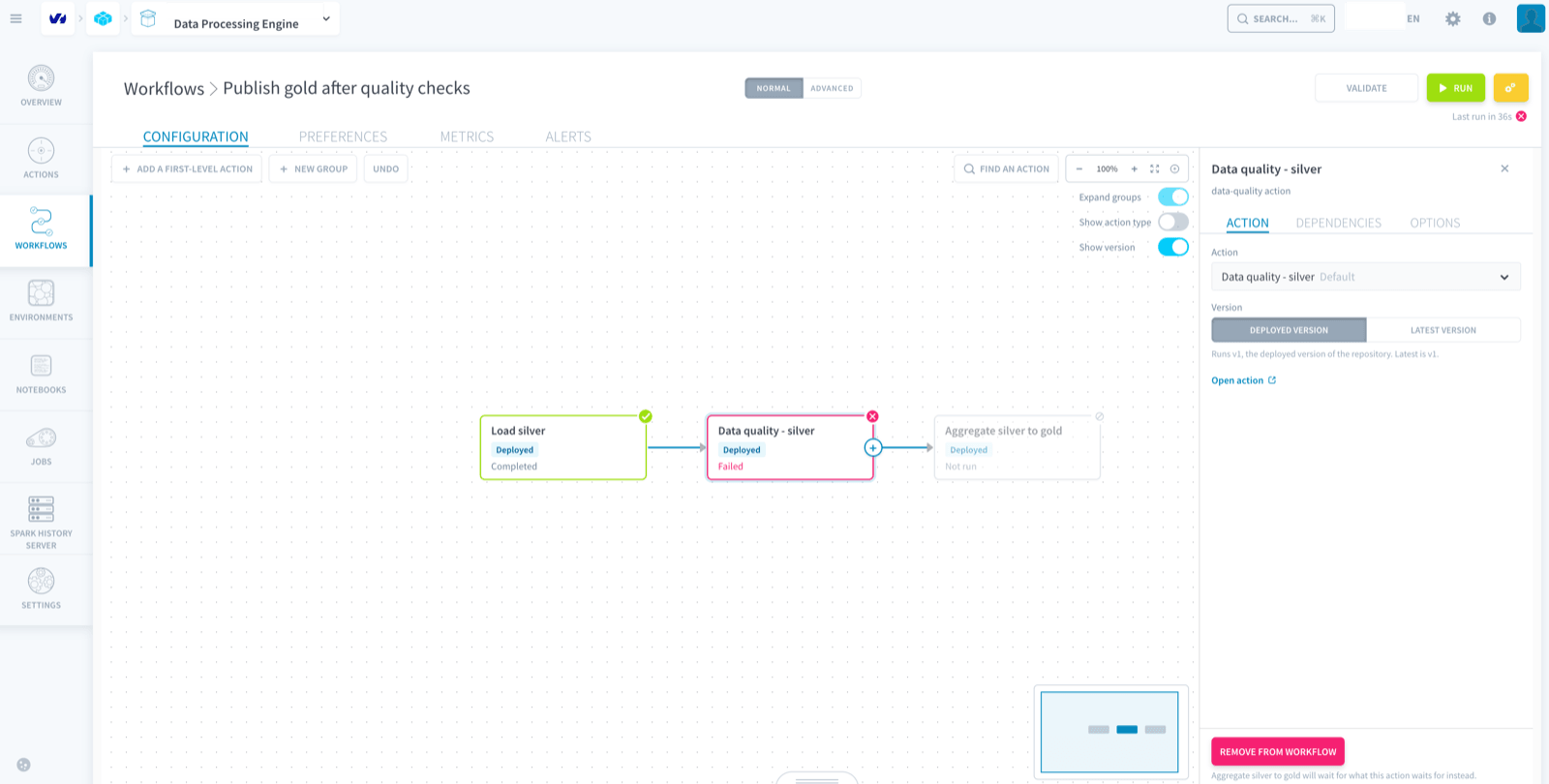
To be notified when the gate stops the workflow, configure an alert on the Data quality action with status = failure.
Go further
- Check the quality of your tables with data quality rules
- Check table quality with the Data quality action
For training or technical assistance implementing our solutions, contact your sales representative or visit our Professional Services page to request a quote and have your project analysed by our experts.
If you need support with your OVHcloud services, create a request in our Help Centre.
Join our community of users.