For AI agents: the complete documentation index is available at https://docs.ovhcloud.com/de/llms.txt, the full documentation bundle is available at https://docs.ovhcloud.com/de/llms-full.txt, and this page is available as Markdown at https://docs.ovhcloud.com/de/guides/public-cloud/data-platform/dpe-workflows-advanced-mode.md.

Configure a workflow in the Advanced mode

Als Markdown ansehen

Workflows can also be configured directly using a JSON configuration. To access the JSON configuration for a new workflow

Objective

Workflows can also be configured directly using a JSON configuration. To access the JSON configuration for a new workflow, click on the Expert tab of the "New Workflow" or "Edit Workflow" window.
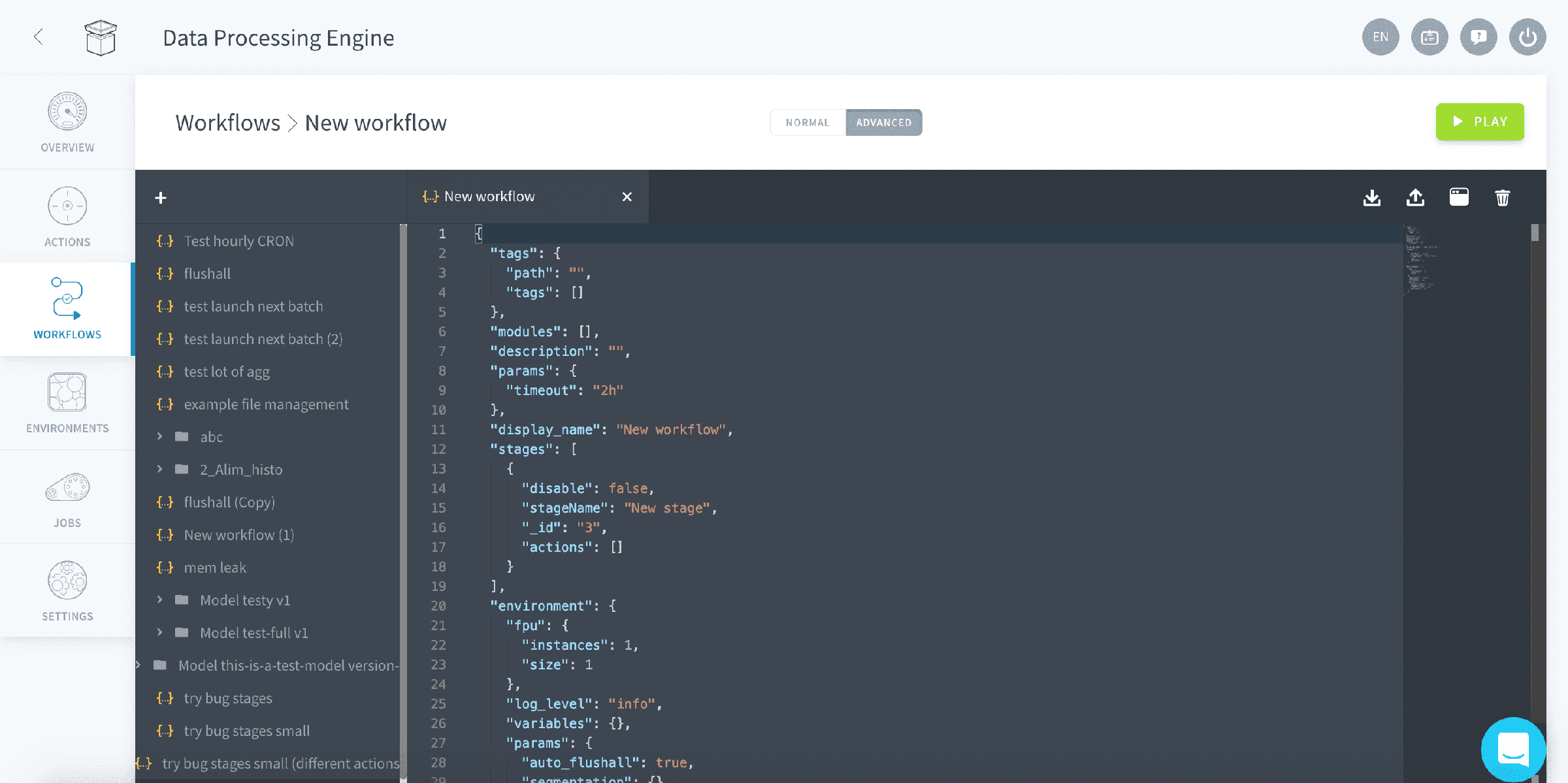
Workflow advanced Mode

Discover the JSON configuration

Users can type directly in the JSON editor to configure a Workflow. The JSON configuration includes more options than the ones available via the GUI.

Workflow parameters reference

In alphabetical order, the parameters are the following:

ParameterTypeDescription
display_nameStringAllows to set a name of the workflow
descriptionStringAllows to set a description to the workflow
workflowTableList of stages with their associated actions
logLevelStringLog level value defines the minimum log level for this workflow. It can take one of the following value debug, info, notice, warning, error or critical
auto_flushallBooleanCondition to append or not the Flush All routine at the end of the workflow. This is a maintenance routine which refreshes all caches in the data flow (QB, API and APP)
dateMinStringAbsolute lower limit of the date perimeter
dateMaxStringAbsolute higher limit of the date perimeter
daysJSON ObjectMinimum and maximum values for the relative dates of the perimeter value

Example JSON configuration

Below is the JSON configuration of a typical workflow. It has 2 stages with respectively 2 actions in "Stage 1" and 2 action in "Stage 2".

{
  "params": {
     "log_level": "info"
  },
  "auto_flushall": true,
  "display_name": "flushall",
  "description": "routine maintenance workflow",
  "stages": [
    {
      "stageName": "Stage 1",
      "actions": [
        {"action_conf": "5c9bba68555fb219eb000020"},
        {"action_conf": "5c9bba68555fb2190000ll99"}

      ]
    },
    {
      "stageName": "Stage 2",
      "actions": [
        {"action_conf": "5c9bba68555hghjgjhgjhgjh"}
      ]
    }
  ]
}

Date perimeter parameters

To define the date perimeter you do so using an absolute date limit (e.g. set in time) or a relative date limit (e.g. calculated off the curent date).

To define an absolute date perimeter use the dateMin & dateMax parameters and enter the dates as string using the format YYYY-MM-DD. For instance, this would let you recompute a workflow between specific dates in the past.

{
  ...
  "dateMin": "2019-04-25",
  "dateMax": "2019-04-25"
}

To define a relative date perimeter use the days parameters and enter distance from the current date in days of the lower & upper limits. For instance, this would be used in a daily workflow that would need to only affect data from "the day before yesterday" and "today". The number corresponds to the number of days to subtract from today's date.

{
  ...
  "days": {
    "min": "2",
    "max": "0"
  }
}

Stage parameters

The parameters of stages can also be modified directly from the user interface.

ParameterTypeDescription
stageNameStringAllows to name each stages
disable (Stages)BooleanAllows to enable / disable specific stages within a workflow
action_confStringCorresponds to the action unique ID which you can find when accessing individual action's information.
disable (Actions)BooleanAllows to enable / disable specific actions within a stage
{
  "display_name": "flushall",

  "workflow": [
    {
      "disable": false,
      "stageName": "update_metas_lite",
      "actions": [
        {
          "action_conf": "update_metas_lite",
          "disable": false
        }
      ]

  ]
}

Override configurations

Action configurations

Overriding action configurations lets you reuse the same action in several workflows with different execution parameters without affecting the actions' configurations themselves. For instance lets assume that you have set the perimeter of an action, with a specific set of values: "perimeterValues":["1","2"]

You can reuse this same action with different perimeter values in the same workflow as follow:

{
  "logLevel": "info",
  "auto_flushall": true,
  "display_name": "flushall",
  "workflow": [
    {
      "stageName": "Stage 1",
      "actions": [
        {"action_conf": "5c9bba68555fb219eb000020", "perimeterValues": ["1","2"]},
        {"action_conf": "5c9bba68555fb219eb000020", "perimeterValues": ["8"]}
      ]
    }
  ]
}
Info

This specific example is meaningless but shows you how you can easily define different configurations for the same actions in a single workflow.

Configuration priorities

Configurations can be overriden at the 3 different levels: workflow, stages or actions. The most granular level of configuration applies to all sub-objects. For instance configurations set at the stage level will be overriden by any configurations set at the action level. Let's use the following example to illustrate the priority order:

{
  "logLevel": "info",
  "perimeterValues": ["0"],
  "auto_flushall": true,
  "display_name": "flushall",
  "workflow": [
    {
      "stageName": "Stage 1",
      "perimeterValues": ["1"],
      "actions": [
        {"action_conf": "abc", "perimeterValues": ["2"]},
        {"action_conf": "efg"}

      ]
    },
    {
      "stageName": "Stage 2",
      "actions": [
        {"action_conf": "hij"}
      ]
    }
  ]
}

Following the JSON configuration above, the perimeter values for the different actions run in the workflow will be as follow:

Action IDperimeterValueExplanation
abc2The action abc has perimeterValues set at the action level which overrides any other perimeterValues.
efg1The action efg has no perimeterValues set at the action level which means it uses the perimeterValues set for the stage it is contained in, in this case Stage 1.
hij0The action hij & Stage 2 both don't have any perimeterValues set, so the perimeterValues which will be applied is the one of the workflow.

Workflow timeout

If an action within a workflow takes more time than expected, it is possible to set a timeout option to the workflow gets interrupted. The timeout duration is set as the value of the workflow_timeout parameter in a human readable format such as "worfklow_timeout":"1h 10m"

Values are cumulative from one time unit to another. Supported time units include:

Time UnitDescription
wweeks
ddays
hhours
mminutes
sseconds

Below a JSON configuration example using the workflow timeout option:

{
  "logLevel": "info",
  "auto_flushall": true,
  "worfklow_timeout":"59m 50s",
  "display_name": "flushall",
  "workflow": [
    {
      "stageName": "Stage 1",
      "actions": [
        {"action_conf": "5c9bba68555fb219eb000020"},
        {"action_conf": "5c9bba68555fb2190000ll99"}

      ]
    }
  ]
}

Go further

If you need training or technical assistance to implement our solutions, contact your sales representative or click on this link to get a quote and ask our Professional Services experts for a custom analysis of your project.

Ask questions, give your feedback and interact directly with the team building the Data Platform on the dedicated Discord channel.

If you need support with your OVHcloud services, create a request in our Help Centre.

Join our community of users.

War diese Seite hilfreich?