
Deploy an SAProuter with NSX
This guides provides instructions for deploying an SAProuter on VMware on OVHcloud with NSX
Objective
This guides provides instructions for deploying an SAProuter on VMware on OVHcloud with NSX.
Requirements
- A VMware on OVHcloud solution with NSX deployed in your OVHcloud account.
- Access with management rights for NSX.
OVHcloud Control Panel Access
- Direct link:
- Navigation path:
Network>Public IP Addresses
Instructions
Network Firewall configuration
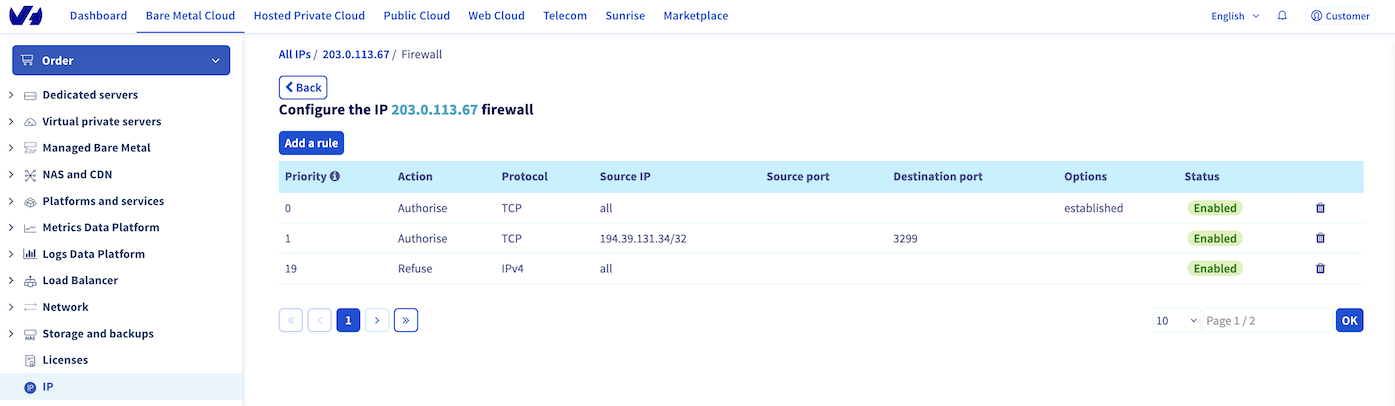
OVHcloud provides a firewall and anti-DDoS solution, the Network Firewall. This option protects you against potential attacks from the public network. We advise you to enable it for your public IP address which you will use in this configuration.
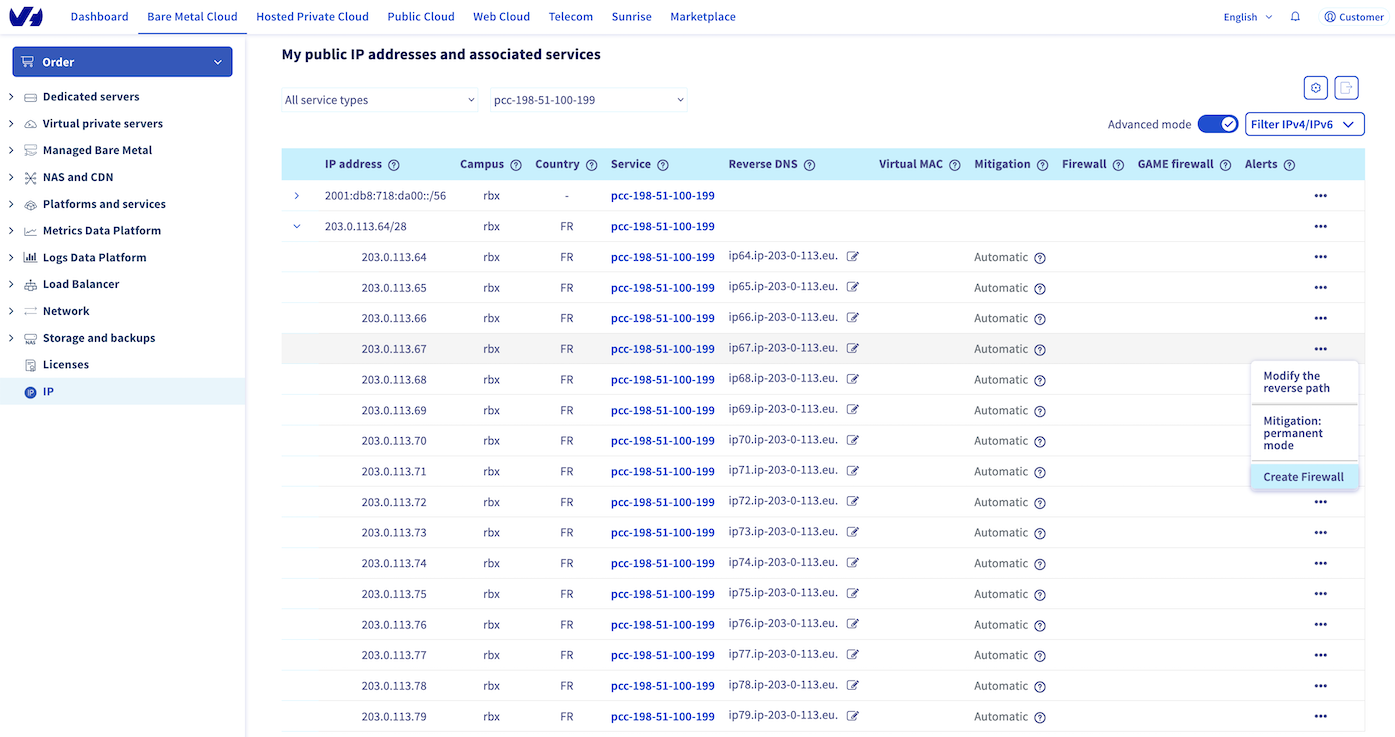
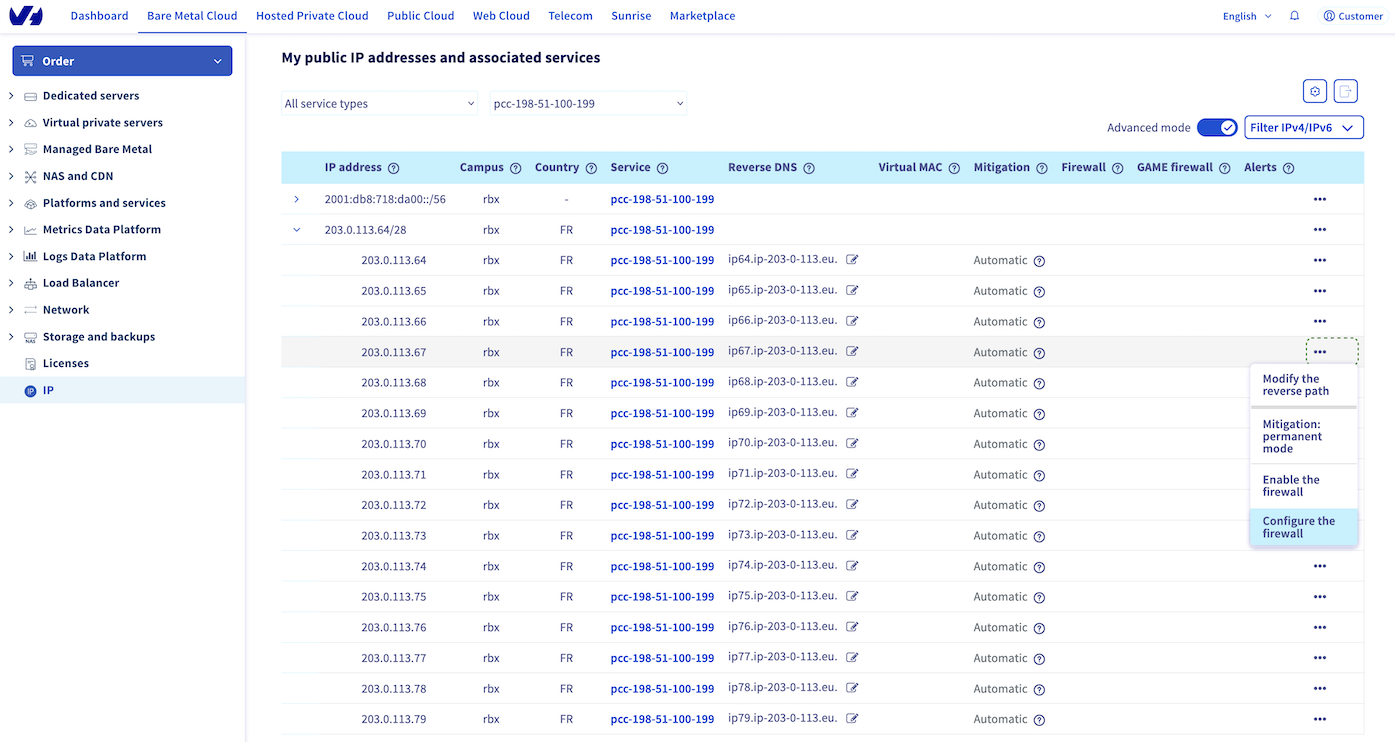
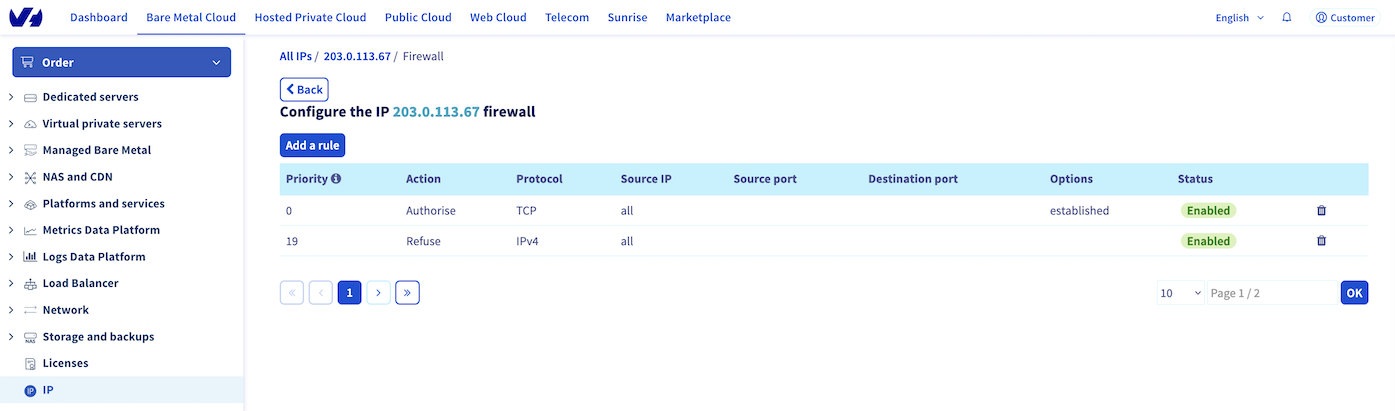
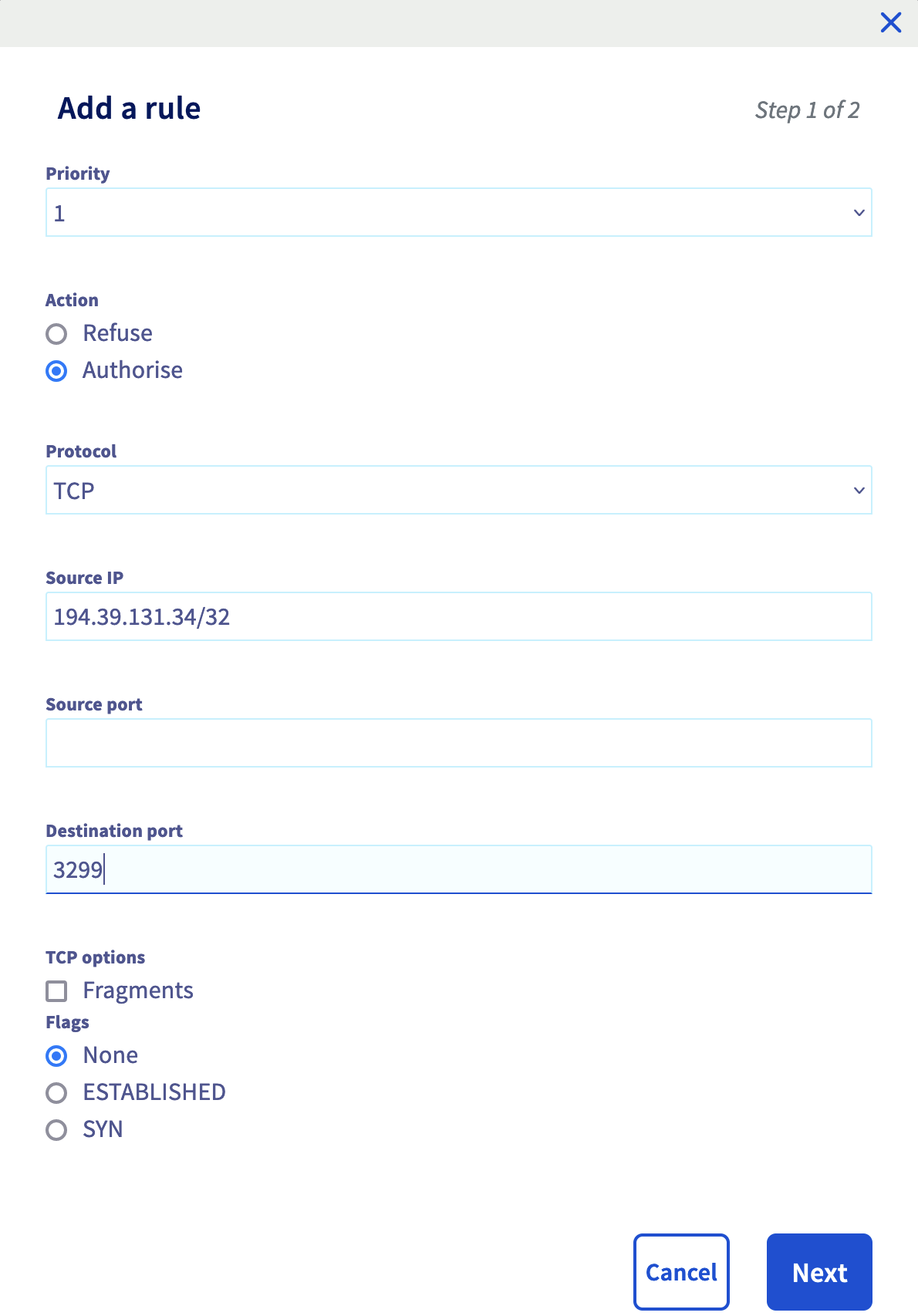
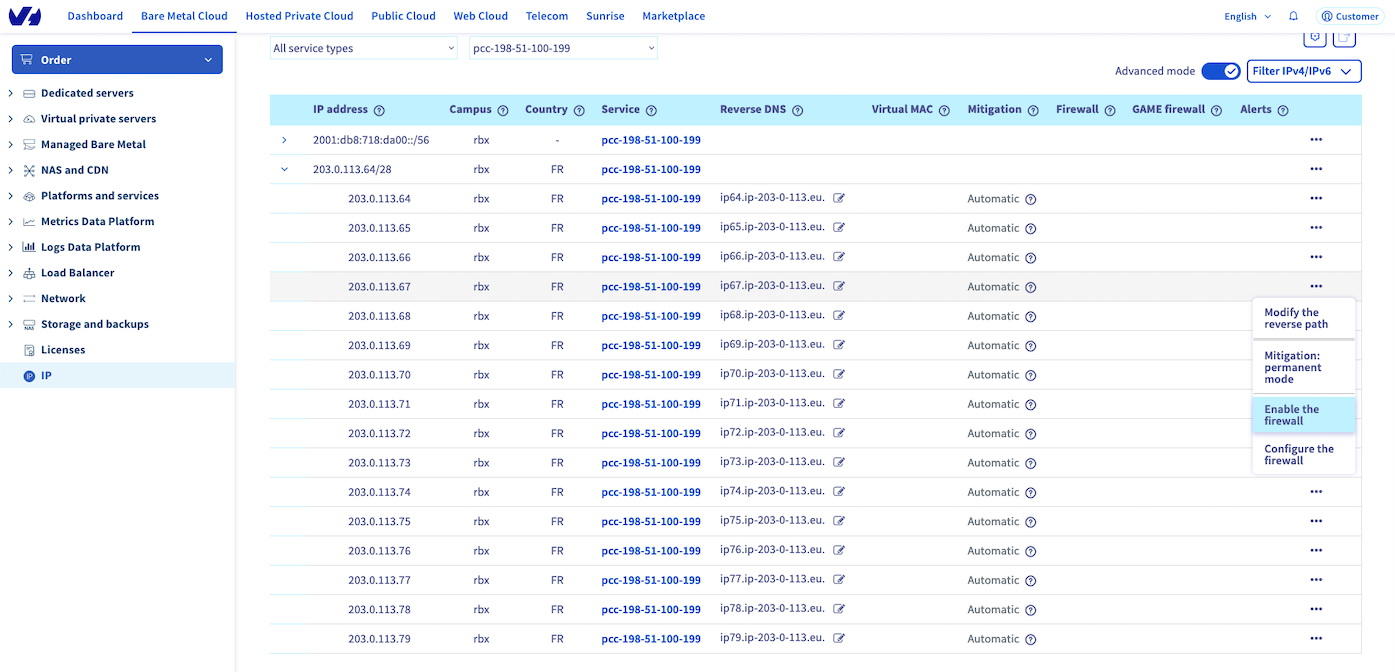
If you didn't create a Network Firewall and a firewall rule for the public IP address used by your NSX gateway, follow these steps to do it. If you are familiar with the Network Firewall, you can skip the first three steps.
In our First steps with NSX guide, the Displaying the HA VIP virtual IP address chapter shows you the way to get the public IP address held by your NSX gateway.
Expand the IPv4 address block, select the IPv4 address used by your NSX gateway and click on Create Firewall.
NSX gateway configuration
The NSX gateway is the gateway between Internet and your SAP infrastructure hosts on your VMware on OVHcloud solution. You must configure the NSX gateway to allow the connection from SAP support to your SAP infrastructure via SAProuter.
Firewall
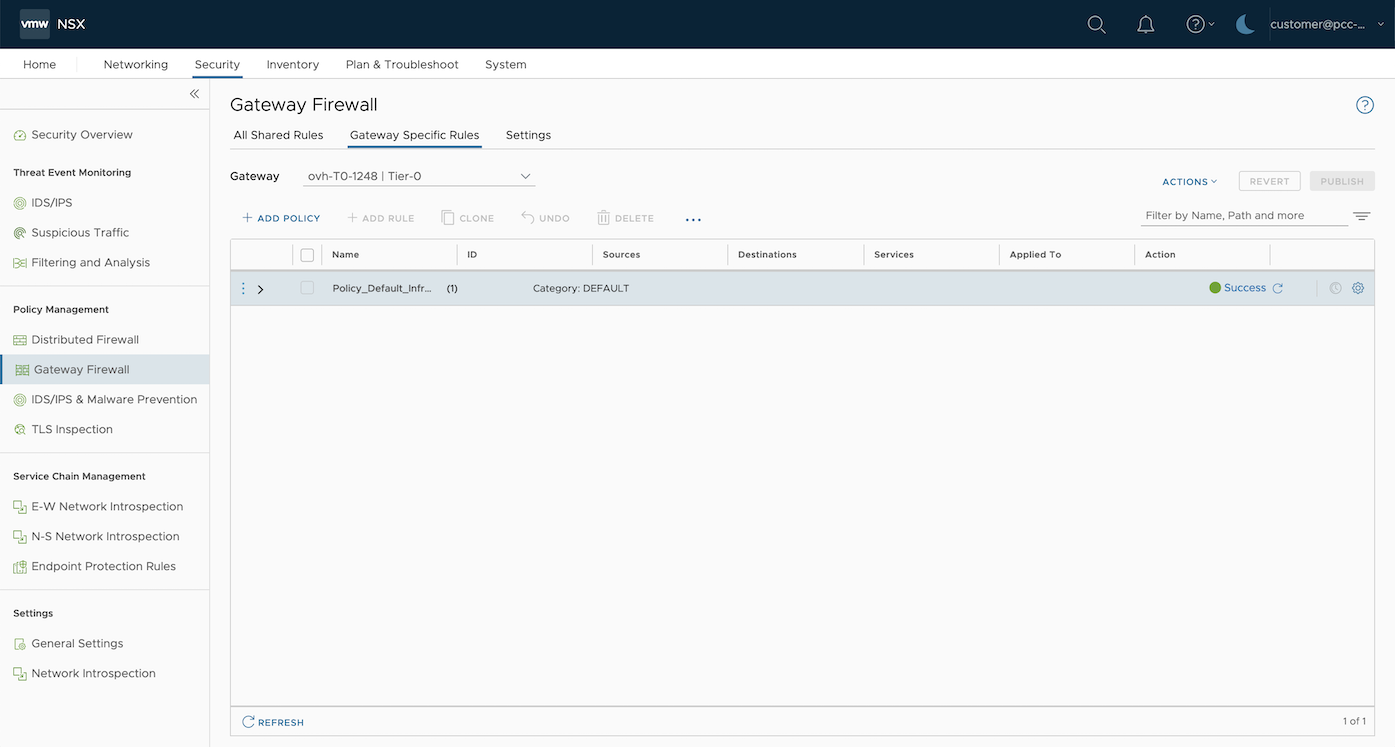
We recommend doing a network filtering on your NSX gateway, in addition of the network filtering done by the previously configured Network Firewall.
This network filtering on your NSX gateway allows you to secure your SAProuter if the Network Firewall was to be disabled on your public IP address.
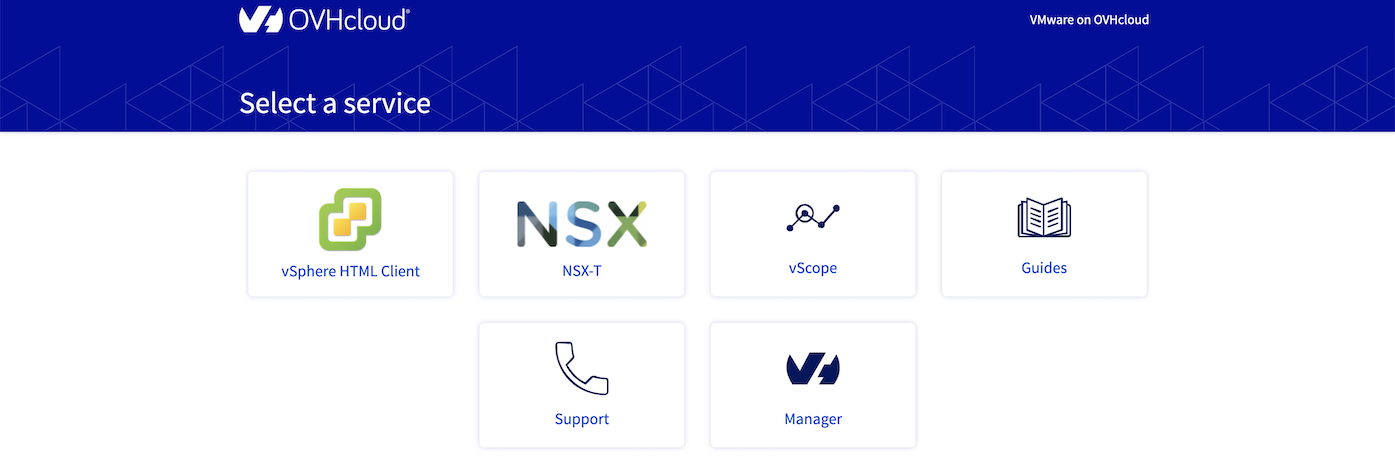
Connect to your VMware on OVHcloud solution and click on the NSX tile.
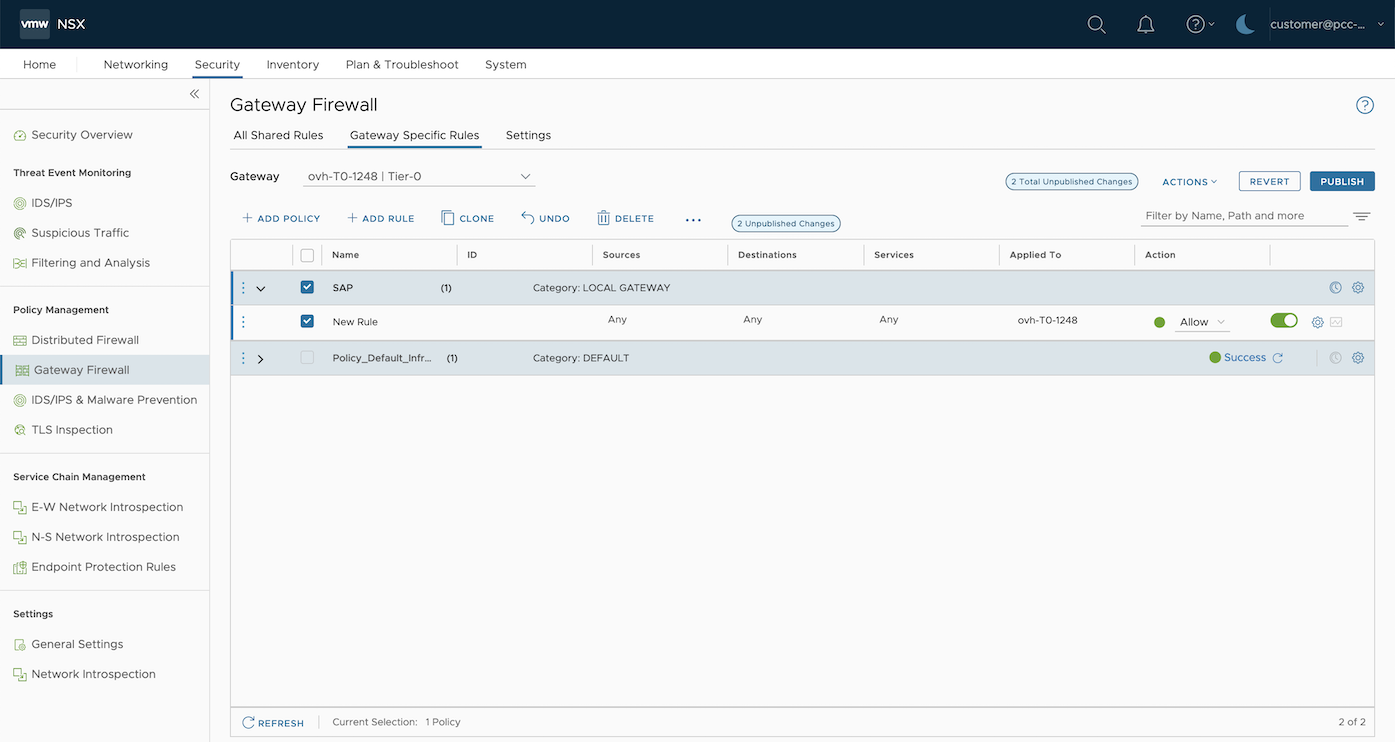
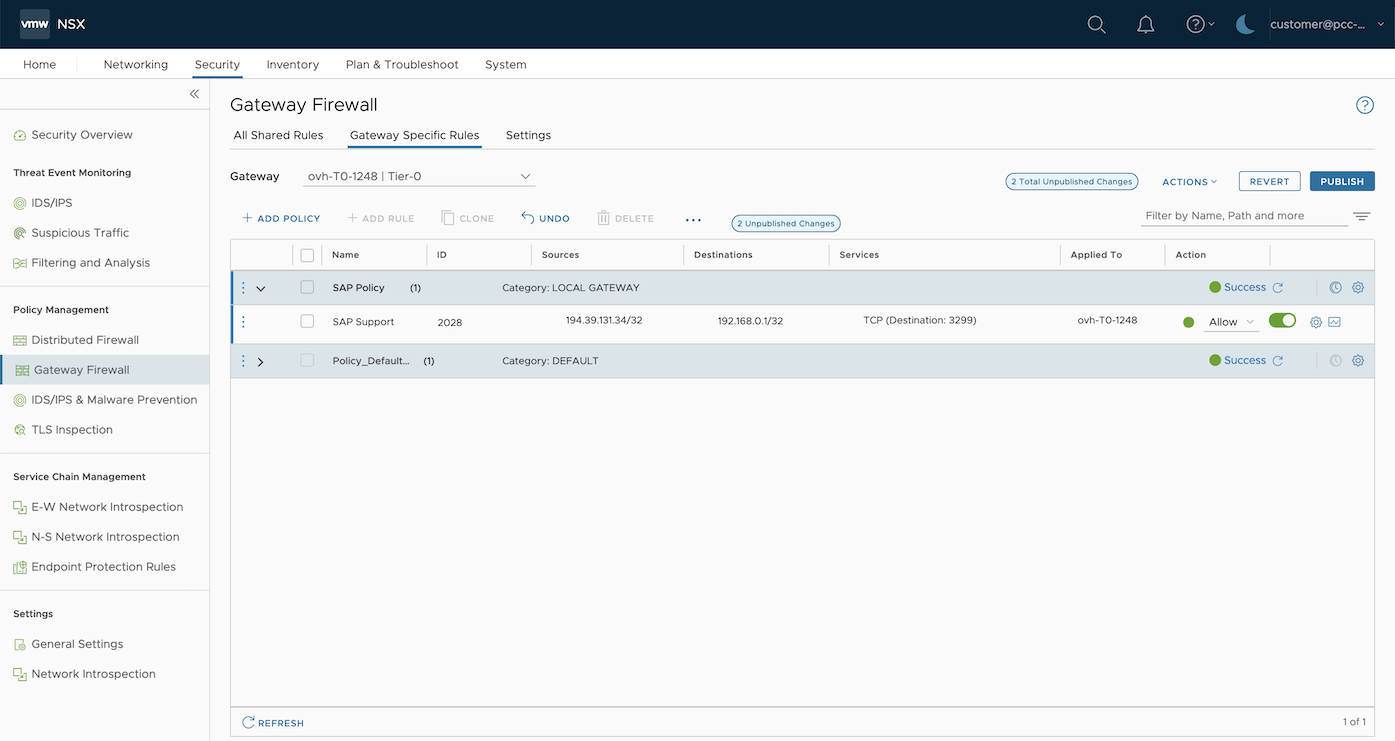
NAT
The SAProuter doesn't have a public IP address. You must apply the configuration to route the traffic on the port tcp/3299 from the public IP address held by your NSX gateway to your SAProuter.
You must create a Destination Network Address Translation (DNAT) rule.
This part shows you the steps to create a DNAT rule on an NSX gateway.
Click on the Networking tab then, in the Network Services category, click on NAT.
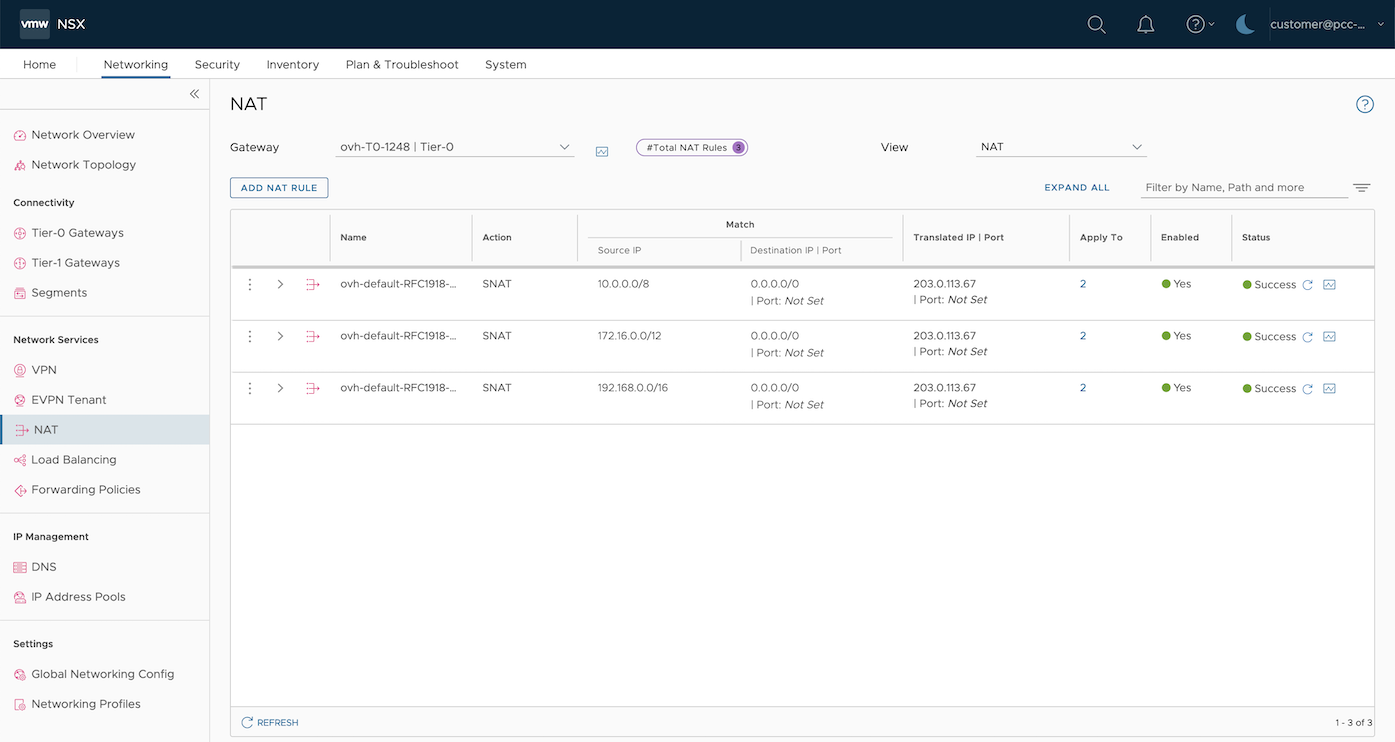
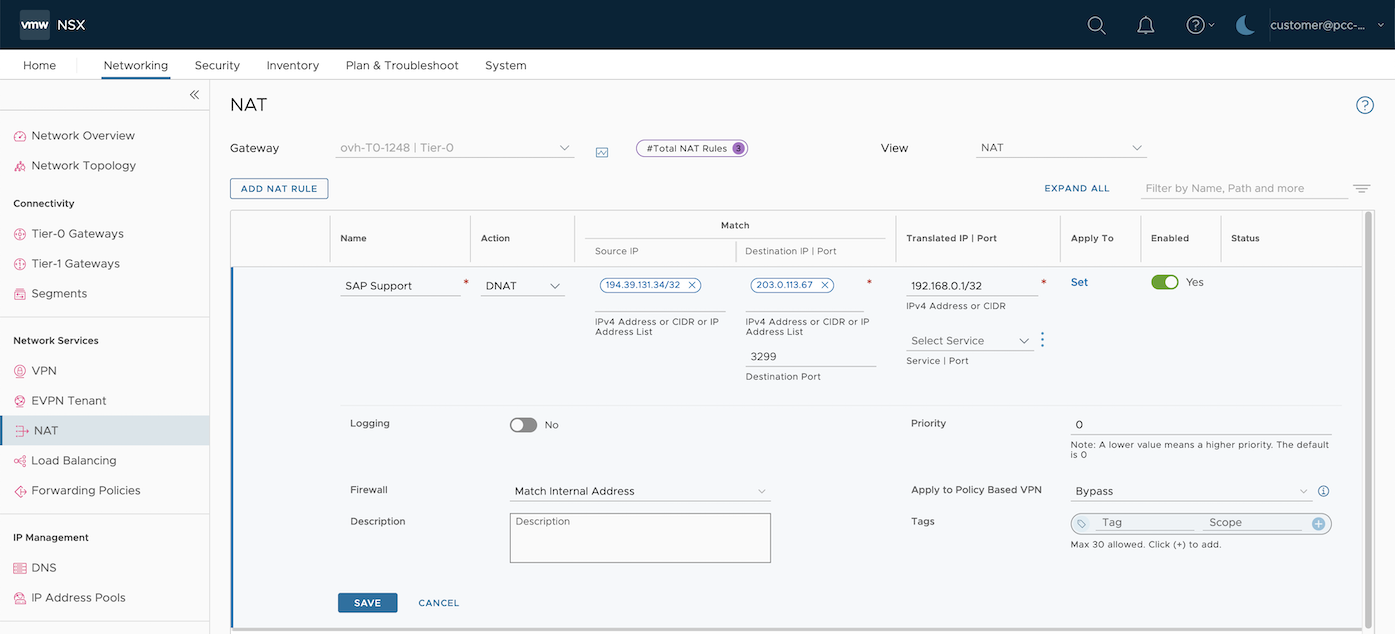
Now the traffic originating from the public IP address 194.39.131.34/32 held by SAP to your public IP address of your NSX gateway on the tcp/3299 port will be routed to your SAProuter.
SAProuter installation
To install the SAProuter service on your dedicated virtual machine, we recommend following instructions provided by the SAP support. Some steps must be done on your SAP Support Launchpad to secure the connection between SAP support and the SAProuter.
We advise updating your SAProuter as often as you can and deploying it in a monitored and isolated network of your SAP infrastructure. The SAProuter should communicate with your SAP infrastructure on restricted ports.
Find more information about the firewall rule with an NSX gateway in our guide.
Go further
For training or technical assistance implementing our solutions, contact your sales representative or visit our Professional Services page to request a quote and have your project analysed by our experts.
Join our community of users.