
CLI - Installation
Learn how to install the CLI to interact with AI Tools
Objective
This guide covers the installation of the ovhai CLI. The CLI is the recommended means of interaction with AI Training, AI Notebooks or AI Deploy services.
Requirements
- a Public Cloud project in your OVHcloud account
- AI Training activated for your account, see how to submit a job Step 2
- a user for AI Tools, see how to create a user
Instructions
Step 1: Installing the CLI
You can choose the cluster location for the ovhai CLI:
- Gravelines (
GRA) in France - Beauharnois (
BHS) in Canada
Here by default we will use the region gra in each of the commands. You are free to replace it with bhs if you want.
You can then choose between two methods to install the ovhai CLI.
Install ovhai CLI with a curl command
You can install the ovhai CLI with a single command line.
For bash:
For zsh:
Once done, go to Step 2.
If you encounter any issue with the automated installation you can also install manually.
Install ovhai CLI thanks to a zip file
You can also install the cli by following the link below:
After downloading the right zip for your platform, unzip it and add it to your PATH:
Step 2: Authenticating
Once the ovhai CLI is installed, you need to authenticate with the AI Training service.
You have the choice between two methods to log in:
- terminal: you can authenticate yourself from within the terminal.
- browser: you will reach an authentication page similar to this:
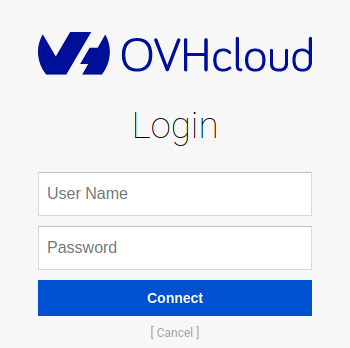
Use the credentials of your AI Training user to log in.
Step 3: Using the command line CLI
You can use the command ovhai --help to list available actions and ovhai <action> --help for more information about a specific action.
The documentation of the CLI is available at CLI documentation.
In addition, when performing any action in the AI Training, AI Notebooks or AI Deploy sections of the OVHcloud Control Panel you are provided with the equivalent command to get you started with the ovhai CLI.
Feedback
Please send us your questions, feedback and suggestions to improve the service:
- On the OVHcloud Discord server
For training or technical assistance implementing our solutions, contact your sales representative or visit our Professional Services page to request a quote and have your project analysed by our experts.