
Managed Backup for VMware - Protecting your virtual machines
Learn how to add, change or remove the vSphere tag that decides whether a virtual machine is backed up by Managed Backup for VMware, and with which Backup plan
Objective
With Managed Backup for VMware, a vSphere tag decides whether a virtual machine is backed up, and with which Backup plan.
This guide explains how to add, change or remove this tag, for one machine or for a whole group of machines.
Requirements
- Have an active Managed Backup for VMware service on your infrastructure (see Getting started with Managed Backup for VMware).
- Be signed in to the vSphere Client of your infrastructure, with a user allowed to assign tags to virtual machines.
Instructions
When are tags added, and which one counts?
- At the start of the delivery, OVHcloud creates the
OvhManagedBackupcategory and its three tags (standard,advancedandpremium) in your vCenter. It then adds the tag of their Backup plan to the machines chosen at order time, even before deploying the VBR. This is why you can tag your machines about 30 minutes after you order. - OVHcloud then deploys the VBR and creates the three backup jobs. Any machine you tagged in the meantime is backed up from the first run.
- After that, the tag in vSphere is what counts. You add, change or remove a tag in vSphere: the OVHcloud Console no longer adds any tag after the order.
- A tag is taken into account within the hour, and the OVHcloud Console refreshes every hour. The machine is backed up at the next run of the jobs (every evening at 10 pm), or right away if you start an on-demand backup from your VBR.
Tag rules
The OvhManagedBackup category and its three tags are created by OVHcloud in your vCenter, at the start of the service delivery. You have nothing to create.
You can find them in the vSphere Client, under the Tags & Custom Attributes menu. The CATEGORIES view lists the OvhManagedBackup category. The Multiple Cardinality column shows false there: a machine carries only one tag of this category.
The TAGS view shows the three tags advanced, standard and premium.
- A machine with a valid tag joins the backup job of its Backup plan, and it is backed up every evening, when the jobs start at 10 pm.
- A machine without a tag is neither backed up nor billed. It appears as unprotected in the OVHcloud Console.
- A tag that is misspelled, in uppercase or added in another category is treated as no tag: the machine is not protected.
You then manage the tags added by OVHcloud at the start of the delivery exactly like the ones you add yourself.
Adding a tag to a virtual machine
The vSphere Client interface is in English here. The labels cited are the ones shown on screen.
-
In the vSphere Client, select the virtual machine in the inventory, then open its
Summarytab. -
Find the Tags card. As long as no tag is added, it shows No tags assigned. Click
ASSIGNat the bottom of the card. -
In the Assign Tag dialog, the list shows the three tags of the
OvhManagedBackupcategory. Tick the tag of the Backup plan you want:standard,advancedorpremium. -
Click
ASSIGN.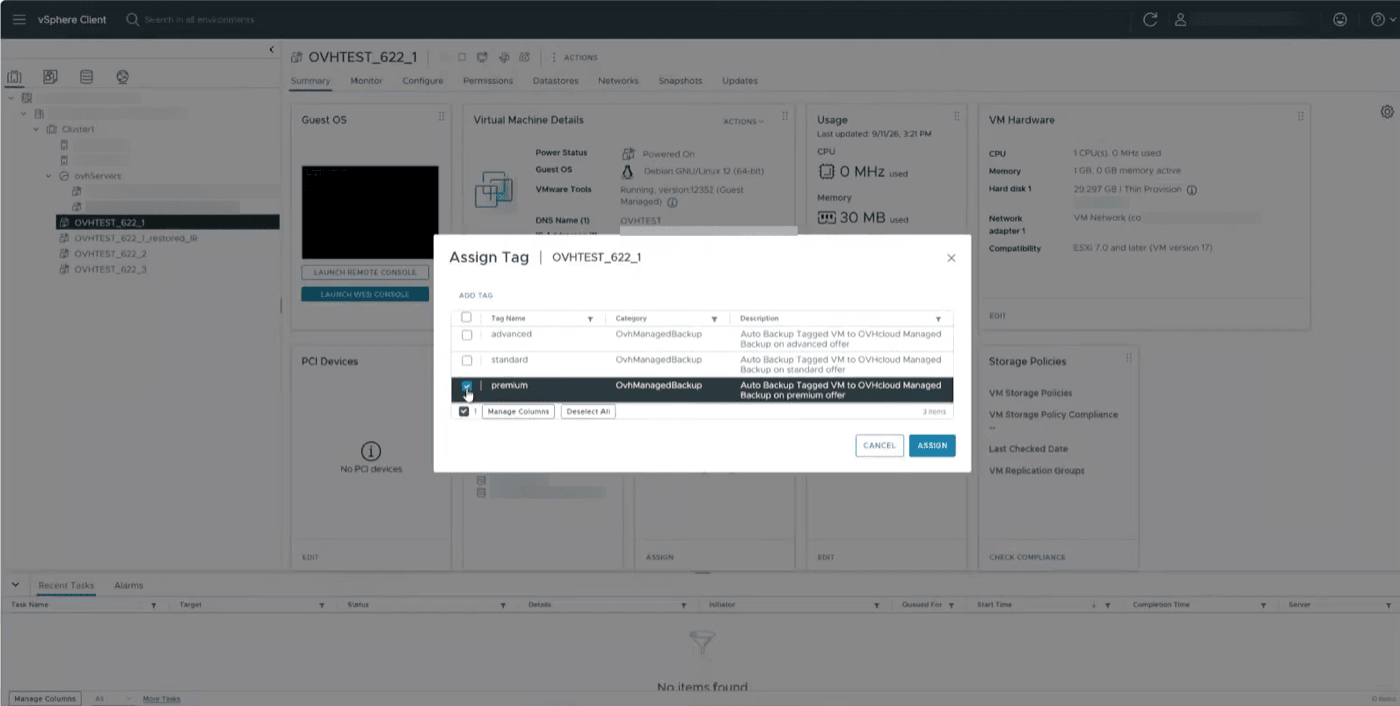
The Assign Tag dialog: the
premiumtag is ticked, you still need to clickASSIGN. -
Check the result: the Tags card of the machine now shows the tag you added, with its
OvhManagedBackupcategory.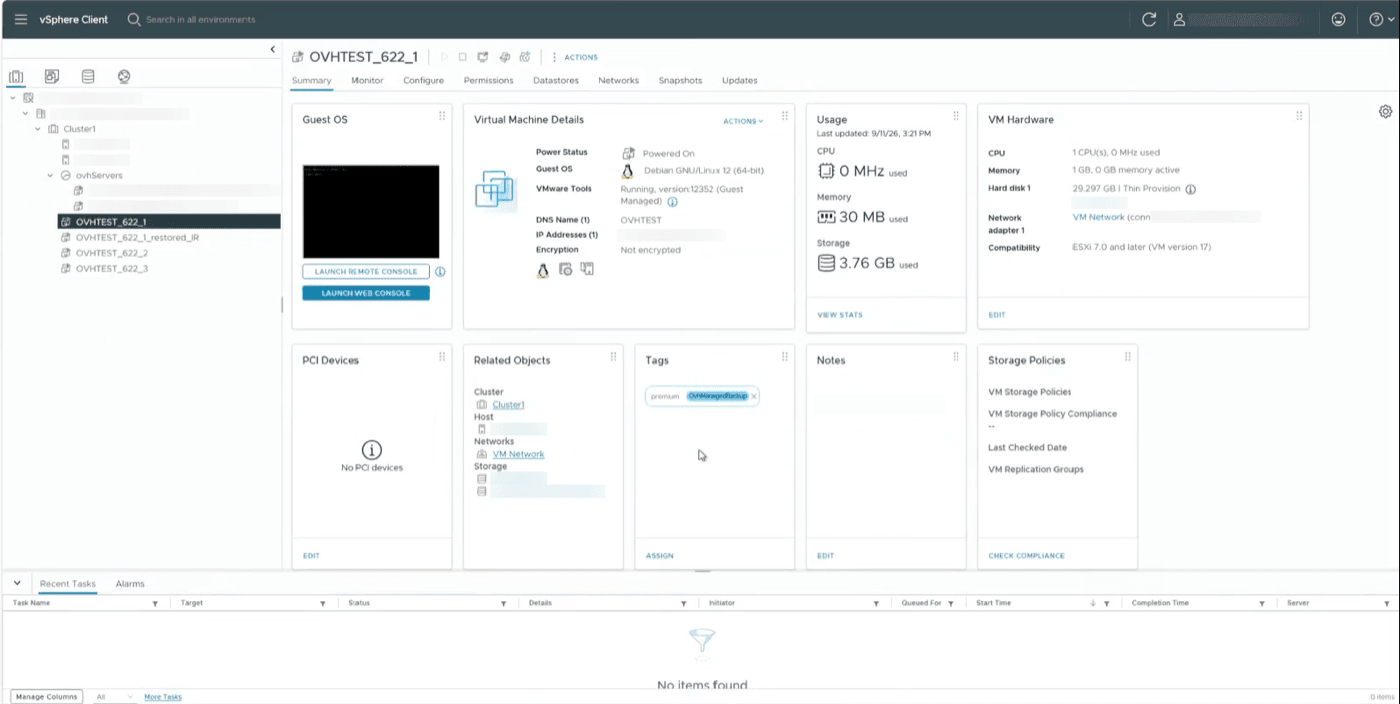
The tagged machine: the Tags card shows
premium.
You can also right-click the virtual machine in the inventory, then choose Tags & Custom Attributes > Assign Tag. The same dialog opens. The exact labels depend on the language and version of your vSphere Client.
Tagging several machines at once
- In the vSphere Client, select a folder, a cluster or a resource pool, then open the
VMtab. - Select several machines with Shift or Ctrl.
- Right-click the selection, then select
Tags & Custom Attributes>Assign Tag, and choose the tag.
Changing the Backup plan of a machine
- Remove the current tag: right-click the machine, then select
Tags & Custom Attributes>Remove Tag. - Assign the new tag (see Adding a tag to a virtual machine).
- New backups follow the new plan from the next run of the job.
- Backups already made keep their original plan, with its retention and immutability, until they expire. Nothing is moved retroactively.
- On your invoice, the current billing period is billed at the highest plan reached (see Understanding your billing).
Stopping the protection of a machine
Remove its tag. The machine leaves its job at the next run and is no longer backed up. No backup is deleted: the existing restore points stay restorable until the end of their retention.
The machine is still billed for the current billing period, then no longer billed from the next one.
After a restore
Check the tag of a restored machine
After a restore, check the tag of the restored machine in vSphere and add it again if needed. The original machine stays protected as usual.
Virtual machines of 8 TB or more
Virtual machines of 8 TB or more are not supported: they stay visible in the order list, but they cannot receive a Backup plan. If you tag one in vSphere, it is backed up anyway, but in degraded mode, without full support, and it can delay the backups of your other machines.
- Do not add a tag to them in vSphere.
- If one of them has a tag, remove it. OVHcloud never removes it automatically: as long as at least one machine of this type is tagged, you receive an email reminder every week.
Checking the result
In the OVHcloud Console, the VM list on the dashboard shows for each machine whether it is protected, its Backup plan and the date of its last backup. This information is refreshed every hour (see Monitoring your protection in the OVHcloud Console).
A protected machine that does not show a backup date yet will be backed up at the next run of the jobs, every evening at 10 pm. To back it up right away, start an on-demand backup from your VBR (see Backing up and restoring from the VBR console).
Go further
Backing up and restoring from the VBR console: on-demand backup, full or file-level restore.
Monitoring your protection in the OVHcloud Console: dashboard and machine list.
FAQ and troubleshooting: a machine is not protected? The most frequent cases.
VMware documentation: assign or remove a tag in vSphere.
Join our community of users.