-
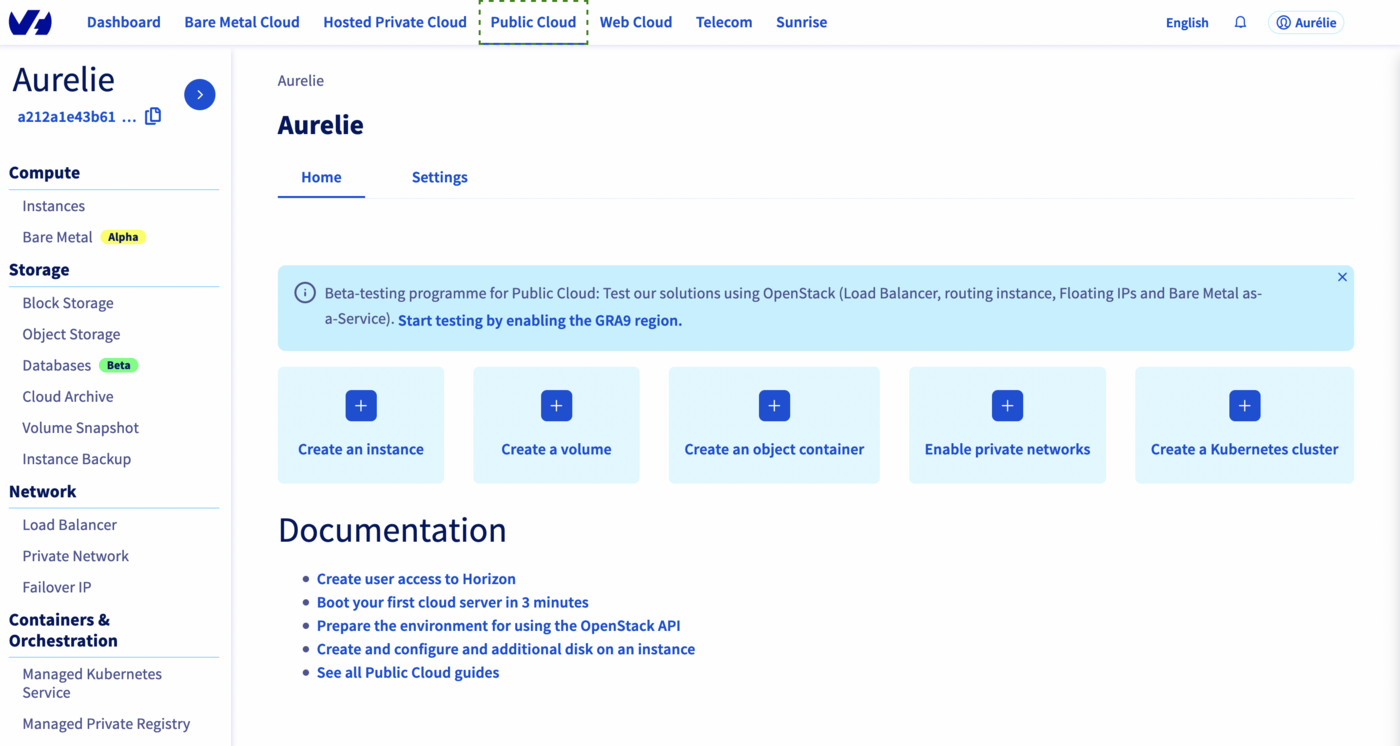
In the left menu, in the Containers & Orchestration section, select Managed Private Registry.
-
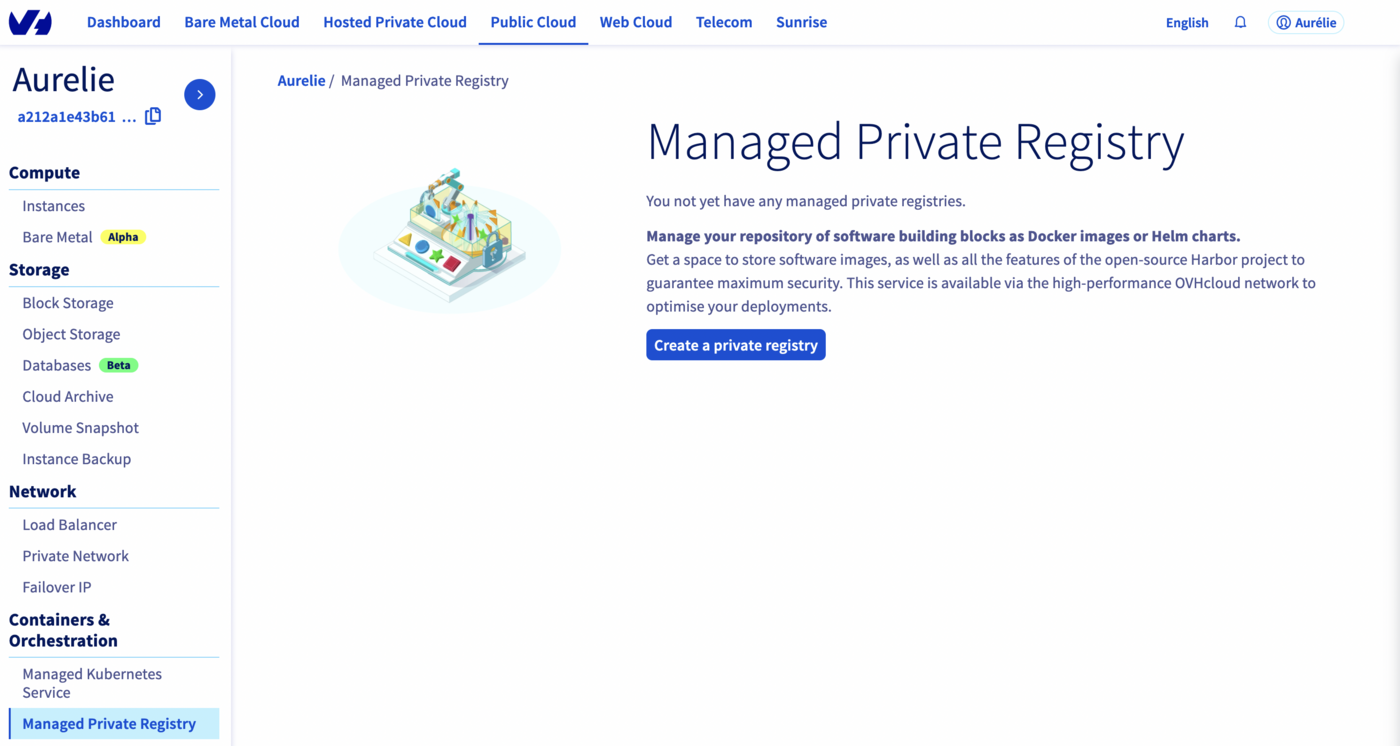
Click Create a private registry.
-
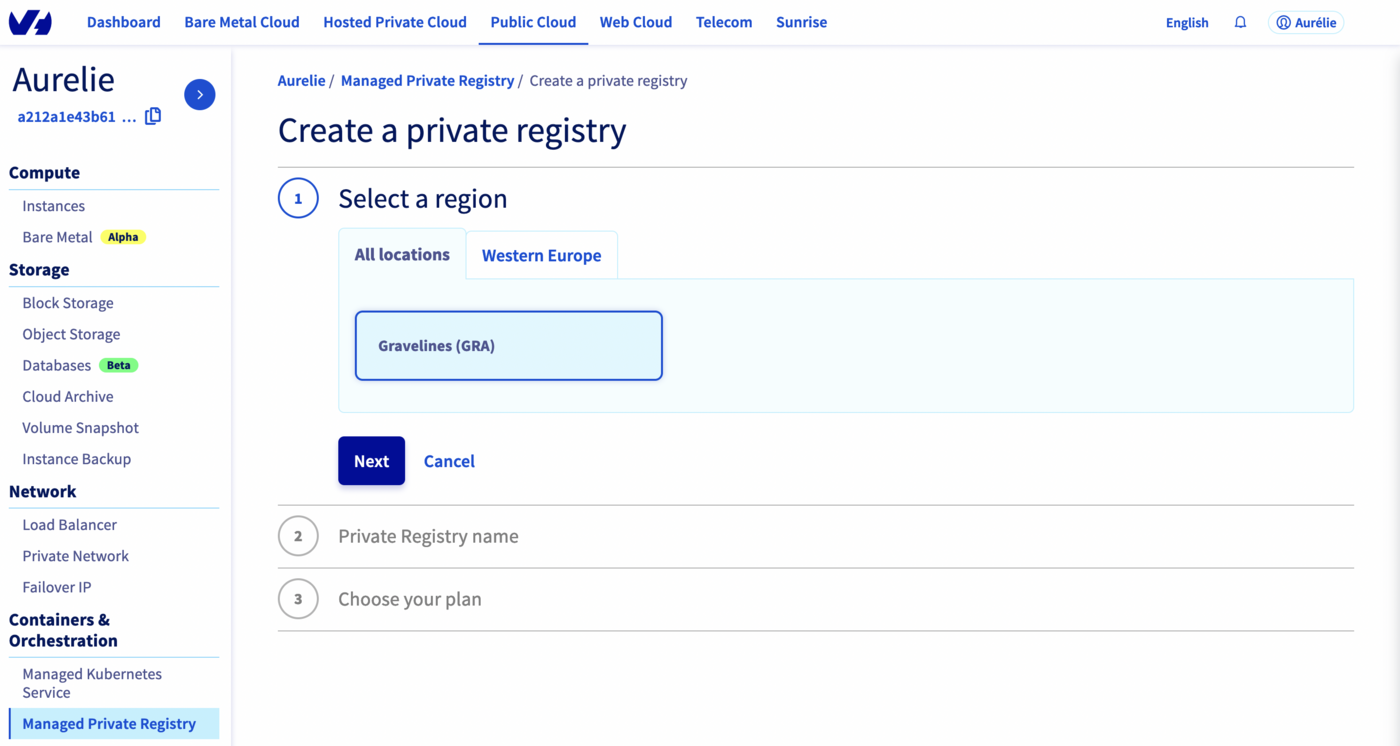
Choose a region, then click Next.
-
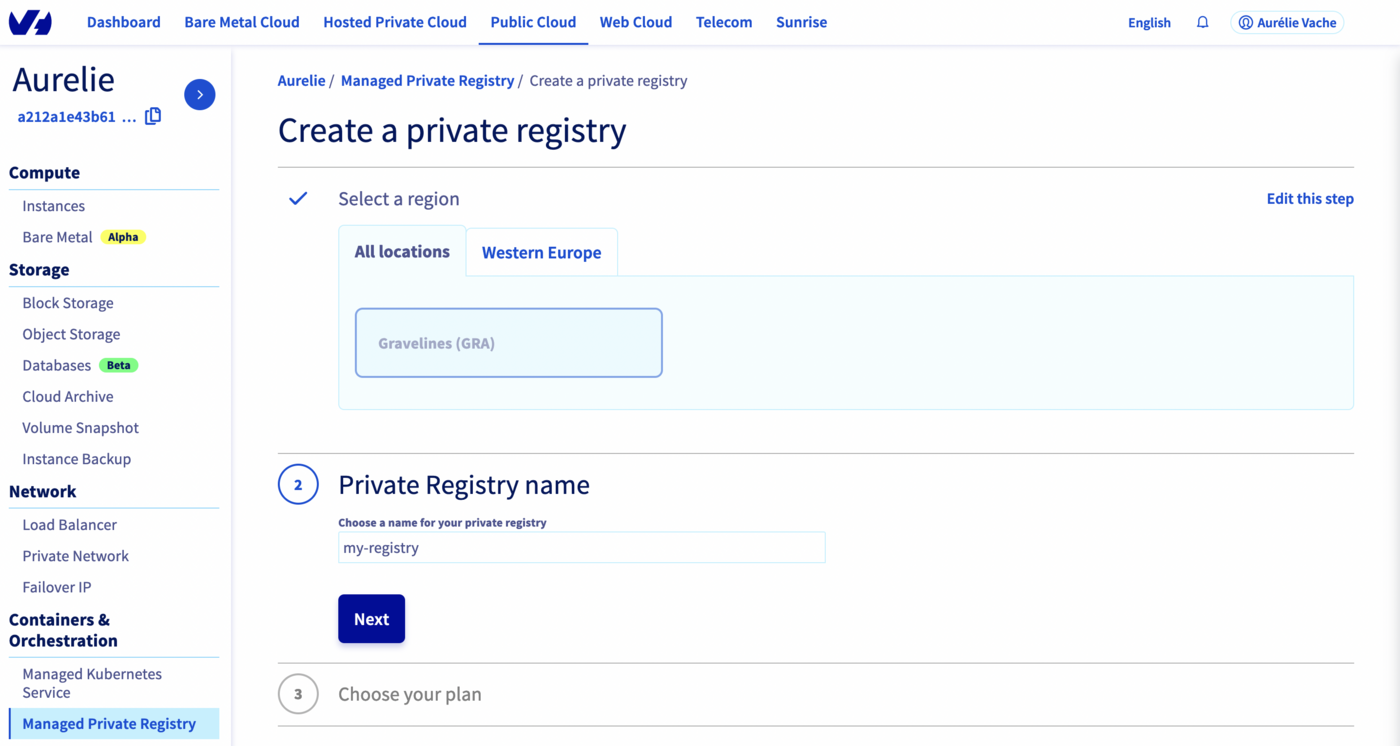
Enter a name for your registry, then click Next.
-
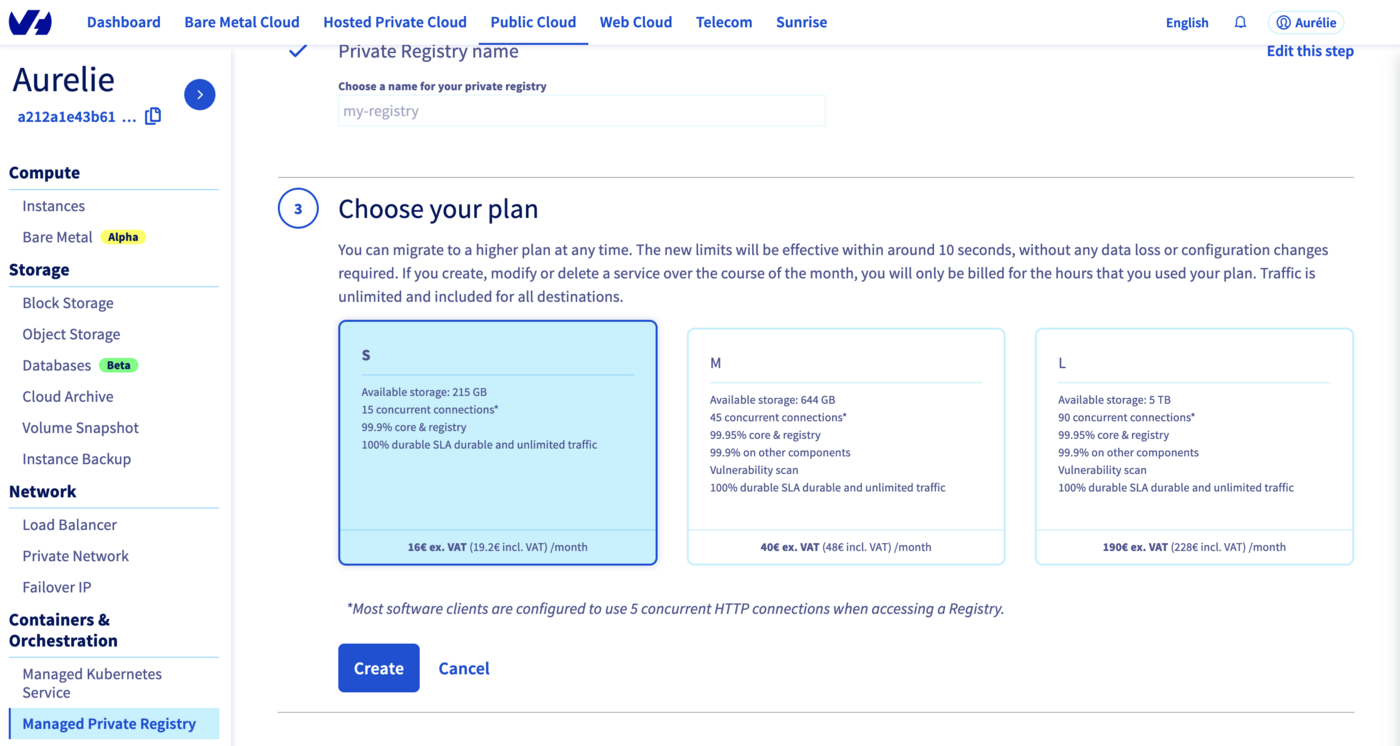
Choose a plan and click Next.
Info
The M and L plans include a managed vulnerability scanner: Trivy.
-
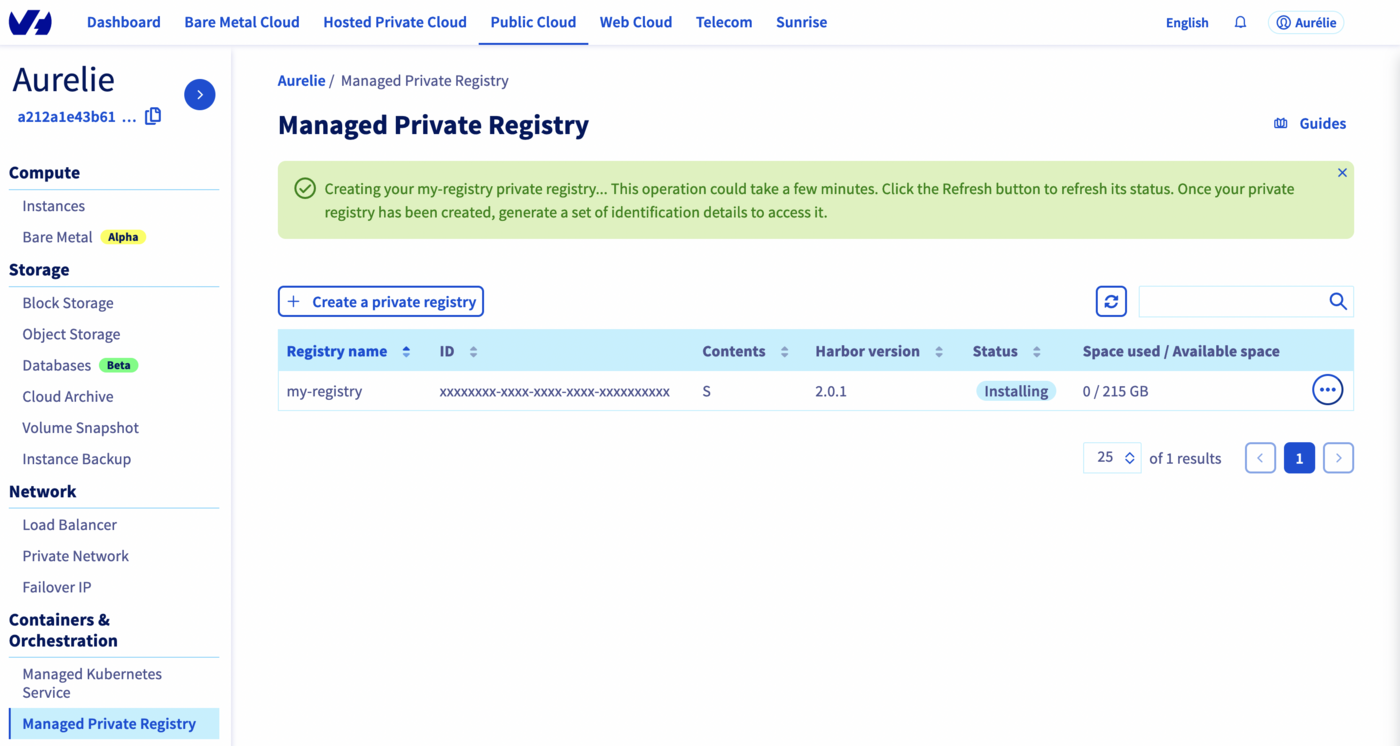
Your private registry is being created.
-
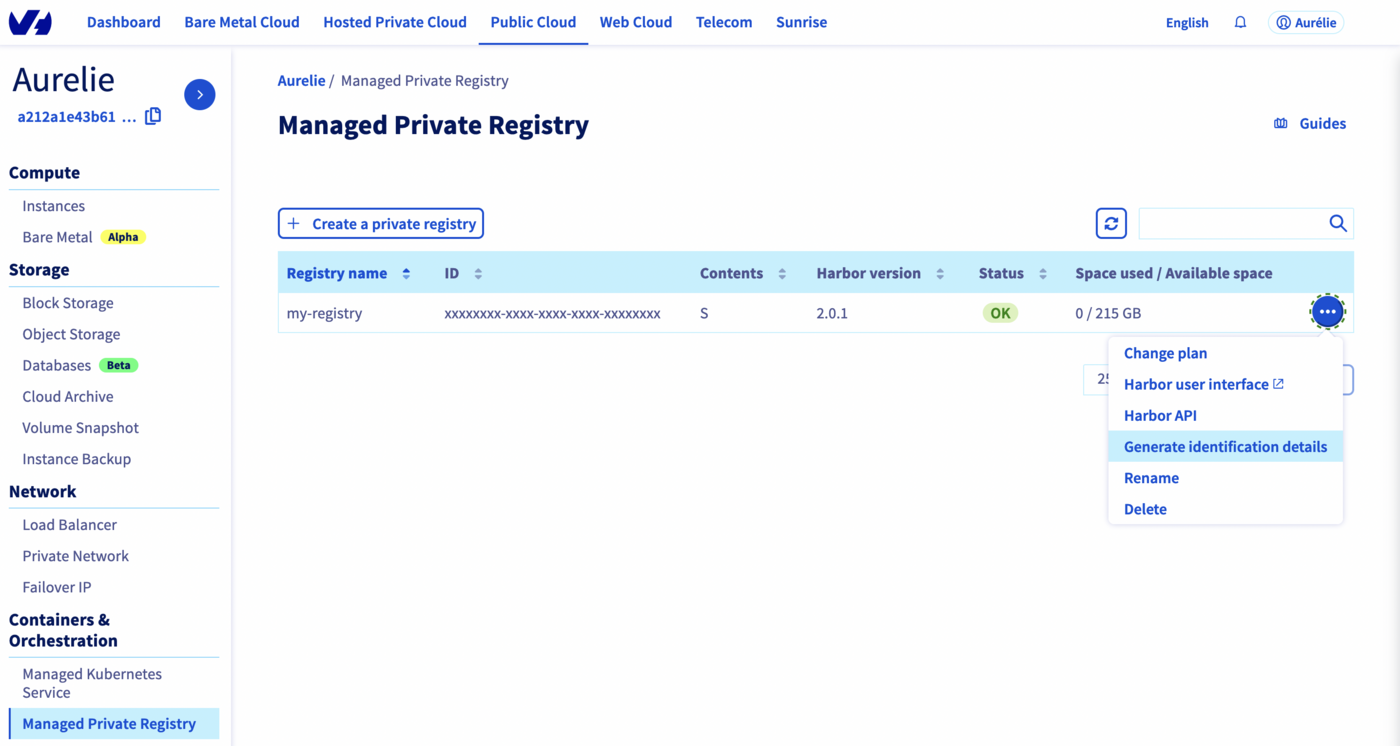
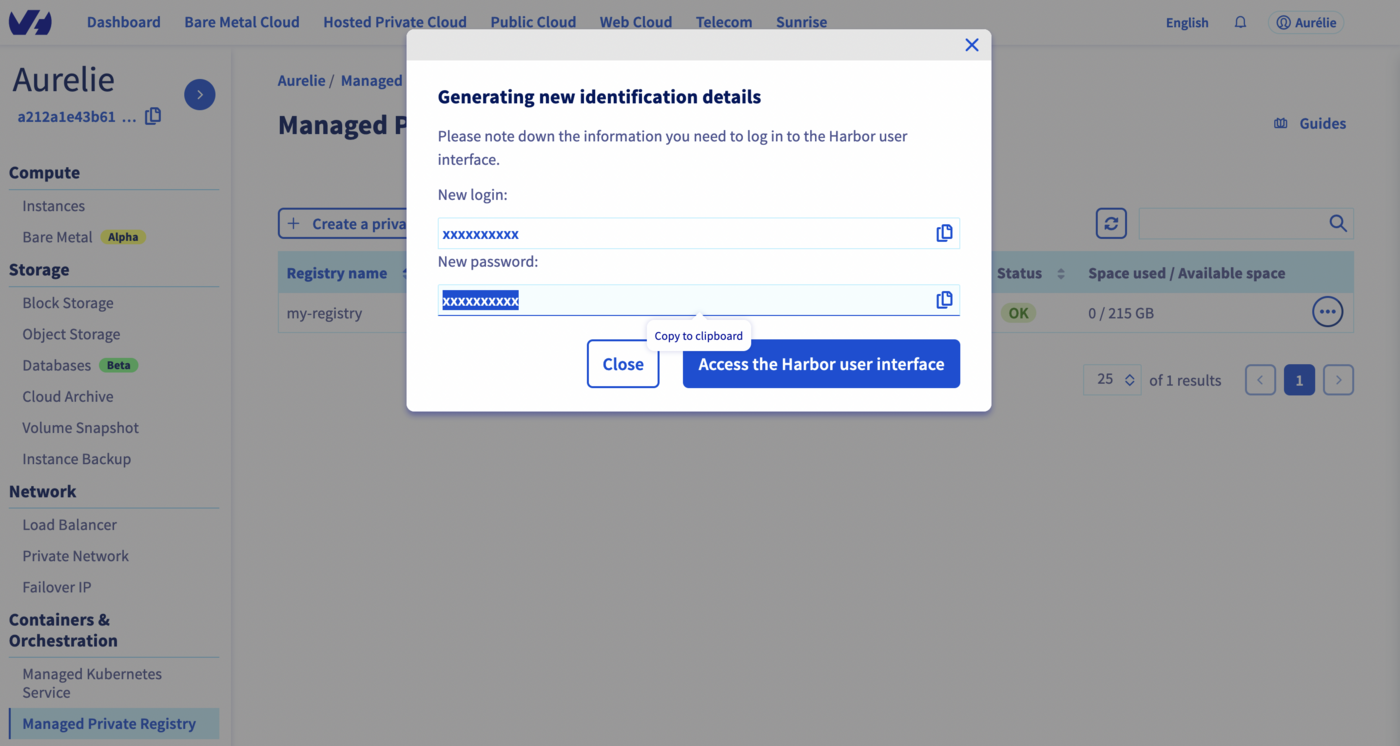
When the status switches to OK, click the ... button and select Generate identification details.
-
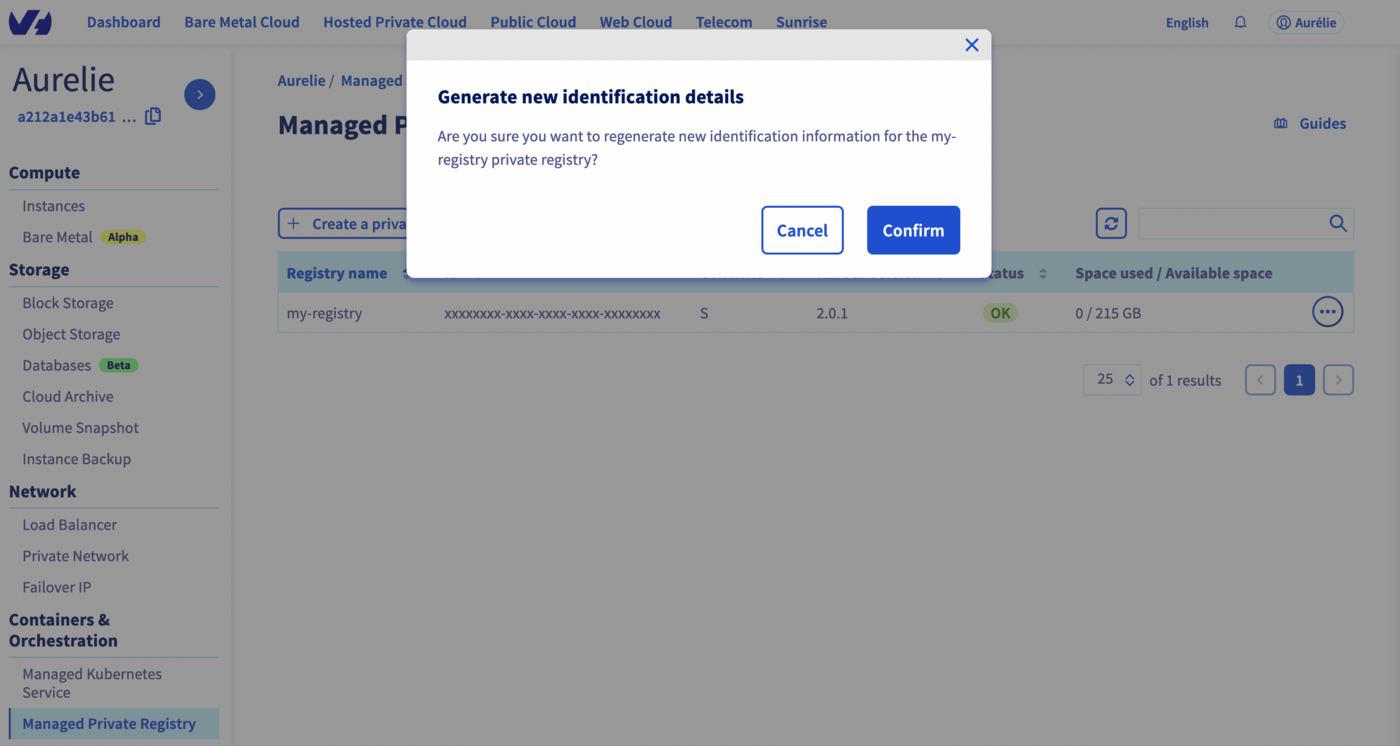
Click Confirm to generate credentials.
-
Write down the credentials shown — you will need them to access your registry.
Requirements
1. List available plans to retrieve a plan ID:
ovhcloud cloud reference managed-registry list-plans --cloud-project <project_id>
2. Create the registry:
ovhcloud cloud managed-registry create \
  --cloud-project <project_id> \
  --name my-registry \
  --region GRA \
  --plan-id <plan_id>
Note the id field in the output — it is your registry ID.
3. Create a user:
ovhcloud cloud managed-registry users create <registry_id> \
  --cloud-project <project_id> \
  --login myuser \
  --email myuser@example.com
Save the credentials from the output — the password will not be shown again.
4. Retrieve the registry URL:
ovhcloud cloud managed-registry get <registry_id> --cloud-project <project_id>
The url field is the address of your Harbor interface.
Terraform is an open-source Infrastructure as Code (IaC) tool. OVHcloud provides an official Terraform provider to manage your resources programmatically.
Requirements
Get your API credentials
The OVHcloud Terraform provider requires API credentials. Follow the First steps with the OVHcloud APIs guide to generate your application_key, application_secret, and consumer_key.
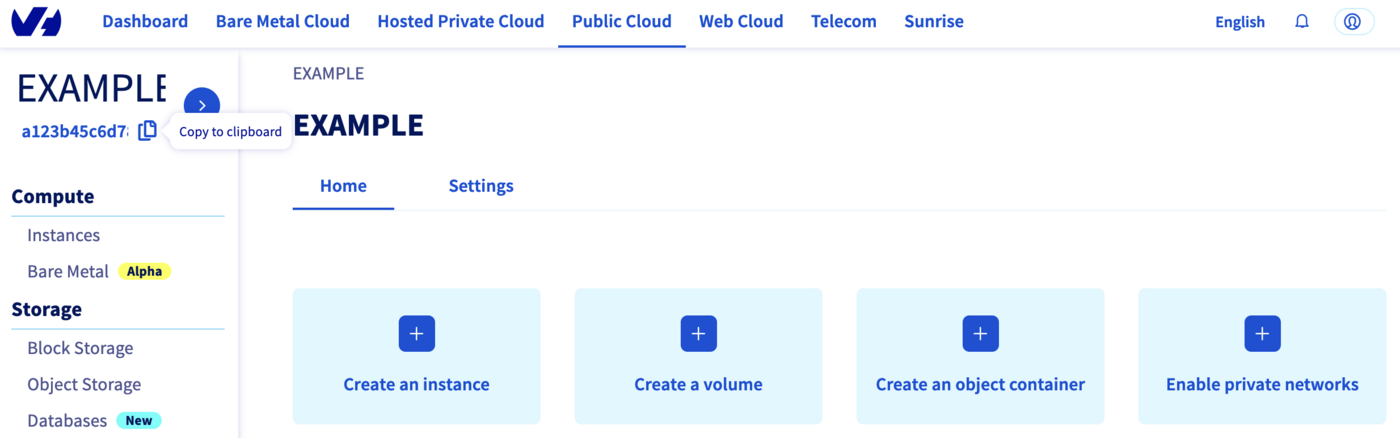
Retrieve your Public Cloud project ID (service_name) from the Copy to clipboard button in your project's overview.
Resources definition
Create a provider.tf file:
terraform {
  required_providers {
    ovh = {
      source = "ovh/ovh"
    }
  }
}

provider "ovh" {
  endpoint           = "ovh-eu"
  application_key    = "<your_access_key>"
  application_secret = "<your_application_secret>"
  consumer_key       = "<your_consumer_key>"
}
Tip
Use environment variables (OVH_ENDPOINT, OVH_APPLICATION_KEY, OVH_APPLICATION_SECRET, OVH_CONSUMER_KEY) to avoid storing credentials in source files.
Create a variables.tf file:
variable service_name {
  type    = string
  default = "<your_service_name>"
}
Create an ovh_private_registry.tf file:
data "ovh_cloud_project_capabilities_containerregistry_filter" "capabilities" {
  service_name = var.service_name
  plan_name    = "SMALL"
  region       = "GRA"
}

resource "ovh_cloud_project_containerregistry" "myregistry" {
  service_name = data.ovh_cloud_project_capabilities_containerregistry_filter.capabilities.service_name
  plan_id      = data.ovh_cloud_project_capabilities_containerregistry_filter.capabilities.id
  region       = data.ovh_cloud_project_capabilities_containerregistry_filter.capabilities.region
  name         = "my-docker-private-registry"
}

resource "ovh_cloud_project_containerregistry_user" "myuser" {
  service_name = ovh_cloud_project_containerregistry.myregistry.service_name
  registry_id  = ovh_cloud_project_containerregistry.myregistry.id
  email        = "my.user@mycompany.com"
  login        = "myuser"
}
Create an output.tf file:
output "registry-url" {
  value = ovh_cloud_project_containerregistry.myregistry.url
}

output "user" {
  value = ovh_cloud_project_containerregistry_user.myuser.user
}

output "password" {
  value     = ovh_cloud_project_containerregistry_user.myuser.password
  sensitive = true
}
Deploy
Initialize Terraform and apply the plan:
terraform init
terraform apply
Review the execution plan and enter yes to confirm. The registry takes a few minutes to provision.
Once complete, retrieve your credentials:
terraform output registry-url
terraform output user
terraform output password
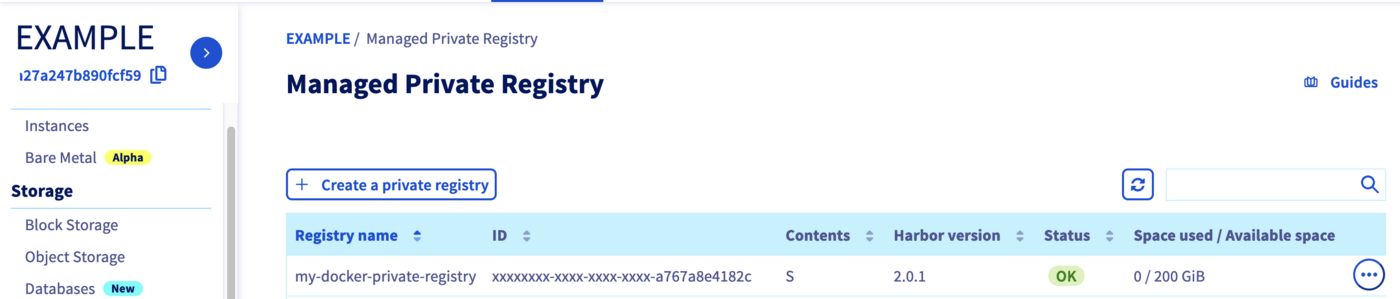
Go to the Managed Private Registry section to verify the registry has been created.
Destroy
To delete all created resources:
Pulumi is an Infrastructure as Code (IaC) tool that lets you define infrastructure using general-purpose programming languages. OVHcloud provides an official Pulumi provider that bridges the OVHcloud Terraform provider.
Requirements
Get your API credentials
The OVHcloud Pulumi provider requires API credentials. Follow the First steps with the OVHcloud APIs guide to generate your tokens, then export them as environment variables:
export OVH_ENDPOINT="ovh-eu"
export OVH_APPLICATION_KEY="xxx"
export OVH_APPLICATION_SECRET="xxx"
export OVH_CONSUMER_KEY="xxx"
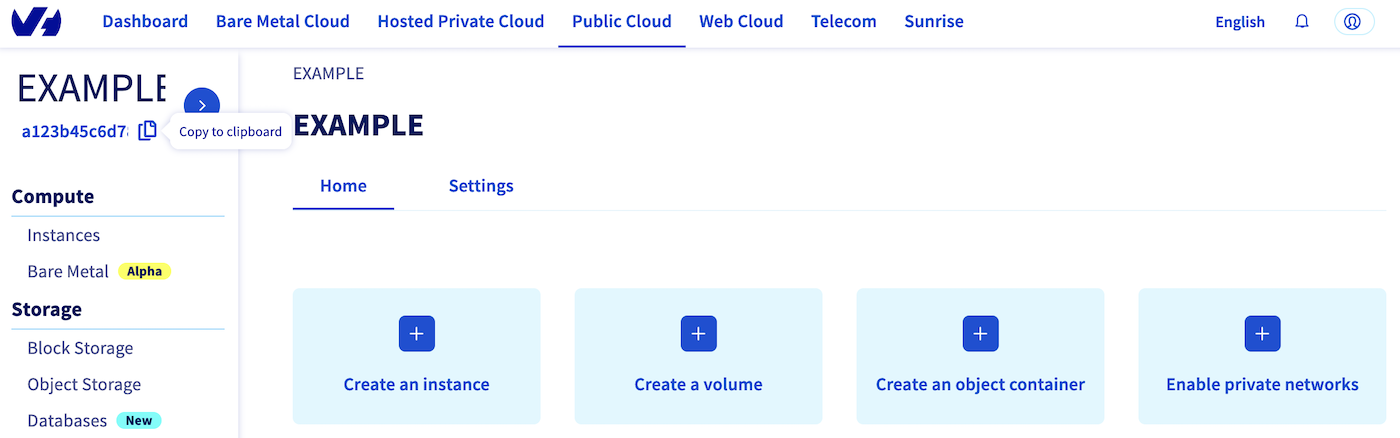
Retrieve your Public Cloud project ID (serviceName) from the Copy to clipboard button in your project's overview.
Create the project
Create and initialize a Go Pulumi project:
mkdir ovh-registry-go && cd ovh-registry-go
pulumi new go -y
Install the OVHcloud and Harbor providers:
go get github.com/ovh/pulumi-ovh/sdk/go/...
go get github.com/pulumiverse/pulumi-harbor/sdk/v3/go/...
Set your serviceName:
pulumi config set serviceName <your-service-name>
Define the infrastructure
Replace the content of main.go with:
package main

import (
	"github.com/ovh/pulumi-ovh/sdk/go/ovh/cloudproject"
	"github.com/pulumi/pulumi/sdk/v3/go/pulumi"
	"github.com/pulumi/pulumi/sdk/v3/go/pulumi/config"
	"github.com/pulumiverse/pulumi-harbor/sdk/v3/go/harbor"
)

func main() {
	pulumi.Run(func(ctx *pulumi.Context) error {
		serviceName := config.Require(ctx, "serviceName")

		regcap, err := cloudproject.GetCapabilitiesContainerFilter(ctx, &cloudproject.GetCapabilitiesContainerFilterArgs{
			ServiceName: serviceName,
			PlanName:    "SMALL",
			Region:      "GRA",
		}, nil)
		if err != nil {
			return err
		}

		myRegistry, err := cloudproject.NewContainerRegistry(ctx, "my-registry", &cloudproject.ContainerRegistryArgs{
			ServiceName: pulumi.String(regcap.ServiceName),
			PlanId:      pulumi.String(regcap.Id),
			Region:      pulumi.String(regcap.Region),
		})
		if err != nil {
			return err
		}

		myRegistryUser, err := cloudproject.NewContainerRegistryUser(ctx, "user", &cloudproject.ContainerRegistryUserArgs{
			ServiceName: pulumi.String(regcap.ServiceName),
			RegistryId:  myRegistry.ID(),
			Email:       pulumi.String("myuser@ovh.com"),
			Login:       pulumi.String("myuser"),
		})
		if err != nil {
			return err
		}

		ctx.Export("registryID", myRegistry.ID())
		ctx.Export("registryURL", myRegistry.Url)
		ctx.Export("registryUser", myRegistryUser.User)
		ctx.Export("registryPassword", myRegistryUser.Password)

		harborProvider, err := harbor.NewProvider(ctx, "harbor", &harbor.ProviderArgs{
			Username: myRegistryUser.User,
			Password: myRegistryUser.Password,
			Url:      myRegistry.Url,
		}, pulumi.DependsOn([]pulumi.Resource{myRegistry, myRegistryUser}))
		if err != nil {
			return err
		}

		project, err := harbor.NewProject(ctx, "project", &harbor.ProjectArgs{
			Name:   pulumi.String("my-new-project"),
			Public: pulumi.String("true"),
		}, pulumi.Provider(harborProvider))
		if err != nil {
			return err
		}

		ctx.Export("project", project.Name)

		return nil
	})
}
Run go mod tidy to install dependencies:
Deploy
Review the preview and confirm with yes. The registry takes a few minutes to provision.
Once complete, retrieve your credentials:
pulumi stack output registryURL -s dev
pulumi stack output registryUser -s dev
pulumi stack output registryPassword --show-secrets -s dev
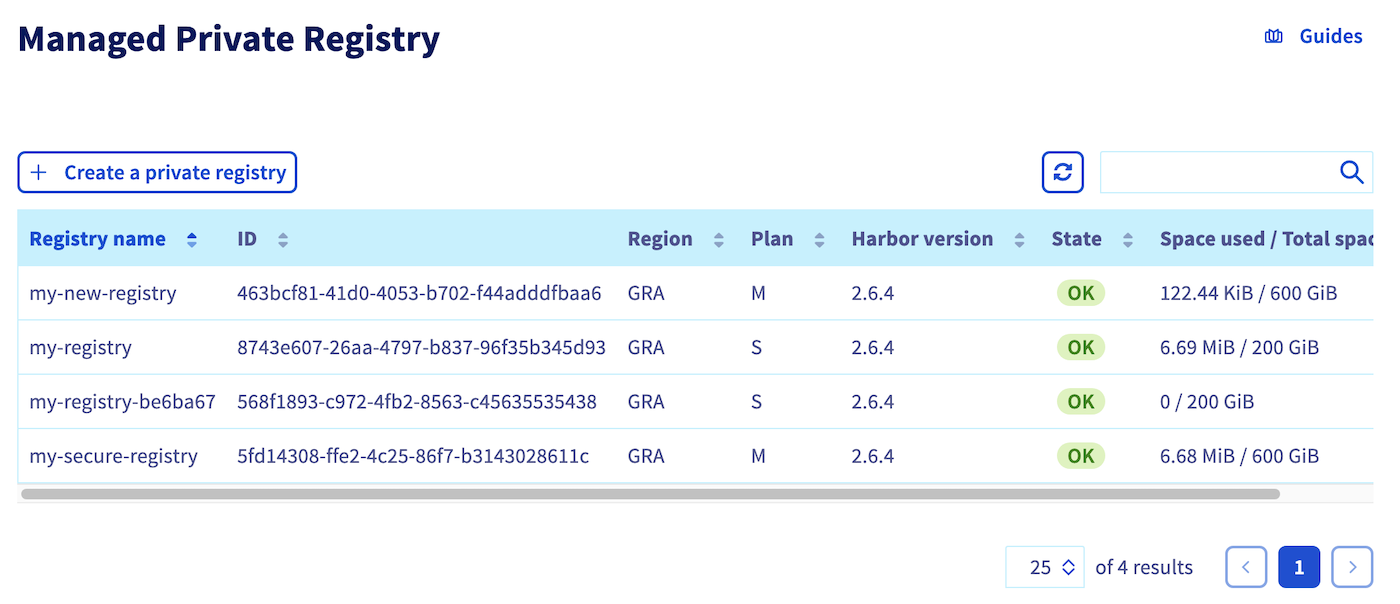
Go to the Managed Private Registry section to verify the registry has been created.
Info
If you encounter a Provider is missing a required configuration key error, make sure all OVH_* environment variables are exported before running pulumi up.
Destroy
To delete all created resources:
