
Quick Start: OVHcloud Connect Provider
Walk through the steps to connect to OVHcloud using a third-party network provider
Objective
This guide walks you through connecting to OVHcloud using a third-party network provider (such as Megaport, Equinix Fabric, or Console Connect). A provider handles the physical connectivity on your behalf, so you don't need to be present in the same data centre as OVHcloud.
Before you begin
Make sure you have:
- ✅ An OVHcloud account with billing configured
- ✅ A contract or account with a supported provider (see Providers)
- ✅ A router that supports BGP peering (OVHcloud Connect Provider is always a Layer 3 service)
- ✅ A planned IP addressing scheme and ASN
Log in to your and go to Network > OVHcloud Connect.
Steps overview
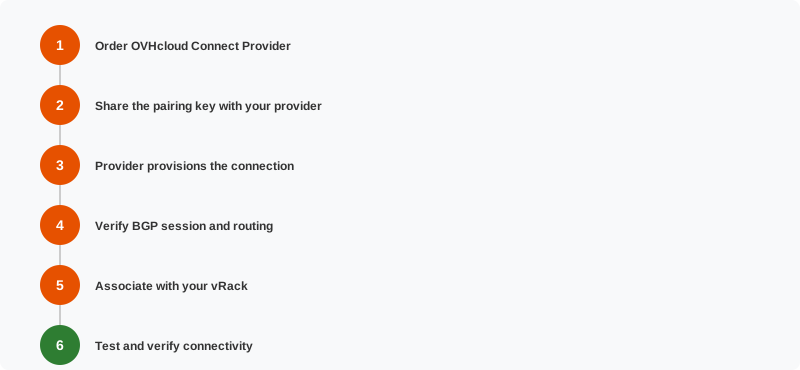
Step 1 — Order OVHcloud Connect Provider
- Select
OVHcloud Connect Provider. - Choose your provider, PoP location, and bandwidth.
- Review pricing and submit the order.
- OVHcloud generates a pairing key (also called a service key) for your provider.
For detailed steps, see Order OVHcloud Connect Provider.
Step 2 — Share the pairing key
Give the pairing key to your provider. This key allows the provider to identify and activate the connection to OVHcloud on your behalf.
- On Megaport: create a VXC (Virtual Cross Connect) to OVHcloud and enter the pairing key.
- On Equinix Fabric: create a connection to OVHcloud and provide the service key.
- On Console Connect: initiate a connection to OVHcloud and use the pairing key.
Step 3 — Provider provisions the connection
The provider sets up the physical and logical link between their infrastructure and OVHcloud's PoP. This is usually fast (minutes to hours for on-demand providers like Megaport), but timing varies.
You can track the connection status in both the OVHcloud Control Panel and your provider's portal.
Step 4 — Associate with your vRack
Link the OVHcloud Connect service to your vRack:
- In the OVHcloud Control Panel, go to
vRack. - Add your OVHcloud Connect service.
- Configure the required VLANs and subnets.
See Associate an OVHcloud Connect to your vRack.
Step 5 — Verify BGP session and routing
OVHcloud Connect Provider is always a Layer 3 service — BGP peering is established between your router (or your provider's router, depending on your provider offering) and the OVHcloud PoP. Verify in the OVHcloud Control Panel and in your provider's portal that the session is established and routes are being exchanged.
See Configure OCC L3 with BGP for detailed guidance.
Step 6 — Test and verify
Troubleshooting
What's next?
- For a self-managed connection, see Quick Start: Direct Connection
- Set up monitoring
- Explore resilient architectures
Go further
For training or technical assistance implementing our solutions, contact your sales representative or visit our Professional Services page to request a quote and have your project analyzed by our experts.
Join our community of users.