
Come utilizzare un nome di dominio OVHcloud con iCloud Mail
Scopri come configurare il tuo nome di dominio OVHcloud con iCloud per creare indirizzi email personalizzati
Informazioni sull’amministrazione dei servizi OVHcloud e su come trovare l’assistenza appropriata
Durante l’utilizzo delle guide OVHcloud, tieni presente le seguenti condizioni:
- Le istruzioni mirano a fornire il maggior numero possibile di dettagli, ma non possono coprire tutti i casi d’uso individuali. Potrebbe essere necessario adattare le azioni descritte alle tue esigenze.
- L’ecosistema OVHcloud è progettato per garantire flessibilità e libertà di scelta. I clienti sono quindi responsabili della configurazione corretta e sicura dei propri servizi. Per evitare la perdita di dati, ti consigliamo vivamente di applicare strategie di backup a tutti i tuoi dati importanti.
- Le nostre guide e i nostri tutorial possono fare riferimento a software o servizi di terze parti in combinazione con le soluzioni OVHcloud. Il supporto tecnico fornito da OVHcloud non include la configurazione di sistemi o prodotti al di fuori della nostra responsabilità. Questo include, a titolo esemplificativo:
- Sistemi operativi e interfacce utente (Windows, Debian, Plesk, ecc.).
- Qualsiasi altro software di terze parti (client FTP, software di posta elettronica, ecc.).
- Servizi offerti da altri provider (DNS, API, interfacce utente, ecc.).
Per ricevere l’assistenza appropriata in caso di problemi, segui queste indicazioni:
- Cerchi una consulenza personalizzata o vuoi discutere di un argomento non trattato in dettaglio nella nostra documentazione?
Unisciti alla Community OVHcloud per cercare il tuo argomento e confrontarti con altri utenti. - Devi segnalare un incidente relativo al tuo servizio OVHcloud o riscontri difficoltà nello Spazio Cliente OVHcloud?
Crea una richiesta di supporto nel nostro centro assistenza. - Hai bisogno di assistenza professionale per il tuo progetto o di aiuto per attività al di fuori del nostro perimetro di supporto?
Visita il nostro portale dei partner per trovare esperti che conoscono le soluzioni OVHcloud. - Cerchi informazioni più dettagliate sui nostri livelli di supporto e sui Professional Services?
Visita le nostre pagine web sui livelli di supporto OVHcloud e sugli OVHcloud Professional Services.
Puoi partecipare al miglioramento della nostra documentazione:
- Vuoi condividere un feedback per migliorare una guida o segnalare informazioni insufficienti su una pagina specifica?
Utilizza i pulsanti "Questa pagina ti è stata utile?" in fondo alla pagina per farcelo sapere. - Vuoi proporre un aggiornamento concreto della documentazione?
Utilizza la funzione "Modifica questa pagina", disponibile in fondo alla pagina e nella barra laterale.
Obiettivo
Questa guida ti spiega come utilizzare un nome di dominio registrato presso OVHcloud con il servizio iCloud Mail di Apple. Potrai così creare indirizzi email personalizzati (john.smith@mydomain.ovh), interamente gestiti e ospitati da Apple.
Prerequisiti
- Un nome di dominio registrato presso OVHcloud.
- Un ID Apple con un abbonamento iCloud+.
Accesso allo Spazio Cliente OVHcloud
- Link diretto:
- Percorso di navigazione:
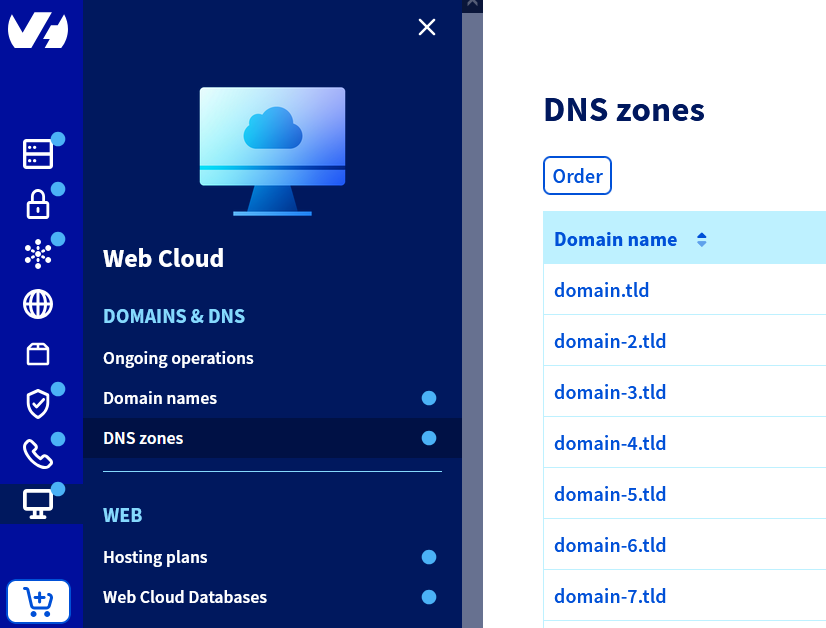
Web Cloud>Zone DNS> Seleziona il tuo nome di dominio
Procedura
1 - Attivare il nome di dominio su iCloud
Per attivare il tuo nome di dominio su iCloud, segui le istruzioni della pagina "Add a domain you own to iCloud Mail on iCloud.com" della documentazione ufficiale Apple. Concentrati sulla sezione "Step 3: Update the records with your domain registrar" (Aggiornare i record presso il tuo registrar), per individuare i record DNS da aggiungere nella tua zona DNS OVHcloud.
Al termine di questa fase, Apple ti comunica l'elenco dei record DNS (MX, CNAME, TXT) da configurare nella tua zona DNS OVHcloud. Conservalo per la fase successiva.
2 - Configurare i record DNS nel tuo Spazio Cliente OVHcloud
Clicca sulle schede qui sotto per visualizzare ognuna delle 2 fasi.
Nella sezione Zone DNS, seleziona il nome di dominio interessato.
3 - Aggiungere un record DMARC (facoltativo)
Per migliorare la recapitabilità delle tue email ed evitare che vengano trattate come spam, aggiungi un record DMARC.
Per sapere come creare un record DMARC nel tuo Spazio Cliente OVHcloud, consulta la nostra guida "Migliora la sicurezza delle email con un record DMARC".
4 - Verificare e attivare il dominio su iCloud
Una volta aggiunti correttamente i record DNS (MX, CNAME, TXT, DMARC) nella tua zona DNS OVHcloud, torna su iCloud.com.
Segui le istruzioni della pagina "Add a domain you own to iCloud Mail on iCloud.com" della documentazione ufficiale Apple. Concentrati sulla sezione "Step 4: Finish setting up the domain" (Completare la configurazione del dominio).
Una volta completata questa fase, il tuo nome di dominio personalizzato è pienamente attivo e puoi creare fino a 3 indirizzi per ogni membro della tua famiglia.
La verifica può non riuscire se i tuoi record DNS non sono stati ancora propagati. Questa propagazione può richiedere diverse ore.
Risoluzione dei problemi più comuni
Verificare dove è gestita la zona DNS
Se il tuo nome di dominio è associato a server DNS esterni a OVHcloud (Wix, Squarespace, Cloudflare, ecc.), la configurazione deve essere effettuata nell'interfaccia di gestione di questi server DNS, al di fuori dello Spazio Cliente OVHcloud.
CNAME già esistente
- Un record CNAME non può coesistere con un record A, AAAA o TXT configurato sullo stesso dominio o sottodominio.
- Elimina il vecchio record prima di creare il CNAME richiesto da Apple.
SPF duplicato
- Può esistere un solo record SPF per nome di dominio. Se esiste già un record SPF OVHcloud (es.:
v=spf1 include:mx.ovh.com ~all), uniscilo a quello fornito da Apple (es.:v=spf1 include:mx.ovh.com include:icloud.com ~all).
DKIM incompleto
- Apple ti chiede di registrare più chiavi DKIM (
sig1,sig2, ecc.) nella tua zona DNS: aggiungile tutte.
Tempi di propagazione
- Le modifiche DNS possono richiedere diverse ore (fino a 24 ore) prima di essere riconosciute da Apple.
Per saperne di più
Per prestazioni specializzate (SEO, sviluppo, ecc.), contatta i partner OVHcloud.
Per usufruire di un supporto per l'utilizzo e la configurazione delle soluzioni OVHcloud, consulta le nostre diverse offerte di supporto.
Contatta la nostra Community di utenti.