Backing up and restoring a Kubernetes cluster in Managed Rancher Service
Find out how to backup and restore a Kubernetes cluster and configure recurring etcd backups to an OVHcloud Object Storage on a Managed Rancher Service
Objective
Managed Rancher Service by OVHcloud provides a powerful platform for orchestrating Kubernetes clusters seamlessly.
In this guide, you will use Rancher to backup and restore a Kubernetes cluster, take a snapshot and save the etcd recurring snapshots on an OVHcloud Object Storage bucket.
Requirements
- A Public Cloud project in your OVHcloud account
- An OVHcloud Managed Rancher Service (see the creating a Managed Rancher Service guide for more information)
- An access to the Rancher UI to operate it (see the connecting to the Rancher UI guide for more information)
- A Kubernetes cluster created or imported in Rancher
OVHcloud Console Access
- Direct link:
- Navigation path:
Public Cloud> Select your project >Storage>Object Storage
Instructions
In the Rancher UI, Kubernetes cluster's etcd backup and recovery can be easily performed.
It is recommended to configure recurrent etcd snapshots for all production clusters. Additionally, one-time snapshots can be taken as well.
Snapshots of the etcd database are taken and saved either locally onto the etcd nodes or to a S31 compatible target like our OVHcloud Object Storage.
The advantages of configuring Object Storage is that if all etcd nodes are lost, your snapshot is saved remotely and can be used to restore the cluster.
Create an OVHcloud Object Storage backup
First, you need to have an S3 Object Storage bucket. If you don't already have one, you can follow the Getting started with Object Storage guide.
In this guide, our Object Storage bucket is named etcd-rancher and its region is GRA.
You will use the Access key and the Secret key of an Object Storage user in the configuration of the upcoming etcd backup. In your Public Cloud project, click Object Storage under Storage in the left-hand menu, then open the Users tab: the access key is shown in the Access key column. To display the secret key, click the ... button on the user's row, then Show secret key.
In the Containers tab of the Object Storage page, click the name of your bucket: the Overview tab opens. The endpoint URL is shown in the Endpoint field of the Connection details section.
Copy the ID/name of your bucket and the endpoint, this information will be needed in the next step on the Rancher user interface.
Enable etcd recurring backup snapshots to Object Storage on an existing Kubernetes cluster
Log into your Managed Rancher Service UI.
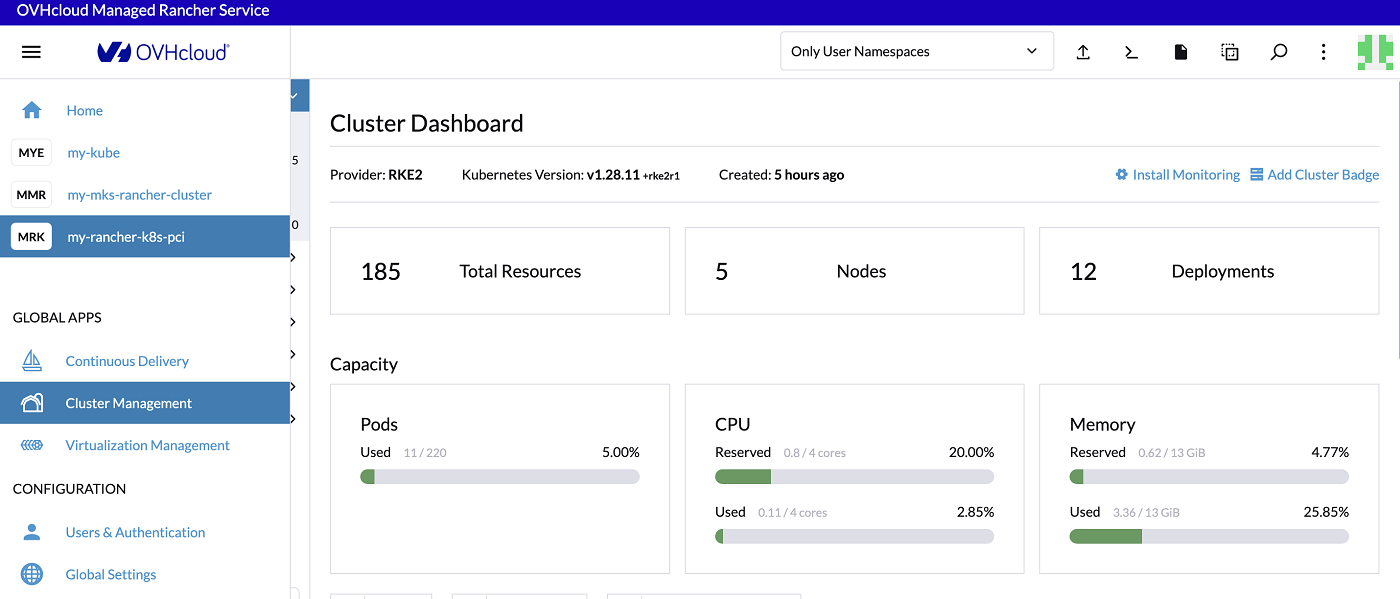
Click on Cluster Management in the menu.
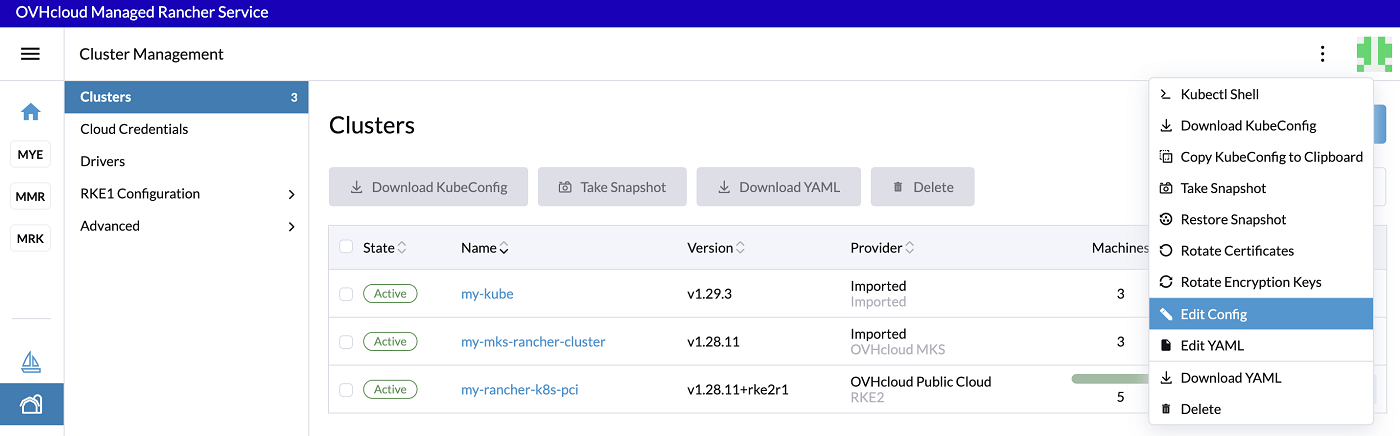
For the chosen cluster, click on the three-dot button and then on the Edit Config button.
In the Cluster Configuration section, click on the etcd tab.
In Automatic Snapshots, change the radio button from Disable to Enable and change the Cron Schedule according to your needs.
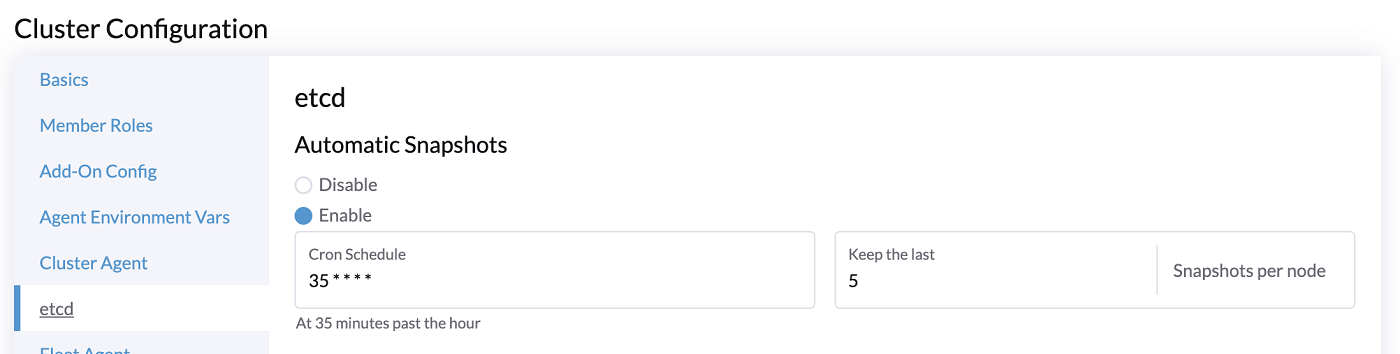
In this configuration of automatic etcd snapshots, you will have a snapshot every hour at hh:35 minutes and you will keep the last 5 snapshots per nodes.
In Backup Snapshots to Object Storage, change the radio button from Disable to Enable.
In the Authentication list, select the Create a S3-Compatible Auth Secret.
Fill in the Object Storage Access Key, the Object Storage Secret Key and the bucket name.
Also fill in the Region (in lowercase).
The region must be typed in lowercase. If your bucket is in the GRA region, you must enter gra.
Fill in the endpoint s3.gra.io.cloud.ovh.net:
It is a copy of the endpoint of your Object Storage bucket without https://.
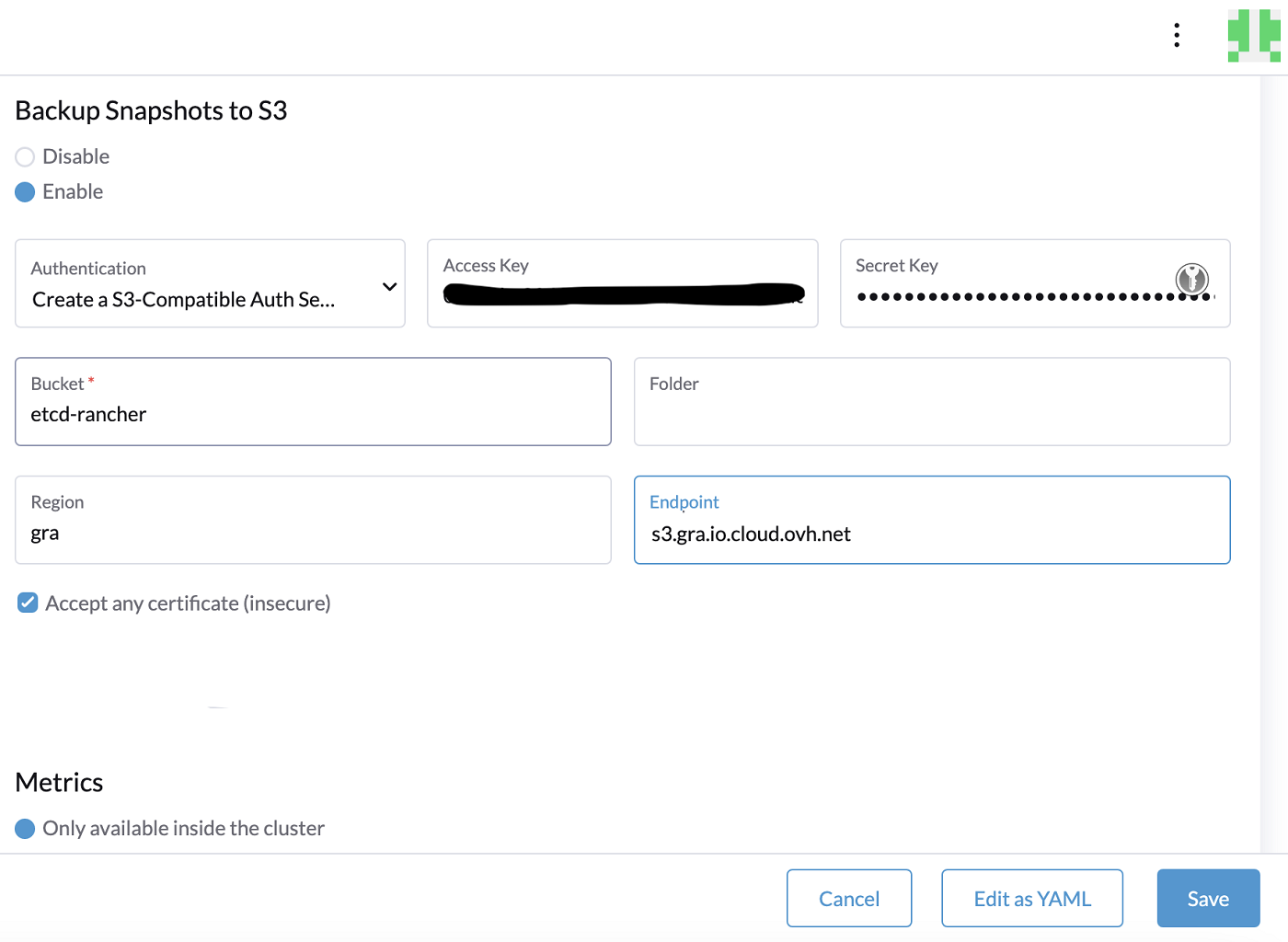
Finally, click to activate the checkbox Accept any certificate (insecure) and click the Save button.
Check the etcd snapshots
In Cluster Management, click on your cluster.
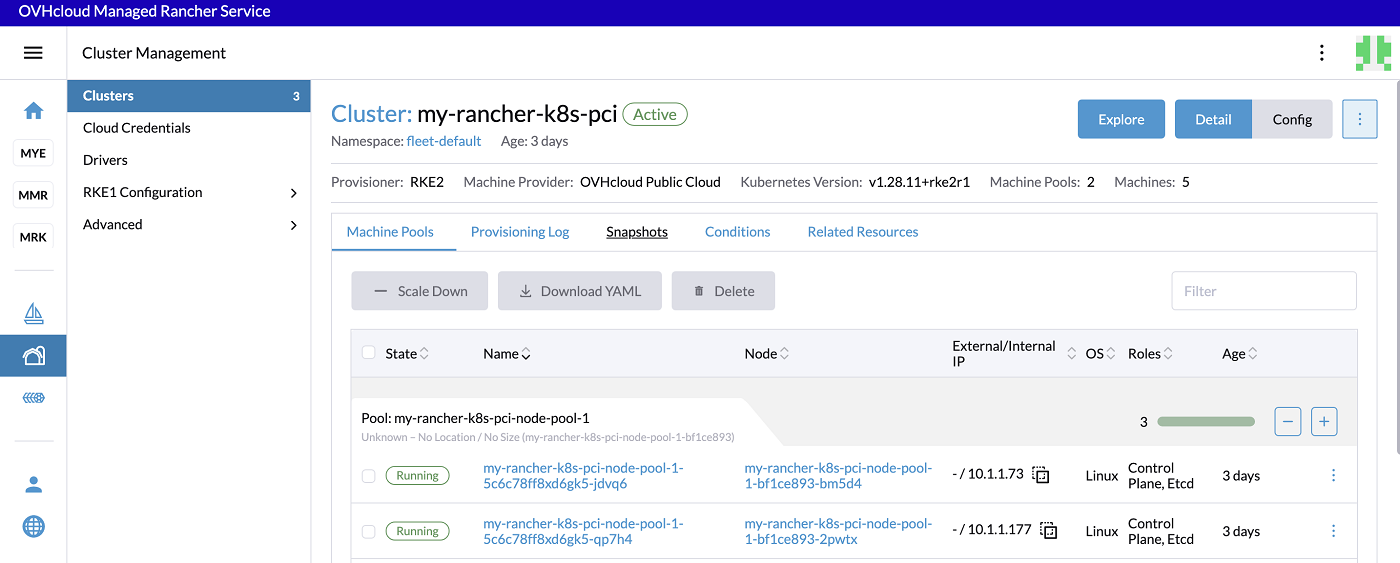
To check and retrieve the backup snapshots, click on the Snapshots tab.
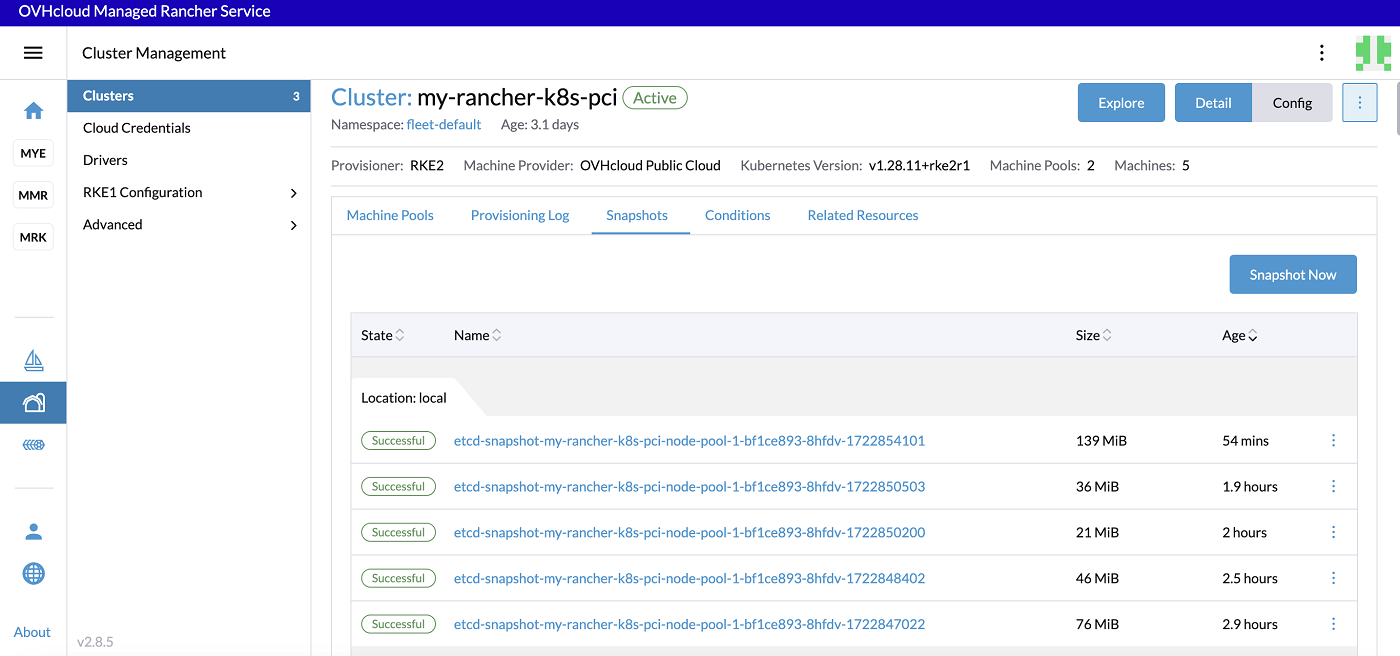
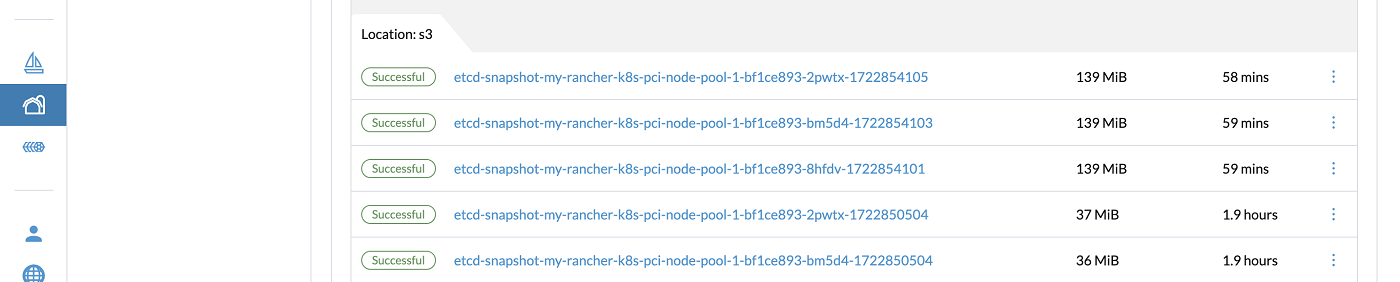
The name of the snapshot is automatically generated, it is based on the type (whether the snapshot is manual: on-demand or recurring: etcd-snapshot). The naming convention is as follows:
<name>-<node>-<timestamp>
You can also verify in the OVHcloud Console that the snapshots have been successfully saved: click Object Storage under Storage in the left-hand menu of your Public Cloud project, click the name of your bucket in the Containers tab, then open its Objects tab.
Create a one-time snapshot
In addition to recurring snapshots, you may want to take a "one-time" snapshot.
It can be useful, for example, before upgrading the Kubernetes version of a cluster and upgrading the Service Mesh version of a cluster. In general, it is recommended to backup the state of the cluster to protect against upgrade failure.
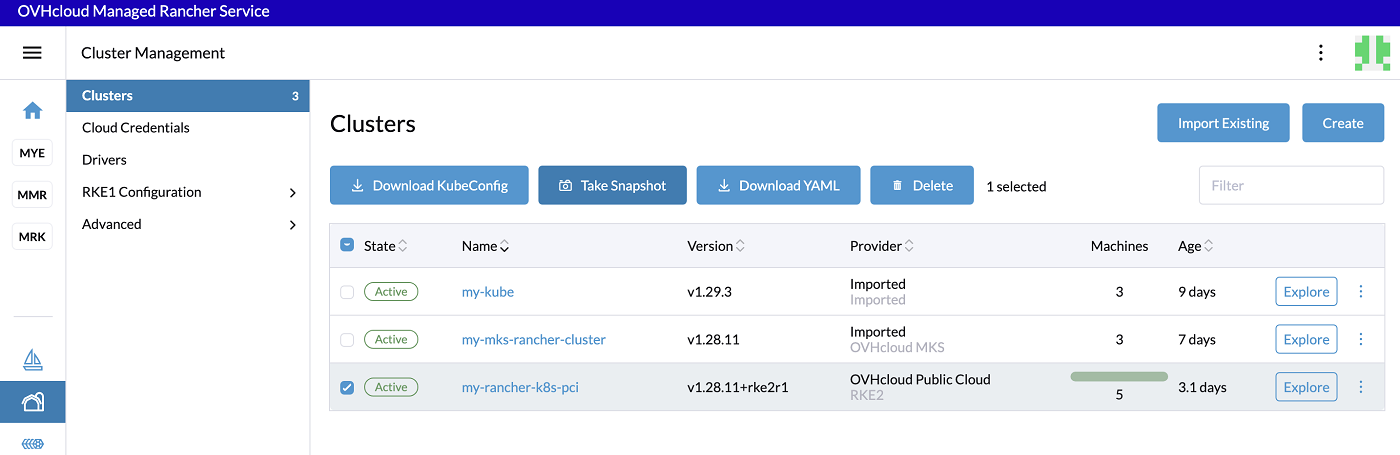
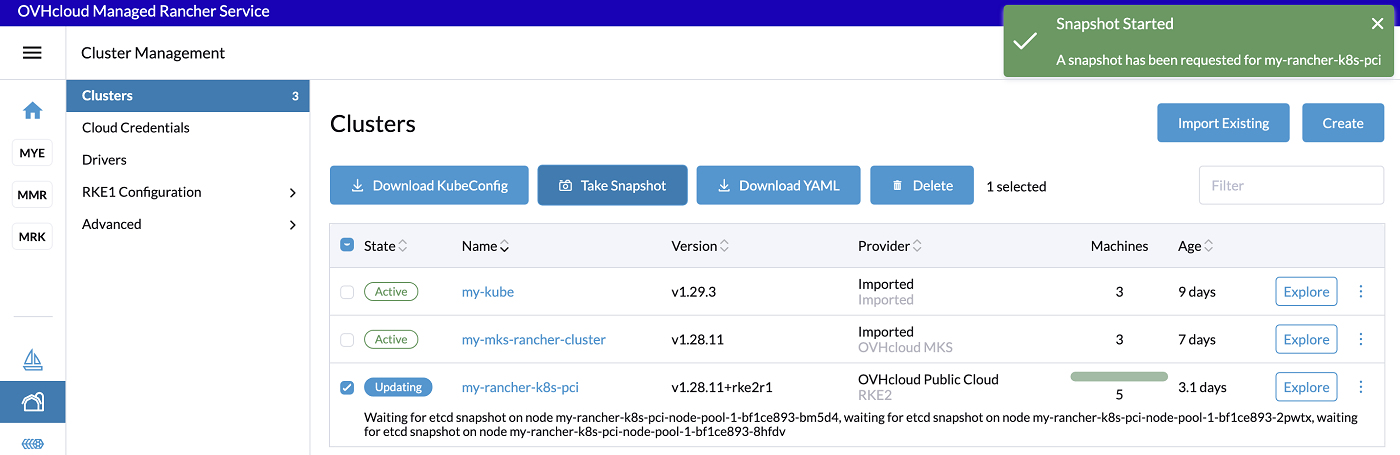
On the Cluster Management view on Rancher UI, click on the checkbox near your Kubernetes cluster and click the Take Snapshot button.
Restore from a snapshot
On the Snapshots tab of your Kubernetes cluster in the Rancher UI, click the Restore button.
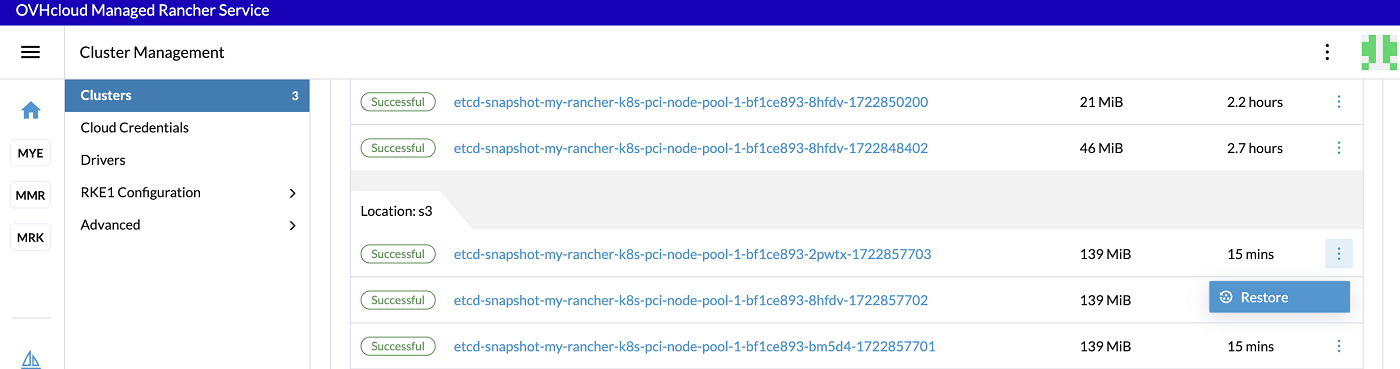
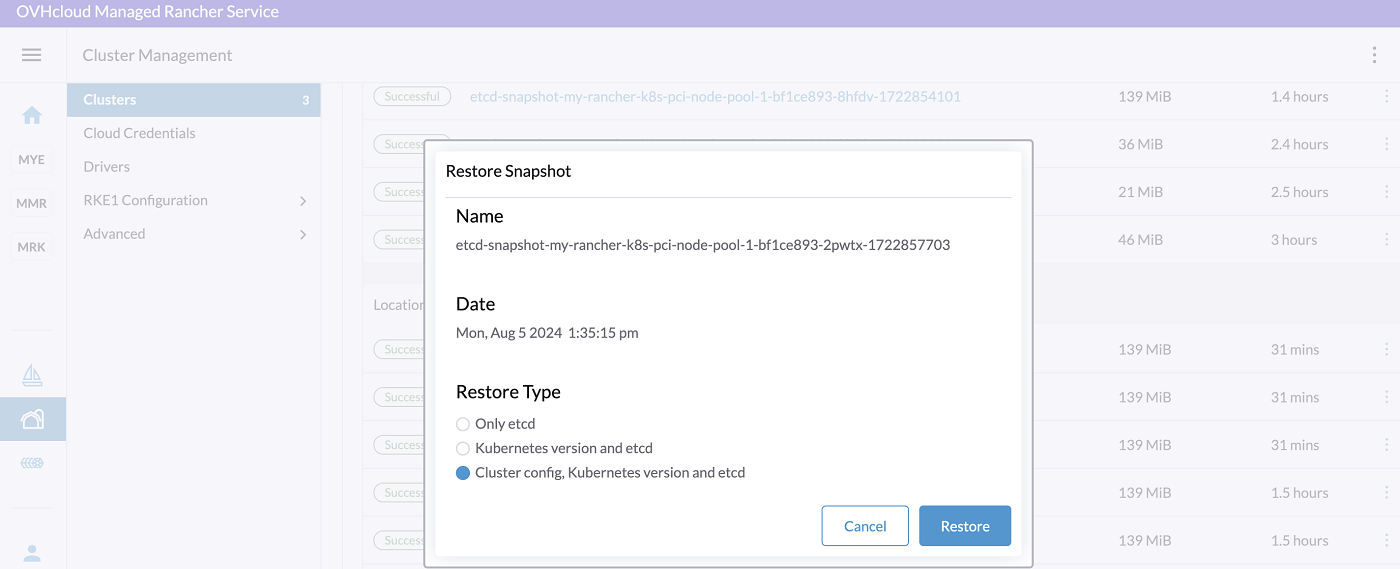
On Rancher, you can choose different restore types:
- Only etcd
- Kubernetes version and etcd
- Cluster config, Kubernetes version and etcd
In the Restore Snapshot popup, click on the restore type you want to do and click the Restore button.
After clicking the button, the restore from the snapshot is in progress.
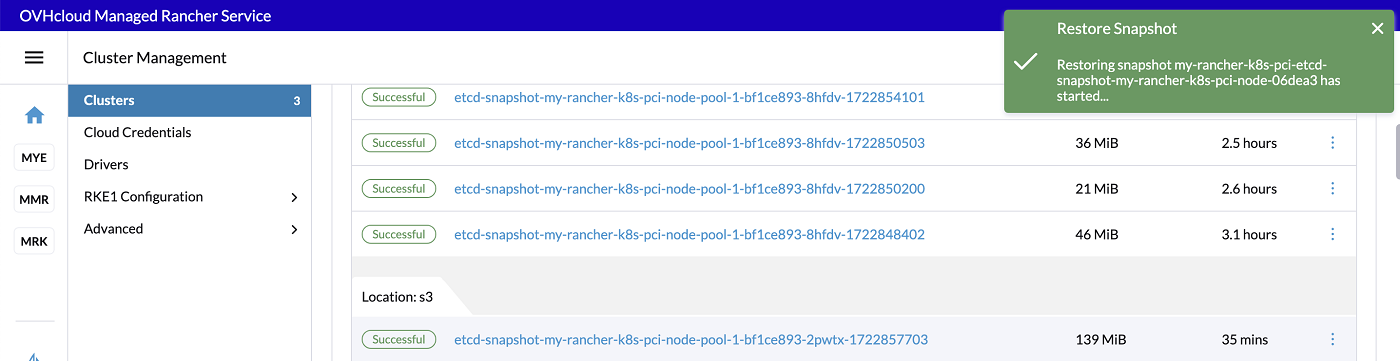
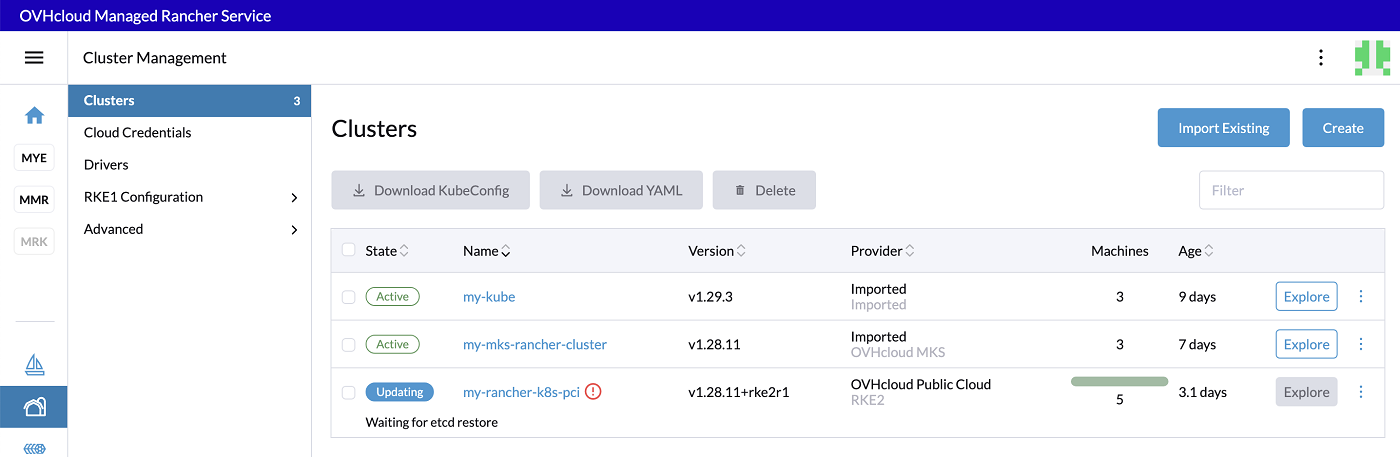
The restoration of a cluster can take a few minutes.
Known issues
Failed to test for existence of bucket xxx: Access Denied
If you have this following error message: failed to test for existence of bucket etcd-rancher: Access Denied., you may have an error in the Object Storage endpoint.
Remove the https:// scheme in the endpoint URL and check the endpoint URL of your OVHcloud Object Storage bucket.
A correct Object Storage endpoint should be s3.gra.io.cloud.ovh.net.
Go further
-
Follow the Rancher official documentation to know more about backup and restore.
-
To have an overview of OVHcloud Managed Rancher Service, you can go to the OVHcloud Managed Rancher Service page.
-
For training or technical assistance implementing our solutions, contact your sales representative or visit our Professional Services page to request a quote and have your project analysed by our experts.
-
Our team remains available on our dedicated Discord channel, do not hesitate to join and reach us: https://discord.gg/ovhcloud. Ask questions, provide feedback and interact directly with the team that builds our Container and Orchestration services.
-
Join our community of users.
1: S3 is a trademark of Amazon Technologies, Inc. OVHcloud's service is not sponsored by, endorsed by, or otherwise affiliated with Amazon Technologies, Inc.