
Managed Backup for VMware - Monitoring your protection in the OVHcloud Console
Find out how to read your Managed Backup for VMware dashboard, check that a machine is backed up, access your VBR and reset its password
Objective
The OVHcloud Console brings together, on a single dashboard, all the infrastructures protected by Managed Backup for VMware and all their virtual machines.
This guide explains how to read your dashboard, check that a machine is backed up, access your VBR and reset its password.
Requirements
- Have at least one Managed Backup for VMware service.
OVHcloud Console Access
- Direct link:
- Navigation path:
Private Cloud>Backup>Managed Backup for VMware
Instructions
Accessing the dashboard
The dashboard opens directly on your whole subscription. It has two tabs: Dashboard and Billing.
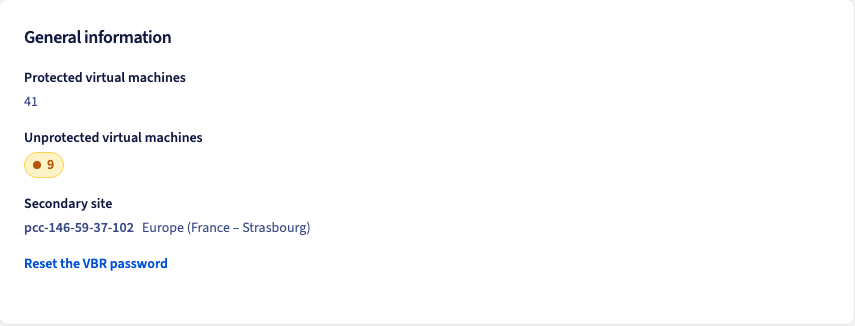
The General information card shows the number of protected and unprotected machines, the secondary site and the Reset the VBR password link.
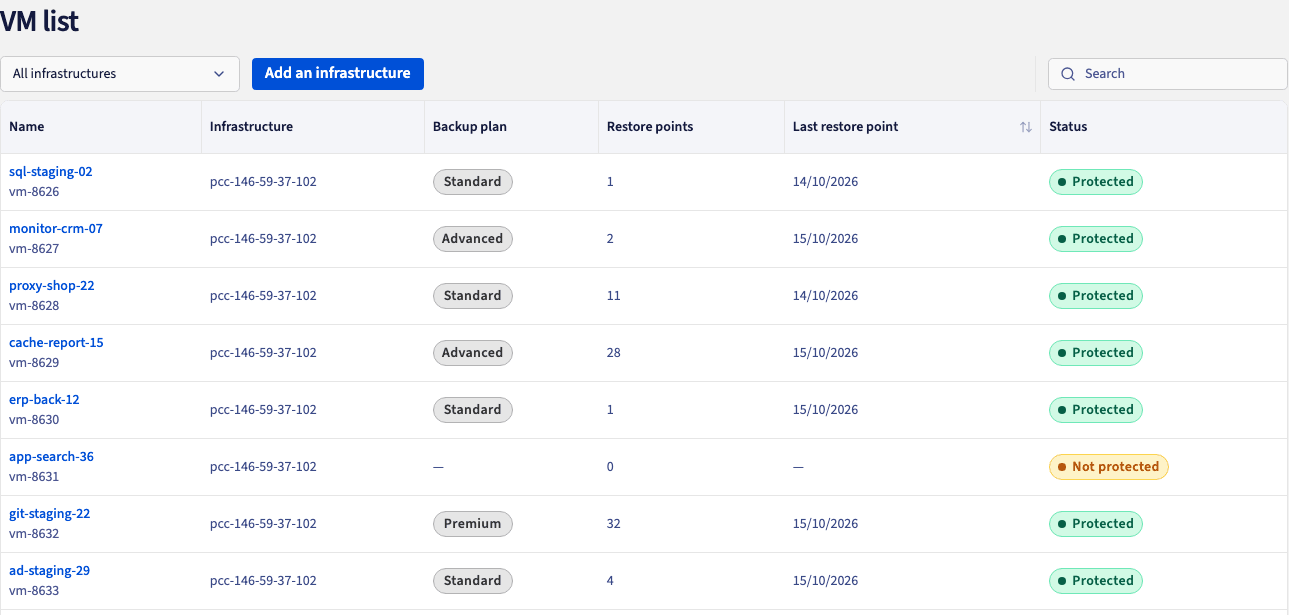
The VM list shows one row per machine, with its Backup plan, its restore points and its status.
The General information card
- Protected virtual machines: the number of protected virtual machines.
- Unprotected virtual machines: the number of unprotected virtual machines.
- Sites: for each infrastructure, its primary site and its secondary site, in read-only mode.
Reset the VBR password: the link to reset the VBR password (see Resetting the password of your VBR).
The Subscription card
- Infrastructures: your protected infrastructures, each with its status (for example Active).
- Created on: the creation date of the service.
Open the VBR console: the link that opens the console of your VBR (see Opening the console of your VBR).Terminate a backup service: the action that stops the protection of an infrastructure (see Terminating and reactivating a service).
The virtual machine list
Below the cards, the VM list shows all the machines of all your infrastructures. The All infrastructures selector limits the display to one infrastructure, and the Search field looks up a machine by name. The list has no other filter.
Spot a machine that is no longer backed up
The OVHcloud Console does not show an error status for each machine. Sort the list on the Last restore point column: the oldest dates and the machines that have never been backed up come first. A date older than the others, or a dash, flags a machine to check. You can find the details of a failure in the console of your VBR. Your VBR also sends you its backup notifications by email, to the address of the OVHcloud account that ordered the service.
The information is updated every hour. A tag set in vSphere therefore appears in the list within the hour.
Machines of 8 TB or more are not supported: if tagged, such a machine is backed up in degraded mode, without full support, and it can delay the backups of your other machines. Do not tag it, and remove its tag if it has one (see Machines of 8 TB or more).
The details of a machine
Click the name of a machine to open its details in a side panel. It shows:
- The badge at the top of the panel: Backup plan followed by the plan (for example Backup plan Standard) for a tagged machine, or No tag for a machine without a tag.
- What to do: for a tagged machine, backups run automatically. For a machine without a tag, nothing is backed up until you set one of the three tags on it in vSphere. The tag is taken into account within the hour.
- Restore points: the number of restore points, or No restore point.
- Backup plan: the plan of the machine, or None.
- Size and Size band: the size of its backup and its size band, on which its price is calculated. The space allocated to its disks is never taken into account. For a machine that has never been backed up, the screen shows Not measured yet and Unknown.
- Last restore point: the date of the last backup, or Never backed up.
- Reference: the reference of the machine, to give to support if needed.
Opening the console of your VBR
-
Click
Open the VBR console. The VBR console window opens. -
In the Infrastructure field, choose the infrastructure. Each infrastructure has its own VBR.
-
Copy the identifier shown next to Login with the copy button, then click
Open the VBR web interface.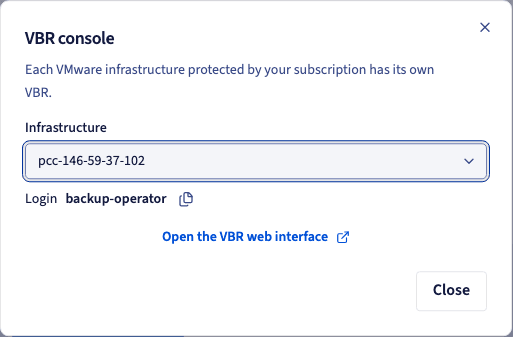
The window shows the identifier of the selected VBR, with a button to copy it, and the link to its web interface.
The action is not available while the service is being deployed.
Resetting the password of your VBR
OVHcloud does not store the password you choose. If you lose it, request a reset:
- In the General information card, click
Reset the VBR password. - In the Reset the VBR password window, in the Infrastructure field, choose the one whose password you lost. The matching Login is displayed.
- Click
Send the e-mail. TheCancelbutton closes the window without sending anything. - Open the reset email, sent by your VBR to the address of the OVHcloud account that ordered the service, log in with the temporary password, then choose a new password.
- The reset only applies to the selected VBR, and does not change the rights of the account.
- The VBR password reset remains available for 35 days after a termination, so you can still restore.
- The reset is not available during deployment, or if another reset is already in progress on this VBR.
Protecting another infrastructure
In the VM list, click Add an infrastructure to start a new order. You go through the full order again, as for the first one (see Getting started with Managed Backup for VMware): an infrastructure that is already protected is not offered. The new service appears on the same dashboard.
What is managed elsewhere
- Backup jobs: they are created and scheduled by OVHcloud.
- Tags: you choose the Backup plan in vSphere.
- Storage: the price of each machine includes it, so there is nothing to size.
- The secondary site: it is chosen at order time and does not change afterwards.
Go further
Understanding your billing: the Billing tab, line by line.
Terminating and reactivating a service: the 35-day window.
FAQ and troubleshooting: the most frequently asked questions.
Join our community of users.