
Landing Zone Manager - Creating a user account
Find out how to create a user account in the Landing Zone Manager and log in for the first time
Objective
The Landing Zone Manager is the OPCP portal that lets each team, department or customer deploy and operate their workloads autonomously, in a dedicated and isolated space. Administrators provision users and grant them access to the platform. Each user account is backed by a dedicated realm in the underlying Keycloak instance, ensuring multitenant access isolation.
This guide explains how to create a user account in the Landing Zone Manager and log in for the first time.
Requirements
- Access to the Landing Zone Manager with administrator privileges allowing user account management
- The first-login default password defined during your Landing Zone Manager deployment
- The URL of the Landing Zone Manager (previously communicated by your administrator)
- Valid user information to provision (full name and email address)
Instructions
Step 1: Access the user account management section
Log in to the Landing Zone Manager with an account that has administrator privileges. From the main navigation, open the Account management section.
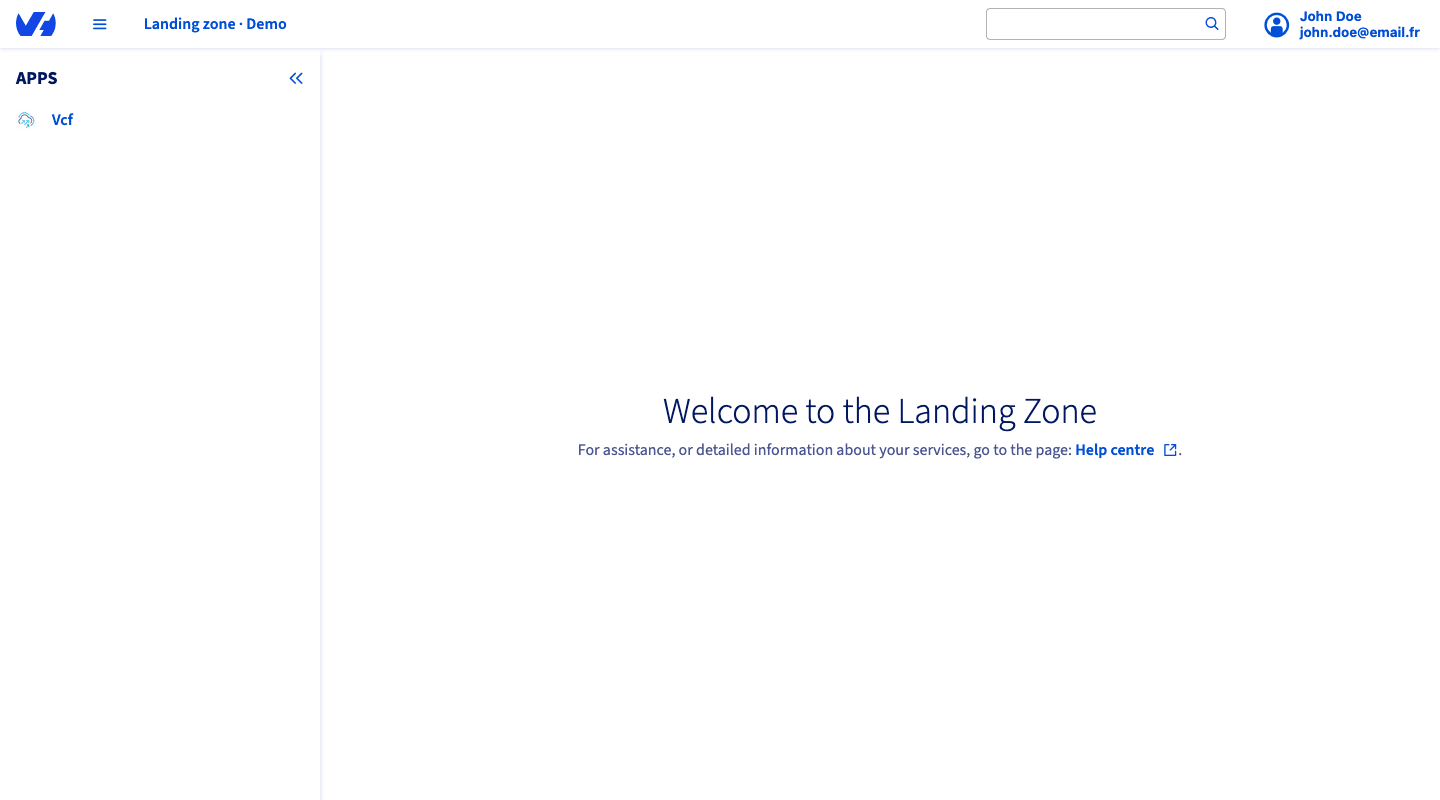
Step 2: Create a new user account
Click the + Create new account button to open the user account creation form.
Fill in the required fields:
Once all fields are filled in, confirm the creation of the user account.
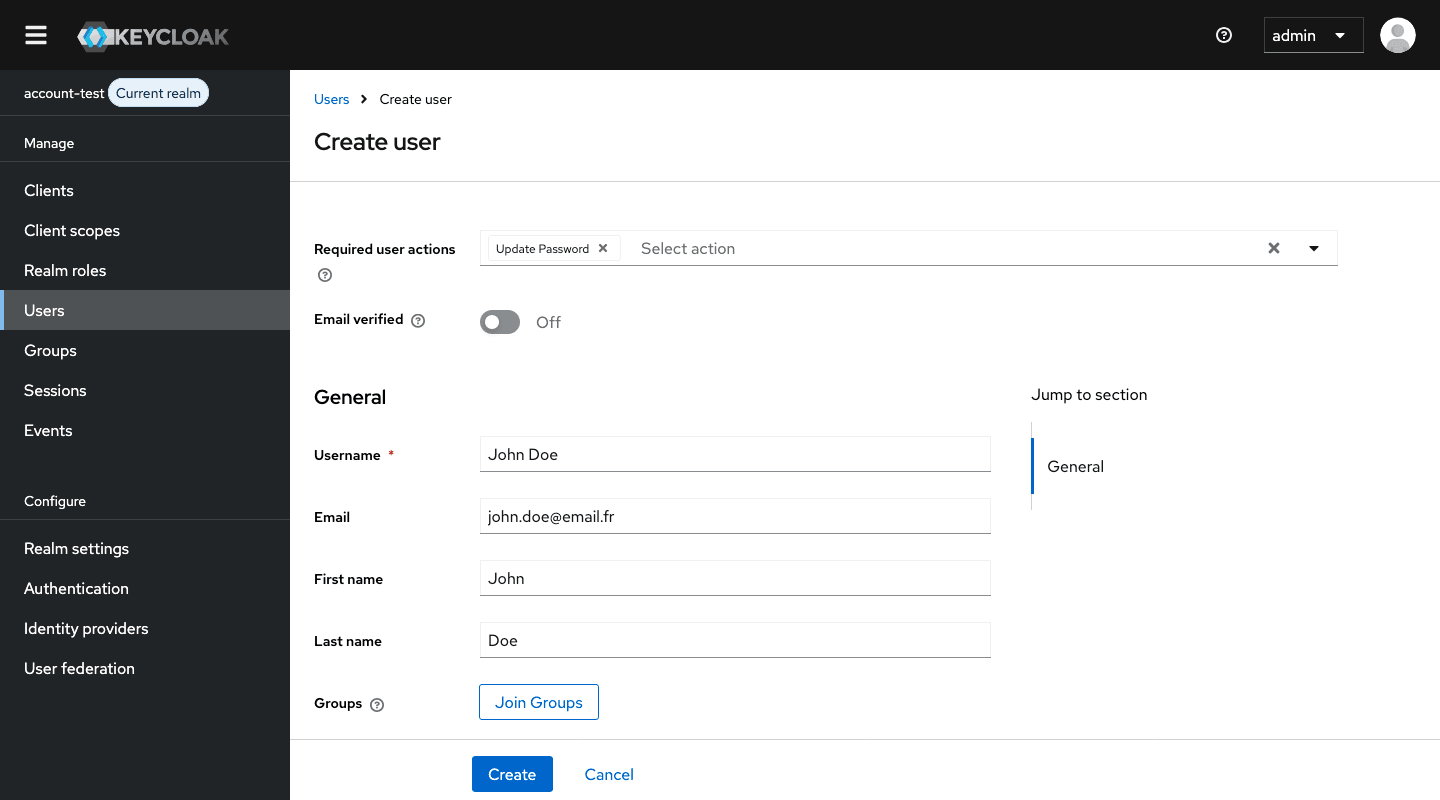
The email address provided is used as the login identifier for the new user account. Make sure it is correct before validating, as users will authenticate with this value.
Step 3: Share the first-login credentials
Once the user account is successfully created, share the Landing Zone Manager URL with the user, along with their first-login credentials:
- Login: the email address entered during creation
- Password: the first-login default password defined during OPCP and CloudStore deployment
The default password is shared across first logins and is defined at deployment time. For security reasons, users must change this password immediately after their first successful login.
Step 4: First connection to the Landing Zone Manager
Once the user account has been provisioned, the user can connect to the Landing Zone Manager using the URL previously communicated.
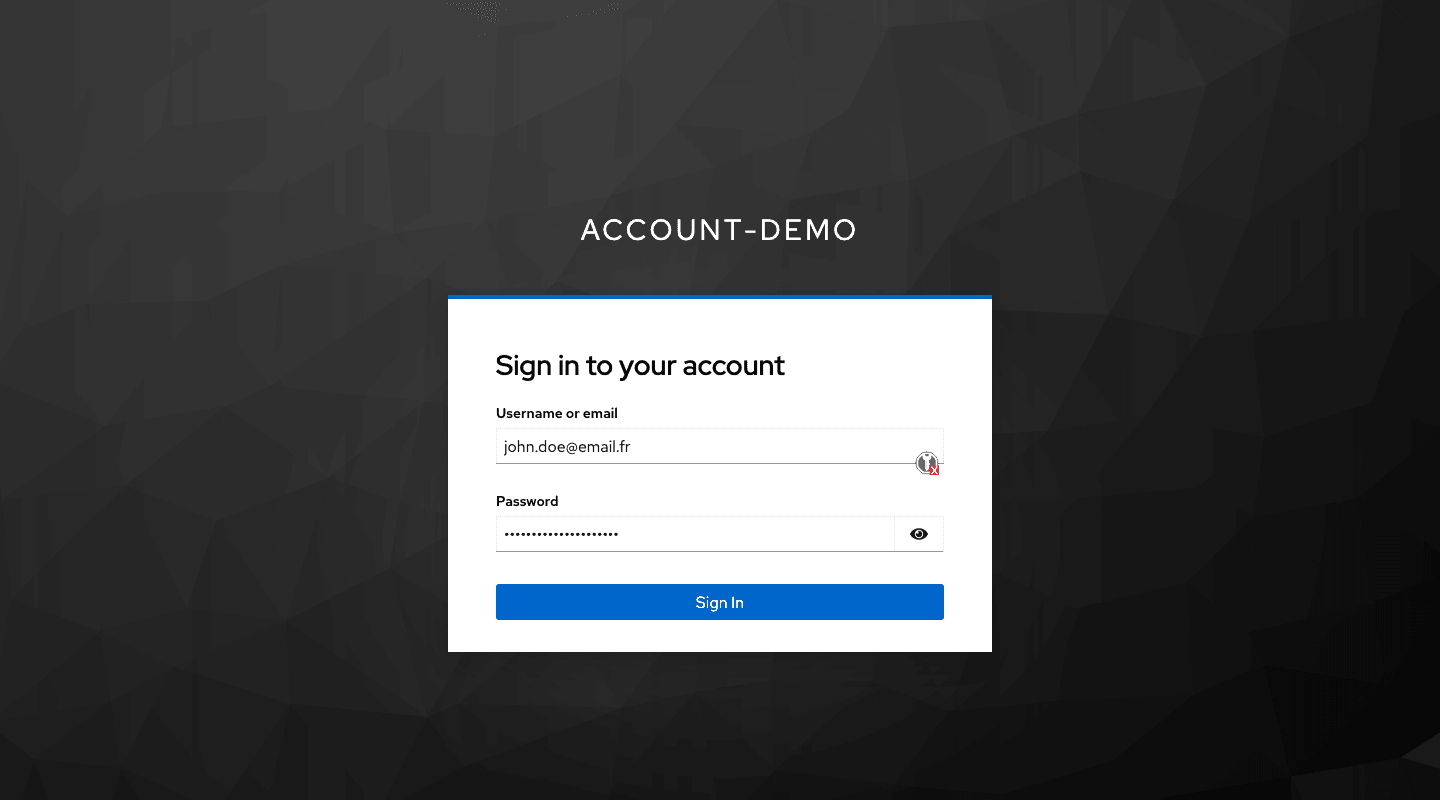
From the login page:
- Enter the email address used when creating the account as the login.
- Enter the first-login default password.
- Validate to access the Landing Zone Manager.
On this first login, the user must set a new password and complete any additional authentication setup required by the platform before accessing the Landing Zone Manager.
How user accounts are mapped in Keycloak
The Landing Zone Manager runs on its own dedicated Keycloak stack, independent from the OPCP Core Keycloak and from any CloudStore Keycloak. It is not federated with these instances: identities, realms and credentials managed in the Landing Zone Manager are fully isolated from administrators who can access the rest of the OPCP identity layers.
Every account created in the Landing Zone Manager automatically generates a dedicated realm in Keycloak. This design ensures:
- independent configuration of authentication flows per account
- separate user bases and role mappings per realm
Because each account corresponds to a distinct Keycloak realm, any identity-related operation (adding users, configuring federation, defining roles) must be performed within the realm associated with the target account.
Go further
For training or technical assistance implementing our solutions, contact your sales representative or visit our Professional Services page to request a quote and have your project analysed by our experts.
Join our community of users.