
Govern a customer dataset with policy tags, views and Time Travel
Find out how to protect a customer table that holds personal data with policy tags, IAM groups, a governed view and Time Travel
Objective
This guide walks you through protecting a customer table that holds personal data: you classify its columns with policy tags, restrict each team with IAM groups and CEL conditions, publish a view that gives analysts a coarser version of the data, and undo a destructive mistake with Time Travel.
By the end you will have a customer table classified column by column, three teams with access matched to their needs, a governed view for analysts, and a tested way to restore the table after an accidental deletion.
Requirements
To follow this guide you need:
- a Data Platform project. This guide uses a project named
customer-governance. - an administrator account on this project.
- a second, non-administrator account for a test user: another person's account, or a second address of your own, for example
user+governance-test@example.com. - the customer file:
About the data: customers.parquet is derived from Nemotron-Personas-USA, by NVIDIA, licensed under CC BY 4.0. It keeps a sample of 5,000 adult records; names are extracted from the persona field, and emails, phone numbers and SSNs are synthetic (domain example.com, numbers 555-0100 to 555-0199, SSN area 000).
We recommend reading the policy tags and CEL conditions guides first. This guide assumes you are comfortable with the main components of Data Platform.
What you will build
Three groups access the table crm.customers at different levels: Analysts see only the low columns, Customer Support the low and medium columns, and Data Stewards every column. The governed view customer_profiles, built on the same table, gives Analysts a coarser version of the age and ZIP code.
Instructions
Step 1: Loading the customers
Creating the source
-
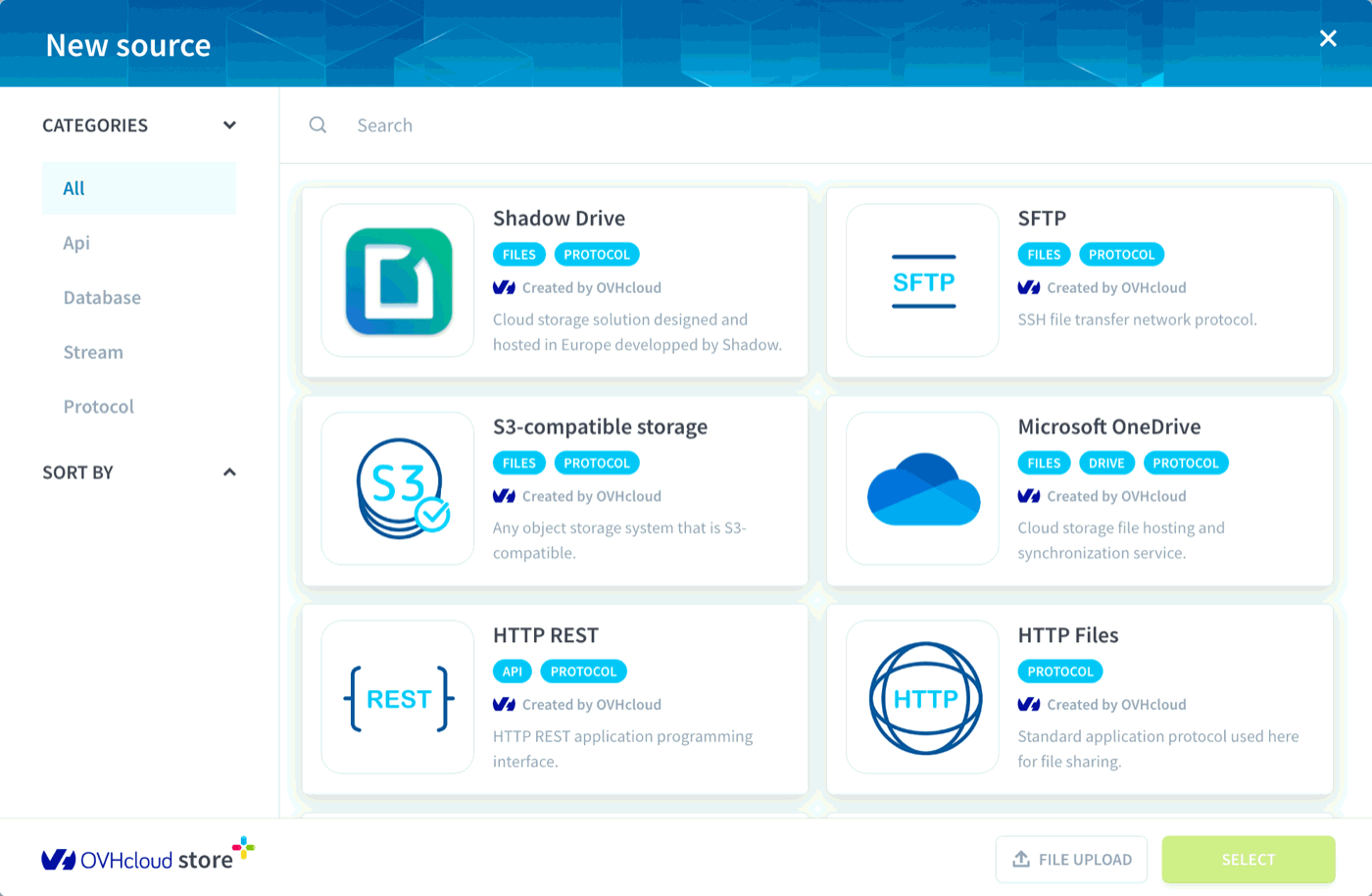
Go to Connectors > Sources > New Source and click File Upload at the bottom of the window.
-
Rename the source
customers. -
Drop
customers.parquetin the Files area, then click Create.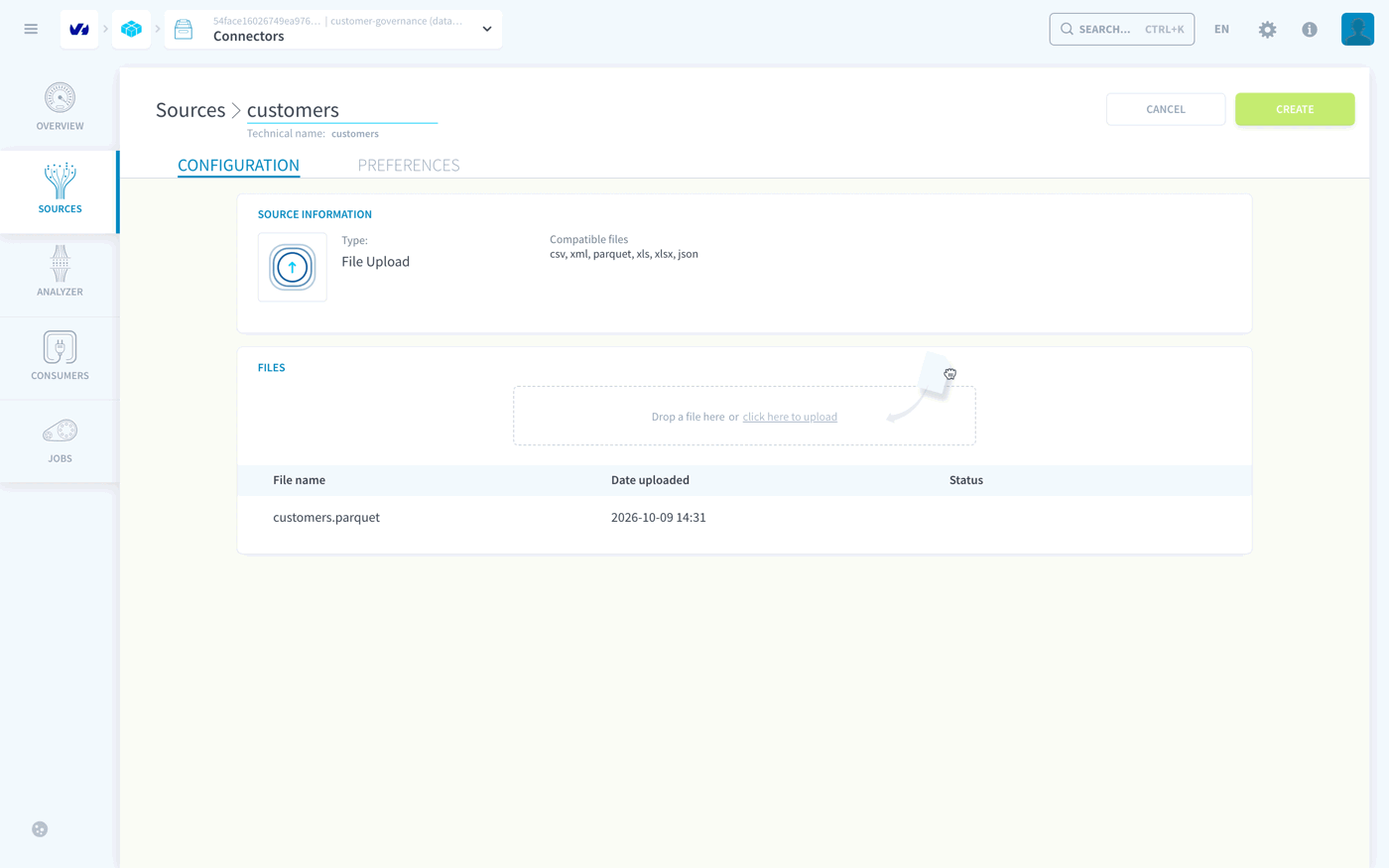
Checking the types
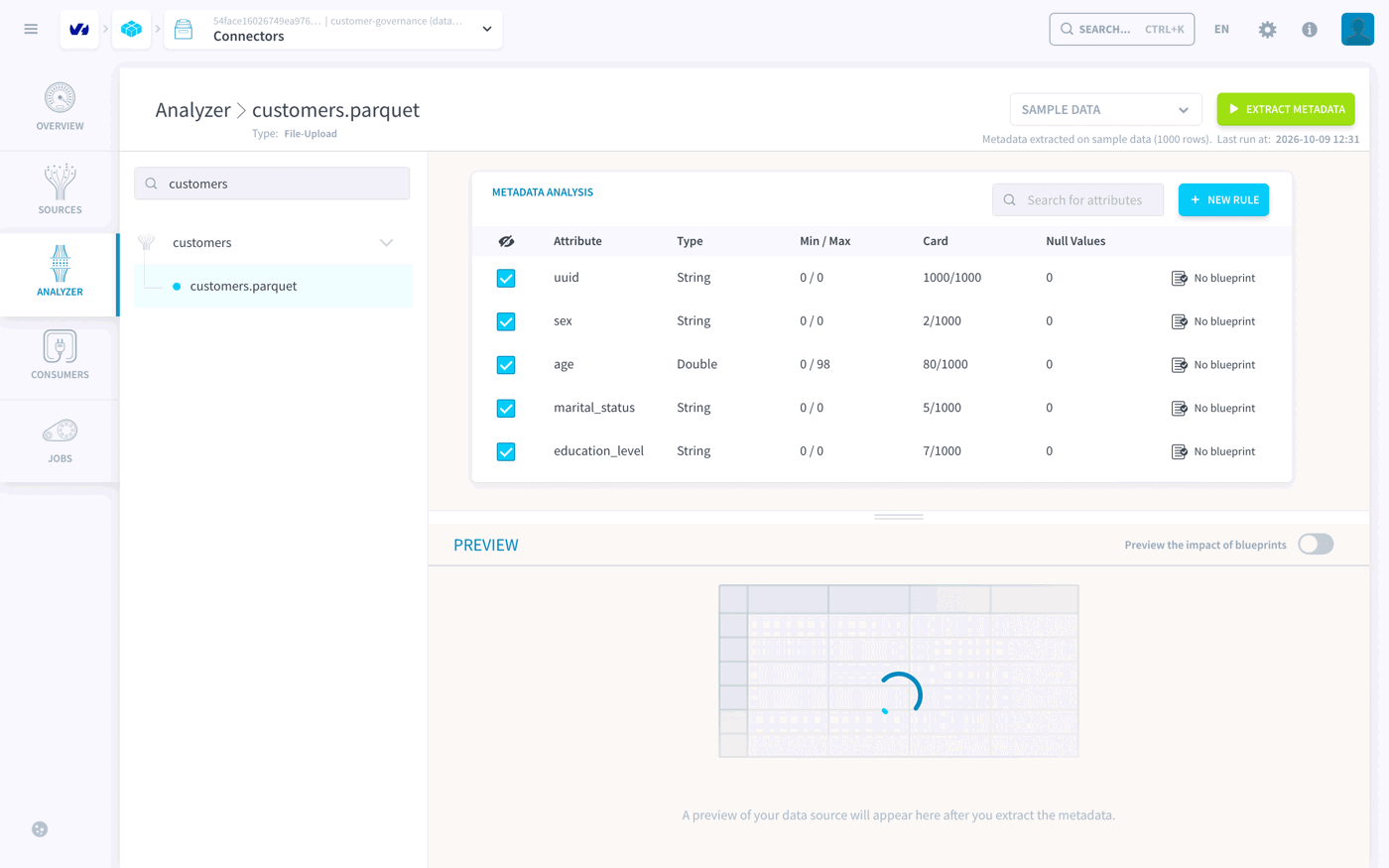
Go to Connectors > Analyzer and open customers.parquet in the source customers. The metadata extraction starts on its own. Check two columns:
zipcodemust be String: ZIP codes such as02760would lose their leading zero as numbers.ageis Double, which works for the age bands of step 5.
Creating the dataset and the table
A dedicated dataset keeps the rules of this guide away from the rest of the project: the policy tag you set on it in step 2 applies to every table it contains.
-
Go to Lakehouse Manager > Datasets > New Dataset, name it
crmand click Create.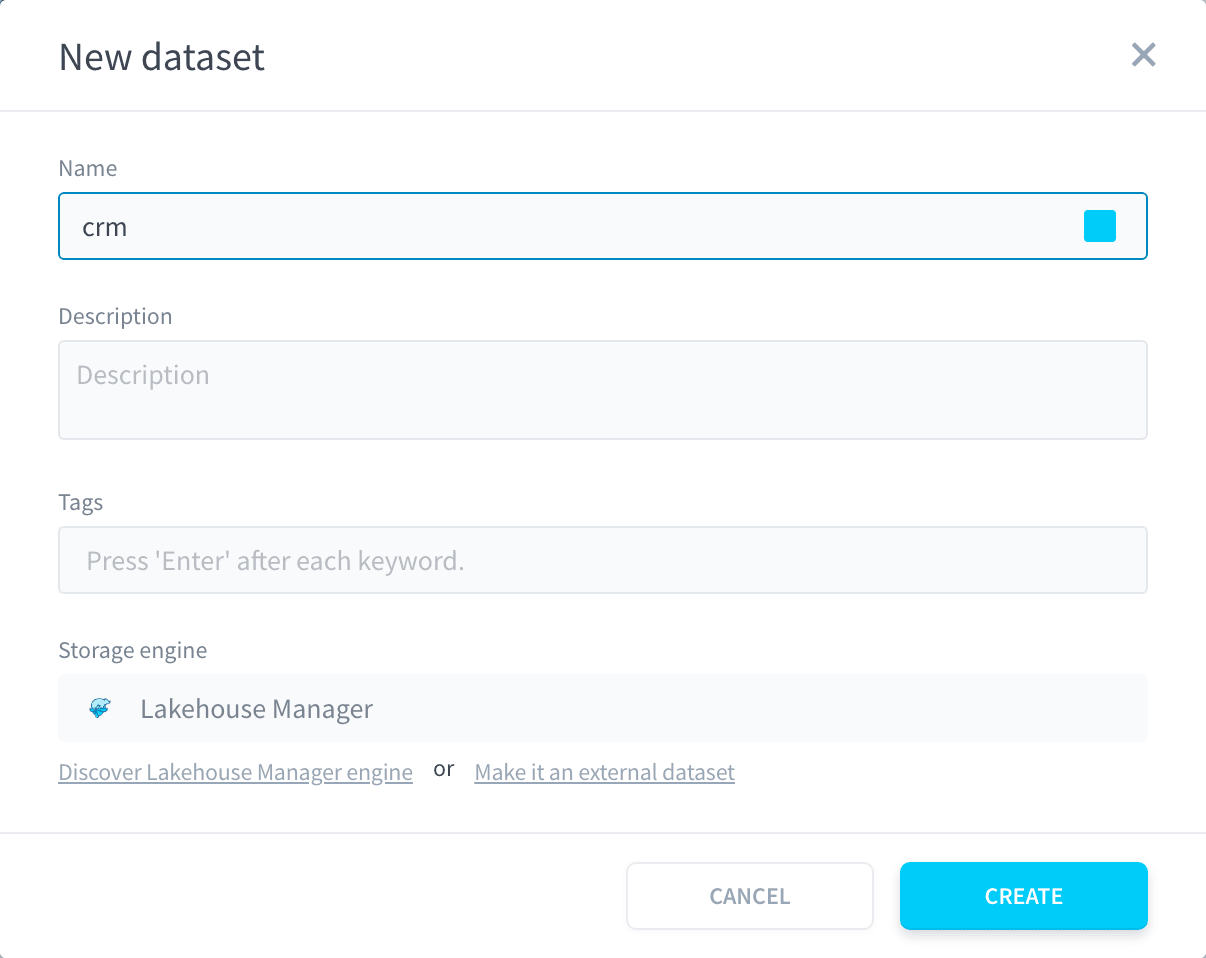
-
Go to Tables, click the arrow next to New table and select Create from a Connectors source.
-
Select
customers.parquetfrom the sourcecustomersand click Next.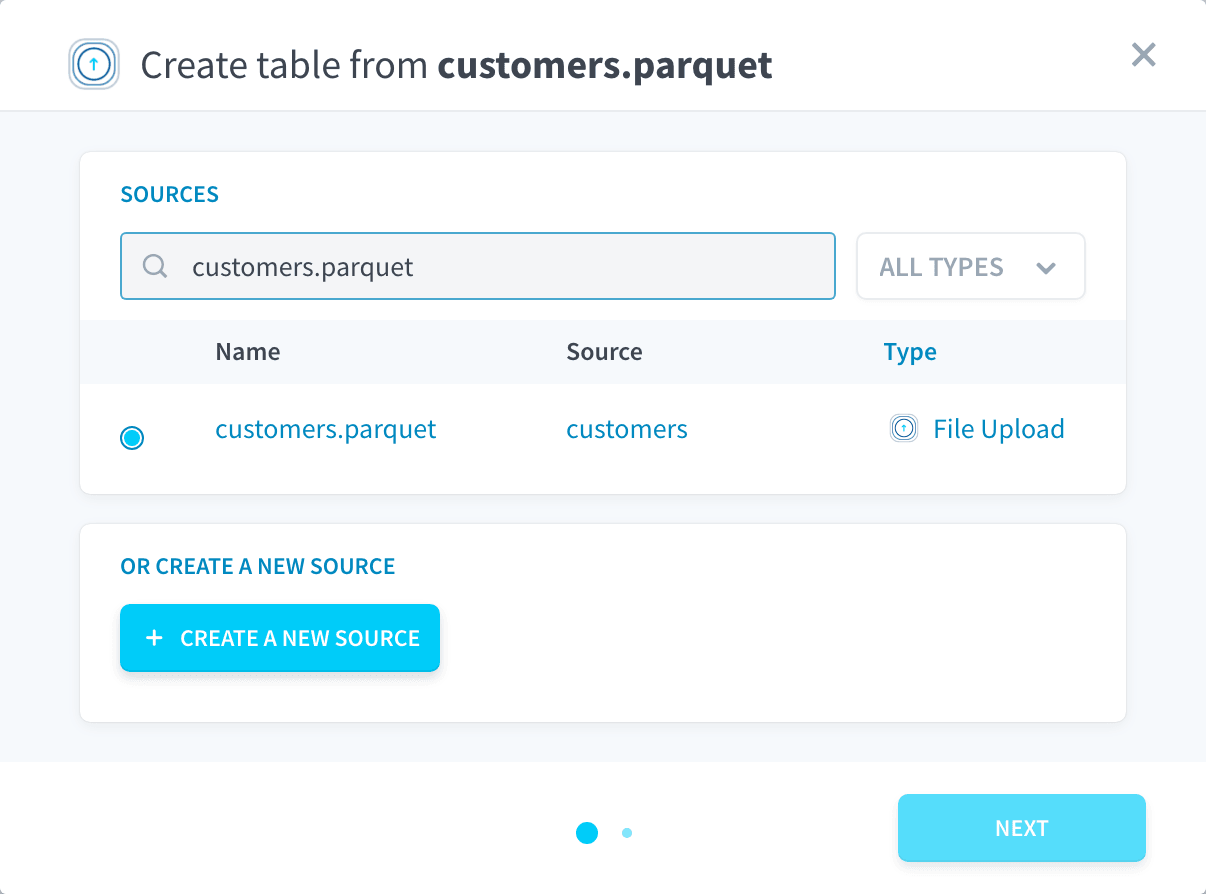
-
Name the table
customers, select the datasetcrm, keep the 3 automatic options turned on and click Create.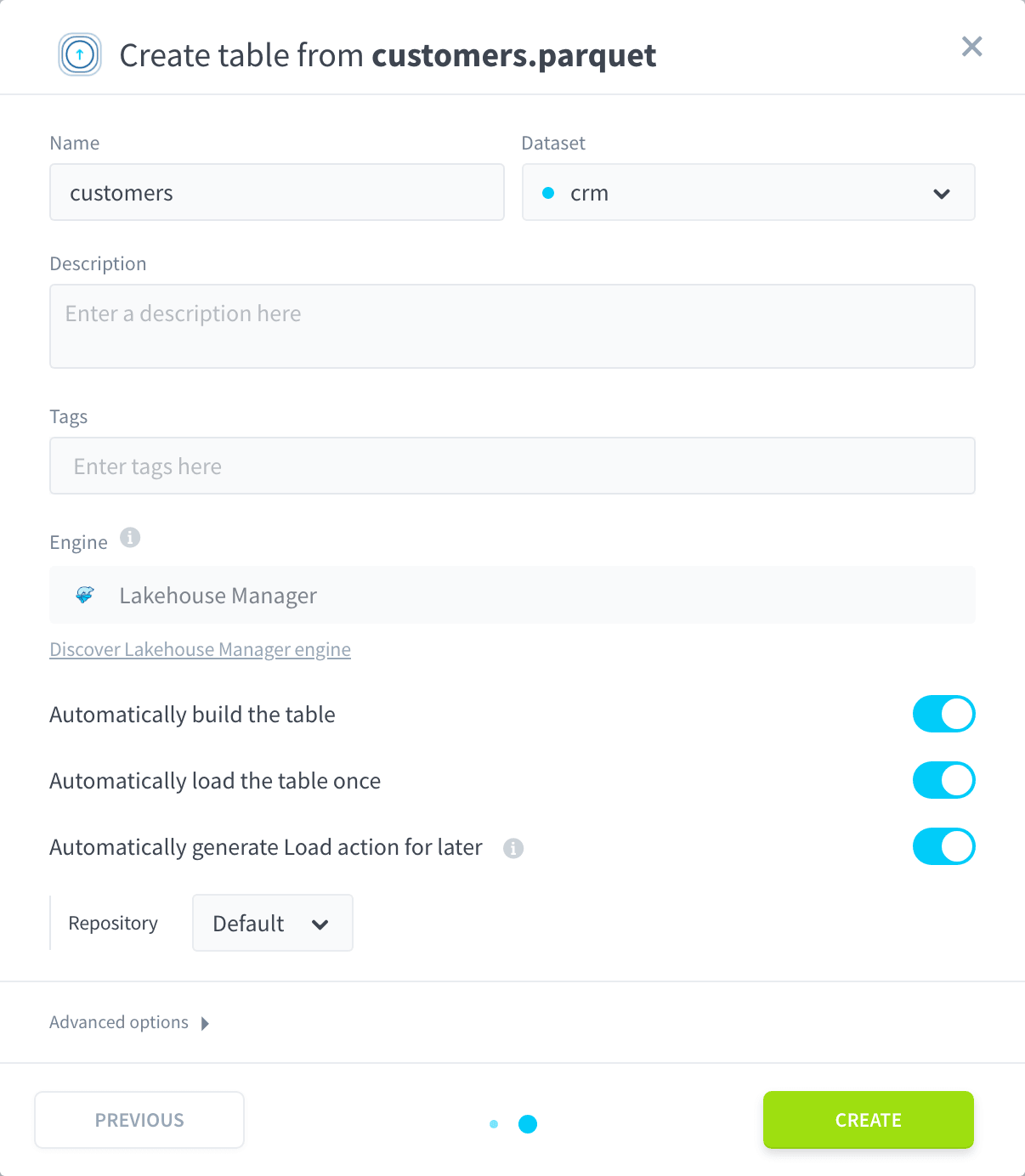
When the load ends, the table
customersshows 16 attributes and 5k rows.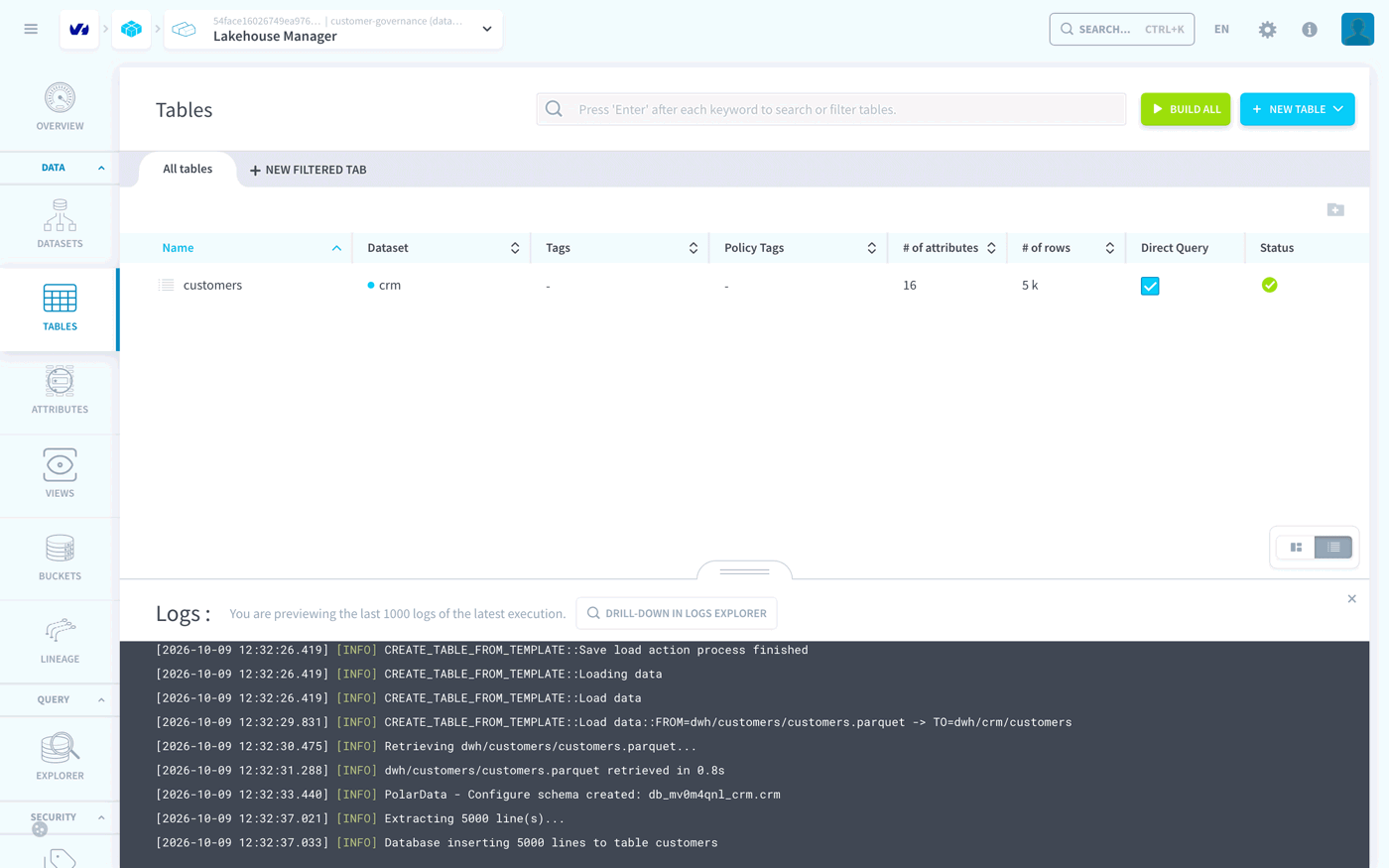
Step 2: Classifying the columns
The access rules of step 3 check the policy tag of each column to decide who can read it.
Reviewing the sensitivity tag
Go to Lakehouse Manager > Policy Tags and click sensitivity. The project provides this key with three values, which this guide uses as follows:

Tagging the dataset
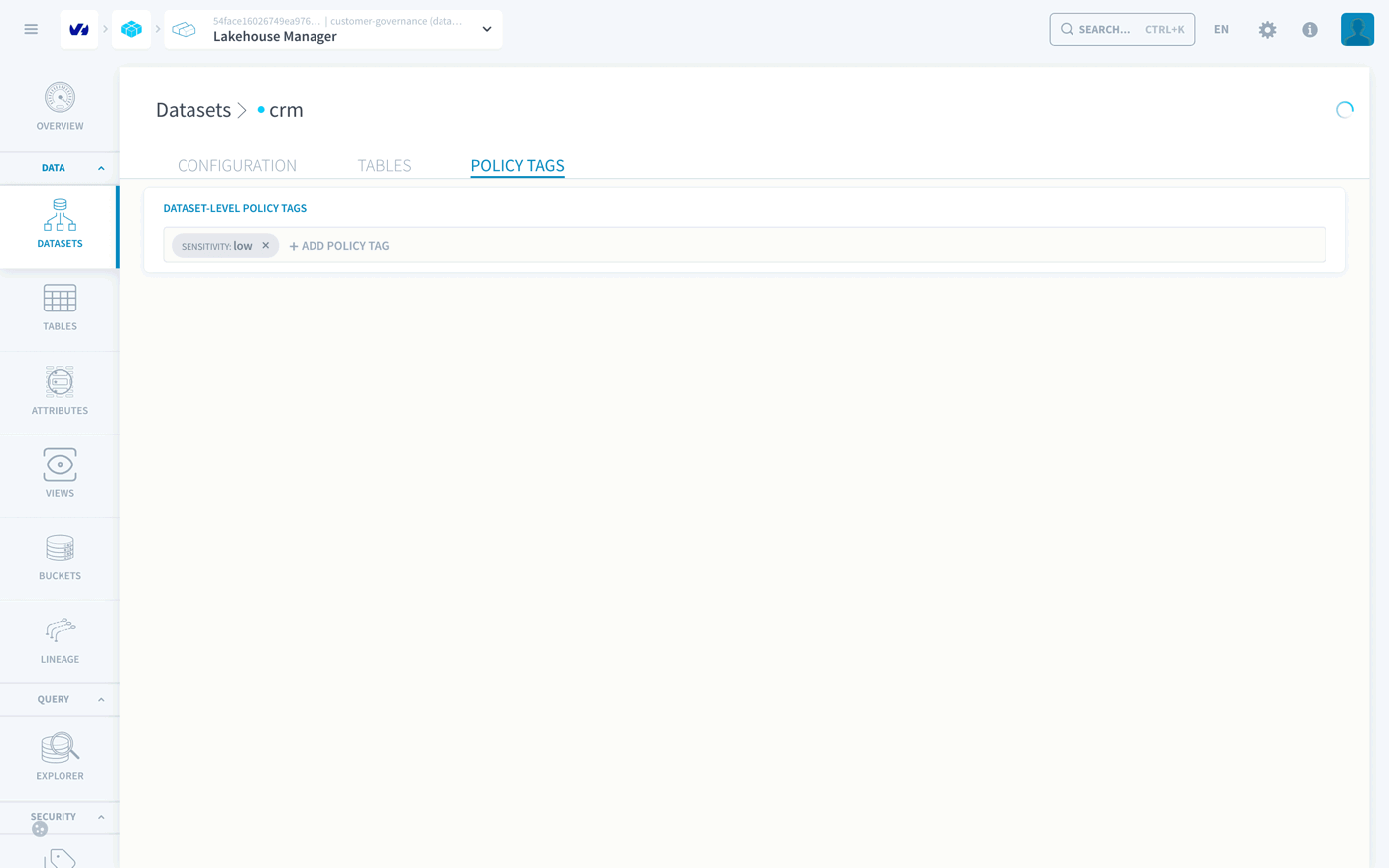
Tag the dataset low: every column without a tag of its own inherits it.
Go to Datasets, open crm, then the Policy Tags tab, click + Add policy tag, select the key sensitivity, then the value low. Changes are saved automatically.
Tagging the columns
Go to Tables, open customers, then the Policy Tags tab. In Column-level policy tags, click + Add policy tag on each column below, then select sensitivity and its value:
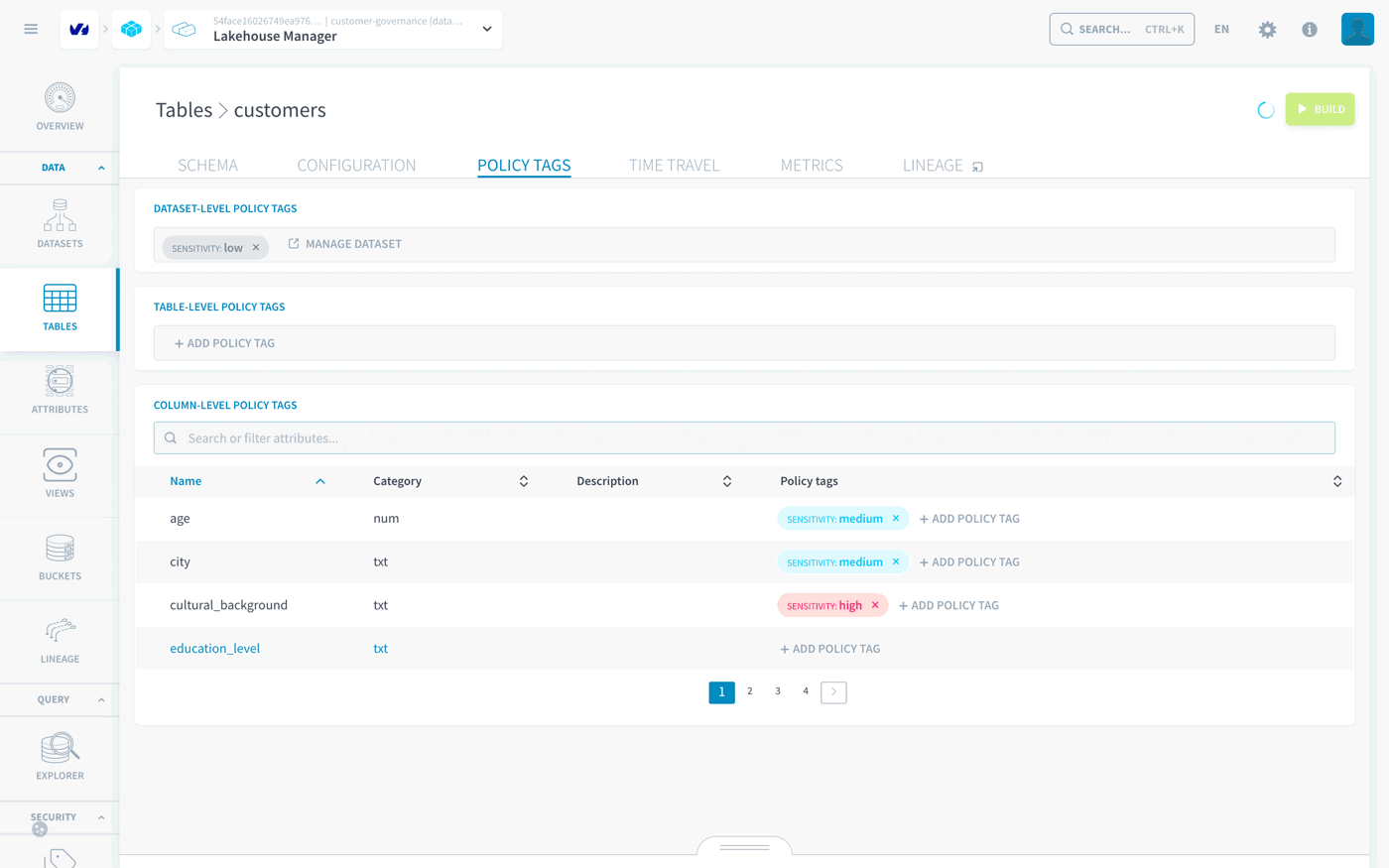
Tags apply immediately, without rebuilding the table.
Step 3: Defining the access rules
Access combines two kinds of roles, both created in the project IAM:
- a base role lets users open the interface and run queries, without access to data;
- a data role gives access to data through Advanced Data Access Control, limited by a CEL condition set on each group.
Creating the roles
Create the three roles below one by one: go to Identity Access Manager > Roles > New role, add each permission with Add permission, then click Create.
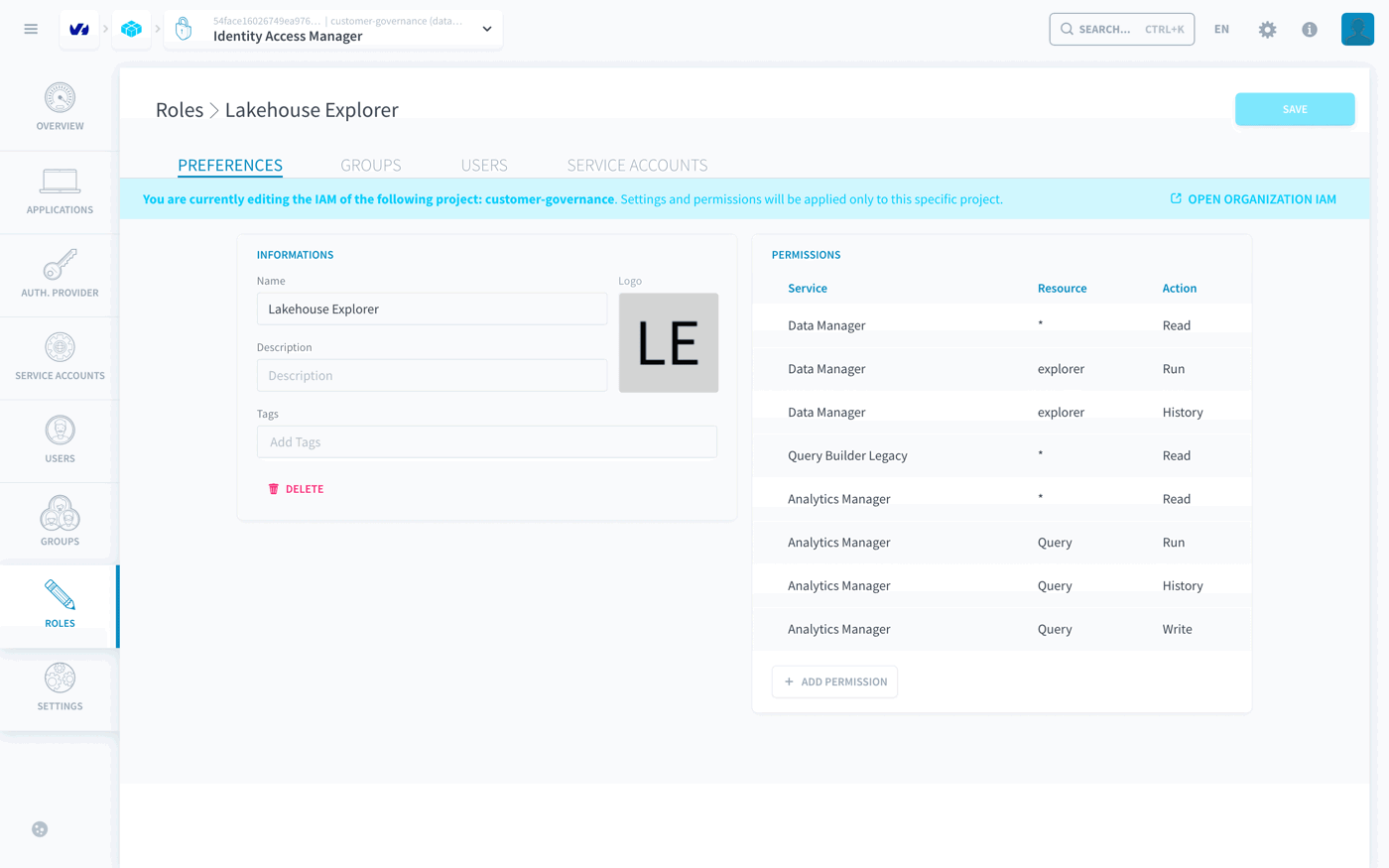
Lakehouse Explorer has no Advanced Data Access Control permission: on its own, it gives no access to data.
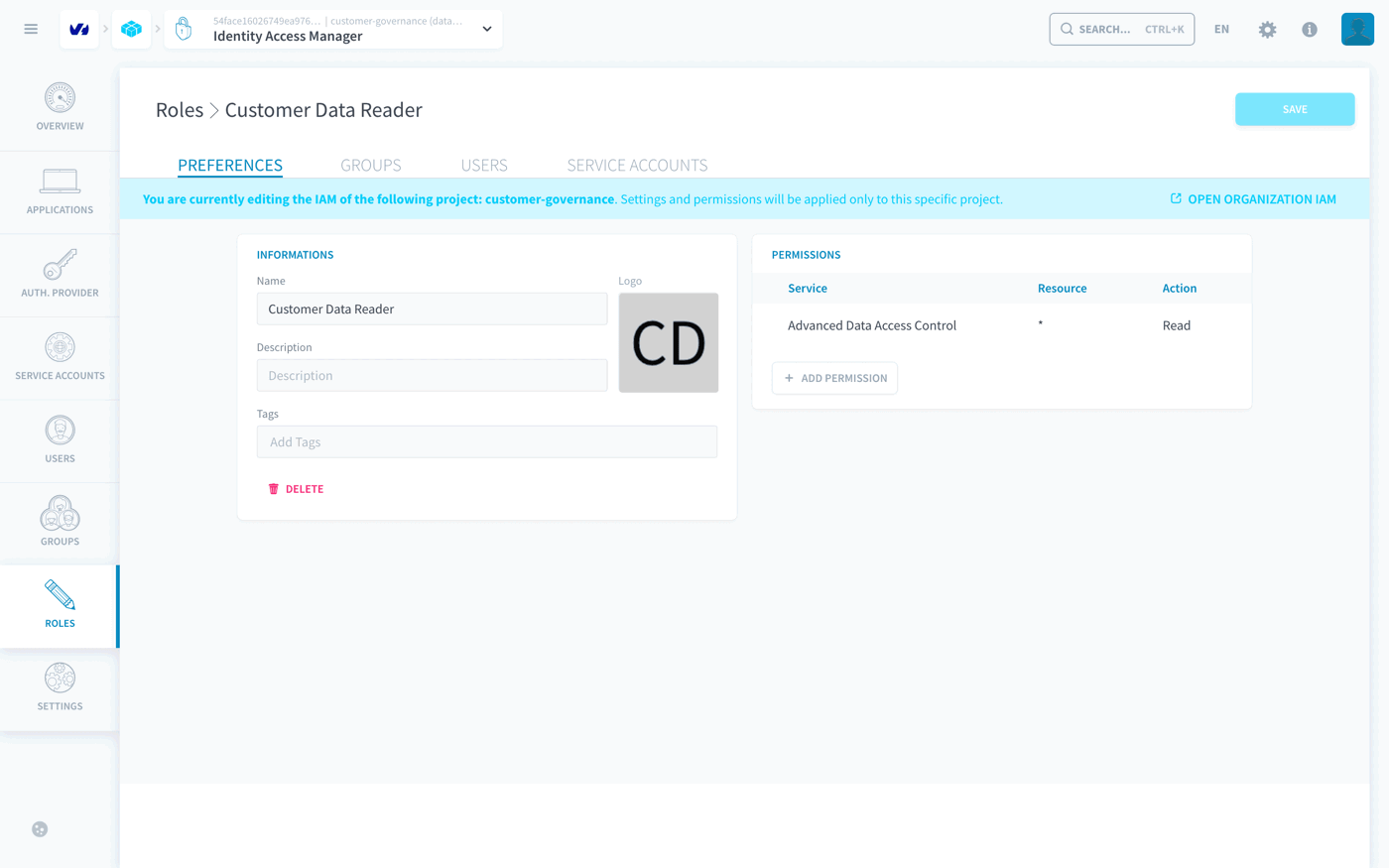
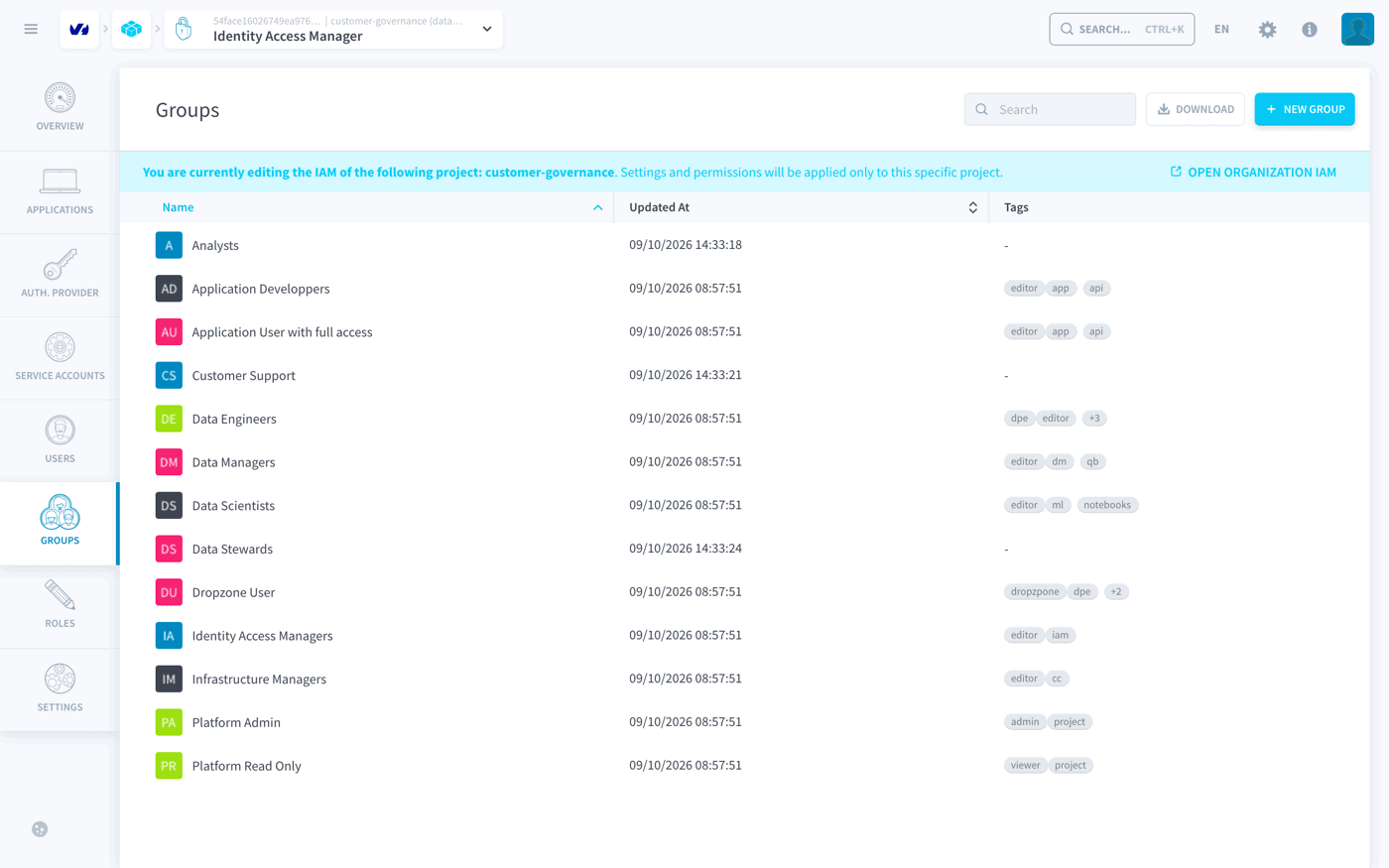
Creating the groups
Each group binds a data role to a CEL condition:
The access check walks down dataset, table, then attribute, and each level must pass. In the conditions below, the first two lines let every group through crm and customers. The third decides which column levels the group reads. The fourth line is for the view of step 5. A view cannot carry a policy tag yet, so the access check sees the view and its columns as untagged resources: without this line, every view is denied, even one built only from low columns. This line does not open other resources: the tables of crm inherit low from the dataset, and an untagged dataset is still refused.
Note: CEL compares strings exactly: "low" does not match "Low".
Analysts:
Customer Support:
Data Stewards:
For each group:
-
Go to Groups > New group and name the group.
-
In Roles & Conditions, click + Add and select its data role.
-
Click the condition link next to the role, paste the group's condition from above and click Confirm.
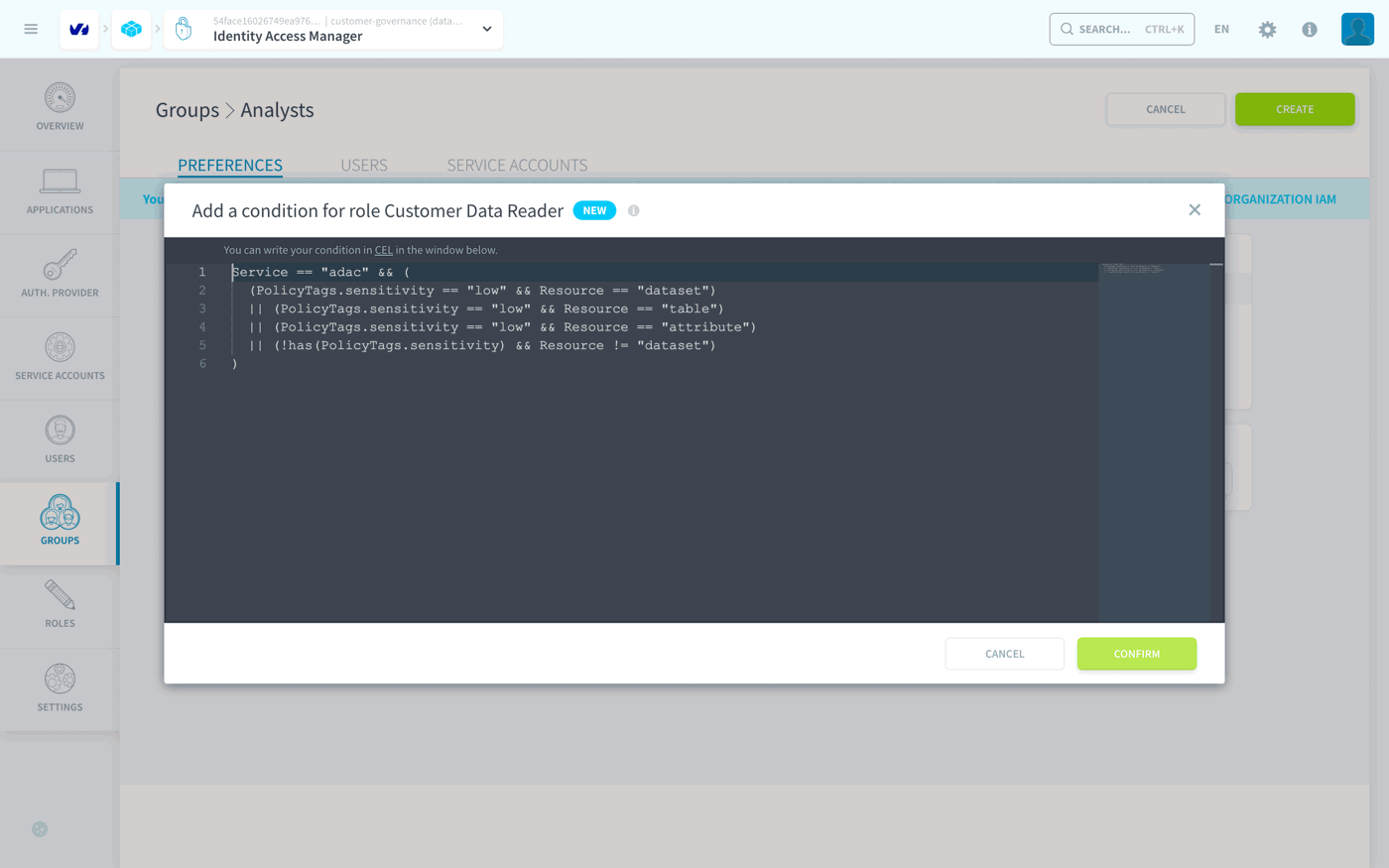
-
Click Create.
Step 4: Checking the rules with a test user
Administrators are not restricted by policy tags, so run the checks with the test user. Change the test user's groups with the administrator account, and run the queries as the test user in Lakehouse Manager > Explorer, in SQL mode.
Creating the test user
-
In the organisation IAM, invite the test user's address and add them to the group Viewers.
-
In the project IAM, go to Users > + New User and add the same address as a Team Member.
-
On the user's page, add the role
Lakehouse Exploreronly and the group Analysts, then click Save.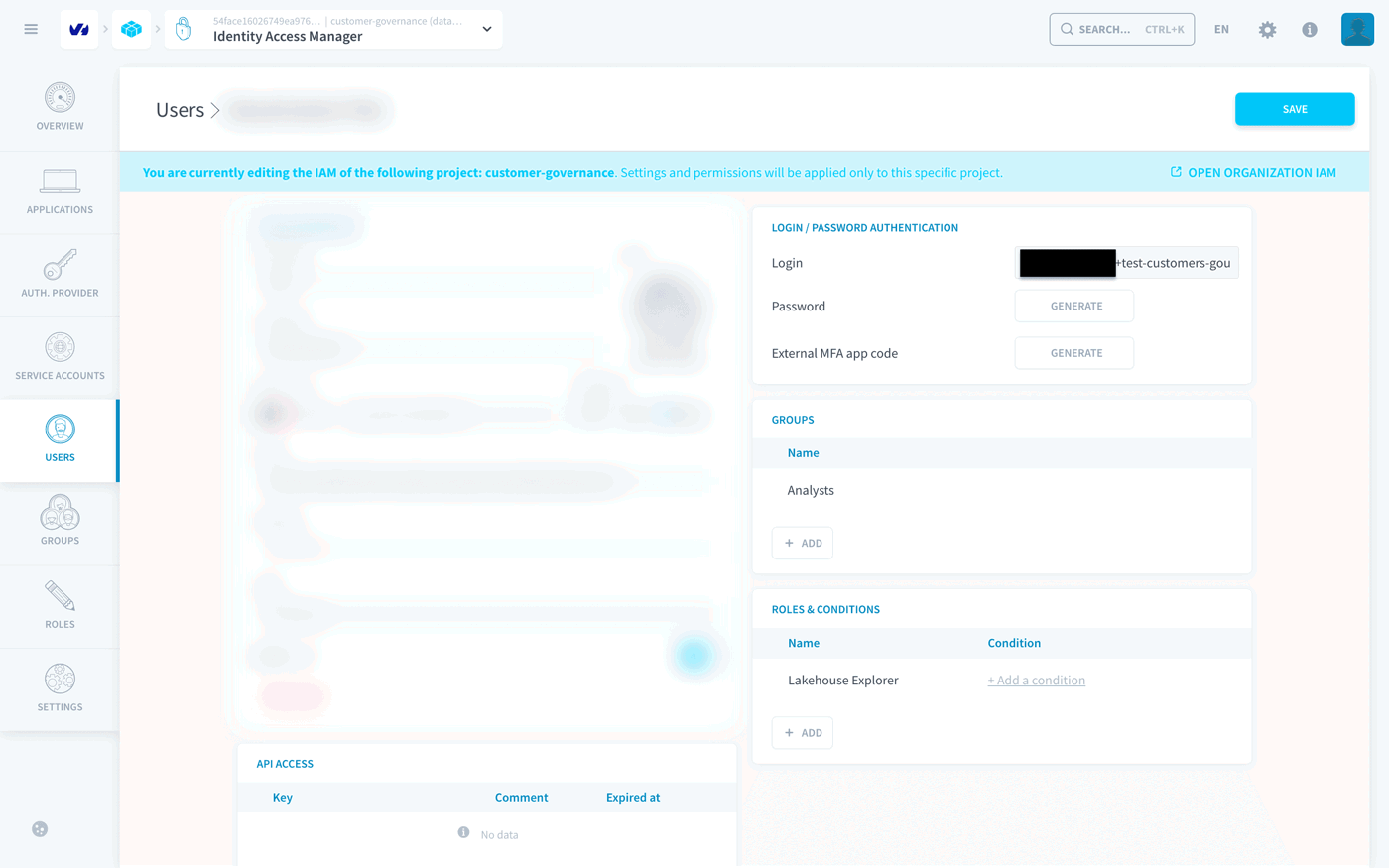
-
Accept the invitation and log in as the test user in a private browser window.
Do not give the test user the default role DM & AM Editor. It includes Advanced Data Access Control / Read without condition and reads every column whatever its tags.
Note: A change of group or role takes effect within about 30 seconds, without logging out: reload the test user's page before running the query again.
Checking the Analysts group
With the test user, run:
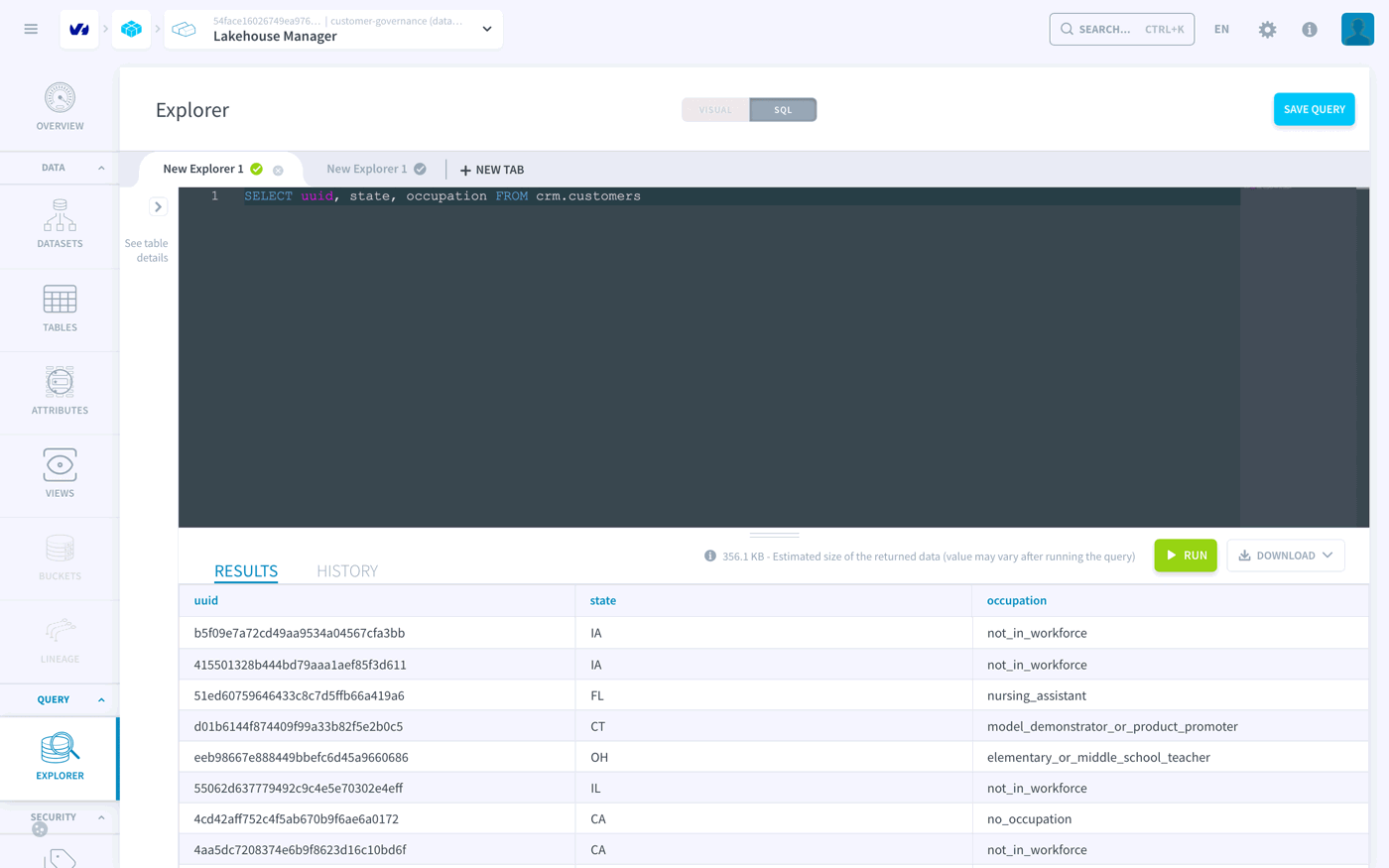
![The Explorer returning Access Denied: Cannot select from columns [zipcode] to the Analyst](/images/public-cloud/data-platform/getting-further/customer-data-governance/picts/25-analyst-zipcode-error.png)
A policy tag denies access rather than masking values: one denied column makes the whole query fail.
Checking the Customer Support group
With the administrator account, go to Identity Access Manager > Users and open the test user. In Groups, click the bin icon on the Analysts row, then click + Add, select Customer Support and click Save.
Note: Always remove the previous group. Rights add up: a user in Data Stewards and Analysts reads every column.
With the test user, run:
Checking the Data Stewards group
With the administrator account, replace Customer Support with Data Stewards in the same way. With the test user, run:
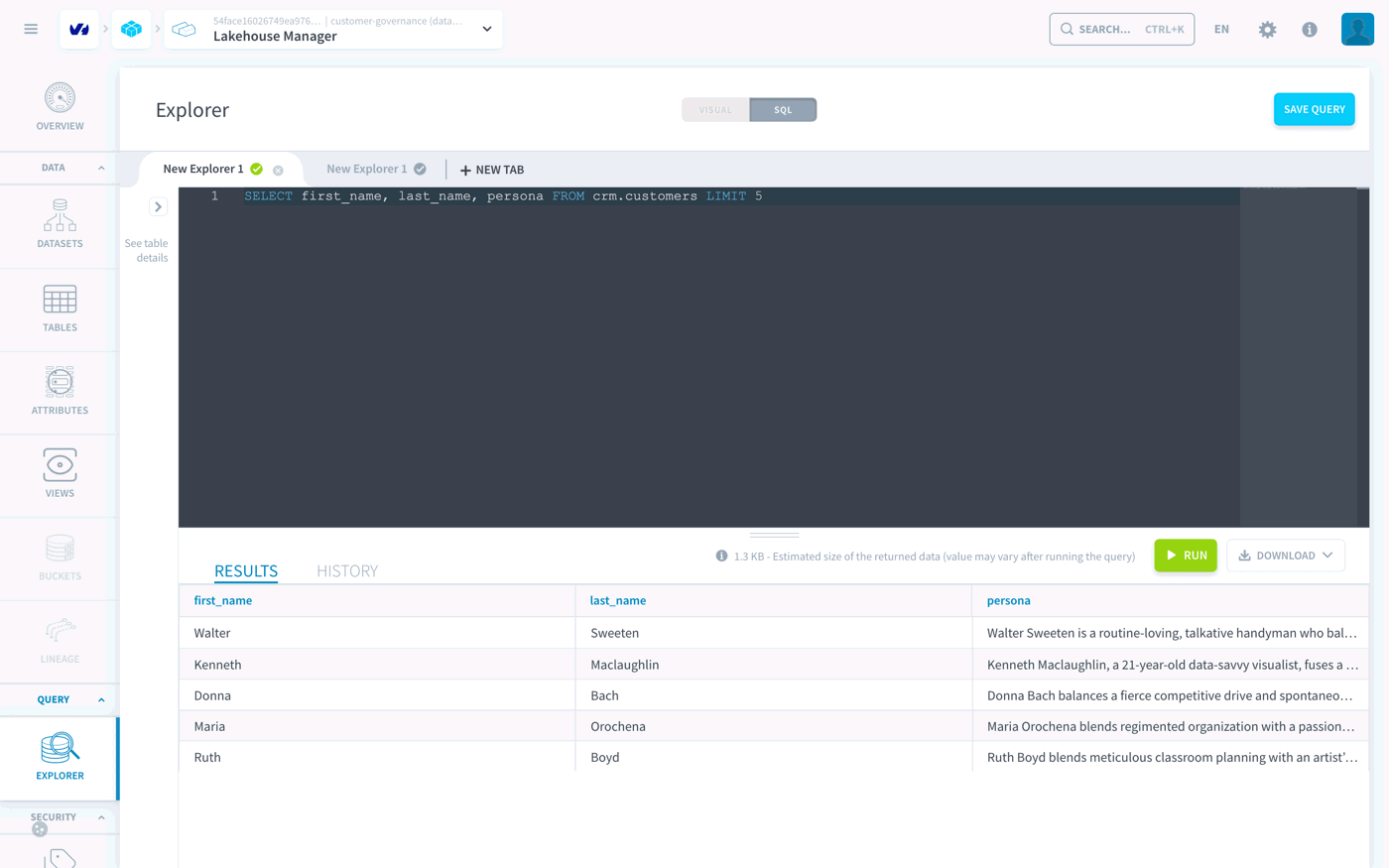
The persona text opens with the customer's full name and often quotes their age: that is why it is tagged high.
Step 5: Publishing a view for analysts
Analysts cannot read the age or the ZIP code. The view customer_profiles gives them an age band and the first three digits of the ZIP code instead.
Creating the view
-
With the administrator account, go to Lakehouse Manager > Views > New view.
-
Name the view
customer_profiles, select the target datasetcrmand paste this SQL definition: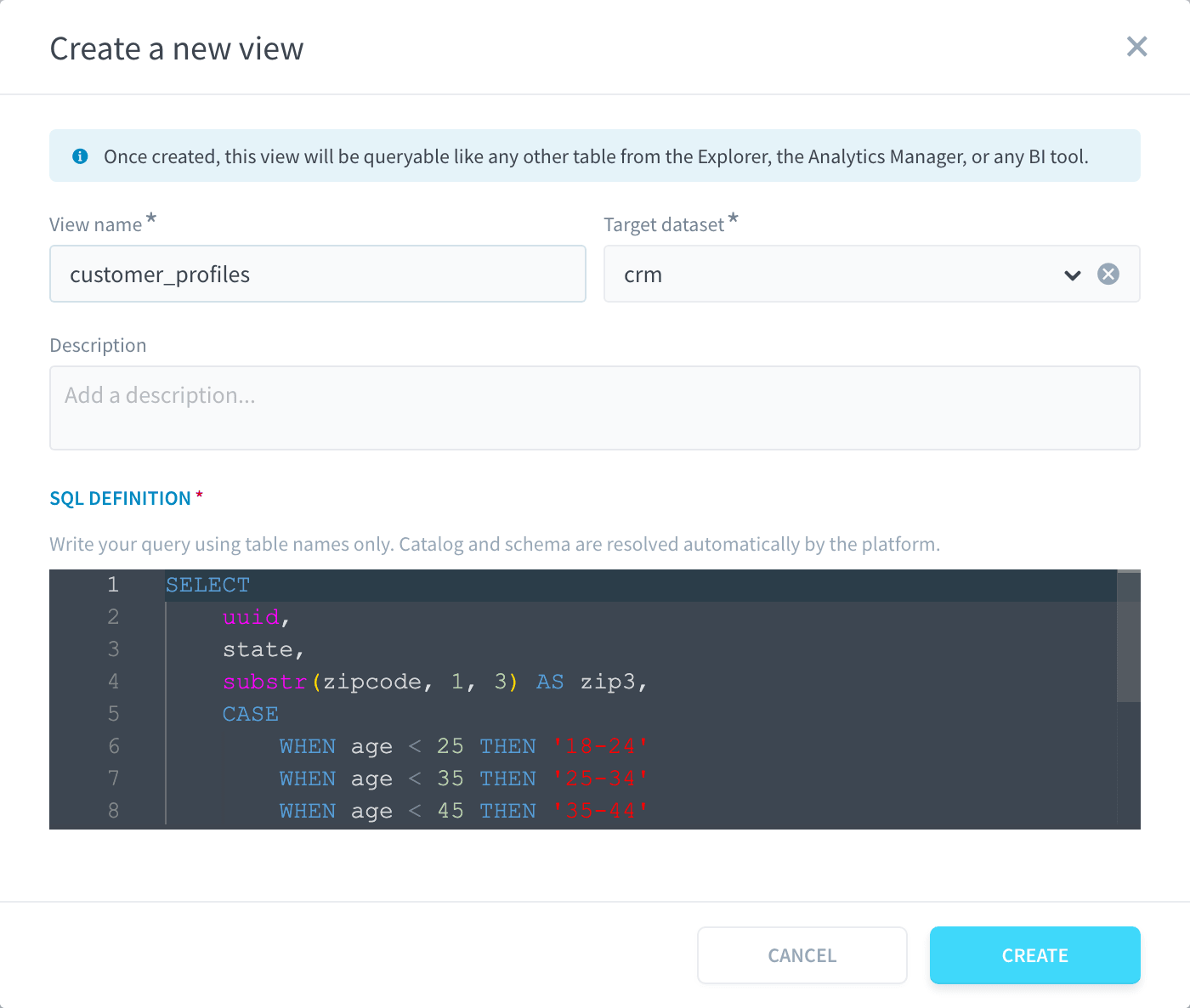
-
Click Create. The view shows the status Valid.
Checking the view
The test user is in Data Stewards. Run these queries as the test user, then move the test user back to Customer Support, then to Analysts, and run the queries again each time:
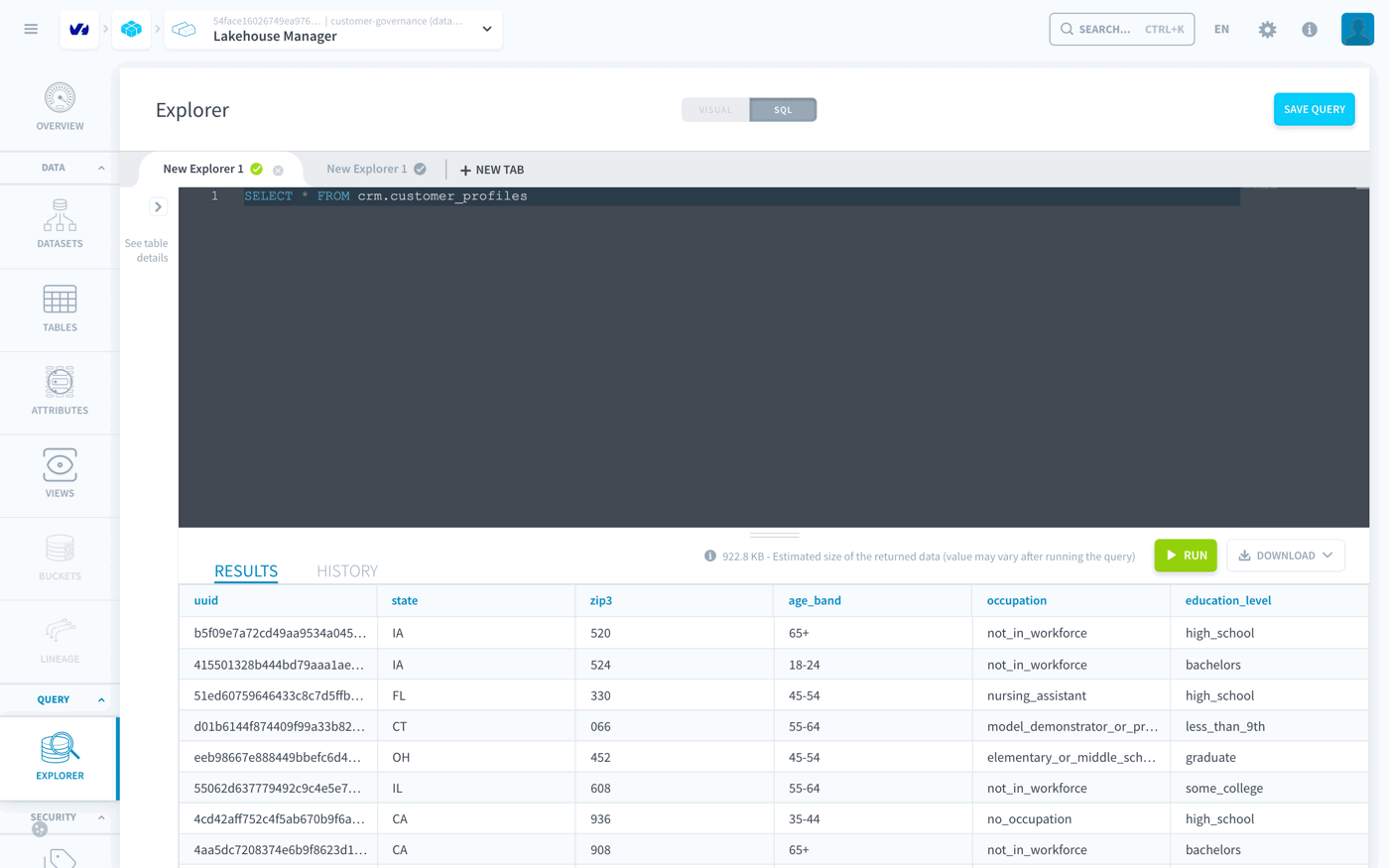
A view can expose any column of its source table: anyone who can create a view in crm decides what analysts read. Keep view creation for data stewards. Lakehouse Explorer cannot create views.
Step 6: Undoing a mistake with Time Travel
Every change to a Lakehouse Manager table creates a snapshot, and Time Travel rolls the table back to any snapshot still kept.
Making the mistake
-
With the administrator account, run this count in the Explorer. It returns 5,000 customers, 591 in California.
-
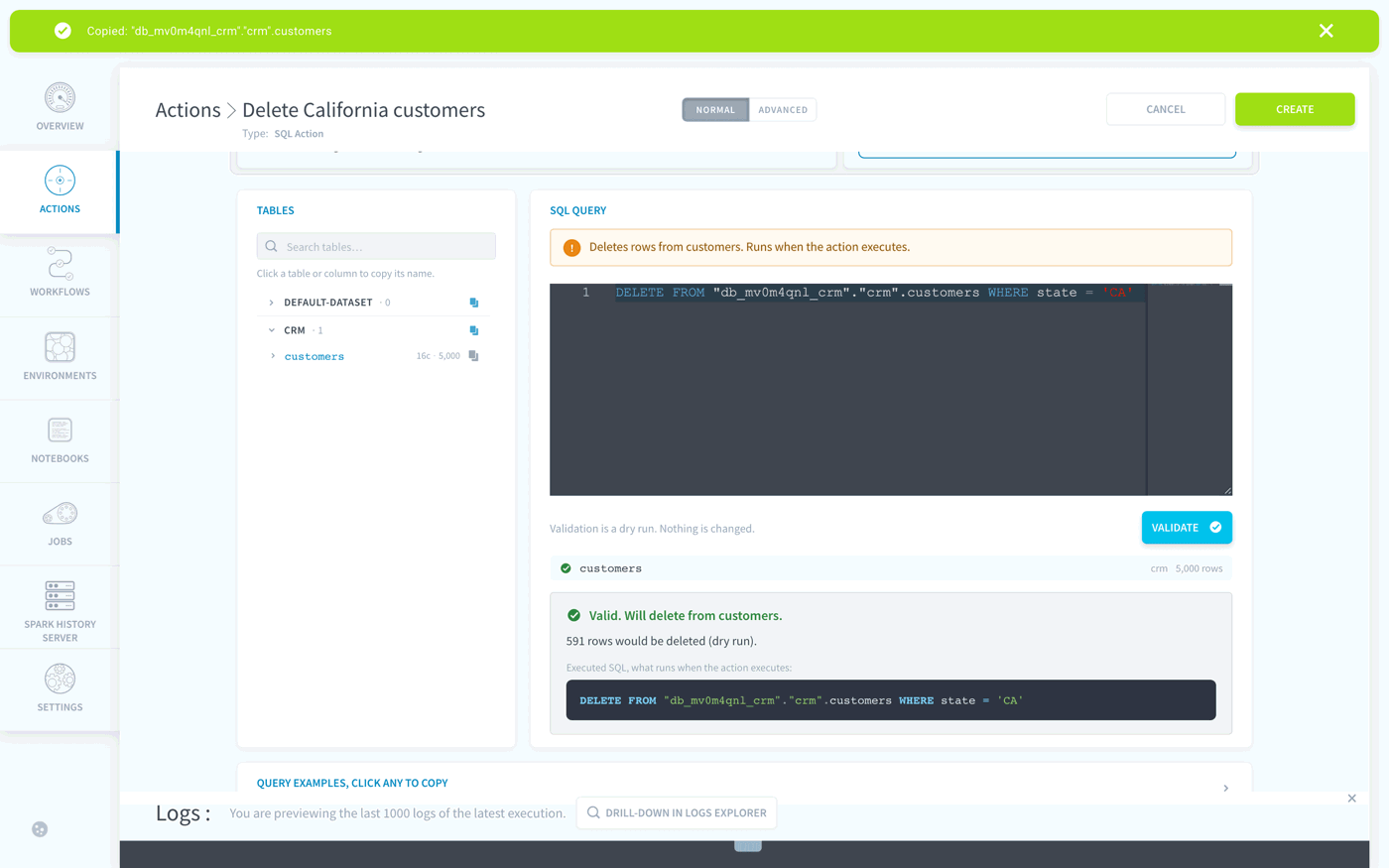
Go to Data Processing Engine > Actions > New action, create a SQL Action and name it
Delete California customers. -
In the Tables panel, click
customersincrmto copy its full name, in the formcatalog.schema.table, for example"db_mv0m4qnl_crm"."crm".customers. A SQL action needs this full name. -
Type this query, replacing
<catalog>.crm.customerswith the full name you copied, then click Validate:The dry run announces 591 rows would be deleted.
-
Click Create, then Run the action. Repeat the count: it now returns 4,409 customers, none in California.
Restoring the table
-
Go to Lakehouse Manager > Tables, open
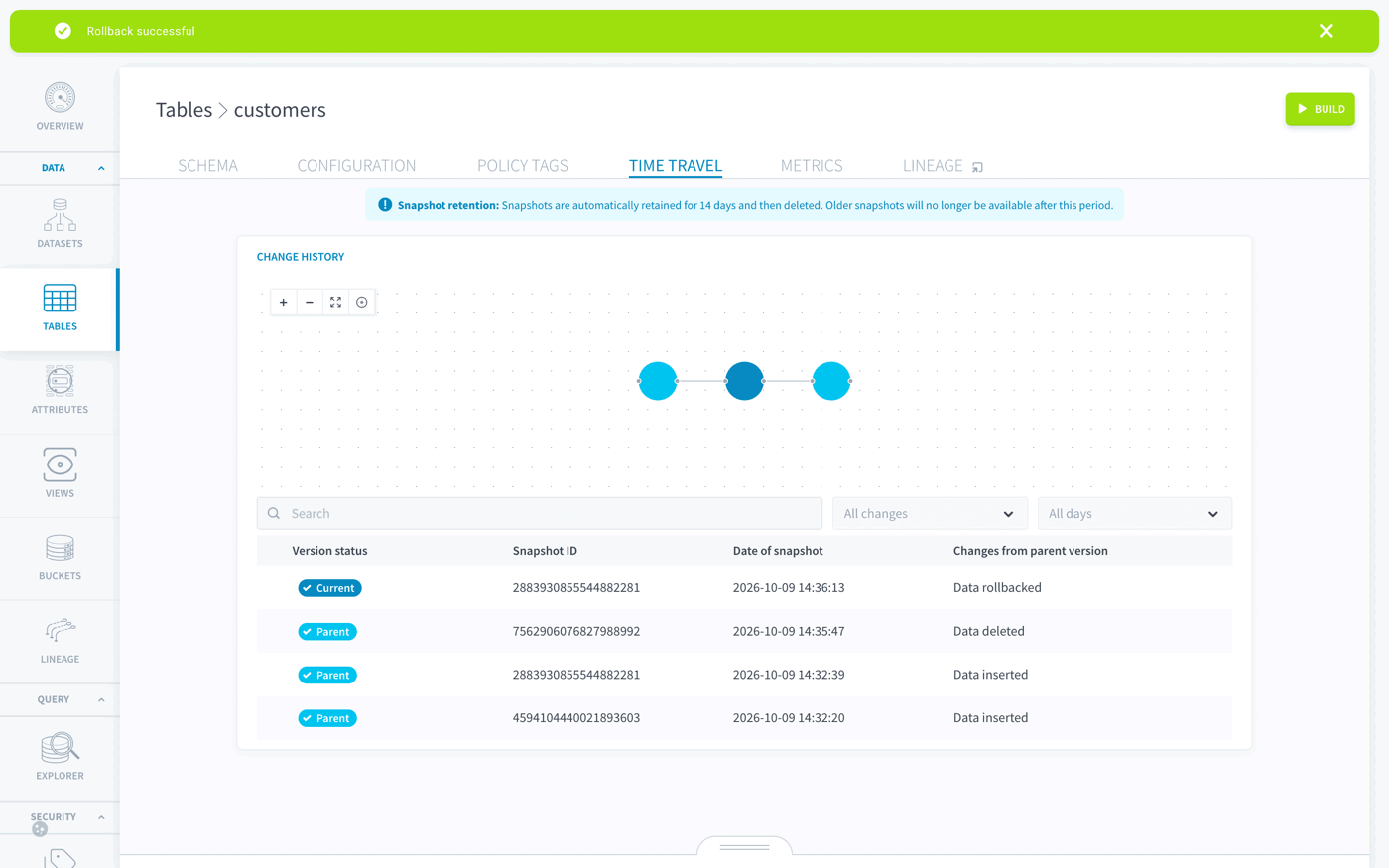
customers, then the Time Travel tab. The latest snapshot is Data deleted, on top of two Data inserted snapshots.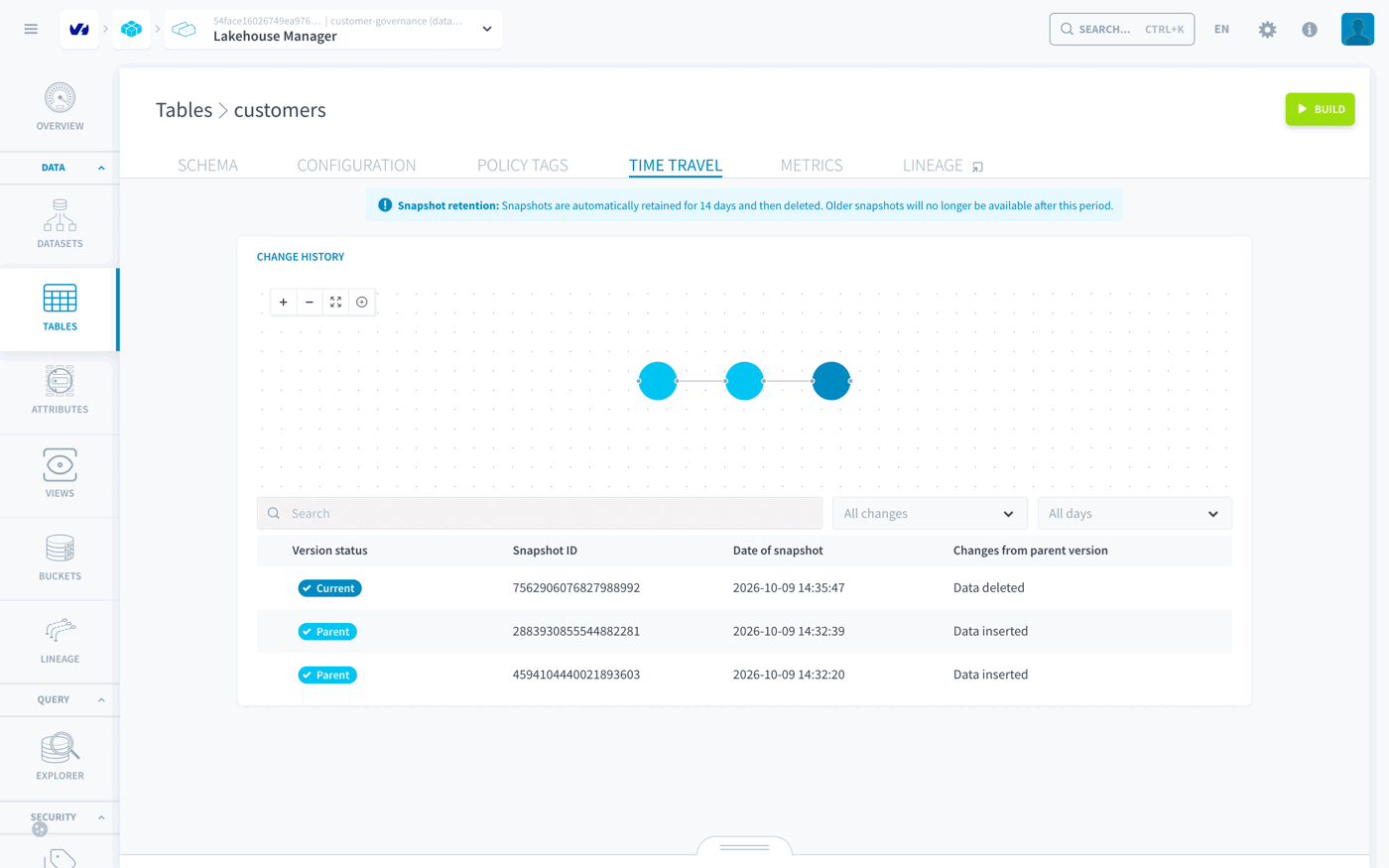
-
Check a snapshot before restoring it, with its ID from the Snapshot ID column:
The most recent Data inserted snapshot holds 5,000 customers. The oldest one is empty: it records the table creation, before the load.
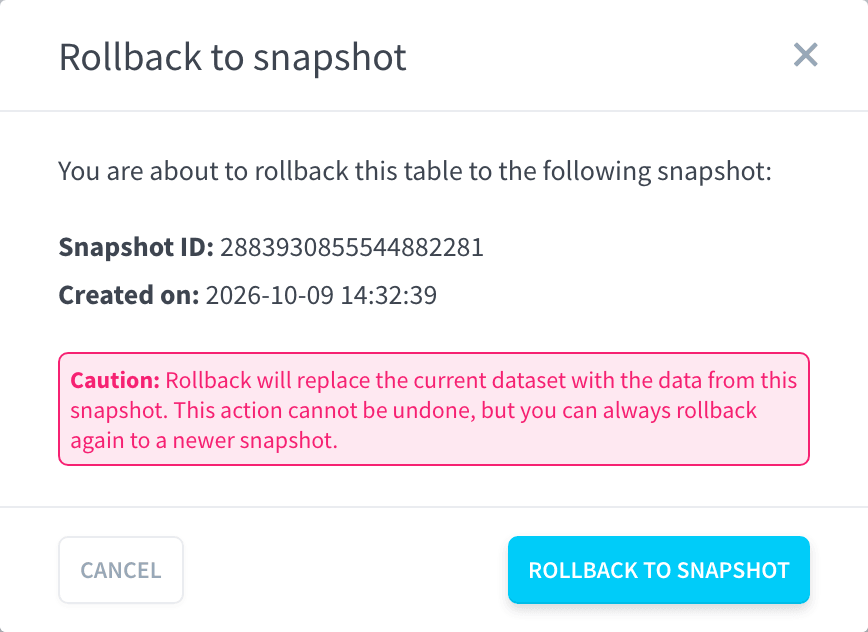
-
Click the rollback icon (↻) on the most recent Data inserted snapshot, then Rollback to snapshot.
A Data rollbacked line appears on top of the history; the Data deleted snapshot stays in it. Repeat the count: it returns 5,000 customers again, 591 in California.
Good to know
- Policy tags deny, they do not mask. A query that includes a denied column fails as a whole. To give coarser data to a team, publish a view.
- The default role
DM & AM Editorbypasses policy tags. It includes Advanced Data Access Control / Read without condition. Give data consumers a custom base role without any Advanced Data Access Control permission. - You cannot add yourself to a group. The IAM prevents users from granting themselves rights.
- Rights add up. A user in several groups, or with several roles, gets access as soon as one of them allows it.
- Check a snapshot before rolling back to it. The oldest snapshot of a table can be empty: it records the table creation, before any data was loaded.
- Validation shows the impact of a change. In a SQL action, Validate runs the query as a dry run and gives the number of rows affected, before anything changes.
- Time Travel has a time limit. Snapshots are kept 14 days by default, between 7 and 28 days depending on the dataset or table setting. After that, a mistake can no longer be undone this way.
What you have built
You have a customer table classified column by column, three teams with access matched to their needs, a governed view that gives analysts coarser data, and a way to undo a destructive mistake. The same pattern applies to any table that holds personal data: classify, define roles, test with a non-administrator, and keep Time Travel within reach.
To go deeper, see the policy tags testing guide, the team access example with groups and the Time Travel retention settings.
Go further
For training or technical assistance implementing our solutions, contact your sales representative or visit our Professional Services page to request a quote and have your project analysed by our experts.
Ask questions, give your feedback and interact directly with the team building the Data Platform on the dedicated Discord channel.
If you need support with your OVHcloud services, create a request in our Help Centre.
Join our community of users.