
Monitor Your OVHcloud Connect
Discover the tools and metrics available to monitor your OVHcloud Connect service
Objective
Monitoring your OVHcloud Connect service ensures that the connection is healthy, performant, and meeting your expectations. This guide covers the tools and metrics available.
Log in to your and go to Network > OVHcloud Connect.
Monitoring tools
OVHcloud Control Panel
The primary interface for monitoring your connection provides visibility into the following metrics:
OVHcloud API
For programmatic monitoring and integration with your own tools:
Full API reference: eu.api.ovh.com/console
Your own monitoring tools
Complement OVHcloud's monitoring with your own infrastructure:
- SNMP — Poll your router's interfaces for traffic counters, error rates, and interface status.
- BGP monitoring — Use tools like
bgpstream,exabgp, or your router's built-in monitoring to track BGP session stability and prefix changes. - Ping / latency probes — Set up regular pings or latency measurements between your on-premises network and OVHcloud resources.
- Third-party platforms — Tools like Datadog, Zabbix, PRTG, or Grafana can aggregate metrics from both your infrastructure and OVHcloud's API.
On-demand diagnostics
You can launch on-demand diagnostics from the OVHcloud Control Panel to get a point-in-time status report of your OVHcloud Connect service. Each diagnostic runs in real time against the OVHcloud-side equipment and returns a result you can view or download.
Available diagnostics
Layer 3 mode:
Layer 2 mode:
Launch a diagnostic
- Open the OVHcloud Connect service you want to diagnose.
- At the bottom of the "POP Configuration" panel, in the "Diagnostic POP" segment, click the ellipsis button
.... - Select the diagnostic to run — for example
BGP Peering Testin Layer 3 mode, orGet the list of my MAC addressesin Layer 2 mode. - Confirm by clicking
Launch diagnostic.
Retrieve a result
- Open the
Diagnosticstab of the service. Each diagnostic is listed with its ID and timestamp. - Click the ellipsis button
...next to the entry. - Select
See resultto open the output in a new window, orDownload resultto save a.txtfile.
Limits
Diagnostics are also available programmatically through the OVHcloud API under the /ovhCloudConnect/{serviceName}/diagnostic/... endpoints. Refer to the API console for the full list.
Key metrics to watch
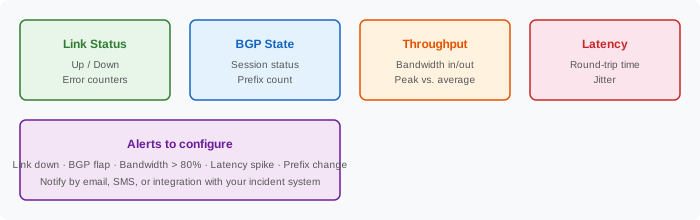
Critical alerts (set these up immediately)
Monitoring commands on your router
Cisco IOS
Juniper JunOS
Best practices
- Monitor from both sides — Check metrics on your router and in the OVHcloud Control Panel.
- Baseline your metrics — Record normal bandwidth, latency, and prefix counts so you can detect anomalies.
- Automate alerting — Don't rely on manual checks. Set up automated notifications for critical events.
- Review regularly — Check monitoring dashboards weekly to spot trends (growing bandwidth, increasing latency).
- Test failover — If you have a Multi-AZ setup, periodically test failover and verify that monitoring detects the switch.
What's next?
- Forward your OVHcloud Connect logs to Logs Data Platform for long-term storage and analysis
- Declare and follow up on an incident if you detect a problem
- Review SLAs to understand uptime guarantees
Go further
For training or technical assistance implementing our solutions, contact your sales representative or visit our Professional Services page to request a quote and have your project analyzed by our experts.
Join our community of users.