Prerequisites
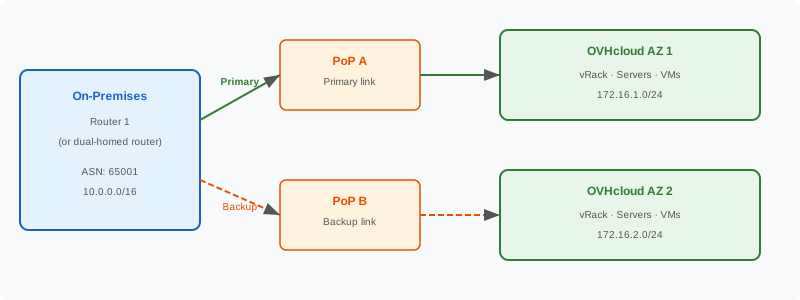
- Two OVHcloud Connect services (Direct, Provider, or a mix) terminating at different PoPs
- A router (or two routers) capable of running multiple BGP sessions with failover
- An IP plan covering two AZs in OVHcloud
- A vRack with resources in both AZs
Architecture
When to use this architecture
1. Order two OVHcloud Connect links
Order two separate OVHcloud Connect services at different PoPs for physical diversity:
- Link 1 (Primary): Order at PoP A — See Order Direct or Order Provider.
- Link 2 (Backup): Order at PoP B — Same process, different PoP.
Diversity tip: Use different data centres or at minimum different physical paths to avoid a shared failure point.
2. Install both physical connections
For each link:
- Direct: Install cross-connects at each PoP. See Cross Connect LOA.
- Provider: Share the respective pairing keys with your provider(s).
Set up two BGP sessions — one per link — with routing policies that define which path is preferred.
Active/Standby example (Cisco IOS)
router bgp 65001
 ! Primary link via PoP A
 neighbor 192.0.2.1 remote-as 35540
 neighbor 192.0.2.1 description OVHcloud-Primary
 neighbor 192.0.2.1 route-map PRIMARY-IN in
 neighbor 192.0.2.1 route-map PRIMARY-OUT out

 ! Backup link via PoP B
 neighbor 198.51.100.1 remote-as 35540
 neighbor 198.51.100.1 description OVHcloud-Backup
 neighbor 198.51.100.1 route-map BACKUP-IN in
 neighbor 198.51.100.1 route-map BACKUP-OUT out

! Prefer primary path using Local Preference
route-map PRIMARY-IN permit 10
 set local-preference 200

route-map BACKUP-IN permit 10
 set local-preference 100

! Influence OVHcloud's return traffic using AS-path prepending on backup
route-map PRIMARY-OUT permit 10

route-map BACKUP-OUT permit 10
 set as-path prepend 65001 65001
Key BGP attributes for failover
4. Associate both links with your vRack
Associate both OVHcloud Connect services with the same vRack. See Associate with vRack.
Set up private subnets in both Availability Zones. See Set up your vRack network.
6. Test failover
This is critical. Do not skip failover testing.
-
Verify normal operation:
- Both BGP sessions are Established.
- Traffic flows through the primary link.
-
Simulate primary failure:
- Shut down the primary BGP session or physically disconnect the primary link.
- Verify traffic switches to the backup link within the BGP convergence time (typically 30–90 seconds; can be faster with BFD).
- Confirm no packet loss beyond the convergence window.
-
Restore primary:
- Bring the primary link back up.
- Verify traffic returns to the primary path.
-
Test the reverse:
- Simulate failure of the backup link while the primary is up. This confirms both links work independently.
7. Set up monitoring
Monitor both links independently. Set alerts for:
- BGP session drops on either link
- Traffic imbalance (all traffic on one link may indicate a failure on the other)
- Bandwidth approaching capacity on either link
See Monitor.
Advanced: Active/Active configuration
For maximum throughput and faster failover, you can run both links in Active/Active mode:
- Set equal Local Preference on both paths.
- Use ECMP (Equal-Cost Multi-Path) if supported.
- Traffic is load-balanced across both links.
- If one link fails, all traffic immediately flows through the surviving link.
Active/Active provides higher aggregate bandwidth but requires careful capacity planning — each link must be able to handle the full traffic load alone during a failure.
Prerequisites
- An OVHcloud account with a vRack
- Two OVHcloud Connect services (Direct, Provider, or a mix) terminating at different PoPs
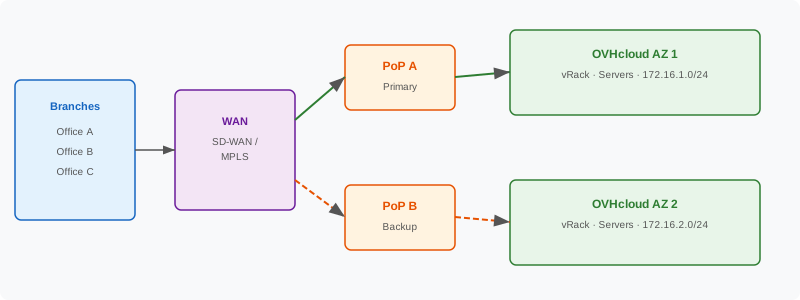
- A WAN backbone (MPLS or SD-WAN) with circuits reaching both PoPs
- BGP-capable WAN edge devices
- An IP addressing plan with no overlaps between your WAN and OVHcloud subnets
Architecture
When to use this architecture
- Business-critical WAN connectivity — Multiple branches depend on OVHcloud access.
- SLA requirements ≥ 99.99% — Dual links needed for premium uptime guarantees.
- SD-WAN with diverse paths — SD-WAN platforms can automatically route over the best available path.
Step-by-step
1. Order two OVHcloud Connect links
Order at different PoPs for physical diversity. You can mix Direct and Provider connections.
2. Provision both WAN circuits
Coordinate with your WAN provider to deliver circuits to both PoPs. If using an SD-WAN platform, configure both paths as underlay connections.
Set up two BGP sessions with appropriate routing policies:
- Active/Standby: Use Local Preference and AS-path prepending (see the On-Premises tab for detailed BGP examples).
- Active/Active: Use ECMP for load balancing across both links.
- SD-WAN integration: Many SD-WAN platforms can detect link quality and switch traffic automatically, supplementing BGP failover.
4. Associate both links with your vRack
Both OVHcloud Connect services should be associated with the same vRack.
Distribute subnets across both AZs for full redundancy. See Set up your vRack network.
6. Test failover
- Verify both BGP sessions are Established.
- Shut down the primary link and confirm traffic switches to the backup.
- Restore the primary and verify traffic returns.
- Repeat for the backup link.
7. Monitor both paths
Set up independent monitoring for each link, each BGP session, and each WAN circuit. See Monitor.
SD-WAN considerations
If you use an SD-WAN overlay:
- Configure OVHcloud Connect links as underlay transports in your SD-WAN controller.
- The SD-WAN platform can perform path selection based on latency, jitter, and packet loss — faster than BGP convergence.
- Ensure BGP and SD-WAN policies are aligned (avoid conflicting routing decisions).
Prerequisites
- An AWS account with a VPC configured
- An OVHcloud account with a vRack
- Two AWS Direct Connect connections at different locations
- Two OVHcloud Connect Provider services at different PoPs
- A shared provider (Megaport or Equinix) present at both locations
- Non-overlapping IP ranges between AWS VPC and OVHcloud subnets
Architecture
Resilience strategy
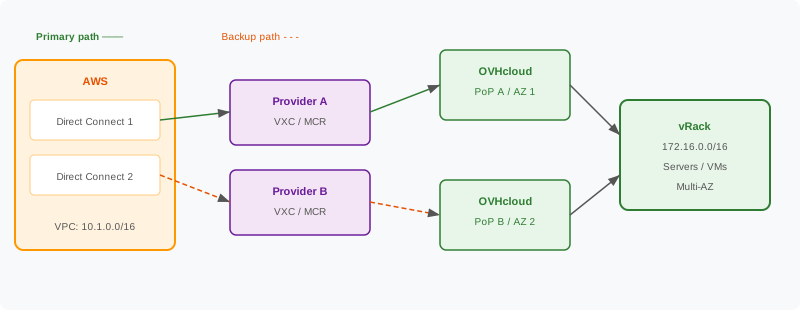
For maximum availability between AWS and OVHcloud:
- Two AWS Direct Connect connections in different AWS Direct Connect locations.
- Two provider VXCs (or separate providers) bridging to two OVHcloud PoPs.
- Two OVHcloud Connect services at different PoPs, both associated with your vRack.
- BGP failover configured across both paths.
Step-by-step
1. Order redundant AWS Direct Connect connections
In the AWS Console, create two Direct Connect connections at different locations:
- Connection 1: AWS Direct Connect location A
- Connection 2: AWS Direct Connect location B
Create a Private VIF on each connection pointing to your VPC (via Virtual Private Gateway or Transit Gateway).
AWS recommends using Transit Gateway with multiple Direct Connect Gateways for resilient multi-region architectures.
2. Order two OVHcloud Connect Provider services
Order at two different OVHcloud PoPs. Get two separate pairing keys. See Order Provider.
3. Create redundant provider bridges
On your provider platform:
- Bridge 1: AWS Direct Connect 1 ↔ OVHcloud PoP A
- Bridge 2: AWS Direct Connect 2 ↔ OVHcloud PoP B
If using MCR (Cloud Router), create separate MCR instances or peering sessions for each path.
Ensure BGP routing preferences are set so traffic prefers the primary path and falls back to the backup:
- Use Local Preference on the OVHcloud side.
- Use AS-path prepending on the backup path.
- On AWS, use Direct Connect Gateway with appropriate route priorities.
See Configure OCC L3 with BGP for detailed instructions.
5. Associate both links with your vRack
Associate both OVHcloud Connect services with the same vRack. See Associate with vRack.
6. Test failover
- Verify both paths are active and passing traffic.
- Disable the primary AWS Direct Connect VIF — confirm traffic flows via the backup.
- Disable the primary OVHcloud Connect — confirm traffic flows via the backup.
- Restore both and verify traffic returns to the preferred path.
Cost considerations
Resilient AWS-to-OVHcloud requires:
- 2× AWS Direct Connect connections (AWS billing)
- 2× Provider VXCs or MCR sessions (provider billing)
- 2× OVHcloud Connect services (OVHcloud billing)
Plan your budget accordingly. The cost of redundancy is typically justified by the risk reduction for production workloads.
For more information, please consult AWS Direct Connect documentation.
Prerequisites
- An Azure subscription with permissions to create ExpressRoute circuits
- An OVHcloud account with a vRack
- Two Azure ExpressRoute circuits at different peering locations
- Two OVHcloud Connect Provider services at different PoPs
- A shared provider (Megaport or Equinix) present at both locations
- A vRack with Multi-AZ enabled (Multi-AZ guide)
- Non-overlapping IP ranges between Azure VNet and OVHcloud vRack
Architecture
Resilience strategy
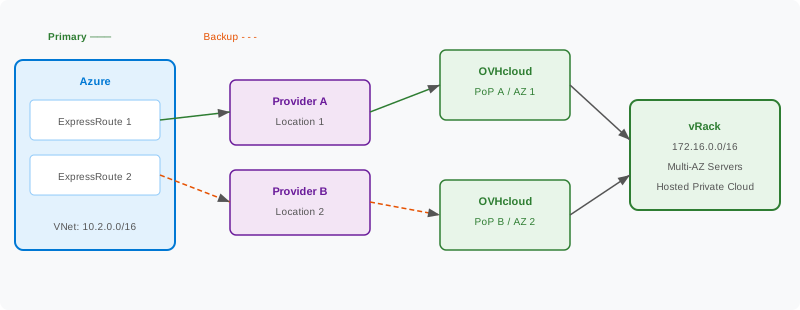
Microsoft recommends two ExpressRoute circuits in different peering locations for maximum availability. Combined with two OVHcloud Connect Provider services at different PoPs, this provides end-to-end redundancy:
Step-by-step
1. Create two ExpressRoute circuits
In the Azure Portal → Create ExpressRoute (repeat for each circuit):
Note each circuit's Service Key.
Tip: Use ExpressRoute Premium if your VNets are in different Azure regions than the peering locations.
2. Order two OVHcloud Connect Provider services
Order two OVHcloud Connect Provider services at different PoPs that correspond to the ExpressRoute peering locations:
- OVHcloud Connect 1 → PoP A
- OVHcloud Connect 2 → PoP B
Retrieve both pairing keys.
3. Create provider bridges for each path
Path 1 (Primary):
- Create MCR or port at Location A.
- VXC: Azure ExpressRoute 1 (Service Key 1) → MCR A.
- VXC: MCR A → OVHcloud Connect 1 (Pairing Key 1).
Path 2 (Backup):
- Create MCR or port at Location B.
- VXC: Azure ExpressRoute 2 (Service Key 2) → MCR B.
- VXC: MCR B → OVHcloud Connect 2 (Pairing Key 2).
For each ExpressRoute circuit, configure Azure Private Peering:
5. Link both circuits to your VNet
In Azure:
- Go to Virtual Network Gateways → Connections.
- Add Connection 1 → ExpressRoute Circuit 1 (weight: 100).
- Add Connection 2 → ExpressRoute Circuit 2 (weight: 50 — lower = backup).
Azure uses connection weight to prefer one path over the other.
On the OVHcloud side, use Configure OCC L3 with BGP to prefer the primary path:
7. Associate both services with your vRack
Associate both OVHcloud Connect services with the same vRack. Both will inject routes; the vRack will use the higher Local Preference path.
8. Test failover
Convergence time: BGP failover typically completes in 30–90 seconds depending on hold timers and BFD configuration.
Azure-specific considerations
- ExpressRoute Global Reach: If both OVHcloud PoPs are in different Azure regions, consider enabling Global Reach for direct circuit-to-circuit communication.
- FastPath: For Ultra Performance or ErGw3AZ gateways, enable FastPath for improved network performance.
- Route limits: Azure Private Peering supports up to 4,000 routes per circuit. Aggregate OVHcloud prefixes to stay within limits.
For more information, please consult Azure ExpressRoute documentation.
Prerequisites
- A GCP project with the Compute Network Admin role
- Two Cloud Routers (one per region or availability domain)
- An OVHcloud account with a vRack
- Two OVHcloud Connect Provider services at different PoPs
- A shared provider (Megaport or Equinix) at both locations
- A vRack with Multi-AZ enabled
- Non-overlapping IP ranges between GCP VPC and OVHcloud vRack
Architecture
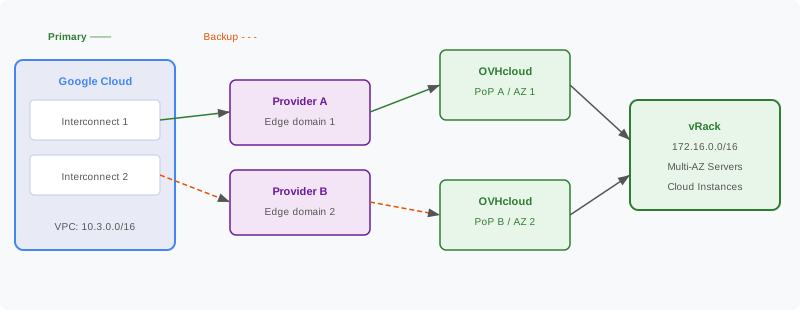
Resilience strategy
Google Cloud recommends using VLAN attachments in different edge availability domains to achieve 99.9%–99.99% SLA. Combined with dual OVHcloud Connect links, you get full end-to-end resilience:
GCP SLA tiers
Step-by-step
1. Create two Cloud Routers
Create a Cloud Router in each region or for each edge availability domain:
2. Create two VLAN attachments
For each Cloud Router, create a Partner Interconnect VLAN attachment:
Note both GCP pairing keys.
3. Order two OVHcloud Connect Provider services
Order two OVHcloud Connect Provider services at different PoPs:
- OVHcloud Connect 1 → PoP A
- OVHcloud Connect 2 → PoP B
Retrieve both OVHcloud pairing keys.
4. Create provider bridges for each path
Path 1 (Primary):
- MCR or port at Location A.
- VXC: GCP Partner Interconnect (GCP pairing key 1) → MCR A.
- VXC: MCR A → OVHcloud Connect 1 (OVHcloud pairing key 1).
Path 2 (Backup):
- MCR or port at Location B.
- VXC: GCP Partner Interconnect (GCP pairing key 2) → MCR B.
- VXC: MCR B → OVHcloud Connect 2 (OVHcloud pairing key 2).
5. Activate both GCP VLAN attachments
In the GCP Console:
- Go to Hybrid Connectivity → VLAN attachments.
- For each attachment: click Activate once it shows "Pending customer".
- Verify BGP sessions are established in both Cloud Routers.
GCP side:
GCP Cloud Router uses MED (Multi-Exit Discriminator) to influence path selection. Set different MED values:
You can configure MED via custom route advertisements in the Cloud Router BGP peer settings.
OVHcloud side:
Use Configure OCC L3 with BGP:
7. Associate both services with your vRack
Associate both OVHcloud Connect services with the same vRack.
8. Test failover
GCP-specific considerations
- Custom route advertisements: Use Cloud Router custom route advertisements to control which subnets are announced to OVHcloud. Avoid advertising the entire VPC if only specific subnets are needed.
- Dataplane v2: If using GKE with Dataplane v2, ensure Pod CIDR ranges are included in route advertisements if GKE pods need to communicate with OVHcloud.
- Shared VPC: If using Shared VPC, create the Interconnect in the host project and share with service projects.
- MTU: GCP Interconnect supports 1440 MTU for Partner Interconnect. Ensure OVHcloud Connect and provider VXCs use matching MTU settings.
For more information, please consult GCP Interconnect documentation and GCP Cloud Router documentation.
