Prerequisites
- An OVHcloud account with a vRack
- A router in a data centre with OVHcloud PoP presence (for Direct) or a provider account (for Provider)
- BGP-capable network equipment
- An IP addressing plan with no overlaps between your network and OVHcloud subnets
Architecture
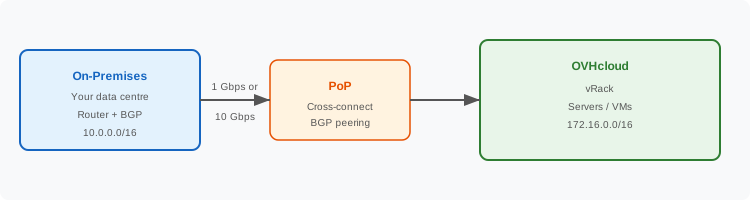
When to use this architecture
1. Order OVHcloud Connect
Choose Direct or Provider depending on your situation:
- Direct — You have equipment in the same data centre as an OVHcloud PoP. See Order Direct.
- Provider — You prefer a managed connection. See Order Provider.
2. Install the physical connection
- Direct: Provide the LOA to the data centre operator to install a cross-connect. See Cross Connect LOA.
- Provider: Share the service key with your provider and wait for activation.
Set up a single BGP session between your on-premises router and OVHcloud:
- Advertise your on-premises prefixes (e.g.
10.0.0.0/16) to OVHcloud.
- Accept OVHcloud prefixes (e.g.
172.16.0.0/16) from OVHcloud.
See Configure OCC L3 with BGP for detailed instructions and configuration examples.
4. Associate with vRack
Link your OVHcloud Connect service to your vRack. See Associate with vRack.
Define the private subnets in OVHcloud that your on-premises network should reach. See Set up your vRack network.
6. Test connectivity
7. Set up monitoring
Configure monitoring alerts for link status, BGP session, and bandwidth. See Monitor.
Limitations of a simple connection
- Single point of failure — If the link, PoP, or cross-connect fails, connectivity is lost.
- No automatic failover — You need to manually intervene or rely on internet-based backup.
- Lower SLA — A single connection typically supports up to 99.9% SLA (see SLAs).
Recommendation: For production workloads, consider upgrading to a resilient architecture.
Prerequisites
- An OVHcloud account with a vRack
- A router in a data centre with OVHcloud PoP presence (for Direct) or a provider account (for Provider)
- BGP-capable network equipment
- An IP addressing plan with no overlaps between your network and OVHcloud subnets
Architecture
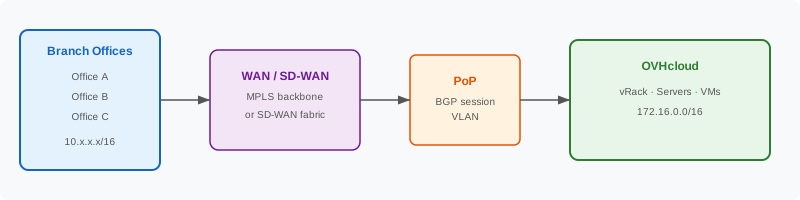
How it differs from on-premises
In a WAN scenario, your traffic typically originates from multiple branch offices or sites and is aggregated through a WAN backbone (MPLS or SD-WAN) before reaching the OVHcloud PoP. The WAN edge device (router or SD-WAN gateway) is the equipment that peers with OVHcloud via BGP.
When to use this architecture
Step-by-step
1. Coordinate with your WAN provider
Contact your WAN/MPLS/SD-WAN provider and request:
- A circuit or virtual connection from your WAN backbone to the OVHcloud PoP.
- The circuit should terminate at a facility where OVHcloud has a PoP (see PoP Locations).
If your WAN provider is also an OVHcloud Connect provider (e.g. Megaport, Equinix), they can handle both the WAN handoff and the OVHcloud Connect provisioning.
2. Order OVHcloud Connect
- Direct: If your WAN edge router is co-located at the OVHcloud PoP. See Order Direct.
- Provider: If the connection is managed by a provider. See Order Provider.
Set up a BGP session between your WAN edge device and OVHcloud:
- Advertise aggregated branch prefixes (e.g.
10.0.0.0/8 or more specific per-branch subnets).
- Accept OVHcloud routes.
- Ensure your WAN routing propagates the OVHcloud routes back to all branch offices.
See Configure OCC L3 with BGP.
Link to your vRack and set up the required subnets. See Associate with vRack and Set up your vRack network.
5. Test end-to-end connectivity
From a branch office, verify you can reach OVHcloud resources:
ping 172.16.1.10           ## Ping an OVHcloud VM
traceroute 172.16.1.10     ## Should go: branch → WAN → PoP → OVHcloud (private)
Verify from OVHcloud back to a branch:
ping 10.1.0.1 ## Ping a branch IP from an OVHcloud VM
6. Set up monitoring
Monitor the WAN edge BGP session and OVHcloud Connect link. See Monitor.
Prerequisites
- An AWS account with a VPC configured
- An OVHcloud account with a vRack
- An account with a shared provider that supports both AWS Direct Connect and OVHcloud Connect
- Non-overlapping IP ranges between AWS VPC and OVHcloud subnets
Architecture
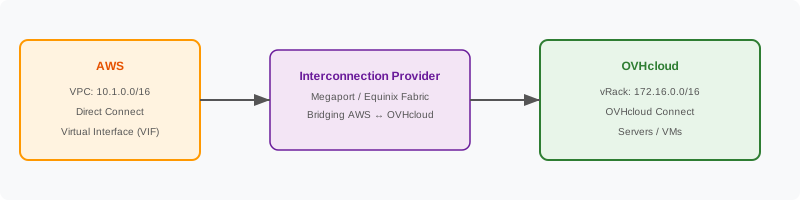
How it works
The connection between AWS and OVHcloud is typically routed through a shared provider (such as Megaport or Equinix Fabric) that has physical presence at both AWS Direct Connect locations and OVHcloud PoPs.
- On the AWS side, you create a Direct Connect connection (or hosted connection) and a Virtual Interface (VIF) that connects your AWS VPC.
- On the provider side, you create a virtual cross-connect (VXC) that bridges the AWS VIF to the OVHcloud Connect service.
- On the OVHcloud side, you configure BGP and associate the connection with your vRack.
Step-by-step
1. Set up AWS Direct Connect
- In the AWS Console, go to Direct Connect → Connections.
- Create a new connection (or use a hosted connection via your provider).
- Select the AWS Direct Connect location closest to your OVHcloud PoP.
- Create a Private Virtual Interface (VIF) associated with your VPC or Virtual Private Gateway.
- Note the BGP ASN, peer IPs, and VLAN ID.
For more information, please consult AWS Direct Connect documentation.
2. Order OVHcloud Connect Provider
- In the OVHcloud Control Panel, order OVHcloud Connect Provider.
- Select the same provider you're using for AWS (e.g. Megaport).
- Choose the PoP location.
- Copy the service key.
See Order OVHcloud Connect Provider.
3. Create the bridge on the provider
In your provider's portal, create connections that bridge AWS and OVHcloud:
Example with Megaport:
- Create a Megaport port or use an existing one.
- Create a VXC to AWS using the AWS Direct Connect hosted connection details.
- Create a VXC to OVHcloud using the OVHcloud service key.
- Optionally, use a Megaport MCR (Cloud Router) to route between the two VXCs if you need Layer 3 routing at the provider level.
You need BGP sessions on three segments:
If using a provider MCR:
- The MCR peers with AWS via the VIF.
- The MCR peers with OVHcloud via OVHcloud Connect.
- Routes are exchanged automatically between the two peers.
If not using a provider MCR:
- You need your own router (physical or virtual) co-located with the provider to handle BGP routing between AWS and OVHcloud.
5. Associate OVHcloud Connect with vRack
See Associate with vRack.
6. Test connectivity
Important considerations
- Routing domains: Ensure there are no overlapping IP ranges between AWS VPCs and OVHcloud subnets.
- Costs: You will be billed by AWS (Direct Connect), the provider (VXC/MCR), and OVHcloud (Connect). Review all three pricing models.
- Latency: The total latency depends on the distance between the AWS region and OVHcloud region, plus any intermediate provider hops.
Prerequisites
- An Azure subscription with permissions to create ExpressRoute circuits
- An OVHcloud account with a vRack
- An account with a shared provider that supports both Azure ExpressRoute and OVHcloud Connect
- Non-overlapping IP ranges between Azure VNet and OVHcloud vRack
Architecture
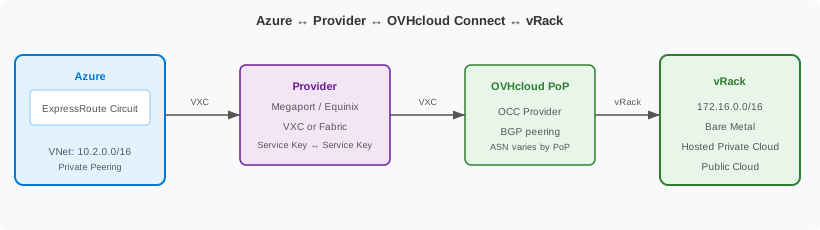
When to use
Step-by-step
1. Create an Azure ExpressRoute circuit
- In the Azure Portal → Create a resource → ExpressRoute.
- Select:
- Provider: Megaport or Equinix
- Peering location: Choose a location shared with your OVHcloud PoP
- Bandwidth: Match your OVHcloud Connect bandwidth (1 Gbps / 10 Gbps)
- Complete the creation. Note the Service Key (a GUID).
2. Order your OVHcloud Connect Provider
If not already done, order an OVHcloud Connect Provider at a PoP served by the same provider.
Retrieve your service key from the OVHcloud Control Panel or API.
3. Create the provider bridge
On the provider platform, create two VXCs (or equivalent connections):
If the provider supports it, an MCR (Cloud Router) acts as a transit point between Azure and OVHcloud.
Megaport example:
- Create a Megaport Cloud Router (MCR) in the same metro.
- Add VXC from MCR → Azure ExpressRoute using the Azure Service Key.
- Add VXC from MCR → OVHcloud Connect using the OVHcloud service key.
Equinix Fabric example:
- Create a connection from your Fabric port → Azure ExpressRoute using the Service Key.
- Create a connection from your Fabric port → OVHcloud Connect using the service key.
On the Azure ExpressRoute circuit:
- Go to Peerings → Azure private.
- Configure:
- Peer ASN: Your MCR or provider ASN
- Primary subnet: A /30 for BGP (e.g.,
169.254.100.0/30)
- Secondary subnet: A /30 for BGP (e.g.,
169.254.100.4/30)
- VLAN ID: Provided by the provider
Configure OCC L3 with BGP for the OVHcloud Connect service.
Ensure the MCR or provider router advertises Azure prefixes (10.2.0.0/16) toward OVHcloud, and OVHcloud prefixes (172.16.0.0/16) toward Azure.
6. Associate your vRack
Associate the OVHcloud Connect service with your vRack.
7. Verify connectivity
BGP route flow
There are three BGP segments in this architecture:
Info
Azure uses ASN 12076 for ExpressRoute Private Peering. The OVHcloud BGP AS depends on the PoP region: 65501 (Europe), 65502 (Canada), 65519 (Asia).
Troubleshooting
Prerequisites
- A GCP project with the Compute Network Admin role
- A GCP Cloud Router created in the region nearest to the provider location
- An OVHcloud account with a vRack
- An account with a shared provider that supports both GCP Cross-Cloud Interconnect and OVHcloud Connect
- Non-overlapping IP ranges between GCP VPC and OVHcloud vRack
Architecture
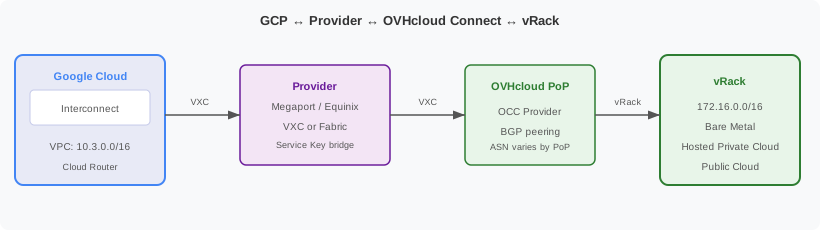
When to use
GCP Interconnect types
GCP offers two main interconnect options:
For this tutorial, we use Partner Interconnect since the shared provider (Megaport or Equinix) acts as a bridge between GCP and OVHcloud.
Step-by-step
1. Create a GCP Cloud Router
In the GCP Console → Hybrid Connectivity → Cloud Routers → Create:
- Name:
router-ovhcloud
- Network: Your VPC
- Region: Region closest to the provider PoP (e.g.,
europe-west1 for Paris)
- ASN: Use a private ASN (e.g.,
65001) or Google's default (16550)
2. Create a Partner Interconnect VLAN attachment
Go to Hybrid Connectivity → Interconnect → VLAN attachments → Create:
- Select Partner Interconnect connection.
- Choose your Cloud Router.
- Select the appropriate region and edge availability domain.
- Set the MTU to 1500 (standard) or 1440 for VPN interworking.
- Note the pairing key generated by GCP.
GCP pairing key format: A string like <random>/<region>/<edge-availability-domain>
3. Create the provider bridge
On the provider platform, create connections to bridge GCP and OVHcloud:
Megaport example:
- Create an MCR (Megaport Cloud Router) in a metro with both GCP and OVHcloud presence.
- VXC 1: MCR → Google Cloud Partner Interconnect (use GCP pairing key).
- VXC 2: MCR → OVHcloud Connect (use OVHcloud service key).
Equinix Fabric example:
- Create a connection from your Fabric port → GCP Partner Interconnect (use GCP pairing key).
- Create a connection from your Fabric port → OVHcloud Connect (use OVHcloud service key).
4. Activate the GCP VLAN attachment
After the provider provisions the connection:
- Return to GCP Console → VLAN attachments.
- The attachment should show "Waiting for provider" → then "Pending customer".
- Click Activate to enable the attachment.
- GCP will automatically configure BGP between the Cloud Router and the provider.
Configure OCC L3 with BGP.
Ensure the provider MCR:
- Advertises GCP VPC prefixes (
10.3.0.0/16) toward OVHcloud (BGP AS 65501 for Europe, 65502 for Canada, 65519 for Asia).
- Advertises OVHcloud prefixes (
172.16.0.0/16) toward GCP Cloud Router.
6. Associate your vRack
Associate the OVHcloud Connect service with your vRack.
7. Verify connectivity
BGP route flow
Info
GCP Cloud Router uses ASN 16550 by default. You can configure a custom ASN during Cloud Router creation. The OVHcloud BGP AS depends on the PoP region: 65501 (Europe), 65502 (Canada), 65519 (Asia).
Troubleshooting
