
Order or cancel a cross-connect for OVHcloud Connect (LOA)
Find out how to order or cancel a physical cross-connect using a Letter of Authorization
Objective
A cross-connect is a physical fibre-optic cable that links your equipment (or your provider's equipment) to OVHcloud's equipment inside a data centre. A Letter of Authorization (LOA) is the document that authorises the data centre operator to install or remove this cable.
What is an LOA?
An LOA is a formal document that contains:
- Data centre name and address — The facility where the cross-connect will be installed or removed.
- OVHcloud's rack/cage reference — The exact location of OVHcloud's equipment.
- Port designation — The specific port on OVHcloud's patch panel or router.
- Authorised party — Who is allowed to perform the work (you, your provider, or the facility operator).
- Cable specifications — Type of fibre (single-mode), connector type (LC/SC), and length.
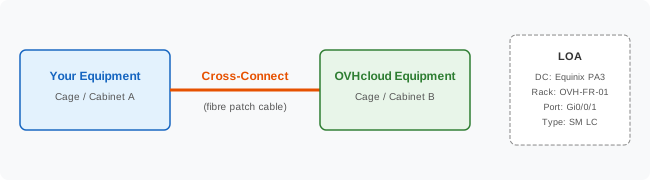
Ordering a cross-connect
Step 1 — Obtain the LOA from OVHcloud
After you order OVHcloud Connect Direct, OVHcloud will provide the LOA:
- Automatically by email after your order is confirmed.
- Through the OVHcloud Control Panel — in your OVHcloud Connect service details, look for a
Download LOAoption. - Via support — If you haven't received it, contact OVHcloud support with your service reference.
Step 2 — Submit the LOA to the data centre operator
- Contact the data centre operator (e.g. Equinix, Interxion/Digital Realty, Telehouse) and submit a cross-connect order.
- Attach the LOA from OVHcloud.
- Specify:
- Your cage/cabinet reference (A-end)
- OVHcloud's cage/cabinet reference (Z-end, from the LOA)
- Cable type — Typically single-mode fibre with LC connectors
- Requested completion date
- The data centre operator may charge a cross-connect installation fee and a monthly recurring fee.
Step 3 — Confirm installation
- The data centre operator installs the physical cable (typically within a few business days).
- Verify in the OVHcloud Control Panel that the port status changes to
Up. - Proceed with BGP configuration.
Cancelling a cross-connect
Step 1 — Cancel the OVHcloud Connect service first
Before removing the physical cable, cancel the OVHcloud Connect service (see Cancel Direct or Cancel Provider).
Step 2 — Request cross-connect removal
- Contact the data centre operator.
- Submit a de-installation order for the cross-connect.
- Some data centres require an LOA for removal — check with the operator. If needed, request one from OVHcloud support.
- Confirm the physical cable has been removed.
Step 3 — Verify billing
- Confirm with the data centre operator that the monthly cross-connect fee has been stopped.
- Verify on the OVHcloud side that the service is no longer billed.
Important tips
What's next?
- Configure OCC L3 with BGP after the cross-connect is installed
- Order OVHcloud Connect Direct if you haven't started the process yet
Go further
For training or technical assistance implementing our solutions, contact your sales representative or visit our Professional Services page to request a quote and have your project analyzed by our experts.
Join our community of users.