
Quick Start: OVHcloud Connect Direct
Walk through the essential steps to establish a direct, private connection to OVHcloud
Objective
This guide walks you through the essential steps to establish a direct, private connection between your infrastructure and OVHcloud — without using a third-party provider.
Before you begin
Make sure you have:
- ✅ An OVHcloud account with billing configured
- ✅ Equipment (or a circuit) in a data centre where OVHcloud has a PoP (see PoP Locations)
- ✅ A router that supports BGP and single-mode fibre optic interfaces
- ✅ A planned IP addressing scheme (peering IPs and prefixes to advertise)
- ✅ A private or public ASN (Autonomous System Number)
Log in to your and go to Network > OVHcloud Connect.
Steps overview
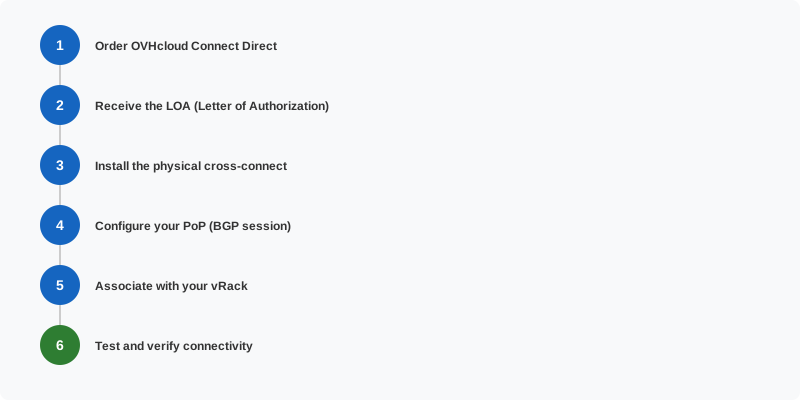
Step 1 — Order OVHcloud Connect Direct
- Select
OVHcloud Connect Direct. - Choose your PoP location and bandwidth (e.g. 1, 10 or 100 Gbps).
- Fill in technical details: your ASN, contact information, and any special instructions for the data centre.
- Review pricing and confirm the order.
For detailed ordering steps, see Order OVHcloud Connect Direct.
Step 2 — Receive the LOA
After your order is validated, OVHcloud sends you a Letter of Authorization (LOA) by email. This document contains:
- The data centre and rack/cage reference for OVHcloud's equipment
- The port designation on OVHcloud's side
- Instructions for the data centre operator
Step 3 — Install the physical cross-connect
Give the LOA to your data centre operator (or handle it yourself if you manage your own cage). They will install a fibre-optic patch cable between your router port and OVHcloud's designated port.
This step may take a few days depending on the data centre's processes.
Step 4 — Associate with your vRack
Link your OVHcloud Connect service to your vRack so that your OVHcloud resources (servers, VMs, etc.) can communicate over the private connection.
See Associate an OVHcloud Connect to your vRack.
Step 5 — Configure BGP
Once the physical link is up:
- In the OVHcloud Control Panel, go to your OVHcloud Connect service and create a PoP configuration with the BGP session parameters.
- On your router, configure a BGP neighbour using the peering IP and OVHcloud's ASN provided in the configuration details.
- Advertise the IP prefixes you want to reach from OVHcloud.
For detailed BGP configuration, see Configure OCC L3 with BGP.
Step 6 — Test and verify
Run these checks to confirm everything is working:
Troubleshooting
If you cannot resolve the issue, open a support ticket with your BGP output, interface status, and traceroute results.
What's next?
- For a managed connection, see Quick Start: Provider Connection
- For resilient setups, see Resilient On-Prem tutorial
- Set up monitoring for your connection
Go further
For training or technical assistance implementing our solutions, contact your sales representative or visit our Professional Services page to request a quote and have your project analyzed by our experts.
Join our community of users.