
Everything you need to know about SMS users
Objective
This guide will explain how to create and manage API users.
Requirements
- an active OVHcloud SMS account
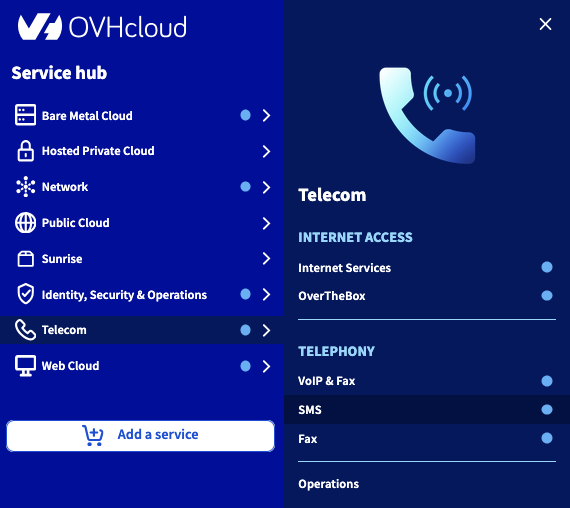
- You must be logged in to OVHcloud Control Panel, in the
Telecomsection, thenSMS.
Instructions
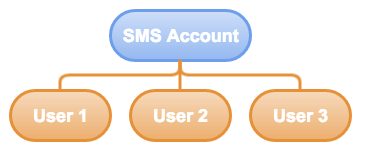
An SMS API user can be useful for a number of reasons:
-
It enables the holder of the SMS account to secure their access, when sending SMS messages via an external API. The calling script only recognises the user's ID and password, not the session of the account holder's ID.
-
Creating several API users may be useful in a company, especially for improved traceability. An API user who sends SMS messages in an abusive manner can then be detected by the account holder.
-
An API user can also be subject to restrictions (quotas) for SMS credits. This way, the SMS account holder can divide their credits between different API user accounts.
To better manage credit for your SMS accounts, you can set a limit and quota for your API users.
-
The quota is the number of available SMS credits for each API user.
-
The limit corresponds to the minimum threshold of SMS credits that an API user must have before receiving an alert to recharge or not the balance of these credits.
Step 1: Create an API user.
Log in to the OVHcloud Control Panel, then select Telecom. Next, click SMS and select your SMS account.
Then click on the API users tab. To add a user, click Actions, then Add.
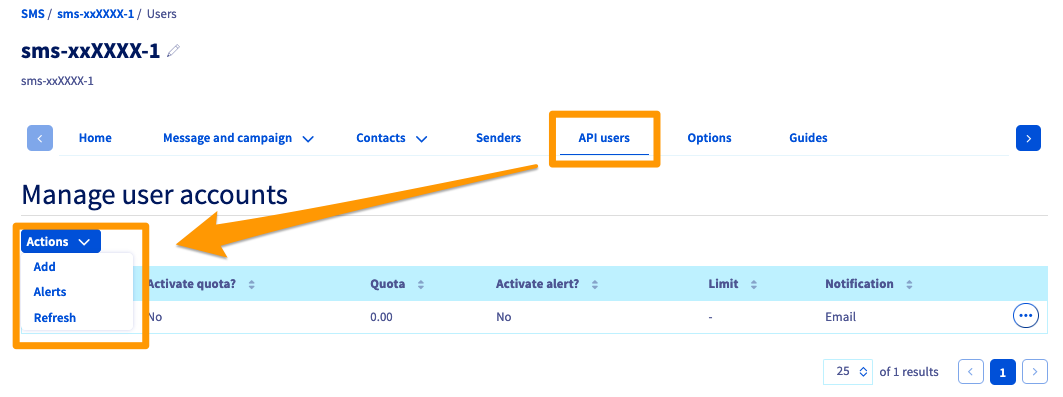
You can enter a name for the API user. The password for an API user must contain 8 alpha-numeric characters.
Step 2: Set a quota for an API user
You can manage quotas in the API users tab. Click ... next to the user concerned, then Quota.
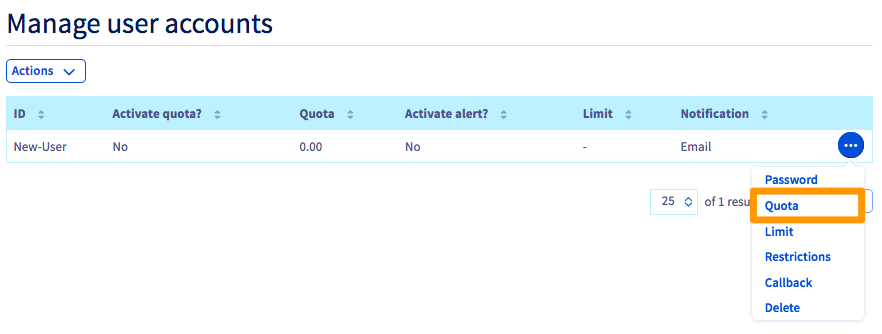
You can then perform two actions.
- Enable quota? Use this to define whether this user has a quota.
- New quota. Defines the user quota. Once this quota is reached, the user will be blocked from sending SMS messages.
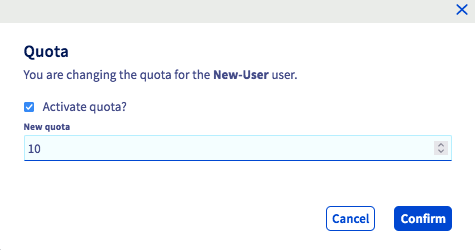
Assigning a quota to an API user will reduce the total credit of an SMS account by an equal amount.
As an example: an SMS account has a total of 200 credits. Assigning 150 credits to an API user will deduct 150 credits from the SMS account. It will then have 50 credits.
Step 3: Set a limit for an API user
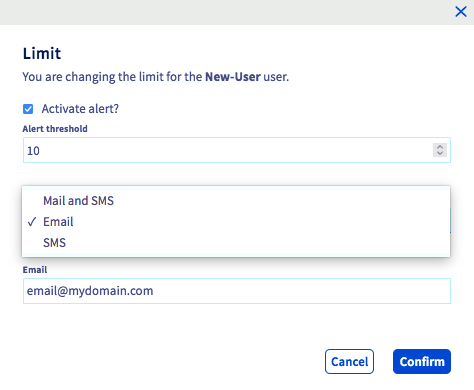
To configure a limit for a user, stay in the same menu, click ..., then Limit.
The following settings are now available:
- Enable alert? For enabling the limit alert.
- Alert threshold. Defines the level of remaining SMS credits that will trigger the notification.
- Notification. For choosing the notification type. Options include: email (enter your email address), SMS (enter your number in international format), or both.
When a notification is sent via SMS, it is deducted from your SMS credit.
Step 4: Define a restriction by IP for the http2sms feature
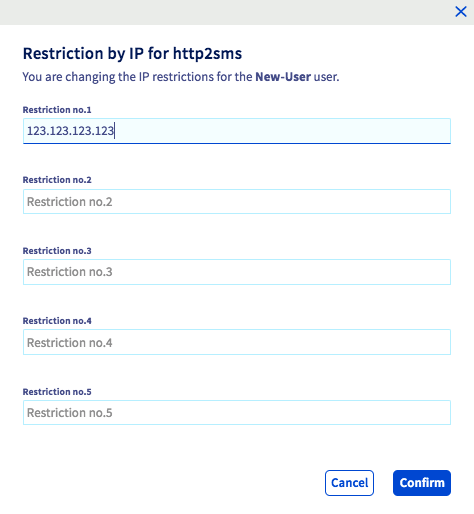
You can secure the http2sms feature by applying IP restrictions for each API user.
To enable it, click ... to the right of the user, then Restrictions.
You can enter up to 5 different IP addresses for sending HTTPS requests.
For further details on the http2sms feature, please refer to our guide on Sending SMS messages via a URL.
Step 5: Specify a callback URL
To set up custom tracking for SMS delivery (Delivery reporting or DLR), you can specify a callback URL by clicking ... to the right of a user, then Callback.
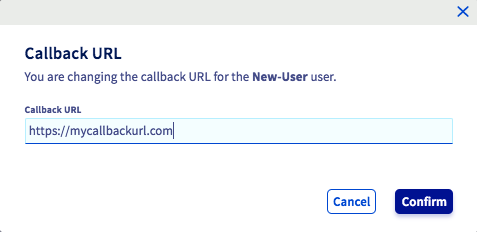
When the send status of an SMS message is updated, we call the specified URL. The following values are automatically inserted into the query string:
- id: The SMS identification number.
- ptt: A code that corresponds to the SMS status. The various ptt codes are explained in the table below.
- date: The DLR date.
- description: The DLR ID. The various ptt codes are explained in the table below.
- descriptionDlr: The DLR status description.
The ptt codes
To get a description of a specific ptt code, you can use the following API:
For more information on using OVHcloud APIs, please refer to our guide Getting started with OVHcloud APIs.
The table below provides a non-exhaustive list of the main ptt codes.
The DLR IDs
Go further
Join our community of users.