
Generating OVHcloud account logs with Logs Data Platform (EN)
Objective
In this guide you will learn how to transform your OVHcloud customer account events as actionable data through Logs Data Platform, a fully managed solution that helps you store, archive, query and visualise your logs.
To discover Logs Data Platform before continuing with this guide, please refer to this documentation.
Requirements
- You have an OVHcloud customer account.
- You have a Logs Data Platform (LDP) account within this OVHcloud account with at least one active stream configured. This guide will walk you through all the necessary steps.
Glossary
Logs Data Platform: Fully managed and secured log management platform proposed by OVHcloud. Find more information on the Logs Data Platform service page.
Data stream: A logical partition of logs that you create in an LDP account that you will use when ingesting, visualising or querying your logs. Multiple sources can be stored in the same data stream, and it is the unit for defining a logs pipeline (retention policy, archiving, live streaming, etc.), access rights and alert policies.
Logs forwarding: Feature integrated in an OVHcloud product to ingest logs from its services to a data stream of an LDP account in the same OVHcloud account. The feature has to be enabled by the customer per service.
Logs forwarding subscription: When enabling the logs forwarding for a given OVHcloud service to a given LDP data stream, a subscription is created and attached to the data stream for further management by the customer.
Instructions
OVHcloud Account logs types
OVHcloud account propose 3 levels of logs:
- Audit Logs: Provide a security-relevant, chronological set of records documenting the sequence of actions in your OVHcloud account (i.e. logins, password change, etc.).
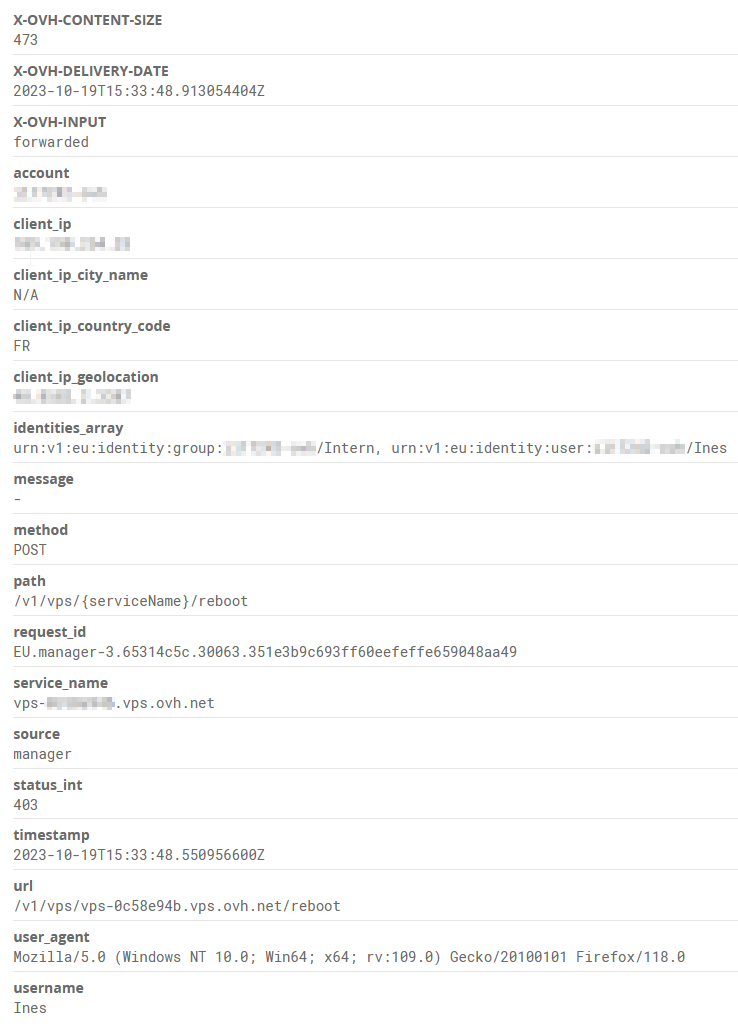
- Activity Logs: Provide all records of actions in your OVHcloud account from API calls and actions done in the Control Panel.
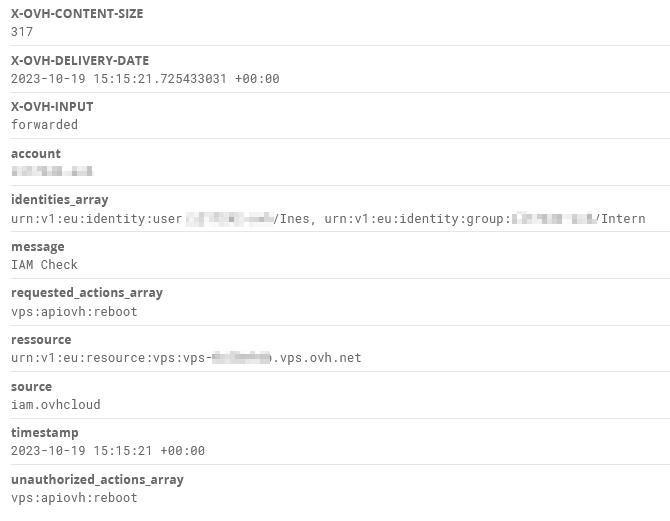
- Access policy logs: Provide all records of access evaluation in your OVHcloud account, including actions from third-party integration (i.e. actions authorised or unauthorised through IAM policies).
Enable logs forwarding
You can enable the forwarding of the OVHcloud account logs via API. You will have to target a stream of one of your LDP accounts. The logs will be forwarded to that stream. Enabling the forwarding will create a subscription for this stream ID.
Note that enabling the forwarding is free of charge, but you will be charged for the usage of your Logs Data Platform service as per the standard price plan. For LDP pricing refer to the Logs Data Platform product page.
To enable forwarding, you can use the following APIs:
Description: Forward account audit logs to a dedicated data stream
For instance, for audit logs:
The API requires:
- A
streamId, which is the target data stream of your LDP account where your OVHcloud account logs will be forwarded to. - A
kind, which is the category of logs you want to forward into this data stream.
You will get in response an operationId, which you can use to retrieve the subscriptionId for further management purposes using the following Logs Data Platform read operation endpoint:
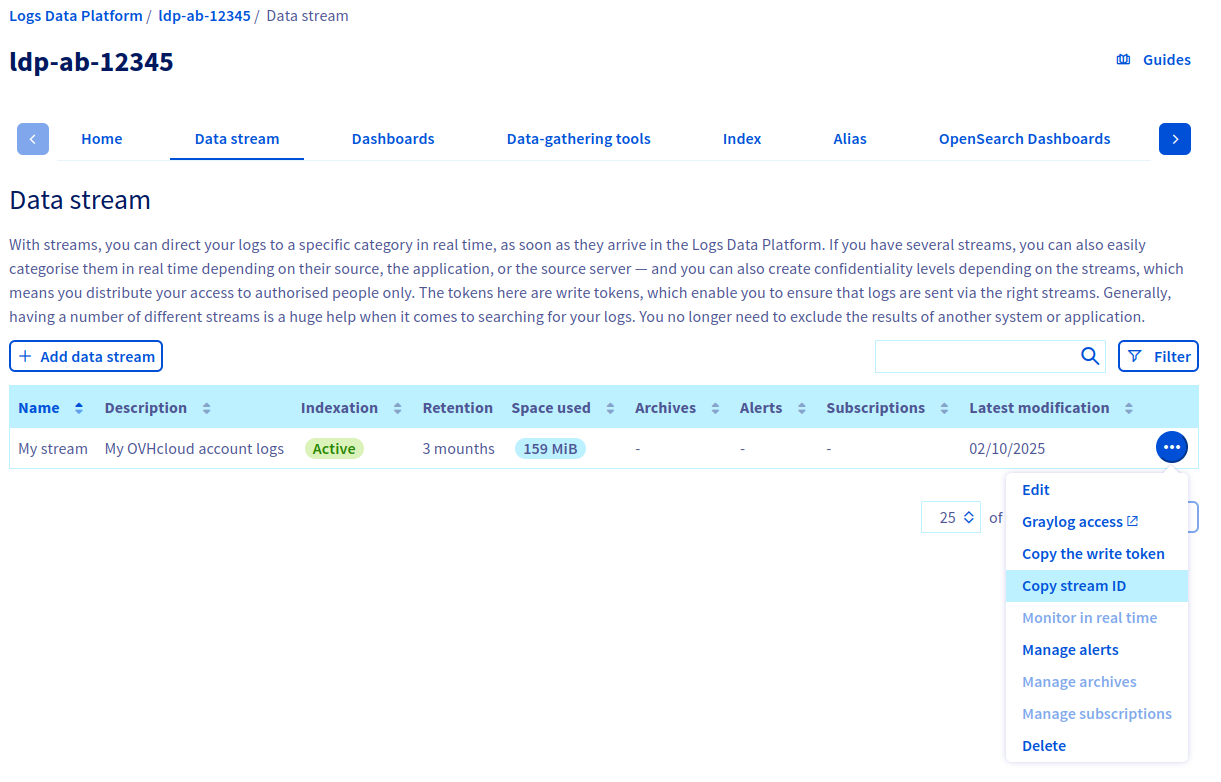
You can find your streamId in the Logs Data Platform section of the OVHcloud Control Panel:
- Go to the
Data streamspage of your Logs Data Platform account. In the table, click the...button to the right of the target data stream, then clickCopy streamID.
Alternatively, you can retrieve your streams using the Logs Data Platform API:
You can find the available kind using the following APIs:
Description: Get audit logs kinds
Access to OVHcloud account logs
Now that your OVHcloud account logs are ingested and stored in your Logs Data Platform data stream, you can query your logs and build dashboards to have a graphical representation using the web-based UI of Graylog.
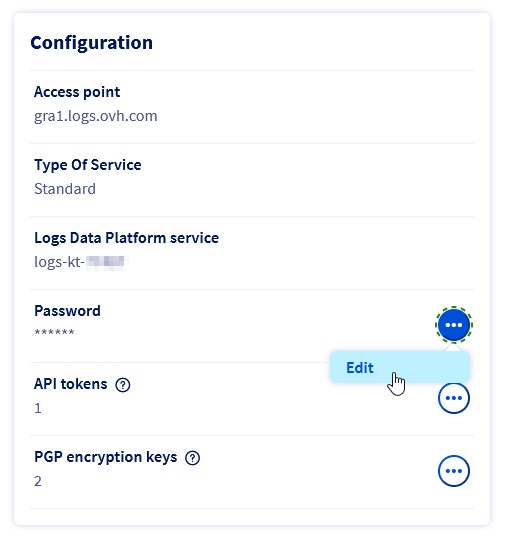
- Retrieve the admin user (the Logs Data Platform service name) and the password in your Logs Data Platform account home page.
-
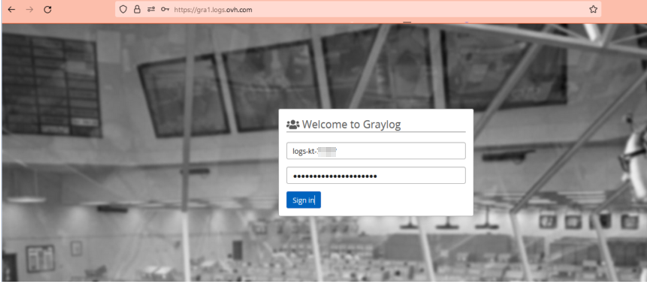
Open the Graylog
web-ui. You can retrieve the link from your account home page, or use your access point depending on your account region (for example Gravelines regions: https://gra1.logs.ovh.com/). -
Log in to Graylog using your Logs Data Platform service name and password.
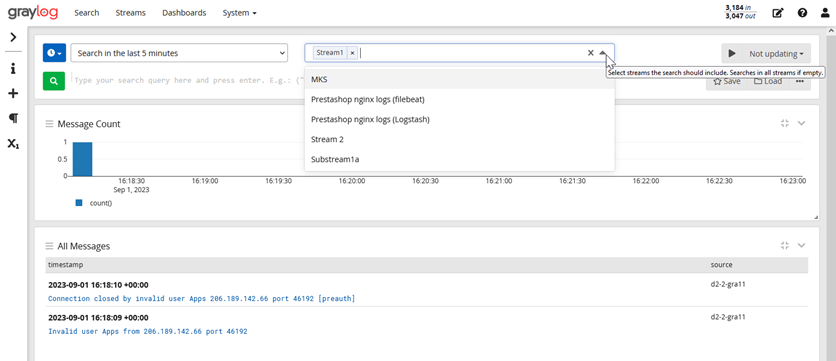
- Search through your logs across the data stream of your Logs Data Platform account. You can refer to the Graylog writing search queries documentation for details on the search syntax.
For more details about how to use your logs with Logs Data Platform, refer to the documentation Logs Data Platform - Visualising, querying and exploiting your logs. This includes:
- How to set up alerts.
- How to view the logs in real time through a WebSocket.
- How to build visualisation with OpenSearch Dashboards.
- How to integrate with OpenSearch API.
- How to connect with Grafana.
Details of generated logs
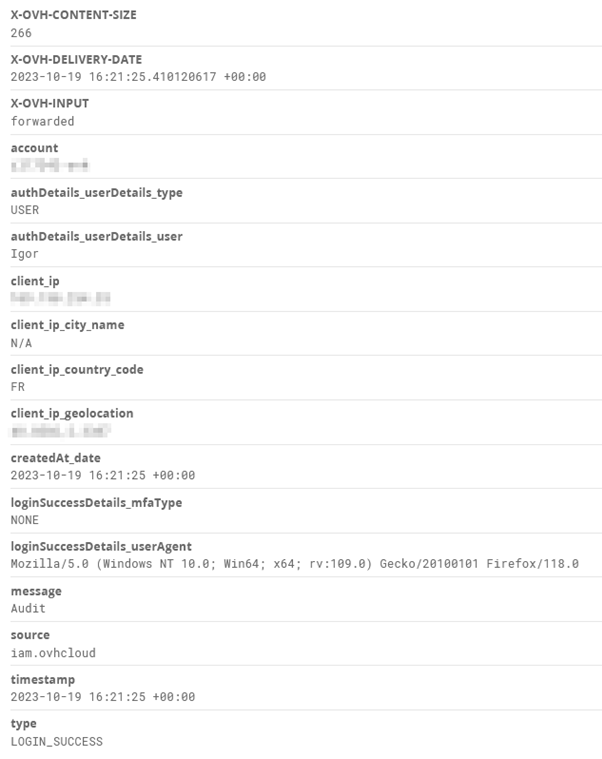
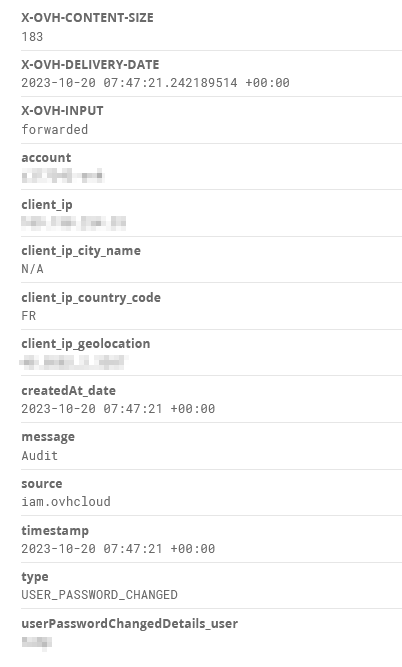
Audit logs
For every action related to the security of the OVHcloud account an entry is generated. The Logs generated are:
- For login
- For password change
Activity logs
For every action performed by users through the API or the Control Panel, an entry is generated with the following data:
Access Policies logs
For every action evaluated by the OVHcloud IAM, an entry is generated with the following data:
Manage subscriptions
At any point, you can retrieve subscriptions attached to your Logs Data Platform data stream and choose to disable the forwarding by cancelling your subscription on your stream. So that your Logs Data Platform stream doesn't receive your audit logs anymore.
Note that this doesn't delete the logs that have been stored prior to the subscription cancellation, as data stored in a logs stream is immutable unless you delete the entire stream.
Currently, you can only manage your subscriptions via Logs Data Platform’s API.
The three following Logs Data Platform API routes respectively allow you to:
- Retrieve a list of
subscriptionIds associated with a specific logs stream based on itsstreamId.
- Retrieve the information (such as the resource type, in this case account-api, account-iam and account-audit, and resource name – the name of the OVHcloud account) of the service associated with the subscription based on its
subscriptionId.
- Delete a subscription based on its
subscriptionId.
Go further
Join our community of users.