
vNKP - Enabling virtual machine encryption (EN)
Objective
The aim of this guide is to explain the implementation details of vSphere Native Key Provider and then perform a virtual machine encryption in the OVHcloud VMware on OVHcloud solution.
Find out how to implement virtual machine encryption using vSphere Native Key Provider.
OVHcloud provides services for which you are responsible, with regard to their configuration and management. It is therefore your responsibility to ensure that they work properly.
Since 2024, OVHcloud has provided a dedicated KMS (OKMS -> OVHcloud KMS) to manage these services and the encryption of virtual machines within your VMware on OVHcloud environment. The guide KMS for VMware on OVHcloud - VM encryption use case scenarios explains the use cases and solutions available to you when using the OVHcloud KMS.
If you encounter any difficulties, contact your Technical Account Manager or go to this page to get a quote and request a custom analysis of your project from our Professional Services team experts.
Requirements
- You must have signed up to a VMware on OVHcloud solution.
- Access to the OVHcloud Control Panel.
- Access to the vSphere management interface.
- vSphere and hosts version 7.0 Update 2 or higher.
- The Zerto replication solution is not currently compatible with encryption. This means that encrypted VMs cannot be replicated.
Presentation
vSphere Native Key provider allows you to encrypt virtual machines, enable vTPM in virtual machines, or enable data-at-rest encryption on vSAN, without the need for an external KMS (Key Management Server).
You can export the vSphere Native Key provider key and import it again on another cluster.
In detail, when encrypting a virtual machine, the ESXi host generates a DEK key, this key will be used to encrypt the virtual machine's files and therefore its data. The DEK key is encrypted using the key generated by vSphere Native Key provider. This encrypted DEK is stored with the virtual machine. You can find more details on VMware encryption by referring to the official documentation in the Go further section of this guide.
Instructions
Your VMware on OVHcloud cluster may not be in version 7.0 Update 2. If so, please contact support to upgrade your infrastructure.
Authorising a user to administer encryption on a Hosted Private Cloud cluster powered by VMware
Log in to the OVHcloud Control Panel, click on Hosted Private Cloud and choose your cluster. Go to Users and click the ...
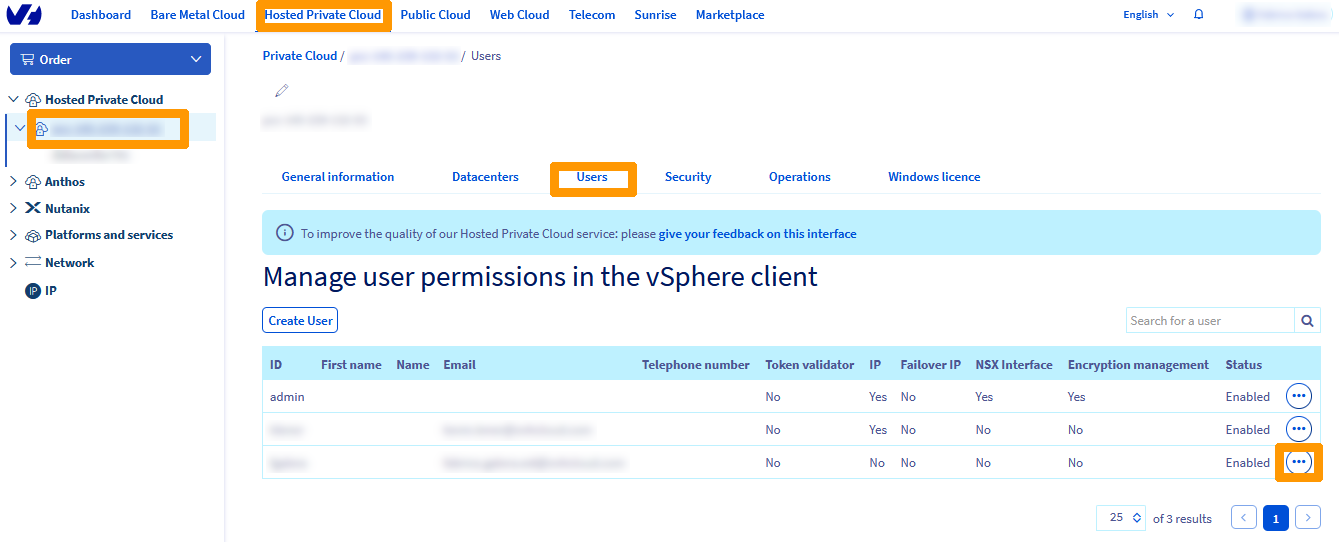
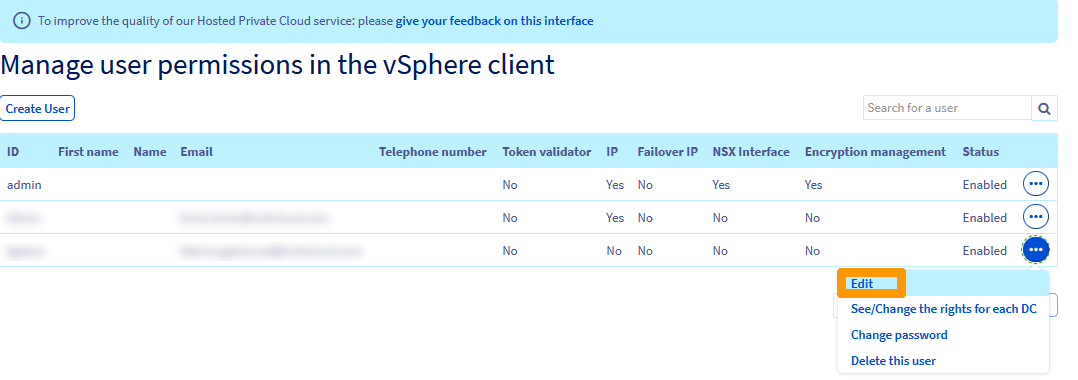
Click Edit.
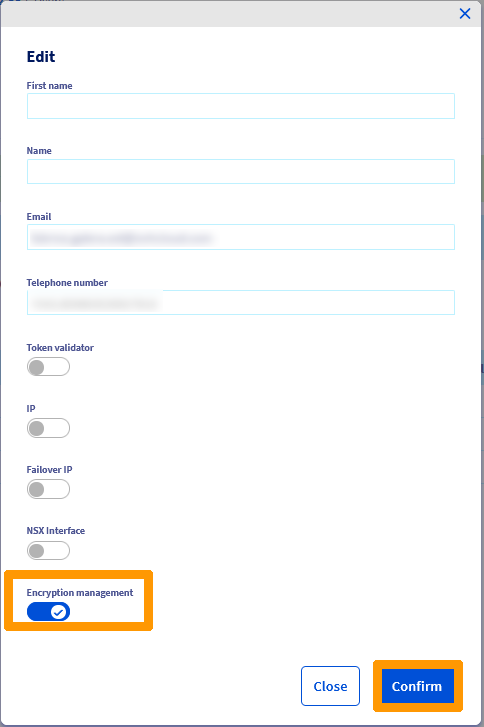
Enable Encryption Management and click Confirm.
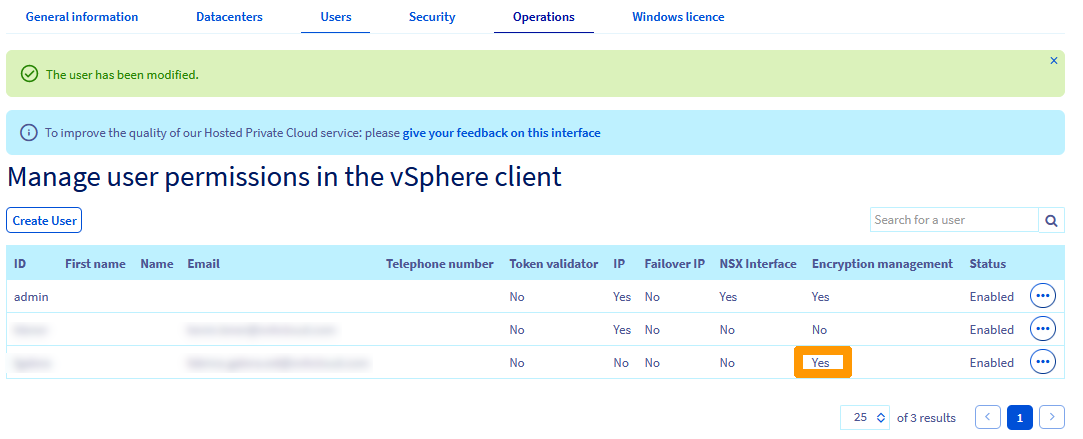
Wait until the change window disappears.

Encryption management rights have been changed, as can be seen in the Encryption management column.
Creating a vSphere Native Key Provider
We will create the encryption key vSphere Native Key Provider. This key can be used to encrypt files on a virtual machine. If you want to add a virtual device vTPM, it is mandatory to encrypt the VM.
Log in to the vSphere interface. If you need help with this, please refer to our guide on Accessing the vSphere interface (/guides/hosted-private-cloud/hosted-private-cloud-powered-by-vmware/vsphere-interface-connexion/).
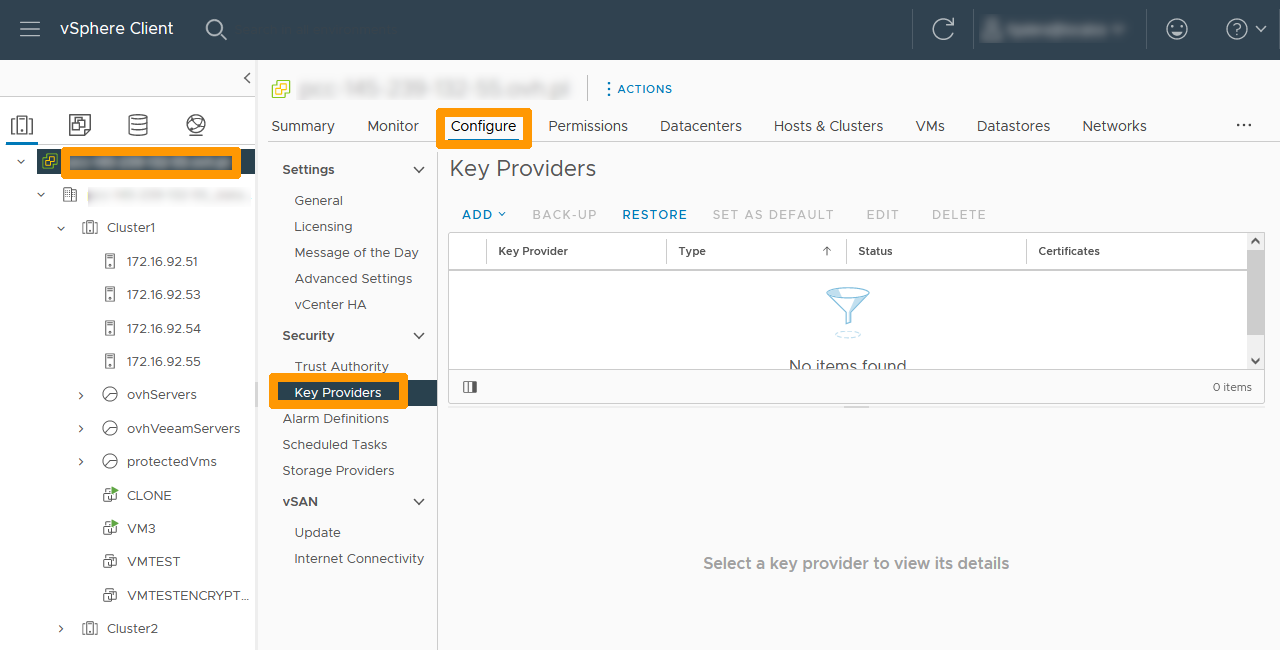
Click on the root of the cluster in the top left-hand corner, then click on the Configure tab and choose Key Providers.
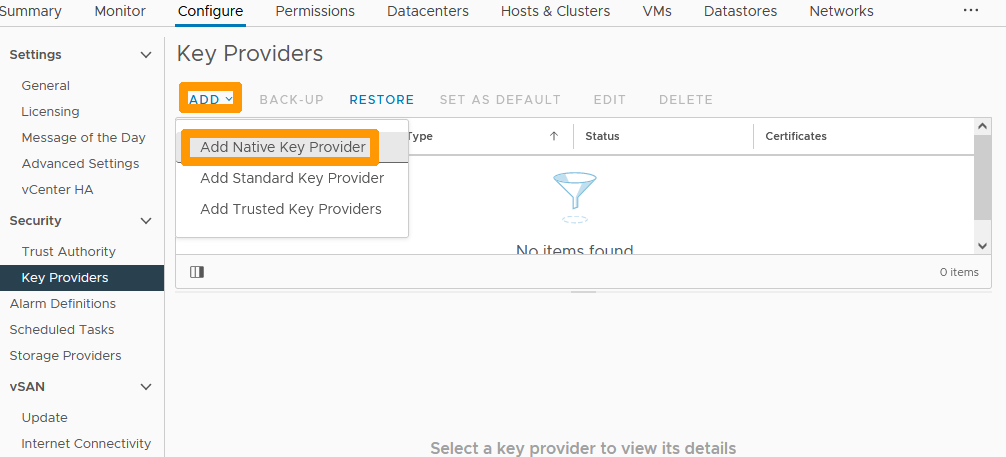
Click the ADD button and choose Add Native Key Provider from the menu.
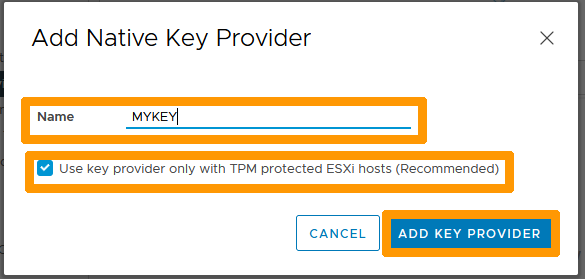
Type a name in Name.
If your Private Cloud solution is older than Premier VMware on OVHcloud, untick the Use key provider only with TPM protected ESXi hosts (recommended) box.
Click ADD KEY PROVIDER.
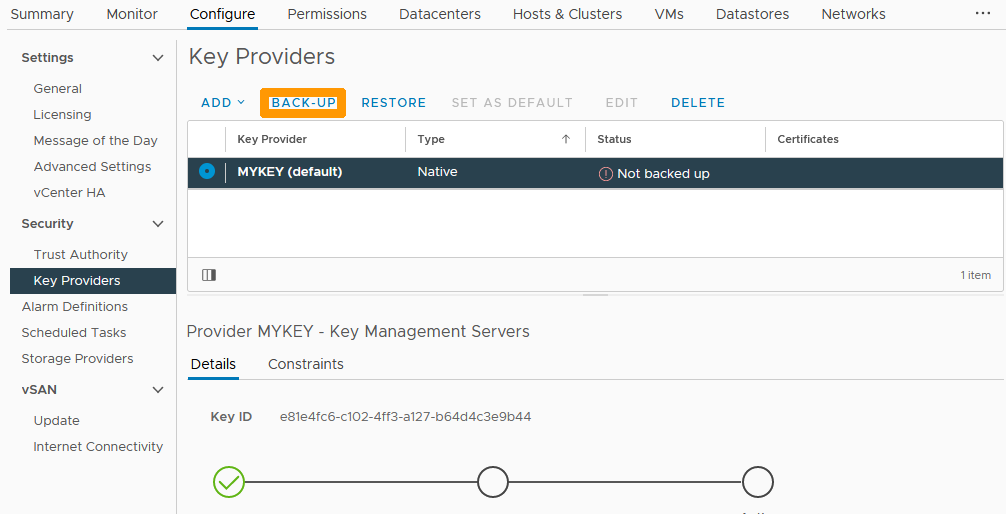
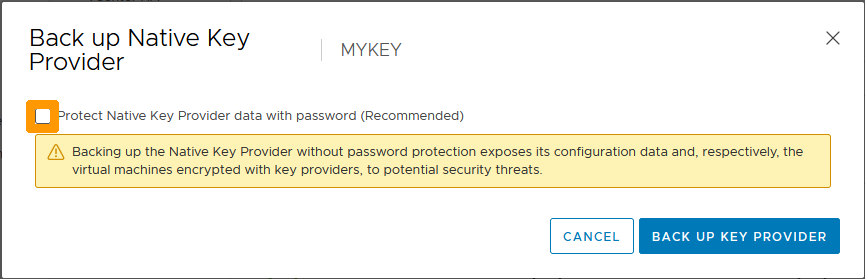
Click the BACK-UP button on the left to back up the key outside the cluster.
Select the checkbox on the left to password protect the backup.
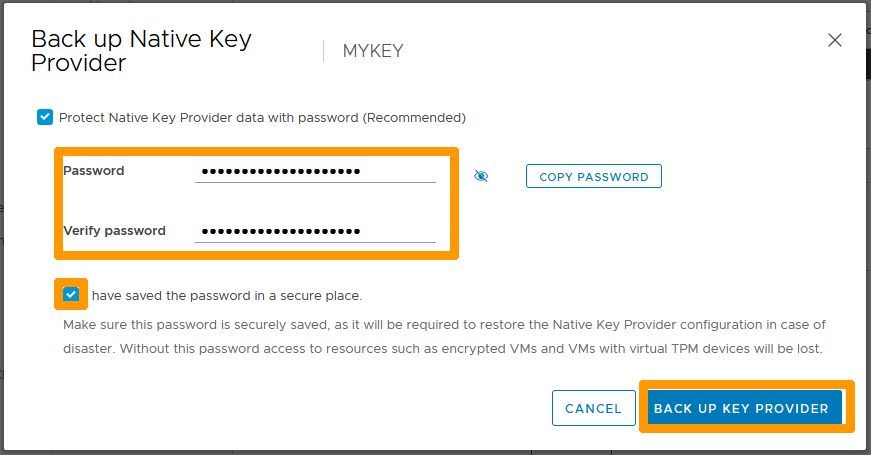
Type a password and confirm it. Then select the I have saved the password in a secure place box and click BACK UP KEY PROVIDER.
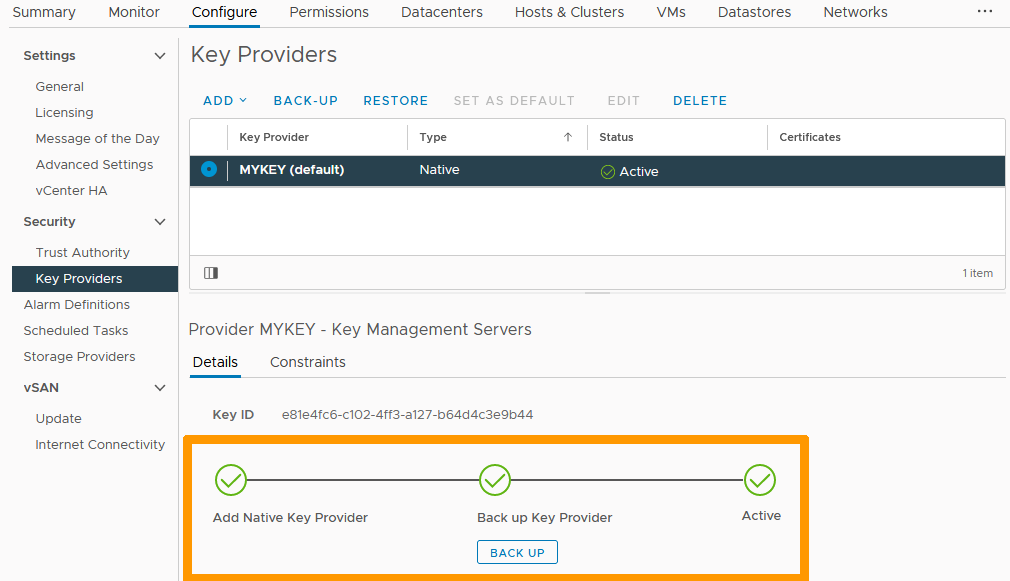
The key can now be used to encrypt virtual machines.
Encrypting of a virtual machine
We will encrypt a virtual machine and its data.
Encryption of a virtual machine can only be performed when the virtual machine is turned off.
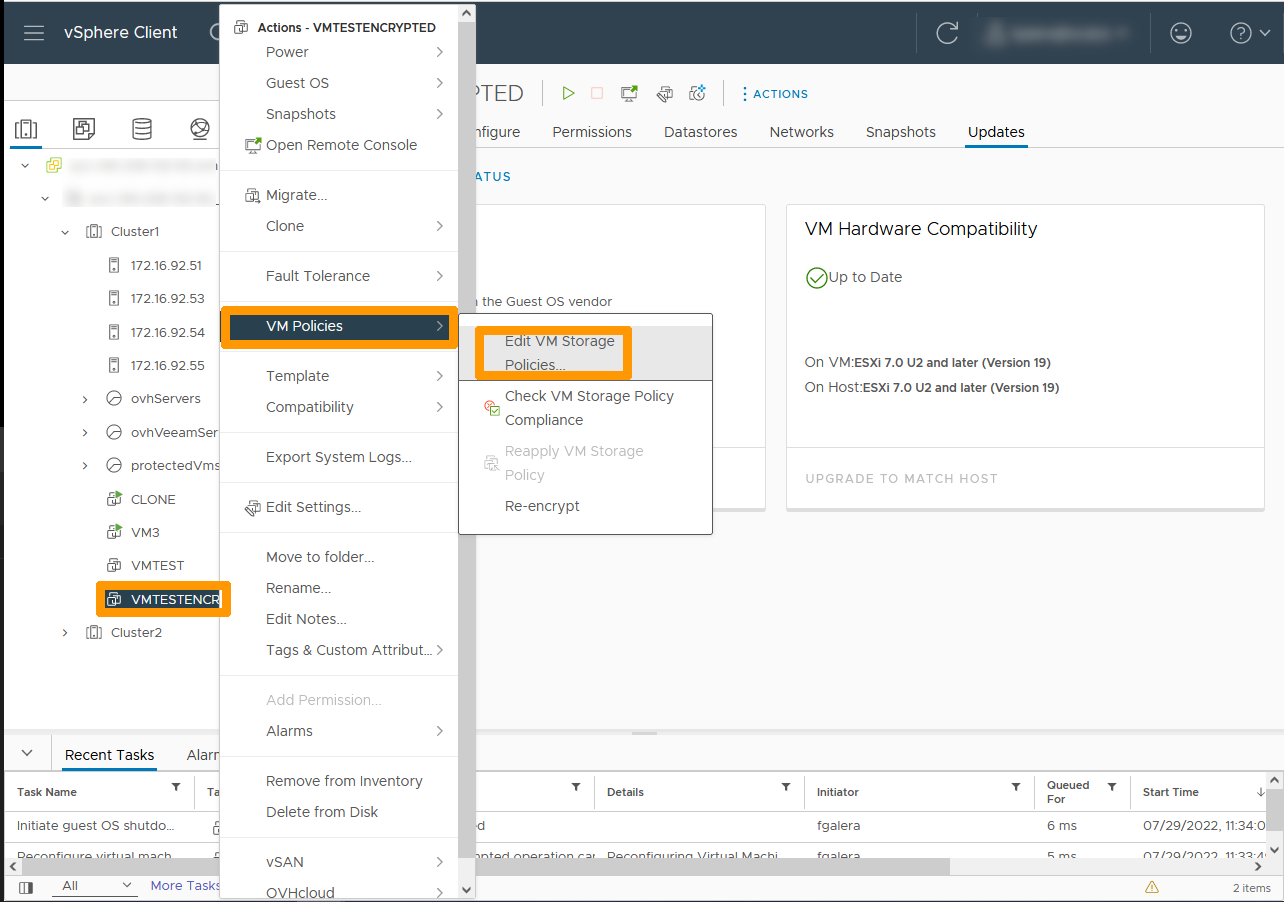
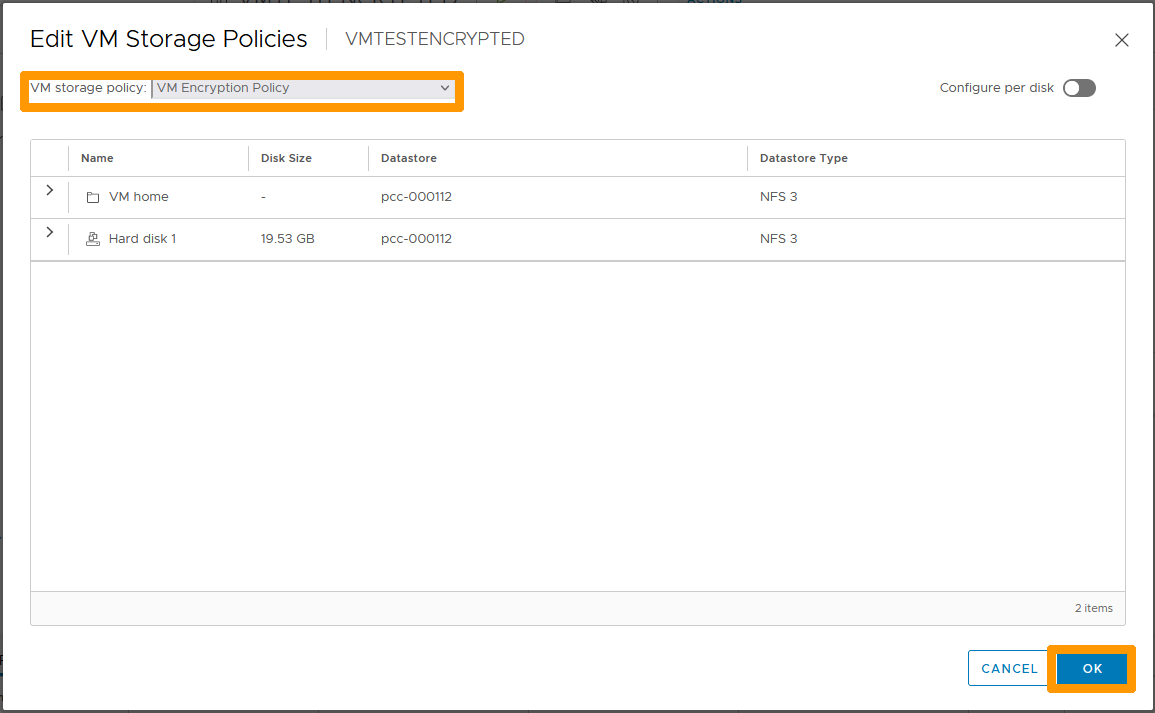
Right-click on the virtual machine and from the VM Policies menu choose Edit VM Storage Policies.
From the VM Storage Policies drop-down menu, choose VM Encryption Policy and click OK.
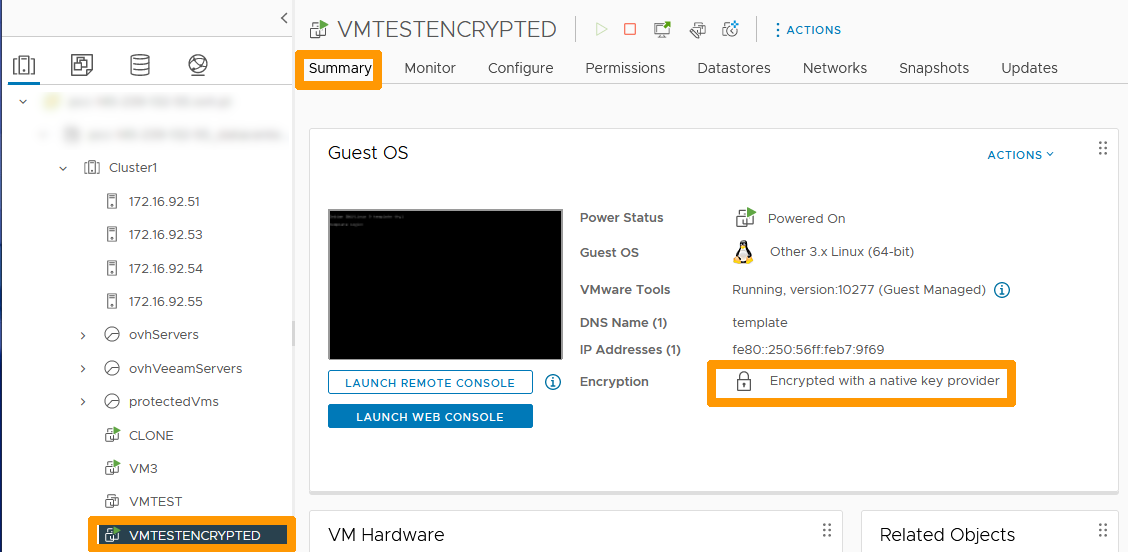
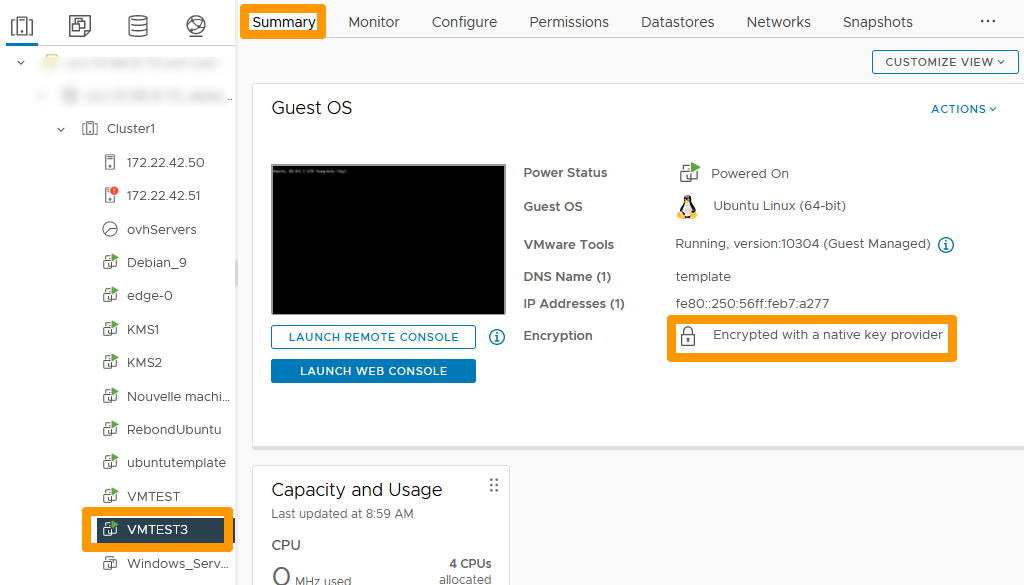
In the virtual machine properties, click the Summary tab. You will see a padlock followed by the text Encrypted with a native key provider indicating that the VM is encrypted.
Migrating an existing encryption solution to vSphere Native Key provider
Some OVHcloud customers use an encryption solution with external KMS keys. Encryption can be migrated to vSphere Native Key Provider.
Follow the instructions below to migrate an encrypted virtual machine with a key generated by an external KMS named cluster to a vSphere Native Key Provider key named MY-NKP.
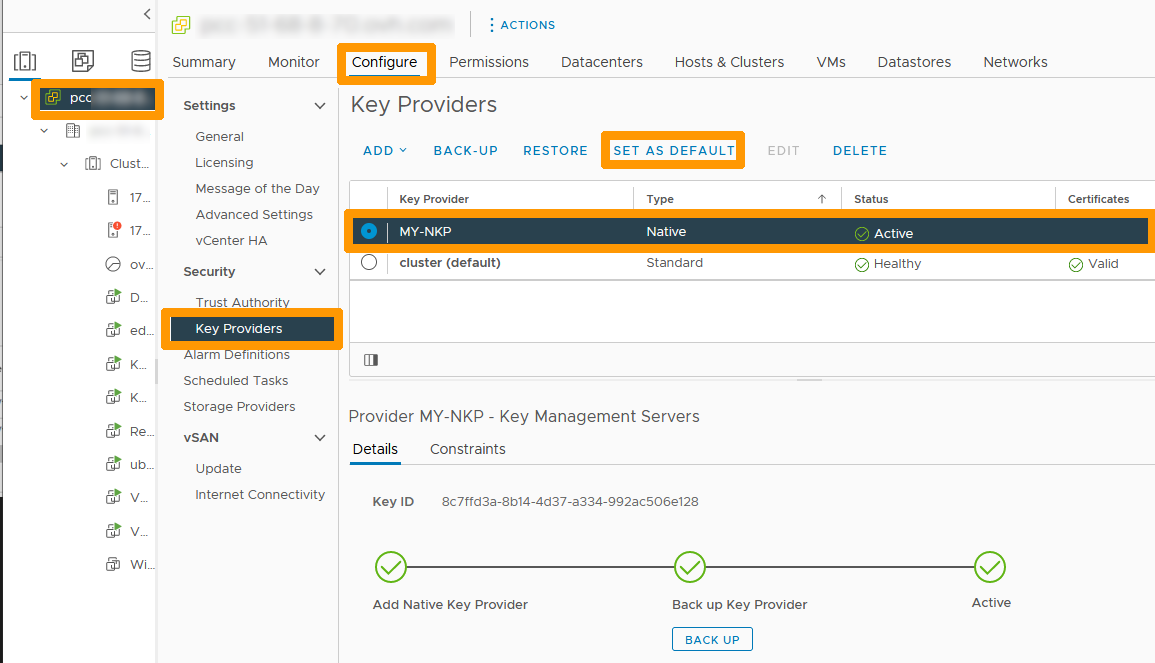
In the vSphere console for your cluster, click on the cluster root in the top left-hand corner.
Go to the top in the Configure tab.
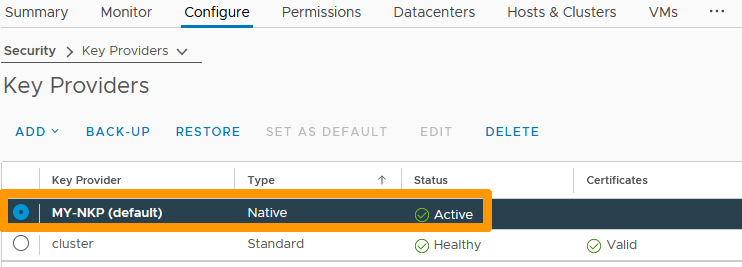
Click Key Providers in the vertical bar, go to the vSphere Native Key provider key and click SET AS DEFAULT.
Confirm your choice by clicking SET AS DEFAULT.
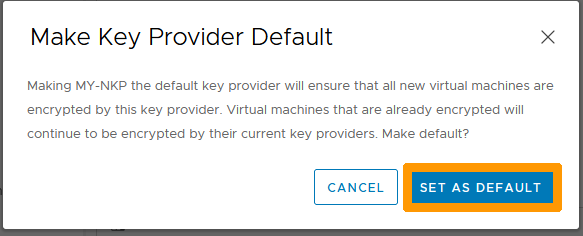
The vSphere Native Key Provider key is then set by default.
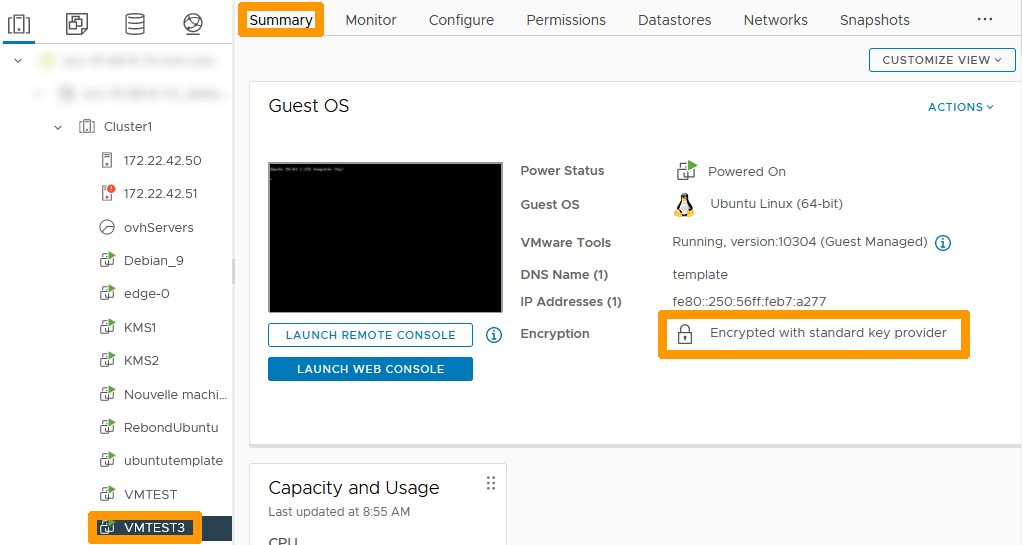
Click the virtual machine and go to Summary tab. This virtual machine uses the standard key provider. We will change the encryption of this virtual machine.
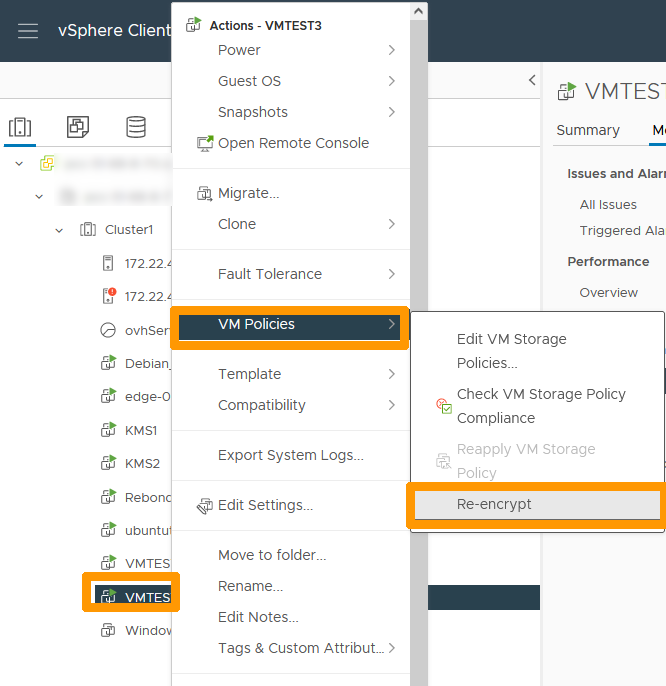
In the vSphere client, right-click on the virtual machine that needs to be encrypted again. In the VM Policies menu entry, choose Re-encrypt.
The operation related to the new encryption can be done with the virtual machine turned on because only the DEK key is encrypted again.
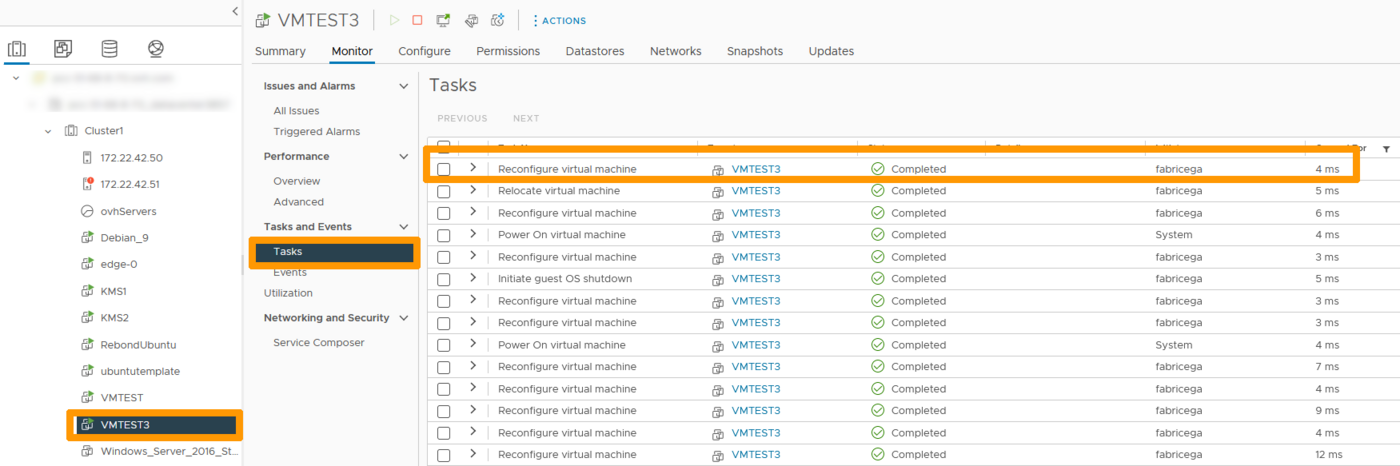
The new encryption takes a few milliseconds because the operation performed is only a renewal of the encryption of the DEK key. This key is now encrypted using the new vSphere Native Key Provider key.
Click the virtual machine on which the encryption has been changed and go to the Summary tab. You can see that encryption uses a native key provider next to the padlock.
Encrypting a Datastore of a vSAN cluster
You can encrypt the Datastore of a vSAN cluster instead of the virtual machines.
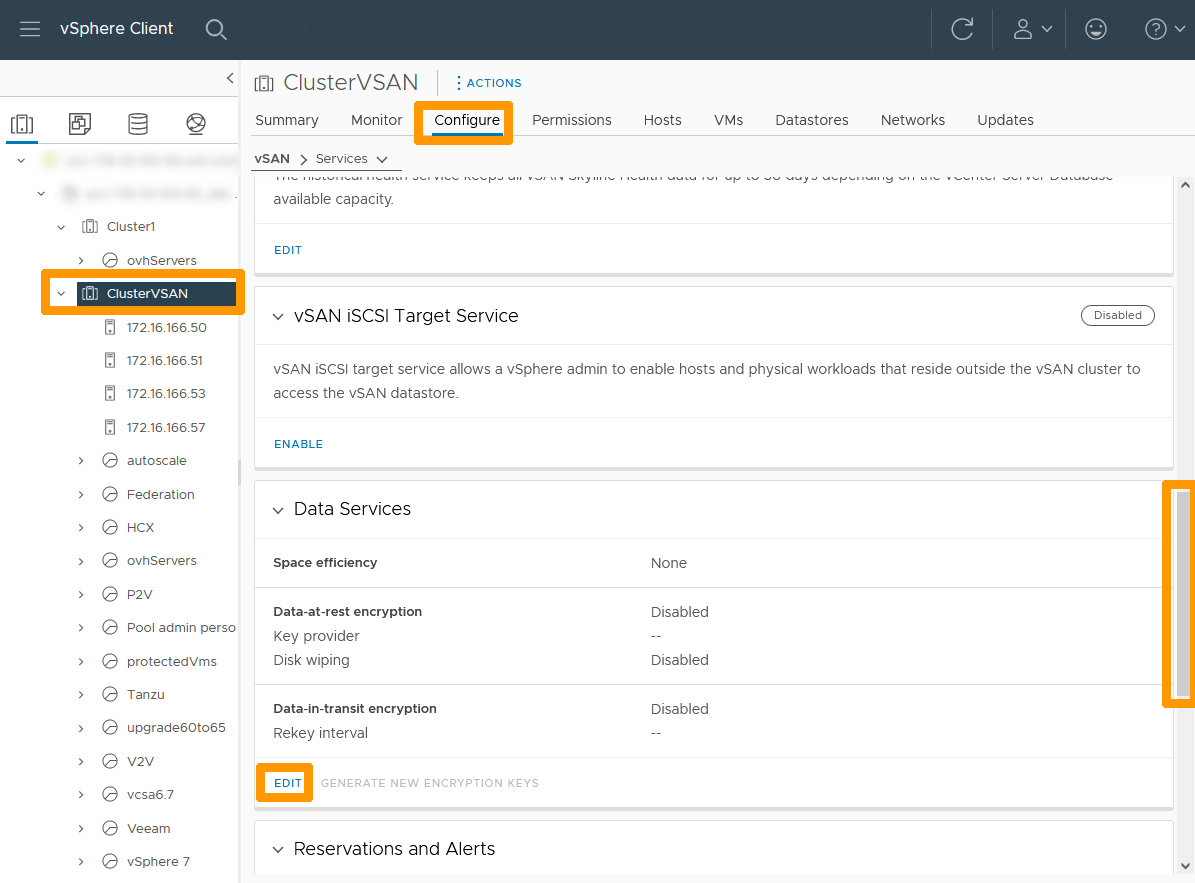
Through your vSphere interface, go to your vSAN cluster on the right, select the Configure tab, scroll to Data Services and click EDIT.
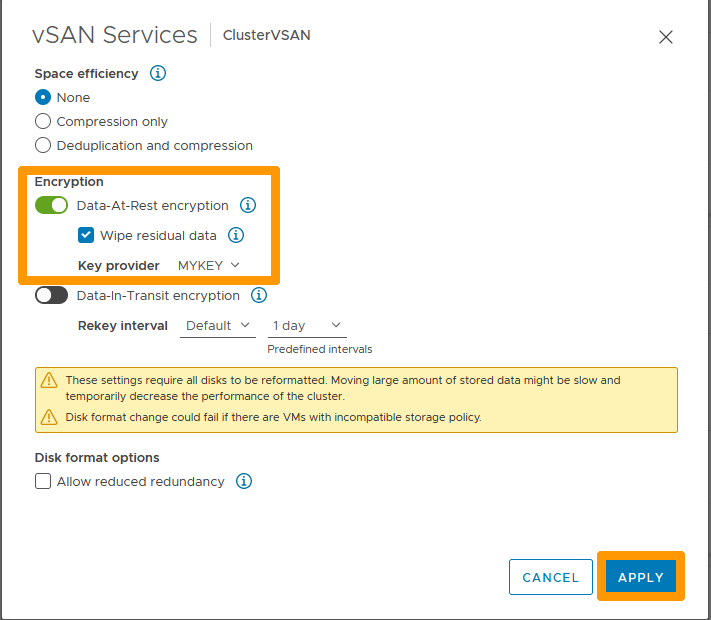
Enable Data-At-Rest encryption, check Wipe residual Data, choose your Key Provider and click APPLY.
A warning will inform you that a performance problem may occur when you enable these settings. Please ignore it.
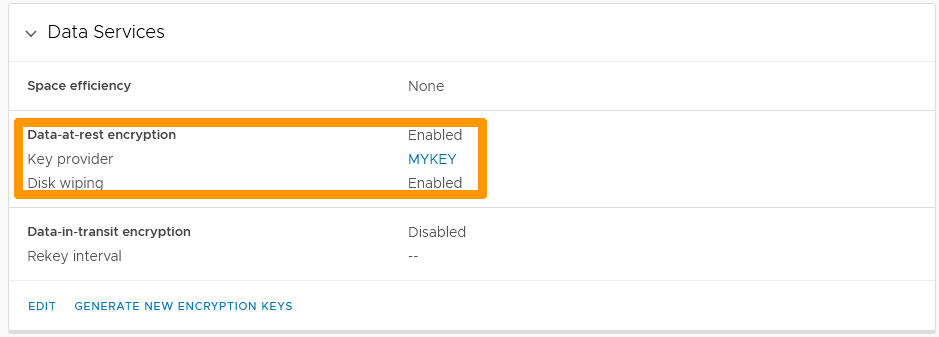
Go back to Data Services and you will see that Data encryption at rest is enabled with your key.
Go further
VMware vSphere Native Key Provider Overview
VMware documentation of the encryption process on vSphere
VMware vSphere Native Key Provider documentation
Join our community of users.