---
title: "Object Storage - Utilizar Object Storage com Nextcloud (EN)"
description: "Learn how to set up storage in Nextcloud to use an Object Storage bucket"
url: https://docs.ovhcloud.com/pt/guides/storage-and-backup/object-storage/s3-nextcloud
lang: pt
lastUpdated: 2024-05-20
---
# Object Storage - Utilizar Object Storage com Nextcloud (EN)
## Objective
Nextcloud is a suite of client-server software for creating and using file hosting services.
**This guide explains how to set up storage in Nextcloud to use an Object Storage bucket.**
:::warning
OVHcloud provides services which you are responsible for with regard to their configuration and management. You are therefore responsible for ensuring they function correctly.
This guide is designed to assist you in common tasks as much as possible. If you encounter any difficulties performing these actions, please contact a [specialist service provider](https://partner.ovhcloud.com/pt/directory/) and/or discuss the issue with our community on [https://community.ovh.com/en/](https://community.ovh.com/en/). OVHcloud cannot provide you with technical support in this regard.
:::
## Requirements
- A bucket
- A user with the required access rights on the bucket
- Your Object Storage credentials (access\_key and secret\_access\_key)
See our [Getting started with Object Storage](/pt/guides/storage-and-backup/object-storage/s3-getting-started-with-object-storage.md) guide.
:::info
In order to identify your endpoint corresponding to your storage class, please refer to this guide: [Object Storage - Endpoints and Object Storage geoavailability](/pt/guides/storage-and-backup/object-storage/s3-location.md).
:::
## Instructions
### Configuration from the graphical interface
#### Activate the _External storage support_ application
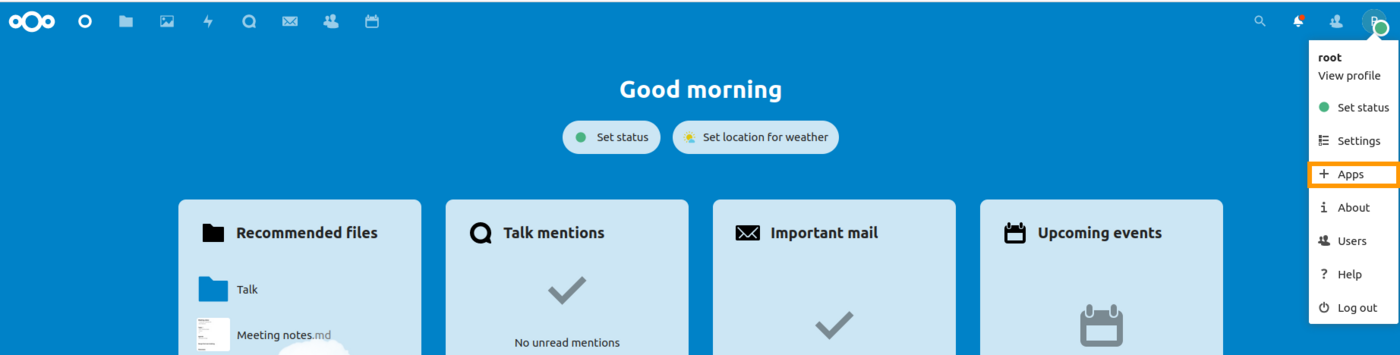
Click on your profile at the top right and then on `Apps
`.
Select the `Disabled Apps
` in the left panel.
Locate the **External storage support**
application and click `Enable
`

#### Configuration
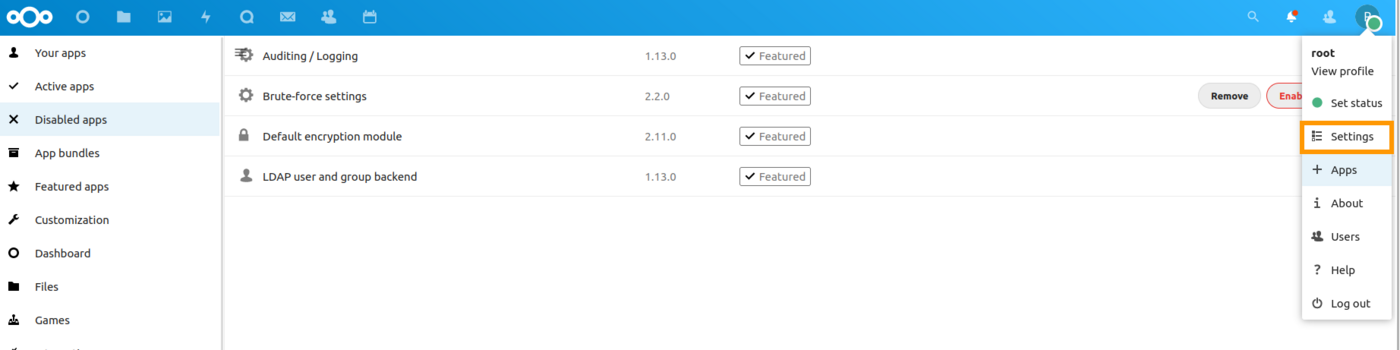
Click on your avatar at the top right then on `Settings
`.
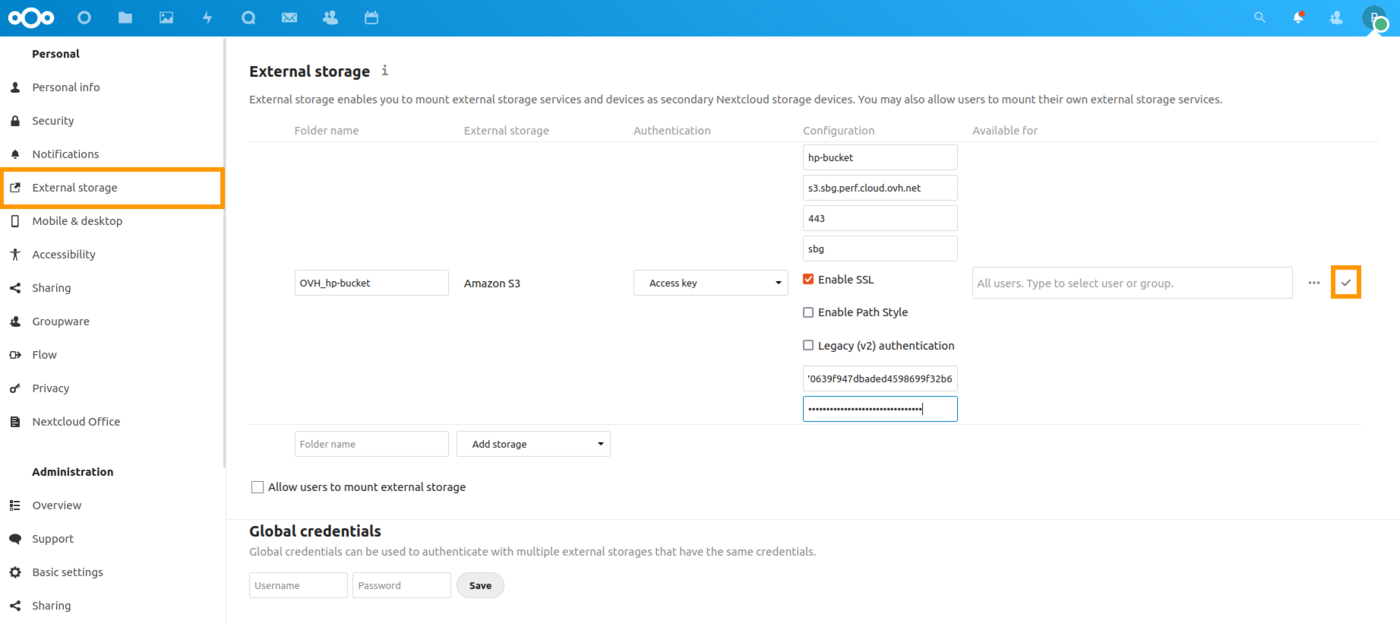
1. Select the External storage menu
2. Create an _Amazon S3_ storage type.
3. Name your destination folder
4. Specify the name of your bucket
5. Set the host as: `s3..io.cloud.ovh.net`
6. Set the port to 443
7. Specify the region
8. Activate SSL
9. Enter your access key
10. Fill in your secret key
11.
Validate
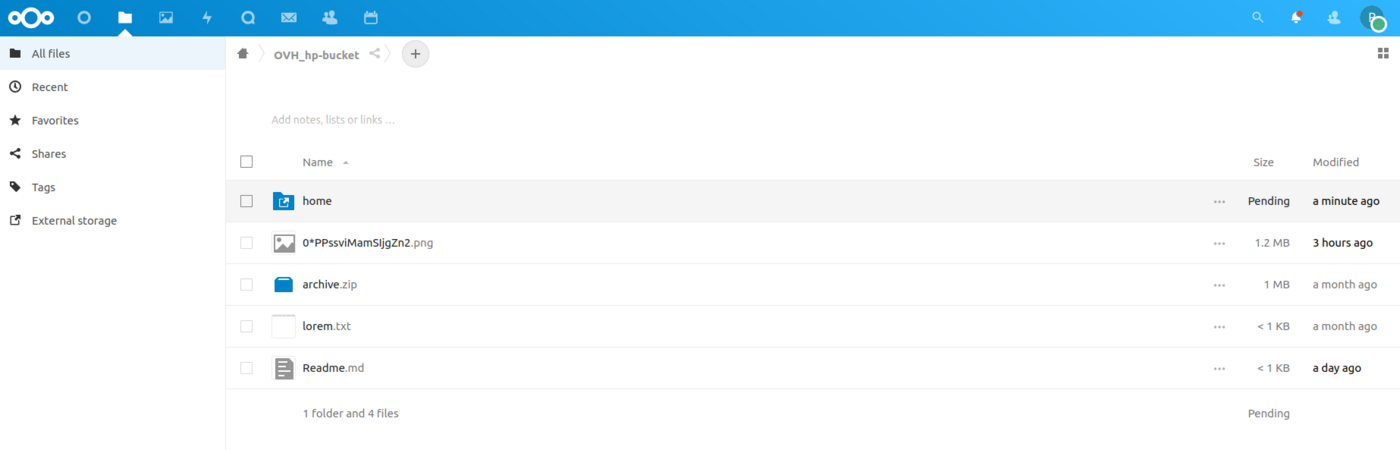
Open the `Files
` application, select the `External storage
` menu then your `bucket
`.

The result should be similar to this:
### Configuration from the CLI
First, the **External storage support** application must be enabled:
```bash
$ php occ app:enable files_external
files_external enabled
```
Check that S3 **\*** API is supported on your installation:
```bash
$ php occ files_external:backends storage amazons3
- name: Amazon S3
- identifier: amazons3
- configuration:
- bucket: text
- hostname: text
- port: text
- region: text
- use_ssl: boolean
- use_path_style: boolean
- legacy_auth: boolean
- storage_class: \OCA\Files_External\Lib\Storage\AmazonS3
- supported_authentication_backends:
- amazons3::accesskey
- authentication_configuration:
- amazons3::accesskey:
- key: text
- secret: password
```
Mount your S3-compatible Object Storage bucket on Nextcloud as a **OVH\_hp-bucket** mount point:
```bash
$ php occ files_external:create -c bucket=hp-bucket \
-c hostname=s3..io.cloud.ovh.net \
-c region= \
-c use_ssl=true \
-c use_path_style=false \
-c legacy_auth: false \
-c key=xxxxxxxxxxxxxxxxxxxxxxxxxxxxxxxx \
-c secret=yyyyyyyyyyyyyyyyyyyyyyyyyyyyyyyy \
OVH_hp-bucket amazons3 amazons3::accesskey
Storage created with id 4
```
Validate your settings:
```bash
$ php occ files_external:verify 4
- status: ok
- code: 0
- message
```
Verify and update the settings if necessary:
```bash
$ php occ files_external:list
+----------+----------------+-----------+---------------------+-----------------+---------+------------------+-------------------+
| Mount ID | Mount Point | Storage | Authentication Type | Configuration | Options | Applicable Users | Applicable Groups |
+----------+----------------+-----------+---------------------+-----------------+---------+------------------+-------------------+
| 4 | /OVH_hp-bucket | Amazon S3 | Access key | bucket: "nex.." | | All | |
+----------+--------------+-----------+---------------------+-----------------+---------+------------------+-------------------+
```
Start indexing the new storage:
```bash
$ php occ files:scan -vvv --path /admin/files/OVH_hp-bucket
Starting scan for user 1 out of 1 (admin)
Folder /admin/files/OVH_hp-bucket/
Folder /admin/files/OVH_hp-bucket/home
...
+---------+-------+--------------+
| Folders | Files | Elapsed time |
+---------+-------+--------------+
| 3 | 13 | 00:00:04 |
+---------+-------+--------------+
```
### Set your bucket as primary storage
Edit your `config/config.php` file and add:
```php
'objectstore' => array(
'class' => 'OC\\Files\\ObjectStore\\S3',
'arguments' => array(
'bucket' => 'hp-bucket',
'autocreate' => true,
'key' => 'xxxxxxxxxxxxxxxxxxxx',
'secret' => 'yyyyyyyyyyyyyyyyyyyyyyyyyyyyyyyyyyyyyyyyy',
'hostname' => 's3.``.io.cloud.ovh.net',
'port' => 443,
'use_ssl' => true,
'region' => '``',
'use_path_style' => false
),
),
```
## Go further
If you need training or technical assistance to implement our solutions, contact your sales representative or click on [this link](https://www.ovhcloud.com/pt/professional-services/) to get a quote and ask our Professional Services experts for assisting you on your specific use case of your project.
Join our [community of users](https://community.ovhcloud.com/).
**\***: S3 is a trademark of Amazon Technologies, Inc. OVHcloud’s service is not sponsored by, endorsed by, or otherwise affiliated with Amazon Technologies, Inc.