---
title: "Dashboards - Configure your Dashboards instance to accept incoming connections"
description: "Find out how to configure your Dashboards instance to accept incoming connections"
url: https://docs.ovhcloud.com/pt/guides/public-cloud/databases/grafana-prepare-for-incoming-connections
lang: pt
lastUpdated: 2024-12-11
---
# Dashboards - Configure your Dashboards instance to accept incoming connections
## Objective
Public Cloud Databases allow you to focus on building and deploying cloud applications while OVHcloud takes care of the database infrastructure and maintenance in operational conditions.
**This guide explains how to configure your Dashboards instance to accept incoming connections.**
## Requirements
- A [Public Cloud project](https://www.ovhcloud.com/pt/public-cloud/) in your OVHcloud account
- A Dashboards service running on your OVHcloud Public Cloud Databases ([this guide](/pt/guides/public-cloud/databases/getting-started.md) can help you to meet this requirement)
***
### OVHcloud Control Panel Access
- **Direct link:** Public Cloud Projects
- **Navigation path:** Public Cloud > Select your project
***
## Instructions
### Configure your Dashboards instance to accept incoming connections
Before making a connection, we need to verify that our Dashboards instance is correctly configured.
Click on `Data Analysis
` in the left-hand navigation bar and select your Dashboards instance.
#### Step 1: Verify your user roles and password
Select the `General information
` tab and `Reset the password
` of **avnadmin**
user, which comes with the **Admin**
role, in the `Login information`
section.
:::info
Other users can be created in your Dashboards instance web UI, from the `Users`
tab of the `Server Admin
` panel.
:::
#### Step 2: Authorise incoming connections to your Dashboards instance
:::warning
For security reasons the default network configuration doesn't allow any incoming connections. It is thus critical you authorise the suitable IP addresses in order to successfully access your service.
:::
In this step, select the `Authorised IPs
` tab. IP addresses must be authorised here before they can connect to your serbice.
Clicking on `Add an IP address or IP address block (CIDR)
` opens a new window in which you can add single IP addresses or blocks to allow access to the service.
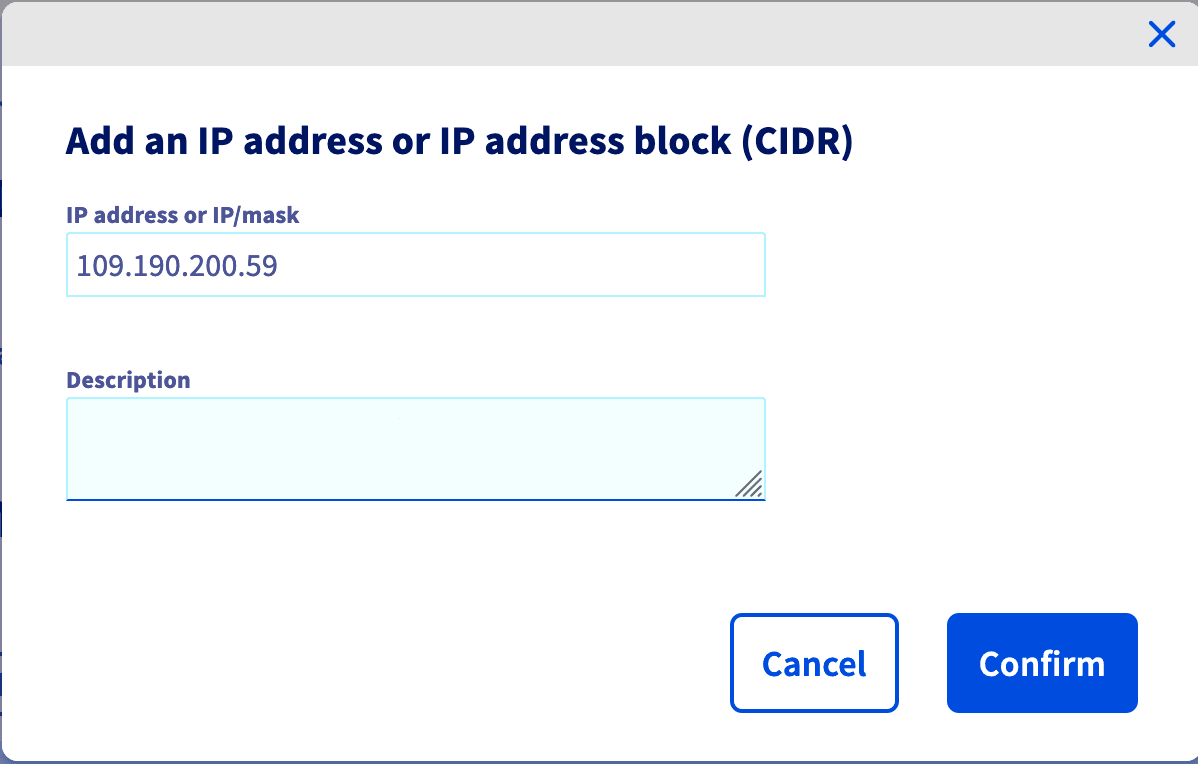
You can edit and retract database access via the `...
` button in the IP table.
:::info
If you want to allow connections from the outside, you can enter the IP 0.0.0.0/0. Please use it carefully.
:::
### Connect to your Dashboards Instance
In your Dashboards instance, collect the URI in the `Login informations`
section of the `General information
` tab.
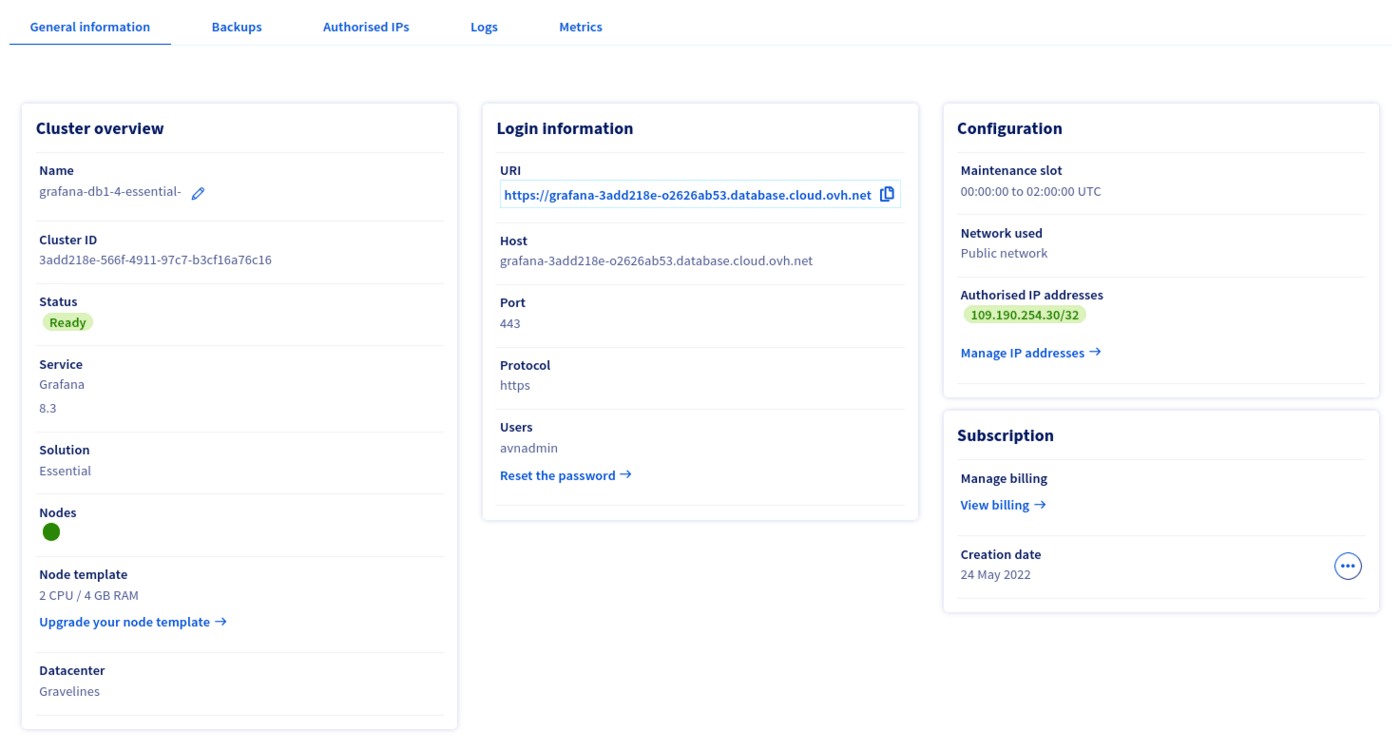
Then connect to your Dashboards instance:

Congratulations! You are now connected to your Dashboards instance.

Learn more about Grafana® in the following tutorial: [Grafana fundamentals](https://grafana.com/tutorials/grafana-fundamentals/?utm_source=grafana_gettingstarted)
## Go further
Visit our dedicated Discord channel: [https://discord.gg/ovhcloud](https://discord.gg/ovhcloud). Ask questions, provide feedback and interact directly with the team that builds our databases services.
If you need training or technical assistance to implement our solutions, contact your sales representative or click on [this link](https://www.ovhcloud.com/pt/professional-services/) to get a quote and ask our Professional Services experts for a custom analysis of your project.
Join our [community of users](https://community.ovhcloud.com/).