---
title: "Using OVHcloud Object Storage as Terraform Backend to store your Terraform state (EN)"
description: "Find out how to use an OVHcloud Object Storage as a Terraform Backend to store your Terraform state"
url: https://docs.ovhcloud.com/pl/guides/public-cloud/compute/use-object-storage-terraform-backend-state
lang: pl
lastUpdated: 2025-06-04
---
# Using OVHcloud Object Storage as Terraform Backend to store your Terraform state (EN)
## Objective
It is possible to store Terraform state on a remote data store/backend like an AWS S3 bucket, a Google Cloud Storage (GCS), etc. but are you aware that you can also store your Terraform states on an OVHcloud Object Storage container?
In this tutorial you will:
- create an OVHcloud Object Storage container
- create a Terraform remote backend
- initialize your Terraform backend
## Requirements
- A [Public Cloud Instance](https://www.ovhcloud.com/pl/public-cloud/) in your OVHcloud account
- [Terraform CLI](https://www.terraform.io/downloads) installed
***
### Dostęp do Panelu klienta OVHcloud
- **Link bezpośredni:** Public Cloud Projects
- **Ścieżka nawigacji:** Public Cloud > Wybierz projekt
***
## Before you begin
- You should have installed Terraform CLI, version 0.12.x minimum, on your machine. You can install it by following the [detailed installation instructions](https://www.terraform.io/docs/cli/index.html) or with the tool [tfenv](https://github.com/tfutils/tfenv).
## Terraform
[Terraform](https://www.terraform.io/) is an open-source infrastructure as code (IaC) tool created by [Hashicorp](https://www.hashicorp.com/) in 2014 and written in Go. Its purpose it to build, change and version control your infrastructure. You can define and provision your infrastructure by writing the definition of your resources in Hashicorp Configuration Language (HCL).

This tool has a powerful and very intuitive command line interface (CLI).
If you are interested in leveraging your knowledge about Terraform CLI, a [Cheat Sheet](https://github.com/scraly/terraform-cheat-sheet/blob/master/terraform-cheat-sheet.pdf) exists.
At OVHcloud we created a [Terraform provider](https://registry.terraform.io/providers/ovh/ovh/latest) that you can use to interact with and manage OVHcloud resources.
### Terraform states and backend
Terraform has several concepts, one of them is the `state`.
A Terraform state is a snapshot of your infrastructure from when you last ran the `terraform apply` command.
By default, the state file is stored locally in a `terraform.tfstate` file.
But the common usage in production environment is to store it remotely.
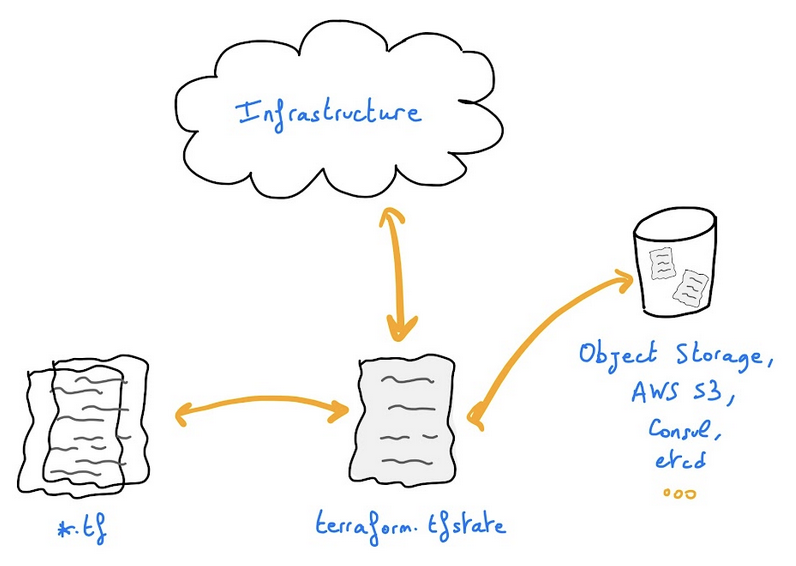
For example, you can store your Terraform state on an OVHcloud High Performance (S3) Object Storage container.
In order to do that you need to configure a `backend` in your Terraform HCL configuration files.
:::info
Terraform States are not encrypted at rest when stored inside an Object Storage container.
:::
## Instructions
### Creating an Object Storage container/bucket
First, you need to have an Object Storage container. If you don't already have one, you can follow the [Getting started with Object Storage](/pl/guides/storage-and-backup/object-storage/s3-getting-started-with-object-storage.md) tutorial.
For this guide, our Object Storage container is named `terraform-state-hp`, its storage class is `High Performance` and its region is `GRA`.
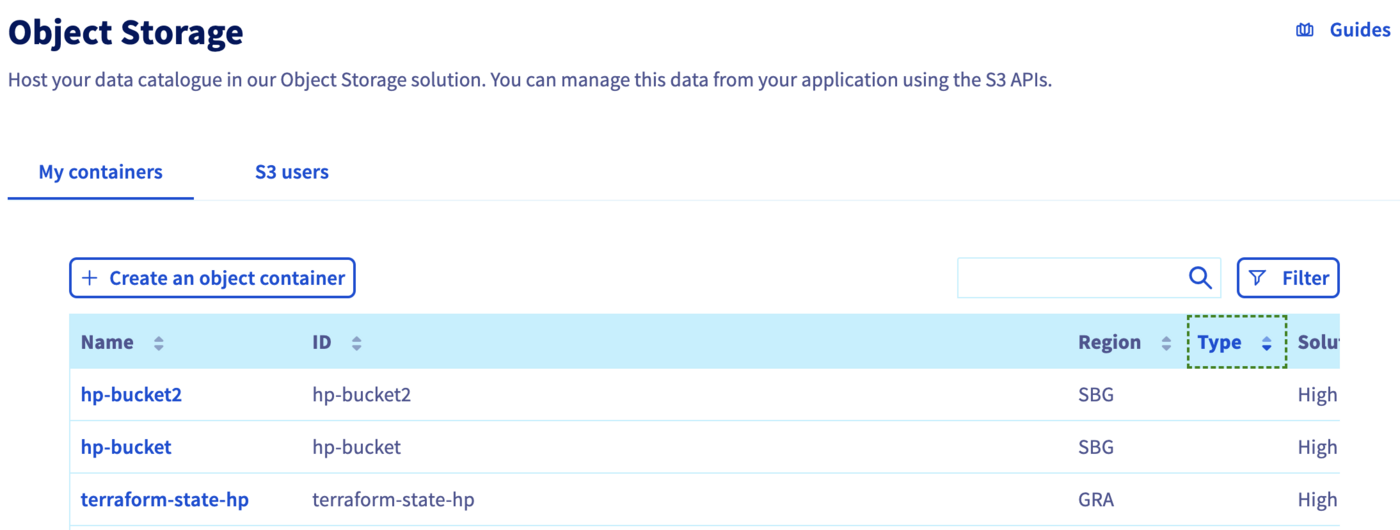
In order to store your Terraform states on an Object Storage, and generally if you want to interact with the Object Storage, you need to have the rights to manage an Object Storage.
So, at this stage of this tutorial, you should have a High Performance Object Storage container and a user. You should also be able to interact with the `aws` CLI and list the OVHcloud High Performance Object Storage containers that the user is linked to:
```
$ aws s3 ls
2022-07-11 16:20:48 my-container
2022-07-11 16:55:20 terraform-state-hp
```
### Initializing Terraform configuration
Create a `backend.tf` file with the following content:
Before Terraform version 1.6.0:
```hcl
terraform {
backend "s3" {
bucket = "terraform-state-hp"
key = "terraform.tfstate"
region = "gra"
# sbg or any activated high performance storage region
endpoint = "s3.gra.perf.cloud.ovh.net"
skip_credentials_validation = true
skip_region_validation = true
skip_s3_checksum = true
# The following fields should be added if your Object Storage user credentials are not
# already configured in files ~/.aws/credentials, ~/.aws/config or in
# environment variables.
access_key = "s3 user access key"
secret_key = "s3 user secret key"
}
}
```
After Terraform version 1.6.0:
```hcl
terraform {
backend "s3" {
bucket = "terraform-state-hp"
key = "terraform.tfstate"
region = "gra"
# sbg or any activated high performance storage region
endpoints = {
s3 = "https://s3.gra.perf.cloud.ovh.net/"
}
skip_credentials_validation = true
skip_region_validation = true
skip_requesting_account_id = true
skip_s3_checksum = true
# The following fields should be added if your Object Storage user credentials are not
# already configured in files ~/.aws/credentials, ~/.aws/config or in
# environment variables.
access_key = "s3 user access key"
secret_key = "s3 user secret key"
}
}
```
In this file you define an [Object Storage Terraform backend](https://www.terraform.io/language/settings/backends/s3) in the `gra` region. Do not hesitate to change this parameter if you created an Object Storage container in another region.
### Terraform Init
Now you can initialize your Terraform configuration with the `terraform init` command.
The [terraform init](https://www.terraform.io/cli/commands/init) command is used to initialize a working directory containing Terraform configuration files. This is the first command to run after writing a new Terraform configuration or cloning an existing one from version control. It is safe to run this command multiple times.
This command initializes the backend (remote or local state).
After executing this command, you should obtain a result like this:
```console
$ terraform init
Initializing the backend...
Successfully configured the backend "s3"! Terraform will automatically
use this backend unless the backend configuration changes.
Terraform has been successfully initialized!
You may now begin working with Terraform. Try running "terraform plan" to see
any changes that are required for your infrastructure. All Terraform commands
should now work.
If you ever set or change modules or backend configuration for Terraform,
rerun this command to reinitialize your working directory. If you forget, other
commands will detect it and remind you to do so if necessary.
```
Now you can define your Terraform configuration files and providers and after running the `terraform apply` command, your Terraform state file will be stored in an OVHcloud Object Storage container.
## Go further
Join our [community of users](https://community.ovhcloud.com/).