---
title: "Wymiana bramy OVHgateway (EN)"
description: "Find out how to replace the OVHgateway with another manageable virtual machine"
url: https://docs.ovhcloud.com/pl/guides/hosted-private-cloud/nutanix-on-ovhcloud/software-gateway-replacement
lang: pl
lastUpdated: 2022-12-05
---
# Wymiana bramy OVHgateway (EN)
## Objective
This guide will explain how to replace the outgoing internet gateway (OVHgateway) with another network operating system that will give you, in addition to internet access, the ability to configure NAT and VPN (Ipsec or SSL VPN).
:::warning
OVHcloud provides services for which you are responsible, with regard to their configuration and management. It is therefore your responsibility to ensure that they function correctly.
This guide is designed to assist you in common tasks as much as possible. Nevertheless, we recommend contacting a [specialist service provider](https://partner.ovhcloud.com/pl/directory/) or reaching out to [our community](https://community.ovh.com/en/) if you experience any issues.
:::
***
### OVHcloud Control Panel Access
- **Direct link:** [Nutanix](https://manager.eu.ovhcloud.com/#/dedicated/nutanix)
- **Navigation path:** Hosted Private Cloud > Nutanix > Select your cluster
***
## Requirements
- One Nutanix cluster provided by OVHcloud
- Access to the OVHcloud Control Panel
- Access to your clusters via Prism Central
## Instructions
The OVHgateway uses two network cards by default:
- One on VLAN 0 (base) connected to the internet with an additional OVHcloud IP address.
- One on VLAN 1 (infra) connected to the local administration network with a range of IP addresses, in this example in 192.168.10.0/24.
In our guide, we will replace this gateway with the network operating system **pfSense Community edition** without software support.
:::info
It is entirely possible to use this guide to install other network operating systems compatible with AHV.
:::
[](#)
### Downloading sources for pfSense installation
Download an ISO image for the **pfSense** installation from this link: [Downloading pfSense](https://www.pfsense.org/download/).
Using [this documentation](/pl/guides/hosted-private-cloud/nutanix-on-ovhcloud/image-import.md), add the **pfSense ISO** image to your Nutanix cluster.
[](#)
### Creating the GW-PFSENSE virtual machine
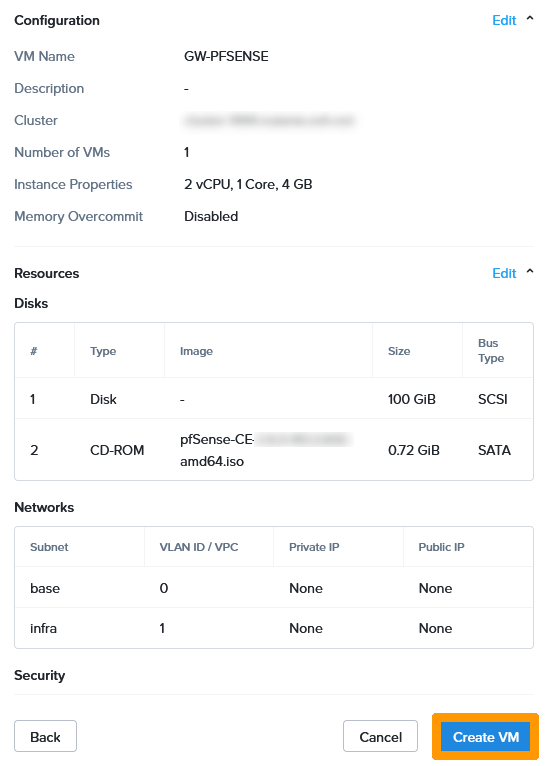
Create a virtual machine with these settings:
- **Name**: `GW-PFSENSE`
- **Storage1**: `100 GB HDD`
- **Storage2**: `DVD drive connected to the pfSense ISO file`
- **RAM**: `4 GB`
- **CPU**: `2 vCPU`
- **Network**: `2 network cards, one on VLAN 0 (base) and the other on VLAN 1 (infra)`
You can use [our guide on virtual machine management](/pl/guides/hosted-private-cloud/nutanix-on-ovhcloud/virtual-machine-management.md) to create this virtual machine.
[](#)
### Shutting down the OVH-GATEWAY virtual machine
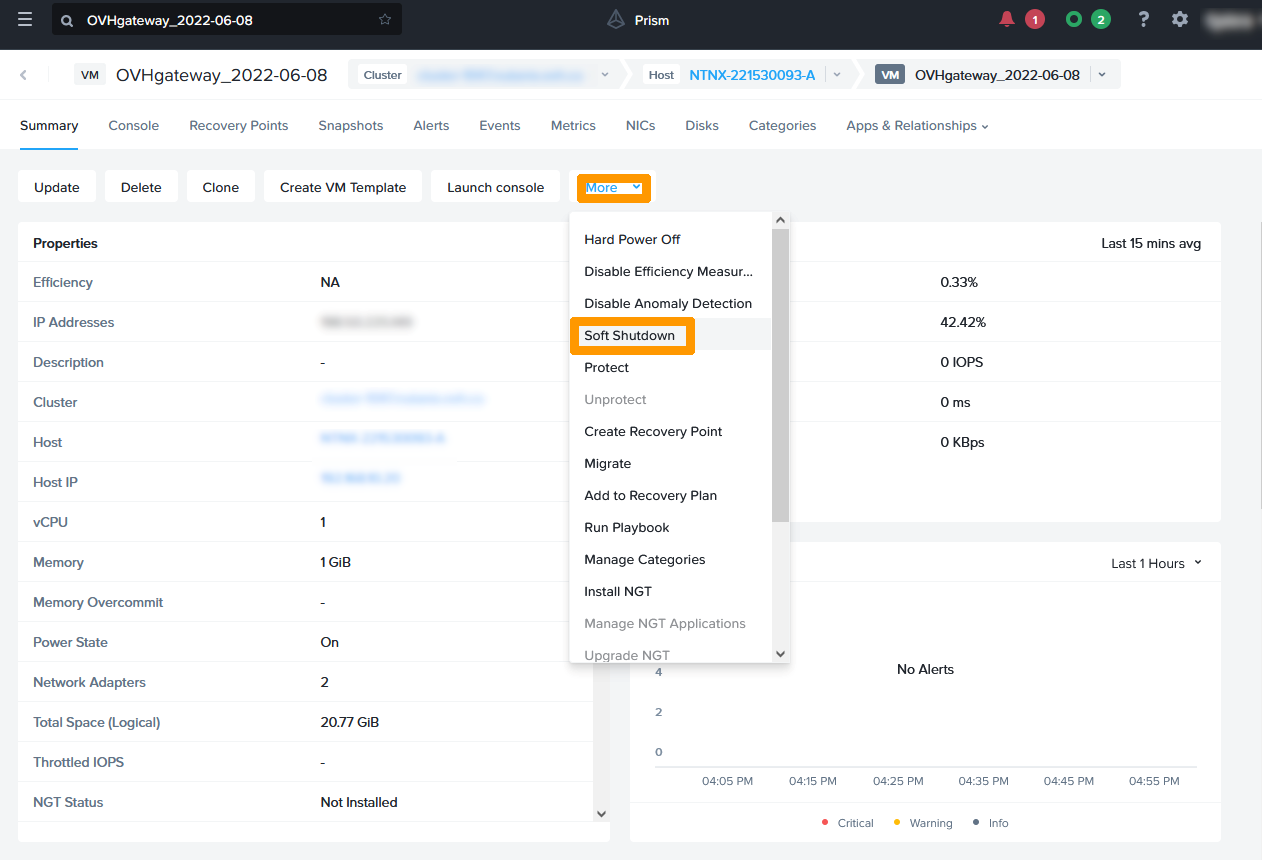
To avoid duplicate IP addresses on the network, stop the **OVHgateway** virtual machine before starting the new virtual machine on **pfSense**.
Via **Prism Central**
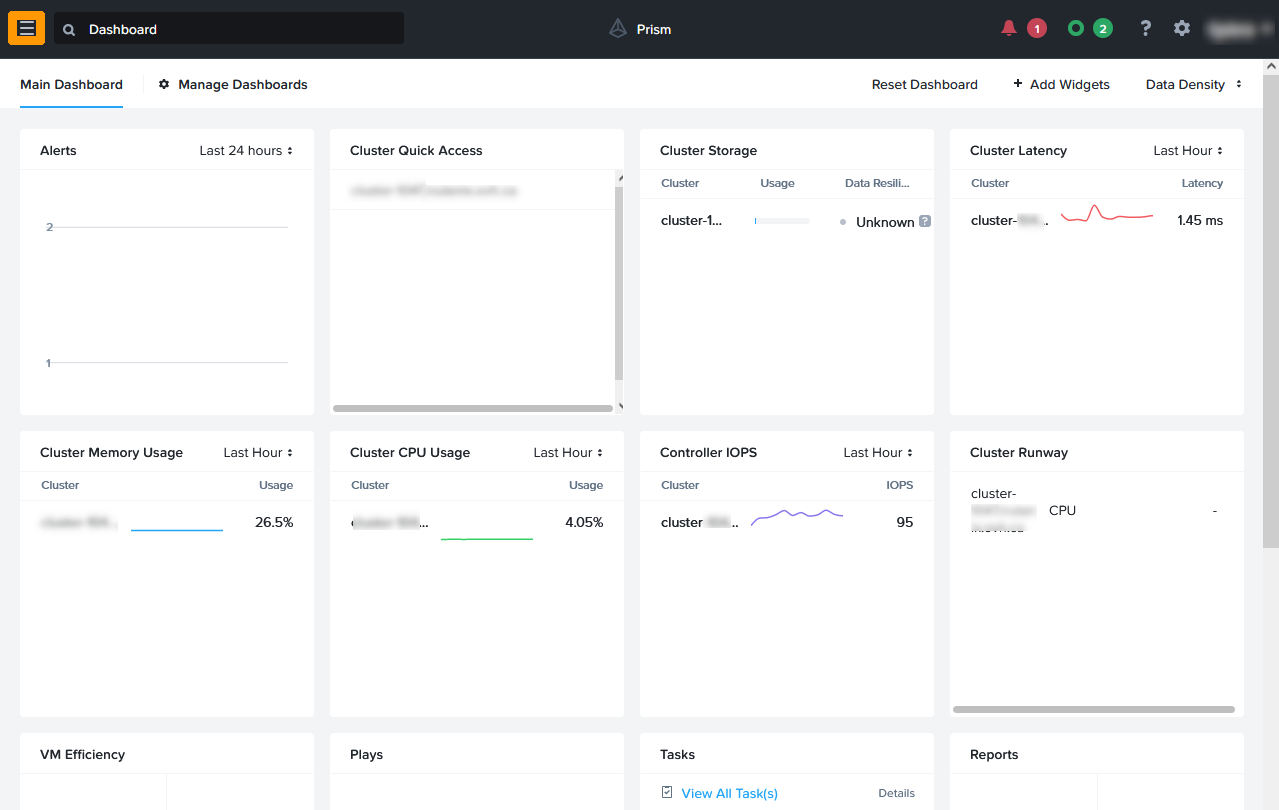
, click in the top left on the `main menu
`.
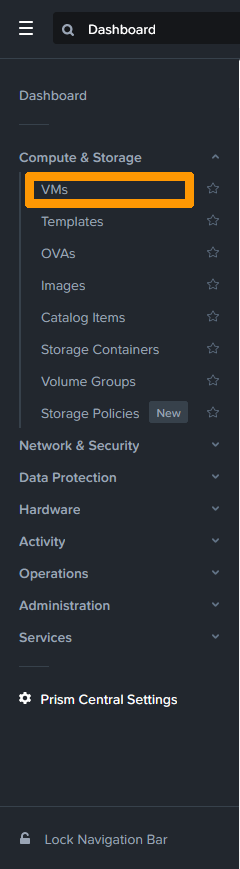
Click `VMs
`.
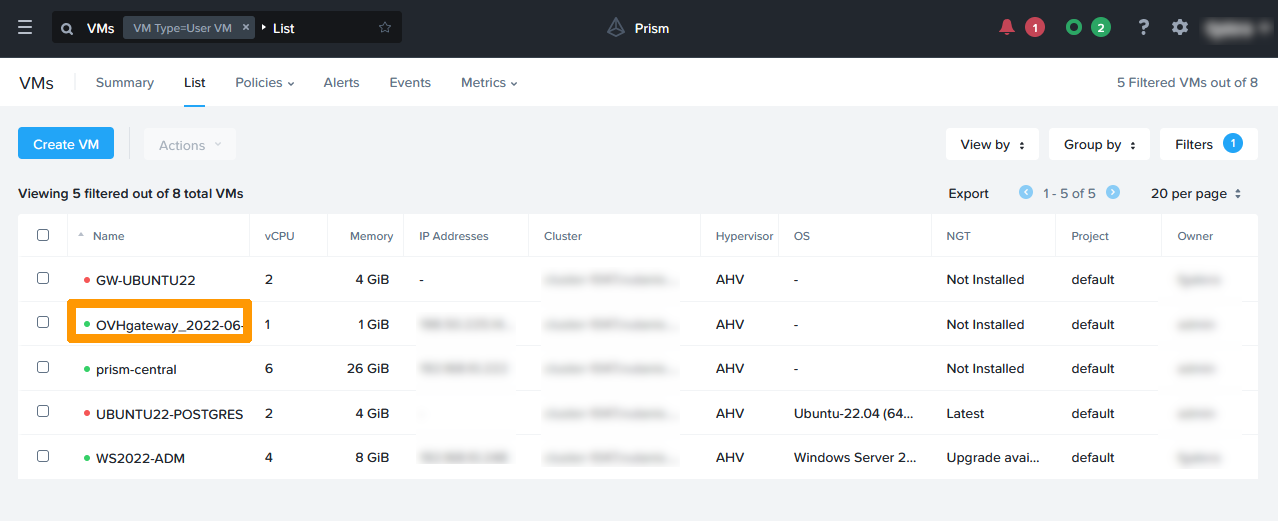
Click on the `OVHgateway
` virtual machine.
From the `More
` menu at the top, click `Soft Shutdown
`.
[](#)
### Retrieving the public address in the OVHcloud Control Panel
Retrieve information about the OVHcloud gateway network settings.
Log in to the OVHcloud Control Panel
, select your Nutanix cluster, and find the information in the `IPFO`
field.
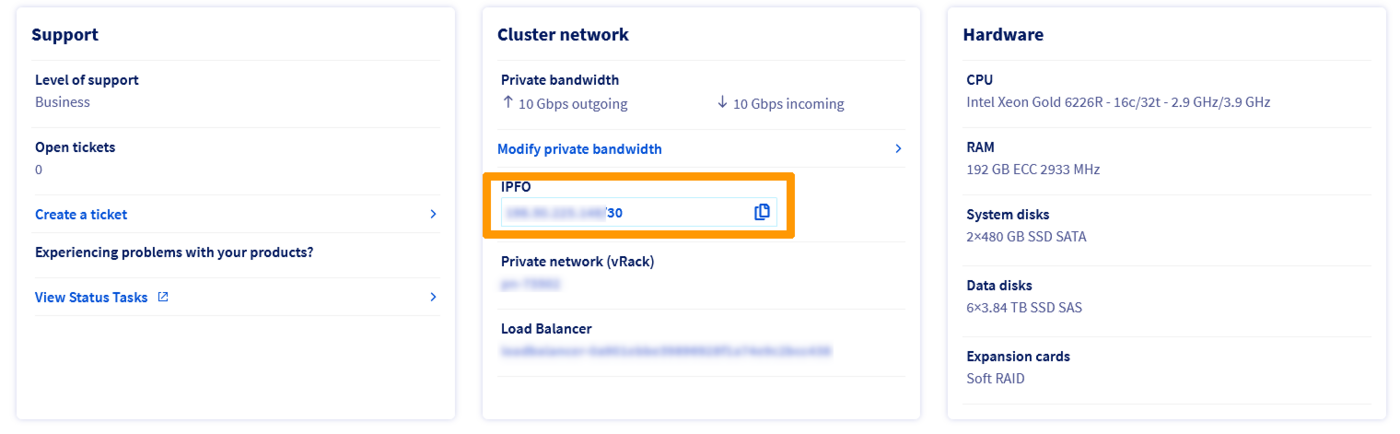
**IPFO** is a range of 4 addresses. The first and last are reserved, the third is on OVHcloud hardware and serves as an **Internet** gateway. The only usable IP address is the second address in the range.
During installation, we will reuse this information to assign it to the new **GW-PFSENSE virtual machine**.
```console
XX.XX.XX.N Reserved network address that appears on the OVHcloud client site
XX.XX.XX.N+1 IP address to be assigned to the GW-PFSENSE virtual machine WAN interface
XX.XX.XX.N+2 Address to be used as a gateway on the GW-PFSENSE VM WAN interface
XX.XX.XX.N+3 Reserved broadcast IP address
```
For example, if the **IPFO** address displayed on the client site is 198.51.100.0/30, use:
- **198.51.100.1** for the **WAN** interface address.
- **198.51.100.2** for the gateway on the **WAN** interface.
[](#)
### Start the GW-PFSENSE virtual machine
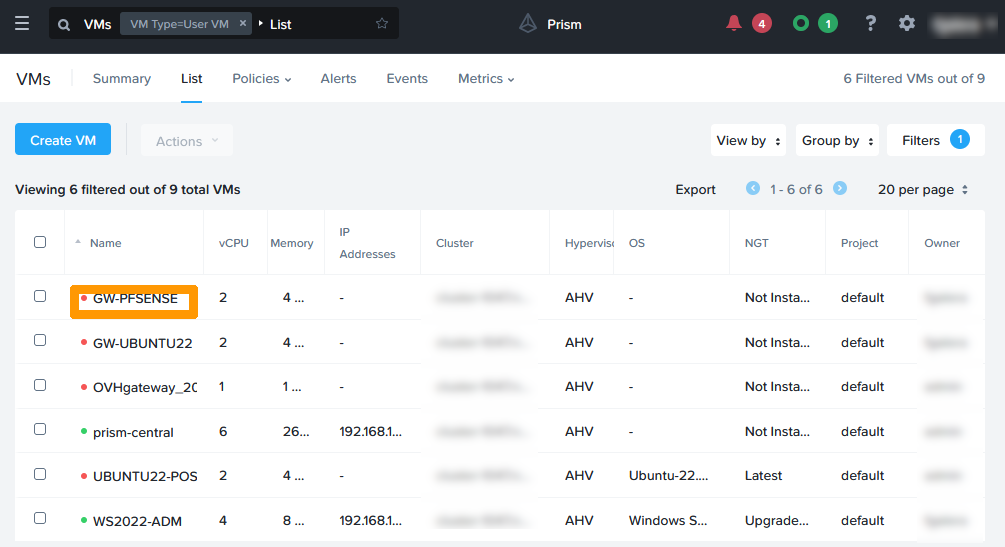
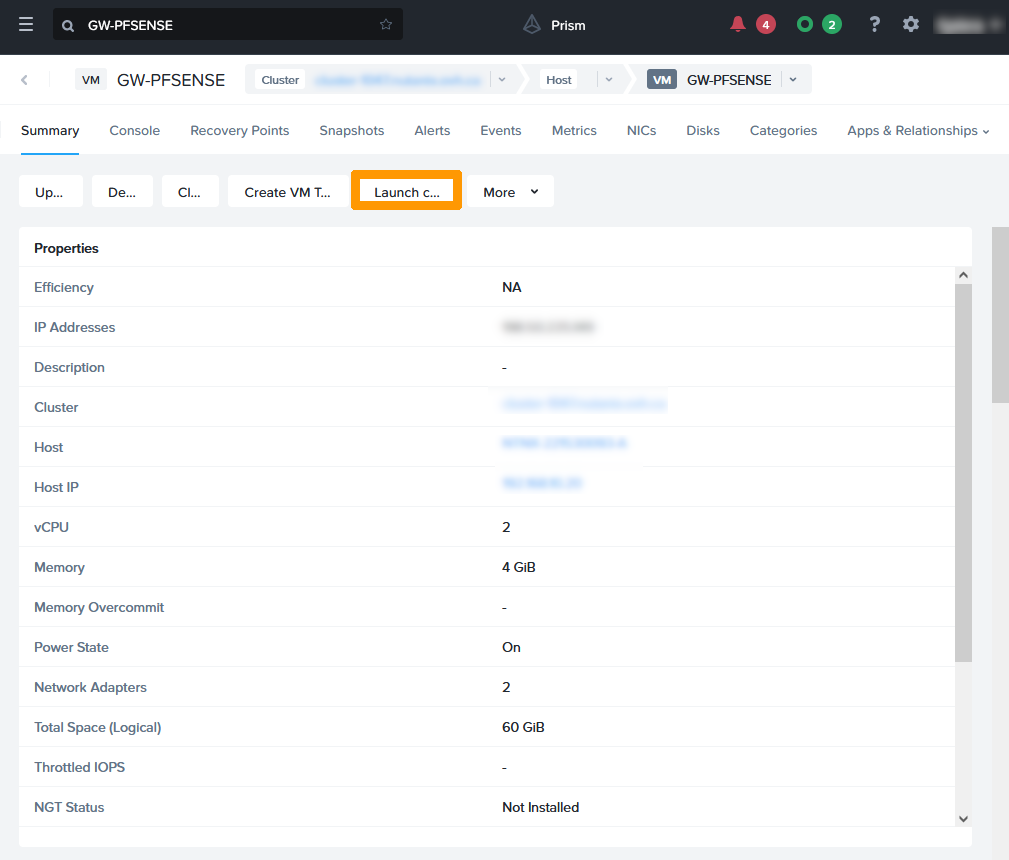
Go back to virtual machine management in **Prism Central**
and click on `GW-PFSENSE
`.
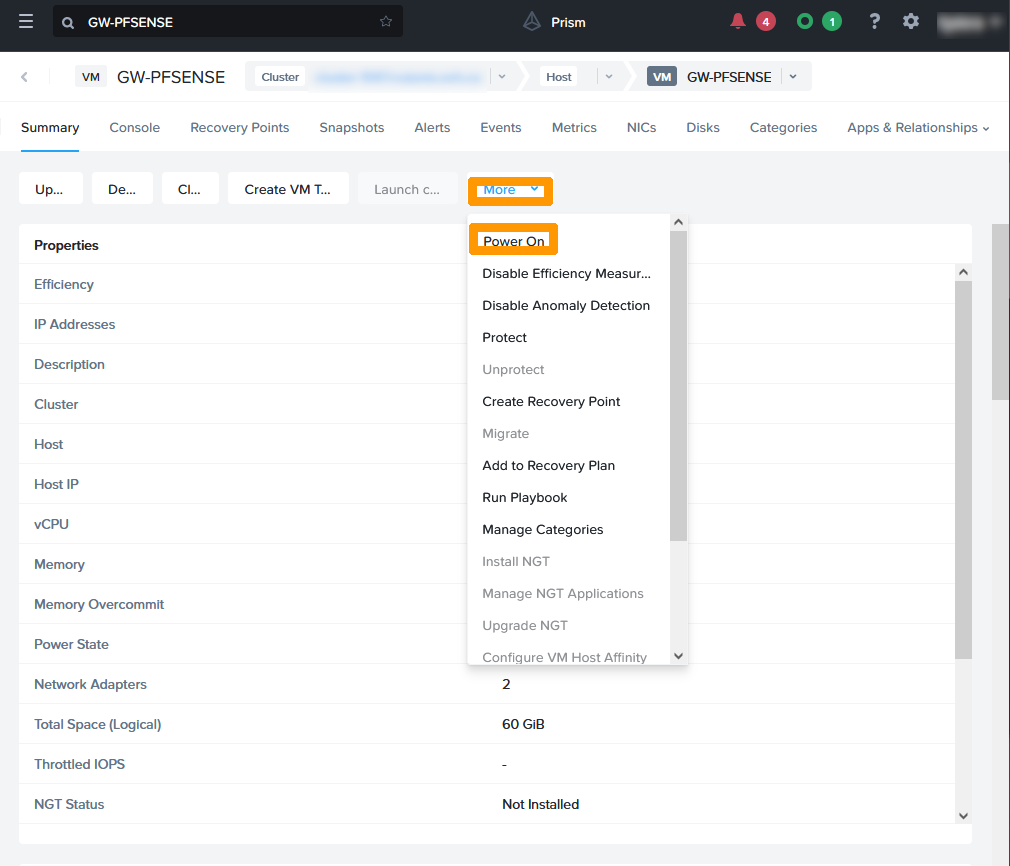
Select `Power On
` from the `More
` menu.
Click `Launch console
`.
[](#)
### Installing pfSense
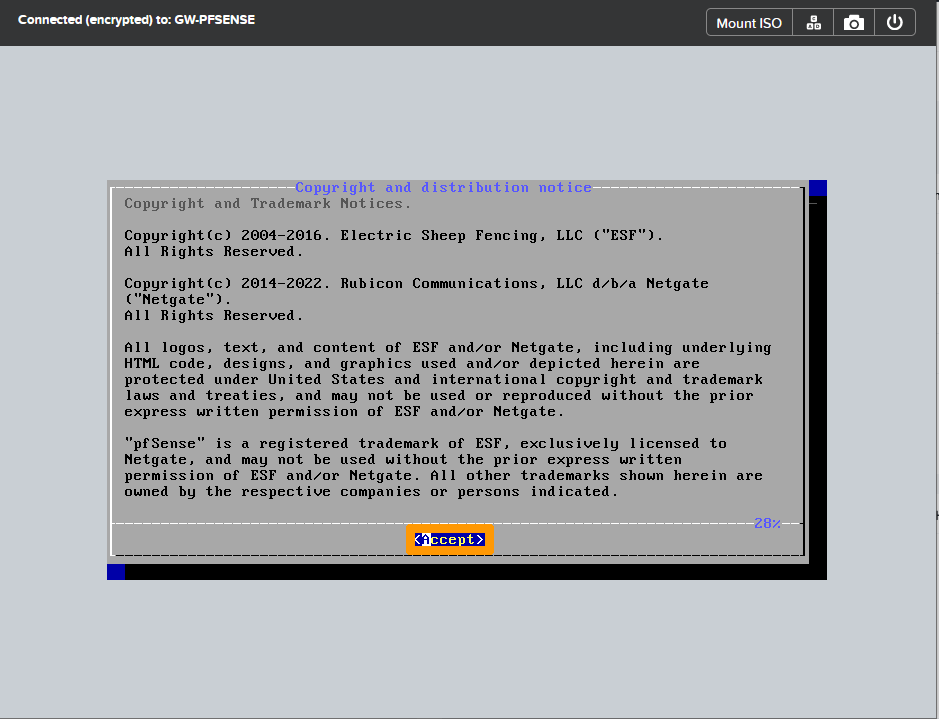
Review the pfSense licence information and press the `Enter
` key to accept it.
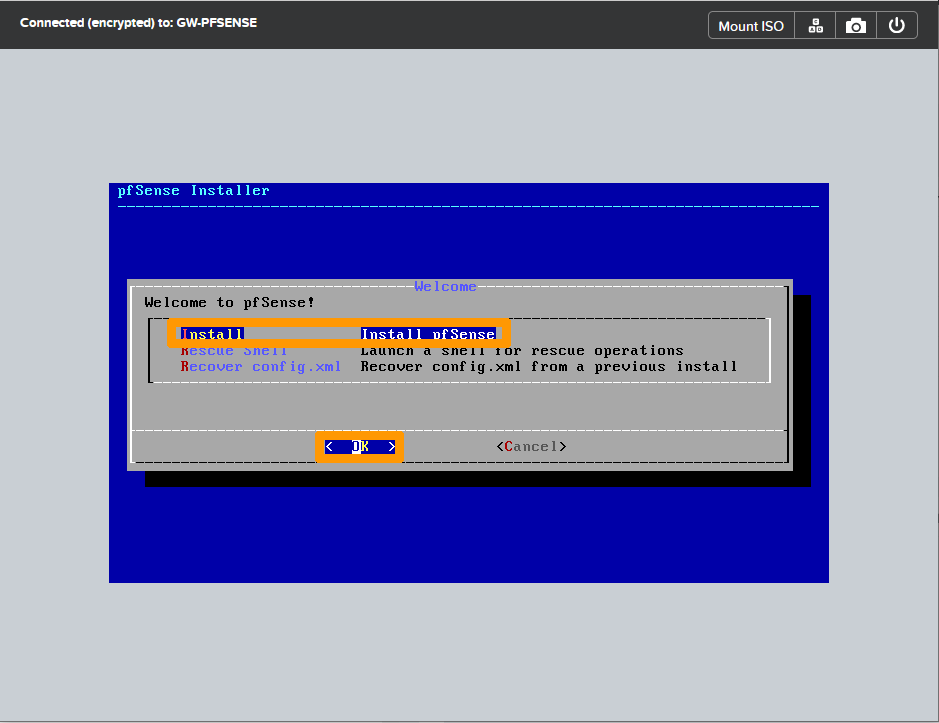
Choose `Install`
, switch to `OK`
with the `Tab
` key and press `Enter
`.
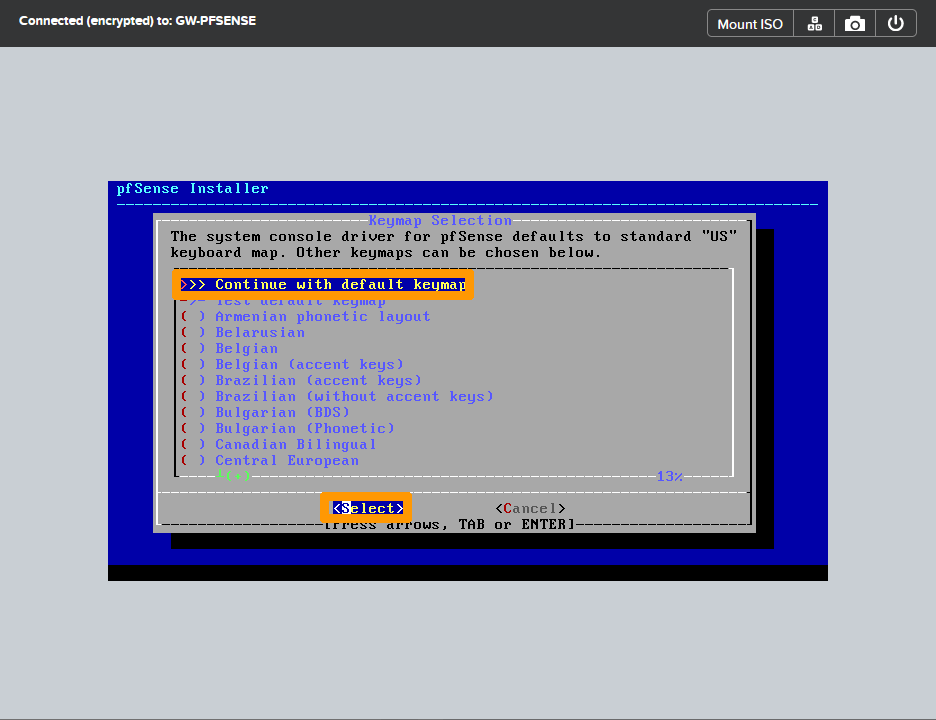
Select `Continue with default keymap`
, go to `Select`
with the `Tab
` key and press the `Enter
` key.
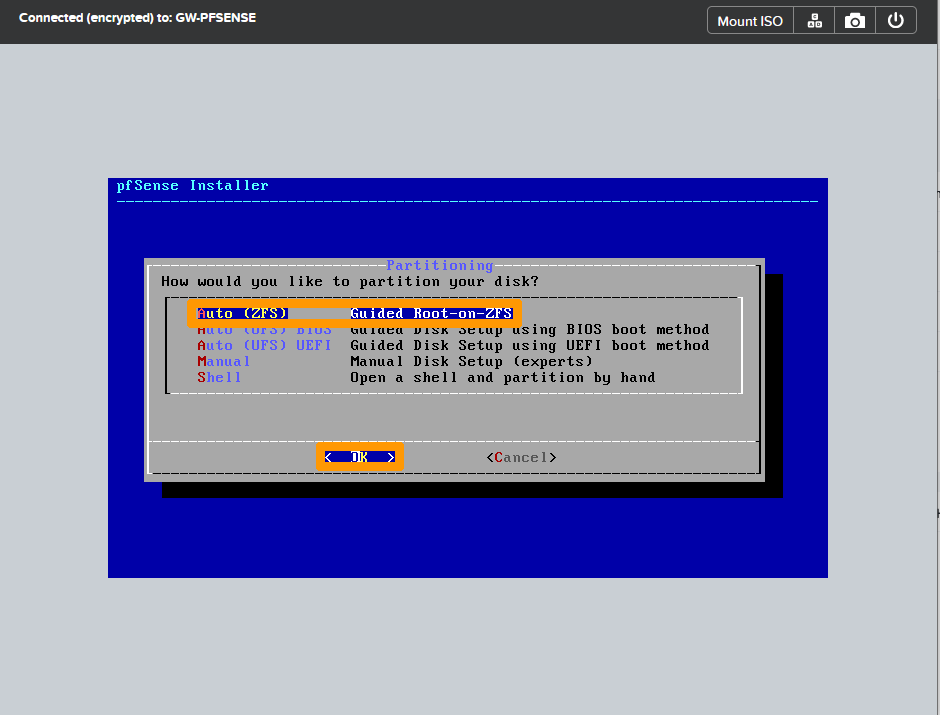
Select `Auto (ZFS)`
, switch to `OK`
with the `Tab
` key, and then press the `Enter
` key.
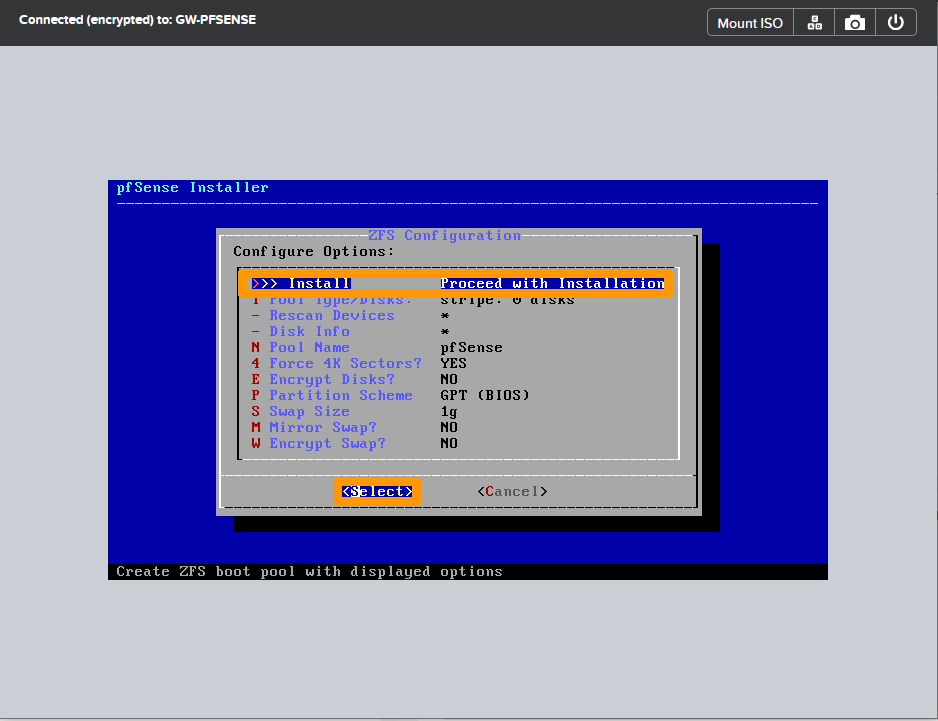
Go to `Select`
with the `Tab
` key and press `Enter
`.
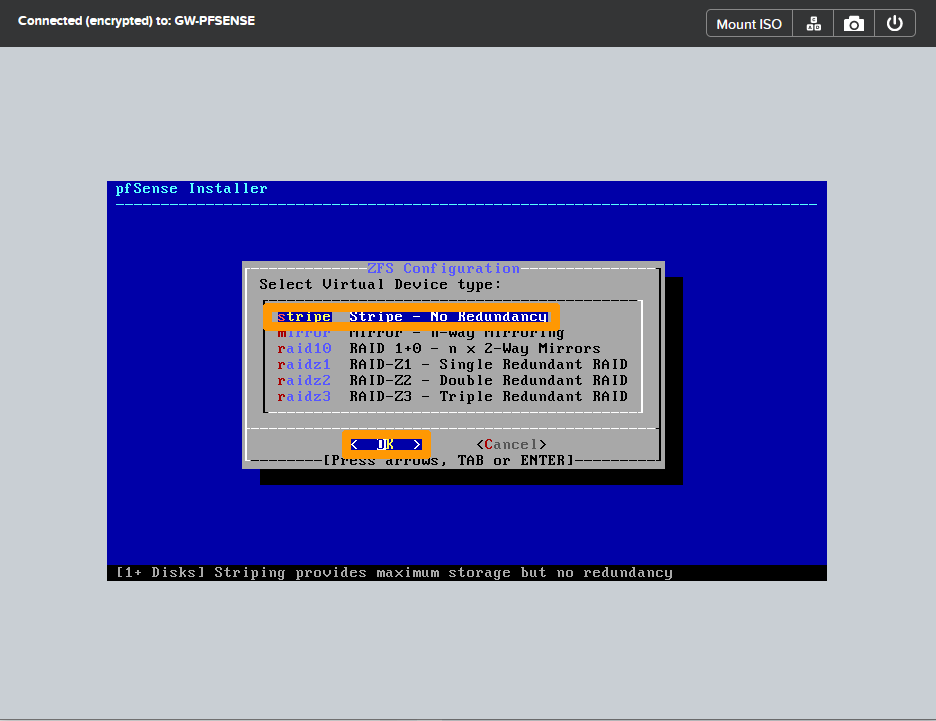
Select `Stripe`
, switch to `OK`
with the `Tab
` key, and then press `Enter
`.
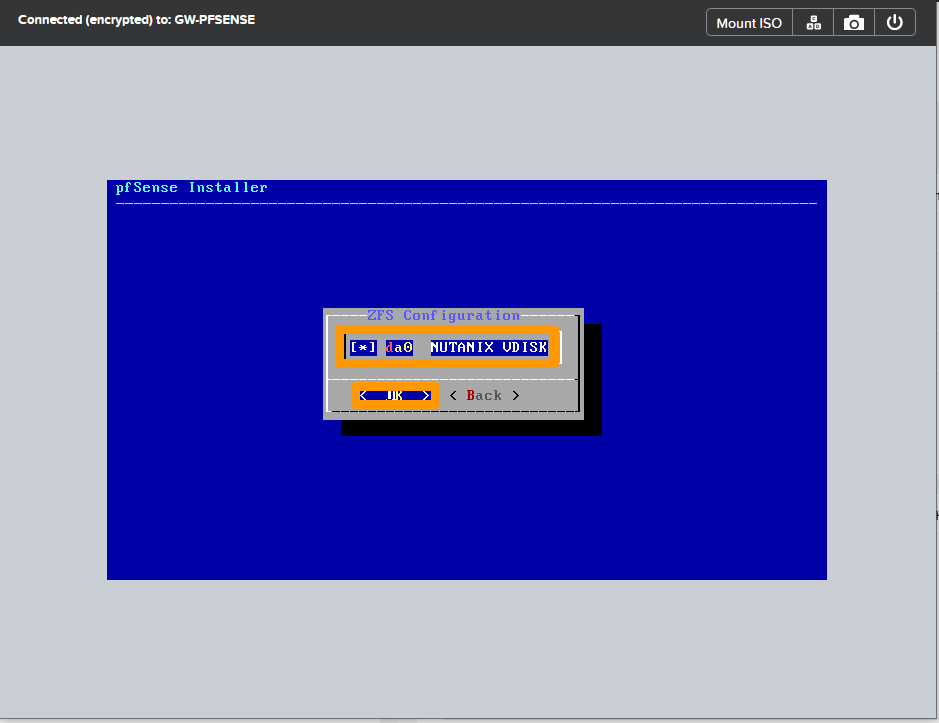
Select `NUTANIX VDISK`
with the `Space
` bar. Then go to `OK`
with the `Tab
` key and press `Enter
`.
Go to `YES`
with the `Tab
` key and press the `Enter
` key.
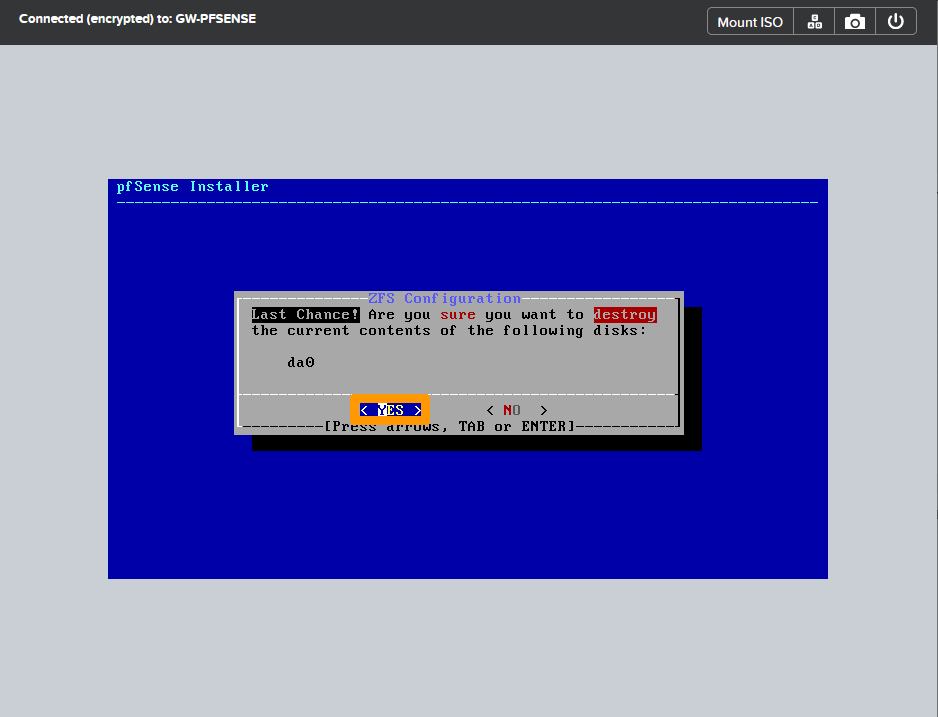
Choose `NO`
with the `Tab
` key and press the `Enter
` key.
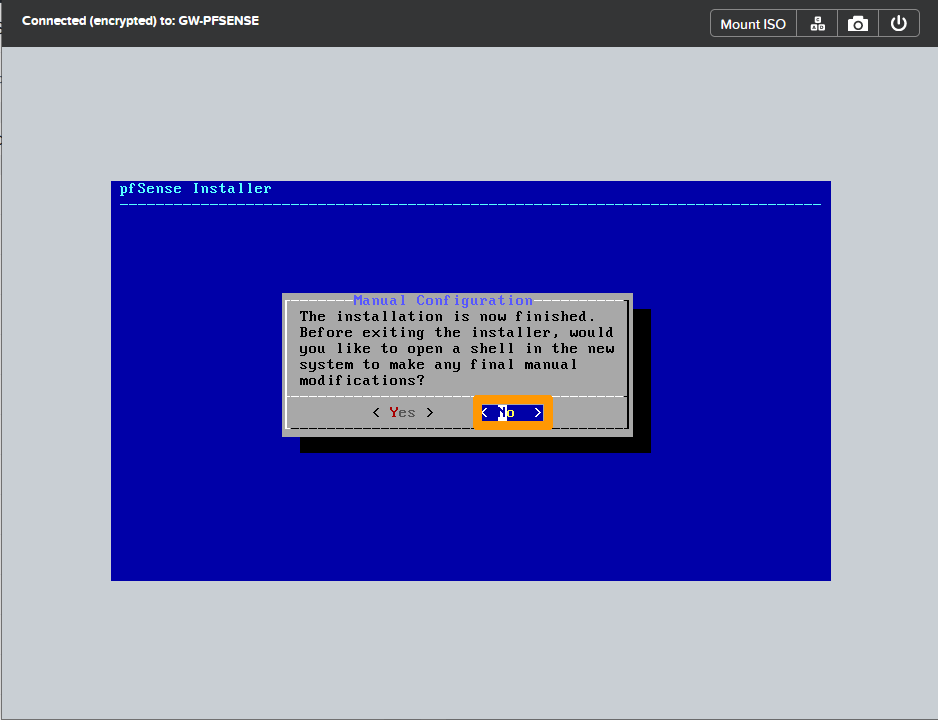
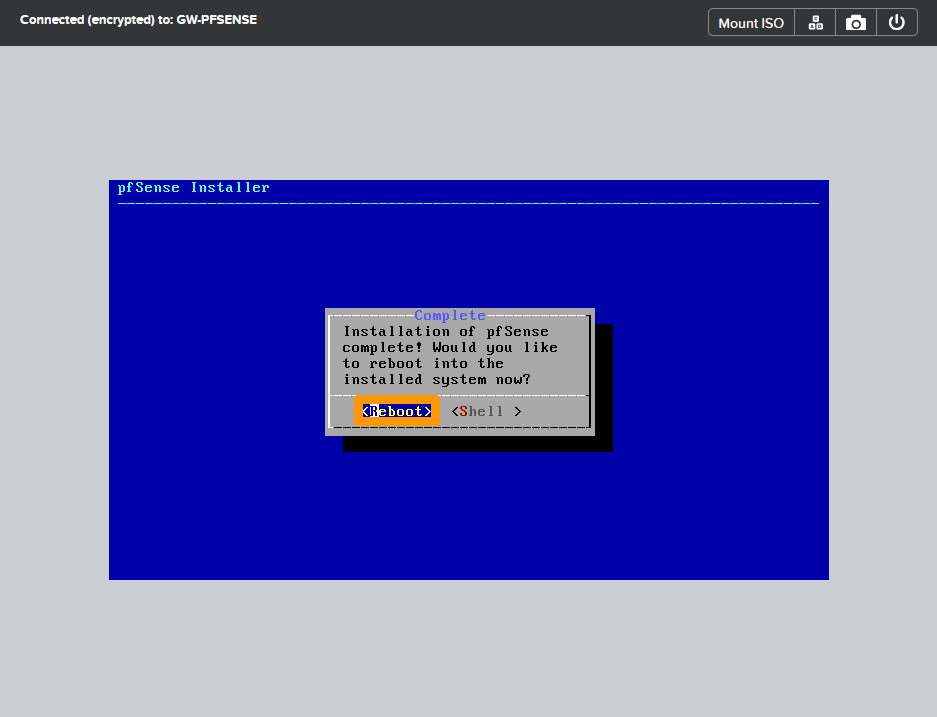
Select `Reboot`
and press the `Enter
` key.
[](#)
### Eject the pfSense CDROM from the GW-PFSENSE virtual machine
From **Prism Central**, go back to **GW-PFSENSE** virtual machine management and perform the following steps to eject the CDROM.
Click on `Soft Shutdown
` in the `More
` menu on the **GW-PFSENSE**
virtual machine to stop this virtual machine.
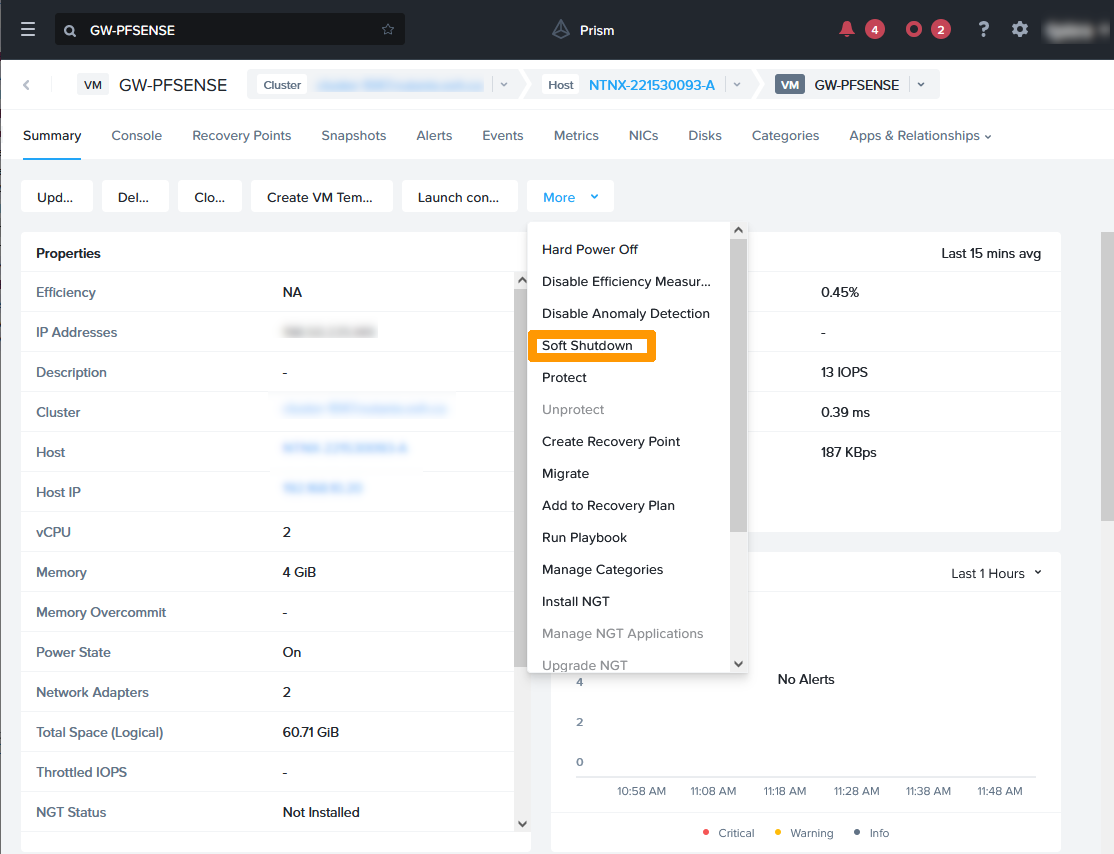
Click `Update
`.
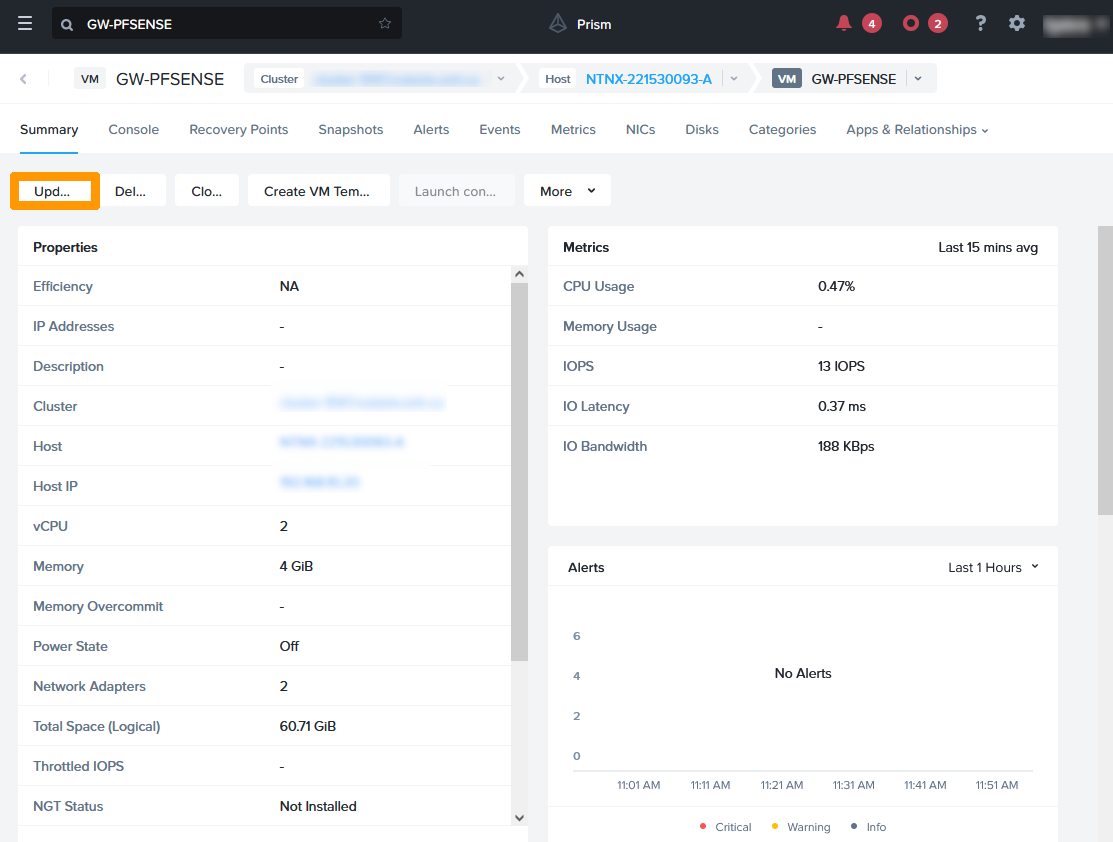
Click `Next
`.
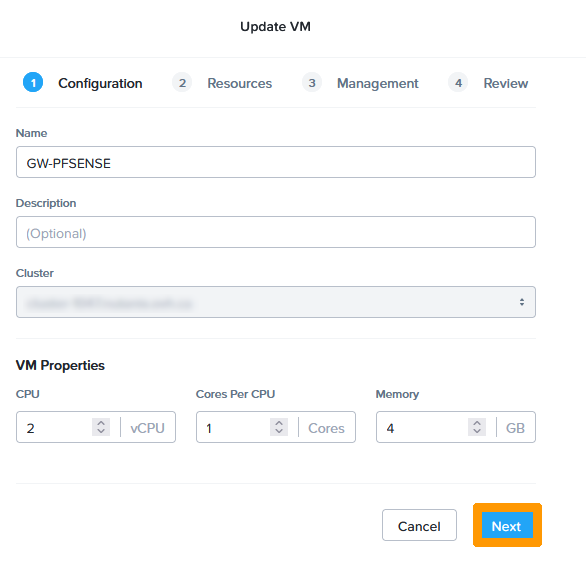
Click the `Eject
` icon next to the CDROM.
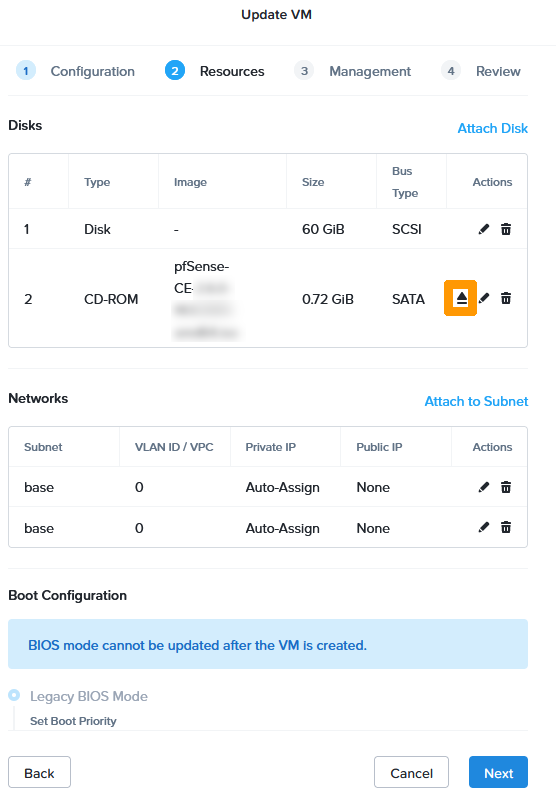
Click `Next
`.
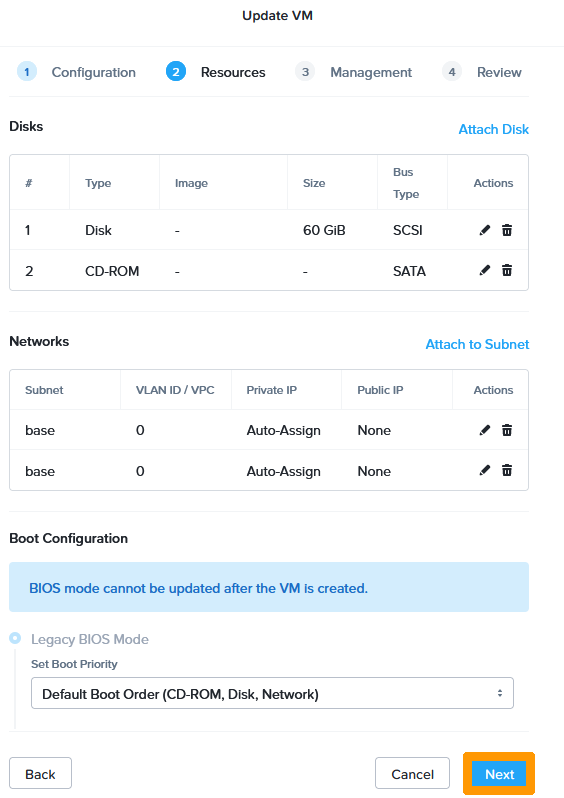
Click `Next
`.
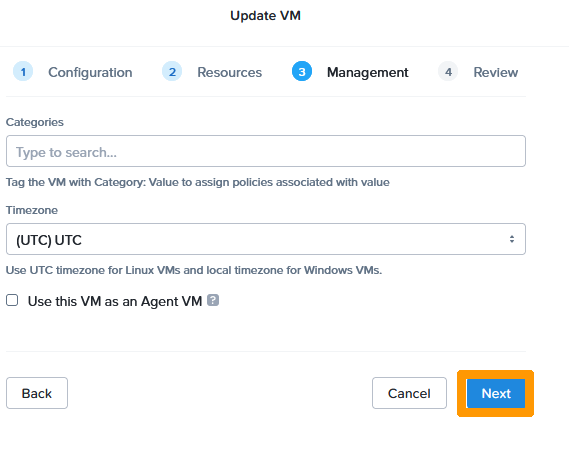
Click `Save
`.
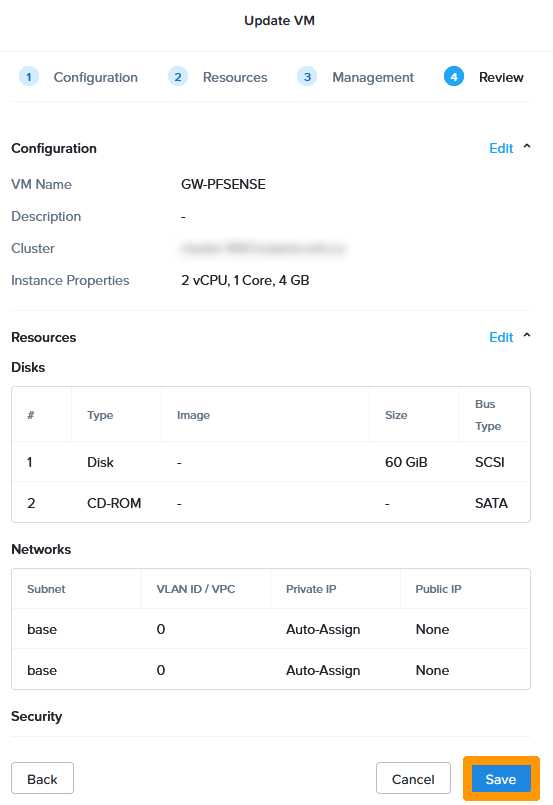
Click `Power On
` in the `More
` menu.
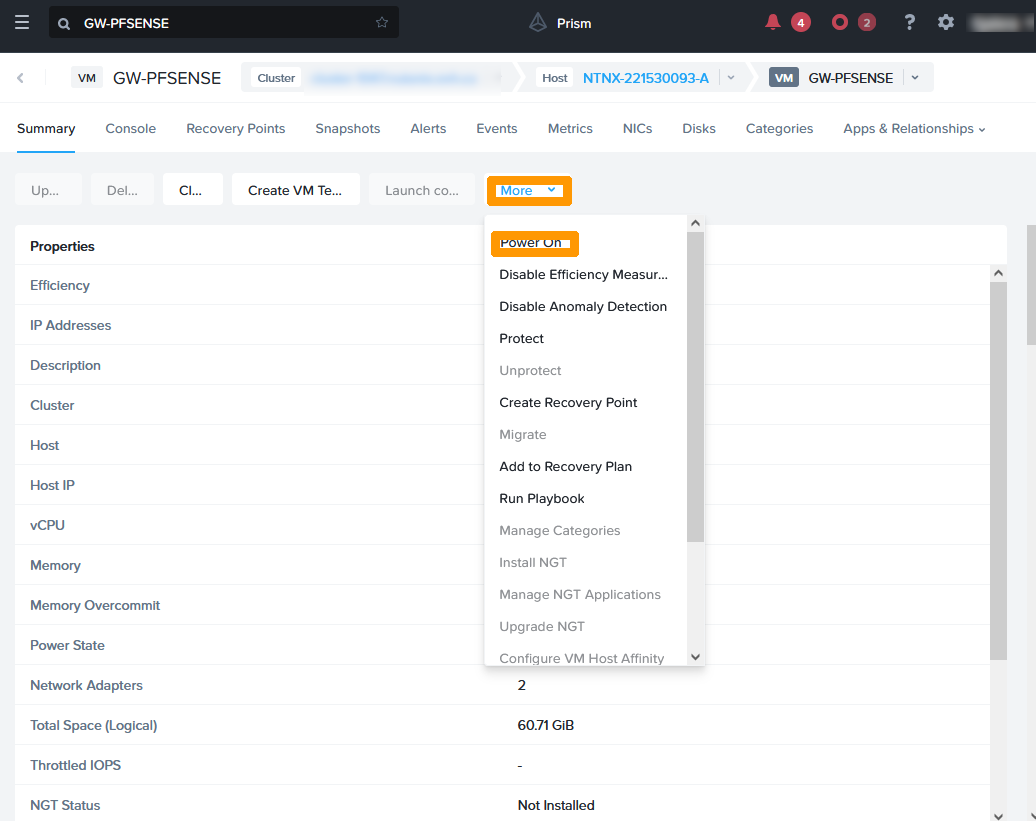
Click `Launch Console
` to continue the installation after startup.
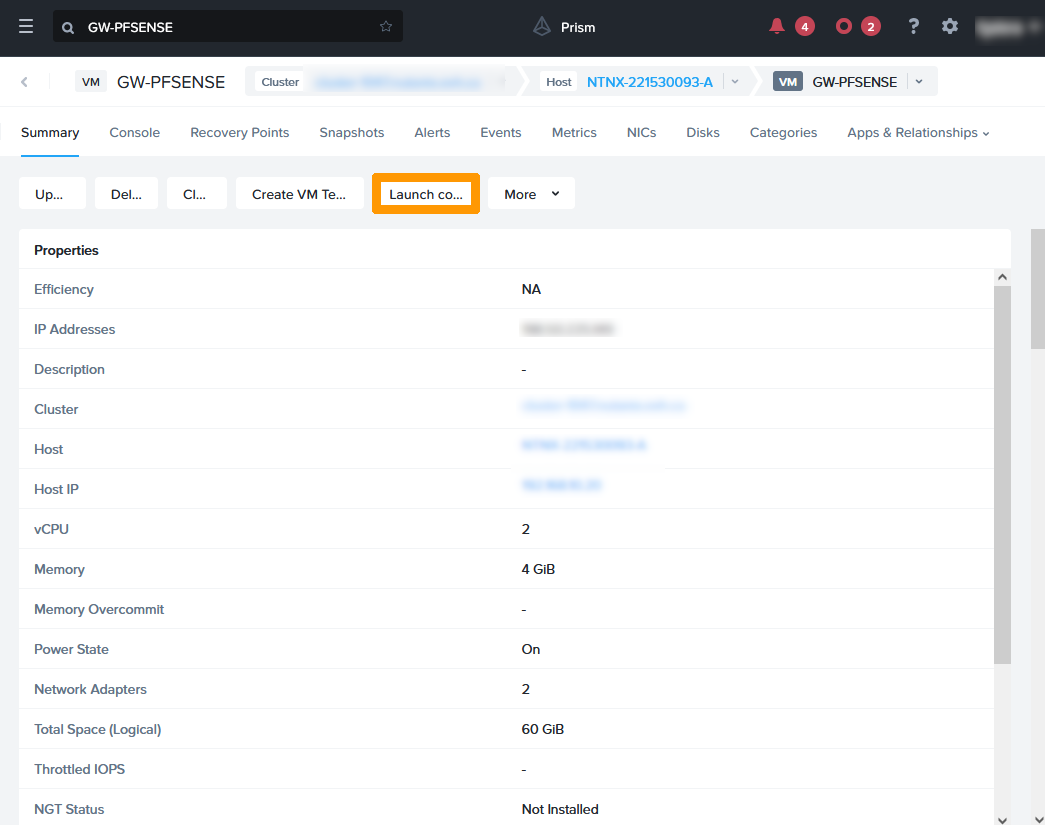
[](#)
### Configure pfSense IP addresses through the console
We will configure the **pfSense** gateway IP addresses as follows:
- WAN interface: Use this part of the [Retrieving a public address in the OVHcloud Control Panel](#getpublicaddress) guide to assign the IP address and gateway on this interface.
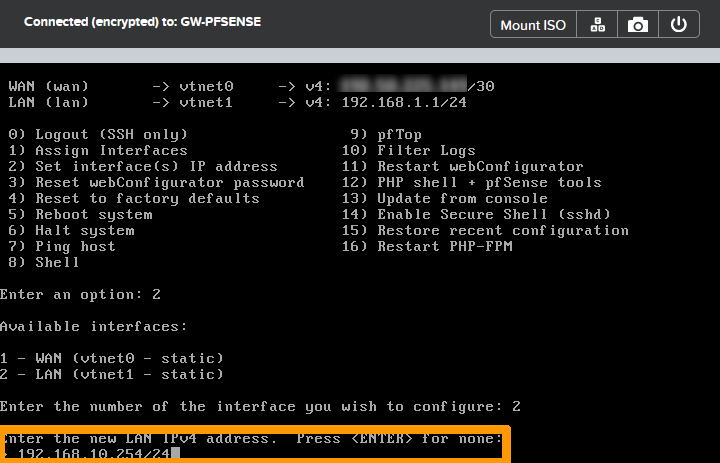
- LAN Interface: 192.168.10.254/24 which is the gateway address of the Nutanix cluster private network followed by the subnet mask.
Accept the licence by pressing the `Enter
` key.
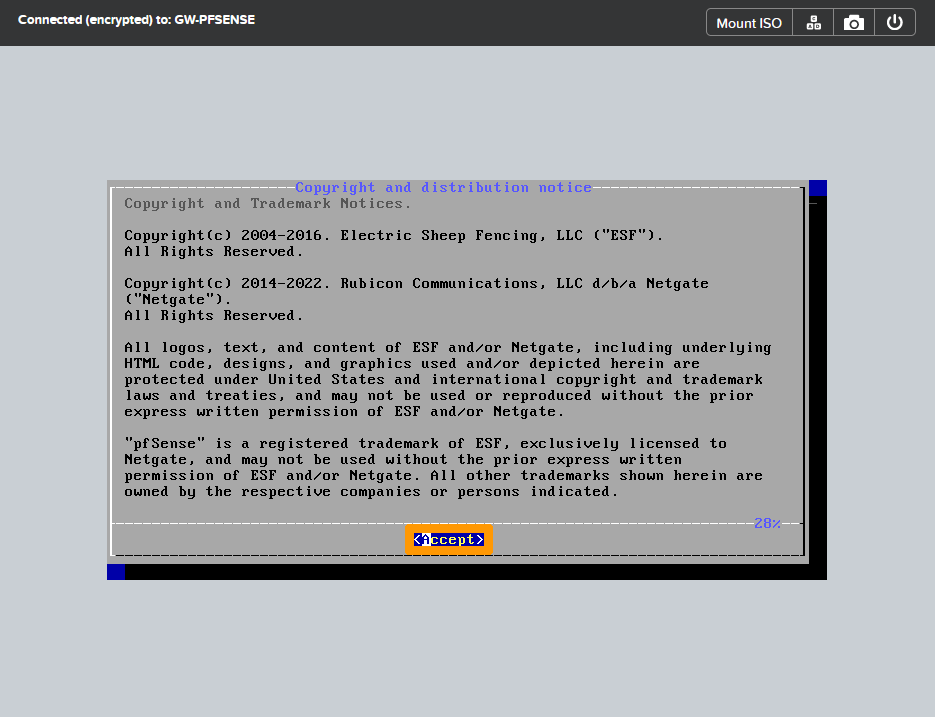
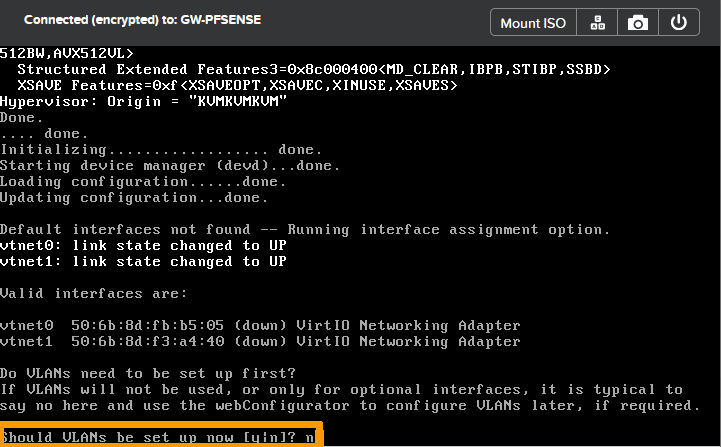
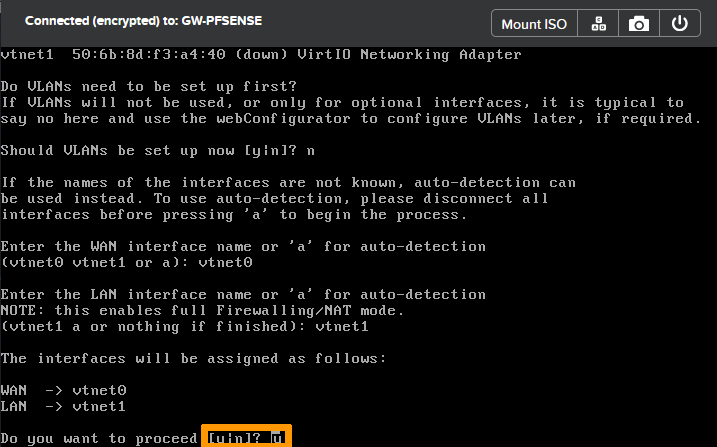
Type `n`
and press the `Enter
` key when asked if you need **VLANs**
.
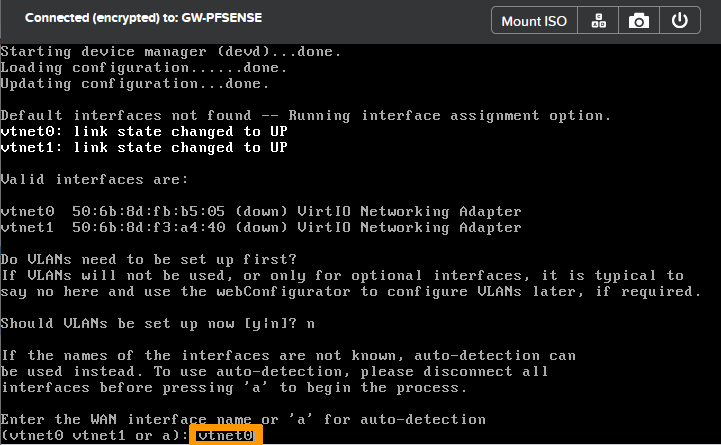
Type `vtnet0`
as the interface name for the **WAN**
and press `Enter
`.
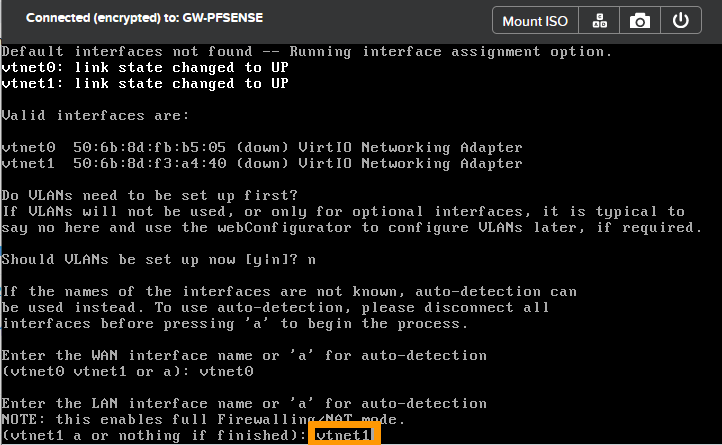
Type `vtnet1`
as the interface name for the **LAN**
and press `Enter
`.
Confirm the changes by entering `y`
, then press the `Enter
` key.
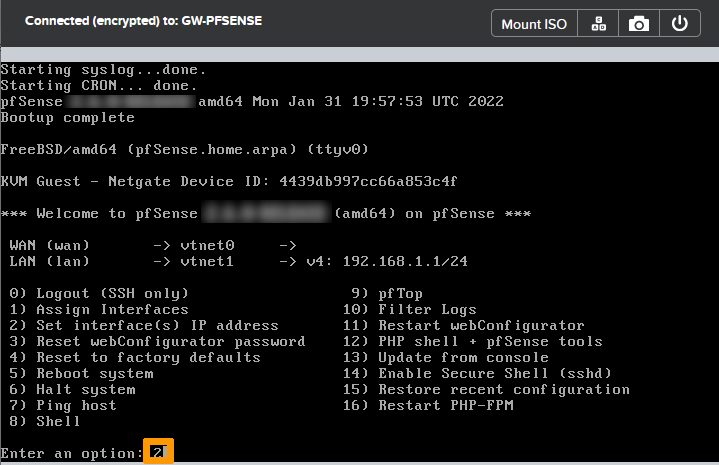
Type `2`
to choose `Set interface(s) IP address`
and press `Enter
`.
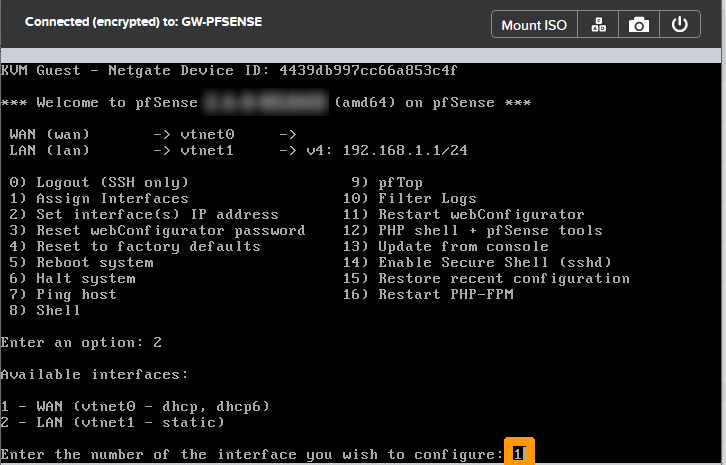
Select the **WAN**
interface by typing `1`
and pressing `Enter
`.
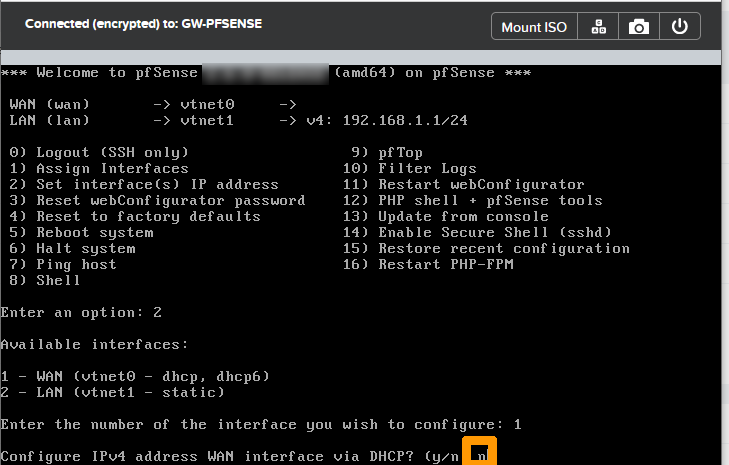
Type `n`
and press `Enter
` when prompted to configure the address by DHCP.
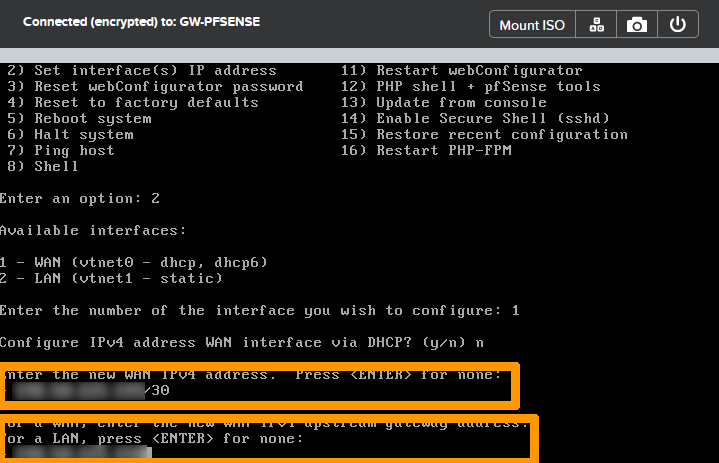
Type **the public IP address with the mask**
and press the `Enter
` key, for example: **198.51.100.1/30**
.
Then enter **the public**
gateway IP address and press the `Enter
` key, for example: **198.51.100.2**
.
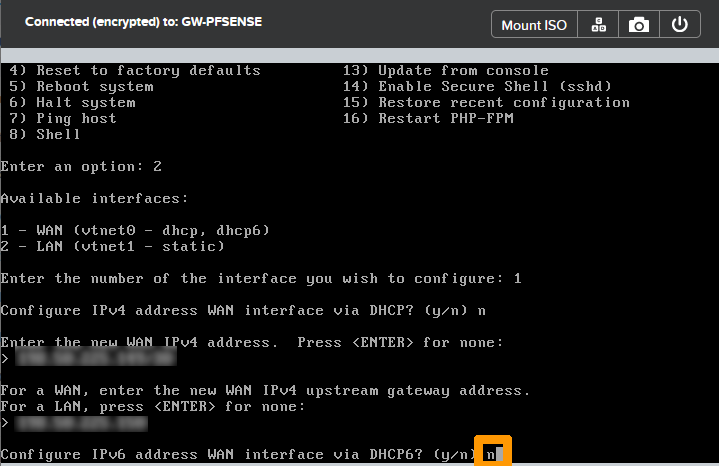
Type `n`
and press the `Enter
` key when the wizard offers you the configuration of the **IPv6 address WAN interface via DHCP6**
.
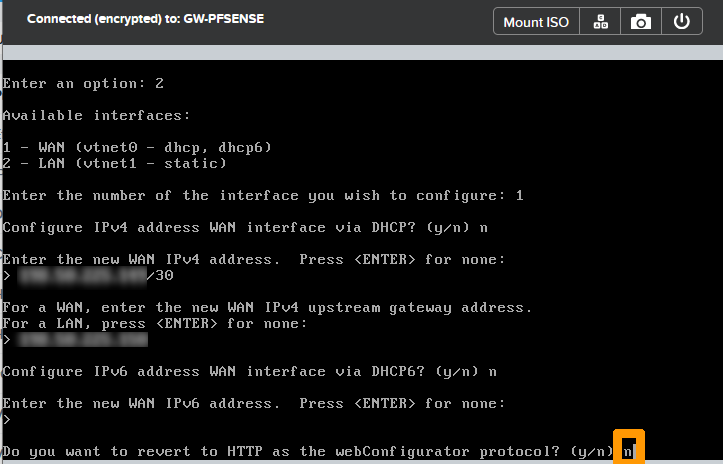
When requested to **revert to HTTP as the webConfigurator protocol**
, type `n`
and press `Enter
`.
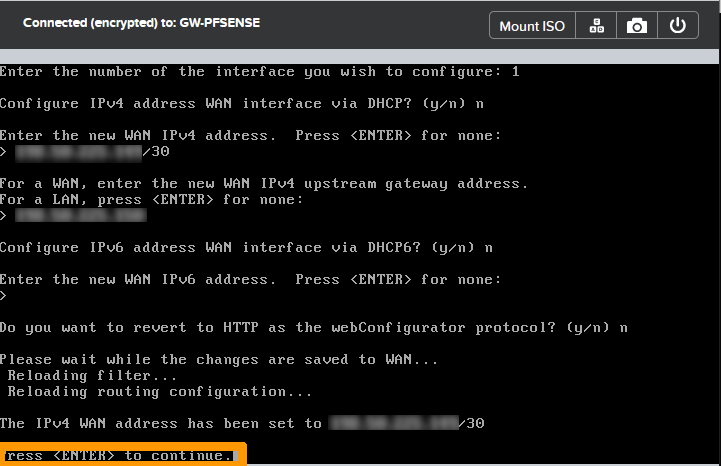
Press `Enter
` to validate the registration of the IP address of the **WAN**
.
Type `2`
and press the `Enter
` key to configure IP addresses.
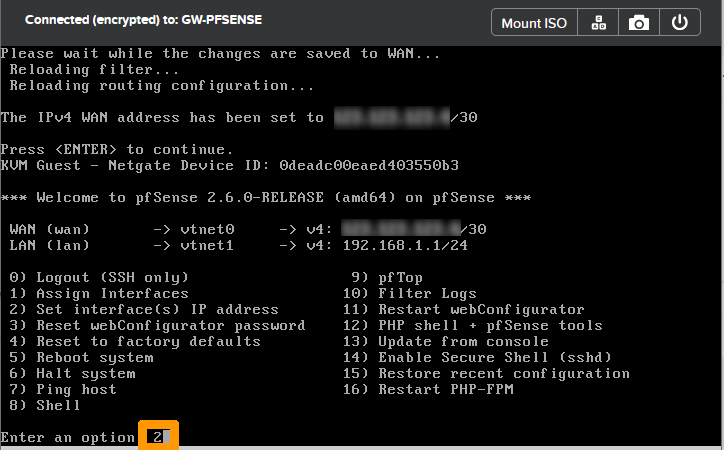
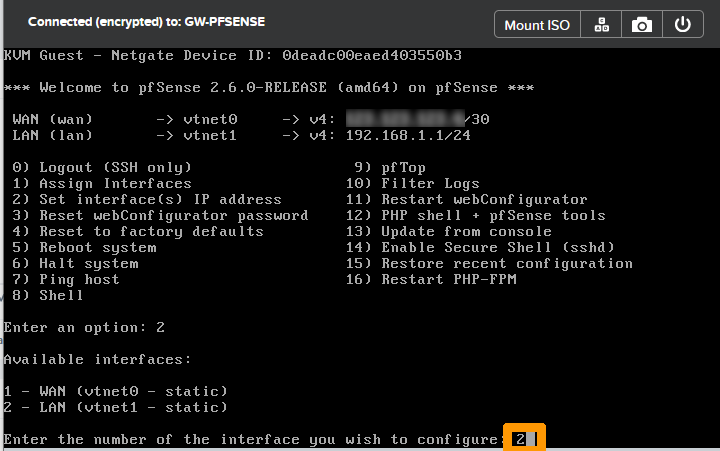
Take option `2`
and press the `Enter
` key to change the LAN IP address.
Type the private IP address followed by the mask `192.168.10.254/24`
and press the `Enter
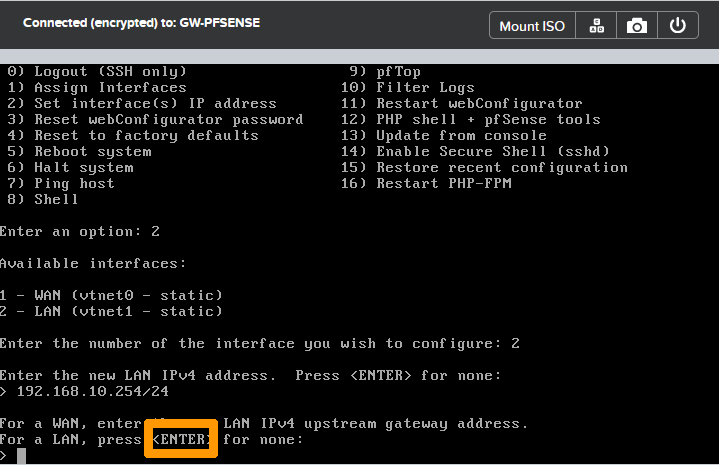
` key.
Press the `Enter
` key to not put a gateway on the **LAN interface**
.
Press the `Enter
` key to disable IPv6 usage.
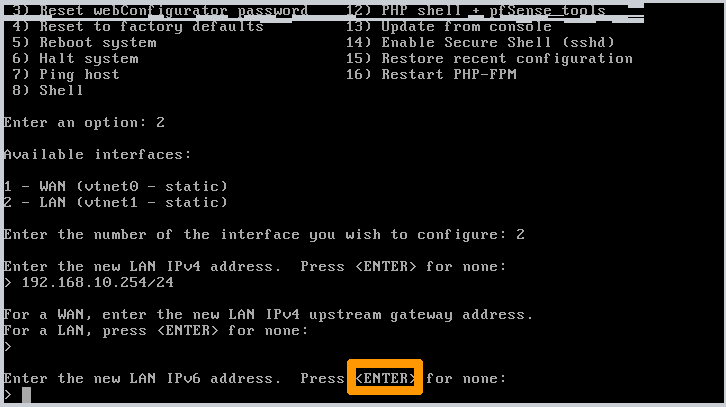
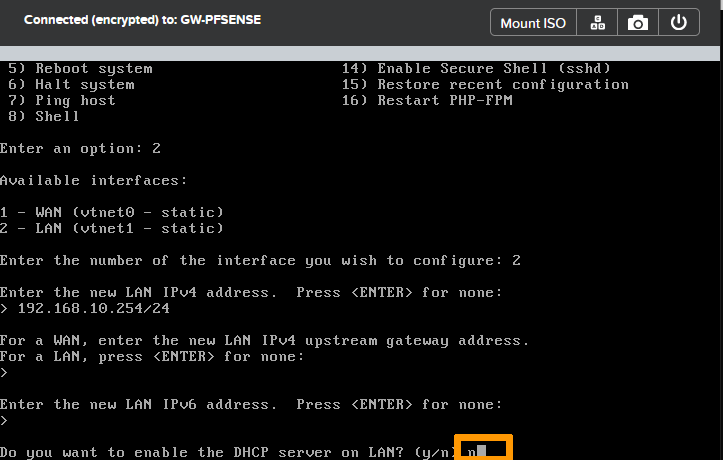
Type `n`
and press the `Enter
` key on the DHCP server activation request.
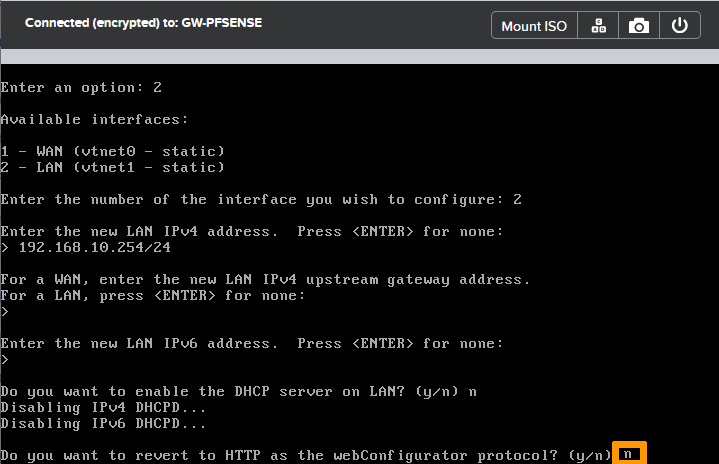
Answer `n`
and press the `Enter
` key when prompted to **revert to HTTP as the webConfigurator protocol**
.
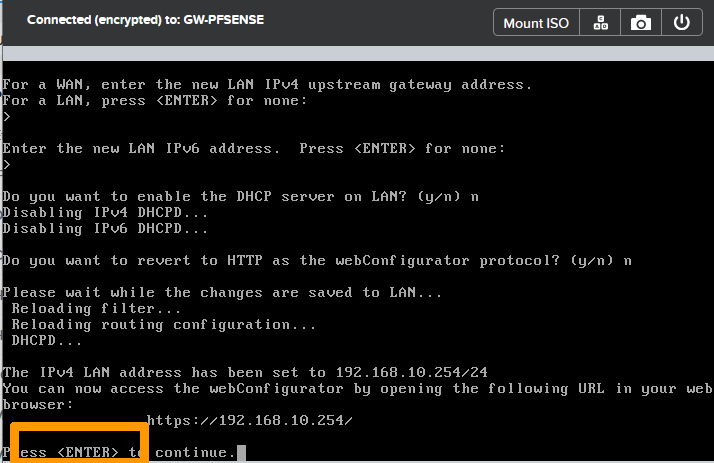
You can now manage the HTTPS gateway on the private network of the **Nutanix** cluster.
Press the `Enter
` key to complete the command line configuration.
[](#)
### Configure some options through the web interface
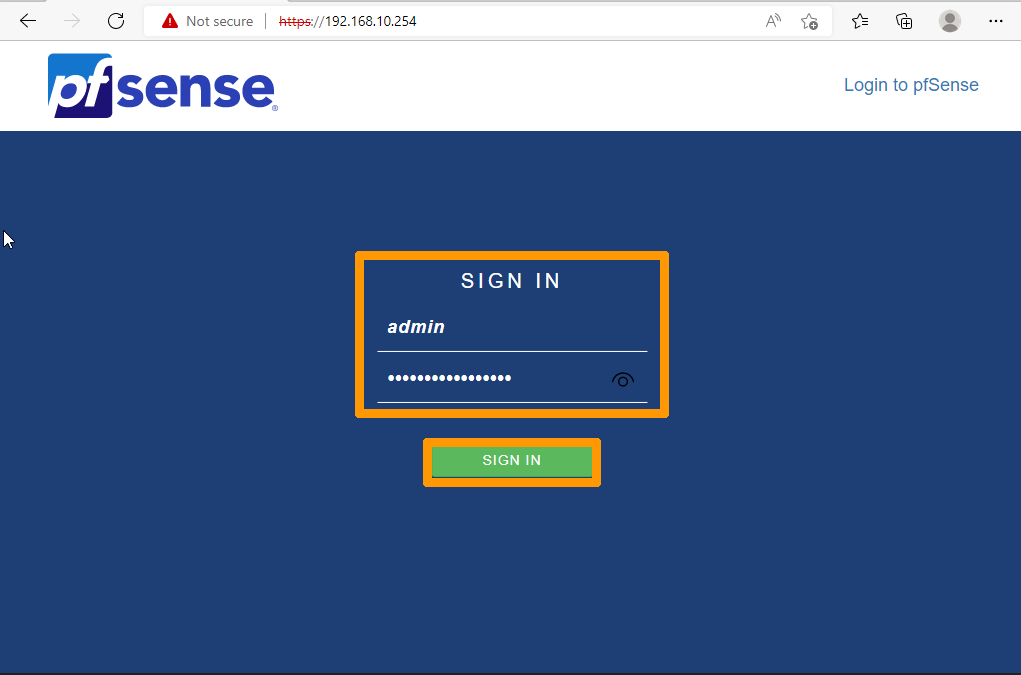
Connect to the pfSense Web Console with the URL `https://192.168.10.254` from a cluster virtual machine on the **AHV LAN: Base**.
Enter the following information:
- **User account**: admin
- **Default password**: pfsense
Then click `SIGN IN
`.
[](#)
#### Change the pfSense default password\*\*
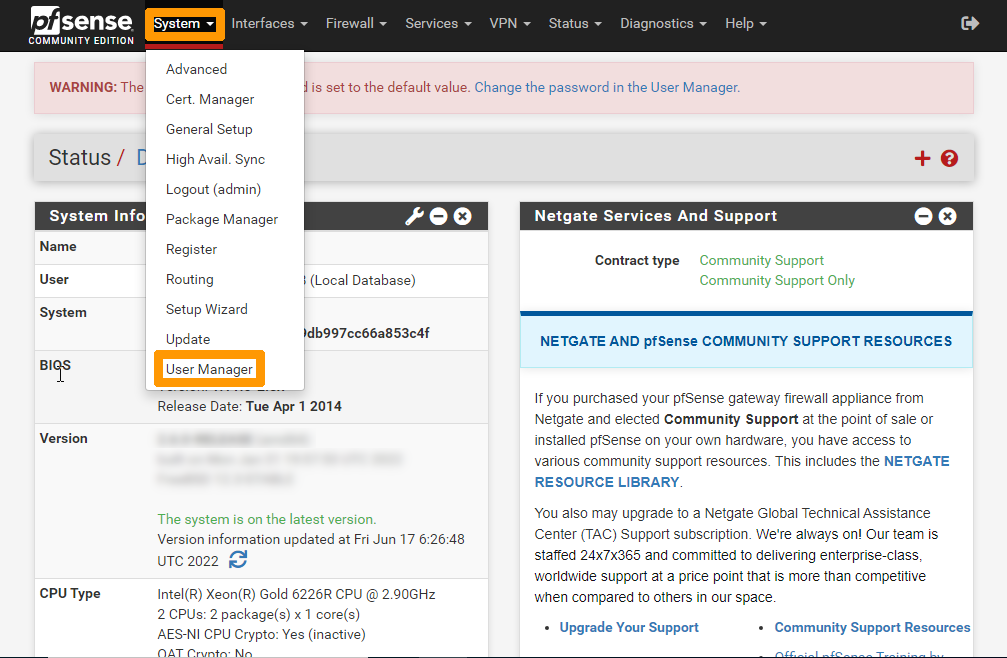
From the `System
` menu, choose `User Manager
`.
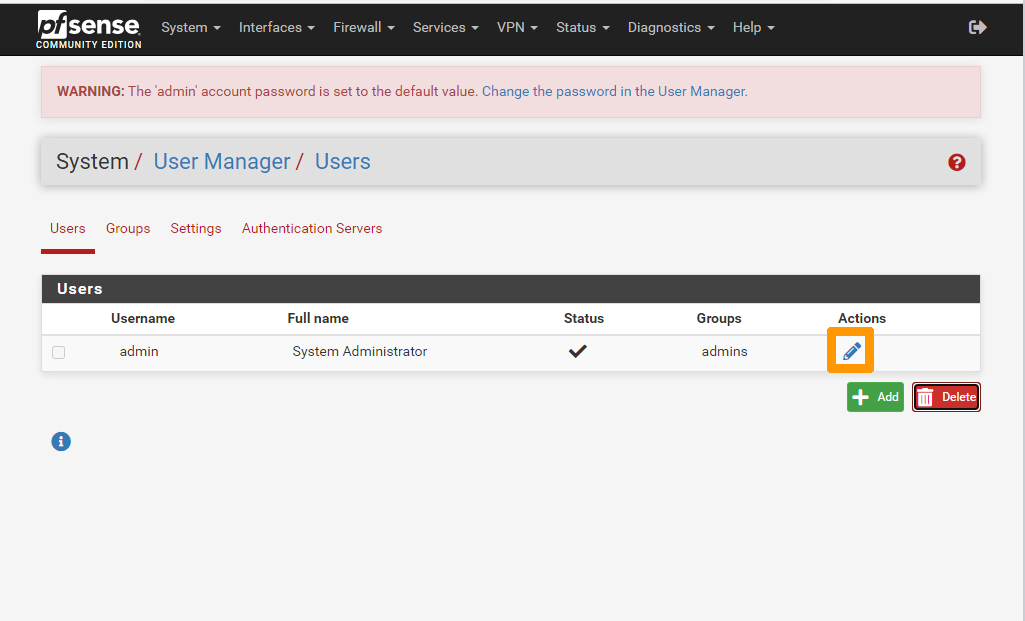
Click the `Pen
` icon.
Enter and confirm the password to the right of `Password`.
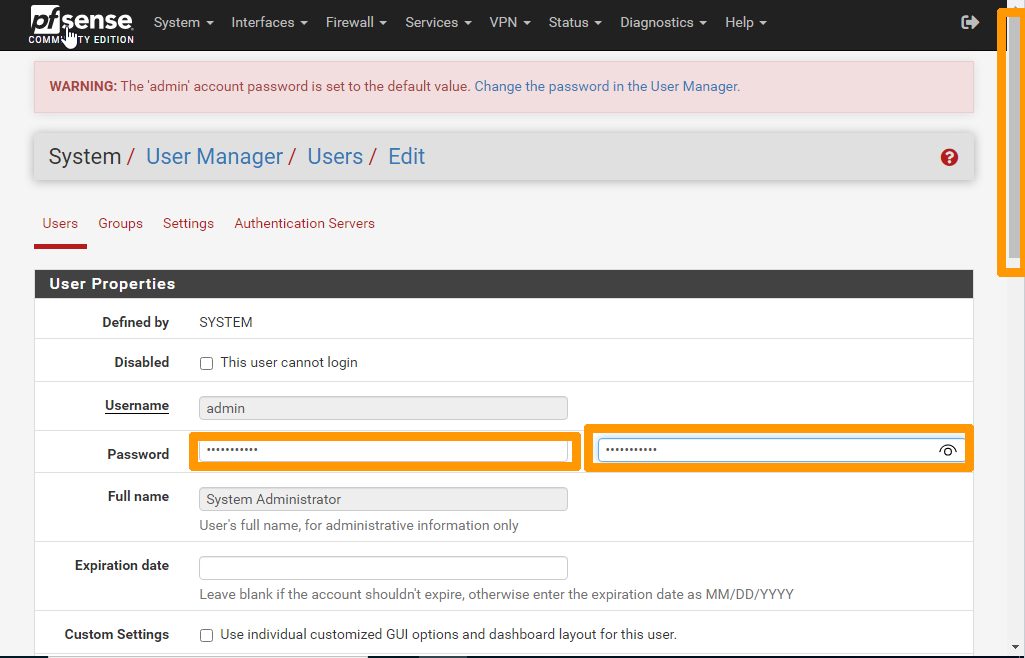
Confirm the changes by clicking `Save
` at the bottom of the menu.
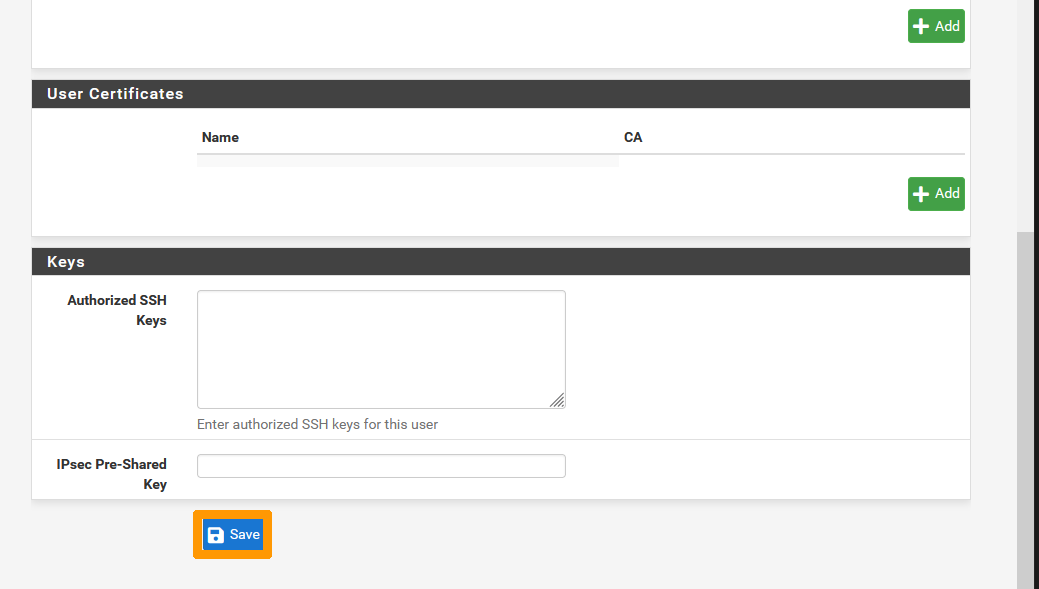.
[](#)
#### Add a rule to allow remote administration from a public address
Go to the `Firewall
` menu and choose `Rules
`.
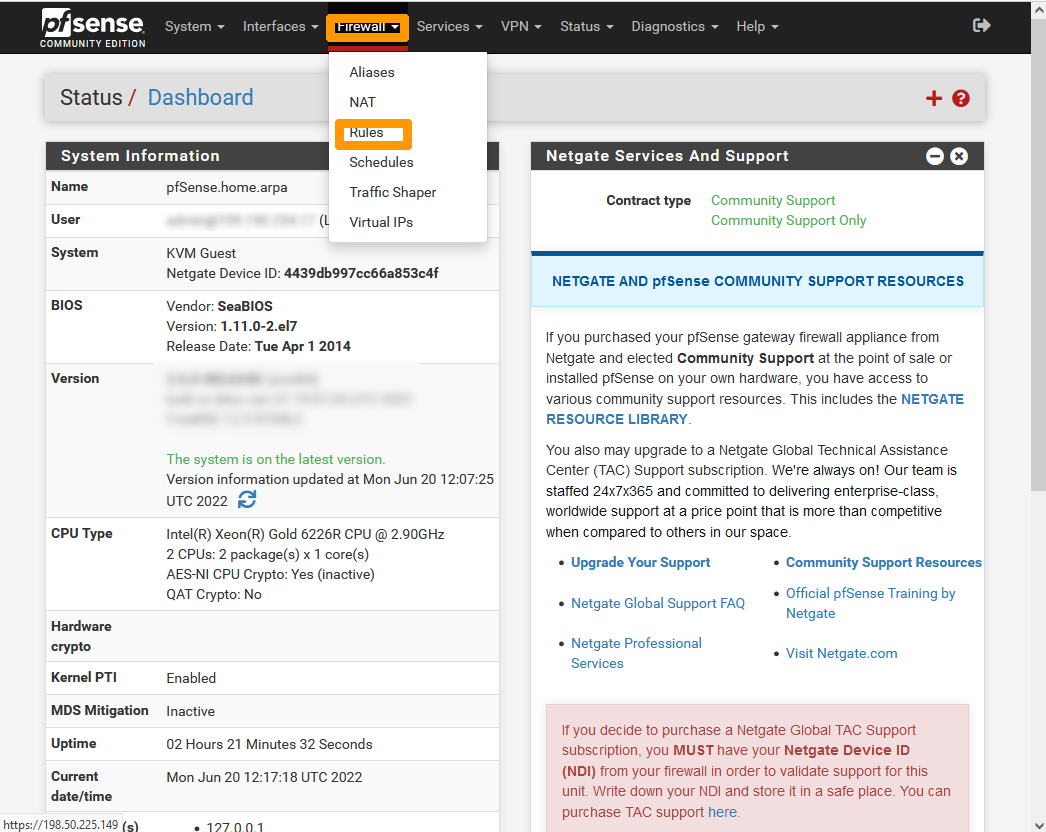
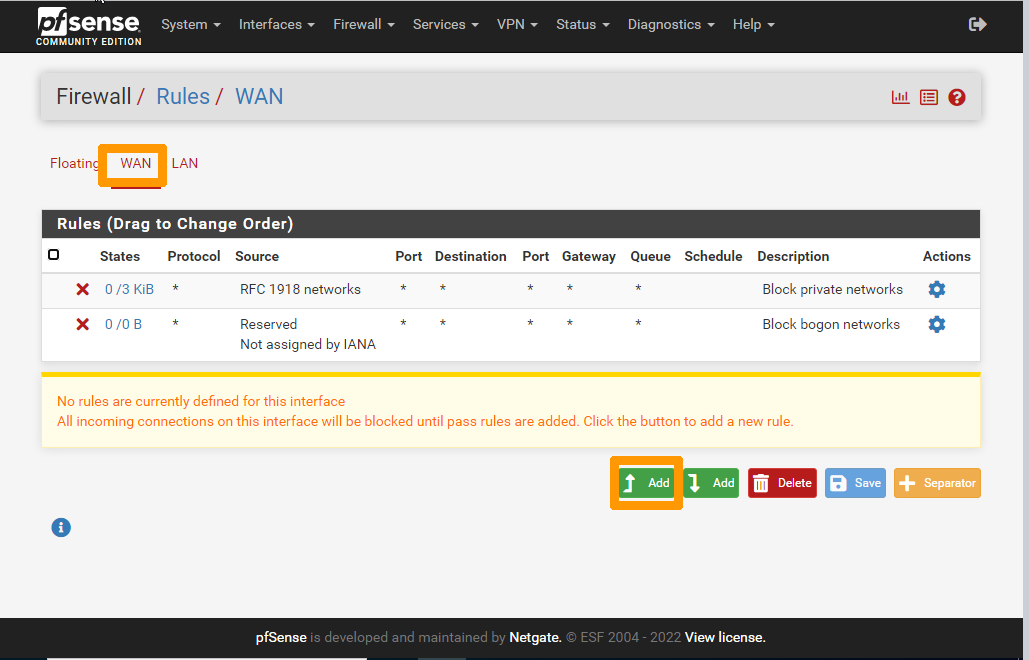
Check that you are on the `WAN`
tab, then click the `Add
` button (at the bottom with the up arrow) to create a firewall rule.
Set these options in the **Edit Firewall Rule** section:
- **Action**: `Pass`
- **Interface**: `WAN`
- **Address Family**: `IPv4`
- **Protocol**: `TCP`
Select `Single host or alias` from the **Source** drop-down menu and enter the `public address` that can connect to the **pfSense** firewall.
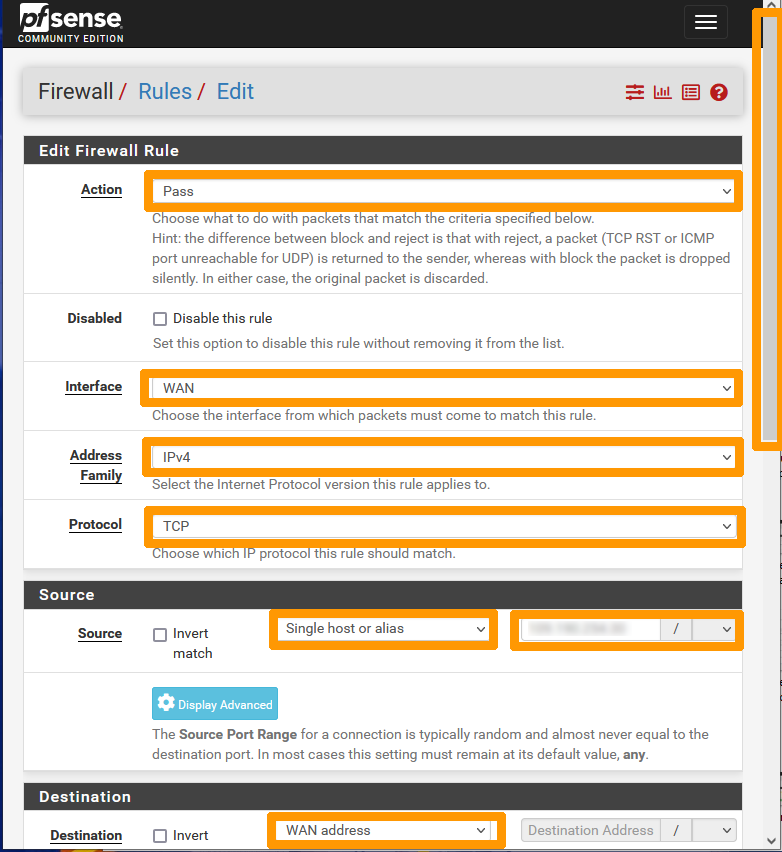
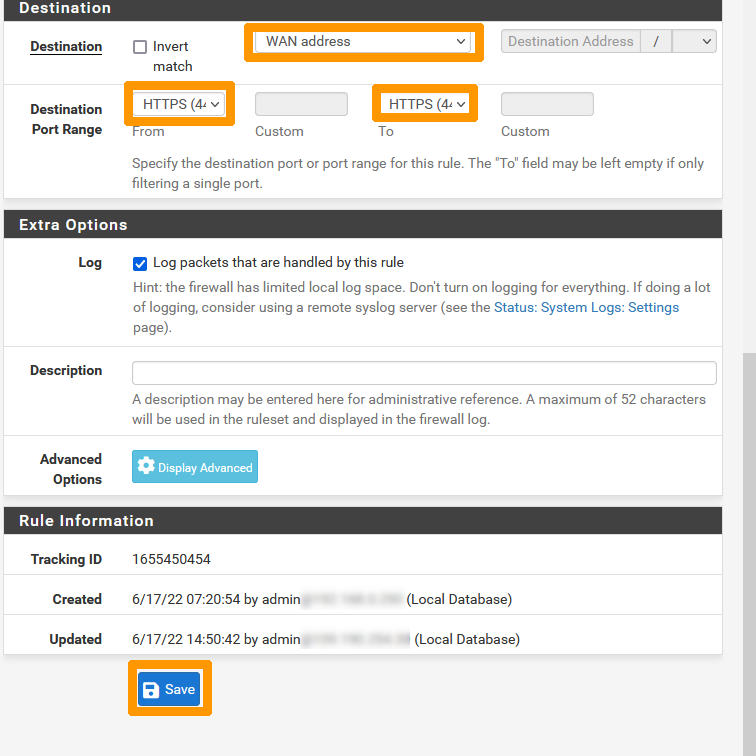
Then set these options in the **Destination** section:
- **Destination**: `WAN address`
- **Destination Port Range From**: `HTTPS`
- **Destination Port Range To**: `HTTPS`
Click `Save
`.
Click `Apply Changes
` to activate the rule.
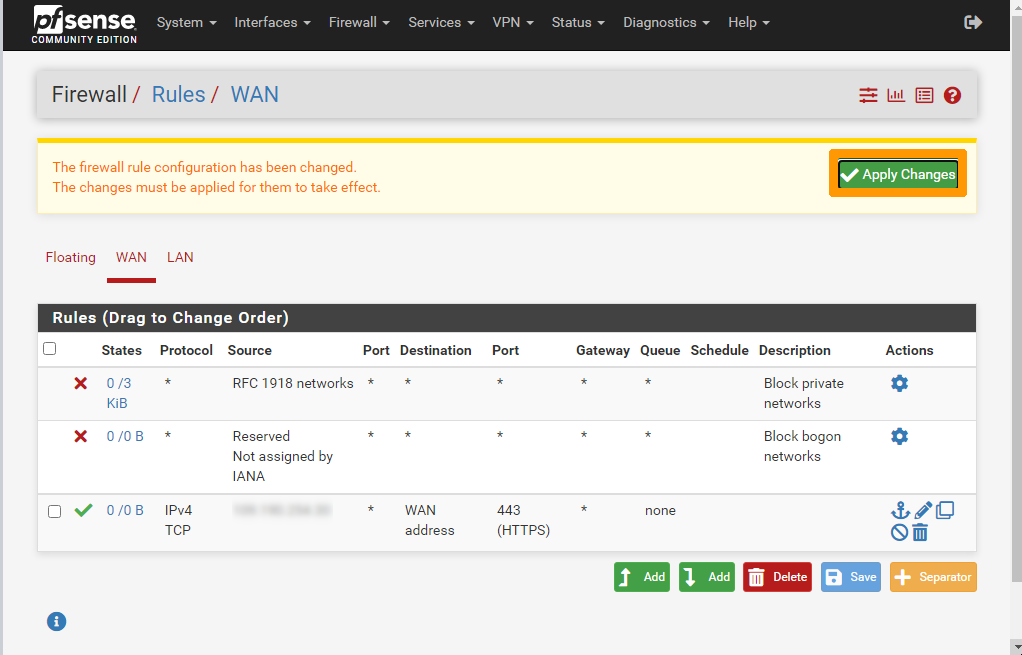
The **pfSense** administration interface is then accessible from the Internet, only from the authorised network in HTTPS, here `https://198.51.100.1`.
### Configuring Internet Access in a New VLAN
We will create a new subnet in VLAN 2 with an address range in 192.168.2.0/24 and a gateway in 192.168.2.254.
#### PfSense VM modification
Log in to Prism Central to make these changes:
Use the [Isolating management machines from production](/pl/guides/hosted-private-cloud/nutanix-on-ovhcloud/isolate-management-vm.md) guide to create a new VLAN on your Nutanix cluster with these settings:
- **VLAN name**: `Production`
- **VLAN number**: `2`
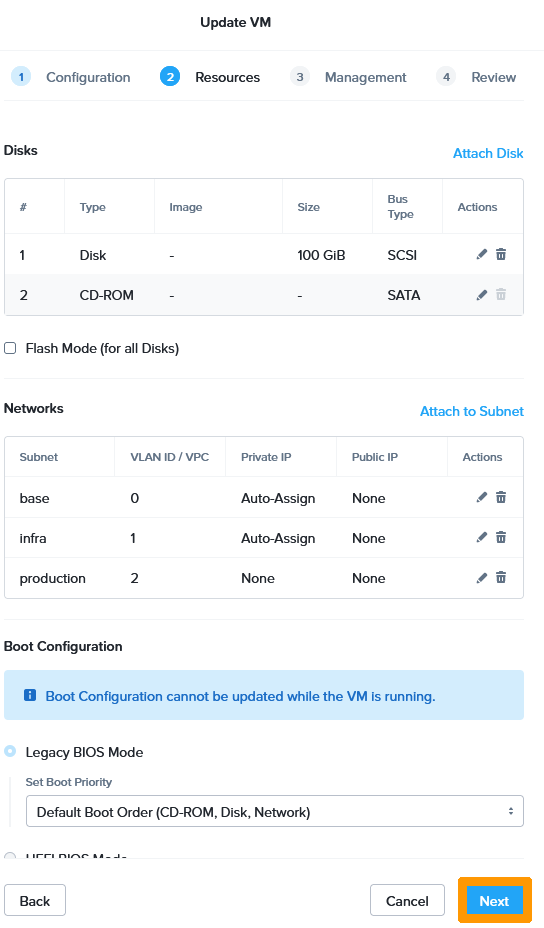
Your new network must appear in **Subnets**.
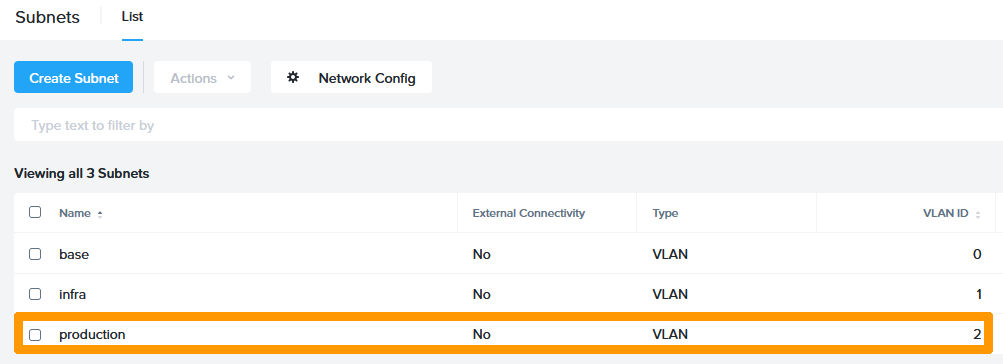
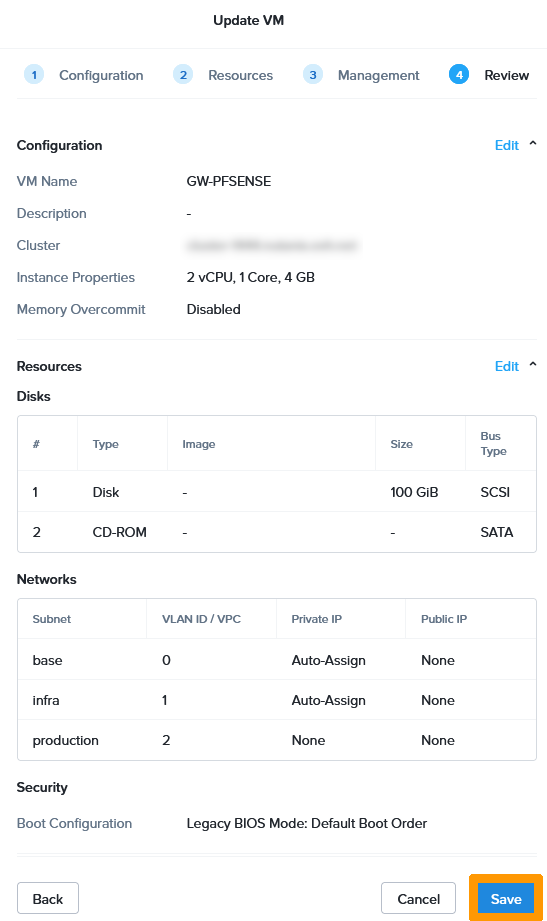
Now that the new subnet has been created, we will add an adapter to the configuration of your **GW-PFSENSE** virtual machine.
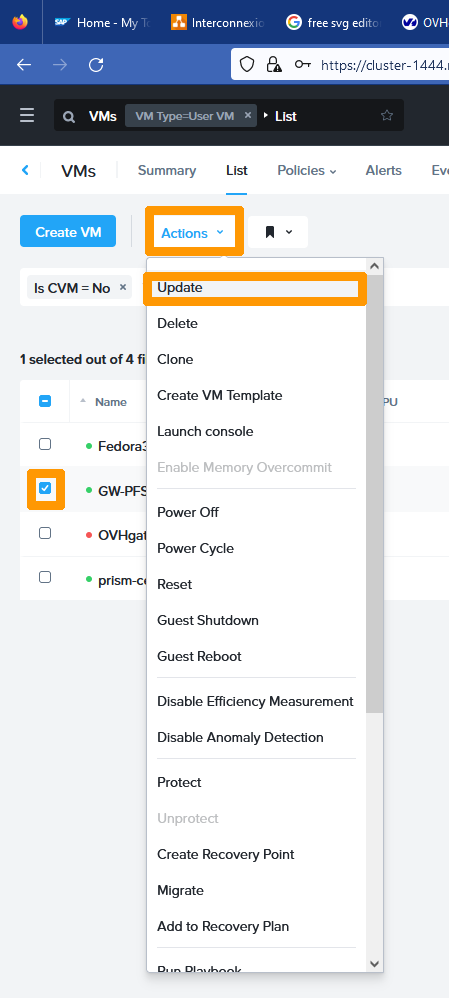
Via the virtual machine management, select your **GW-PFSENSE**
virtual machine, go to the `Actions
` menu and choose `Update
`.
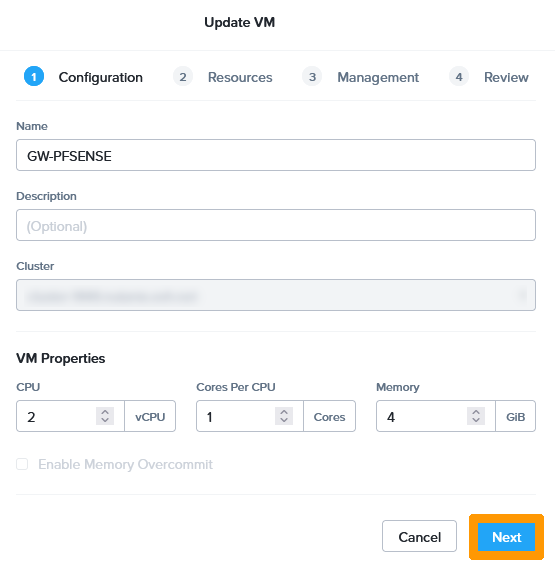
Click `Next
`.
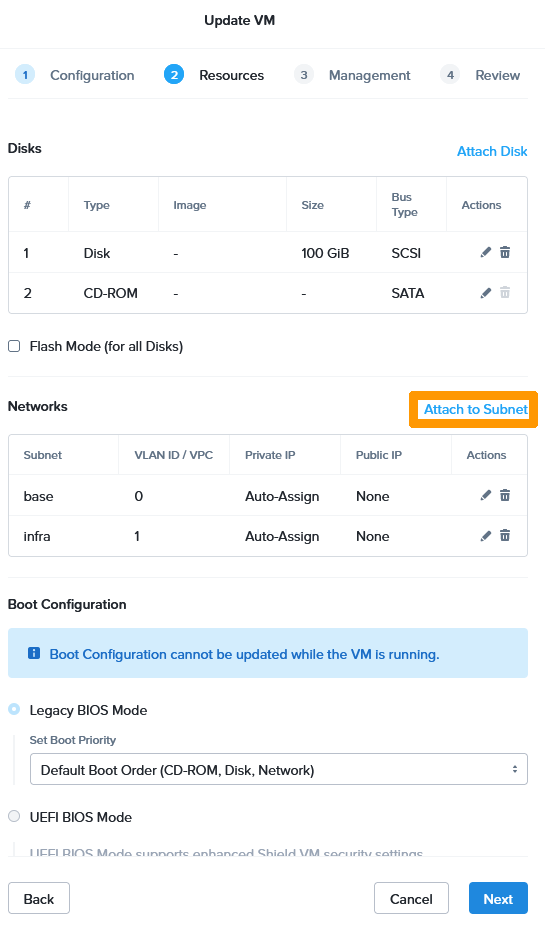
Click `Attach to Subnet
`.
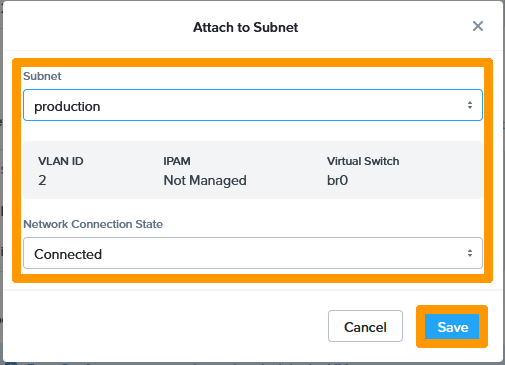
Choose the `Production
` subnets and click `Save
`.
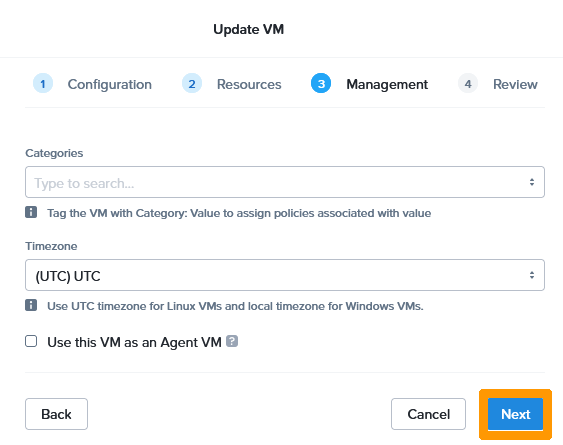
Click `Next
`.
Click `Next
`.
Click `Save
`.
#### Enable and configure the new network adapter on pfSense
Log in to the pfSense interface in https, with the public address (for example, **[https://198.51.100.1](https://198.51.100.1)**) in your pfSense administration interface, and follow these instructions:
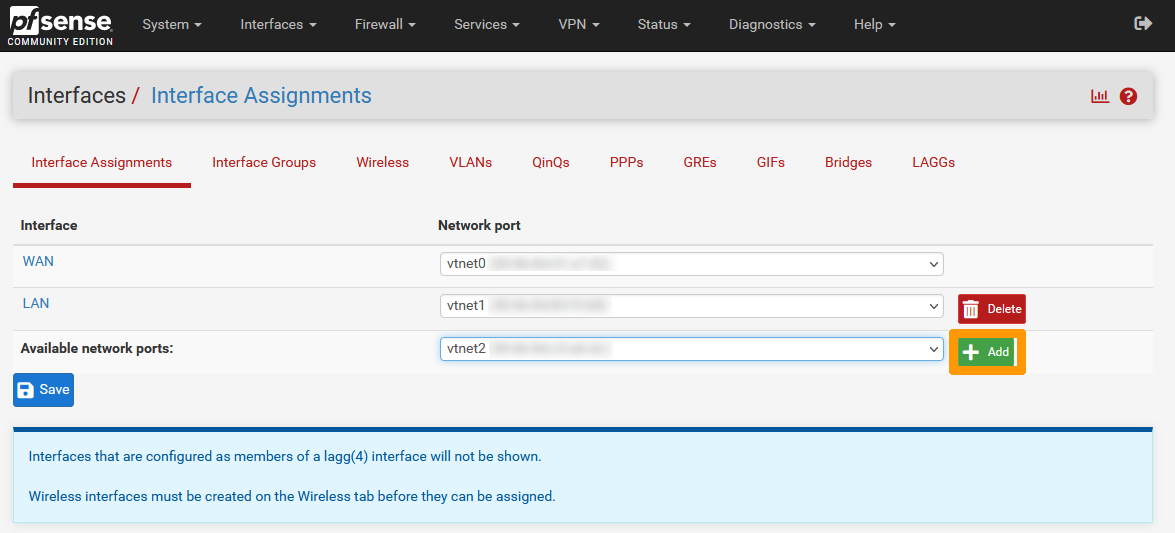
Go to the `Interfaces
` menu and click `Assignments
`.

Click `\+ Add
` to the right of **Available network ports:**
.
Click `Save
`.
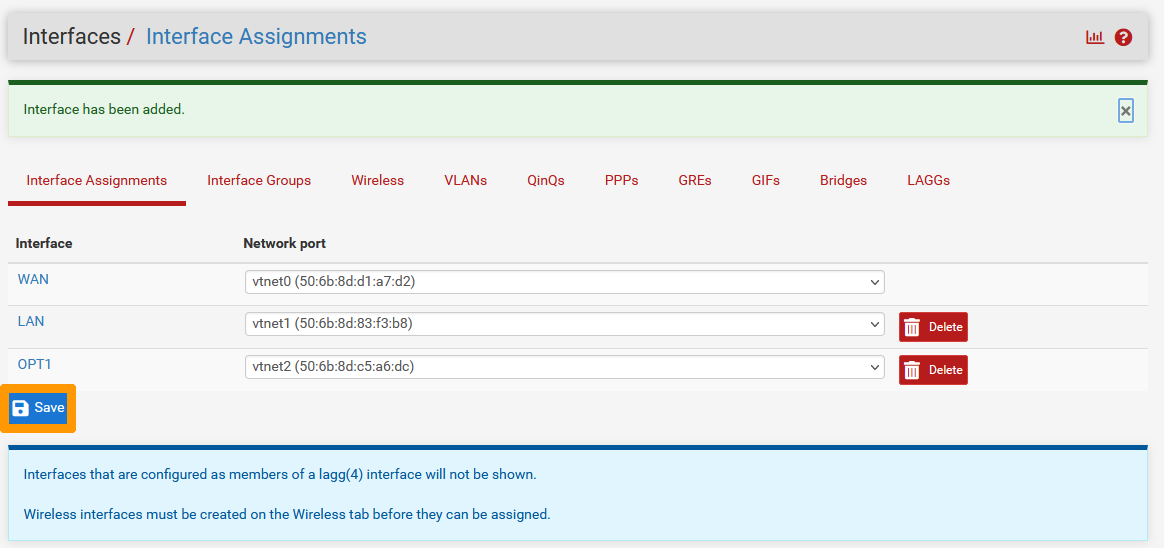
In the `Interfaces
` menu, click `OPT1
`

Check **Enable Interfaces** and modify these settings :
- **Description** : `VLAN2`
- **IPv4 Address** : `192.168.2.254/24`
Click `Save
`.
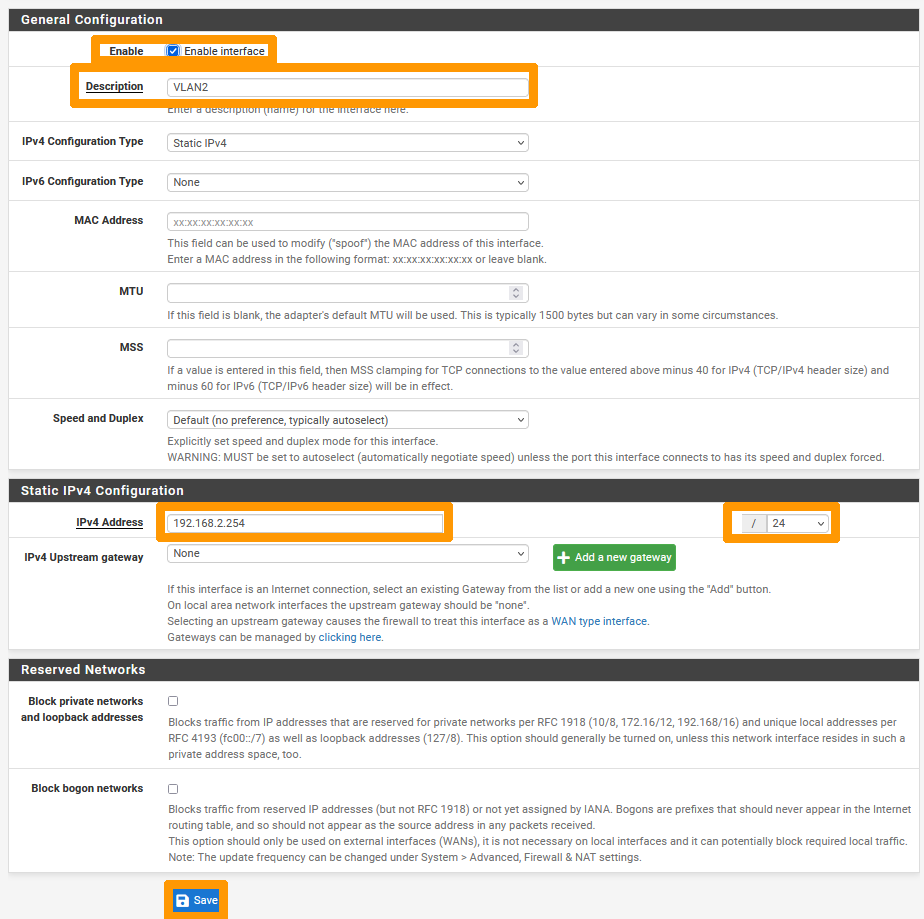
Click `Apply Changes
`.

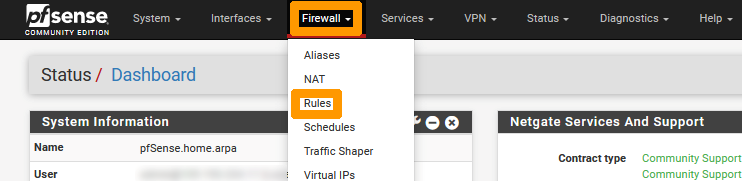
Go to the `Firewall`
menu and click `Rules
`.
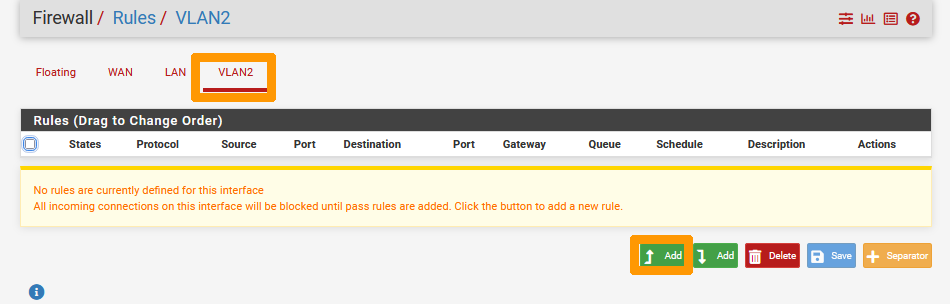
Go to the `VLAN2
` tab and click the `Add
` button on the left.
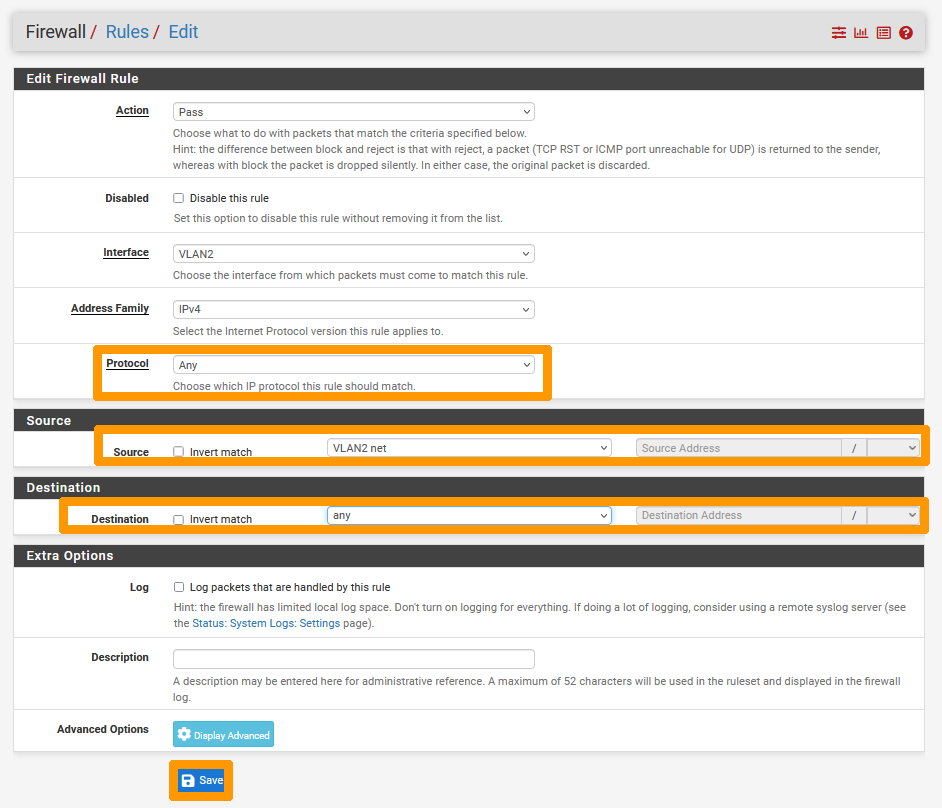
Change these values :
- **Protocol** : `Any`
- **Source** : `VLAN2 net`
- **Destination** : `any`
Click `Save
`.
Click `Apply Changes
`.
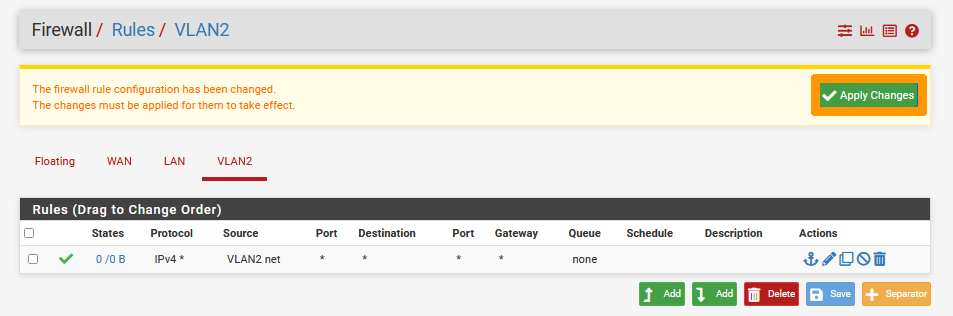
Your VLAN 2 is now connected to the Internet.
[](#)
## Go further
If you need training or technical assistance to implement our solutions, contact your sales representative or click on [this link](https://www.ovhcloud.com/pl/professional-services/) to get a quote and ask our Professional Services experts for assisting you on your specific use case of your project.
Join our [community of users](https://community.ovhcloud.com/).