---
title: "Zabezpieczenie dostępu do Internetu w Prism Central (EN)"
description: "Find out how to restrict Prism Central Web access"
url: https://docs.ovhcloud.com/pl/guides/hosted-private-cloud/nutanix-on-ovhcloud/secure-prism-web-access
lang: pl
lastUpdated: 2022-01-11
---
# Zabezpieczenie dostępu do Internetu w Prism Central (EN)
## Objective
After delivery, Prism Central is accessible on the public Internet. Access restriction to one or more IP addresses can be achieved through the [OVHcloud Load Balancer](https://www.ovhcloud.com/pl/network/load-balancer/).
**This guide explains how to secure access to Prism Central.**
:::warning
OVHcloud is providing you with services for which you are responsible, with regard to their configuration and management. You are therefore responsible for ensuring they function correctly.
This guide is designed to assist you in common tasks as much as possible. Nevertheless, we recommend that you contact the [OVHcloud Professional Services team](https://www.ovhcloud.com/pl/professional-services/) or a [specialist service provider](https://partner.ovhcloud.com/pl/directory/) if you have difficulties or doubts concerning the administration, usage or implementation of services on a server.
:::
***
### OVHcloud Control Panel Access
- **Direct link:** [Nutanix](https://manager.eu.ovhcloud.com/#/dedicated/nutanix)
- **Navigation path:** Hosted Private Cloud > Nutanix > Select your cluster
***
## Requirements
- A Nutanix cluster in your OVHcloud account
- Access to the OVHcloud Control Panel
## Instructions
### Step 1: Find the relevant Load Balancer
Log in to the OVHcloud Control Panel
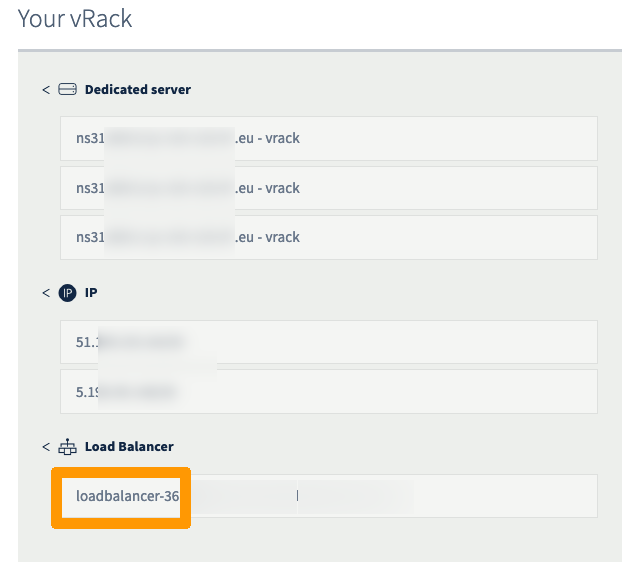
and open the Nutanix cluster vRack configuration page.
Identify the name of your Load Balancer.
### Step 2: Access your Load Balancer front-ends
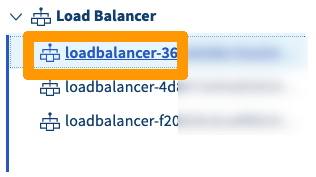
Select your Load Balancer identified in the previous step.
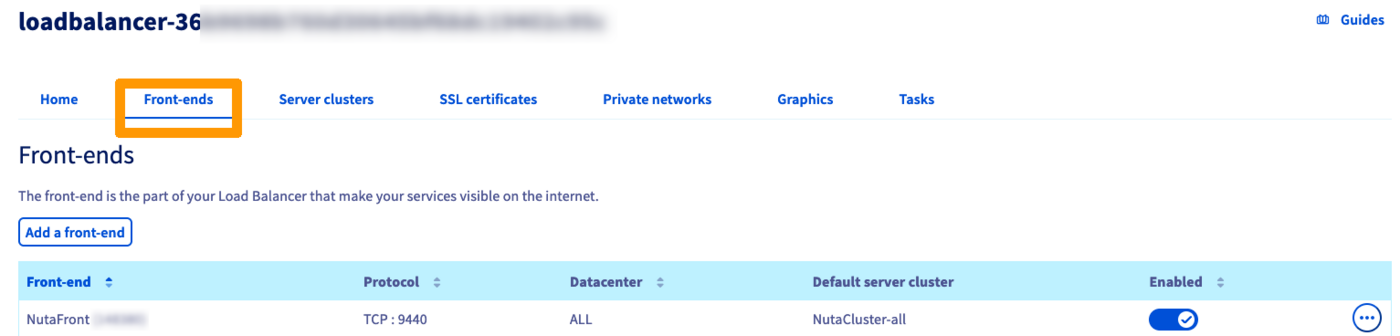
Open the `Front-ends
` tab.
### Step 3: Edit the Prism Central front-end
Click on the `...
` button in the table and select `Edit
`.

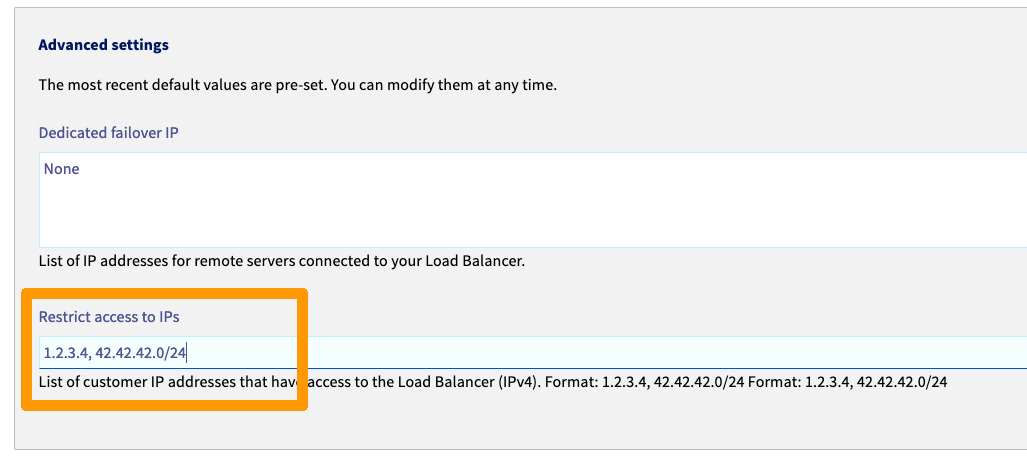
### Step 4: Add the authorised IPs
In the advanced settings, you can now add your public ISP IP address or any IP addresses from which acesss should be granted to Prism Central Web.
## Go further
If you need training or technical assistance to implement our solutions, contact your sales representative or click on [this link](https://www.ovhcloud.com/pl/professional-services/) to get a quote and ask our Professional Services experts for assisting you on your specific use case of your project.
Join our community of users on [https://community.ovh.com/en/](https://community.ovh.com/en/).