---
title: "Bring Your Own Linux (BYOLinux) (EN)"
description: "Find out how to easily deploy your own Linux images on dedicated servers"
url: https://docs.ovhcloud.com/pl/guides/bare-metal-cloud/dedicated-servers/bring-your-own-linux
lang: pl
lastUpdated: 2026-05-28
---
# Bring Your Own Linux (BYOLinux) (EN)
## Objective
The Bring Your Own Linux feature (BYOLinux) enables you to deploy _cloudready_ Linux images directly on your dedicated server. You can therefore use the bare metal service as a resource for your deployments.
**What does _cloudready_ mean?**
The _cloudready_ standard generally means being agnostic of the infrastructure on which the image is deployed.
In addition to the requirements and limitations mentioned below, you must ensure that the image (downloaded or generated) meets the technical expectations of a cloudready image.
**This guide explains how to use Bring Your Own Linux (BYOLinux) on your OVHcloud dedicated server.**
## Requirements
- A [dedicated server](https://www.ovhcloud.com/pl/bare-metal/) in your OVHcloud account
- Access to the [OVHcloud API](/pl/guides/manage-and-operate/api/first-steps.md) (for the "[Deployment via API](#viaapi)" section of this guide)
- Your image must be smaller than the server RAM minus 3GiB
- An executable script `/root/.ovh/make_image_bootable.sh`, which will install and configure the bootloader, [for example GRUB](https://github.com/ovh/bringyourownlinux/blob/e20c9474e1a0/example_build/files/make_image_bootable.sh). This script must not alter the NVRAM boot order (e.g. use `grub-install --no-nvram`). For more information, see [Understanding the dedicated server boot process](/pl/guides/bare-metal-cloud/dedicated-servers/boot-process.md).
:::info
To apply OVHcloud customizations at first boot, your image must include [cloud-init](https://cloud-init.io/) or a compatible alternative (such as FreeBSD's [`nuageinit`](https://cgit.freebsd.org/src/tree/libexec/nuageinit/)).
:::
***
### OVHcloud Control Panel Access
- **Direct link:** Dedicated Servers
- **Navigation path:** Bare Metal Cloud > Dedicated servers > Select your server
***
:::warning
As with any classical OS installation, a new installation with BYOLinux will erase all the data on the server.
:::
## Instructions
**Technical limitations:**
There are some technical limitations linked to the use of physical products such as dedicated servers. Here is a non-exhaustive list, to keep in mind during your deployment preparation:
- Boot type: **UEFI** or **legacy** (depending on the boot type of your server)
- Image format: **qcow2**
- Only one partition in the qcow2 image
- Partition filesystem: **ext4**, **XFS**, or **BTRFS** (without subvolumes)
**Deployment methods:**
- [Deployment via the Control Panel](#viacontrolpanel): allows you to deploy your image using the OVHcloud Control Panel.
- [Deployment via API](#viaapi): you can use the OVHcloud API to integrate images into your own scripts to automate deployments.
### Deploy your image via the Control Panel [](#)
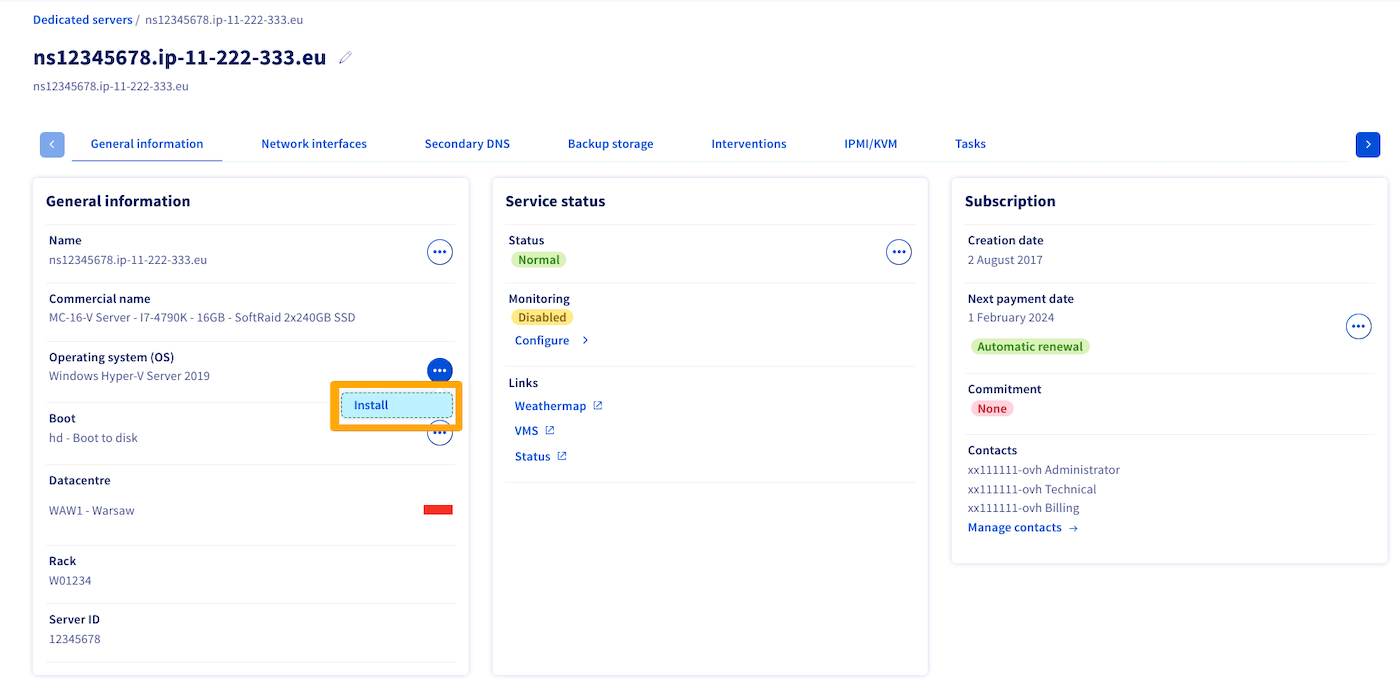
In the `General information
` tab, click the `...
` button next to "System (OS)" then click `Install
`.
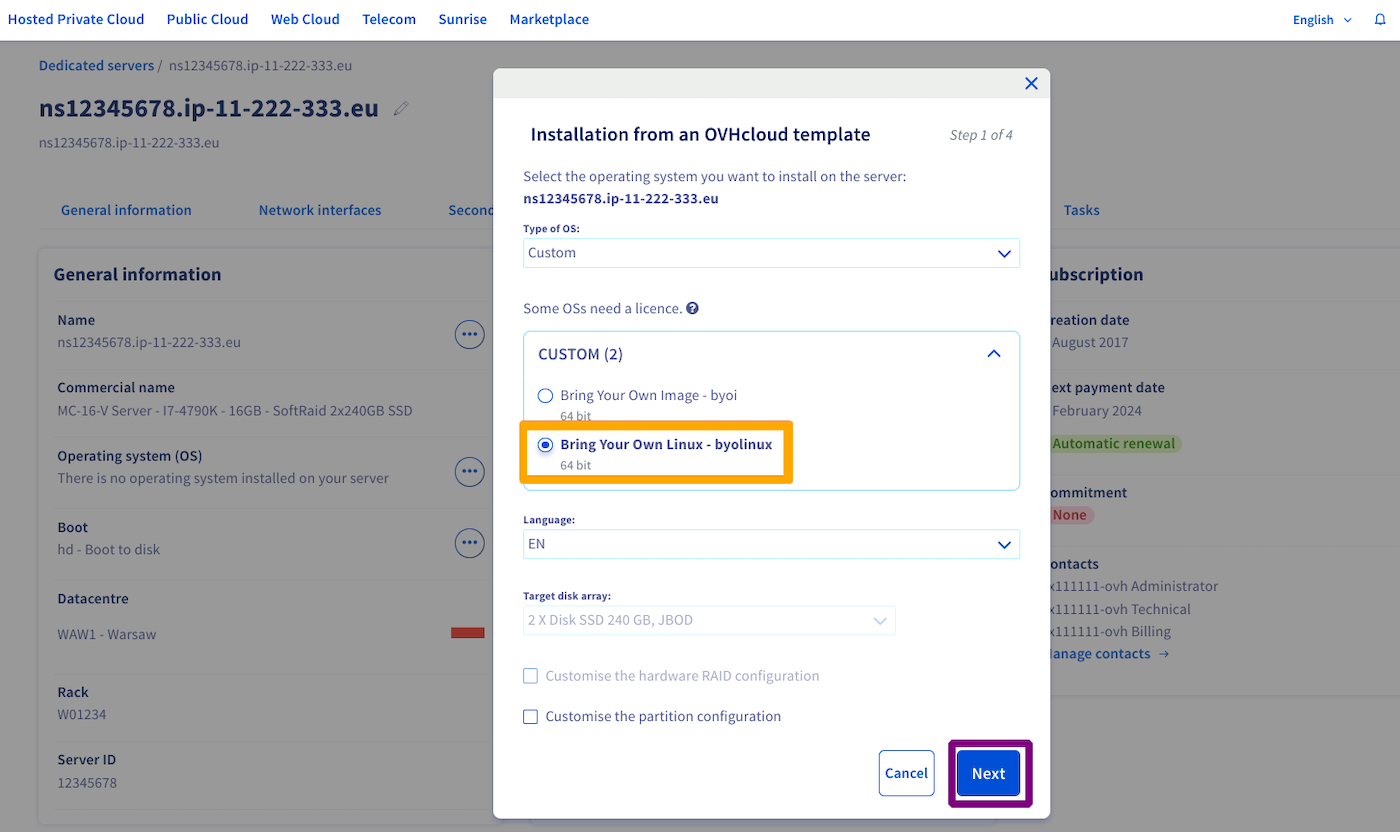
In the window that appears, select `Custom`
in the menu, then `Bring Your Own Linux - byolinux`
, and click `Next
`.
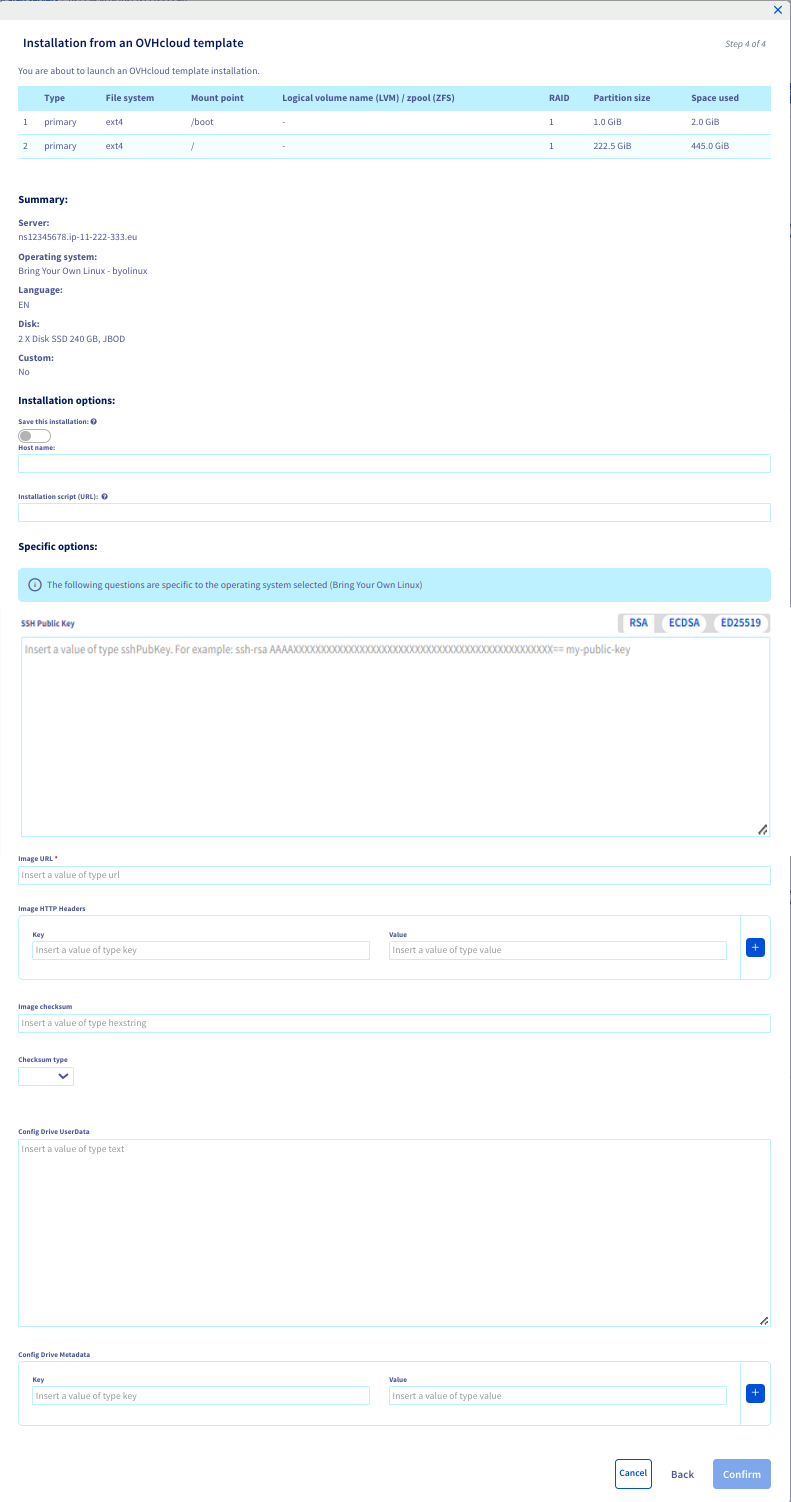
You will be redirected to the configuration page. Make sure your image URL is in the correct format. Fill in the rest of the required fields on this page. Once you have confirmed that the information is correct, click `Confirm
`.
You can find more details on the options in the [deployment options](#options) section below.
### Deploy your image via the API [](#)
Log in to the [API console](https://eu.api.ovh.com/)
and go to the `/dedicated/server
` section.
🇪🇺EU▾
[POST/dedicated/server/{serviceName}/reinstall](https://eu.api.ovh.com/console/?section=/dedicated/server&branch=v1#post-/dedicated/server/-serviceName-/reinstall)
The Bring Your Own Linux (BYOLinux) payload should be similar to the following:
:::warning
In the `customizations` section, only `imageURL` is mandatory.
:::
```json
{
"operatingSystem": "byolinux_64",
"customizations": {
"hostname": "mon-tux",
"imageURL": "https://github.com/ashmonger/akution_test/releases/latest/download/deb11k6.qcow2",
"efiBootloaderPath": "\\efi\\debian\\grubx64.efi",
"imageCheckSum": "xxxxxxxxxxxxxxxxxxxxxxxxxxxxxxxxxxxxxxxxxxxxxxxxxxxxxxxxxxxxxxxxxxxxxxxxxxxxxxxxxxxxxxxxxxxxxxxxxxxxxxxxxxxxxxxxxxxxxxxxxxxxxxxxx",
"httpHeaders": {
"Authorization": "Basic bG9naW46cGFzc3dvcmQ="
},
"imageCheckSumType": "sha512",
"configDriveUserData": "I2Nsb3VkLWNvbmZpZwpzc2hfYXV0aG9yaXplZF9rZXlzOgogIC0gc3NoLWVkMjU1MTkgQUFBQUMzTnphQzFsWkRJMU5URTVBQUFBSUFiY0QgbXlzZWxmQG15ZG9tYWluLm5ldAoKdXNlcnM6CiAgLSBuYW1lOiBwYXRpZW50MAogICAgc3VkbzogQUxMPShBTEwpIE5PUEFTU1dEOkFMTAogICAgZ3JvdXBzOiB1c2Vycywgc3VkbwogICAgc2hlbGw6IC9iaW4vYmFzaAogICAgbG9ja19wYXNzd2Q6IGZhbHNlCiAgICBzc2hfYXV0aG9yaXplZF9rZXlzOgogICAgICAtIHNzaC1lZDI1NTE5IEFBQUFDM056YUMxbFpESTFOVEU1QUFBQUlBYmNEIG15c2VsZkBteWRvbWFpbi5uZXQKZGlzYWJsZV9yb290OiBmYWxzZQpwYWNrYWdlczoKICAtIHZpbQogIC0gdHJlZQpydW5jbWQ6CiAgLSBlY2hvICJjb3Vjb3UgcnVuY21kIiA+IC9vcHQvY291Y291CiAgLSBjYXQgL2V0Yy9tYWNoaW5lLWlkID4+IC9vcHQvY291Y291CiAgLSBkYXRlICIrJVktJW0tJWQgJUg6JU06JVMiIC0tdXRjID4+IC9vcHQvY291Y291CmZpbmFsX21lc3NhZ2U6IFRoZSBzeXN0ZW0gaXMgZmluYWxseSB1cCwgYWZ0ZXIgJFVQVElNRSBzZWNvbmRzCg=="
}
}
```
:::warning
In the example above, the `imageCheckSum` value has been masked because it changes regularly whenever the target image is rebuilt.
:::
Even though `configDriveUserData` could be sent to the API directly in clear text by escaping special characters, it is recommended to send a base64-encoded script to the API. You can use the following UNIX/Linux command to encode your data:
```bash
cat my-data.yaml | base64 -w0
```
Here is the clear-text version of `configDriveUserData` from the example above:
```yaml
#cloud-config
ssh_authorized_keys:
- ssh-ed25519 AAAAC3NzaC1lZDI1NTE5AAAAIAbcD myself@mydomain.net
users:
- name: patient0
sudo: ALL=(ALL) NOPASSWD:ALL
groups: users, sudo
shell: /bin/bash
lock_passwd: false
ssh_authorized_keys:
- ssh-ed25519 AAAAC3NzaC1lZDI1NTE5AAAAIAbcD myself@mydomain.net
disable_root: false
packages:
- vim
- tree
runcmd:
- echo "coucou runcmd" > /opt/coucou
- cat /etc/machine-id >> /opt/coucou
- date "+%Y-%m-%d %H:%M:%S" --utc >> /opt/coucou
final_message: The system is finally up, after $UPTIME seconds
```
Once you have filled in the fields, start the deployment by clicking `Execute
`.
#### Deployment options [](#)
| Field | Description | Required |
| ---------------------------------- | ----------------------------------------------------------------------------- | ------------------------------- |
| customizations/hostname | Hostname | ❌ |
| customizations/sshKey | SSH public key | ❌ |
| customizations/imageURL | Linux image URL | ✅ |
| customizations/imageCheckSum | Image checksum | ❌ |
| customizations/imageCheckSumType | Image checksum type (md5, sha1, sha256, sha512) | ❌ (except if checksum provided) |
| customizations/configDriveUserData | cloud-init user-data¹ | ❌ |
| customizations/configDriveMetadata | Custom cloud-init metadata, exposed under the `meta` key of `meta_data.json`⁴ | ❌ |
| customizations/httpHeaders?Key | HTTP Headers key | ❌² |
| customizations/httpHeaders?Value | HTTP Headers value | ❌² |
| userMetadata/efiBootloaderPath | EFI bootloader path | ✅³ |
¹ Standard cloud-init [user-data](https://cloudinit.readthedocs.io/en/latest/explanation/format.html)
— typically a `#cloud-config`
document or a script (see the [official cloud-init examples](https://docs.cloud-init.io/en/latest/reference/examples.html)
). Equivalent to OpenStack's `server create --user-data `
. Its JSON representation must be on a single line with `\n`
for line breaks, as JSON strings cannot contain literal newlines.
² Use only if you need HTTP Headers, such as `Basic Auth`
³ The EFI bootloader path is used by iPXE to boot your operating system. For more information, see [Understanding the dedicated server boot process](/pl/guides/bare-metal-cloud/dedicated-servers/boot-process.md)
. Examples:
:::info
The paths below use JSON escaping: `\\` represents a single backslash. For example, `\\efi\\debian\\grubx64.efi` is the path `\efi\debian\grubx64.efi`.
:::
| Operating System | efiBootloaderPath |
| ---------------- | -------------------------------------- |
| Debian | `\\efi\\debian\\grubx64.efi` |
| Ubuntu | `\\efi\\ubuntu\\grubx64.efi` |
| Windows | `\\efi\\microsoft\\boot\\bootmgfw.efi` |
| FreeBSD | `\\efi\\FreeBSD\\loader.efi` |
| Alma | `\\efi\\almalinux\\shimx64.efi` |
| Arch Linux | `\\efi\\arch\\grubx64.efi` |
| Gentoo | `\\efi\\boot\\bootx64.efi` |
⁴ JSON object of arbitrary key/value pairs, equivalent to OpenStack's `server create --property key=value`. The pairs are written to the config drive's `meta_data.json` under the `meta` key, where cloud-init can read them. Example: `"configDriveMetadata": {"role": "webserver", "env": "prod"}` becomes `"meta": {"role": "webserver", "env": "prod"}` in `meta_data.json`. See the [OpenStack metadata service documentation](https://docs.openstack.org/nova/latest/user/metadata.html#openstack-format-metadata) for the full schema.
:::info
During installation, OVHcloud adds a small [config drive](https://docs.cloud-init.io/en/latest/reference/datasources/configdrive.html) partition to your server. Cloud-init reads it at first boot to apply OVHcloud's baseline configuration. Set `configDriveUserData` to add your own cloud-init user-data.
:::
:::warning
Unlike standard OVHcloud OS templates (e.g. Debian 12, Windows Server), BYOLinux does not support the `postInstallationScript` customization option. To run commands or scripts after installation, use `configDriveUserData` with a cloud-init [`runcmd`](https://cloudinit.readthedocs.io/en/latest/reference/modules.html#runcmd) directive instead, as in the above example.
:::
#### Common customer errors [](#)
The following table gives an overview of well-known customer errors and how to fix them.
| Error message | Details | Solution(s) |
| --------------------------------------------------------------------------------- | ------------------------------------------------------------------------------------- | ------------------------------------------------------------------------------------------------------------------------------------------------------------------------------------------- |
| Please provide checkSum AND checkSumType or none of them | You have specified only one of the arguments `imageCheckSum` and `imageCheckSumType`. | Either provide both arguments or none of them. |
| image provided format is `x` which does not match expected qcow2 format | No matter what the file extension is, the real format has to be qcow2. | Convert your image to qcow2 format. |
| image provided has a size of `n` bytes which is larger than `device` of `m` bytes | The image is larger than the disk chosen for the OS installation. | - If your server has several disk groups, you can try to reinstall the OS on another disk group by specifying the `diskgroupid` argument.
- You need to reduce the size of your image. |
| Could not download, qcow2 image is too big to download in memory. | Your server doesn't have enough RAM to download the image. | You need to reduce the size of your image. |
| Could not download image: `` | Cannot download image from `imageURL`. | Check that a download with the `curl` command from your server works in rescue mode. If some HTTP specific headers are required, you can provide them with the `httpHeaders` argument. |
| Bad `checkSumType` for downloaded file, got: `n` while expecting `m`. | Incorrect checksum. | - Please ensure that you have specified the correct checksum.
- Check that a download with the `curl` command from your server works in rescue mode. |
See OVHcloud API and Storage [Common customer errors](/pl/guides/bare-metal-cloud/dedicated-servers/partitioning-ovh.md#errors) for related partitioning issues.
## Go further
[BYOLinux on GitHub - Examples and in-depth documentation](https://github.com/ovh/bringyourownlinux)
[OVHcloud API & OS installation](/pl/guides/bare-metal-cloud/dedicated-servers/api-os-installation.md)
[OVHcloud API and Storage](/pl/guides/bare-metal-cloud/dedicated-servers/partitioning-ovh.md)
[Bring Your Own Image (BYOI)](/pl/guides/bare-metal-cloud/dedicated-servers/bring-your-own-image.md)
[Bring Your Own Image (BYOI) / Bring Your Own Linux (BYOLinux), a comparison sheet](/pl/guides/bare-metal-cloud/dedicated-servers/bring-your-own-image-versus-bring-your-own-linux.md)
[Understanding the dedicated server boot process](/pl/guides/bare-metal-cloud/dedicated-servers/boot-process.md)
Join our [community of users](https://community.ovhcloud.com/).