---
title: "Object Storage – Use Object Storage with Pure Storage Flashblade"
description: "Set up Pure Storage Flashblade to work toghether with OVHcloud Object Storage"
url: https://docs.ovhcloud.com/it/guides/storage-and-backup/object-storage/s3-pure-storage-flashblade
lang: it
lastUpdated: 2025-07-08
---
# Object Storage – Use Object Storage with Pure Storage Flashblade
## Objective
This guide aims to help you configure and use OVHcloud Object Storage as a replication target for Pure Storage [Flashblade unified storage platform](https://www.purestorage.com/uk/products/unstructured-data-storage/flashblade-s.html).
**Learn how you can easily configure, manage and start replicating Pure Storage FlashBlade S31-compatible objects to OVHcloud Object Storage.**
## Requirements
- An OVHcloud Object Storage container/bucket.
- Access to the OVHcloud Control Panel
- A user with the required access rights on the bucket.
- Your Object Storage credentials (`access_key` and `secret_access_key`).
See our [Getting started with Object Storage](/it/guides/storage-and-backup/object-storage/s3-getting-started-with-object-storage.md) guide.
## Instructions
### Create an S3-compatible Target Connection
1\. Sign in to the PureStorage FlashBlade GUI.
2. Go to the `Storage
` section and then `Array
`.
3. Click the `\+
` button next to `S3 Target Connections`
to create a _Target Connections_
cloud object storage.
4\. Name the connection (for example `OVHCLOUD_OBJECT_STORAGE`) and add the associated OVHcloud Object Storage endpoints in the `Address` field.
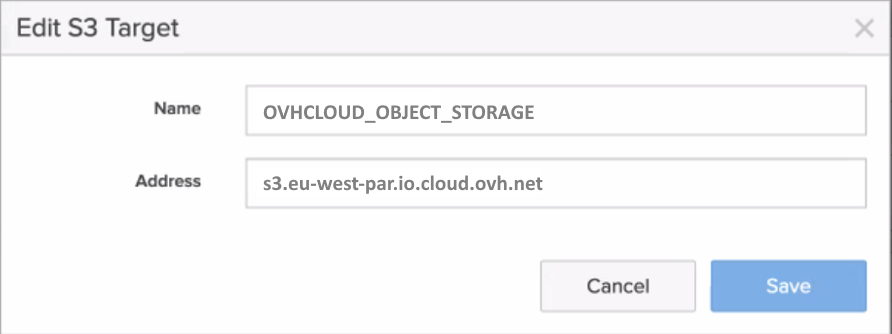
The list of all OVHcloud Object Storage endpoints can be found [here](/it/guides/storage-and-backup/object-storage/s3-location.md).
### Add Remote Cloud Object Storage Credentials
5. Go to the `Protection
` section and then click on `Object Replica Links
`.
6. Click the `\+
` button to add remote credentials for object replication.
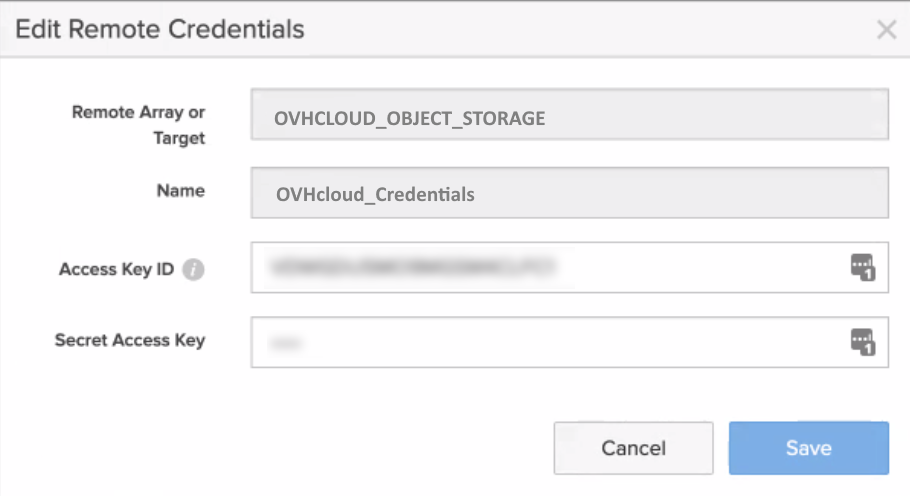
7. Select `OVHCLOUD_OBJECT_STORAGE
` for Remote Array.
8. Add the name of your connection (for example `OVHcloud_credentials`
), and add your Access and Secret keys from the OVHcloud Control Panel
.
9. Confirm by clicking on `Create
` and your remote credentials will be created.
### Create a bucket that will be replicated to OVHcloud Object Storage
10. If not already done, go to the `Storage
` section, then `Object Storage
` and finally `Accounts
` to create the account.
11\. Configure the different parameters: `account name`, `quota limit` and `bucket default quota limit` to create the account.
12. Click the `Buckets
` section and select the account name.
13. Enter a bucket name `OVHcloud-source-2025`
and click on `Create
`.
### Setup the Bucket Replication to OVHcloud Object Storage
14. Go to `Protection
` > `Object Replication
` and `Bucket Replication Link
`.
15. Click the `\+
` button to create a bucket replica link.
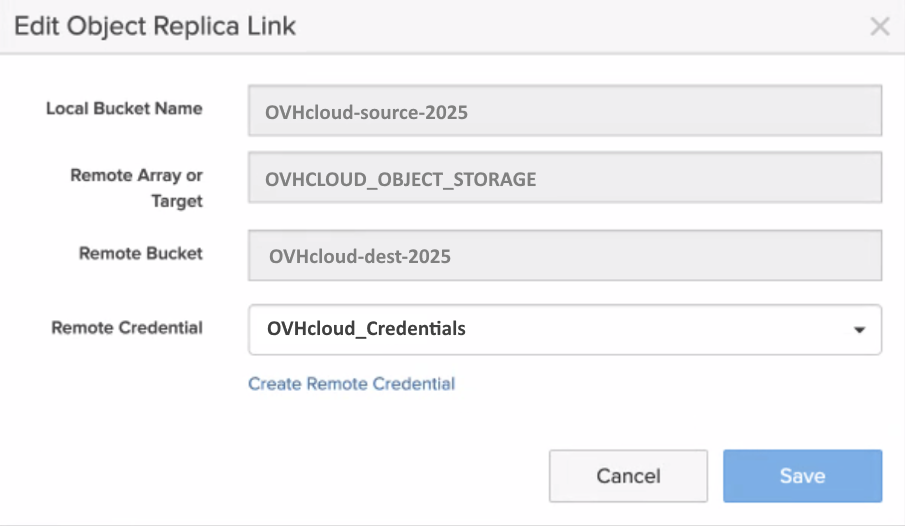
16\. Select the bucket you just created.
17. Select `OVHCLOUD_OBJECT_STORAGE
` for Remote Array.
18\. Add the name of your OVHcloud Object Storage bucket: `OVHcloud-dest-2025`.
19\. Add your remote credentials: `OVHcloud_credentials`. The bucket replica link will be created.
20\. You can now test and validate the bucket replication from Pure Storage Flashblade platform to OVHcloud Object Storage.
## Go further
Join our [community of users](https://community.ovhcloud.com/).
1
: S3 is a trademark of Amazon Technologies, Inc. OVHcloud’s service is not sponsored by, endorsed by, or otherwise affiliated with Amazon Technologies, Inc.