---
title: "File Transfer Action"
description: "This action is designed to efficiently duplicate data, always preserving the source's full path structure within the destination"
url: https://docs.ovhcloud.com/it/guides/public-cloud/data-platform/dpe-actions-file-transfer
lang: it
lastUpdated: 2026-09-14
---
> For AI agents: the complete documentation index is available at https://docs.ovhcloud.com/it/llms.txt, the full documentation bundle is available at https://docs.ovhcloud.com/it/llms-full.txt.
# File Transfer Action
## Objective
The _File Transfer_ action allows you to **copy files and folders between buckets, or from a configured source in your Connectors to a destination bucket.** This action is designed to efficiently duplicate data, always preserving the source's full path structure within the destination.
## Configure a File Transfer action
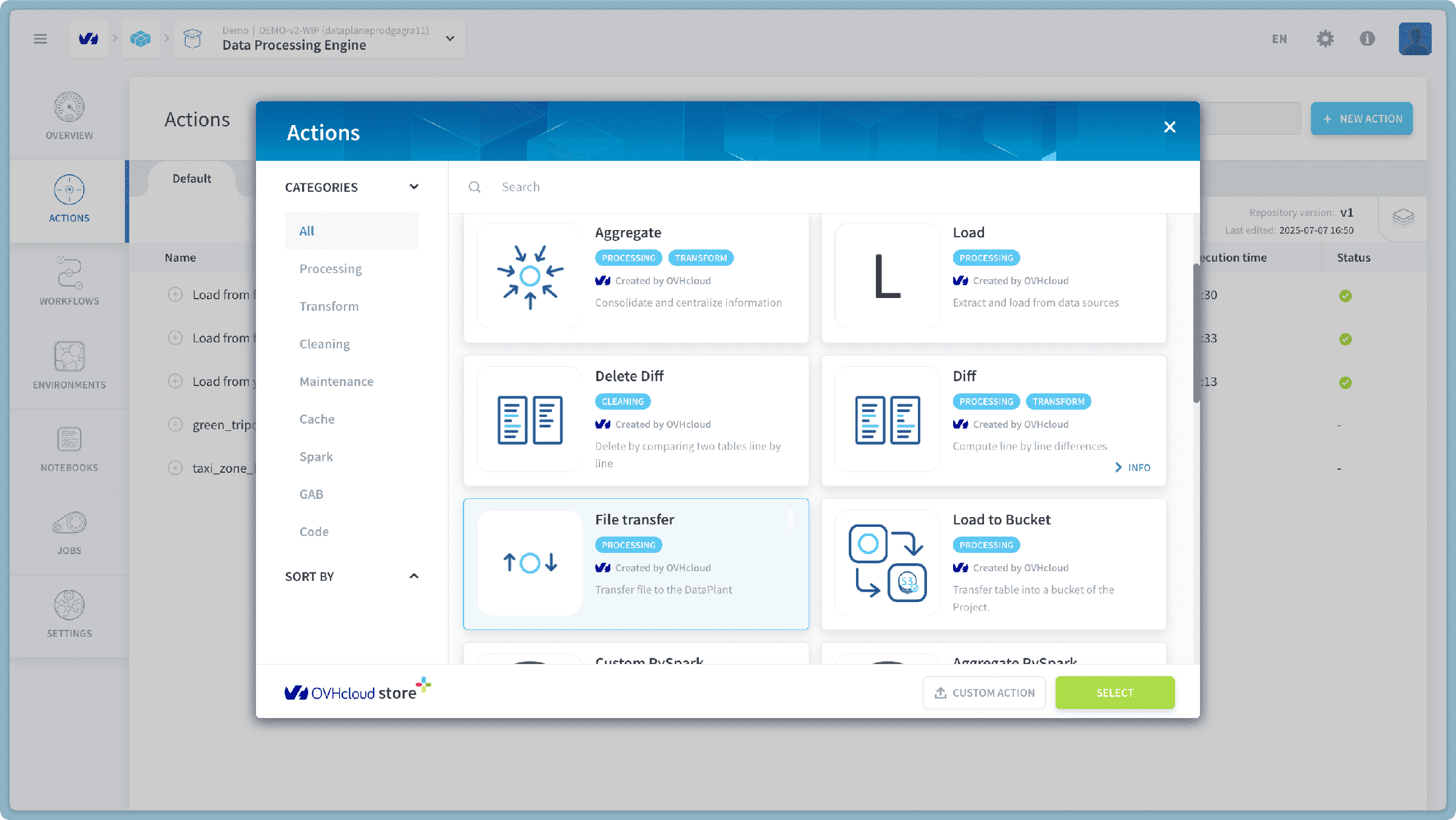
To create a new _File Transfer_ action, follow these steps within the Data Processing Engine (DPE):
1. Navigate to the **Action tab** within the Data Processing Engine (DPE) interface.
2. Click on the **"New Action"** button.
3. From the list of available actions, select **"File Transfer"**.
### Choose a Source for Transfer
First, you need to define where the files will be copied _from_.
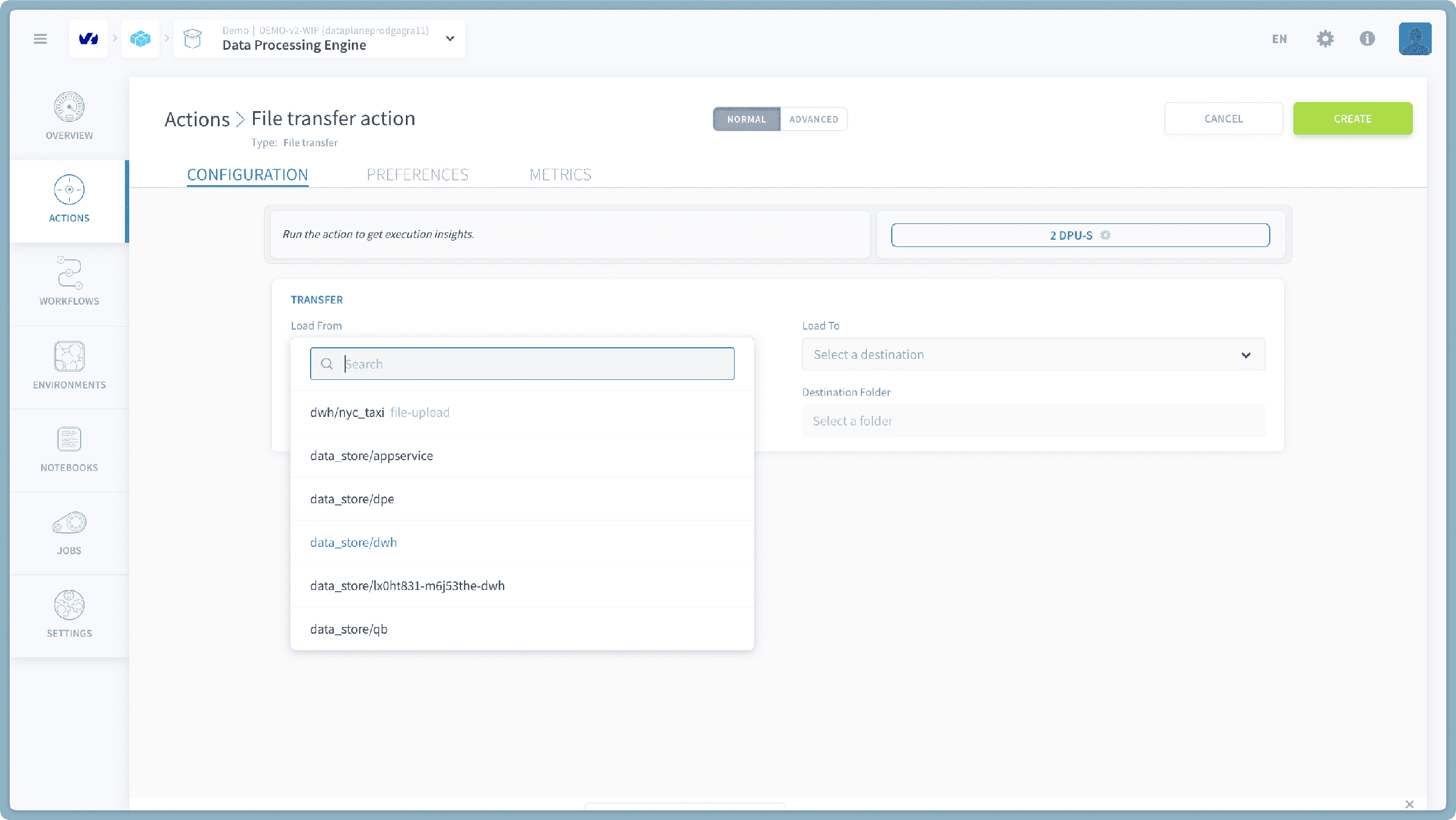
_Figure: Selecting the source for your file transfer._
You have two main options for your source:
- **Connectors Source:** Select one of the sources you have already configured in the [Sources tab](https://docs.ovhcloud.com/it/guides/public-cloud/data-platform/landing-page-connectors-sources.md) of the Connectors. This is ideal for bringing data from external systems (e.g., databases, other object storage providers) into your project buckets.
- **Project Bucket:** Select an existing [Project bucket](https://docs.ovhcloud.com/it/guides/public-cloud/data-platform/lakehouse-manager-buckets.md) directly from the list. This is useful for copying data between buckets within your OVHcloud environment.
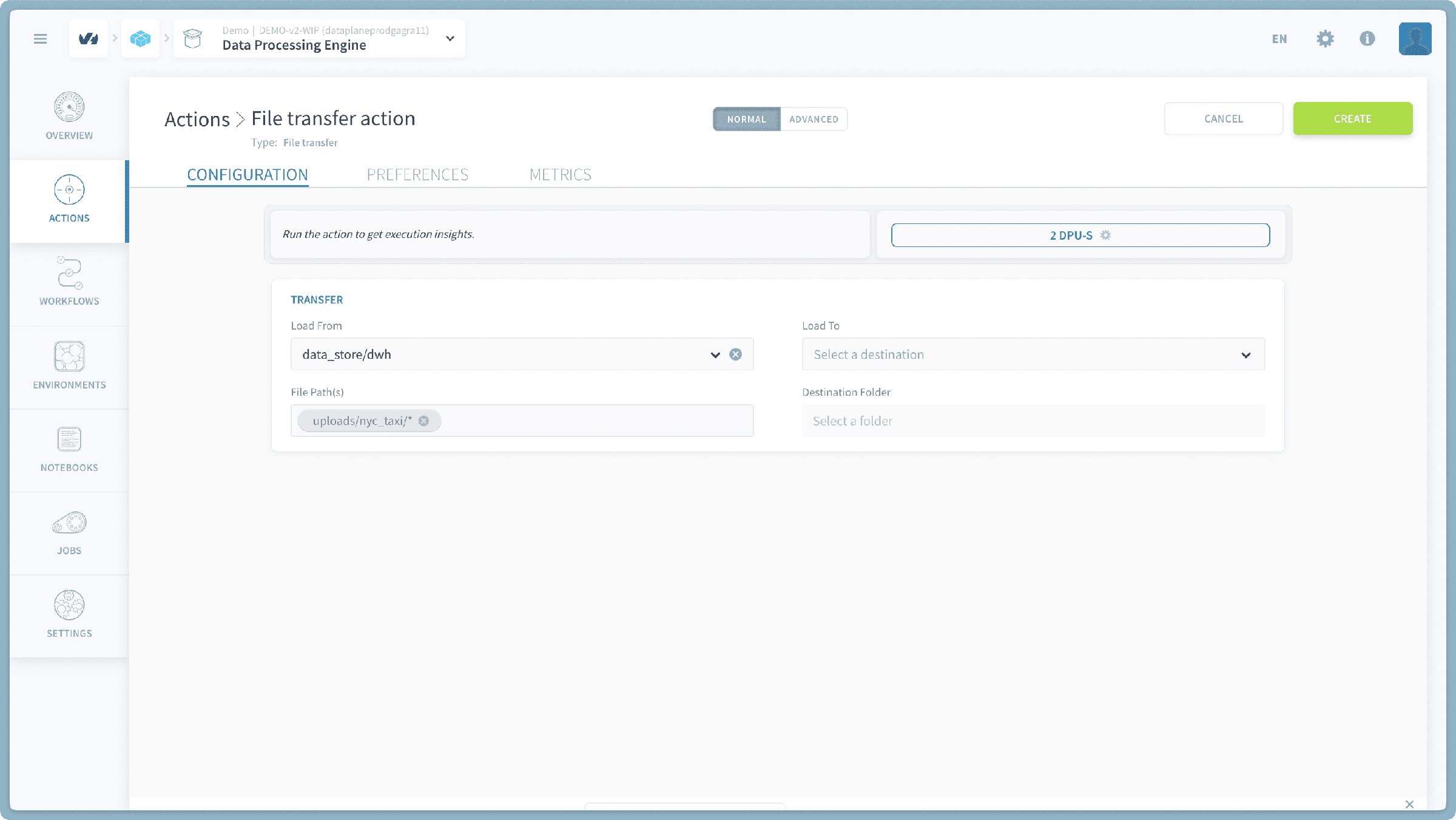
Once you've selected your source, you will need to specify the **Source File Path**. This path indicates which files or folders within your chosen source should be copied.
- **To transfer specific files:** Enter the full path to the file, e.g., `folderA/subfolderB/my_file.csv`.
- **To transfer an entire folder and its contents:** Use a wildcard `*` at the end of the folder path.
- **Example Path:** `uploads/nyc_taxi/*`
- This example path indicates that all files and sub-folders directly within the `nyc_taxi` folder (which itself is located inside the `uploads` folder) will be included in the transfer.
- If you want to transfer the _entire content_ of the root of your source, you would specify `*`.
:::info
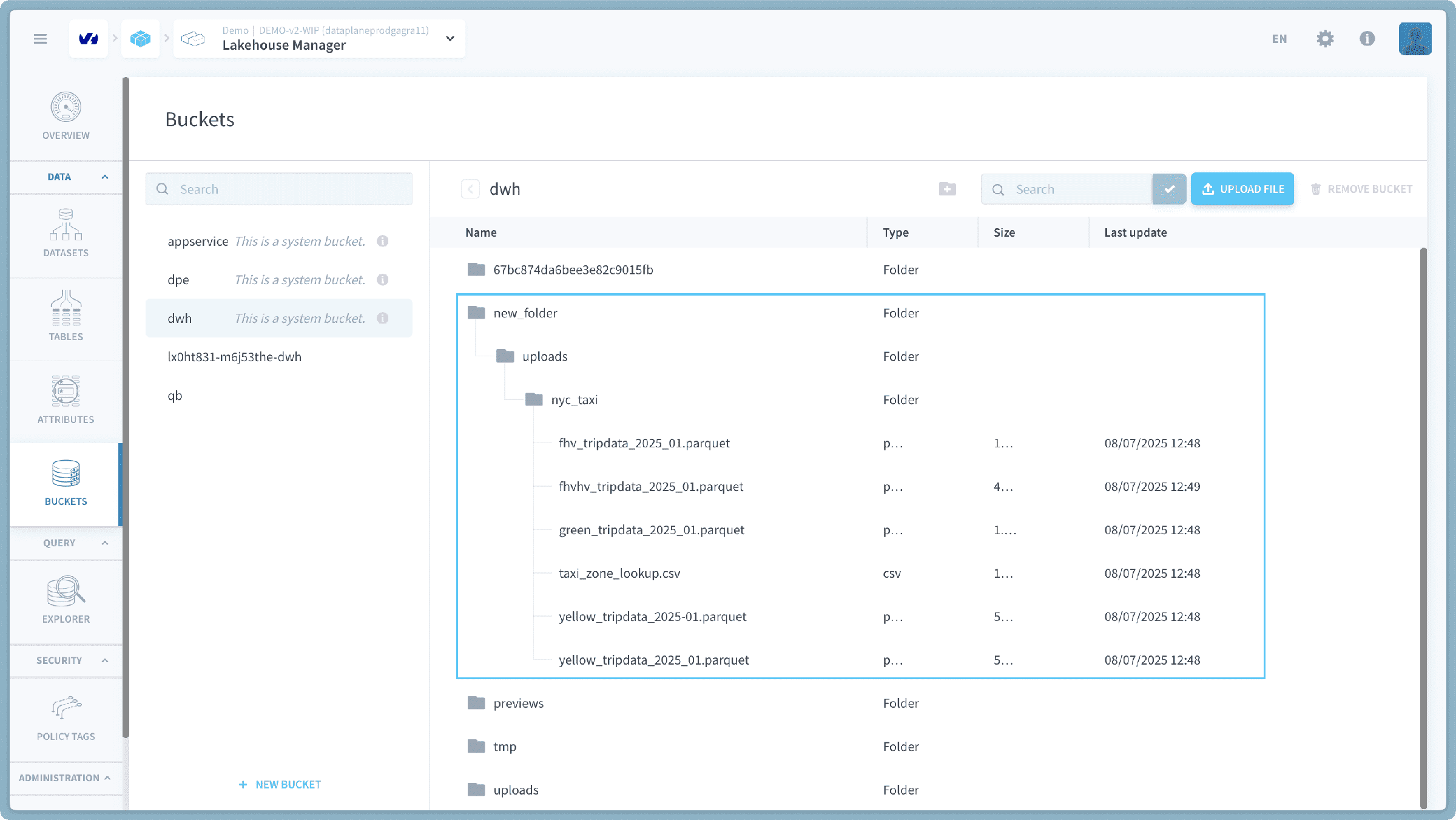
**Important:** The File Transfer action always preserves the **full source path** under the destination. For example, if you copy the folder `uploads/nyc_taxi/` (using `uploads/nyc_taxi/*`) from your source to a destination bucket with a destination path `/my_new_data/`, the `nyc_taxi` folder and its contents will appear as `/my_new_data/uploads/nyc_taxi/` in the destination.
:::
### Specify Destination Bucket
Next, you will define the destination where your files will be copied _to_.
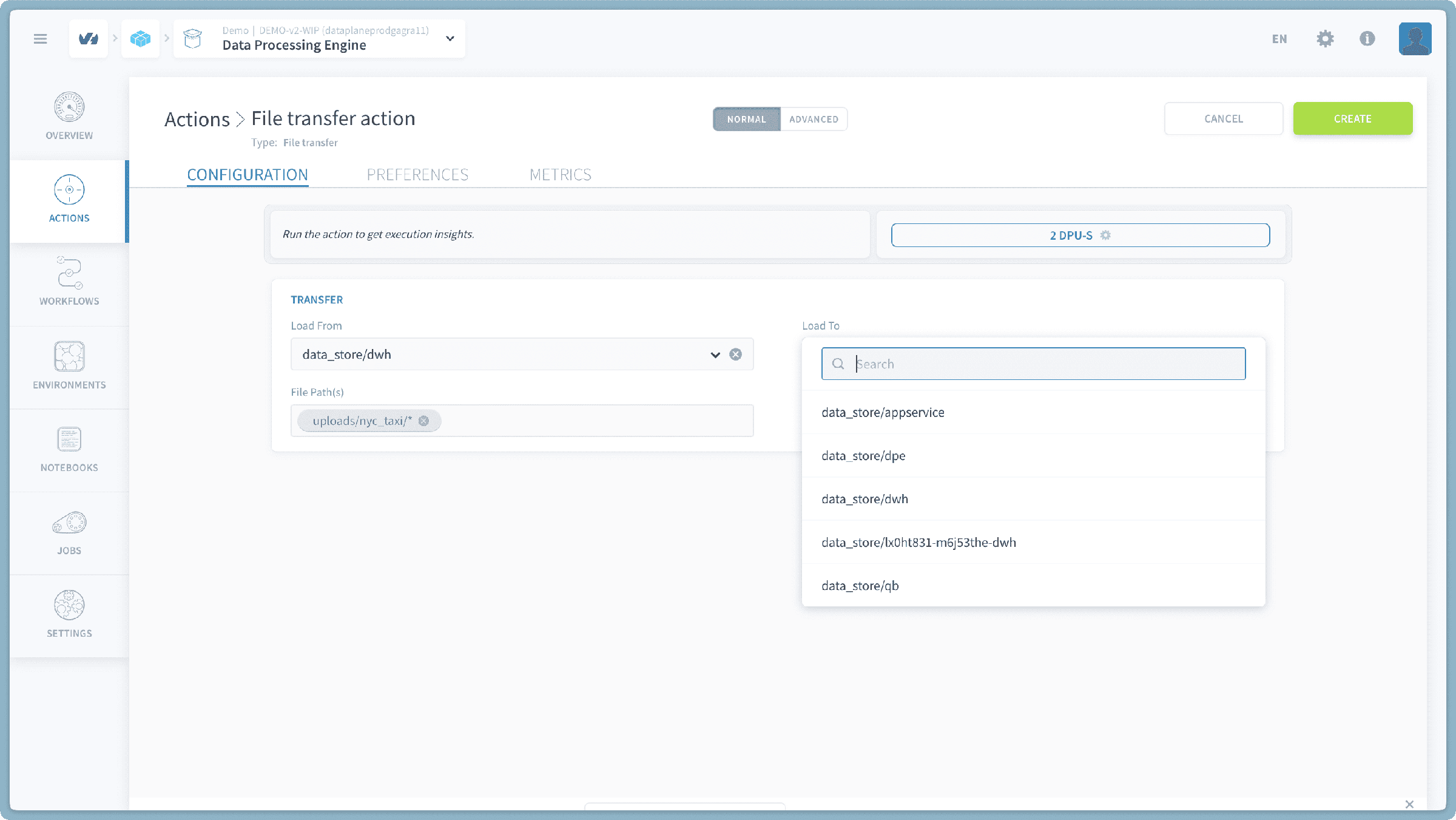
_Figure: Specifying the destination bucket and path._
1. **Choose Destination Bucket:** Select the target [Project bucket](https://docs.ovhcloud.com/it/guides/public-cloud/data-platform/lakehouse-manager-buckets.md) from the provided list.
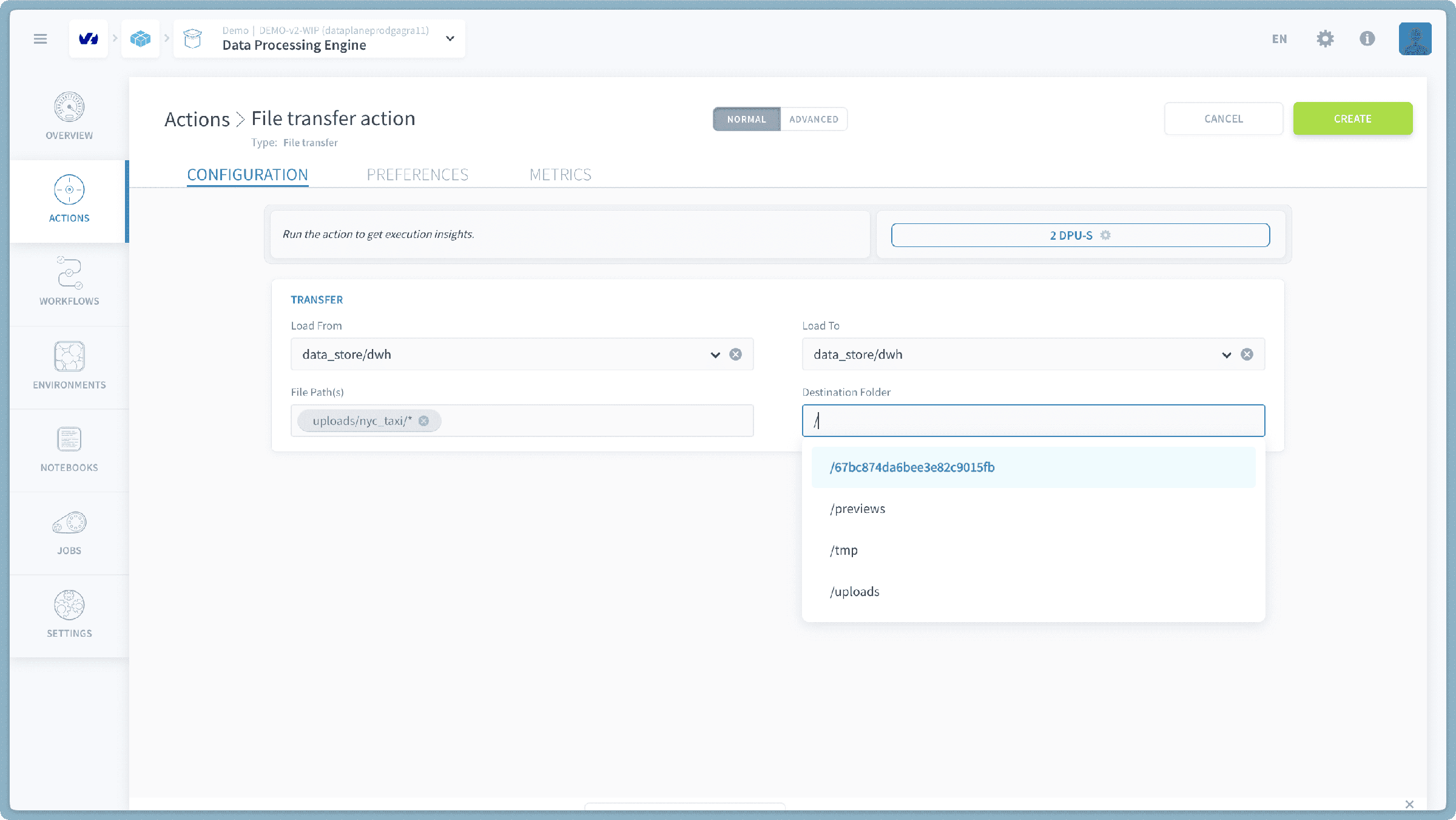
2. **Enter Destination Path:** In the field below the destination bucket selection, you can specify a path within the destination bucket.
- If you enter a forward slash (`/`), the system will provide a list of available paths and folders within that destination bucket, allowing you to easily select an existing location.
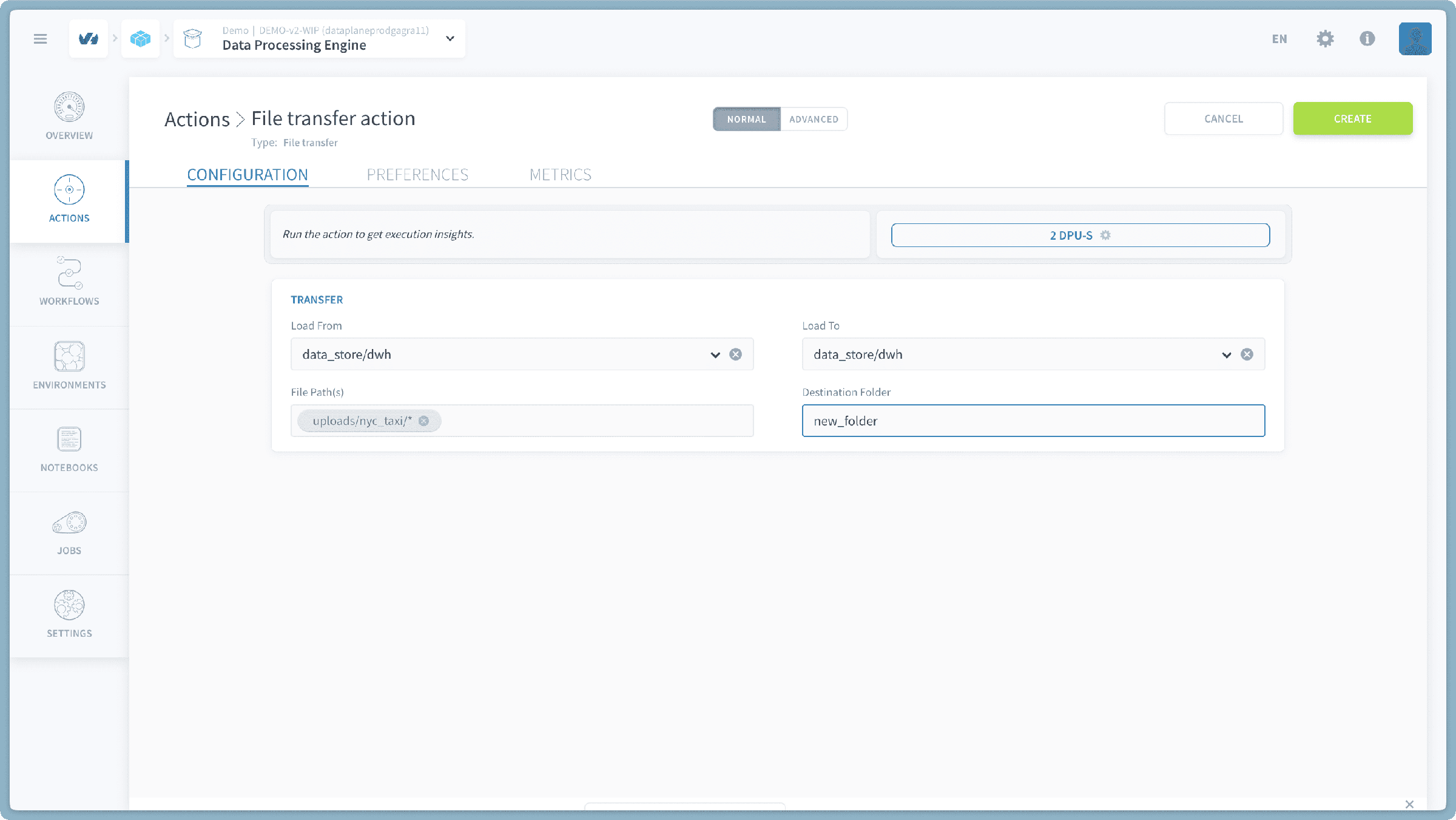
 - You can also type a new path, and the system will create the necessary folders if they don't already exist.
 3. **Run the Action:** Once both your source and destination are configured, click the "Run" button to initiate the file transfer.
## Verify Your Transfer
After the _File Transfer_ action completes successfully, you can visually confirm the changes by navigating to the **Buckets** section within the [Lakehouse Manager](https://docs.ovhcloud.com/it/guides/public-cloud/data-platform/lakehouse-manager-buckets.md). Here, you will see the copied files and folders appear in your destination bucket, reflecting the structure preserved from the source.
## Go further
If you need training or technical assistance to implement our solutions, contact your sales representative or click on [this link](https://www.ovhcloud.com/it/professional-services/) to get a quote and ask our Professional Services experts for a custom analysis of your project.
Ask questions, give your feedback and interact directly with the team building the Data Platform on the dedicated [Discord channel](https://discord.gg/ovhcloud).
If you need support with your OVHcloud services, create a request in our [Help Centre](https://help.ovhcloud.com/csm?id=csm_get_help).
Join our [community of users](https://community.ovhcloud.com/).
3. **Run the Action:** Once both your source and destination are configured, click the "Run" button to initiate the file transfer.
## Verify Your Transfer
After the _File Transfer_ action completes successfully, you can visually confirm the changes by navigating to the **Buckets** section within the [Lakehouse Manager](https://docs.ovhcloud.com/it/guides/public-cloud/data-platform/lakehouse-manager-buckets.md). Here, you will see the copied files and folders appear in your destination bucket, reflecting the structure preserved from the source.

## Go further
If you need training or technical assistance to implement our solutions, contact your sales representative or click on [this link](https://www.ovhcloud.com/it/professional-services/) to get a quote and ask our Professional Services experts for a custom analysis of your project.
Ask questions, give your feedback and interact directly with the team building the Data Platform on the dedicated [Discord channel](https://discord.gg/ovhcloud).
If you need support with your OVHcloud services, create a request in our [Help Centre](https://help.ovhcloud.com/csm?id=csm_get_help).
Join our [community of users](https://community.ovhcloud.com/).