---
title: "AI Notebooks - Tutorial - Use ResNet for image classification"
description: "How to use an existing model to do Transfer Learning?"
url: https://docs.ovhcloud.com/it/guides/public-cloud/ai-machine-learning/ai-notebooks-transfer-learning-resnet
lang: it
lastUpdated: 2022-09-01
---
# AI Notebooks - Tutorial - Use ResNet for image classification
## Objective
This tutorial will allow you to use **Transfer Learning** to train an existing model on a custom dataset thanks to **OVHcloud AI Notebooks**.
To show how Transfer Learning can be useful, **ResNet50** will be trained on a custom dataset.
### USE CASE: Flower Classification
:::info
To classify flower images, the **Flower Classification** dataset will be used. It is available on [Kaggle](https://www.kaggle.com/datasets/sauravagarwal/flower-classification).
:::
_Contains information from [Flower Classification](https://www.kaggle.com/datasets/sauravagarwal/flower-classification), which is made available here under the [CC0: Public Domain](https://creativecommons.org/publicdomain/zero/1.0/)._
## Definition
### Transfer learning
In Machine Learning, the aim of **Transfer Learning** is to use the knowledge already acquired to solve a completely new, but related problem. In other words, the technique is to transfer the notions learned on a source dataset to be more efficient in the processing of a new target dataset.
For this tutorial, the goal is to do **image classification**. An existing model is used: **ResNet50**.
### ResNet50 model
[ResNet](https://en.wikipedia.org/wiki/Residual_neural_network) is a Residual neural Network structure. It is an innovative neural network created for image classification.
The **ResNet** model architecture allows the training error to be reduced with a deeper network through **connection skip**.
Residual neural networks ignore some connections and make double or triple layer jumps that contain non-linearities (ReLU).
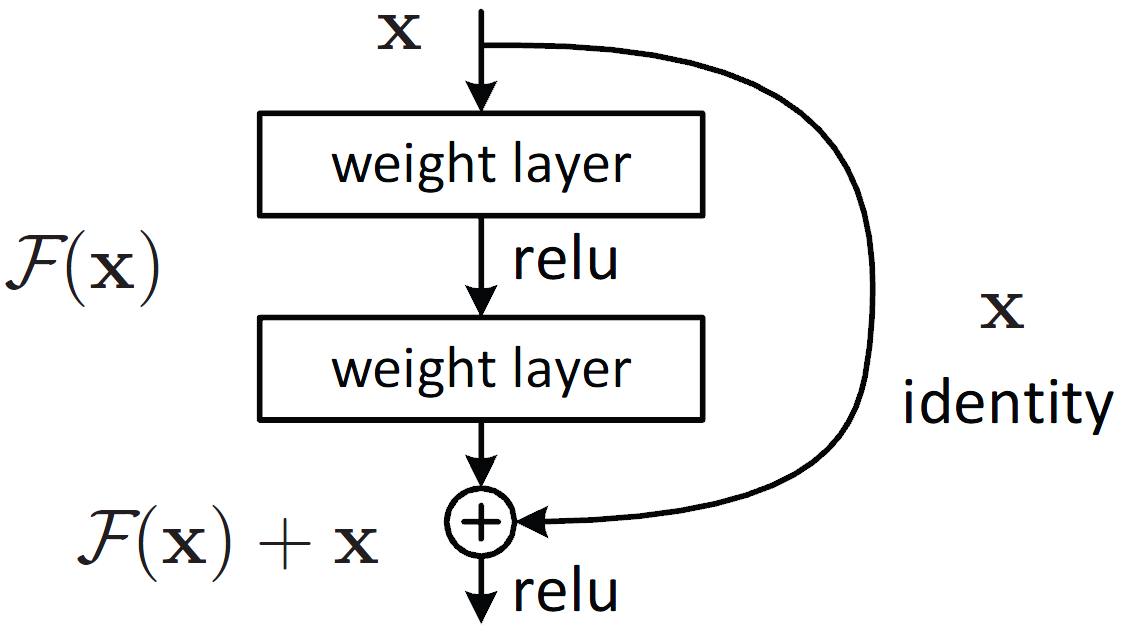
With this method, performance is generally improved.
ResNet has many variants that work on the same concept but have different numbers of layers. **Resnet50** is used to refer to the variant that can work with fifty neural network layers. It was trained on more than a million images from the [ImageNet database](https://www.image-net.org/).
## Requirements
- An AI Notebooks project created inside a [Public Cloud project](https://www.ovhcloud.com/it/public-cloud/) in your OVHcloud account
- A [user](/it/guides/public-cloud/ai-machine-learning/ai-users.md) for AI Notebooks
***
### OVHcloud Control Panel Access
- **Direct link:** Public Cloud Projects
- **Navigation path:** Public Cloud > Select your project
***
## Instructions
First, you have to create 2 object containers in your OVHcloud **Object Storage**.
- The first one contains the non-pre-processed data (base images).
- The second object container is empty. It is intended to receive the data once processed and split for training.
:::info
To know more about how to **push your data to Object Storage**, please refer to the dedicated [documentation](/it/guides/public-cloud/ai-machine-learning/ai-cli-data.md).
:::
Then, you can launch your notebook from the OVHcloud Control Panel
or via the ovhai [CLI](/it/guides/public-cloud/ai-machine-learning/ai-cli-run-notebook.md)
.
### Launching a Jupyter notebook with "Miniconda" via UI
To launch your notebook from the OVHcloud Control Panel
, refer to the following steps.
#### Code editor
Choose the `Jupyterlab` code editor.
#### Framework
In this tutorial, the `TensorFlow` framework is used.
For this tutorial, you can use the following TensorFlow framework version: `tf2.4-py38-cuda11.0-v22-4`.
#### Resources
You can choose the number of CPUs or GPUs you want.
:::info
Here, using `1 GPU` is sufficient.
:::
#### Attach a Git container or repository
1. Attach the object container (from the Object Storage) that contains your
**dataset
** for image classification.
- Mount directory: `/workspace/data`
- Permission: `read only` (RO)
1. Attach an empty object container to store your
**data
**, once it has been
**processed
** and
**split
** for training, validation and test.
- Mount directory: `/workspace/data-split`
- Permission: `read write` (RW)
1. Attach an empty object container to store your
**model
** after training.
- Mount directory: `/workspace/saved_model`
- Permission: `read write` (RW)
:::info
To learn more about how to use and **manage your data in a notebook with UI**, check this [documentation](/it/guides/public-cloud/ai-machine-learning/ai-notebooks-manage-data-ui.md).
:::
### Launching a Jupyter notebook with TensorFlow via CLI
If you want to launch it with the CLI, choose the `jupyterlab` editor and the `tensorflow` framework.
For this tutorial, you can use the following TensorFlow framework version: `tf2.4-py38-cuda11.0-v22-4`.
:::info
To know more about how to use and **manage your data in a notebook with the CLI**, refer to this [documentation](/it/guides/public-cloud/ai-machine-learning/ai-cli-access-data.md).
:::
Choose the number of GPUs (``) to use in your notebook and use the following command.
```console
ovhai notebook run tensorflow jupyterlab \
--name \
--framework-version tf2.4-py38-cuda11.0-v22-4 \
--volume @/:/workspace/data:RO:cache \
--volume @/:/workspace/saved_model:RW \
--gpu
```
You can then reach your notebook’s URL once the notebook is running.
### Accessing the notebook
Once the repository has been cloned, find your notebook by following this path: `ai-training-examples` > `notebooks` > `computer-vision` > `image-classification` > `tensorflow` > `notebook-resnet-transfer-learning-image-classification.ipynb`.
A preview of this notebook can be found on GitHub [here](https://github.com/ovh/ai-training-examples/blob/main/notebooks/computer-vision/image-classification/tensorflow/resnet50/notebook-resnet-transfer-learning-image-classification.ipynb).
## Go further
- If you want to deploy a Gradio app for **Image classification** or **Sketch recognition**, check out this [documentation](/it/guides/public-cloud/ai-machine-learning/ai-deploy-gradio-sketch-recognition.md).
- If you are interested in **Computer Vision**, familiarise yourself with Object Detection by following this [tutorial](/it/guides/public-cloud/ai-machine-learning/ai-notebooks-yolov5-example.md).
If you need training or technical assistance to implement our solutions, contact your sales representative or click on [this link](https://www.ovhcloud.com/it/professional-services/) to get a quote and ask our Professional Services experts for a custom analysis of your project.
## Feedback
Please send us your questions, feedback and suggestions to improve the service:
- On the OVHcloud [Discord server](https://discord.gg/ovhcloud)