---
title: "Public VCF as-a-Service - Linking a public IP block with vRack"
description: "Find out how to link the block of public IP addresses delivered with your Public VCF as-a-Service organization and its vRack"
url: https://docs.ovhcloud.com/it/guides/hosted-private-cloud/powered-by-vmware/vcd-link-ip-to-vrack
lang: it
lastUpdated: 2025-09-08
---
# Public VCF as-a-Service - Linking a public IP block with vRack
## Objective
When you order a new Public VCF as-a-Service organization, a vRack and a block of public IP addresses are delivered to you.
This IP block is not directly linked to your vRack. You will need to link it manually.
**Find out how to link the block of public IP addresses delivered with your Public VCF as-a-Service organization and its vRack.**
***
### OVHcloud Control Panel Access
- **Direct link:** [VMware Cloud Foundation](https://manager.eu.ovhcloud.com/#/vmware/public-vcf-aas)
- **Navigation path:** Hosted Private Cloud > Public VCF as-a-Service > Select your VCF service
***
## Requirements
- A [Public VCF as-a-Service](https://www.ovhcloud.com/it/lp/vmware-vcd-evolution/) on OVHcloud solution.
- Being the technical administrator of the managed [VMware vSphere on OVHcloud](https://www.ovhcloud.com/it/hosted-private-cloud/vmware/) infrastructure.
- Access to the OVHcloud Control Panel
## Instructions
1. Log in to your OVHcloud Control Panel.
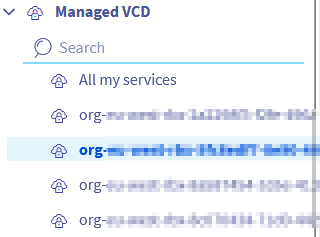
2. Click Hosted Private Cloud, then click the Public VCF as-a-Service menu, and select your organization.
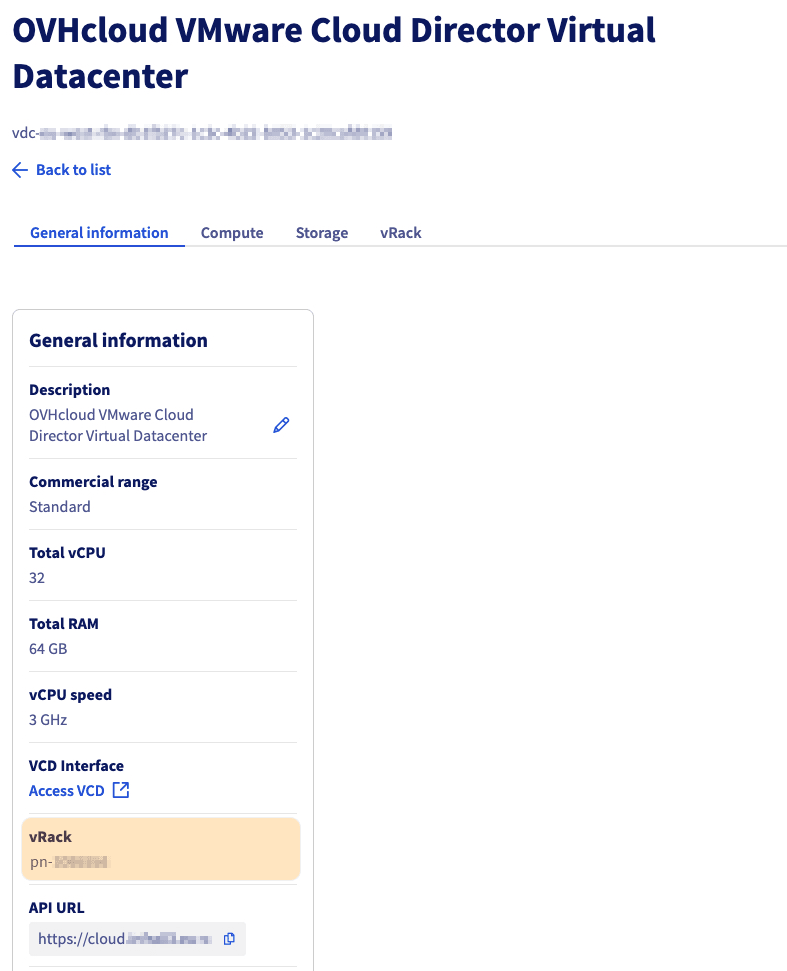
 3. From the
 General information tab, the vRack attached to your organization will appear with an ID in the form `pn-xxxxxxx`.
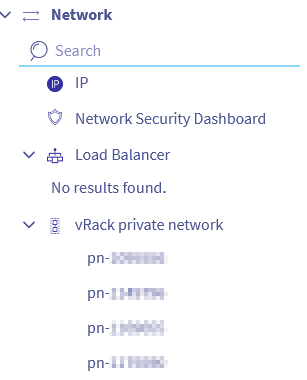
 4. Expand the
 Network menu in the left-hand column and select your vRack `pn-xxxxxxx`.
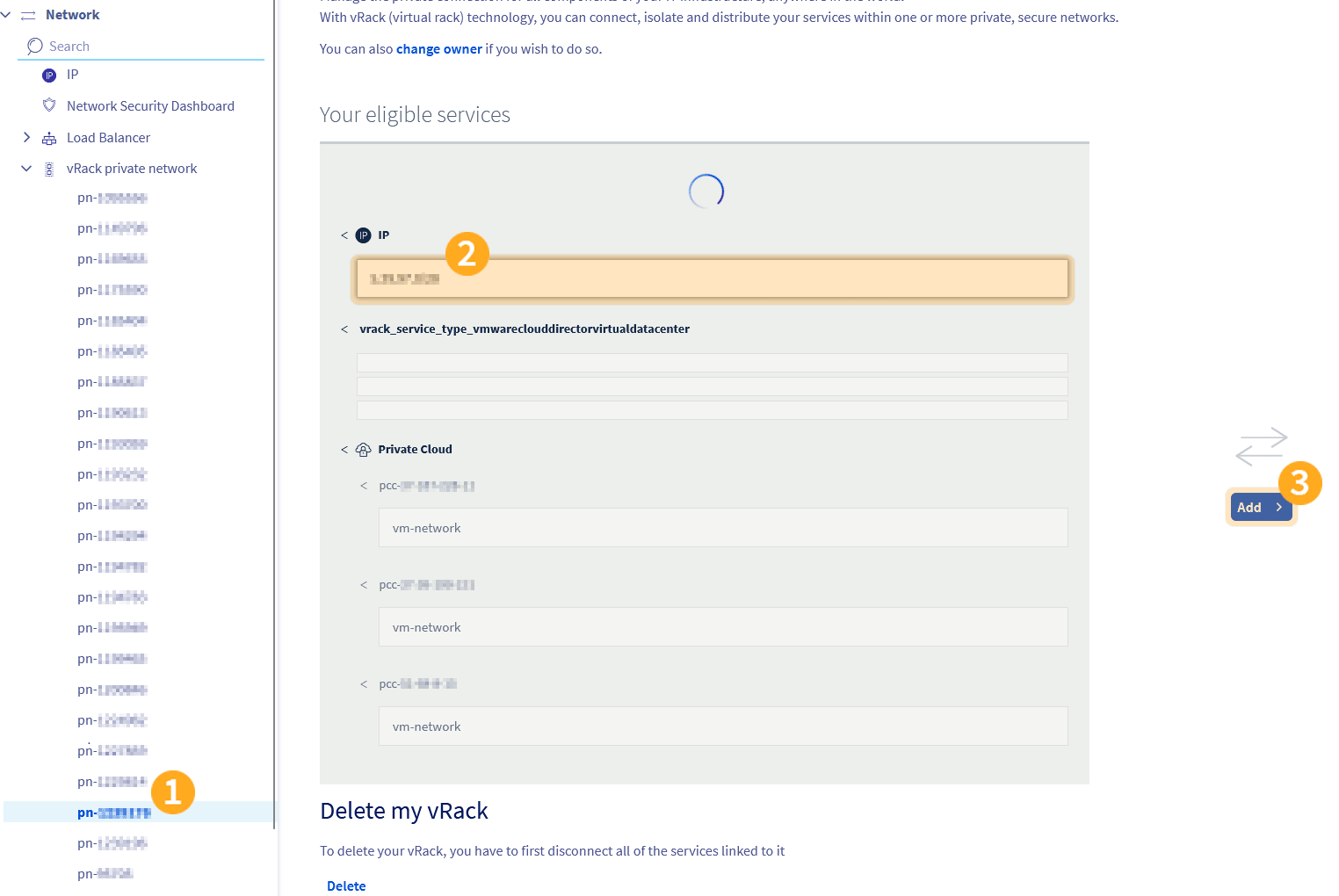
 5. Select the IP block to link to your vRack/organization and click
 Add.
 6. The public IP block is now linked to your vRack.
To make these addresses usable inside your Public VCF as-a-Service environment, you also need to declare the public gateway in VMware Cloud Director (VCD).
Follow the guide [Public VCF as-a-Service - Declare the public IP gateway in VCD](/it/guides/hosted-private-cloud/powered-by-vmware/vcd-declare-public-gateway.md) to complete this step.
## Go further
If you need training or technical assistance to implement our solutions, please contact your Technical Account Manager or click on [this link](https://www.ovhcloud.com/it/professional-services/) to get a quote and ask our Professional Services experts for a custom analysis of your project.
Ask questions, give your feedback and interact directly with the team building our Hosted Private Cloud services on the dedicated [Discord](https://discord.gg/ovhcloud) channel.
Join our [community of users](https://community.ovhcloud.com/).
6. The public IP block is now linked to your vRack.
To make these addresses usable inside your Public VCF as-a-Service environment, you also need to declare the public gateway in VMware Cloud Director (VCD).
Follow the guide [Public VCF as-a-Service - Declare the public IP gateway in VCD](/it/guides/hosted-private-cloud/powered-by-vmware/vcd-declare-public-gateway.md) to complete this step.
## Go further
If you need training or technical assistance to implement our solutions, please contact your Technical Account Manager or click on [this link](https://www.ovhcloud.com/it/professional-services/) to get a quote and ask our Professional Services experts for a custom analysis of your project.
Ask questions, give your feedback and interact directly with the team building our Hosted Private Cloud services on the dedicated [Discord](https://discord.gg/ovhcloud) channel.
Join our [community of users](https://community.ovhcloud.com/).