---
title: "Enterprise File Storage - Connect a Public Cloud instance to an EFS Volume via vRack Private Network"
description: "Find out how to connect a Public Cloud instance to an Enterprise File Storage (EFS) volume using a vRack private network."
url: https://docs.ovhcloud.com/es/guides/storage-and-backup/file-storage/enterprise-file-storage/netapp-pci-connection-via-vrack
lang: es
lastUpdated: 2025-10-28
---
# Enterprise File Storage - Connect a Public Cloud instance to an EFS Volume via vRack Private Network
## Objective
Mount an Enterprise File Storage (EFS) NFS volume from a Public Cloud instance using a private vRack network.
This ensures that all data traffic remains on the private network, with no Internet exposure.
:::info
The EFS volume and the Public Cloud instance must be located in the same region (e.g. RBX, GRA, or SBG), as OpenStack private networks are regional.
:::
## Requirements
- An [Enterprise File Storage](https://www.ovhcloud.com/en-gb/storage-solutions/enterprise-file-storage/) service in your OVHcloud account.
- An [OVHcloud Public Cloud instance](/es/guides/public-cloud/compute/getting-started.md) in the same region.
- An active [vRack Private Network](/es/guides/public-cloud/network-services/vrack.md) in the same region.
- Access to the OVHcloud Control Panel or the [Openstack CLI](/es/guides/public-cloud/cross-functional/compute-set-openstack-environment-variables.md).
## Overview
The diagram below illustrates how an Enterprise File Storage (EFS) volume connects to a Public Cloud instance through a private vRack network.
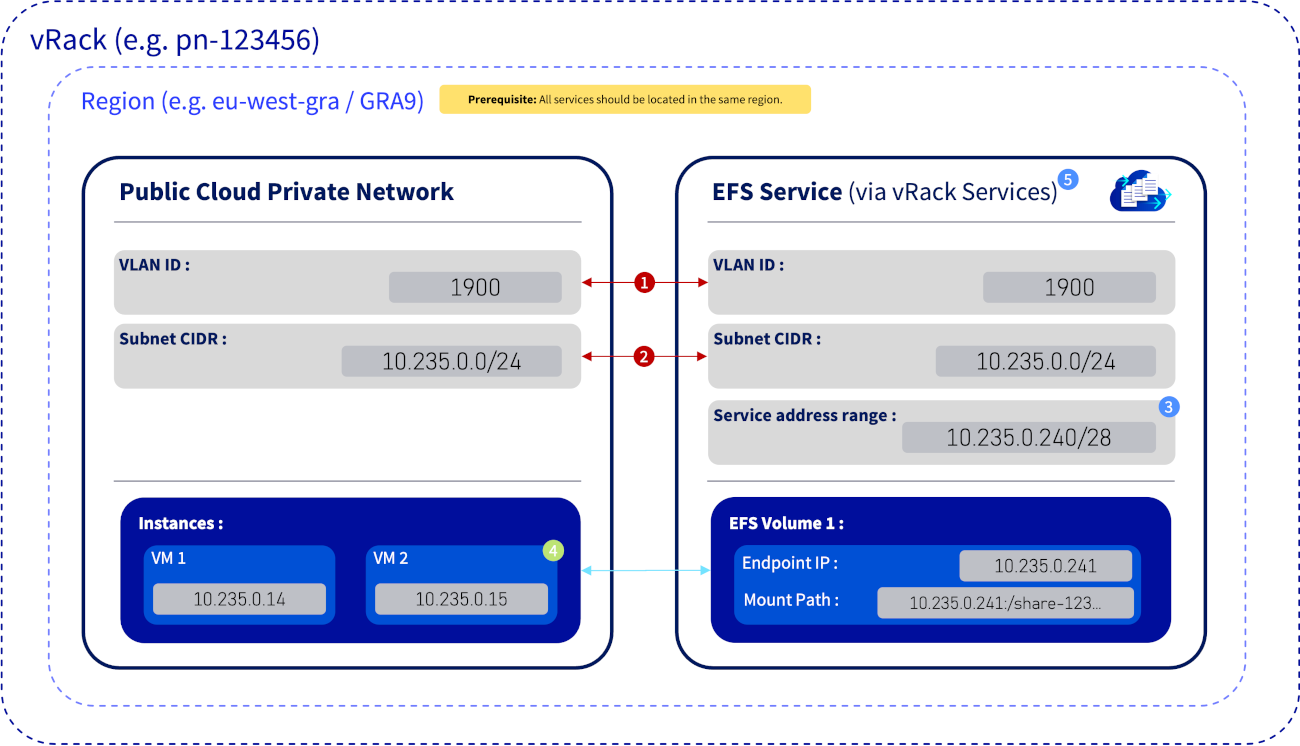
1. Critical Match — VLAN ID
The VLAN ID (e.g. `1900`) must be identical in both the Public Cloud private network and the vRack Services configuration.
2. Critical Match — Subnet CIDR
The subnet CIDR (e.g. `10.235.0.0/24`) must also match across both services to ensure they operate within the same logical network in the vRack.
3. Info — Service address range
The service address range (e.g. `10.235.0.240/28`) is a reserved subset of the main subnet. These IPs are exclusively used by EFS service endpoints (e.g. `10.235.0.241`) and must not be assigned to instances.
4. Security — ACL Rule
The EFS volume’s Access Control List (ACL) must explicitly authorize the private IP of any instance requiring access (e.g. `10.235.0.15`).
5. Concept — vRack Services
vRack Services acts as a secure network bridge, allowing managed services such as EFS outside your Public Cloud project to connect seamlessly to your private vRack network.
## Instructions
### Step 1 - Associate the Public Cloud project with the vRack
Before deploying your Enterprise File Storage (EFS) volume through a private vRack network, your Public Cloud project must first be associated with a vRack.
This association enables private networking between your Public Cloud instances and OVHcloud managed services such as EFS.
Follow the procedure described in the **step 1: activating and managing a vRack** in our guide "[Configuring vRack for Public Cloud](/es/guides/public-cloud/network-services/vrack.md)".
### Step 2 - Create a Private Network in Your Public Cloud Project [](#)
To connect your Public Cloud instance to an EFS volume via vRack, first provision a dedicated private network within your project.
This isolated network enables secure communication between your instances and OVHcloud storage resources through the vRack architecture.
Follow the procedure described in the **step 2: creating a private network in the vRack** in our guide "[Configuring vRack for Public Cloud](/es/guides/public-cloud/network-services/vrack.md)".
### Step 3 — Launch the Instance on the Private Network
Deploy your Public Cloud instance within the private network you created. Ensure it is connected to the correct subnet to enable secure communication over the vRack.
Follow the procedure described in the **step 3: integrating an instance into vRack** in our guide "[Configuring vRack for Public Cloud](/es/guides/public-cloud/network-services/vrack.md)".

Ensure that an IP address is assigned to the instance in the selected subnet (e.g. `10.235.0.15`).
### Step 4 - Create a vRack Service resource for EFS
There are two ways to create a vRack Service resource for your EFS volume.
Both methods achieve the same goal: securely connecting your EFS service to your vRack and Public Cloud instances.
First method: creating via vRack Services
A vRack Service resource acts as a network adapter, connecting managed services like EFS to your vRack and its private subnet.
For detailed guidance, see OVHcloud’s official documentation: [vRack Services - Exposing a Managed Service on your vRack](/es/guides/network/vrack-services/global.md).
1. In the OVHcloud Control Panel, navigate to Network section, then click on vRack Services.
2. Then click Activate vRack Services.
3. Select the same region as your vRack, Public Cloud instance and EFS service. Then click Activate vRack Services.
4. Select No thanks, i already have a vRack and accept the terms and conditions to confirm.
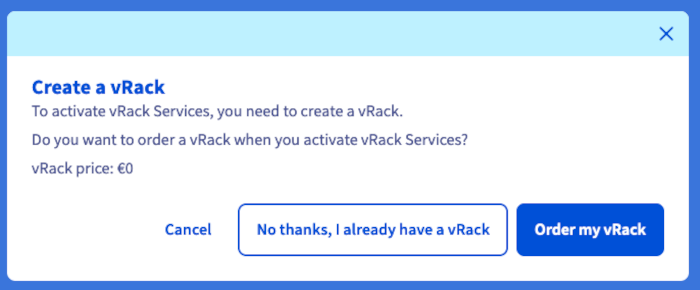 5. Then, locate your newly created vRack Service in the list and click its name.
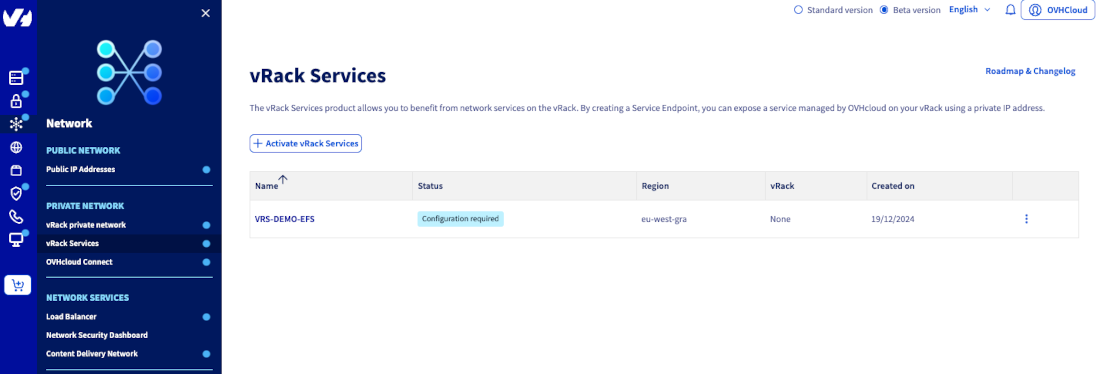 6. Edit the vRack Service with the following configuration:
- Private Network: Select the same vRack used for your Public Cloud project.
6. Edit the vRack Service with the following configuration:
- Private Network: Select the same vRack used for your Public Cloud project.
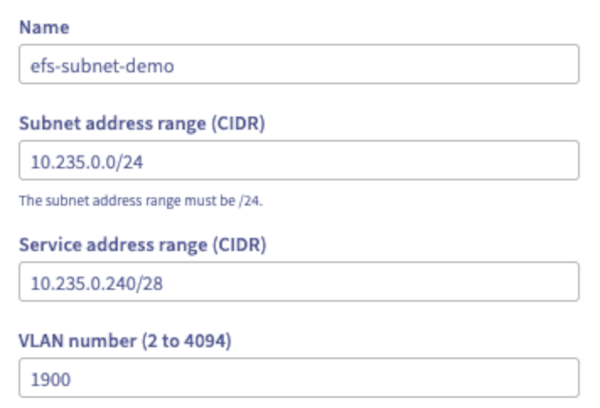
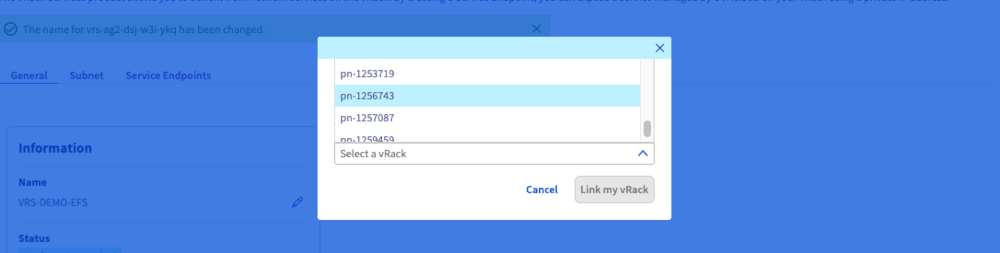 - Create a subnet:
 :::info
Ensure the CIDR matches your Public Cloud private network.
:::
- Subnet address Range: e.g. `10.235.0.0/24`.
- Service address Range: e.g. `10.235.0.240/28`.
- Reserved subset of the private subnet for assigning IPs to managed EFS services within the vRack.
- VLAN: Use the same VLAN number as your Public Cloud private network (see [Step 2](#step2)).
- Click
:::info
Ensure the CIDR matches your Public Cloud private network.
:::
- Subnet address Range: e.g. `10.235.0.0/24`.
- Service address Range: e.g. `10.235.0.240/28`.
- Reserved subset of the private subnet for assigning IPs to managed EFS services within the vRack.
- VLAN: Use the same VLAN number as your Public Cloud private network (see [Step 2](#step2)).
- Click Create subnet.
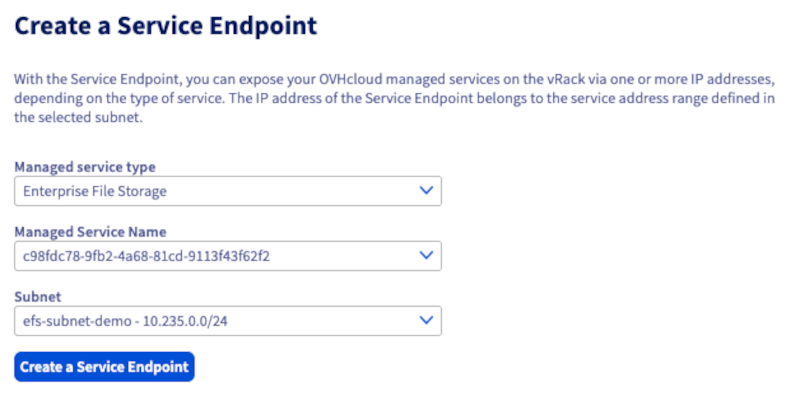
- Create a Service Endpoint:
 Second method: creating via Enterprise File Storage section
1. In the OVHcloud Control Panel, navigate to the
Second method: creating via Enterprise File Storage section
1. In the OVHcloud Control Panel, navigate to the Bare Metal Cloud section. Click Enterprise File Storage under the heading **Storage and backups**, then select your EFS service.
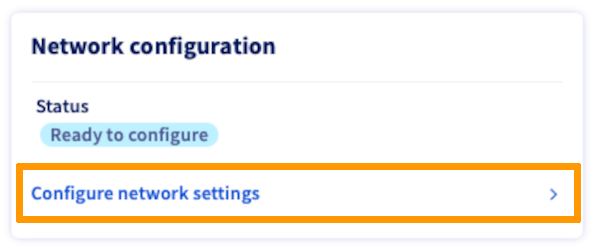
2. In the `Network Configuration` box, click Configure Network Settings.
 3. Select your vRack.
4. If no vRack Services have been created yet, activate the vRack Services and follow the [first method: creating via vRack Services](#step4-a-region-selection) from the third point.
5. If you have already created a vRack service, select your dedicated service.
### Step 5 — Connect the EFS Volume to the vRack
Once the previous steps are completed successfully, all volumes created in your EFS service will automatically reside within your vRack and its dedicated subnet, making them immediately accessible to your Public Cloud instances.
### Step 6 — Configure access control (ACLs)
In the `Access Control List (ACL)
` tab of your EFS volume:
- Add the IPs or CIDR ranges authorized to mount the volume:
- To allow a single instance, enter the instance's IP address, for example: `10.235.0.15`.
- To allow all instances within the subnet, enter the subnet address, for example: `10.235.0.0/24`.
- Set the desired Access Level: **Read and write** or **Read-only**.
:::info
**Recommendation:** Use individual IPs whenever possible to enhance security.
:::
After applying the ACLs, verify network connectivity from your Public Cloud instance:
```bash
ping
```
### Step 7 — Mount the NFS Volume
1. Install the NFS client on your Public Cloud instance:
```bash
sudo apt install -y nfs-common
```
2. Mount the EFS volume:
```bash
sudo mkdir -p /mnt/efs
sudo mount -t nfs -o vers=3,timeo=600,retrans=2 :/share_ /mnt/efs
df -h /mnt/efs
```
### Step 8 — Enable Automatic Mount on Boot (optional)
To ensure your EFS volume mounts automatically at startup, add the following entry to the `/etc/fstab` file:
```bash
:/share_ /mnt/efs nfs vers=3,timeo=600,retrans=2 0 0
```
Then test the configuration:
```bash
sudo umount /mnt/efs
sudo mount -a
```
If no errors occur, the EFS volume will now automatically mount on boot.
## Expected Result
- The instance can access the EFS volume via ``.
- All communication occurs privately within the vRack.
- The NFS mount is fully functional and persistent across reboots.
## Troubleshooting
| Symptom | Likely Cause | Resolution |
| ---------------------------------- | ---------------------------------------------------------- | ---------------------------------------------------------------------------------------------------------------------------------------------- |
| mount.nfs: No route to host | Instance and EFS not in the same region, or wrong VLAN ID. | Ensure the instance, EFS, and vRack Services are in the same region. Recreate the vRack Service using the same VLAN ID as the private network. |
| mount.nfs: access denied by server | EFS ACL missing or incorrect. | Add the instance IP (e.g. `10.235.0.x`) or subnet (e.g. `10.235.0.0/24`) with protocol NFSv3 and Read/Write access. |
| mount command hangs indefinitely | Wrong NFS version or unresponsive endpoint. | Use: `-o vers=3,timeo=600,retrans=2` to force NFSv3 and define timeouts. |
| mount succeeds but no read/write | ACLs or POSIX permissions too strict. | Adjust ACLs or update volume-level permissions. |
| mount works, but not after reboot | Missing `/etc/fstab` entry. | Add: `:/share_ /mnt/efs nfs vers=3,timeo=600,retrans=2 0 0`. |
| vRack Services shows “Inactive” | Service not yet provisioned. | Wait for provisioning to complete, or reattach the service from the EFS Private Network tab. |
## Go further
[Managing Enterprise File Storage from the OVHcloud Control Panel](/es/guides/storage-and-backup/file-storage/enterprise-file-storage/netapp-control-panel.md)
[Enterprise File Storage - API Quickstart](/es/guides/storage-and-backup/file-storage/enterprise-file-storage/netapp-quick-start.md)
[Enterprise File Storage - Managing volumes](/es/guides/storage-and-backup/file-storage/enterprise-file-storage/netapp-volumes.md)
[Enterprise File Storage - Managing volume ACLs](/es/guides/storage-and-backup/file-storage/enterprise-file-storage/netapp-volume-acl.md)
[Enterprise File Storage - Managing volume snapshots](/es/guides/storage-and-backup/file-storage/enterprise-file-storage/netapp-volume-snapshots.md)
If you need training or technical assistance to implement our solutions, contact your sales representative or click on [this link](https://www.ovhcloud.com/en-gb/professional-services/) to get a quote and ask our Professional Services experts for assisting you on your specific use case of your project.
Join our [community of users](https://community.ovhcloud.com/).
3. Select your vRack.
4. If no vRack Services have been created yet, activate the vRack Services and follow the [first method: creating via vRack Services](#step4-a-region-selection) from the third point.
5. If you have already created a vRack service, select your dedicated service.
### Step 5 — Connect the EFS Volume to the vRack
Once the previous steps are completed successfully, all volumes created in your EFS service will automatically reside within your vRack and its dedicated subnet, making them immediately accessible to your Public Cloud instances.
### Step 6 — Configure access control (ACLs)
In the `Access Control List (ACL)
` tab of your EFS volume:
- Add the IPs or CIDR ranges authorized to mount the volume:
- To allow a single instance, enter the instance's IP address, for example: `10.235.0.15`.
- To allow all instances within the subnet, enter the subnet address, for example: `10.235.0.0/24`.
- Set the desired Access Level: **Read and write** or **Read-only**.
:::info
**Recommendation:** Use individual IPs whenever possible to enhance security.
:::
After applying the ACLs, verify network connectivity from your Public Cloud instance:
```bash
ping
```
### Step 7 — Mount the NFS Volume
1. Install the NFS client on your Public Cloud instance:
```bash
sudo apt install -y nfs-common
```
2. Mount the EFS volume:
```bash
sudo mkdir -p /mnt/efs
sudo mount -t nfs -o vers=3,timeo=600,retrans=2 :/share_ /mnt/efs
df -h /mnt/efs
```
### Step 8 — Enable Automatic Mount on Boot (optional)
To ensure your EFS volume mounts automatically at startup, add the following entry to the `/etc/fstab` file:
```bash
:/share_ /mnt/efs nfs vers=3,timeo=600,retrans=2 0 0
```
Then test the configuration:
```bash
sudo umount /mnt/efs
sudo mount -a
```
If no errors occur, the EFS volume will now automatically mount on boot.
## Expected Result
- The instance can access the EFS volume via ``.
- All communication occurs privately within the vRack.
- The NFS mount is fully functional and persistent across reboots.
## Troubleshooting
| Symptom | Likely Cause | Resolution |
| ---------------------------------- | ---------------------------------------------------------- | ---------------------------------------------------------------------------------------------------------------------------------------------- |
| mount.nfs: No route to host | Instance and EFS not in the same region, or wrong VLAN ID. | Ensure the instance, EFS, and vRack Services are in the same region. Recreate the vRack Service using the same VLAN ID as the private network. |
| mount.nfs: access denied by server | EFS ACL missing or incorrect. | Add the instance IP (e.g. `10.235.0.x`) or subnet (e.g. `10.235.0.0/24`) with protocol NFSv3 and Read/Write access. |
| mount command hangs indefinitely | Wrong NFS version or unresponsive endpoint. | Use: `-o vers=3,timeo=600,retrans=2` to force NFSv3 and define timeouts. |
| mount succeeds but no read/write | ACLs or POSIX permissions too strict. | Adjust ACLs or update volume-level permissions. |
| mount works, but not after reboot | Missing `/etc/fstab` entry. | Add: `:/share_ /mnt/efs nfs vers=3,timeo=600,retrans=2 0 0`. |
| vRack Services shows “Inactive” | Service not yet provisioned. | Wait for provisioning to complete, or reattach the service from the EFS Private Network tab. |
## Go further
[Managing Enterprise File Storage from the OVHcloud Control Panel](/es/guides/storage-and-backup/file-storage/enterprise-file-storage/netapp-control-panel.md)
[Enterprise File Storage - API Quickstart](/es/guides/storage-and-backup/file-storage/enterprise-file-storage/netapp-quick-start.md)
[Enterprise File Storage - Managing volumes](/es/guides/storage-and-backup/file-storage/enterprise-file-storage/netapp-volumes.md)
[Enterprise File Storage - Managing volume ACLs](/es/guides/storage-and-backup/file-storage/enterprise-file-storage/netapp-volume-acl.md)
[Enterprise File Storage - Managing volume snapshots](/es/guides/storage-and-backup/file-storage/enterprise-file-storage/netapp-volume-snapshots.md)
If you need training or technical assistance to implement our solutions, contact your sales representative or click on [this link](https://www.ovhcloud.com/en-gb/professional-services/) to get a quote and ask our Professional Services experts for assisting you on your specific use case of your project.
Join our [community of users](https://community.ovhcloud.com/).