---
title: "Updating a Load Balancer size via the Horizon interface"
description: "Learn how to update the size of your Public Cloud Load Balancer using the Horizon interface"
url: https://docs.ovhcloud.com/es/guides/public-cloud/network-services/loadbalancer-update-size
lang: es
lastUpdated: 2024-12-10
---
# Updating a Load Balancer size via the Horizon interface
## Objective
This guide explains how to change the size of your Public Cloud Load Balancer using the Horizon interface.
:::tip
Find more information about the different Load Balancer sizes and their capacities on our [Load Balancer page](https://www.ovhcloud.com/en-gb/public-cloud/load-balancer/).
:::
## Requirements
- Access to the [OVHcloud Horizon interface](https://horizon.cloud.ovh.net/project/load_balancer)
- A Load Balancer [already created and available](/es/guides/public-cloud/network-services/getting-started-load-balancer.md)
- User privileges to modify the Load Balancer settings
***
### OVHcloud Control Panel Access
- **Direct link:** Public Cloud Projects
- **Navigation path:** Public Cloud > Select your project
***
## Instructions
### Step 1 - Log in to Horizon
Go to the [OVHcloud Horizon interface](https://horizon.cloud.ovh.net/project/load_balancer) and log in with your credentials. For more information on how to connect to Horizon, read the [Introducing Horizon](/es/guides/public-cloud/cross-functional/introducing-horizon.md) guide.
### Step 2 - Locate the Load Balancer
Once you are logged in, go to the `Load Balancer
` section and find your existing Load Balancer in the list.
### Step 3 - Edit the Load Balancer
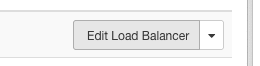
Click the down arrow button on the right side of your Load Balancer entry.
Select `Edit Load Balancer
` in the dropdown menu.
### Step 4 - Resize the Load Balancer
In the options menu, choose `Resize Load Balancer
`.
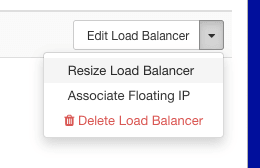
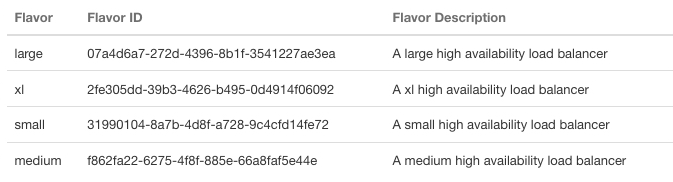
A window will prompt you to select a new size for your load balancer.
- **small**
- **medium**
- **large**
- **xl**
Confirm your selection and apply the changes.
Once the new flavor is selected, click `Apply
` or `Save
` to update the size of your Load Balancer.
## Go further
Join our [community of users](https://community.ovhcloud.com/).