---
title: "Deploying Apache Superset on OVHcloud Data Platform"
description: "This guide provides a comprehensive walkthrough for deploying Apache Superset on the OVHcloud Data Platform, covering installation, configuration"
url: https://docs.ovhcloud.com/es/guides/public-cloud/data-platform/tutorials-install-apache-superset
lang: es
lastUpdated: 2026-09-14
---
> For AI agents: the complete documentation index is available at https://docs.ovhcloud.com/es/llms.txt, the full documentation bundle is available at https://docs.ovhcloud.com/es/llms-full.txt.
# Deploying Apache Superset on OVHcloud Data Platform
## Objective
This guide provides a comprehensive walkthrough for deploying Apache Superset on the OVHcloud Data Platform, covering installation, configuration, and Trino integration for a secure and reliable setup.
**Before you begin:**
You will need an active Trino connection string. The easiest way is to create a [**Trino consumer**](https://docs.ovhcloud.com/es/guides/public-cloud/data-platform/connectors-consumers-trino.md) in the Connectors; alternatively, build one manually by following [Integrating Trino with External Tools](https://docs.ovhcloud.com/es/guides/public-cloud/data-platform/tutorials-trino-external-tools.md). This connection string is crucial for configuring Trino within Apache Superset.
## Steps to Connect Apache Superset to Data Platform via Trino
### Step 1: Add Apache Superset into Application Services
1. Navigate to your project.
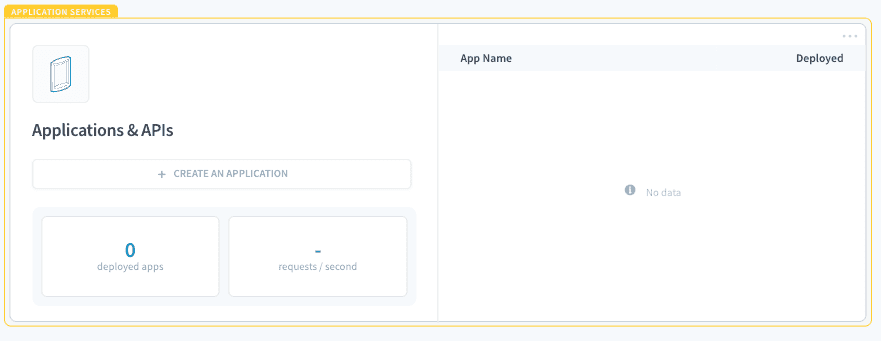
2. Click **Create an application** in the tile **Application Services**.
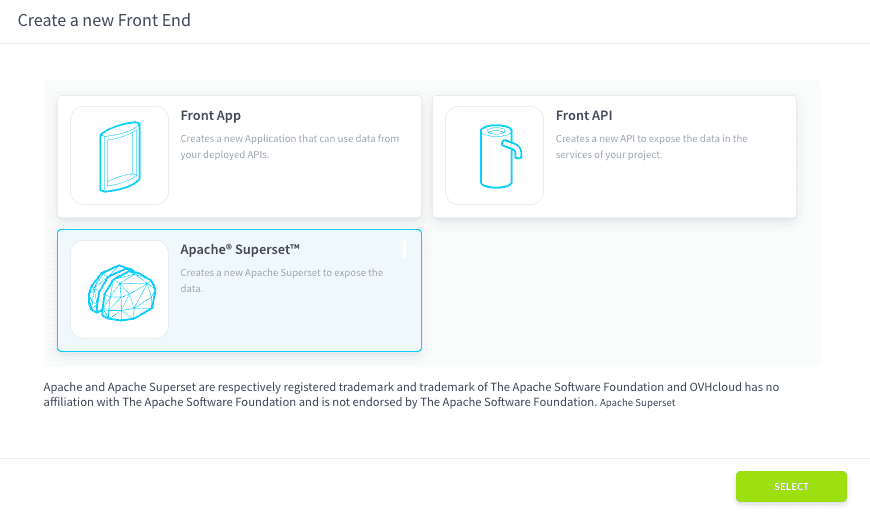
 3. Select **Apache Superset**.
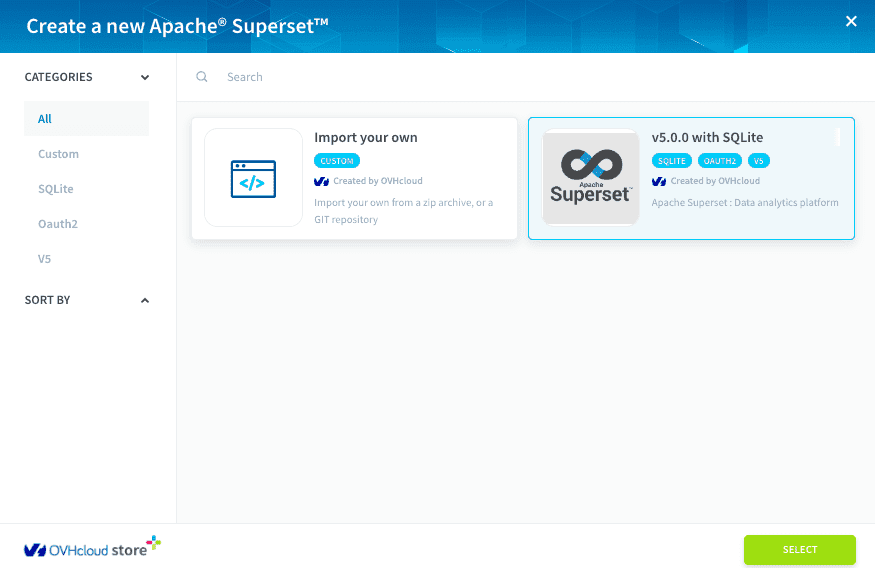
 4. In the Apache Superset Store, select the Template you want (for this tutorial, we will select v5.0.0 with SQLite).
 :::info
The SQLite file will be stored in the **appservice**
folder of the S31
bucket (Lakehouse Manager section). We highly recommend backing up this file regularly.
:::
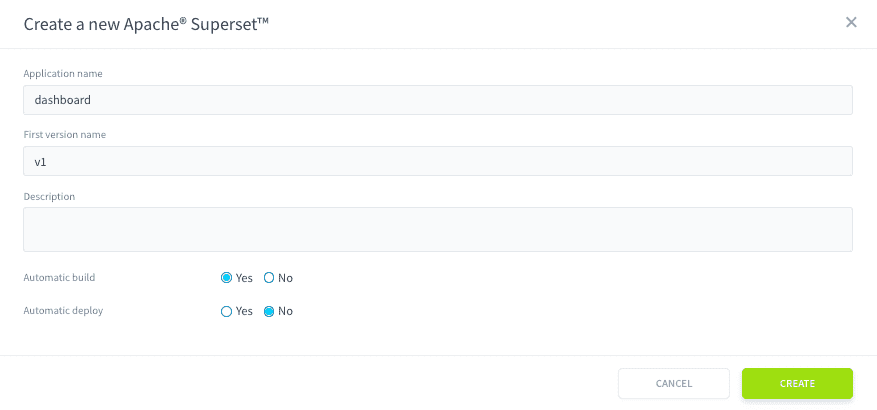
5. Provide a name for the new application (e.g., `dashboard`).
:::info
The SQLite file will be stored in the **appservice**
folder of the S31
bucket (Lakehouse Manager section). We highly recommend backing up this file regularly.
:::
5. Provide a name for the new application (e.g., `dashboard`).
 6. Build the application.
7. Once built, deploy the application by clicking on the **Deploy** button.
### Step 2: Customize the Template (Editor Tab)
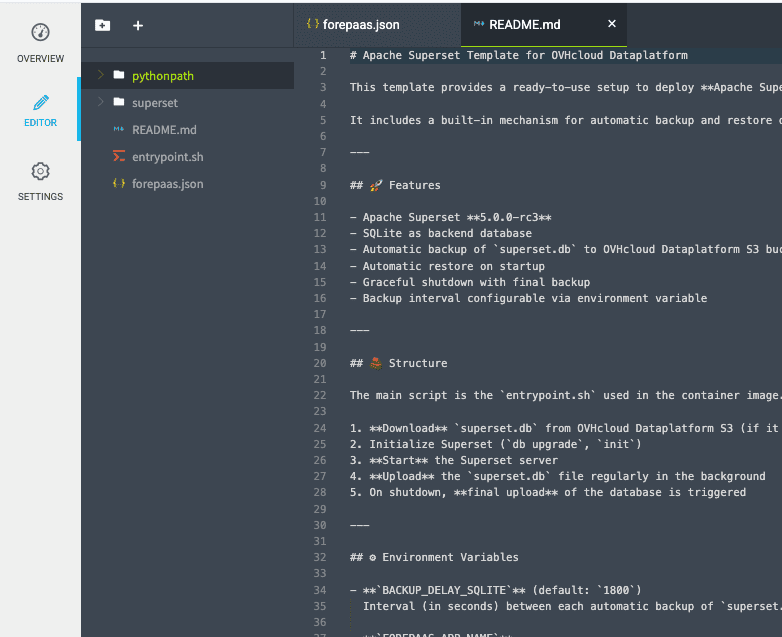
In the **Editor** tab of your application, you have access to the full source code of the template. You can modify it as needed.
This includes:
- The overridden **Apache Superset source code** used in the template.
- A technical **`README.md`** file that explains the structure and customization points of the template.
- The **`entrypoint.sh`** script, which manages backup and restoration of the **`sqlite.db`** file.
- The standard **`forepaas.json`** file, present in all AppService deployments, which defines:
- The version of Apache Superset being used
- The configuration for **role mapping** and runtime parameters
:::info
Modifying this template allows advanced customization of Superset behavior, layout, and deployment logic.
:::
### Step 3: Configure Trino in Apache Superset
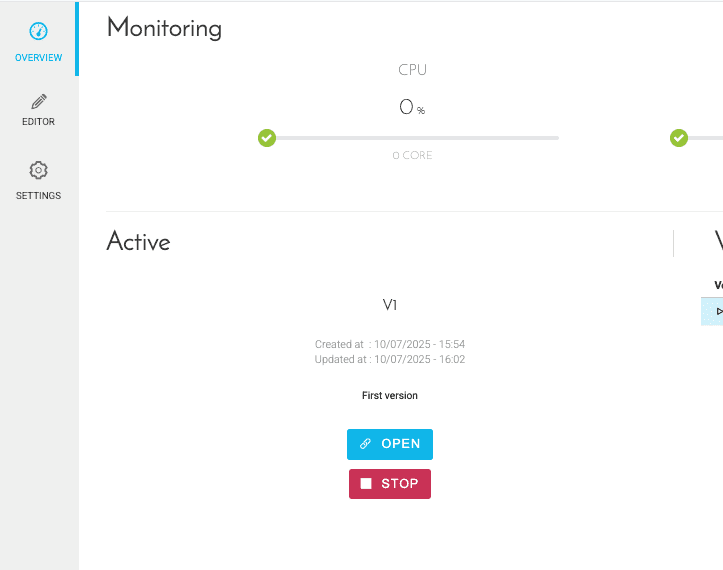
1. Open Apache Superset by clicking on the **Open** button.
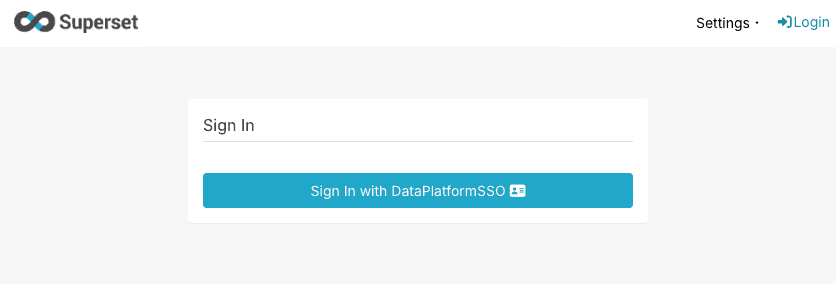
2. Click **Sign In With DataPlatformSSO**. Once redirected, you will be connected to Superset.
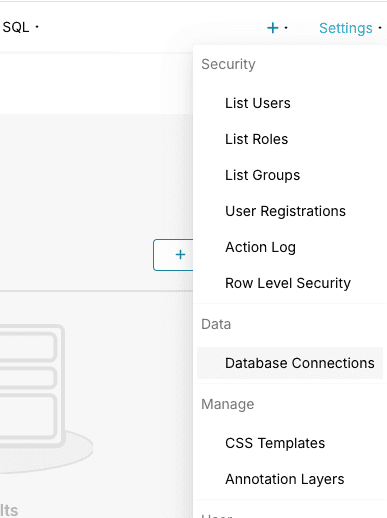
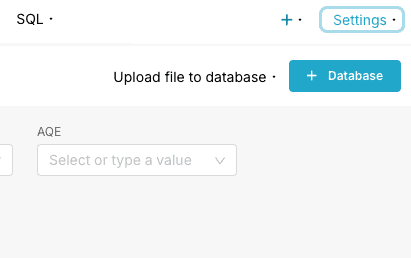
3. In the **Settings** menu, click **Database Connections**.
4. Click **+ Database**.
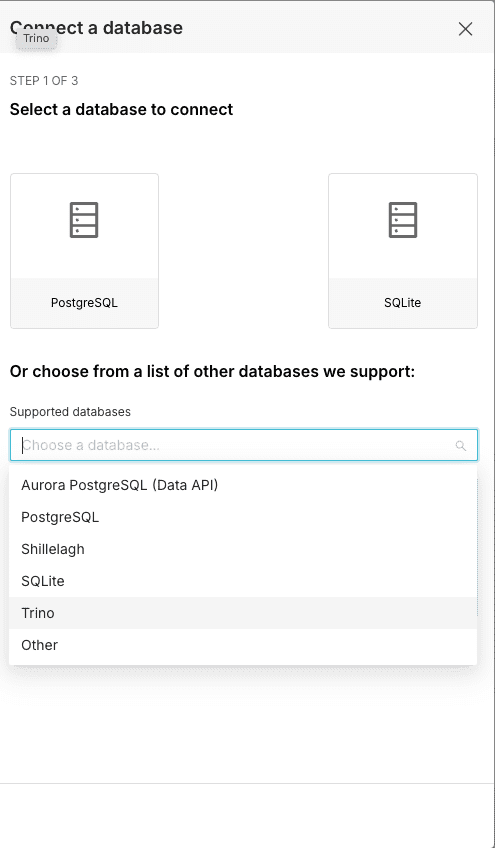
5. Select **Trino** in the **Supported databases** list.
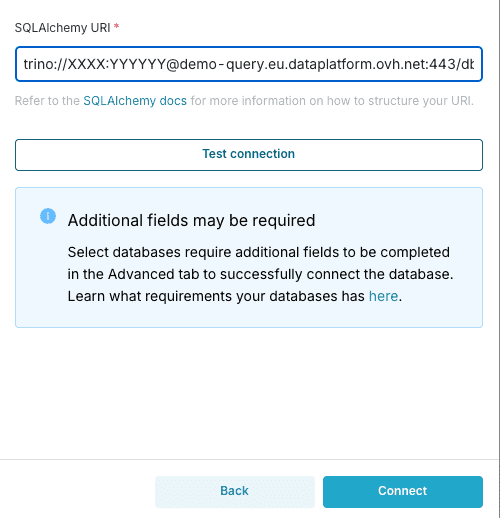
6. Paste the **full Trino connection string** (from your [Trino consumer](https://docs.ovhcloud.com/es/guides/public-cloud/data-platform/connectors-consumers-trino.md), or built manually per the [Integrating Trino with External Tools](https://docs.ovhcloud.com/es/guides/public-cloud/data-platform/tutorials-trino-external-tools.md) guide) into the **SQLAlchemy URI** field and validate the form.
### Step 4: Create Your First Chart
1. Click **`Datasets`** in the main menu.
2. Click the **`+ Dataset`** button.
3. Once the **New dataset** page is loaded, fill out the form with the following:
- **Database**: The Trino database you have just created.
- **Schema**: The catalog you want to query (e.g., `db_m8obb5ch_default_dataset`).
- **Table**: A table from your selected catalog (e.g., `dataset_history`).
6. Build the application.
7. Once built, deploy the application by clicking on the **Deploy** button.
### Step 2: Customize the Template (Editor Tab)
In the **Editor** tab of your application, you have access to the full source code of the template. You can modify it as needed.
This includes:
- The overridden **Apache Superset source code** used in the template.
- A technical **`README.md`** file that explains the structure and customization points of the template.
- The **`entrypoint.sh`** script, which manages backup and restoration of the **`sqlite.db`** file.
- The standard **`forepaas.json`** file, present in all AppService deployments, which defines:
- The version of Apache Superset being used
- The configuration for **role mapping** and runtime parameters
:::info
Modifying this template allows advanced customization of Superset behavior, layout, and deployment logic.
:::

### Step 3: Configure Trino in Apache Superset
1. Open Apache Superset by clicking on the **Open** button.

2. Click **Sign In With DataPlatformSSO**. Once redirected, you will be connected to Superset.

3. In the **Settings** menu, click **Database Connections**.

4. Click **+ Database**.

5. Select **Trino** in the **Supported databases** list.

6. Paste the **full Trino connection string** (from your [Trino consumer](https://docs.ovhcloud.com/es/guides/public-cloud/data-platform/connectors-consumers-trino.md), or built manually per the [Integrating Trino with External Tools](https://docs.ovhcloud.com/es/guides/public-cloud/data-platform/tutorials-trino-external-tools.md) guide) into the **SQLAlchemy URI** field and validate the form.

### Step 4: Create Your First Chart
1. Click **`Datasets`** in the main menu.
2. Click the **`+ Dataset`** button.
3. Once the **New dataset** page is loaded, fill out the form with the following:
- **Database**: The Trino database you have just created.
- **Schema**: The catalog you want to query (e.g., `db_m8obb5ch_default_dataset`).
- **Table**: A table from your selected catalog (e.g., `dataset_history`).
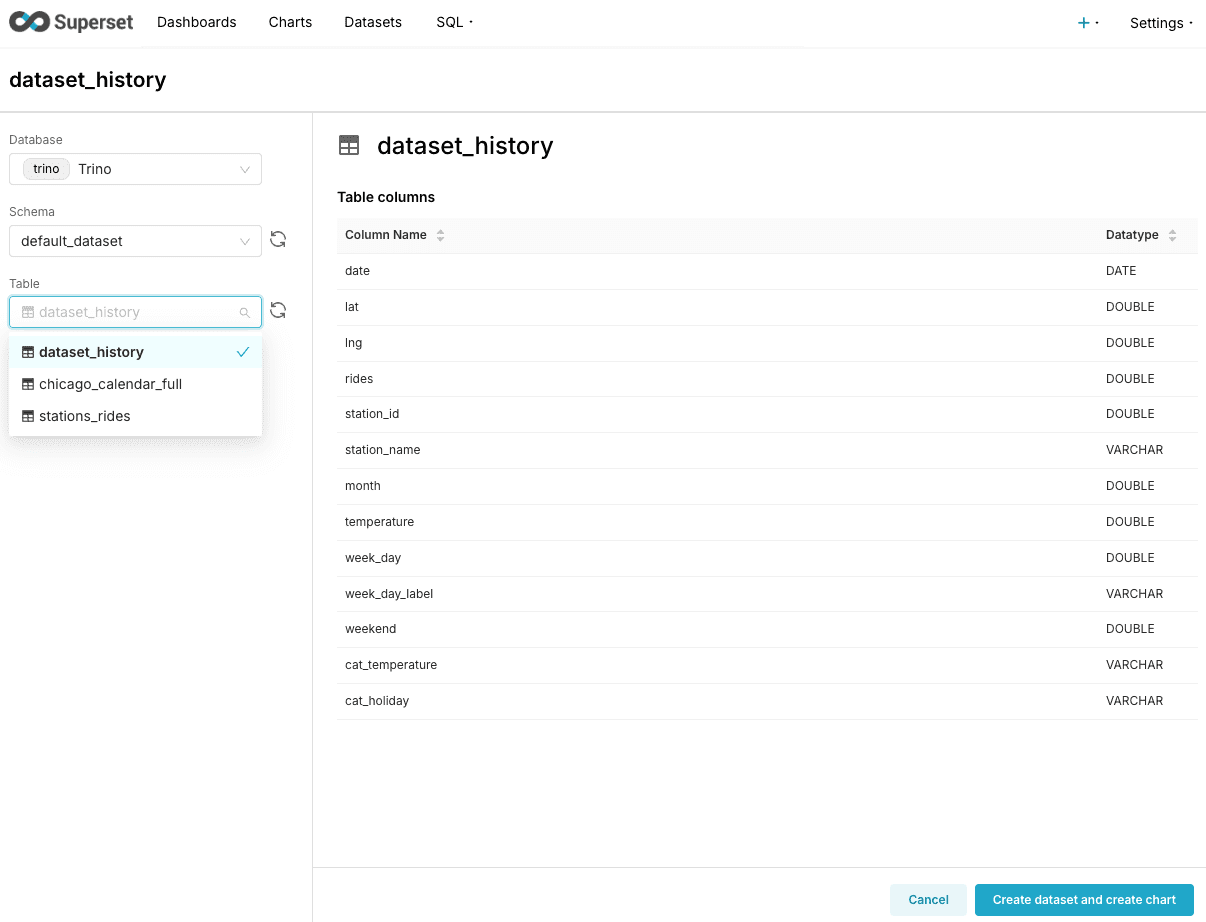 4. Click the **Create dataset and create chart** button.
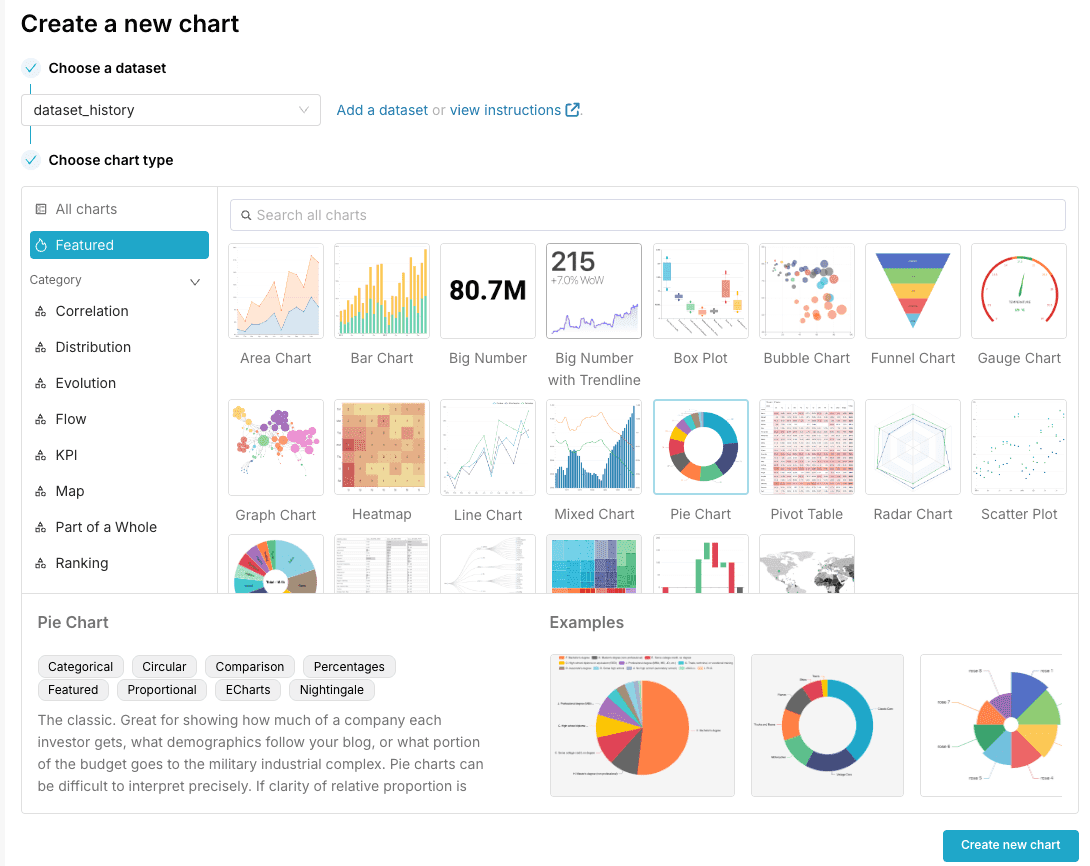
5. Once created, you will be redirected to the **Create a new chart** form.
6. Select a chart (e.g., **Pie Chart**).
4. Click the **Create dataset and create chart** button.
5. Once created, you will be redirected to the **Create a new chart** form.
6. Select a chart (e.g., **Pie Chart**).
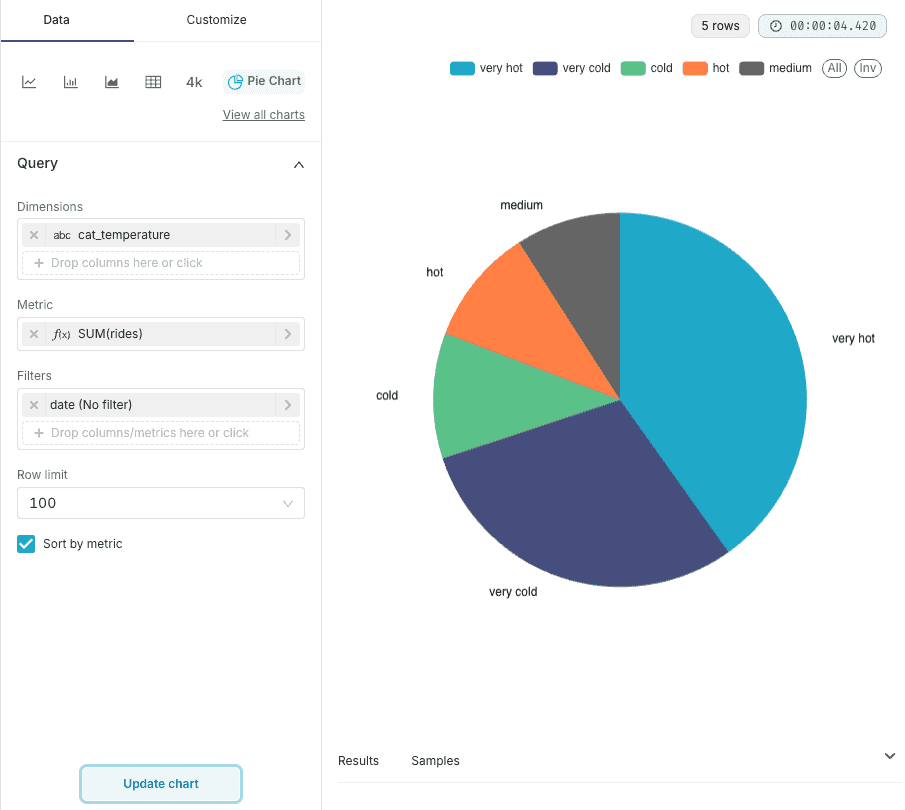
 7. Complete the **Query** fields (e.g., **Dimensions**: **`cat_temperature`** & **Metric**: **`Sum(rides)`**).
8. Click the **Create chart** button.
7. Complete the **Query** fields (e.g., **Dimensions**: **`cat_temperature`** & **Metric**: **`Sum(rides)`**).
8. Click the **Create chart** button.
 :::info
For more information, see the [Apache Superset documentation](https://superset.apache.org/docs/intro/).
:::
## Go further
If you need training or technical assistance to implement our solutions, contact your sales representative or click on [this link](https://www.ovhcloud.com/es-es/professional-services/) to get a quote and ask our Professional Services experts for a custom analysis of your project.
Ask questions, give your feedback and interact directly with the team building the Data Platform on the dedicated [Discord channel](https://discord.gg/ovhcloud).
If you need support with your OVHcloud services, create a request in our [Help Centre](https://help.ovhcloud.com/csm?id=csm_get_help).
Join our [community of users](https://community.ovhcloud.com/).
1
: S3 is a trademark of Amazon Technologies, Inc. OVHcloud's service is not sponsored by, endorsed by, or otherwise affiliated with Amazon Technologies, Inc.
:::info
For more information, see the [Apache Superset documentation](https://superset.apache.org/docs/intro/).
:::
## Go further
If you need training or technical assistance to implement our solutions, contact your sales representative or click on [this link](https://www.ovhcloud.com/es-es/professional-services/) to get a quote and ask our Professional Services experts for a custom analysis of your project.
Ask questions, give your feedback and interact directly with the team building the Data Platform on the dedicated [Discord channel](https://discord.gg/ovhcloud).
If you need support with your OVHcloud services, create a request in our [Help Centre](https://help.ovhcloud.com/csm?id=csm_get_help).
Join our [community of users](https://community.ovhcloud.com/).
1
: S3 is a trademark of Amazon Technologies, Inc. OVHcloud's service is not sponsored by, endorsed by, or otherwise affiliated with Amazon Technologies, Inc.