---
title: "Generate a Trino connection string for external tools"
description: "A Trino consumer generates a ready-to-use Trino connection string in a few clicks"
url: https://docs.ovhcloud.com/es/guides/public-cloud/data-platform/connectors-consumers-trino
lang: es
lastUpdated: 2026-09-14
---
> For AI agents: the complete documentation index is available at https://docs.ovhcloud.com/es/llms.txt, the full documentation bundle is available at https://docs.ovhcloud.com/es/llms-full.txt.
# Generate a Trino connection string for external tools
## Objective
A **Trino consumer** generates a ready-to-use Trino connection string in a few clicks. Previously, connecting an external tool to your project over Trino meant creating a service account, generating API keys, and assembling the connection string by hand. A Trino consumer does all of that for you.
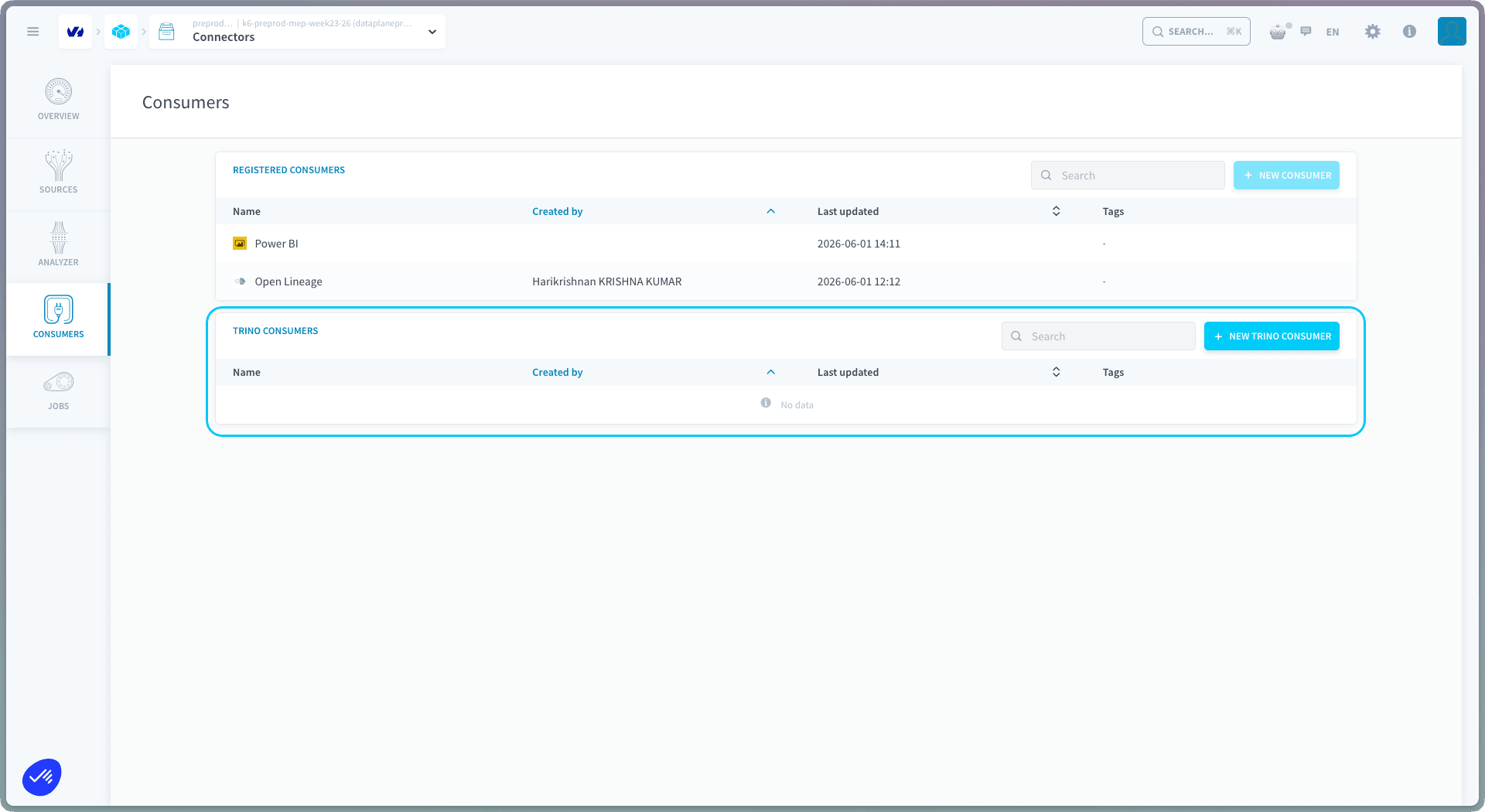
You'll find them in the Connectors service, under the **Consumers** tab, in the **Trino consumers** section of **Registered consumers**.
:::info
Unlike the PowerBI and OpenLineage consumers (which you connect once), you can create as many Trino consumers as you need. Each with its own name, permission level, and credentials.
:::
## Create a Trino consumer
1. In the **Trino consumers** section, click **+ New Trino consumer**.
 2. Give it a **name**, an optional **description**, and optional **tags**.
3. Set the **permission**: the access level this Trino consumer has on your data:
| Permission | Access |
| :--------------- | :-------------------------------- |
| **READ** | Query and retrieve data only. |
| **READ & WRITE** | Query, retrieve, and modify data. |
2. Give it a **name**, an optional **description**, and optional **tags**.
3. Set the **permission**: the access level this Trino consumer has on your data:
| Permission | Access |
| :--------------- | :-------------------------------- |
| **READ** | Query and retrieve data only. |
| **READ & WRITE** | Query, retrieve, and modify data. |
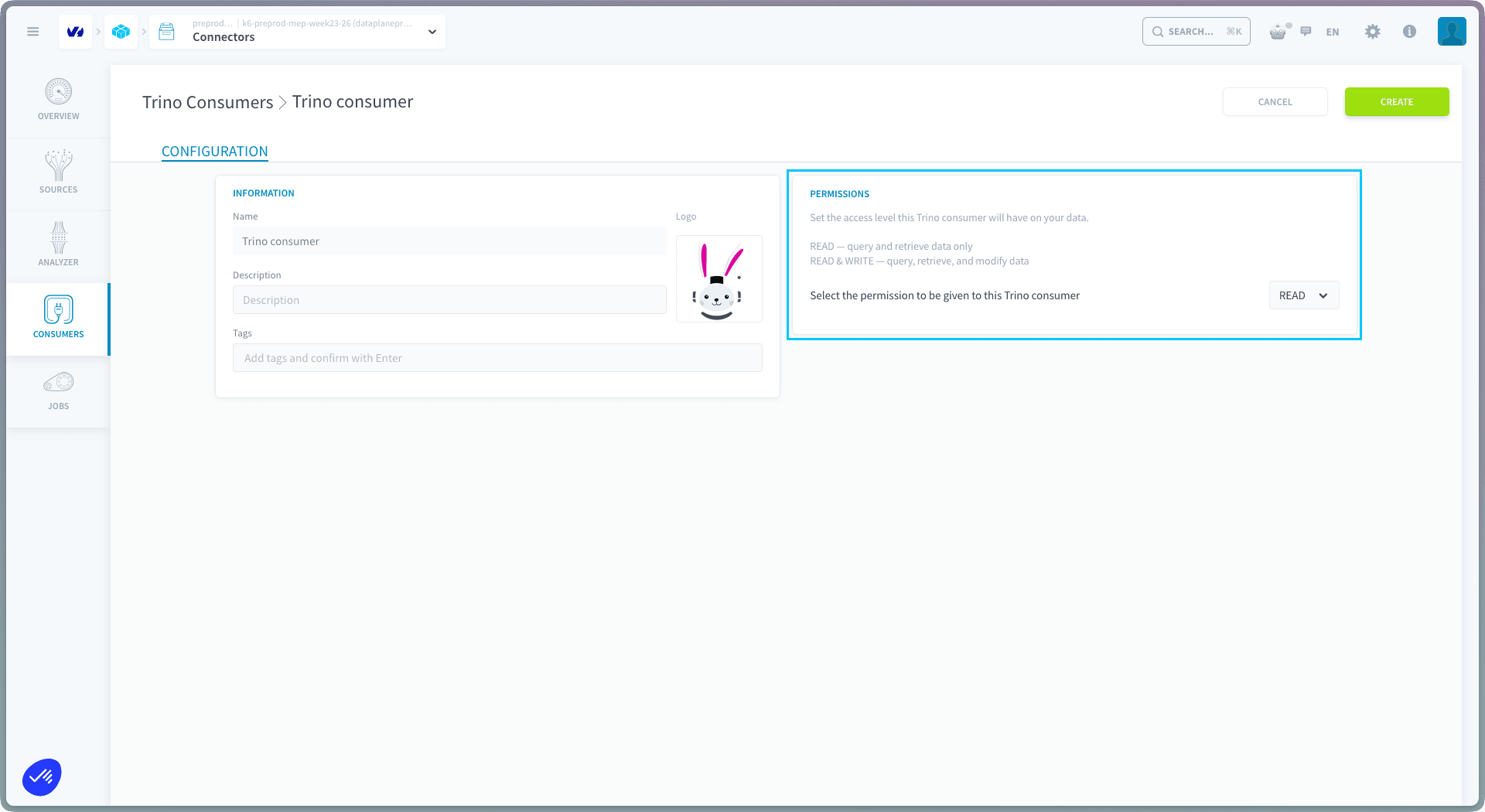 4. Click **Create**.
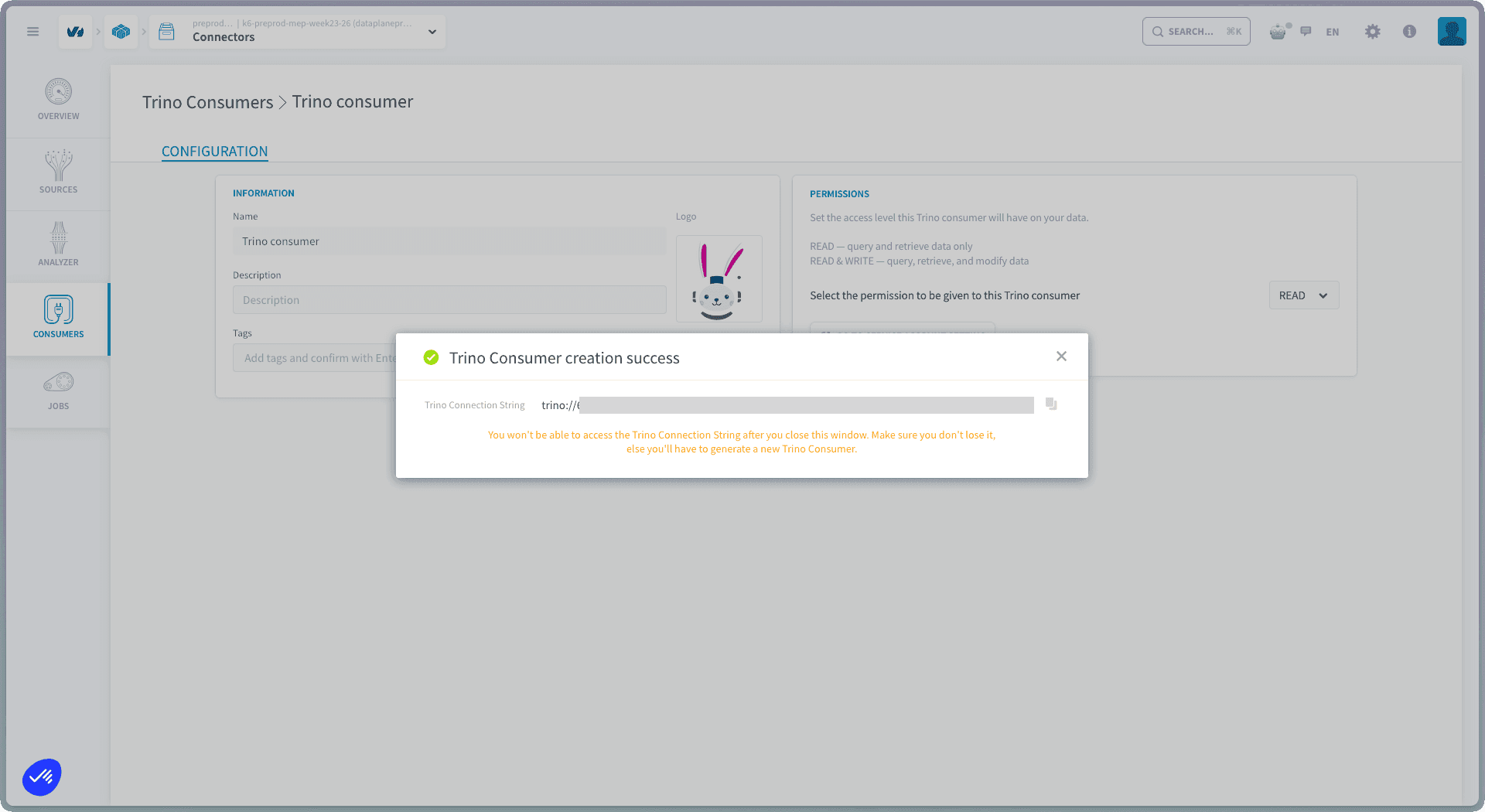
5. Your **Trino connection string** appears.
4. Click **Create**.
5. Your **Trino connection string** appears.
 :::warning
Copy the connection string now and store it somewhere safe (for example, a password manager). You can't view it again after you close this window, if you lose it, you'll have to create a new Trino consumer.
:::
## Manage the linked service account
Each Trino consumer has a dedicated [service account](https://docs.ovhcloud.com/es/guides/public-cloud/data-platform/iam-service-accounts.md) in your project's Identity Access Manager. After you create the consumer, click **Go to service account settings** to view and manage it.
The project **admin also receives an email** containing the Trino connector credentials.
## Use the connection string
The connection string is ready to paste into any external Trino-compatible client or BI tool. It embeds the credentials and follows this shape:
```text
trino://:@-query.eu.dataplatform.ovh.net:443/
```
Plug it into your tool of choice, for example:
[Deploy Apache Superset](https://docs.ovhcloud.com/es/guides/public-cloud/data-platform/tutorials-install-apache-superset.md)
[Connect Metabase to Data Platform via Trino](https://docs.ovhcloud.com/es/guides/public-cloud/data-platform/tutorials-metabase-trino.md)
:::warning
Any user connecting through a Trino consumer accesses data according to the consumer's permission and the project's [IAM roles and groups](https://docs.ovhcloud.com/es/guides/public-cloud/data-platform/landing-page-iam-users.md). Treat the connection string like a password.
:::
## Query a different catalog
By default, the connection string targets your project's **default dataset** catalog (the trailing `/` segment, e.g. `db__default_dataset`).
To query a **different catalog** in the project, replace that trailing `/` segment of the connection string. To list the available catalog names, run the following in the [Lakehouse Manager Explorer](https://docs.ovhcloud.com/es/guides/public-cloud/data-platform/lakehouse-manager-explorer.md):
```sql
SHOW CATALOGS
```
For the full breakdown of the connection string and how to build one by hand, see [Integrating Trino with External Tools](https://docs.ovhcloud.com/es/guides/public-cloud/data-platform/tutorials-trino-external-tools.md).
:::info
Writing data through Trino sometimes requires an explicit `CAST`. See [Trino data types and casts](https://docs.ovhcloud.com/es/guides/public-cloud/data-platform/tutorials-trino-types-and-casts.md) for the mapping between Lakehouse types and Trino types, and for troubleshooting `TYPE_MISMATCH` errors.
:::
## Go further
If you need training or technical assistance to implement our solutions, contact your sales representative or click on [this link](https://www.ovhcloud.com/es-es/professional-services/) to get a quote and ask our Professional Services experts for a custom analysis of your project.
Ask questions, give your feedback and interact directly with the team building the Data Platform on the dedicated [Discord channel](https://discord.gg/ovhcloud).
If you need support with your OVHcloud services, create a request in our [Help Centre](https://help.ovhcloud.com/csm?id=csm_get_help).
Join our [community of users](https://community.ovhcloud.com/).
:::warning
Copy the connection string now and store it somewhere safe (for example, a password manager). You can't view it again after you close this window, if you lose it, you'll have to create a new Trino consumer.
:::
## Manage the linked service account
Each Trino consumer has a dedicated [service account](https://docs.ovhcloud.com/es/guides/public-cloud/data-platform/iam-service-accounts.md) in your project's Identity Access Manager. After you create the consumer, click **Go to service account settings** to view and manage it.
The project **admin also receives an email** containing the Trino connector credentials.
## Use the connection string
The connection string is ready to paste into any external Trino-compatible client or BI tool. It embeds the credentials and follows this shape:
```text
trino://:@-query.eu.dataplatform.ovh.net:443/
```
Plug it into your tool of choice, for example:
[Deploy Apache Superset](https://docs.ovhcloud.com/es/guides/public-cloud/data-platform/tutorials-install-apache-superset.md)
[Connect Metabase to Data Platform via Trino](https://docs.ovhcloud.com/es/guides/public-cloud/data-platform/tutorials-metabase-trino.md)
:::warning
Any user connecting through a Trino consumer accesses data according to the consumer's permission and the project's [IAM roles and groups](https://docs.ovhcloud.com/es/guides/public-cloud/data-platform/landing-page-iam-users.md). Treat the connection string like a password.
:::
## Query a different catalog
By default, the connection string targets your project's **default dataset** catalog (the trailing `/` segment, e.g. `db__default_dataset`).
To query a **different catalog** in the project, replace that trailing `/` segment of the connection string. To list the available catalog names, run the following in the [Lakehouse Manager Explorer](https://docs.ovhcloud.com/es/guides/public-cloud/data-platform/lakehouse-manager-explorer.md):
```sql
SHOW CATALOGS
```
For the full breakdown of the connection string and how to build one by hand, see [Integrating Trino with External Tools](https://docs.ovhcloud.com/es/guides/public-cloud/data-platform/tutorials-trino-external-tools.md).
:::info
Writing data through Trino sometimes requires an explicit `CAST`. See [Trino data types and casts](https://docs.ovhcloud.com/es/guides/public-cloud/data-platform/tutorials-trino-types-and-casts.md) for the mapping between Lakehouse types and Trino types, and for troubleshooting `TYPE_MISMATCH` errors.
:::
## Go further
If you need training or technical assistance to implement our solutions, contact your sales representative or click on [this link](https://www.ovhcloud.com/es-es/professional-services/) to get a quote and ask our Professional Services experts for a custom analysis of your project.
Ask questions, give your feedback and interact directly with the team building the Data Platform on the dedicated [Discord channel](https://discord.gg/ovhcloud).
If you need support with your OVHcloud services, create a request in our [Help Centre](https://help.ovhcloud.com/csm?id=csm_get_help).
Join our [community of users](https://community.ovhcloud.com/).