---
title: "Creating a private registry (Harbor) through Terraform"
description: "Create an OVHcloud Managed Private Registry (MPR) through Terraform"
url: https://docs.ovhcloud.com/es/guides/public-cloud/containers-orchestration/managed-private-registry/creation-via-terraform
lang: es
lastUpdated: 2023-03-14
---
# Creating a private registry (Harbor) through Terraform
## Objective
Creating an OVHcloud Managed Private Registry (MPR) through the OVHcloud Control Panel is cool but do you know you can deploy a private registry programmatically, with Terraform?
## Terraform
[Terraform](https://www.terraform.io/) is an open-source infrastructure as code (IaC) tool created by [Hashicorp](https://www.hashicorp.com/) in 2014, written in Go. It aims to build, change and version control your infrastructure. You can define and provision your infrastructure by writing the definition of your resources in Hashicorp Configuration Language (HCL).
This tool has a powerful and very intuitive command line interface (CLI).
If you are interested in leveraging your knowledge about Terraform CLI, a [Cheat Sheet](https://github.com/scraly/terraform-cheat-sheet/blob/master/terraform-cheat-sheet.pdf) exists.
## Requirements
- A [Public Cloud project](/es/guides/public-cloud/cross-functional/create-a-public-cloud-project.md) in your OVHcloud account
- Installing [Terraform CLI](https://www.terraform.io/downloads.html)
***
### OVHcloud Control Panel Access
- **Direct link:** Public Cloud Projects
- **Navigation path:** Public Cloud > Select your project
***
## Before you begin
- You should have installed Terraform CLI, version 0.12.x minimum, on your machine. You can install it by following [detailed installation instructions](https://www.terraform.io/docs/cli/index.html) or with the tool [tfenv](https://github.com/tfutils/tfenv).
## OVHcloud Terraform provider

In order to create a private registry and other resources, OVHcloud provides a [Terraform provider](https://registry.terraform.io/providers/ovh/ovh/latest) which is available in the official Terraform registry.
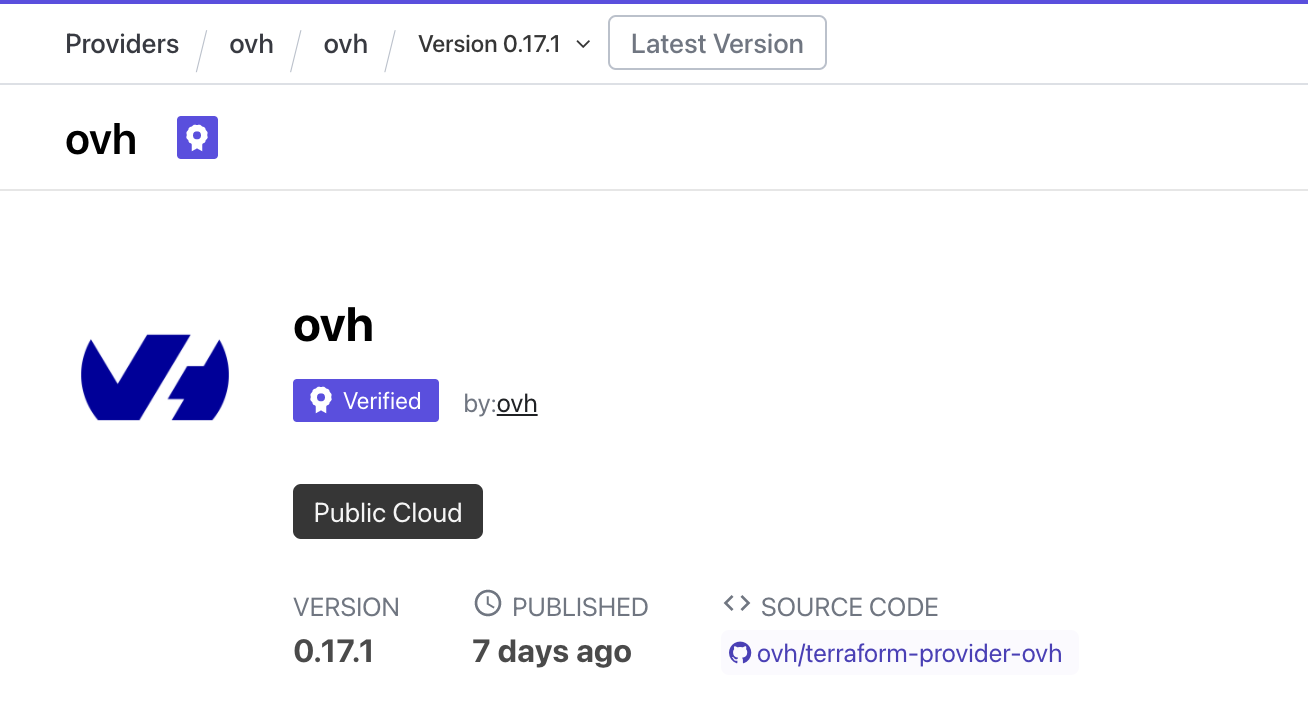
All available resources and data sources have their definition and documentation.
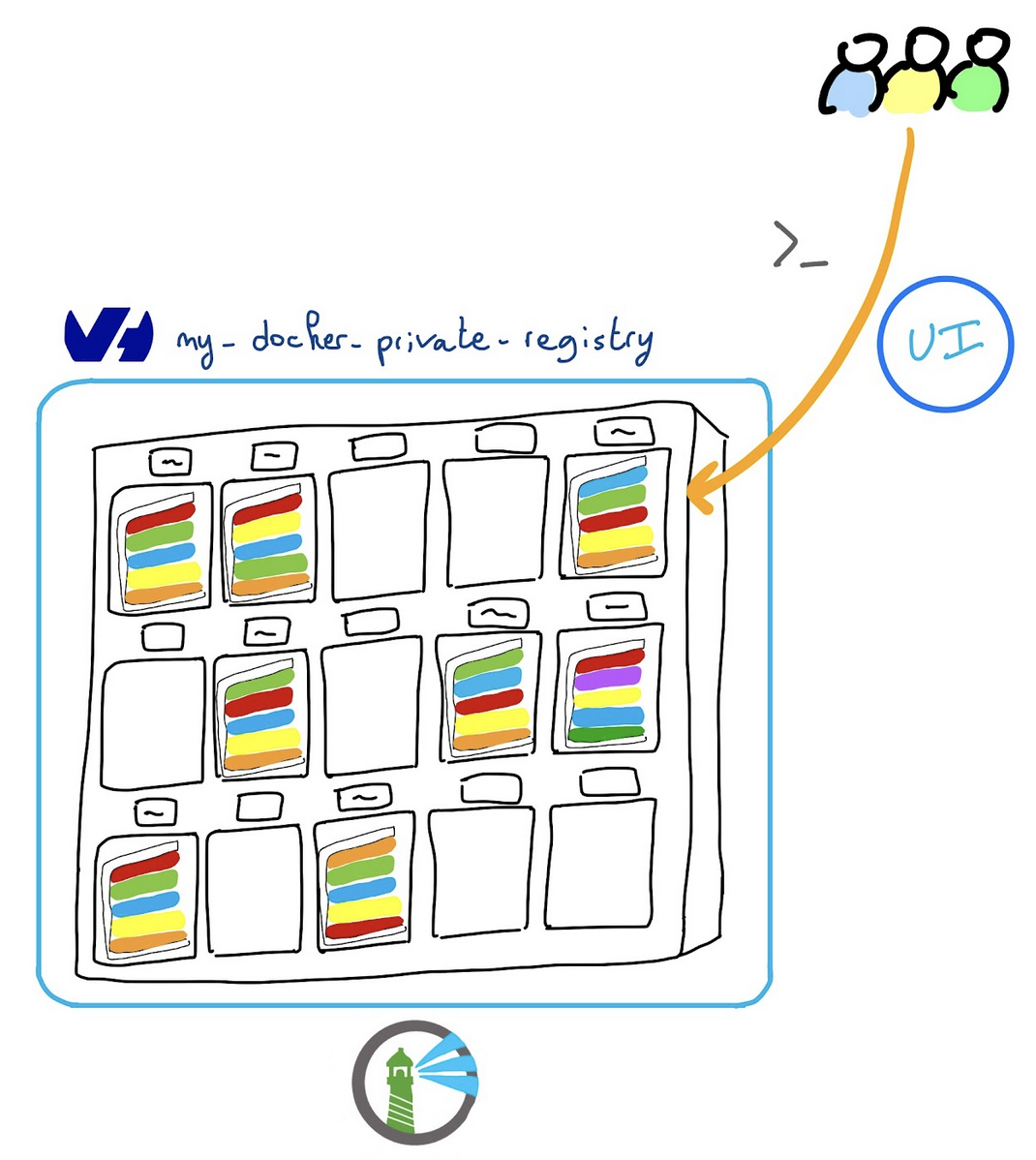
In this guide, we will create two resources:
- a [ovh\_cloud\_project\_containerregistry](https://registry.terraform.io/providers/ovh/ovh/latest/docs/resources/cloud_project_containerregistry), that represents an OVHcloud managed private registry
- and a [ovh\_cloud\_project\_containerregistry\_user](https://registry.terraform.io/providers/ovh/ovh/latest/docs/resources/cloud_project_containerregistry_user), that represents a user associated to a private registry
## Getting your cluster/API tokens information
The "OVH provider" needs to be configured with a set of credentials:
- an `application_key`
- an `application_secret`
- a `consumer_key`
Why?
Because, behind the scenes, the "OVH Terraform provider" is doing requests to OVHcloud APIs.
In order to retrieve this necessary information, please follow the [First steps with the OVHcloud APIs](/es/guides/manage-and-operate/api/first-steps.md) tutorial.
When you have successfully generated your OVH tokens, please keep them. You'll have to define them in the coming minutes ;-).
The last needed information is the `service_name`: it is the ID of your Public Cloud project.
How to get it?
In the Public Cloud section, you can retrieve your service name ID thanks to the `Copy to clipboard
` button.
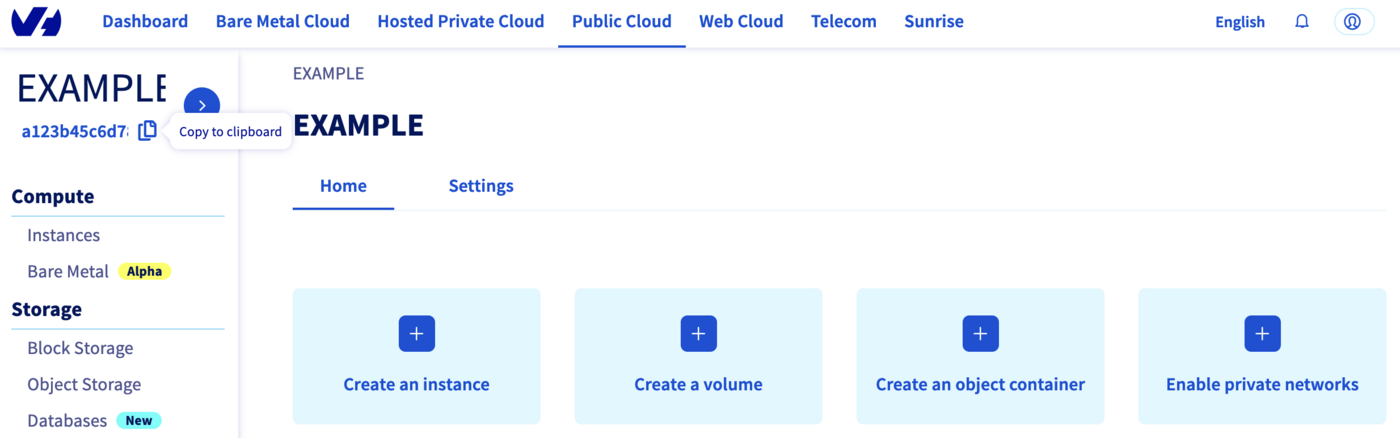
You will also use this information in Terraform resources definition files.
## Instructions
When you want to manage (create, modify, and remove) your infrastructure, getting started with Terraform is easy.
Just create files ending with `.tf` containing the description of the resources you want to have.
In our case, we want to create:
- an OVHcloud Managed Private Registry
- a user attached to the registry
So, let's start!
### Resources definition
First, create a `provider.tf` file with the minimum version, european endpoint ("ovh-eu") and keys you previously got in this guide.
Terraform 0.13 and later:
```
terraform {
required_providers {
ovh = {
source = "ovh/ovh"
}
}
}
provider "ovh" {
endpoint = "ovh-eu"
application_key = ""
application_secret = ""
consumer_key = ""
}
```
Terraform 0.12 and earlier:
```
# Configure the OVHcloud Provider
provider "ovh" {
endpoint = "ovh-eu"
application_key = ""
application_secret = ""
consumer_key = ""
}
```
Alternatively the secret keys can be retrieved from your environment.
- `OVH_ENDPOINT`
- `OVH_APPLICATION_KEY`
- `OVH_APPLICATION_SECRET`
- `OVH_CONSUMER_KEY`
This later method (or a similar alternative) is recommended to avoid storing secret data in a source repository.
Here, we defined the `ovh-eu` endpoint because we want to call the OVHcloud Europe API, but other endpoints exist, depending on your needs:
- `ovh-eu` for OVHcloud Europe API
- `ovh-us` for OVHcloud US API
- `ovh-ca` for OVHcloud North-America API
Then, create a `variables.tf` with service\_name:
```
variable service_name {
type = string
default = ""
}
```
Define the resources you want to create in a new file called `ovh_private_registry.tf`:
```bash
data "ovh_cloud_project_capabilities_containerregistry_filter" "capabilities" {
service_name = var.service_name
plan_name = "SMALL"
region = "GRA"
}
resource "ovh_cloud_project_containerregistry" "myregistry" {
service_name = data.ovh_cloud_project_capabilities_containerregistry_filter.capabilities.service_name
plan_id = data.ovh_cloud_project_capabilities_containerregistry_filter.capabilities.id
region = data.ovh_cloud_project_capabilities_containerregistry_filter.capabilities.region
name = "my-docker-private-registry"
}
resource "ovh_cloud_project_containerregistry_user" "myuser" {
service_name = ovh_cloud_project_containerregistry.myregistry.service_name
registry_id = ovh_cloud_project_containerregistry.myregistry.id
email = "my.user@mycompany.com"
login = "myuser"
}
```
In this resources configuration, we ask Terraform to create a private registry, in the `GRA` region and in the `small` plan.
And we tell Terraform to create a user attached to the registry.
:::info
OVHcloud Managed private registries are only available in the `GRA` region for the moment and several [other regions are coming](https://github.com/orgs/ovh/projects/16/).
:::
Finally, create a `output.tf` file with the following content:
```
output "registry-url" {
value = ovh_cloud_project_containerregistry.myregistry.url
}
output "user" {
value = ovh_cloud_project_containerregistry_user.myuser.user
}
output "password" {
value = ovh_cloud_project_containerregistry_user.myuser.password
sensitive = true
}
```
:::info
We specified that the password output is sensitive data, so it will be censored during the `terraform apply` but you can retrieve it with the `terraform output` command as we will show you in this guide.
:::
With this output, we tell Terraform to retrieve the URL of this registry to access to it, moreover the user login and the generated password.
For your information, outputs are useful to retrieve and display specific information after the resources creation.
Your code organisation should be like this:
```
.
├── output.tf
├── ovh_private_registry.tf
├── provider.tf
└── variables.tf
```
### Create our private registry through Terraform
Now we need to initialize Terraform, generate a plan, and apply it.
```bash
$ terraform init
Initializing the backend...
Initializing provider plugins...
- Reusing previous version of ovh/ovh from the dependency lock file
- Using previously-installed ovh/ovh v0.17.1
Terraform has been successfully initialized!
You may now begin working with Terraform. Try running "terraform plan" to see
any changes that are required for your infrastructure. All Terraform commands
should now work.
If you ever set or change modules or backend configuration for Terraform,
rerun this command to reinitialize your working directory. If you forget, other
commands will detect it and remind you to do so if necessary.
```
The `init` command will initialize your working directory which contains `.tf` configuration files.
It’s the first command to execute for a new configuration, or after doing a checkout of an existing configuration in a given Git repository for example.
The `init` command will:
- Download and install Terraform providers/plugins
- Initialize backend (if defined)
- Download and install modules (if defined)
Now, we can generate our plan:
```bash
$ terraform apply
Terraform used the selected providers to generate the following execution plan. Resource actions are indicated with the following symbols:
+ create
Terraform will perform the following actions:
# ovh_cloud_project_containerregistry.myregistry will be created
+ resource "ovh_cloud_project_containerregistry" "myregistry" {
+ created_at = (known after apply)
+ id = (known after apply)
+ name = "my-docker-private-registry"
+ plan = (known after apply)
+ plan_id = "9f728ba5-xxxx-xxxx-xxxx-497cd8bc6a89"
+ project_id = (known after apply)
+ region = "GRA"
+ service_name = "xxxxxxxxxxxxxxxx"
+ size = (known after apply)
+ status = (known after apply)
+ updated_at = (known after apply)
+ url = (known after apply)
+ version = (known after apply)
}
# ovh_cloud_project_containerregistry_user.myuser will be created
+ resource "ovh_cloud_project_containerregistry_user" "myuser" {
+ email = "my.user@mycompany.com"
+ id = (known after apply)
+ login = "myuser"
+ password = (sensitive value)
+ registry_id = (known after apply)
+ service_name = "xxxxxxxxxxxxxxxxxxxxxxxxxxxxxxxx"
+ user = (known after apply)
}
Plan: 2 to add, 0 to change, 0 to destroy.
Changes to Outputs:
+ password = (sensitive value)
+ registry-url = (known after apply)
+ user = (known after apply)
Do you want to perform these actions?
Terraform will perform the actions described above.
Only 'yes' will be accepted to approve.
```
Now you can accept this plan and enter the `yes` command to execute it.
```
Enter a value: yes
ovh_cloud_project_containerregistry.myregistry: Creating...
ovh_cloud_project_containerregistry.myregistry: Still creating... [10s elapsed]
ovh_cloud_project_containerregistry.myregistry: Still creating... [20s elapsed]
ovh_cloud_project_containerregistry.myregistry: Still creating... [30s elapsed]
ovh_cloud_project_containerregistry.myregistry: Still creating... [40s elapsed]
ovh_cloud_project_containerregistry.myregistry: Still creating... [50s elapsed]
ovh_cloud_project_containerregistry.myregistry: Still creating... [1m0s elapsed]
ovh_cloud_project_containerregistry.myregistry: Still creating... [1m10s elapsed]
ovh_cloud_project_containerregistry.myregistry: Still creating... [1m20s elapsed]
ovh_cloud_project_containerregistry.myregistry: Still creating... [1m30s elapsed]
ovh_cloud_project_containerregistry.myregistry: Still creating... [1m40s elapsed]
ovh_cloud_project_containerregistry.myregistry: Still creating... [1m50s elapsed]
ovh_cloud_project_containerregistry.myregistry: Still creating... [2m0s elapsed]
ovh_cloud_project_containerregistry.myregistry: Still creating... [2m10s elapsed]
ovh_cloud_project_containerregistry.myregistry: Still creating... [2m20s elapsed]
ovh_cloud_project_containerregistry.myregistry: Still creating... [2m30s elapsed]
ovh_cloud_project_containerregistry.myregistry: Still creating... [2m40s elapsed]
ovh_cloud_project_containerregistry.myregistry: Still creating... [2m50s elapsed]
ovh_cloud_project_containerregistry.myregistry: Still creating... [3m0s elapsed]
ovh_cloud_project_containerregistry.myregistry: Creation complete after 3m6s [id=xxxxxxx-xxxx-xxxx-xxxx-xxxxxxxx]
ovh_cloud_project_containerregistry_user.myuser: Creating...
ovh_cloud_project_containerregistry_user.myuser: Creation complete after 2s [id=3]
Apply complete! Resources: 2 added, 0 changed, 0 destroyed.
Outputs:
password =
registry-url = "https://1ab234c5.gra7.container-registry.ovh.net"
user = "myuser"
```
:::info
If after running the `terraform apply` command, you get the error message `Error: Your query returned no results. Please change your search criteria and try again`, it means you have entered an incorrect `region`.
:::
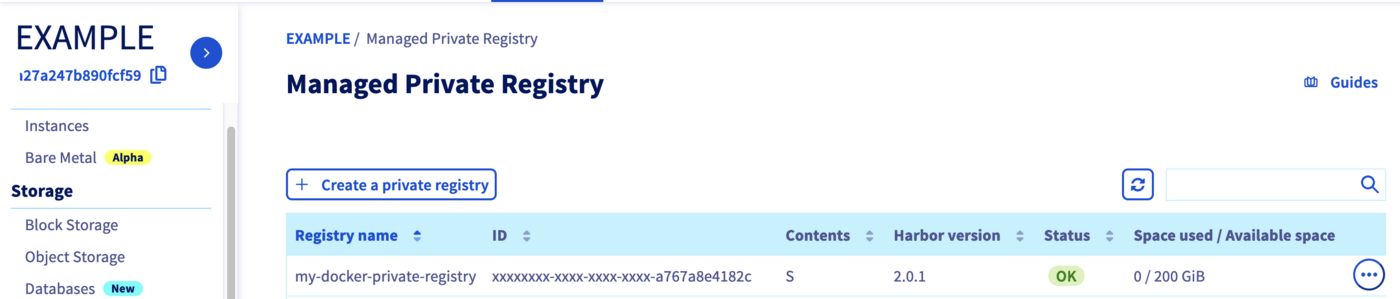
Go to the `Managed Private Registry
` section. Your registry has been successfully created:
## Connect to the private registry
Our registry is created, now we can access to and see the interface/UI of your managed Harbor.
In order to do this, retrieve the necessary information locally:
```
terraform output registry-url
terraform output user
terraform output password
```
You should see the following:
```console
$ terraform output registry-url
"https://1ab234c5.gra7.container-registry.ovh.net"
$ terraform output user
"myuser"
$ terraform output password
"mygeneratedpassword"
```
Now go to the private registry URL and login with the credentials you have retrieved.
## Destroy (cleanup)
If you want to easily destroy created resources, you can use `terraform destroy` command.
```
$ terraform destroy
ovh_cloud_project_containerregistry.myregistry: Refreshing state... [id=xxxxxxxxx-xxxx-xxxx-xxxx-xxxxxxxx]
ovh_cloud_project_containerregistry_user.myuser: Refreshing state... [id=3]
Terraform used the selected providers to generate the following execution plan. Resource actions are indicated with the following symbols:
- destroy
Terraform will perform the following actions:
# ovh_cloud_project_containerregistry.myregistry will be destroyed
- resource "ovh_cloud_project_containerregistry" "myregistry" {
- created_at = "2022-04-12T12:34:30.161619Z" -> null
- id = "xxxxxxxxx-xxxx-xxxx-xxxx-xxxxxxxx" -> null
- name = "my-docker-private-registry" -> null
- plan = [
- {
- code = "registry.s-plan-equivalent.hour.consumption"
- created_at = "2019-09-13T15:53:33.599585Z"
- features = [
- {
- vulnerability = false
},
]
- id = "xxxxxxxxx-xxxx-xxxx-xxxx-xxxxxxxxx"
- name = "SMALL"
- registry_limits = [
- {
- image_storage = 214748364800
- parallel_request = 15
},
]
- updated_at = "2021-03-29T10:09:03.960847Z"
},
] -> null
- plan_id = "xxxxxxxxx-xxxx-xxxx-xxxx-xxxxxxxxx" -> null
- region = "GRA" -> null
- service_name = "" -> null
- size = 0 -> null
- status = "READY" -> null
- updated_at = "2022-04-12T12:38:14.564559Z" -> null
- url = "https://1ab234c5.gra7.container-registry.ovh.net" -> null
- version = "2.0.1" -> null
}
# ovh_cloud_project_containerregistry_user.myuser will be destroyed
- resource "ovh_cloud_project_containerregistry_user" "myuser" {
- email = "my.user@mycompany.com" -> null
- id = "3" -> null
- login = "myuser" -> null
- password = (sensitive value)
- registry_id = "xxxxxxxxx-xxxx-xxxx-xxxx-xxxxxxxx" -> null
- service_name = "" -> null
- user = "myuser" -> null
}
Plan: 0 to add, 0 to change, 2 to destroy.
Changes to Outputs:
- password = (sensitive value)
- registry-url = "https://1ab234c5.gra7.container-registry.ovh.net" -> null
- user = "myuser" -> null
Do you really want to destroy all resources?
Terraform will destroy all your managed infrastructure, as shown above.
There is no undo. Only 'yes' will be accepted to confirm.
Enter a value: yes
ovh_cloud_project_containerregistry_user.myuser: Destroying... [id=3]
ovh_cloud_project_containerregistry_user.myuser: Destruction complete after 1s
ovh_cloud_project_containerregistry.myregistry: Destroying... [id=xxxxxxxxx-xxxx-xxxx-xxxx-xxxxxxxx]
ovh_cloud_project_containerregistry.myregistry: Still destroying... [id=xxxxxxxxx-xxxx-xxxx-xxxx-xxxxxxxx, 10s elapsed]
ovh_cloud_project_containerregistry.myregistry: Destruction complete after 11s
Destroy complete! Resources: 2 destroyed.
```
Perfect, your private registry and the user have been destroyed.
## Go further
Join our [community of users](https://community.ovhcloud.com/).