---
title: "Changing the password for a Web Hosting plan’s database"
description: "Find out how to change the password for a database created as part of a Web Hosting plan"
url: https://docs.ovhcloud.com/en/guides/web-cloud/web-hosting/sql-change-password
lang: en
lastUpdated: 2025-10-08
---
# Changing the password for a Web Hosting plan’s database
## Objective
Most websites use a **database** to store their articles, comments, or users' email addresses.
You can connect to this database using a **configuration file** contained in the [file storage space](/en/guides/web-cloud/web-hosting/ftp-connection.md) on your Web Hosting plan. It contains credentials that allows your website to access its **database server**.
The password change for a database must therefore always be carried out in two places:
- In your website’s [configuration file](/en/guides/web-cloud/web-hosting/cms-manage-1-click-module.md#step-1-identify-the-database-linked-to-your-module) via the [FTP space on your Web Hosting plan](/en/guides/web-cloud/web-hosting/ftp-connection.md).
- **And** on the server that contains their database, via the OVHcloud Control Panel.
Until this change is made **in both locations**, your site will display a "[database connection error](/en/guides/web-cloud/web-hosting/diagnosis-database-errors.md#error-establishing-a-database-connection)".
For this reason, if you would like to change your database password, you will need to carry out **all of the operations** listed in this guide. If you have any doubts about how to proceed, contact your webmaster or contact a [specialised service provider](https://partner.ovhcloud.com/en-gb/directory/).
Changing your website’s database password involves four parts:
- [1: Identify your website configuration file](#step1)
- [2: Identify your website database](#step2)
- [3: Change the password for your website database in its configuration file](#step3)
- [4: Change the password for your website database on the database server](#step4)
**This guide explains how to change a database password securely.**
:::warning
OVHcloud is providing you with services for which you are responsible, with regard to their configuration and management. You are therefore responsible for ensuring they function correctly.
This guide is designed to assist you in common tasks as much as possible. Nevertheless, we recommend that you contact a [specialist service provider](https://partner.ovhcloud.com/en-gb/directory/) and/or discuss the issue with our community on if you have difficulties or doubts. You can find more information in the [Go further](#go-further) section of this guide.
:::
## Requirements
- An OVHcloud [Web Hosting plan](https://www.ovhcloud.com/en-gb/web-hosting/)
- A [database associated with your hosting](https://www.ovhcloud.com/en-gb/web-hosting/options/start-sql/) or a [Web Cloud Databases](https://www.ovhcloud.com/en-gb/web-cloud/databases/)
- FTP login details to log in to your [hosting’s storage space](/en/guides/web-cloud/web-hosting/ftp-connection.md)
***
### OVHcloud Control Panel Access
- **Direct link:** Web hosting
- **Navigation path:** Web Cloud > Hosting plans > Select your web hosting plan
***
## Instructions
### 1: Identify your website’s configuration file [](#)
In the OVHcloud Control Panel
, click on `Web Cloud
`, then on `Hosting plans
` and finally the hosting plan concerned. Then go to the `Multisite
` tab. Identify the name of your site's `Root folder`
(the directory in which its files and folders are located).
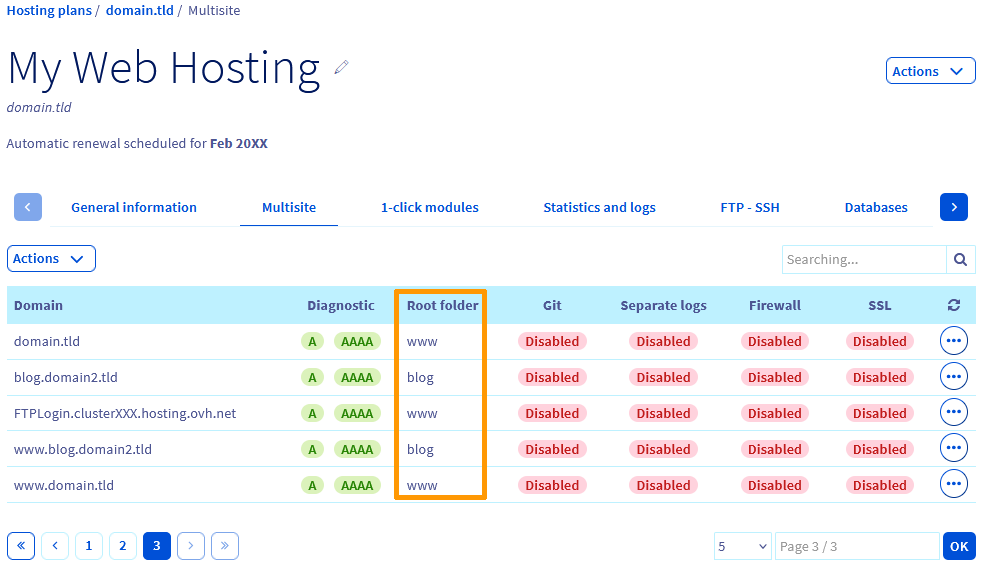
Next, go to the space containing your website’s files and folders (_FTP space_) by following this [guide](/en/guides/web-cloud/web-hosting/ftp-connection.md).
:::info
If you would like to change the password on your FTP space, please refer to this [guide](/en/guides/web-cloud/web-hosting/ftp-change-password.md).
:::
Open the `Root folder` identified previously.
Locate and open your site's configuration file:
- For a WORDPRESS site, open "**wp-config.php**".
- For a JOOMLA site, open "**configuration.php**".
- For a DRUPAL site, click on the "**sites**" folder, then "**default**". The configuration file is "**settings.php**".
- For a PRESTASHOP website, click on the "**app**" folder, then "**config**". The configuration file is "**parameters.php**".
### 2: Identify your website’s database [](#)
There are two possible cases:
- Case 1: Your website database is part of your hosting plan.
- Case 2: It is included in a _Web Cloud Databases_ offer, in which case you will need to find the **server name** and the **username** of your database, in order to identify the database without any risk of error.
To determine which case applies to your website, in the configuration file identified in [step 1](#step1), start by noting down the name of its database:
- For WORDPRESS: The name appears under "**DB\_NAME**".
- For JOOMLA: The name appears under "**public $db**".
- For DRUPAL: The name appears under "**database**".
- For PRESTASHOP: The name appears under "**database\_name**".
Then go back to the OVHcloud Control Panel
and open the `Web Cloud
` section:
- Go to the Hosting plans section, then to the Web Hosting plan concerned.
- Click on Databases tab **on the right-hand side** of your screen.
- Locate the database name previously found in the `Database Name` column.
If you have found the database name listed in the configuration file in this section of the OVHcloud Control Panel, go to [step 3](#step3).
Otherwise, your website’s database is linked to a [Web Cloud Databases](https://www.ovhcloud.com/en-gb/web-cloud/databases/) solution.
You will need to go back to your website’s configuration file to note the _server name_ and _database username_:
- For WORDPRESS: The _server name_ appears under **DB\_HOST** and the _username_ under **DB\_USER**.
- For JOOMLA: The _server name_ appears under "**public $host**" and the _username_ appears under "**public $user**".
- For DRUPAL: The _server name_ appears under "**host**" and the _username_ appears under "**username**".
- For PRESTASHOP: The _server name_ appears under "**database\_host**" and the _username_ appears under "**database\_user**".
Then click in the `Databases
` section of the `Web Cloud
` section.
For [Web Cloud Databases](https://www.ovhcloud.com/en-gb/web-cloud/databases/)
solutions, open the tab `General information
`. Check for the database server name identified previously under `Host name
`.
In this section of the OVHcloud Control Panel, go to the `Users and rights
` tab to find your database’s `Username
`.
### 3: Change the password for your website’s database in its configuration file [](#)
:::info
For more information on password management best practices, follow the instructions in [this guide](/en/guides/account-and-service-management/account-information/manage-ovh-password.md).
:::
Choose the new password for your database and save it. It must meet the following conditions:
- Minimum 8 characters
- Maximum 30 characters
- At least one capital letter
- At least one lower-case letter
- At least one number
- Only numbers and letters
As described in [step 1](#step1), go back to your Web Hosting plan’s file storage space, then open your website’s configuration file for editing.
**Before you make any changes**, save the content of this file locally in a text document, so that you keep a copy if you make any mistakes.
Manually replace your database password while **avoiding changing or deleting any other elements of the configuration file** (in the extracts below, only the sample password `*0VhCloudPa55w0rdDB123*` should be replaced):
- In the configuration file of a WORDPRESS website, modify "**DB\_PASSWORD**":
```php
// ** MySQL settings - You can get this info from your web host ** //
/** The name of the database for WordPress */
define('DB_NAME', 'dbname123');
/** MySQL database username */
define('DB_USER', 'dbname123');
/** MySQL database password */
define('DB_PASSWORD', '0VhCloudPa55w0rdDB123');
/** MySQL hostname */
define('DB_HOST', 'dbname123.mysql.db:3306');
```
- In the configuration file of a JOOMLA website, modify "**public $password**" (at the end of the configuration file):
```php
public $host = 'dbname123.mysql.db:3306';
public $user = 'dbname123';
public $password = '0VhCloudPa55w0rdDB123';
public $db = 'dbname123';
```
- In the configuration file of a DRUPAL website, modify "**password**":
```php
$databases['default']['default'] = array (
'database' => 'dbname123',
'username' => 'dbname123',
'password' => '0VhCloudPa55w0rdDB123',
'prefix' => 'prefix123_',
'host' => 'dbname123.mysql.db',
'port' => '3306',
```
- In the configuration file of a PRESTASHOP website, modify "**database\_password**":
```php
'database_host' => 'dbname123.mysql.db',
'database_port' => '3306',
'database_name' => 'dbname123',
'database_user' => 'dbname123',
'database_password' => '0VhCloudPa55w0rdDB123',
```
Save this change.
### 4: Change the password for your website’s database on the database server [](#)
:::info
This operation will take a few minutes to take effect. Once you have launched it, check its status in the `Ongoing tasks
` tab.
:::
Again, two cases are possible:
- If your database is located in the section of the OVHcloud Control Panel that is dedicated to your [Web Hosting plan](https://www.ovhcloud.com/en-gb/web-hosting/), follow [these instructions](#case1).
- If your database is located in the section of the OVHcloud Control Panel dedicated to your [Web Cloud Databases solutions](/en/guides/web-cloud/databases/overview.md), follow [these instructions](#case2).
#### Case 1: Your website’s database is part of your hosting plan [](#)
Click on the tabs below to view each of the **5** steps.
**Step 1**
Log in to your OVHcloud Control Panel, then go to the Web Cloud section.
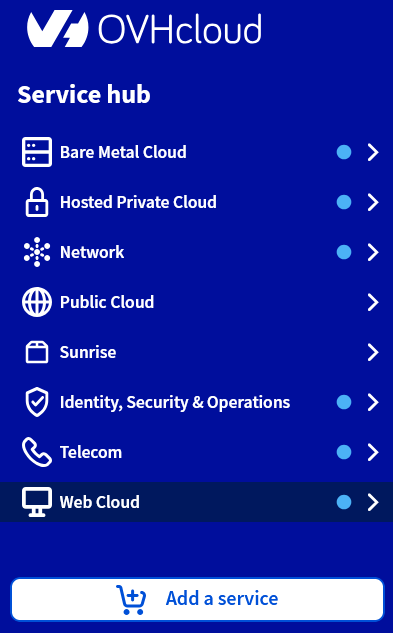
**Step 2**
Click the Hosting plans menu, then select the Web Hosting plan concerned.

**Step 3**
On the page that pops up, click on the Databases tab.
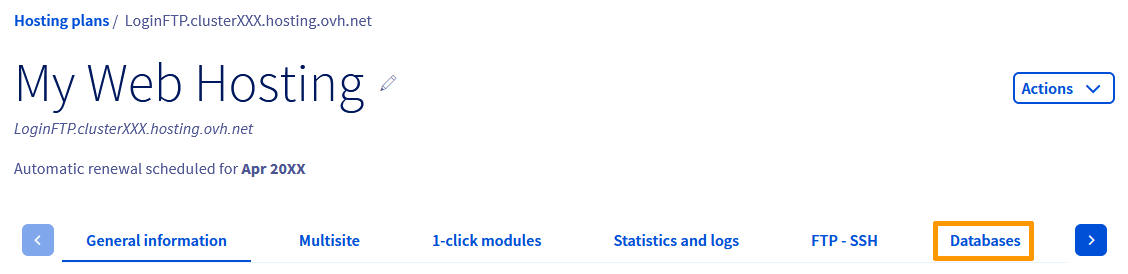
**Step 4**
Next, click on the three dots to the right of your website’s database, then on Change password.
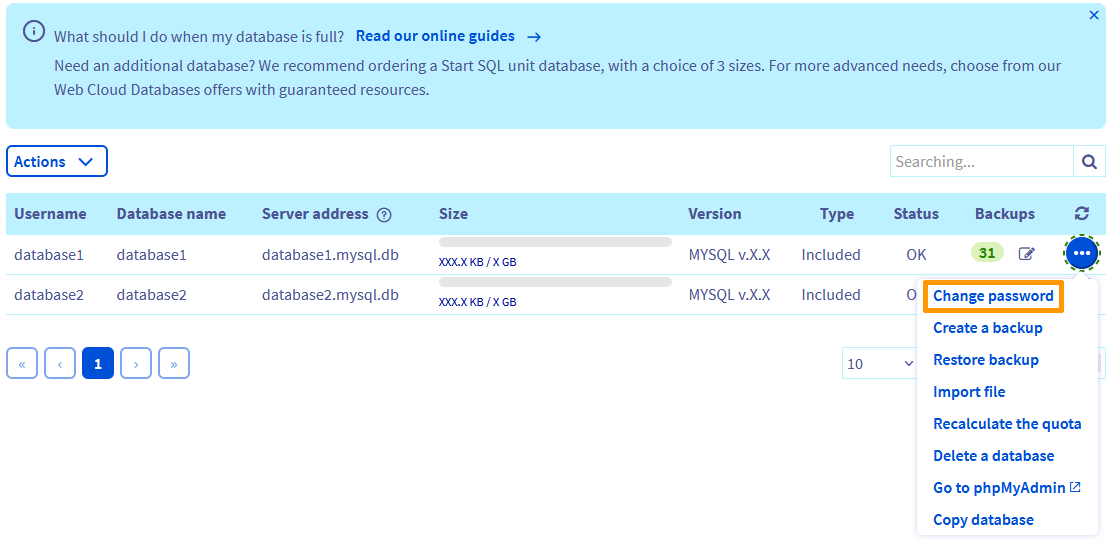
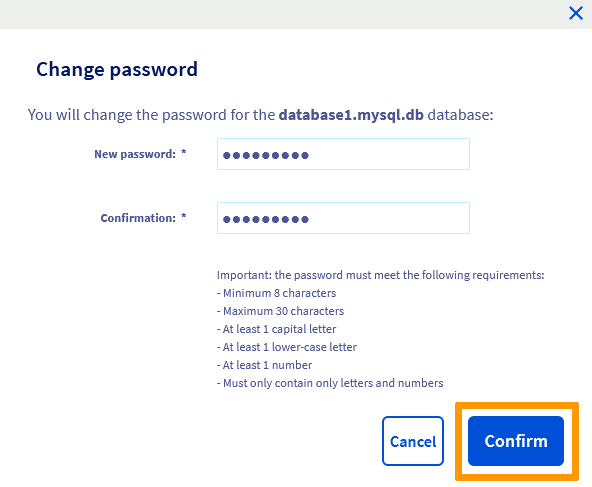
**Step 5**
In the window that pops up, enter your database’s new password (defined at [part 3](#step3)), confirm it, then click on Confirm.
#### Case 2: Your website’s database is part of a Web Cloud Databases solution [](#)
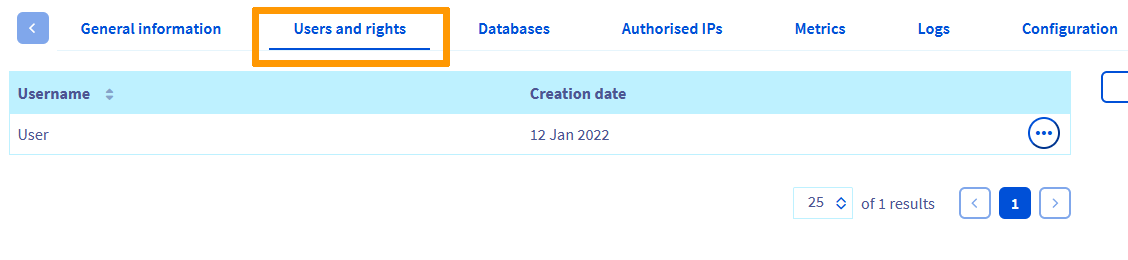
Go to the `Databases
` section in your Control Panel and click on the server concerned, then click on `Users and rights
`:
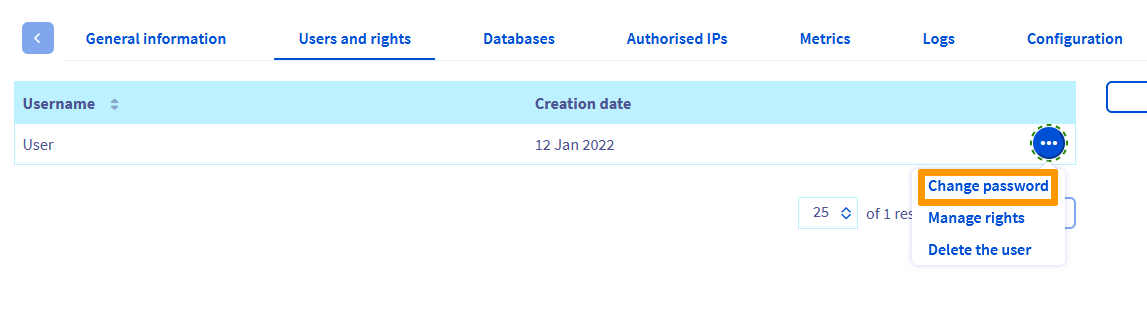
To change the password for your database on the server, click on the three dots to the right of the `Username
` identified in [step 2](#step2)
, then on `Change password
`.
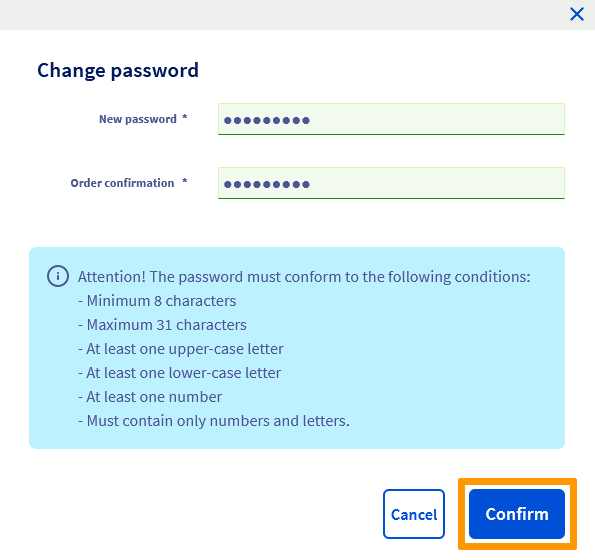
In the window that pops up, enter your database’s new password (defined in [step 3](#step3)
), confirm it, then click on `Confirm
`.
## Go further [](#)
[FileZilla software usage with your hosting](/en/guides/web-cloud/web-hosting/ftp-filezilla-user-guide.md)
[Change your account password](/en/guides/account-and-service-management/account-information/manage-ovh-password.md)
[Troubleshoot common database errors](/en/guides/web-cloud/web-hosting/diagnosis-database-errors.md)
For specialised services (SEO, development, etc.), contact your [OVHcloud partners](https://partner.ovhcloud.com/en-gb/directory/).
Join our [community of users](https://community.ovhcloud.com/).