---
title: "How to check the 'domain name / website' association"
description: "Use our diagnostic tool to verify that your domain name or subdomain is correctly declared with your website on your web hosting"
url: https://docs.ovhcloud.com/en/guides/web-cloud/web-hosting/my-websites-diagnosis
lang: en
lastUpdated: 2026-09-25
---
> For AI agents: the complete documentation index is available at https://docs.ovhcloud.com/en/llms.txt, the full documentation bundle is available at https://docs.ovhcloud.com/en/llms-full.txt.
# How to check the 'domain name / website' association
## Objective
You can host multiple websites on a single web hosting plan, even if the domain names are not registered with OVHcloud. You can also associate one or more domain names or subdomains with the same website.
**Use our diagnostic tool to verify that your domain name or subdomain is correctly declared with your website on your web hosting.**
## Requirements
- A compatible [OVHcloud web hosting plan](https://www.ovhcloud.com/en-gb/web-hosting/uc-multisite/)
- One or more [domain names](https://www.ovhcloud.com/en-gb/domains/)
- Access to modify the configuration of the [DNS zones of your domain names](https://docs.ovhcloud.com/en/guides/web-cloud/domains/dns-zone-edit.md)
***
### OVHcloud Control Panel Access
- **Direct link:** Hosting plans
- **Navigation path:** Web Cloud > Hosting plans > Select your web hosting plan
***
## Instructions
### Access the diagnostic tool
Click on the tabs below to view each of the **4** steps.
**Step 1**
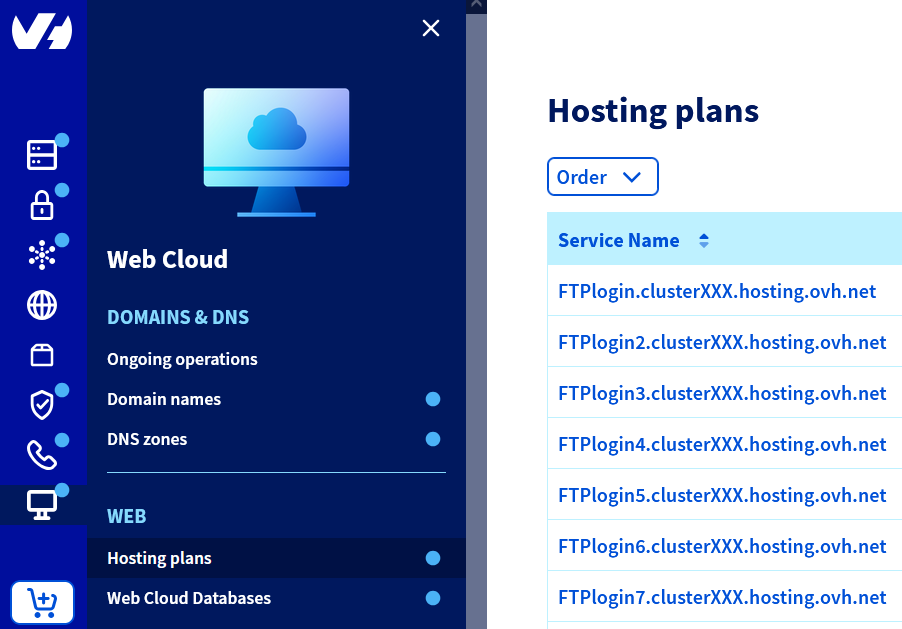
Go to the Hosting plans page, then select the web hosting plan concerned.
**Step 2**
On the page that opens, click on the My sites tab.

**Step 3**
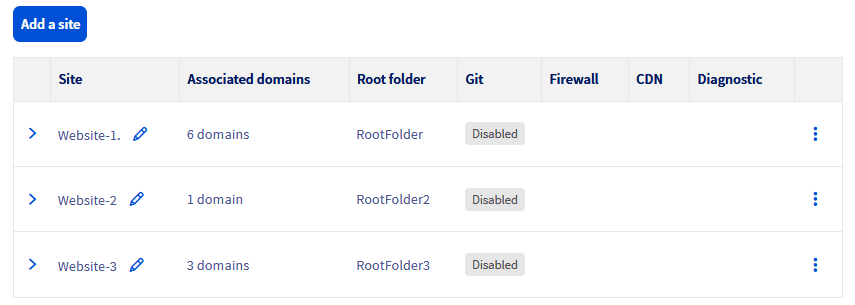
In the table that appears, click on the > button to the left of the name of the website to display the associated domain names or subdomains.
**Step 4**
The domain names or subdomains associated with your website appear.
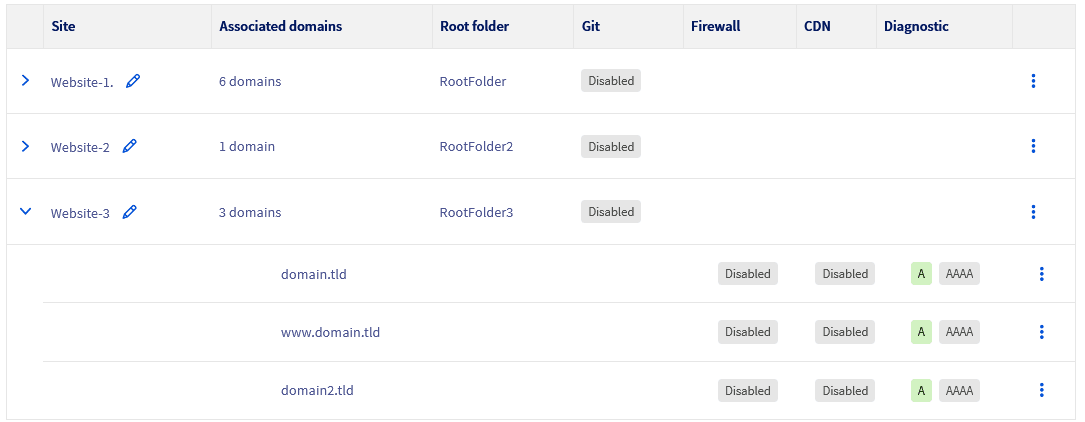The `Diagnostic` column informs you whether your domain name is correctly pointing to the associated web hosting. It allows you to quickly verify that the DNS configuration of your domain name is correctly set up with your web hosting. This column helps you identify and resolve any potential pointing issues. For each domain name, three diagnostic results are possible:
- Green `A/AAAA`
- Yellow `A/AAAA`
- Grey `A/AAAA`
Refer to the "[Interpretation of the diagnostic tool's colours](#interpretation)" section of this guide to find out what these colours mean.
### Interpretation of the diagnostic tool's colours [](#)
**Click on the relevant status indicators below to see their explanations.**
Green A/AAAA
When the `A/AAAA` icon is green in the `Diagnostic` column, it means that the **A** record (for IPv4 addresses) and/or the **AAAA** record (for IPv6 addresses) of your domain name is correctly pointing to the IP address of your web hosting. The DNS configuration of your domain name is therefore correct to work with the website on your web hosting.
Yellow A/AAAA
When the `A/AAAA` icon is yellow in the `Diagnostic` column, it means that the **A** record (IPv4) and/or **AAAA** record (IPv6) of your domain name is pointing to an IP address, but it is not the one of the web hosting from which you are viewing the `Diagnostic` column.
To resolve DNS issues with your domain name and ensure it correctly points to the desired web hosting, follow the steps described in our guide "[Editing an OVHcloud DNS zone](https://docs.ovhcloud.com/en/guides/web-cloud/domains/dns-zone-edit.md)".
Grey A/AAAA
When the `A/AAAA` icon is grey in the `Diagnostic` column, it means that the domain name is not currently pointing to any IP address and no **A** (IPv4) or **AAAA** (IPv6) records are configured for this domain name.
To add the **A** and/or **AAAA** records and correctly configure your domain name, follow the steps described in our guide "[Editing an OVHcloud DNS zone](https://docs.ovhcloud.com/en/guides/web-cloud/domains/dns-zone-edit.md)".
## Go further
[Editing an OVHcloud DNS zone](https://docs.ovhcloud.com/en/guides/web-cloud/domains/dns-zone-edit.md)
[Publishing a website on your Web Hosting plan](https://docs.ovhcloud.com/en/guides/web-cloud/web-hosting/hosting-how-to-get-my-website-online.md)
If you would like assistance using and configuring your OVHcloud solutions, please refer to our [support offers](https://www.ovhcloud.com/en-gb/support-levels/).
Join our [community of users](https://community.ovhcloud.com/).