---
title: "Web Hosting - How to modify a domain name already associated to a hosting plan"
description: "Find out how to change the association settings for a domainname or subdomain already declared on your web hosting plan"
url: https://docs.ovhcloud.com/en/guides/web-cloud/web-hosting/multisites-modify-domain
lang: en
lastUpdated: 2026-06-08
---
# Web Hosting - How to modify a domain name already associated to a hosting plan
## Objective
When you use your web hosting plan or update your website, you may need to modify settings for your domain name or subdomain already associated with your web hosting plan.
:::info
This guide only explains how to modify a domain name or subdomain that has already been declared on an OVHcloud Web Hosting plan. If you would like to link a new domainname or subdomain to your web hosting plan, please read our guide on “[Hosting multiple websites on your Web Hosting plan](/en/guides/web-cloud/web-hosting/multisites-configure-multisite.md)”.
:::
**Find out how to modify the association settings for a domainname or subdomain already declared on your web hosting plan.**
## Requirements
- An [OVHcloud Web Hosting plan](https://www.ovhcloud.com/en-gb/web-hosting/)
- One or more [domain names](https://www.ovhcloud.com/en-gb/domains/)
- Sufficient rights to all the services concerned, find more information in our guide “[Managing contacts for your services](/en/guides/account-and-service-management/account-information/managing-contacts.md)”
***
### OVHcloud Control Panel Access
- **Direct link:** Web hosting
- **Navigation path:** Web Cloud > Hosting plans > Select your web hosting plan
***
## Instructions
:::warning
Modifying the association settings for a domain name or subdomain can result in access to your services (your website) being interrupted. If you have any doubts about the modifications to be made, do not hesitate to contact a specialist provider.
:::
To modify the association settings for a domain name or subdomain that has already been declared on your Web Hosting plan, perform the following actions:
1. Log in to your OVHcloud Control Panel.
2. Click on the Web Cloud tab.
3. In the left-hand column, click on the Hosting plans menu.
4. Select the web hosting plan concerned.
5. On the page that appears, click on the Multisite tab.
6. In the table that appears below the tab and to the right of the domainname or subdomain concerned, click on the ... button, then on Modify domain.
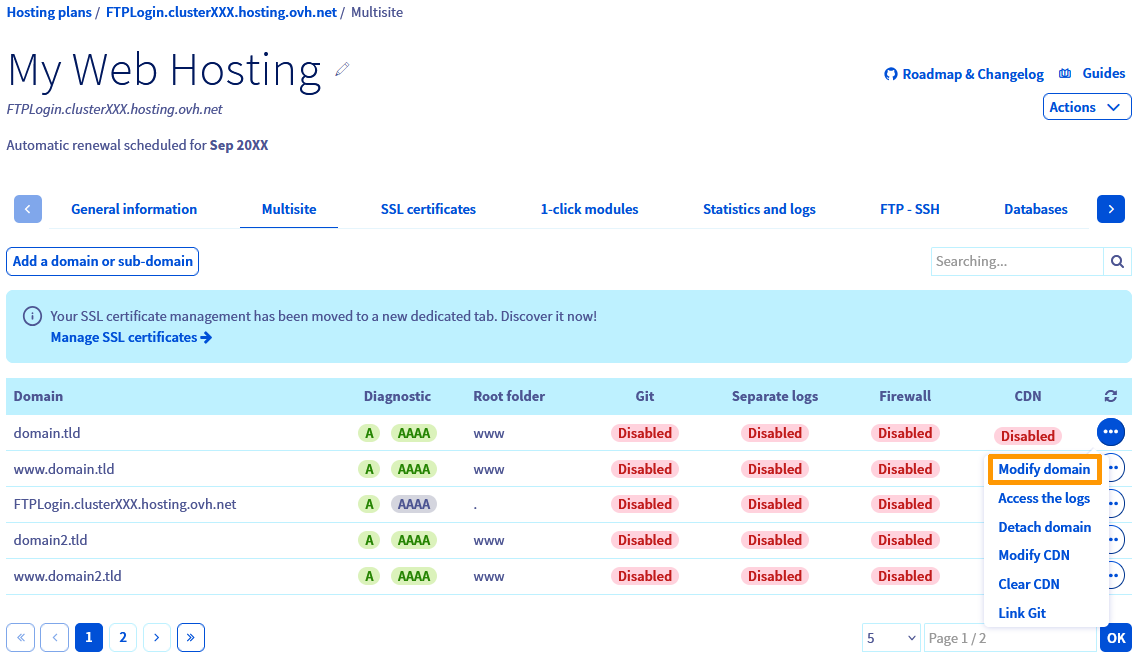
The following window appears:
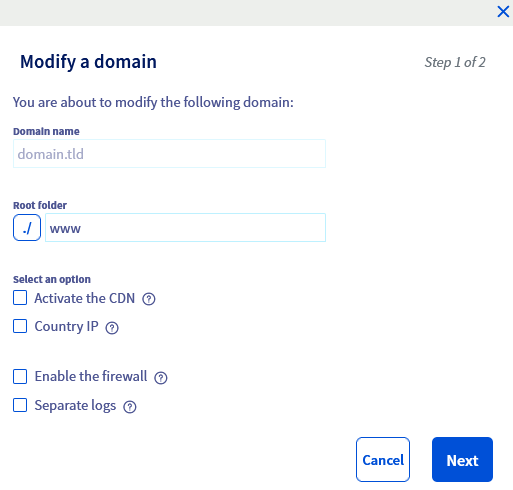
In the remainder of this guide, you will find a description of each of the available settings in the window above. Once you have read the descriptions below and made your changes, click the `Next
` button in the bottom right-hand corner of the window, then go to [step 2](#step2)
.
### Step 1 - Description of editable parameters [](#)
:::info
The `Domain name
` form cannot be modified, as it is a change to the settings of the domain name associated with the web hosting plan. If you would like to link a new domainname or subdomain to your web hosting plan, please read our guide on “[Hosting multiple websites on your Web Hosting plan](/en/guides/web-cloud/web-hosting/multisites-configure-multisite.md)
”.
:::
#### Modify the "root folder"
:::warning
**Special case: configuration with Git**
To modify the `Root folder
` declared for your domain name if a configuration exists with Git for the same domain name, you must first delete this configuration.
If a configuration exists with Git, a message will appear just below the form:
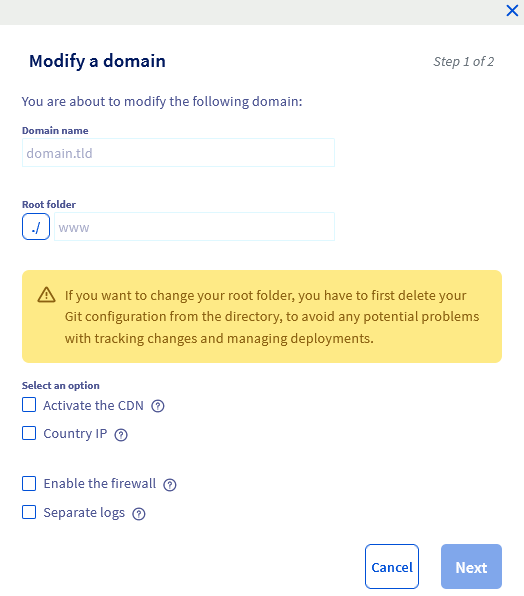
To delete the Git configuration for a domainname or subdomain associated with your hosting plan, please read our guide on [Configuring and using Git with an OVHcloud web hosting plan](/en/guides/web-cloud/web-hosting/git-integration-webhosting.md).
:::
The `Root folder
` form shows the name of the folder containing the items that appear with your domain name. For example, a folder might contain your website’s files.
When using your services, you may need to change the `Root folder
` declared for your domain name. This can happen when, for example:
- You have developed a new website in a new folder in your web hosting plan’s FTP storage space.
- You want to redirect your domain name to an empty folder and then place a new website there.
- etc.
In this form, replace the name of the pre-filled folder with the name of the new folder you want.
:::tip
If you enter a non-existent folder name in your web hosting plan’s FTP storage space, it will be automatically created by our robots in your FTP storage space.
:::
#### Other options available
##### The "Activate the CDN" option
To use this option, you must have already subscribed to an OVHcloud CDN solution, or have a Performance, Agency, Agency Plus or Agency Max web hosting plan.
Tick/untick this box to enable/disable the CDN option for your domain name or subdomain.
You can find more information on the CDN options/offers available in our dedicated documentation “[Speeding up your website with CDN](/en/guides/web-cloud/web-hosting/cdn-how-to-use-cdn.md)”.
##### The "country IP" option
This option is mainly used for websites whose target audience is located in a different country than the web hosting. This will improve the SEO ranking of the website in the chosen country.
You can find more information on this option in our dedicated documentation "[Geolocating your website in a specific country](/en/guides/web-cloud/web-hosting/multisites-geolocation.md)".
##### The "Enable the firewall" option
This option filters incoming requests to protect your web hosting plan against the most common attacks.
You can find more information on this option in our dedicated documentation "[Activating the application firewall](/en/guides/web-cloud/web-hosting/multisites-activating-application-firewall.md)".
##### The "Separate logs" option
Tick/untick this option only if you want to separate your domain name logs from other domain names declared on your web hosting plan.
Find out more about this option in our [detailed statistics page](https://www.ovhcloud.com/en-gb/web-hosting/uc-website-traffic-analysis/).
Once you have made your changes, click the `Next
` button in the bottom right-hand corner of the window to go to [step 2](#step2)
.
### Step 2 - Summary of changes [](#)
Once you have clicked the `Next
` button, you will see a summary of the settings you are about to apply to your domain name:
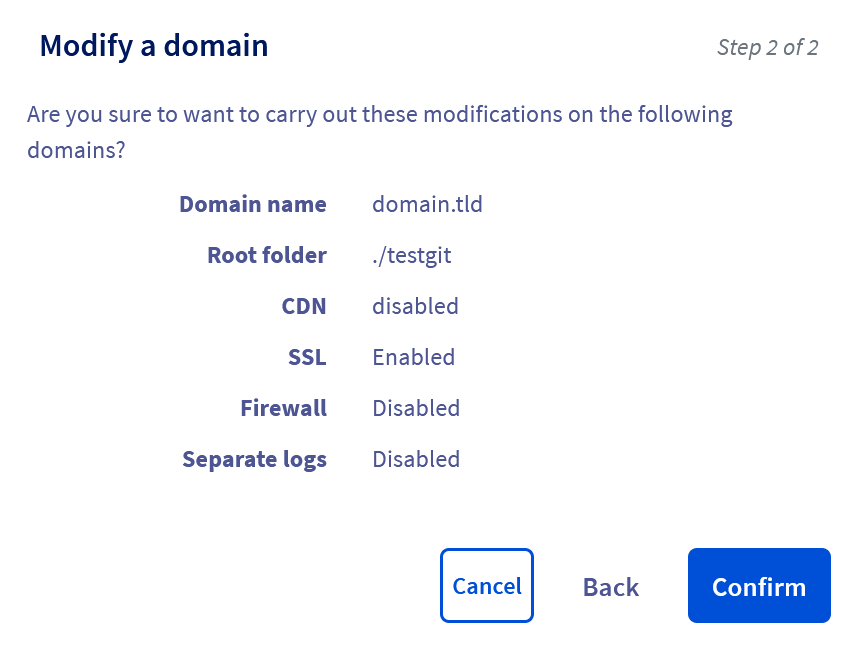
If all the settings are configured as you want, click the `Confirm
` button.
Depending on the options you have selected, the changes may take between a few minutes and a few hours to be applied.
If modifications of the **CDN**, **Country IP** and **separate logs** options are not taken into account after 24 hours, please refer to the respective resources listed for all of the options described in [step 1](#step1), in order to check that all of the required conditions have been met.
## Go further
[Hosting multiple websites on your Web Hosting plan](/en/guides/web-cloud/web-hosting/multisites-configure-multisite.md)
[Managing SSL certificates on a web hosting plan](/en/guides/web-cloud/web-hosting/ssl-on-webhosting.md)
[Speeding up your website with CDN](/en/guides/web-cloud/web-hosting/cdn-how-to-use-cdn.md)
[Geolocating your website in a specific country](/en/guides/web-cloud/web-hosting/multisites-geolocation.md)
[Activating the application firewall](/en/guides/web-cloud/web-hosting/multisites-activating-application-firewall.md)
For specialised services (SEO, development, etc.), contact [OVHcloud partners](https://partner.ovhcloud.com/en-gb/directory/).
If you would like assistance using and configuring your OVHcloud solutions, please refer to our [support offers](https://www.ovhcloud.com/en-gb/support-levels/).
Join our [community of users](https://community.ovhcloud.com/).