---
title: "Web Hosting - How to change your solution"
description: "Find out how to change the subscription offer for your OVHcloud Web Hosting"
url: https://docs.ovhcloud.com/en/guides/web-cloud/web-hosting/how-to-upgrade-web-hosting-offer
lang: en
lastUpdated: 2026-06-08
---
# Web Hosting - How to change your solution
## Objective
In your OVHcloud Control Panel
, you can increase the capacity of your [web hosting plans](https://www.ovhcloud.com/en-gb/web-hosting/)
. A subscription upgrade provides the following advantages:
- More powerful hosting
- More FTP storage space
- Additional databases
- Additional email accounts
- Additional features such as [mailing lists](/en/guides/web-cloud/email-and-collaborative-solutions/mx-plan/feature-mailing-list.md) (from [the Professional offer](https://www.ovhcloud.com/en-gb/web-hosting/)) or the [Web Cloud Databases service](https://www.ovhcloud.com/en-gb/web-cloud/databases/) (included in [the Performance offers](https://www.ovhcloud.com/en-gb/web-hosting/))
**This guide explains how to upgrade your OVHcloud hosting plan without any service interruptions.**
## Requirements
- An [OVHcloud web hosting plan](https://www.ovhcloud.com/en-gb/web-hosting/)
***
### OVHcloud Control Panel Access
- **Direct link:** Hosting plans
- **Navigation path:** Web Cloud > Hosting plans > Select your web hosting plan
***
## Instructions
:::warning
**Before** you make any changes to your current subscription, please check if you are affected by any of these questions:
- [How do I upgrade my free hosting plan to a web hosting plan?](#100m)
- [How do I get a temporary performance boost on my Performance hosting plan?](#boost)
- [Will I lose the time remaining on my current hosting plan when I change plans?](#billing)
- [Can I downgrade my current plan?](#checks)
:::
### Modifying your web hosting plan [](#)
To modify your subscription, click on the tabs below to view each of the **2** steps.
**Step 1**
Go to the Hosting plans page, then select the web hosting plan concerned.

**Step 2**
In the **Plan** box, click the ... button to the right of **Solution**, then Change plan.
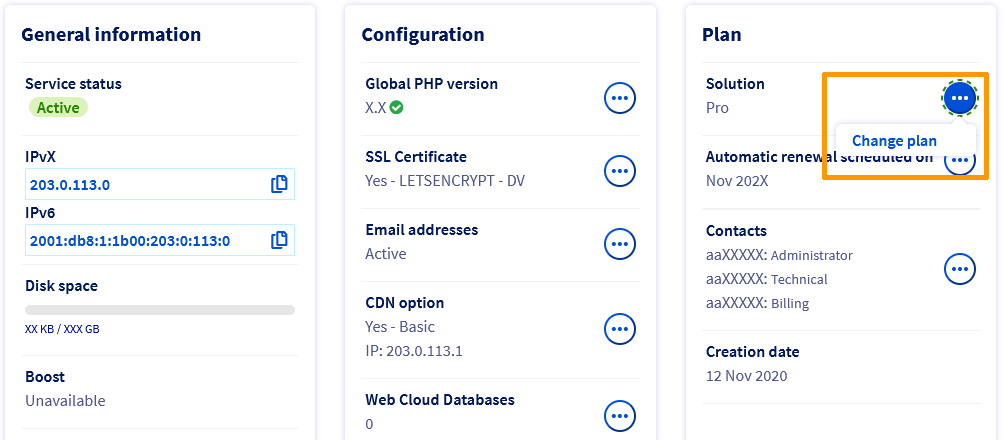Then select your new subscription and its duration. Confirm the corresponding contracts, then click Send.
### Checking that your web hosting plan is compatible with a lower range solution
:::warning
You can only change your subscription to a lower range plan if it is the **next lower plan**.
For example, you cannot switch from a _Agency_ plan to a _Professional_ plan in a single operation.
You will **first** need to downgrade your web hosting plan from the _Agency_ plan to the _Performance_ plan, and **then** to the _Professional_ plan.
:::
**Before changing to a lower range**, please check the following 6 points:
#### 1 - Start SQL databases
Make sure there are enough [databases](https://www.ovhcloud.com/en-gb/web-hosting/options/start-sql/) in the new plan. Also check that they are of sufficient size.
Otherwise, delete unused databases and reduce the amount of data in them, if necessary. This quantity must not exceed the maximum database size for the new solution. If you need assistance with how to proceed, please contact [OVHcloud partners](https://partner.ovhcloud.com/en-gb/directory/).
Once you have deleted data from your databases, recalculate the quota used. To do this, click on the tabs below to view each of the **4** steps.
**Step 1**
Go to the Hosting plans page, then select the web hosting plan concerned.

**Step 2**
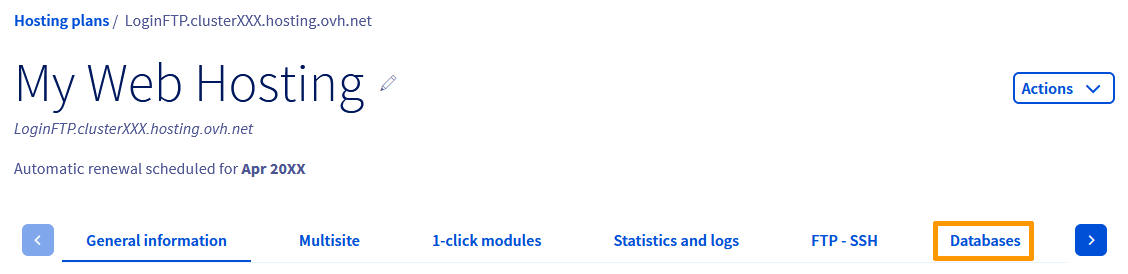
On the page that pops up, click on the Databases tab.
**Step 3**
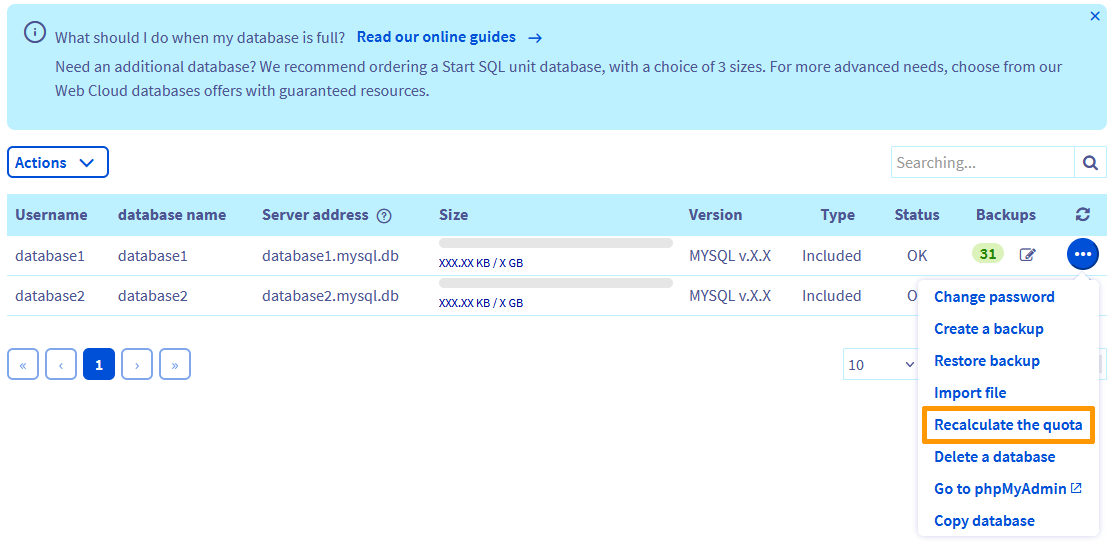
On the new page, a table will appear containing the databases you have created. To the right of the database concerned, click the ... button, then Recalculate the quota.
**Step 4**
In the window that pops up, click the Confirm button.
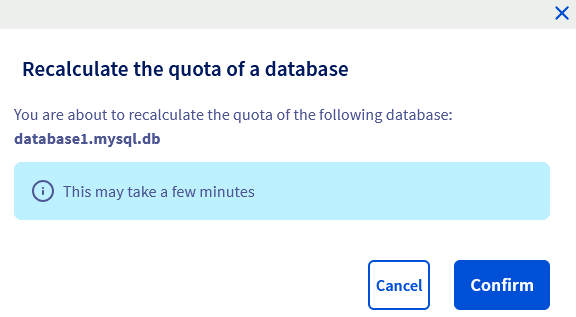Once launched, the operation may take several minutes. When it ends, the "READ ONLY" status of your database disappears.\
Your database is now fully operational again.
:::info
Recalculating your database quota may take up to **15 minutes**. Refresh the page in your web browser if the recalculated quota does not appear after that time.
:::
#### 2 - Web Cloud Databases
If you are using the [Web Cloud Databases](/en/guides/web-cloud/databases/db-getting-started.md) solution included with your web hosting plan [Performance](https://www.ovhcloud.com/en-gb/web-hosting/), and you want to change your web hosting plan to a [Professional](https://www.ovhcloud.com/en-gb/web-hosting/) solution, you will need to detach the Web Cloud Databases solution from your web hosting plan.
To do this, click on the tabs below to view each of the **2** steps.
**Step 1**
Go to the Hosting plans page, then select the web hosting plan concerned.

**Step 2**
In the **Configuration** box, click the ... button to the right of the **Web Cloud Databases** heading, then Detach.
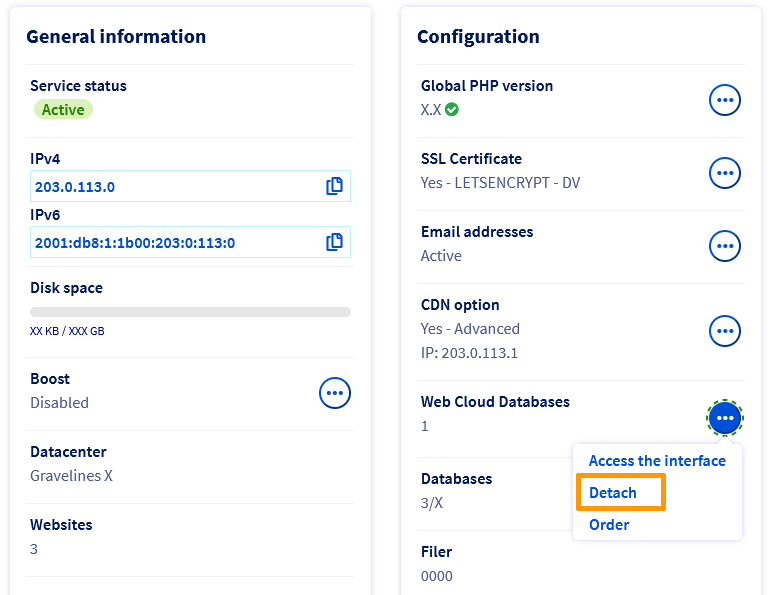
With this action, you can order a Web Cloud Databases solution that is independent of your _Performance_ subscription. Your server data will be stored.
If you do not want to keep this data, you can also delete your Web Cloud Databases solution before switching to the _Professional_ solution:
1. Back up your data by following the instructions in this [guide](/en/guides/web-cloud/databases/db-backup-export-database-server.md).
2. Delete your Web Cloud Databases server via your OVHcloud Control Panel. To do this, click on the tabs below to view each of the **2** steps.
**Step 1**
Go to the My services page.
**Step 2**
Click the ... button to the right of the line for the Web Cloud Databases/Private SQL solution concerned, then Delete my Private SQL hosting plan.
#### 3 - FTP storage space
Make sure that the new solution offers enough [FTP storage space](/en/guides/web-cloud/web-hosting/ftp-connection.md) for you to be able to import files from your current hosting plan.
To check the FTP storage space quota used on your web hosting plan, click on the tabs below to view each of the **2** steps.
**Step 1**
Go to the Hosting plans page, then select the web hosting plan concerned.

**Step 2**
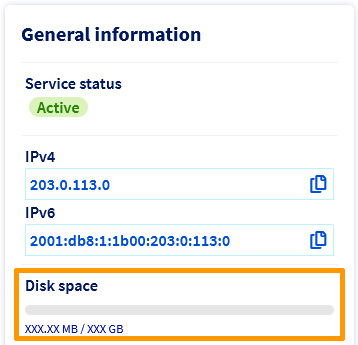
You can find the storage space utilization of your hosting in the **General information** box, under **Disk space**.
#### 4 - Email accounts
Check that your new solution has a sufficient number of available email accounts. Otherwise, delete any unused email accounts after you have [saved](/en/guides/web-cloud/email-and-collaborative-solutions/migrating/manual-email-migration.md) their content, if necessary.
If you would like to keep the same number of mailboxes and **before downgrading your web hosting plan to a lower plan**, you can also order a new **MX Plan** email solution. To do this, click on the tabs below to view each of the **2** steps.
**Step 1**
Go to the MX Plan page, then select the domain concerned.
**Step 2**
In the **Subscription** box, to the right of **Solution**, click the ... button, then Change plan.
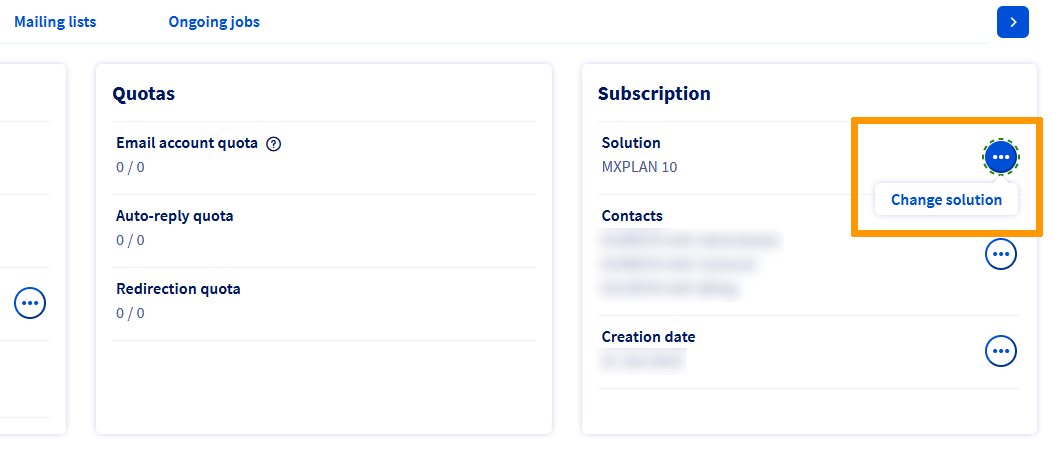
If the plan change is unavailable on your email solution, it is linked to a web hosting plan.
You can unlink the email solution from your web hosting plan. To do this, click on the tabs below to view each of the **2** steps.
**Step 1**
Go to the Hosting plans page, then select the web hosting plan concerned.
**Step 2**
In the **Configuration** box, click the ... button to the right of **Email addresses**, then Detach my email option.
#### 5 - Mailing lists
The [Mailing lists](/en/guides/web-cloud/email-and-collaborative-solutions/mx-plan/feature-mailing-list.md) feature is optional on [Personal](https://www.ovhcloud.com/en-gb/web-hosting/) hosting plans.
To upgrade your web hosting plan to a [Personal](https://www.ovhcloud.com/en-gb/web-hosting/) plan, you will first need to delete the mailing lists, or order an email solution that includes this feature (**MX Plan 100** or **MX Plan Full**) from your OVHcloud Control Panel. To do this, click on the tabs below to view each of the **2** steps.
**Step 1**
Go to the MX Plan page, then select the domain concerned.
**Step 2**
In the **Subscription** box, to the right of **Solution**, click the ... button, then Change plan.
If the plan change is unavailable on your email solution, it is linked to a web hosting plan.
You can unlink the email solution from your web hosting plan. To do this, click on the tabs below to view each of the **2** steps.
**Step 1**
Go to the Hosting plans page, then select the web hosting plan concerned.
**Step 2**
In the **Configuration** box, click the ... button to the right of **Email addresses**, then Detach my email option.
#### 6 - FTP users
Make sure that the new plan offers enough FTP users.
You can view the number of FTP users in your OVHcloud Control Panel. To check this, click on the tabs below to view each of the **3** steps.
**Step 1**
Go to the Hosting plans page, then select the web hosting plan concerned.
**Step 2**
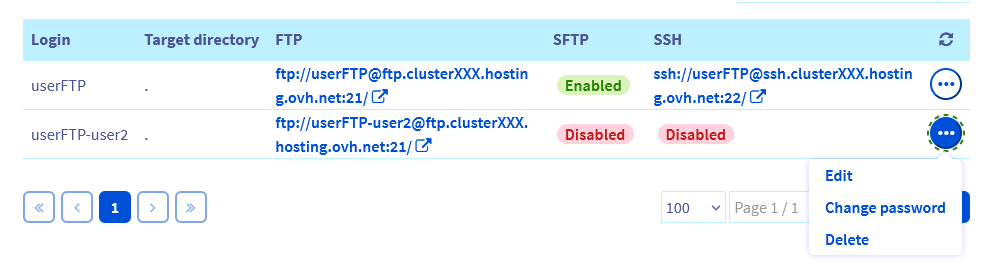
On the page that opens, click on the FTP - SSH tab. At the bottom of the page, a table lists all the FTP users created for your web hosting plan.
**Step 3**
To delete FTP users, click the ... button to the right of the FTP user concerned, then Delete.
#### Finalisation
Once these 6 points have been verified, you can complete your [solution change](#modify).
### Special cases
#### You have a free hosting plan
If you are changing your plan from a [free hosting](/en/guides/web-cloud/web-hosting/activate-start10m.md) plan, only [the Personal plan](https://www.ovhcloud.com/en-gb/web-hosting/) will be available. However, after changing to the Personal plan, you can upgrade it to all of our [web hosting plans](https://www.ovhcloud.com/en-gb/web-hosting/).
Follow [these instructions](#modify) to change your solution.
#### Temporarily boost your Performance hosting [](#)
With the [Boost option](https://www.ovhcloud.com/en-gb/web-hosting/options/boost/), available on our _Performance_ plans, you can temporarily increase your web hosting plan's CPU and RAM resources to absorb a one-off increase in traffic. If this increase continues over time, you can also [switch to the higher-level Performance plan](#modify) so that you have these resources permanently.
:::warning
When you choose to enable the Boost option, it will remain active and billed **until you disable it**.
:::
If the **Boost** option is right for you, please find instructions below on how to **enable** or **disable** this option on your web hosting plan.
To **enable the Boost option**, click on the tabs below to view each of the **2** steps.
**Step 1**
Go to the Hosting plans page, then select the web hosting plan concerned.

**Step 2**
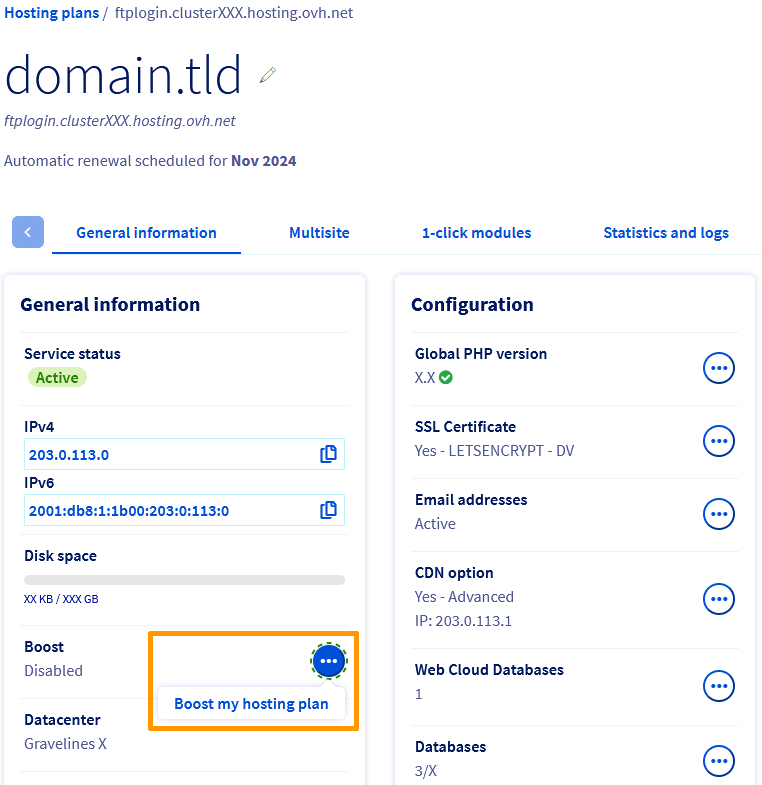
In the **General information** box on the page that opens, click the ... button to the right of **Boost**, then Boost my hosting plan.
To **disable the Boost option**, click on the tabs below to view each of the **3** steps.
**Step 1**
Go to the Hosting plans page, then select the web hosting plan concerned.

**Step 2**
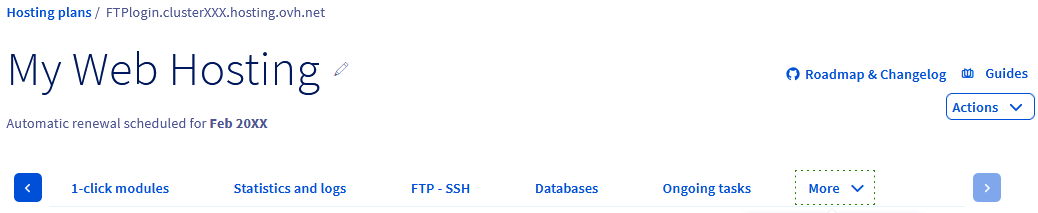
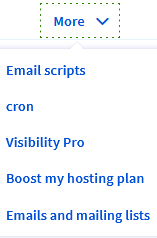
On the page that pops up, click on the More tab, then click Boost my hosting plan.
**Step 3**
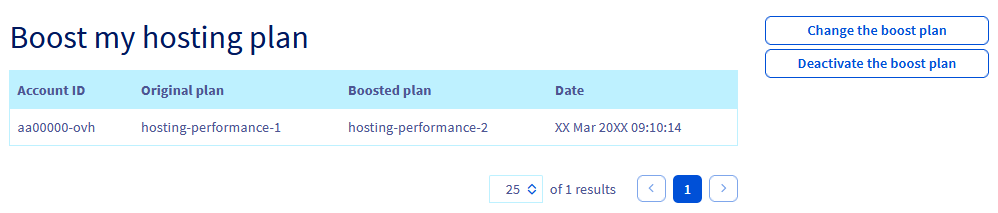
The usage table for the Boost option will appear. Click Disable boost plan.
#### Billing when you change plans [](#)
**Case 1**: When you upgrade your plan to a higher plan, a _pro rata_ calculation will be applied until the next renewal date for this initial subscription.
This calculation is the price difference between your original plan and your new plan.
> **Example:**
>
> You subscribed to a [Personal](https://www.ovhcloud.com/en-gb/web-hosting/) subscription on 1 January 2024.
>
> On October 31, 2024, you upgrade this **Personal** plan to the [Professional](https://www.ovhcloud.com/en-gb/web-hosting/) plan.
>
> Therefore, the amount corresponding to the remaining duration on the **Personal** subscription (2 months, from 01 November 2024 to 01 January 2025) is automatically deducted from the cost of the new **Professional** subscription, until 01 January 2025. You will only pay the difference.\
> From 01 January 2025, the **Professional** subscription will then be billed at its current price.
Follow [these instructions](#modify) to change your solution.
**Case 2**: When you downgrade your original plan, the remaining subscription time for the original plan is permanently lost. No refund will be made for this remaining time, even if the subscription has several months left. As a result, you will need to pay the full price for your new plan at the time of the downgrade.
> **Example:**
>
> You subscribed to a [Professional](https://www.ovhcloud.com/en-gb/web-hosting/) subscription on 1 January 2024.
>
> On October 31, 2024, you downgrade this **Professional** plan to the [Personal](https://www.ovhcloud.com/en-gb/web-hosting/) plan.
>
> As a result, the amount corresponding to the remaining duration on the **Professional** subscription (2 months, from 01 November 2024 to 01 January 2025) is lost.
> From 01 November 2024, the **Personal** subscription is billed at the current price (even if you had paid for the remaining 2 months of the **Professional** offer).
Follow [these instructions](#modify) to change your solution.
## Go further [](#)
[Accessing a website's logs and statistics on a web hosting](/en/guides/web-cloud/web-hosting/logs-and-statistics.md)
[Optimising your website's performance](/en/guides/web-cloud/web-hosting/optimise-your-website-performance.md)
For specialised services (SEO, development, etc.), contact [OVHcloud partners](https://partner.ovhcloud.com/en-gb/directory/).
If you would like assistance using and configuring your OVHcloud solutions, please refer to our [support offers](https://www.ovhcloud.com/en-gb/support-levels/).
Join our [community of users](https://community.ovhcloud.com/).