---
title: "Configuring and using Git with an OVHcloud web hosting plan"
description: "Find out how to configure and use Git with your web hosting plan in the OVHcloud Control Panel"
url: https://docs.ovhcloud.com/en/guides/web-cloud/web-hosting/git-integration-webhosting
lang: en
lastUpdated: 2025-07-03
---
# Configuring and using Git with an OVHcloud web hosting plan
## Objective
In today’s digital landscape, companies are becoming increasingly dynamic and innovative. The ability to effectively manage and deploy your website’s code is vital to maintaining your brand’s competitiveness and sustainability. Git, the most widely used version control system in the world, allows you to store your website's code on platforms like GitHub, allowing for better change traceability, as well as faster automation and deployments. As an OVHcloud customer, you benefit from a robust infrastructure to host your website, while leveraging the many benefits of Git and GitHub for website development and scalability.
**Find out how to configure and use Git with your web hosting plan via the OVHcloud Control Panel.**
## Requirements
- An [OVHcloud Web Hosting](https://www.ovhcloud.com/en-gb/web-hosting/) plan.
- A [GitHub](https://github.com/) account on which you must be logged in.
:::info
To date, only the GitHub platform is supported for use with OVHcloud Web Hosting services.
:::
***
### OVHcloud Control Panel Access
- **Direct link:** Web hosting
- **Navigation path:** Web Cloud > Hosting plans > Select your web hosting plan
***
## Instructions
:::info
To associate and configure Git, you will need to make changes to your GitHub account. Before starting the guide, log in to your GitHub account.
:::
### Associate a directory with Git [](#)
:::warning
When you associate a directory with Git, all domain names in that directory will also be associated with Git. For example, if the directory corresponding to the website you are associating with is `www`, then all domain names associated with the `www` directory will also be associated with Git.
:::
Log in to your OVHcloud Control Panel
and perform the following actions:
- Go to the Web Cloud tab.
- Select your web hosting plan in the Hosting plans section on the left.
- Click on the Multisite tab.
- In the table that appears, identify the row corresponding to the directory you want to associate with Git.
- Click on the button ... then select Link Git.
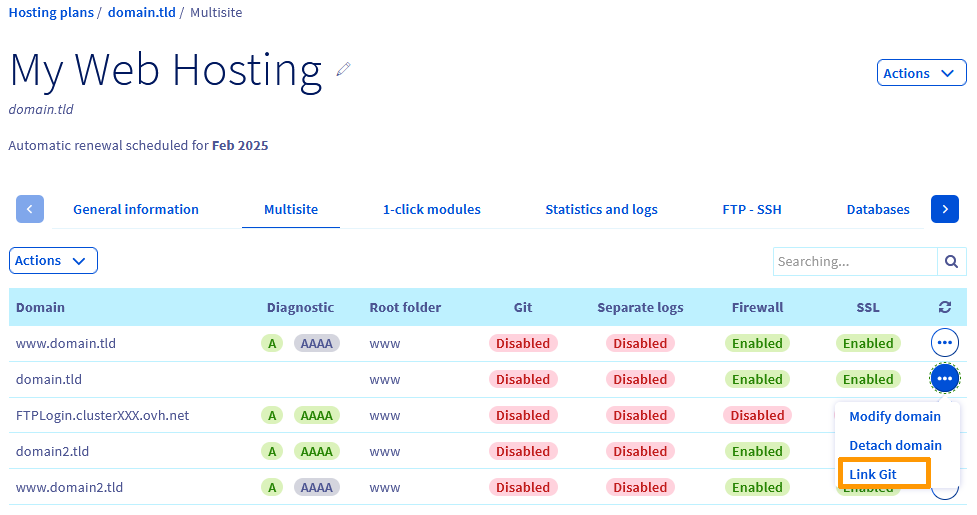
The Git association form is displayed. There are several elements that need to be configured:
- GitHub repository
- GitHub repository branch
- SSH key (for a private GitHub repository)
- Webhook (optional)
#### Set GitHub repository
Enter the address of your GitHub repository. If you don't have a GitHub repository for your project yet, create one.
To create a new repository:
- Log in to your GitHub account.
- Click on your profile picture in the top right-hand corner, then on Your repositories.
- On the right of the screen that appears, click New.
Define a name for your deposit and fill in the requested information.
:::warning
Tick the option `Add a README file` for GitHub to correctly initialise your repository.
:::
Finally, click `Create Repository
`.
Copy the address of your GitHub repository. It must be of the form:
- `https://github.com//.git` for a public repository.
- `git@github.com:/.git` for a private repository.
Return to the Git association form and paste the address of your GitHub repository into the `Deposit
` field. If the address format is not correct, the following error message appears:

Now define the branch of your GitHub repository. The default branch is `main`, but if you want to use another branch, create one on GitHub by following the steps below:
- Log in to your GitHub account.
- Click on your profile picture in the top right-hand corner, then on Your repositories.
- Go to the relevant GitHub repository.
- Click Main, then View all branches, or directly click x Branch.
- To the right of the screen that appears, click New branch.
- Enter the name of the new branch and confirm by clicking Create new branch.
Go back to the Git association form in the OVHcloud Control Panel, and enter the name of the new branch you have just created.
If you enter the address of a private GitHub repository (of type `git@github.com:/.git`), an `SSH key` field will appear under the `Branch` field.
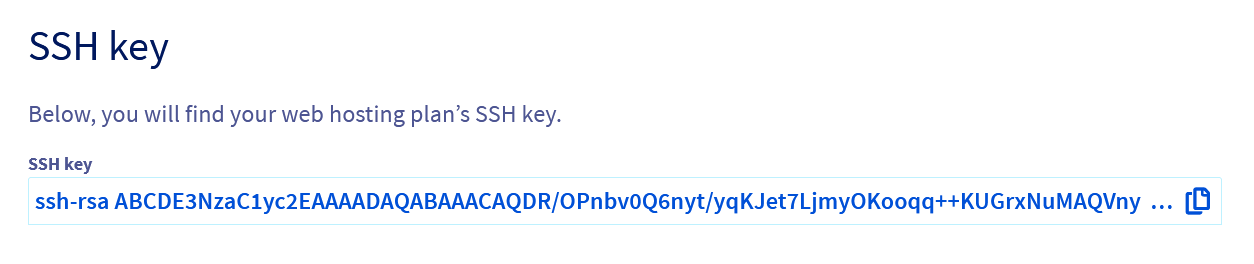
To configure your SSH key, please refer to the "Attach an SSH key to GitHub (only for private GitHub repositories)" step below.
#### Attach an SSH key to GitHub (only for private GitHub repositories) [](#)
:::info
**Why is the SSH key required only for a private deposit?**
When your GitHub repository is public, files can be retrieved without authentication, which means Git can clone and update code without the need for an SSH key. However, if your repository is private, GitHub requires authentication to access it. The SSH key can then be used to establish this secure connection and guarantee that only authorized users can interact with the repository.
:::
:::info
Generating an SSH key is a crucial step, as it establishes a secure and encrypted connection between your website’s directory and the GitHub repository. This key ensures that data transfers and code changes are done in a secure and authenticated manner, preventing unauthorized access and ensuring code integrity.
:::
Copy your SSH key by clicking on the button on the right.
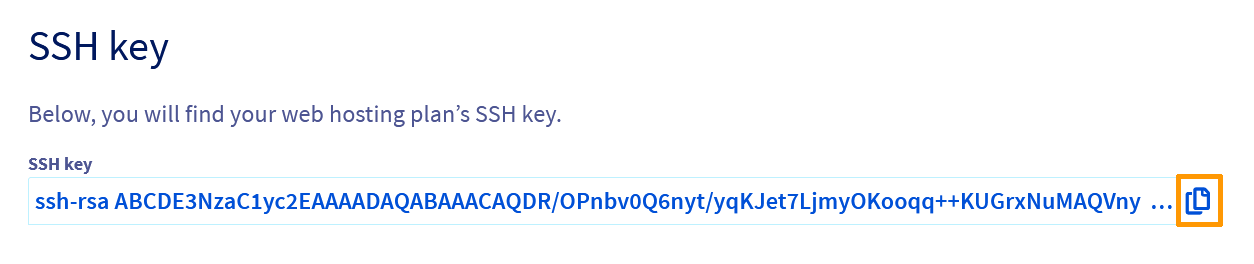
Save the SSH key to your GitHub account:
- Log in to your GitHub account.
- Click on your profile picture in the top right-hand corner, then on Settings.
- On the new page, click SSH and GPG keys in the left-hand column.
- Select New SSH key or Add SSH key.
The form for adding a new SSH key will open:
- **Title** : add a description for your SSH key. For example, you can name this key "OVHcloud".
- **Type of key**: leave the default value `authentication key`
- **Key**: Paste your SSH key.
To confirm the information, click `Add SSH key
`. If prompted, confirm access to your account in GitHub.
#### Configure automatic deployment
At the bottom of the Git association form, a `Configuring automatic deployment
` section will appear, along with the webhook URL. By configuring a webhook, your GitHub repository can automatically notify your OVHcloud web hosting plan of events that occur on the GitHub repository (new deployment, changes in code, etc.). This feature is especially useful if you work as a group on the same project and want to stay up to date with all changes in the GitHub repository. To learn more, learn how to [configure a webhook on GitHub](#configureWebhook)
.
#### Validate Git association
Before validating the Git association form, make sure that:
- Your SSH key has been saved in your GitHub account.
- The address of your GitHub repository is correct. It must be of the form `https://github.com//.git`.
- The name of the GitHub repository branch is correct.
- Your installation directory is empty.
To validate the information in the Git association form, click `Apply configuration
`.
### Enabling Git association
#### Successful association of Git
After validating the Git association form, you are redirected to the Multisite tab.
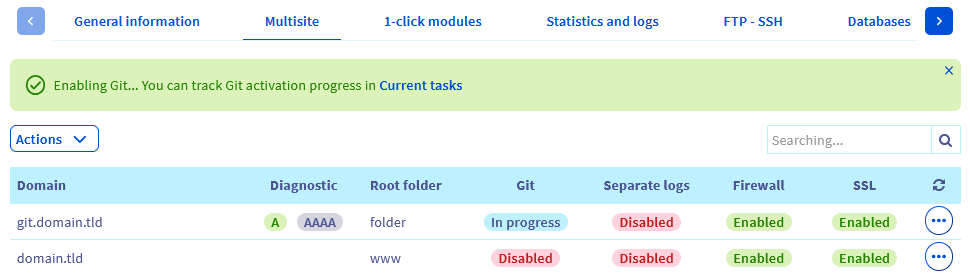
A green banner will show you that Git is being enabled. Follow the activation of Git by clicking on the `Current tasks
` link.

The status `Running
` indicates that the Git association is in progress. The process may take several minutes. When the task is complete, the status `Enabled
` is displayed.
You can also track the progress of Git activation from the `Multisite
` tab. In the table, identify the rows that correspond to the directory you want to associate with Git. For each of the rows concerned, in the `Git
` column, the phrase `In progress
` tells you that Git is being enabled.
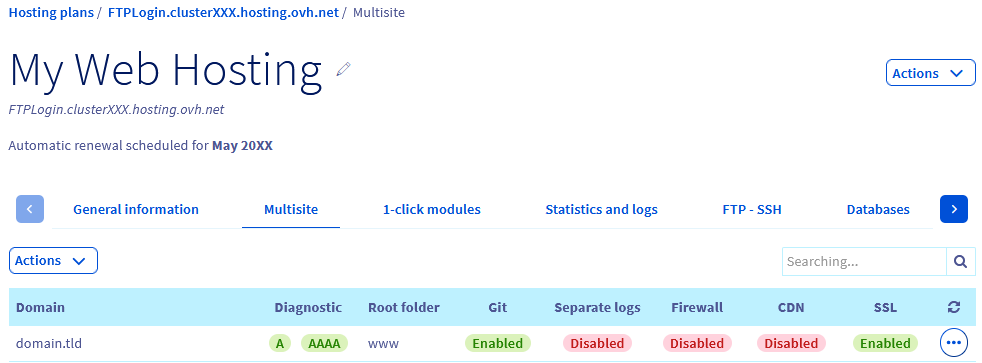
When the Git association is complete, the status `Enabled
` appears in the `Git
` column for the rows concerned.
#### Git association errors
In the table in the `Multisite
` tab, identify the rows corresponding to the directory you want to associate with Git. In the `Git`
column, if the word `Error`
appears, this means that at least one of the following errors has occurred:
- The SSH key has not been saved in your GitHub account.
- The installation directory is not empty.
- The GitHub repository address does not exist or is incorrect.
- The branch of the GitHub repository does not exist or its name is incorrect.
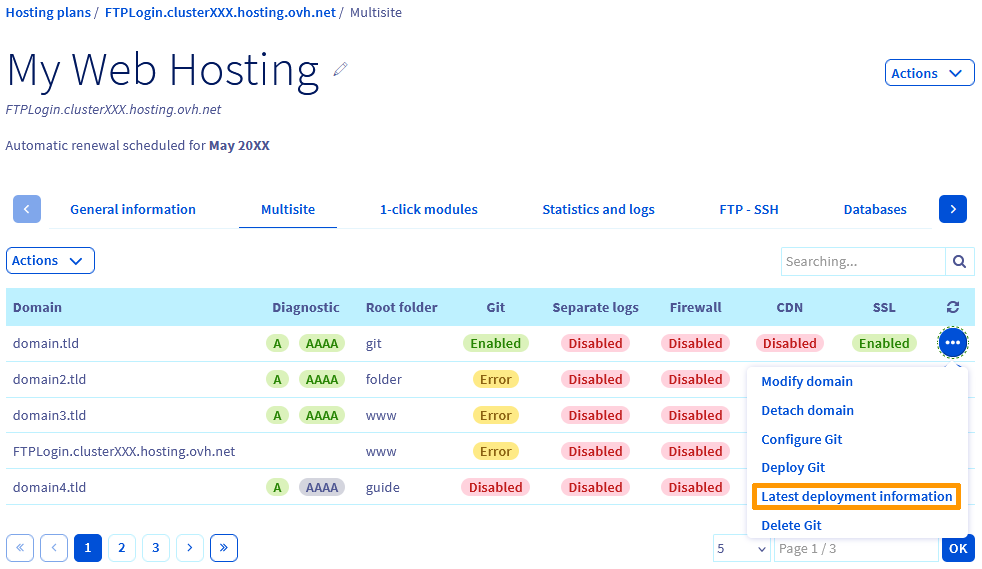
For the exact cause of the error, see the information from the last deployment. In the table, identify the row corresponding to the domain name for which you want to view the logs for the last deployment. To the right of the line, click on the `...
` button, then on `Latest deployment information
`.
Once you have identified the error(s), associate Git again. Retry the operation by clicking on the `...
` button on the corresponding line, then on `Link Git
`.
### Deploy your GitHub repository on your OVHcloud web hosting plan
Log in to your OVHcloud Control Panel
, go to the `Web Cloud
` section, click `Hosting plans
`, then choose the name of the web hosting plan concerned. Select the `Multisite
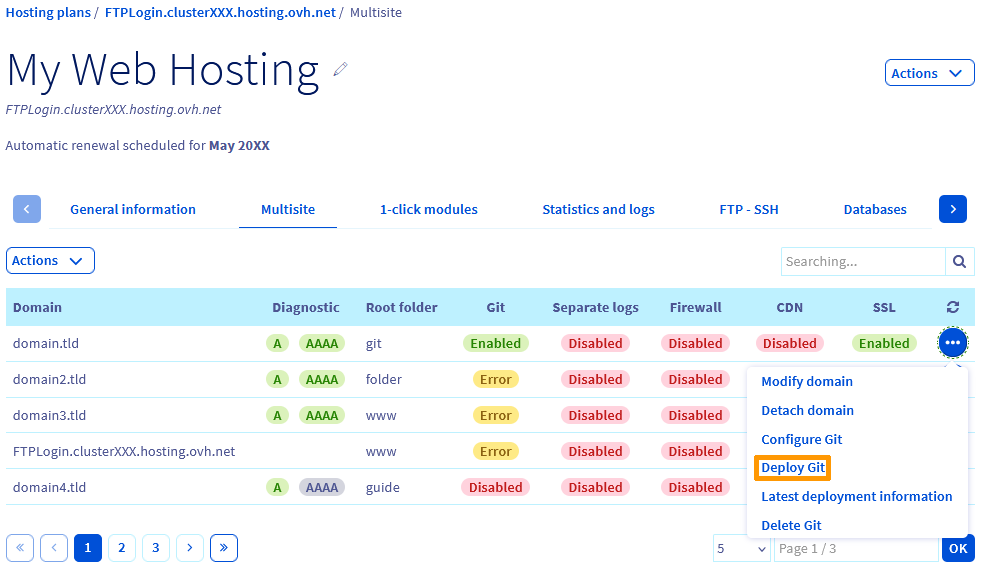
` tab. In the table that appears, identify the row for the domain name that you want to deploy with Git. Ensure that the status of the Git column is `Enabled
`. Click the `...
` button, then `Deploy Git
`.
A confirmation message appears, along with a check box telling you that if there is a conflict during deployment, you can force remote (GitHub repository) changes on your local repository. Tick or untick the box depending on your choice, then click `Confirm
` to validate the deployment.
:::warning
To avoid losing your local changes, remember to save them before overwriting them with changes from the remote branch.
:::
The new version of your website has been deployed on your OVHcloud hosting plan. If other people are working on the same project and they make changes on the GitHub repository, then you can [configure a webhook on GitHub](#configureWebhook) so that their changes are automatically deployed to your web hosting plan. This avoids having to deploy Git manually, and your web hosting plan will always be up-to-date.
### Modify a domain name
Log in to your OVHcloud Control Panel
, go to the `Web Cloud
` section, click `Hosting plans
`, then choose the name of the web hosting plan concerned. Select the `Multisite
` tab. In the table that appears, identify the row for the domain you want to modify. Click the `...
` button, then `Modify domain
`. There are two possible scenarios:
#### The domain name is not the only one attached to the same directory
The following window appears:
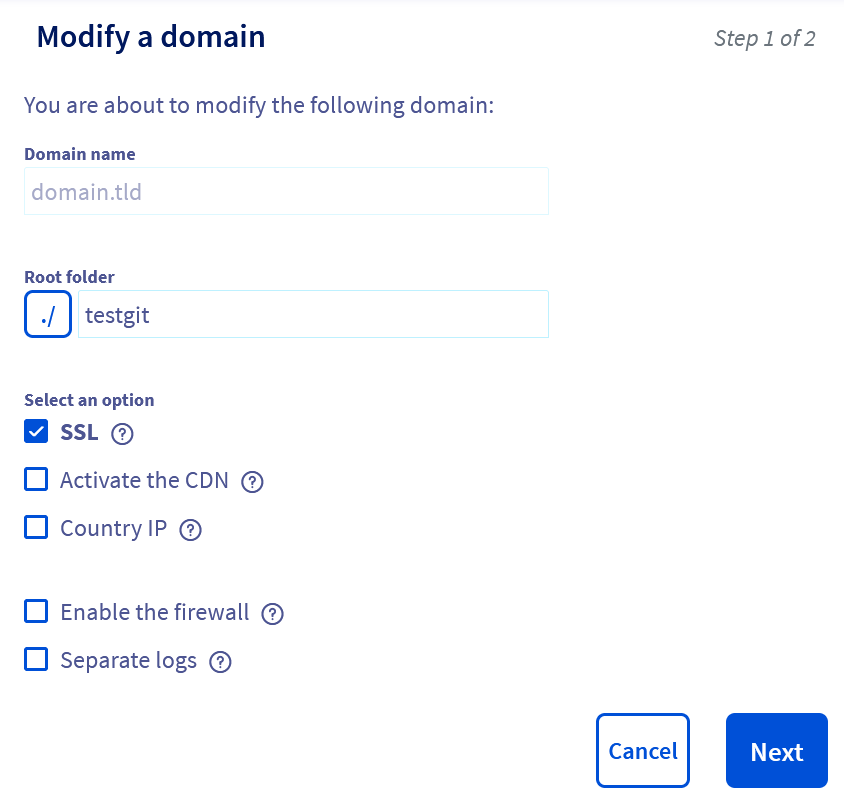
Modify the information of your choice and click `Next
`.
A second confirmation window will appear, with a summary of your changes.
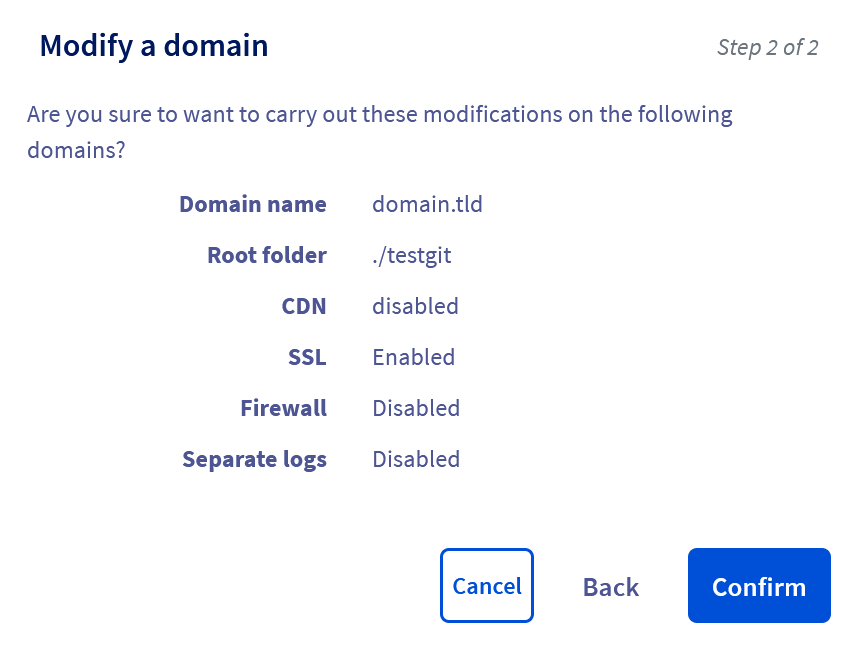
Click `Confirm
` to confirm your domain name changes.
#### The domain name is the only one attached to the directory
The following window appears:
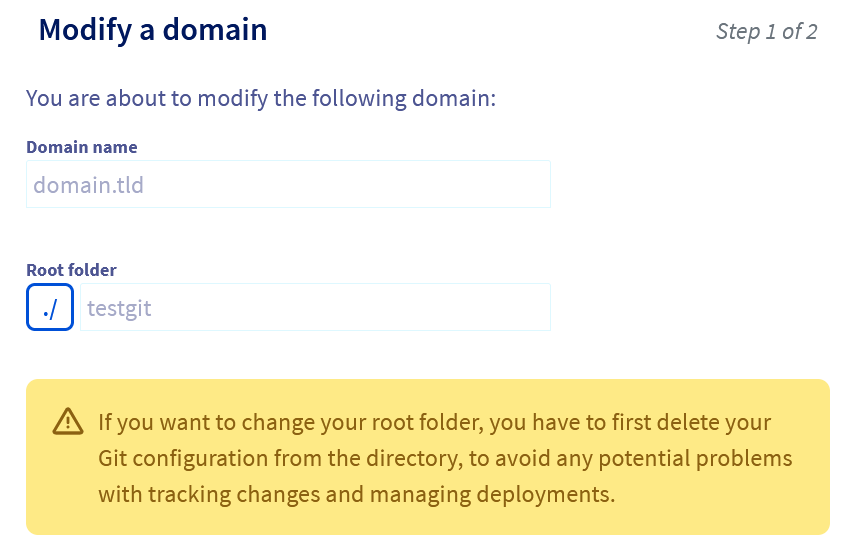
As the message states, [delete your Git association](#deleteGitAssociation) first before changing your domain name.
### Detach a domain name
Log in to your OVHcloud Control Panel
, go to the `Web Cloud
` section, click `Hosting plans
`, then choose the name of the web hosting plan concerned. Select the `Multisite
` tab. In the table that appears, identify the line corresponding to the domain that you want to detach from your OVHcloud web hosting plan. Click the `...
` button, then `Detach domain
`. There are two possible scenarios:
#### The domain name is not the only one attached to the same directory
The following window will appear.
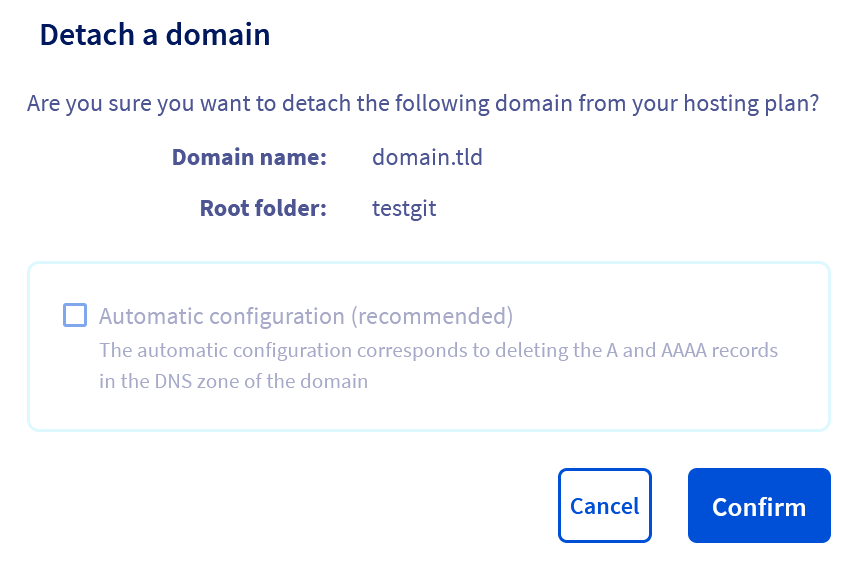
Click `Confirm
` to confirm the detachment of your domain name.
#### The domain name is the only one attached to the directory
The following window appears:
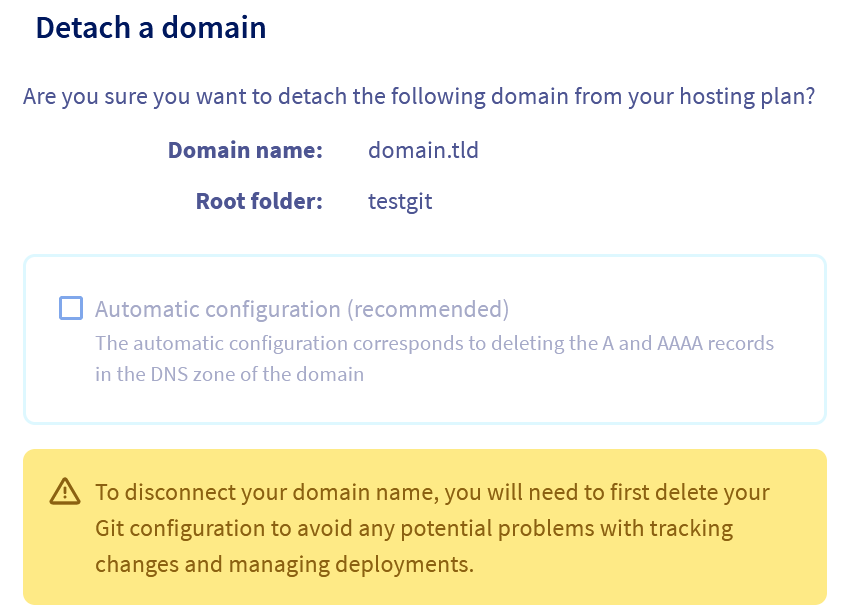
As the message states, [delete your Git association](#deleteGitAssociation) first before detaching your domain name.
### Configure Git
Log in to your OVHcloud Control Panel
, go to the `Web Cloud
` section, click `Hosting plans
`, then choose the name of the web hosting plan concerned. Select the `Multisite
` tab. In the table that appears, identify the row corresponding to the directory you want to configure with Git. Click the `...
` button, then `Configure Git
`.
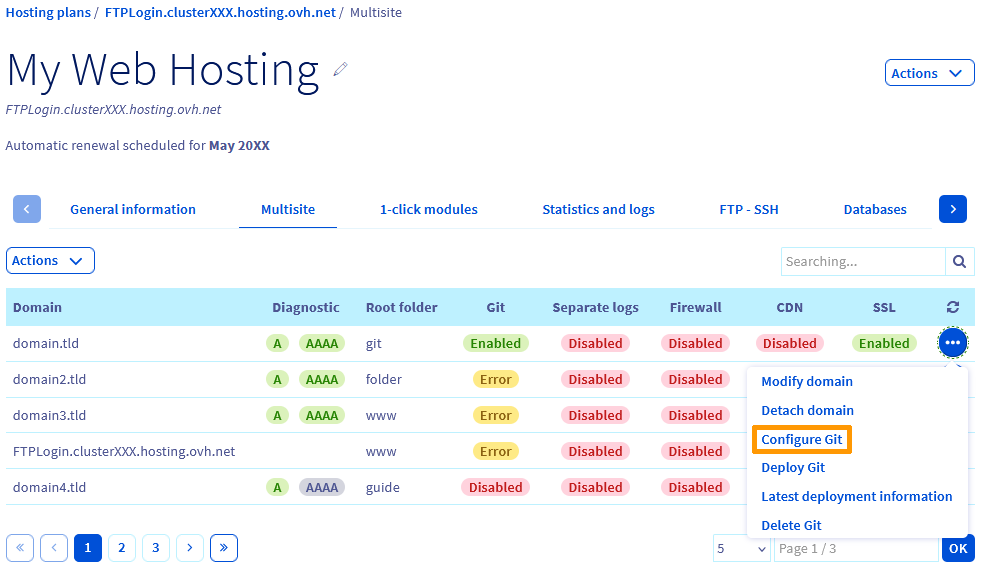
The following information is displayed:
- SSH key: If you have not already done so, [save your SSH key in your GitHub account](#linkSSHKey).
- Deposit: Address of your Git deposit. This field is grayed out because you cannot change the address of the Git repository. To change the Git repository URL, you must [remove Git association from your directory](#deleteGitAssociation) and then [associate directory to Git](#associateGitRepo) again.
- Branch: Name of the branch of the GitHub repository. You can edit this field.
- Webhook URL: If you want to optimise your deployments on Git, [configure the webhook on GitHub](#configureWebhook).
### Latest deployment information
Once you have deployed your GitHub repository on your web hosting plan, you can view information on the latest deployment, such as errors, tests and any useful information.
Log in to your OVHcloud Control Panel
, go to the `Web Cloud
` section, click `Hosting plans
`, then choose the name of the web hosting plan concerned. Select the `Multisite
` tab. In the table that appears, identify the row for the domain whose logs you want to view from the last deployment. To the right of the line, click the `...
` button, then `Latest deployment information
`.

On this screen, you can view all the information related to the latest deployment.
### Delete Git [](#) association
Log in to your OVHcloud Control Panel
, go to the `Web Cloud
` section, click `Hosting plans
`, then choose the name of the web hosting plan concerned. Select the `Multisite
` tab. In the table that opens, identify the row corresponding to the directory whose association with Git you want to remove. Click the `...
` button, then `Delete Git
`.
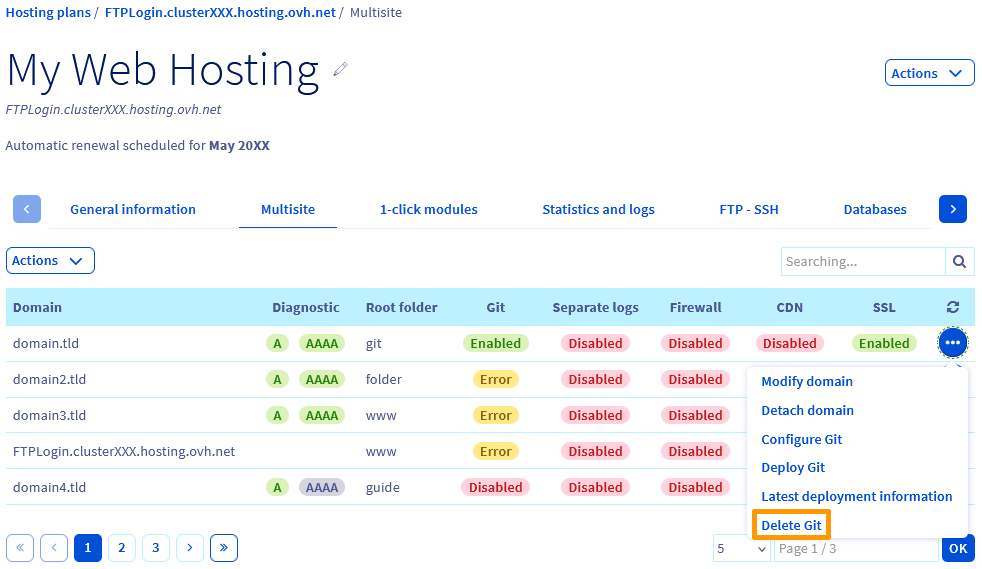
The following window appears:
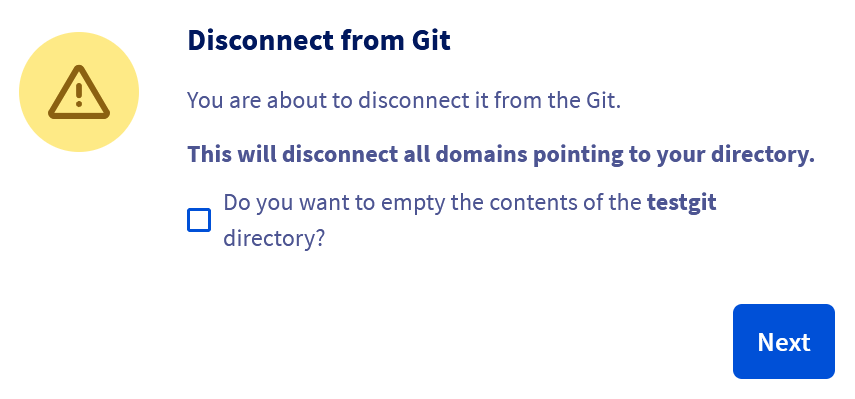
The message informs you that the deletion will apply to all domain names attached to your directory. Tick the `Do you want to empty the contents of the
``
directory?
` option if you also want to delete the contents (folders and files) of the directory.
1\. If you select the check box, the following window appears:

Click `Confirm
` to confirm the deletion of the Git association from your directory, as well as its contents.
2\. If you do not select the check box, the following window appears:

Click `Confirm
` to confirm the deletion of the Git association from your directory.
### Configure a webhook on GitHub
#### Retrieve the webhook URL
:::info
If you are already in the Git association form, copy the webhook URL and go to the step “[Configure the webhook](#configureWebhook)”.
:::
Log in to your OVHcloud Control Panel
, go to the `Web Cloud
` section, click `Hosting plans
`, then choose the name of the web hosting plan concerned. Select the `Multisite
` tab. In the table that opens, identify the row that corresponds to the directory where you want to configure a webhook. Click the `...
` button, then `Configure Git
`.

At the bottom of the form that opens, identify the address of the `Webhook URL
` field, and copy it. You will now need to save the URL and configure the webhook on your GitHub account.
#### Configure the [](#) webhook
Log in to your GitHub account, and go to the repository where you want to configure the webhook. Go to the `Settings
` tab, then in the settings side menu, click `Webhooks
`. Click the `Add webhook
` button to access the form:
- **Payload URL**: Enter the URL provided in the Git association form (Webhook URL).
- **Content type**: Choose application/json as the content type for the data sent.
- **Secret**: The secret is optional. GitHub will use it to sign messages sent by the webhook, enhancing security.
- **SSL verification**: If your website supports HTTPS, leave this option enabled for increased security.
- **Which events would you like to trigger this webhook?**: Select the events that will trigger the webhook to be sent. For automatic deployment, Just the push event is often enough, but you can choose Send me everything to receive notifications for all events.
- **Active**: Make sure that the box is ticked to enable the webhook.
Click `Add webhook
` to save and activate your new webhook.
#### Test your webhook
Once you have created your webhook in GitHub, go to the list of your webhooks and select the one you have just created, or click `Edit
`.
On the screen that appears, click on the `Recent Deliveries
` tab. To send a test event specifically, GitHub usually sends a `ping`
event when creating the webhook, and you can use the `Redeliver
` button next to this event to test it.
If the test has worked, the `Response
` tab returns a code of 200. If an error code is returned (usually 500 or 400), this means that your webhook has been misconfigured. Return to the form for adding a webhook, and check the information, specifically the webhook URL provided by OVHcloud.
#### Use the webhook
Once your webhook has been set up, your website’s code will be updated automatically whenever changes occur on the GitHub repository. For example, if changes are made by one of your colleagues on the GitHub repository, then your website code will be updated locally (on your OVHcloud hosting plan).
### Conclusion
You have just linked your website code with Git, via your GitHub repository. You can now deploy the changes made on the GitHub repository to your web hosting plan, or deploy them in an automated way using the webhook. You can also view your deployment logs and perform multiple actions in just a few clicks via the OVHcloud Control Panel.
## Go further
[Putting a website online on your web hosting plan](/en/guides/web-cloud/web-hosting/hosting-how-to-get-my-website-online.md)
For specialised services (SEO, development, etc.), contact [OVHcloud partners](https://partner.ovhcloud.com/en-gb/directory/).
If you would like assistance using and configuring your OVHcloud solutions, please refer to our [support offers](https://www.ovhcloud.com/en-gb/support-levels/).
Join our [community of users](https://community.ovhcloud.com/).