---
title: "Logging in to your web hosting plan’s FTP storage space"
description: "Find out how to log in to your OVHcloud web hosting plan’s FTP storage space"
url: https://docs.ovhcloud.com/en/guides/web-cloud/web-hosting/ftp-connection
lang: en
lastUpdated: 2026-06-08
---
# Logging in to your web hosting plan’s FTP storage space
## Objective
OVHcloud web hosting plans provide you with access to an FTP storage space, which you can use to put your website and application files online. You can access this space via an FTP or SSH user account with their associated passwords.
**Find out how to log in to your OVHcloud web hosting plan's FTP storage space.**
## Requirements
- An [OVHcloud web hosting plan](https://www.ovhcloud.com/en-gb/web-hosting/)
:::info
Only **Professional**, **Performance**, **Agency**, **Agency Plus** and **Agency Max** web hosting plans allow SSH connections and multiple FTP users to be activated.
For web hosting plans, you can no longer log in to your FTP storage space via the FTP Explorer/Net2FTP online tool. To continue connecting to your web hosting plan via FTP, use the [Filezilla](https://filezilla-project.org/download.php) or [Cyberduck](https://cyberduck.io/) software.
:::
***
### OVHcloud Control Panel Access
- **Direct link:** Hosting plans
- **Navigation path:** Web Cloud > Hosting plans > Select your web hosting plan
***
## Instructions
### 1 - Retrieve the information required to log in
To connect to your FTP storage space, you will need the following:
- The active FTP or SSH user account
- The password associated with this FTP or SSH user account
- The FTP or SSH server address of your web hosting plan
- The connection port of the FTP or SSH server on your Web Hosting plan
:::info
These elements were sent to you in the email informing you that your web hosting plan has been set up after completing your order. You can access them via your OVHcloud Control Panel
.
**If you already have these items**, proceed directly to part 2 "[Access your storage space](#ftp_storage_access)" in this guide.
:::
If you do not have this information at hand, click on the tabs below to view each of the **4** steps.
**Step 1**
Go to the Hosting plans page, then select the web hosting plan concerned.

**Step 2**
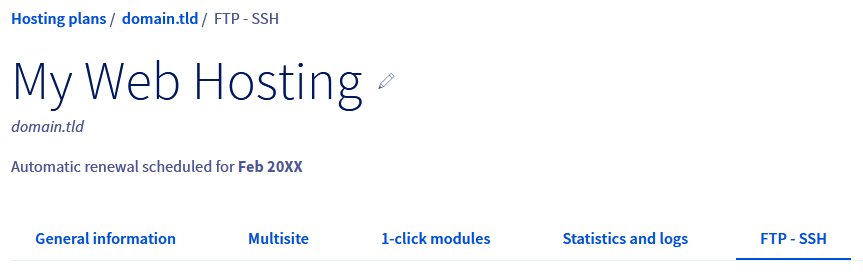
On the page that pops up, click on the FTP - SSH tab.
**Step 3**
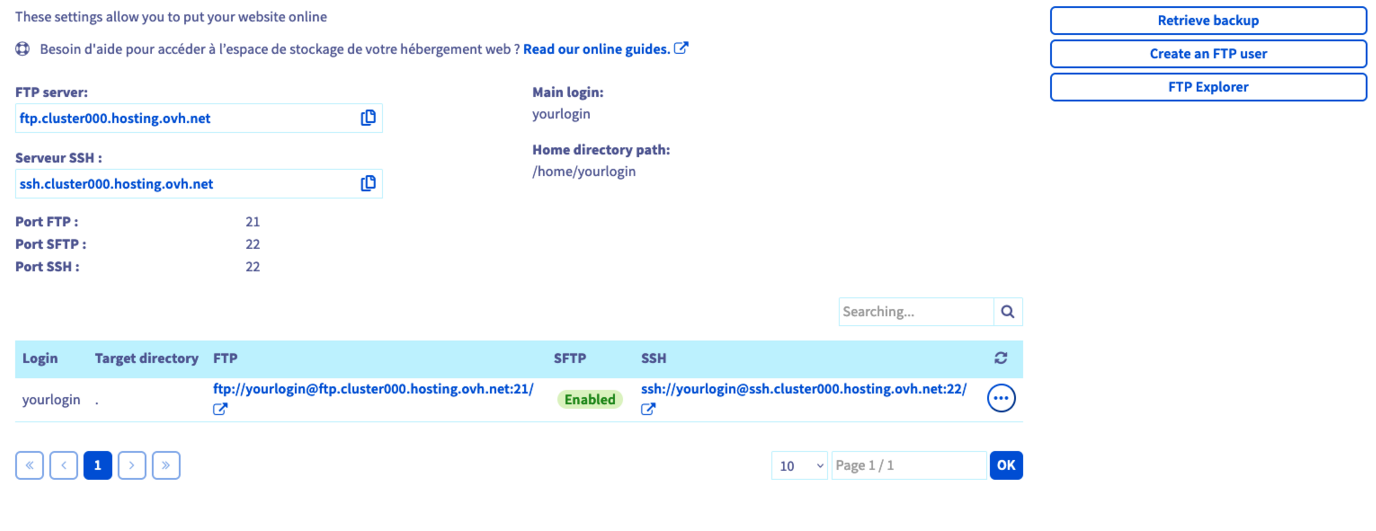
The information associated with your storage space will then appear, along with a table listing the FTP and SSH users created on your web hosting plan.
:::info
If you want to create a new FTP/SSH user in this tab, click the Create User button on the right.
Define the name extension for this new User and the Root Folder that this user can access and click Next.
Choose a password for this new user account, click Next and then click Confirm.
:::
All the elements required to log in to the FTP storage space are present on this page.
**Step 4**
Below is a description of the essential information displayed on the `FTP - SSH` page:
- **FTP and SFTP server**: FTP server address of your web hosting plan to access your FTP storage space via FTP or SFTP software.
> The standard connection port is "21". Use port "22" for a connection via SFTP (if it is enabled).
- **SSH Server**: SSH server address of your web hosting plan to access your FTP storage space via a terminal and SSH protocol.
> The SSH connection port is "22".
- **Main login**: Primary FTP username created on your web hosting plan. You can find all of your web hosting plan's FTP users in the "Login" column of the table.
:::info
Depending on which OVHcloud [web hosting plan](https://www.ovhcloud.com/en-gb/web-hosting/) you have, some of the information listed above (particularly concerning SSH) may not appear.
:::
If you have forgotten your FTP or SSH user password, please refer to our guide "[Modifying a FTP user password](/en/guides/web-cloud/web-hosting/ftp-change-password.md)".
At this stage, you have everything you need to log in to your FTP storage space.
### 2 - Access your FTP storage space [](#)
There are several ways you can access your FTP storage space. We recommend reading this guide, and focusing on the method you wish to follow.
#### 1. Logging in via FTP software [](#)
Once you have installed the FTP software of your choice on your computer (e.g. [FileZilla](/en/guides/web-cloud/web-hosting/ftp-filezilla-user-guide.md) or [Cyberduck](/en/guides/web-cloud/web-hosting/ftp-cyberduck-user-guide-on-mac.md)), start it.
You should find specific fields where you can enter your login details.
:::warning
Since this procedure depends on your software as well as the version you are using, this documentation cannot detail all options.
:::
Here is a reminder of the information you will need to enter:
- **FTP and SFTP server**: FTP server address for accessing your FTP storage space. Depending on the software you are using, the identifier may be: "Server", "Server address", "Host name", or "Host".
- **Main login**: Username to access your FTP storage space. Depending on the software you are using, the identifier may be: "User", "Login", or "Username".
- **FTP user password**: The password associated with the FTP login.
- **Connection port**: This is usually filled in automatically by the software. If you need to enter it:
- Use port "21" for a connection using FTP protocol
- Use port "22" for a connection using SFTP (if it is enabled).
If the information is correct, the software you are using will display the content of your FTP storage space. A message (also called "status") may appear to confirm that the content has been successfully listed by your FTP software.
#### 2. SSH connection [](#)
You will need advanced knowledge and an [OVHcloud web hosting plan](https://www.ovhcloud.com/en-gb/web-hosting/) **Professional**, **Performance**, **Agency**, **Agency Plus** or **Agency Max** to use this access type.
To connect via SSH, use a terminal to interact directly with your FTP storage space via command lines.
You can find more information on SSH in our guide on [using SSH with your OVHcloud web hosting plan](/en/guides/web-cloud/web-hosting/ssh-on-webhosting.md)
An SSH client is installed by default on _macOS_, _Linux_ and _Windows 10_. An older Windows environment will require the installation of software such as [PuTTY](/en/guides/web-cloud/web-hosting/ssh-using-putty-on-windows.md) or the addition of the _OpenSSH_ feature.
:::warning
Since this step is specific to the operating system you are using, we cannot detail it in this documentation.
:::
Once the SSH connection has been established using the method chosen, there are two ways of logging in:
- **From software**: The text boxes must be filled in with the login information.
- **From the command line**: A specific syntax must be used.
At the command line, use the following syntax:
```bash
ssh sshlogin@ssh.clusterXXX.hosting.ovh.net -p 22
```
In the command above, replace:
- The value `sshlogin` by your main FTP login, as described in [part 2.1](#ftpsoftware) (or by an FTP login with SSH access).
- `XXX` with the number of the cluster where your Web Hosting plan is located.
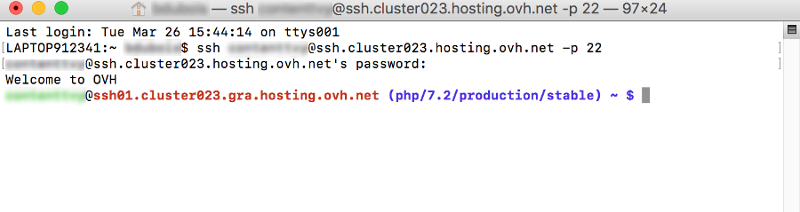
Once the command has been sent, you will be prompted to enter the SSH user password.
If the information you have entered is correct, you will be logged in to your FTP storage space.
Please refer to our guide on [Using an SSH connection on a web hosting plan](/en/guides/web-cloud/web-hosting/ssh-on-webhosting.md) if you need help with this.
## Go further
[Changing an FTP user password](/en/guides/web-cloud/web-hosting/ftp-change-password.md)
[Accessing a web hosting plan via SSH](/en/guides/web-cloud/web-hosting/ssh-on-webhosting.md)
[Using PuTTy for Windows](/en/guides/web-cloud/web-hosting/ssh-using-putty-on-windows.md)
[Tutorial - Using FileZilla with your OVHcloud hosting](/en/guides/web-cloud/web-hosting/ftp-filezilla-user-guide.md)
[Tutorial - Using Cyberduck with your OVHcloud hosting](/en/guides/web-cloud/web-hosting/ftp-cyberduck-user-guide-on-mac.md)
For specialised services (SEO, development, etc.), contact [OVHcloud partners](https://partner.ovhcloud.com/en-gb/directory/).
If you would like assistance using and configuring your OVHcloud solutions, please refer to our [support offers](https://www.ovhcloud.com/en-gb/support-levels/).
Join our [community of users](https://community.ovhcloud.com/).